Let’s get started 🚀
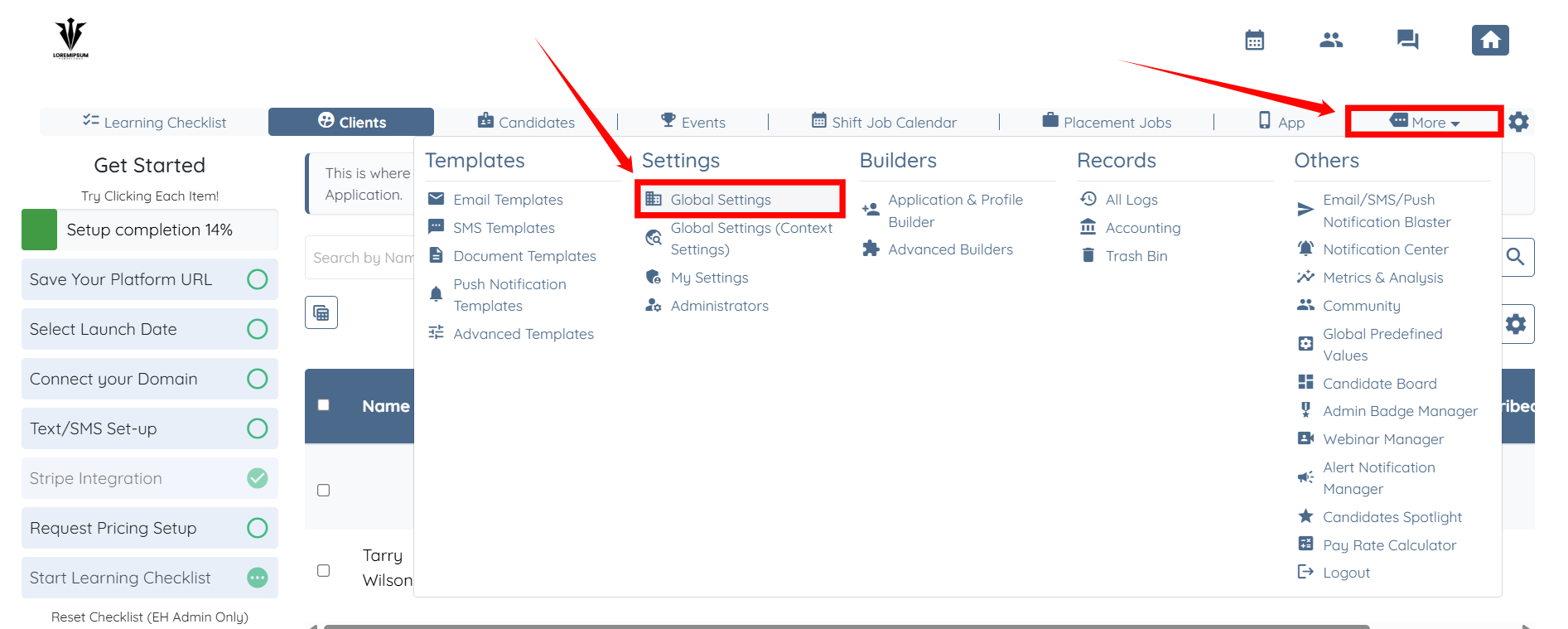
Step 1: Log in to your agent dashboard and click More > Global Settings, as shown in the screenshot below.
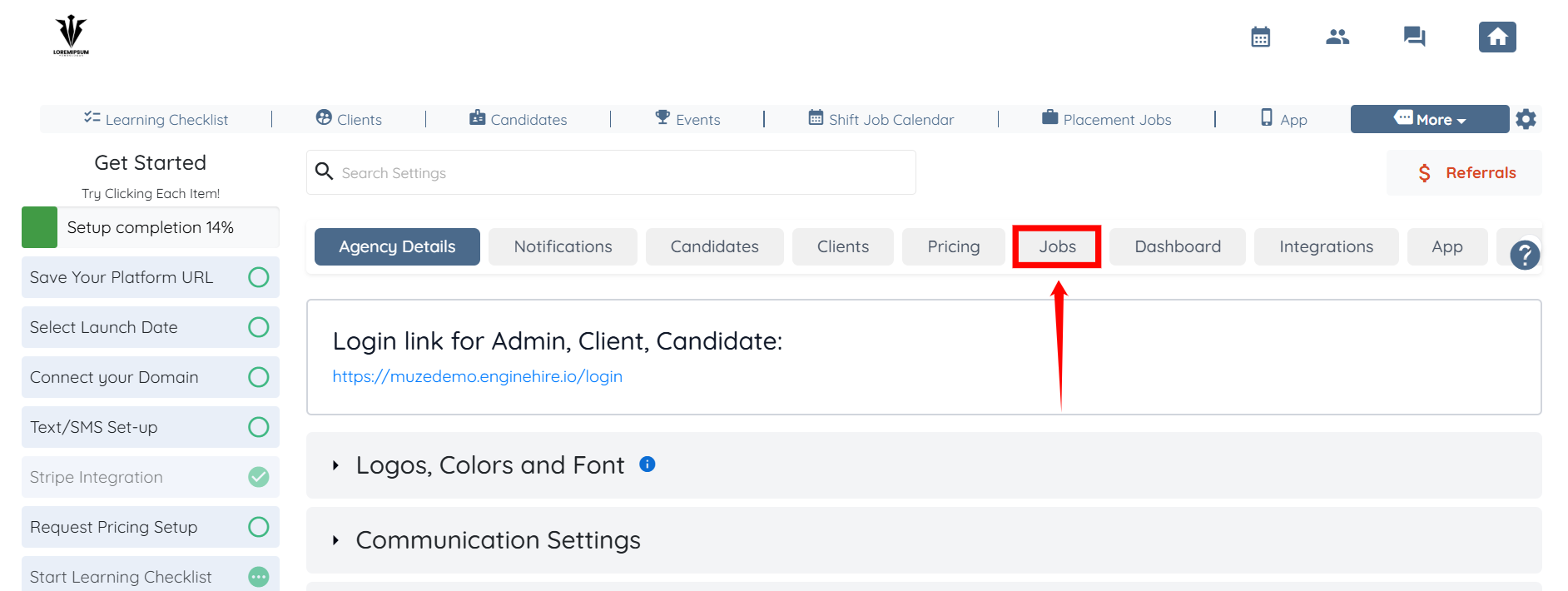
Step 2: From the list of available tabs, click the Jobs tab.
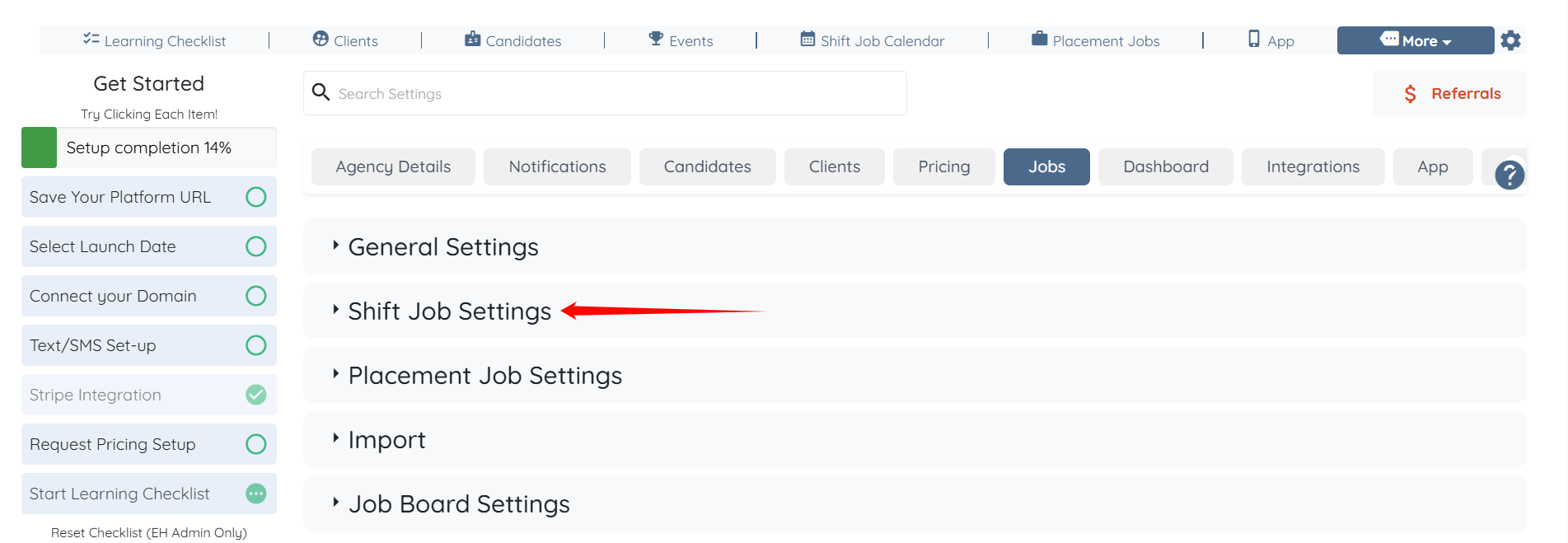
Step 3: Click the Shift Job Settings option to expand its details.
Step 4: In the General tab, under the Shift Job Statuses field, select the color tile that corresponds to the status whose color you want to change.

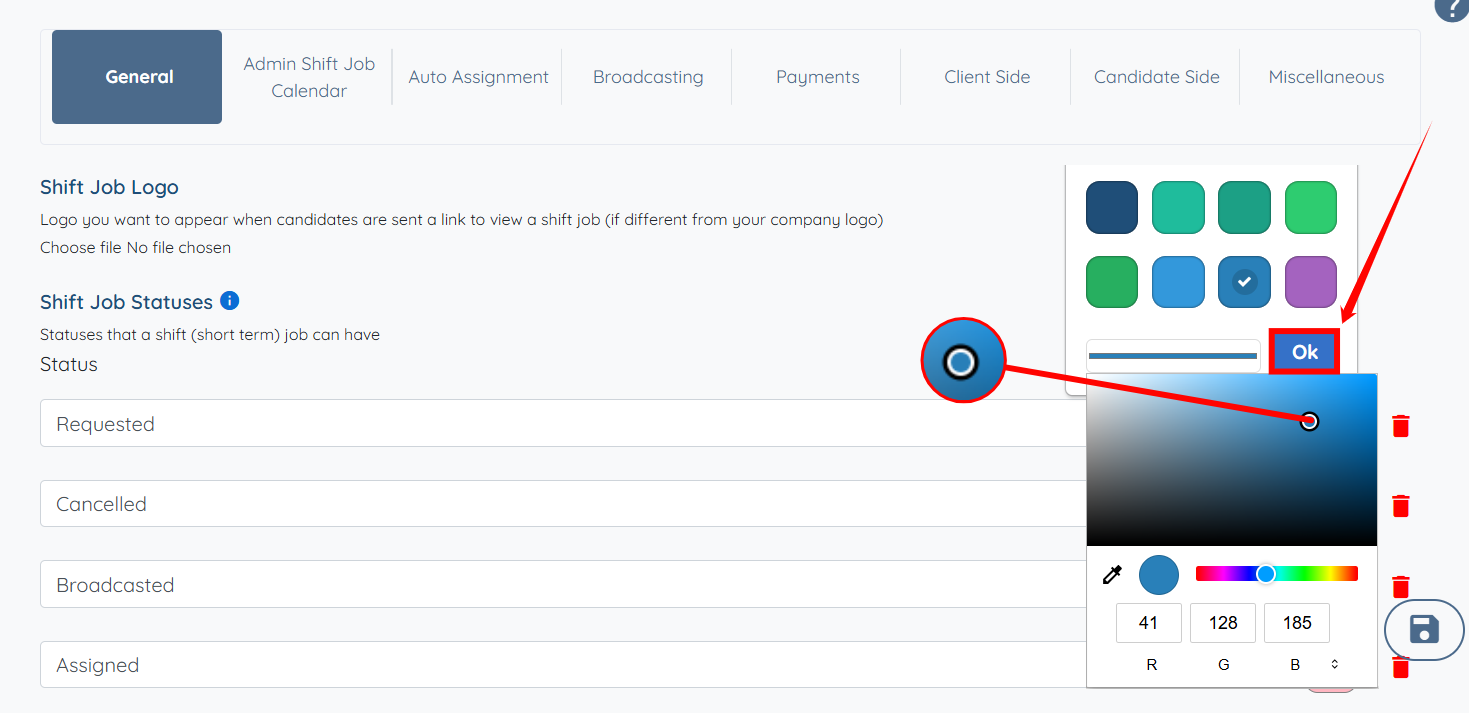
Step 5: Choose the new color for your status from the available options.
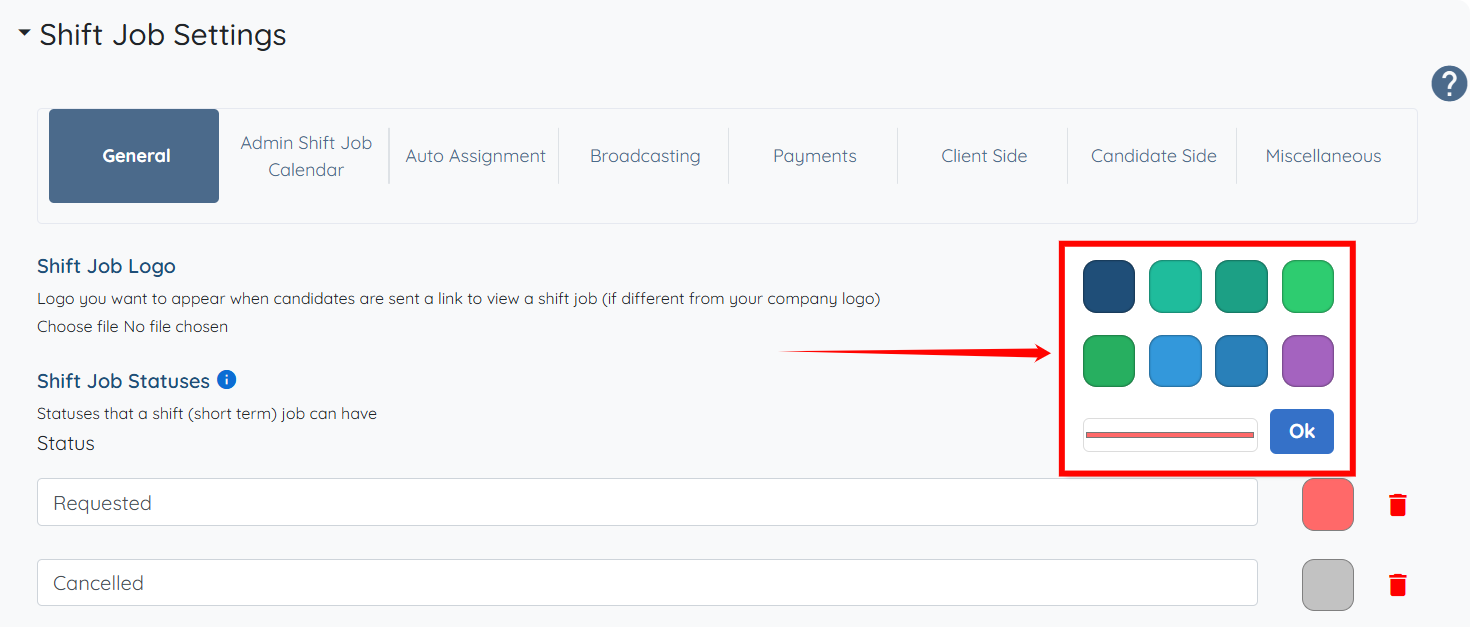
Step 6: Click on the line shown in the screenshot to customize the selected color as needed.

Step 7: Drag the pointer to make custom changes as needed. Then, click the OK button to confirm the changes.
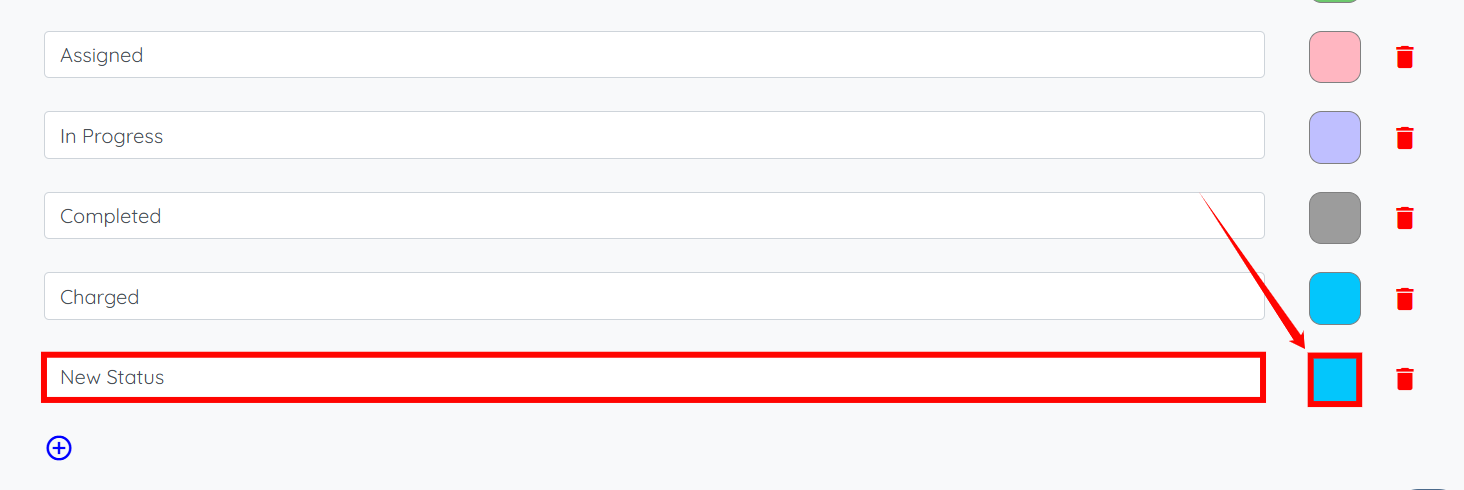
Step 8: You can also add a new status by clicking the + icon.

Step 9: Enter the required new status, and then choose a color for it
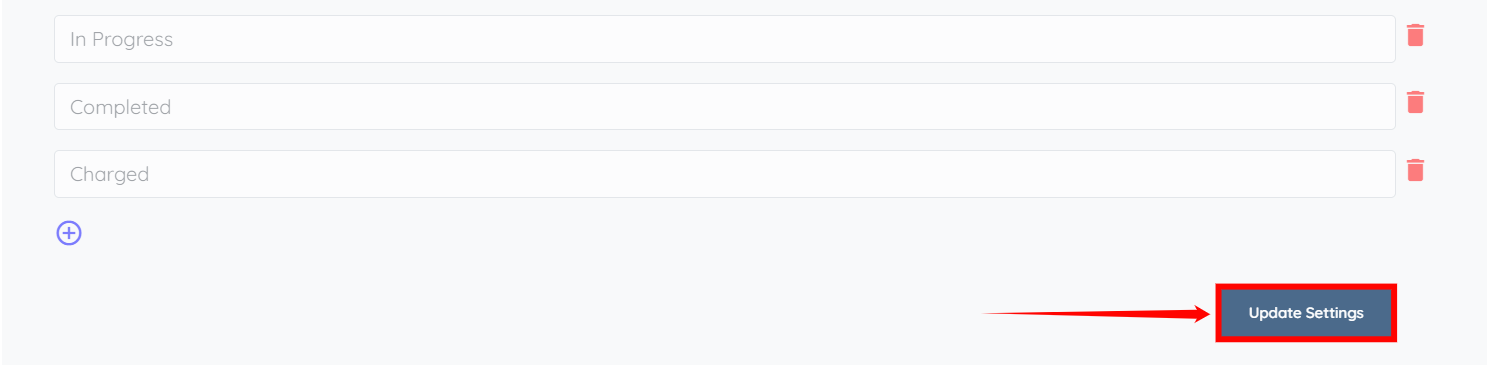
Step 10: Click the Update Settings button to save your changes.
A status appears in your dashboard, search filters, reports, or records, but you cannot find it in your configured status list.
This can occur if:
A default status is configured but has not been added to your status list.
A status is referenced by another feature or configuration but has not been added to your status list.
A previously used status was renamed or removed, but existing records still reference it.
Identify the name of the missing status.
Add the status in the statuses list by following the steps described earlier in this article.
Save your changes.
Refresh the dashboard or reopen the search filters to verify that the status now appears.
If applicable, update any filters, reports, or other settings that use the status.

