Follow these steps to manage the necessary flags for agencies on the EngineHire Master Dashboard:
Step 1: Log in to the EngineHire Master Dashboard.
Step 2: Navigate to the "Agencies Using the App" page.
Step 3: Turn on the flags as needed to alert the agencies about actions they must take.
This action updates the PLA Accepted status in the dashboard.
Log in to the Customer Experience Dashboard.
Navigate to the relevant agency using the Agency ID or Name search filters.
Locate the "PLA Accepted" column.
Click the "Toggle PLA Accepted Status" button.
Verify that the "PLA Accepted" status updates to "true" or "false" accordingly:
If the status is "false", a message prompting the agency to complete PLA Acceptance will display on the Agency Dashboard.
If the status is "true", the message will be removed.
Confirm the "Date Last Toggled" column reflects the correct timestamp.

This action updates the Google Dev Acc Verified status.
Log in to the Customer Experience Dashboard.
Navigate to the agency details page.
Locate the "Google Dev Acc Verified" column.
Click the "Toggle Google Dev Acc Verification Status" button.
Verify that the status changes to "true" or "false" as required:
If the status is "false", a message prompting the agency to complete Google Developer verification will display on the Agency Dashboard.
If the status is "true", the message will be removed.
Confirm the "Date Last Toggled" reflects the latest update timestamp.

This action updates the Apple Dev Acc Verified status and controls whether the message is displayed on the agency dashboard.
Log in to the Customer Experience Dashboard.
Navigate to the agency’s record.
Locate the "Apple Dev Acc Verified" column.
Click the "Toggle Apple Dev Acc Verification Status" button.
Verify that the status updates to "true" or "false":
If the status is "false", a message prompting the agency to complete Apple Developer verification will display on the Agency Dashboard.
If the status is "true", the message will be removed.
Confirm the "Date Last Toggled" reflects the latest update timestamp.
We have three different types of flags to help agencies stay on track with app-related requirements:
Whenever Apple releases a new policy update, the account owner must log into Apple Store Connect and accept the updated agreement. This is necessary for us to continue pushing updates to the agency’s app.
How to Check:
Log into Apple Store Connect.
Go to Business to verify if the agency has completed the PLA.
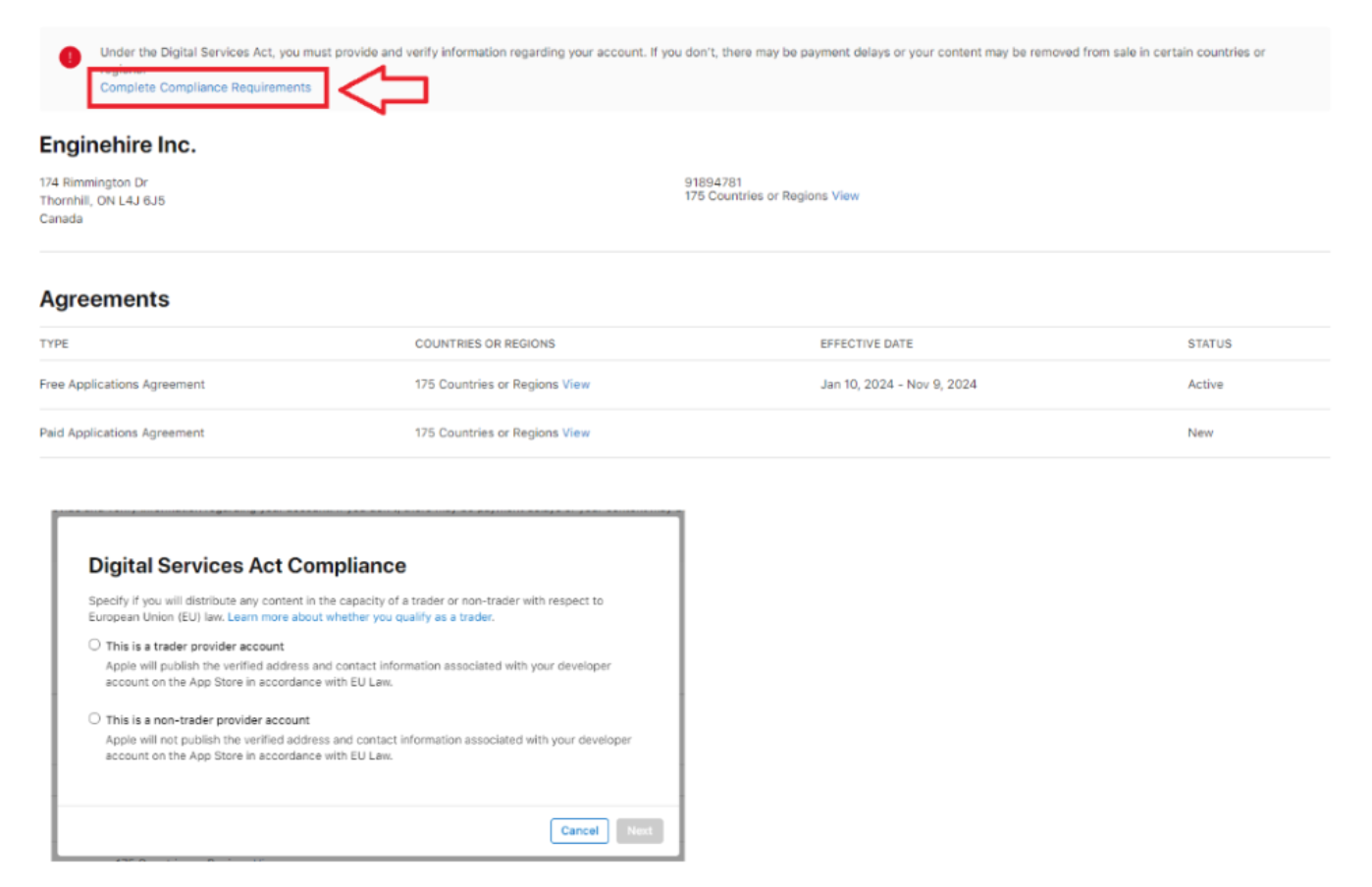
Under the EU’s Digital Services Act, Apple now requires all traders distributing apps on the App Store to verify and display their contact information.
Steps for Agencies:
Go to App Store Connect.
Select Business Card and follow the instructions to complete verification.
3) Google Developer Account Verification
This process requires account owners to verify their identity or business details.
How to Check:
Log into the Google Play Console.
Navigate to the Home Page to confirm if the verification has been completed.
Example:
By actively managing these flags, you ensure agencies stay compliant and avoid delays in app updates or distribution. If you have any questions or need further assistance, feel free to reach out to the APP team!
