We first need to understand what email template triggers are. Email template triggers are automated actions that send specific email templates based on certain conditions. These triggers are tied to events or actions within the platform, allowing you to set up pre-configured emails that automatically reach the right recipient at the right time.
There is a dedicated area in your dashboard where you can manage all of your email templates. To access this navigate to More → Email Templates
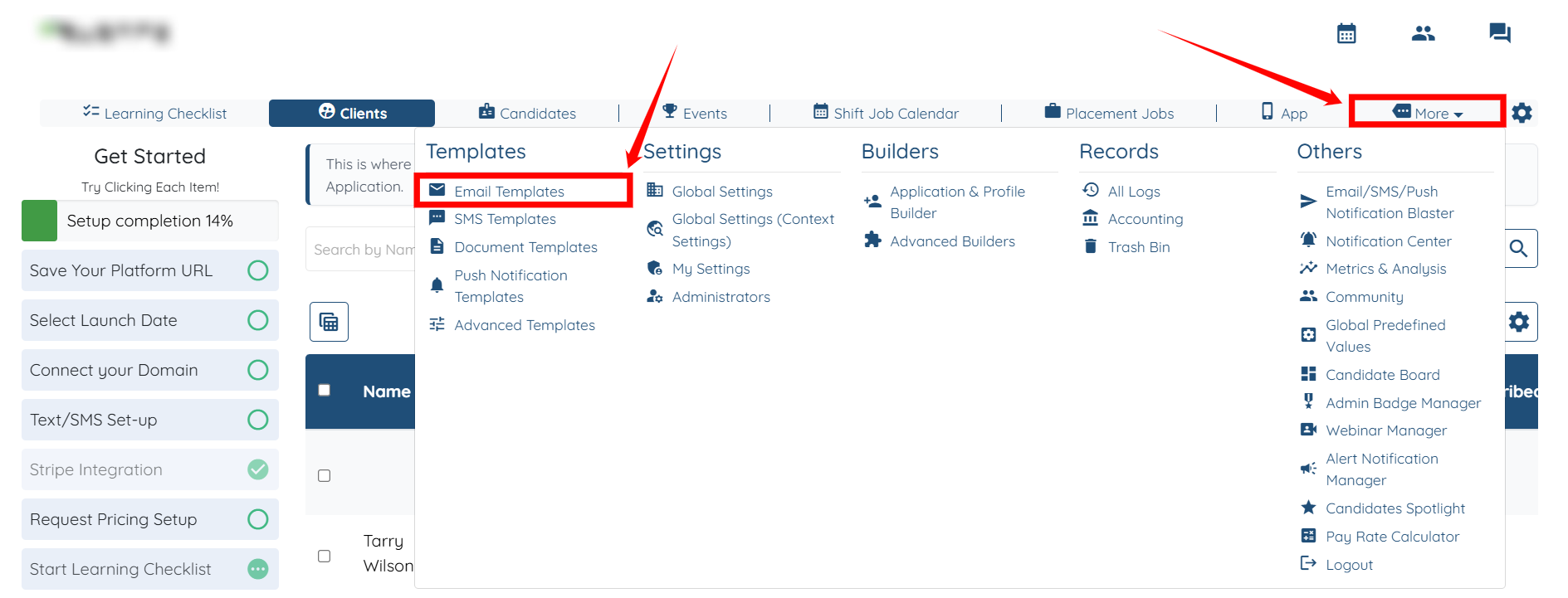

To create a new email template
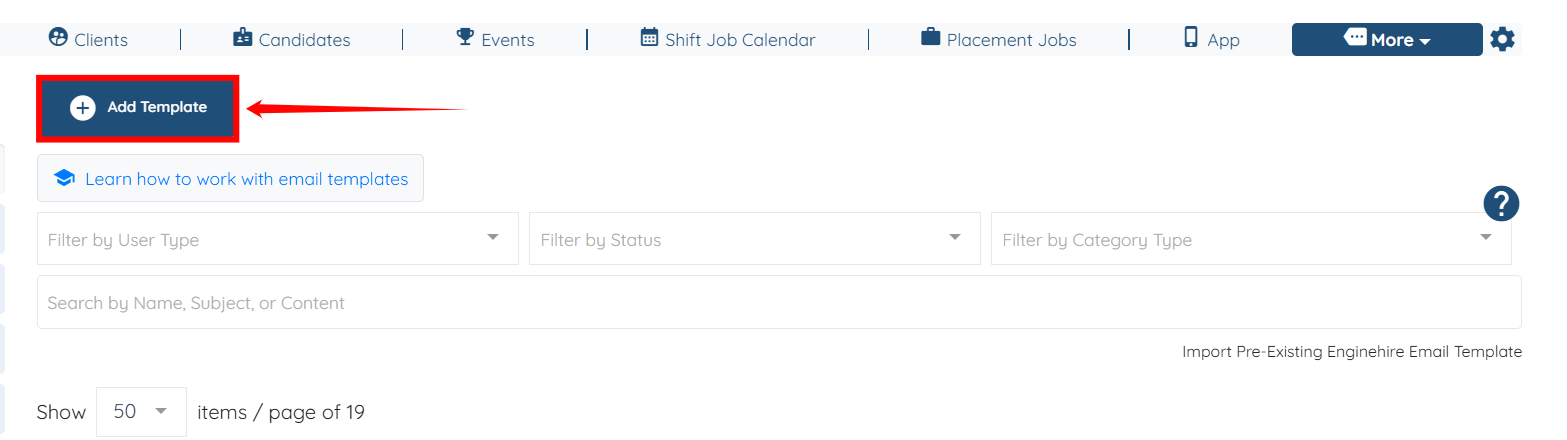
1- Click on the Add Template button.
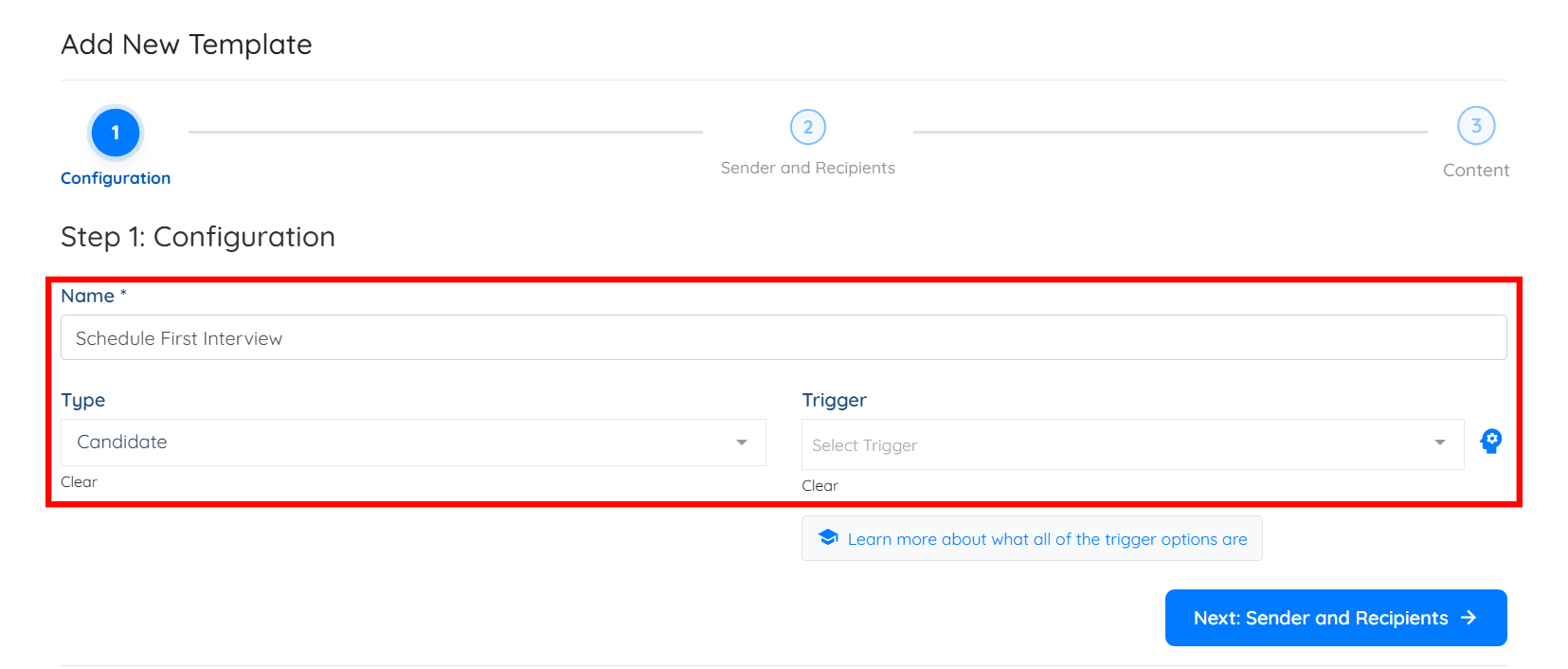
2- Label the email template, this is for your own reference so that it is easier for you to find this email template when needed.
3- Select Audience: Choose whether you want to send it to the Candidate, Client, or any other audience type. (The list of available triggers will change based on the audience you select.)
4- Click on the dropdown to see a list of all the available triggers relevant to your selected audience.
Below is a list of the different email template triggers that appear once "Candidate" is selected as the audience.
1. Status Change Notification
This trigger is used to send an email to candidates once they are moved to a certain status. (e.g., from "Applied" to "Hired").
After selecting the trigger, use the dropdown to select the relevant status that this email should be triggered for.
2. Second Status Change Notification
This is similar to the status change notification but specific to "Secondary Statuses"
This trigger is used to send an email to candidates once they are moved to a certain secondary status.
How to link an email template to a secondary status change
3. Status Reminder
This trigger is used to automatically send an email if a candidate stays in a certain status for X amount of hours.
How To Create Email Templates For Status Reminders
4. Second Status Reminder
This is similar to the status reminder trigger but specifically for candidates who have a secondary status assigned to their profile
Click here to learn more about Secondary Statuses
5. Resend Status Reminder
This trigger notifies the candidate when one of their references has completed and submitted the reference check form.
6. Share Client Profile
This trigger is used to send an email to candidates when they are matched with a client.
Matches - How to share a candidate profile with a client
7. General
This trigger does not automatically send any emails; instead, it serves as a placeholder for the trigger field. You can use it to store email templates that you want to send manually, allowing them to appear in a dropdown list of available templates when sending emails manually.
8. Schedule Event Notification
This trigger allows you to customize the default email template used to notify candidates when an event is created directly from their profile.
Going over the Schedule Event area in the admin tab of a profile
9. Schedule Event Reminder
This trigger is used to automate reminder emails, which can be sent either before or after scheduled events.
Create Reminder Emails to Send Before or After Scheduled Events.
10. Reference Check Form Notification
This trigger is used to send an email notification to the references provided by the candidate, prompting them to complete the reference check forms. The email is not sent to the candidate.
11. Reference Check Form Reminder
This trigger is used to send an email reminder to the references provided by the candidate, prompting them to complete the reference check forms. The email is not sent to the candidate.
How to remind references to complete the reference check forms
12. Send Document To Sign After Client Has Signed
This trigger is used in creating an email template that pops up when you send a document to a candidate after a client has signed it.
Email template for when document signed by client and is sent to candidate
13. Repeat Email Blaster
This trigger is used to send repeating email blasts automatically.
Setting up and sending email repeat blaster
14. Start Date Follow Up
This trigger is designed to send an email based on the Start Date. This is the start date you select when you match a candidate with a client and select a relationship status as well.
15. Expiry Document Notification
This will automatically send an email notification when a document is expiring so that they can review and update the document
16. Client Mark Interested
This trigger is used to notify candidates when a client shows interest in a candidate by selecting the "I am interested" button.
17. Birthday Notification
This trigger is used to set up emails to candidates on their birthdays. Birthday emails will only go out if you have that question being asked on the application form or on the profile to capture their date of birth.
18. Specific Dates Notification
Use this trigger if you want to send a notification on a specific date or multiple dates.
19. Buy Product
This trigger will send an email when a client purchases a product for the product board.
20. Document to Sign Added
This trigger is used to notify candidates that they need to log in to their profile to sign a newly added document.
How to notify candidates to sign a document
21. Client Marks Candidate Favorite
This trigger is used to notify candidates when a client adds a candidate to their favorites.
22. Reference Check Form Completed Notification
This trigger notifies the candidate when one of their references has completed and submitted the reference check form.
23. Temporary Password Notification
This trigger sends the candidate a temporary password, typically used when they need to reset or regain access to their account.
Below is a list of the different email template triggers that appear once "Client" is selected as the audience.
1. Status Change Notification
This trigger is used to send an email to the client once they are moved to a certain status. (e.g., from "Applied" to "Active").
After selecting the trigger, use the dropdown to select the relevant status that this email should be triggered for.
2. Send Job Summarize Invoice
This trigger sends an invoice to the client when a shift job is completed. It includes the job charges and a link for making a payment.
3. Status Reminder
If user stays in certain status for X amount of hours, it will automatically send this email
4. Resend Status Reminder
This trigger notifies the client when one of their references has completed and submitted the reference check form.
5. Reference Check Form Notification
This trigger is used to send an email notification to the references provided by the client, prompting them to complete the reference check forms. The email is not sent to the client.
Set up/Edit reference email template for client references
6. General
This trigger does not automatically send any emails; instead, it serves as a placeholder for the trigger field. You can use it to store email templates that you want to send manually, allowing them to appear in a dropdown list of available templates when sending emails manually.
7. Schedule Event Notification
This trigger allows you to customize the default email template used to notify clients when an event is created directly from their profile.
Going over the Schedule Event area in the admin tab of a profile
8. Schedule Event Reminder
This trigger is used to automate reminder emails, which can be sent either before or after scheduled events.
Create Reminder Emails to Send Before or After Scheduled Events.
9. Assigned Candidate
This trigger is used to customize the default email that shares new candidates with clients
Customize Default Email That Shares New Candidates to Clients
10. Bulk Assigned Candidate
This trigger is used to notify clients when you go to the list of applicants for a placement job, select more than one and bulk send.
11. Repeat Email Blaster
This trigger is used to send repeating email blasts automatically.
Setting up and sending email repeat blaster
12. Start Date Follow Up
This trigger is designed to send an email based on the Start Date. This is the start date you select when you match a candidate with a client and select a relationship status as well.
13. Invoice Due Date Reminder
This trigger automatically sends a reminder to the client based on the Due Date of their invoice. You can also define to notify X days before due date of the invoice
14. Unpaid Invoice Reminder
This trigger sends an automatic notification to the client if they haven't paid their invoice in time. You can have it configured to keep on sending these reminders at a certain interval until the invoice is paid.
15. Client Cancels Subscription
This trigger sends an automatic email to the client when they cancel their subscription.
16. Rent Equipment
This trigger notifies the client about the equipment they have rented, providing a summary of the items associated with their request.
17. Purchase Gift Card
This trigger is used to customize the email that goes to the person who purchased a gift card
Adjust Email Templates for Gift Cards
18. Buy Product
This trigger will send an email when a client purchases a product for the product board.
19. Gift Card Code Delivery
This trigger is used to customize the email sent to the recipient, providing them with the gift card code for use.
Adjust Email Templates for Gift Cards Code Delivery
20. Send Invoice
You can use this trigger to customise the email that goes out to clients when you send them an invoice
21. Recorded Payment
This trigger is used to notify the client when manually add a payment record to a client's profile.
This is for when you record a payment on the system that is not tied to an on system payment processer (Cash, Check, etc...)
22. Children Birthday Notification
This trigger is used to set up emails to clients on their children's birthdays. Birthday emails will only go out if you have that question being asked to capture their date of birth.
23. Specific Dates Notification
Use this trigger if you want to send a notification on a specific date or multiple dates.
24. Document to Sign Added
This trigger is used to notify clients that they need to log in to their profile to sign a newly added document.
How to notify clients to sign a document
25. Document Signed – Signer Notification
This trigger confirms to the client that they have successfully signed a document.
26. Temporary Password Notification
This trigger sends the client a temporary password, commonly used when they need to reset or access their account.
Below is a list of the different email template triggers that appear once "Job" is selected as the Type.
1. Status Change Notification
This trigger is for shift jobs.
When you select this trigger, you will then need to select who it will be going to. Either the Filler or the Poster. Filler is the candidate and Poster is the client.
Then select the status you want to send it to them
Note: If you want it to go to them when assigned, you will need to use the Booking Confirmation trigger, not status change.
2. Placement Job Status Change Notification
This trigger is to send to when you change the status of a placement job.
When you select this trigger, you will then need to select who it will be going to. Either the Filler or the Poster. Filler is the candidate and Poster is the client.
Then select the status you want to send it to them
3. Placement Job Broadcast
This will be your template for when you broadcast a shift job.
4. Bulk Email Placement Job Applicant
This trigger is related to this article: Email candidates who have applied to a placement job.
You are able to bulk update candidates that have applied to a placement job. This is a great way to update them all at once.
5. Shift Job Broadcast
This will be your email template when you manually broadcast a shift job. This is not for auto broadcast but for when you go to a shift job and click broadcast.
6. Placement Job Bulk Broadcast
If you want to broadcast more than one placement job, this will be your template to use.
7. Shift Job Bulk Broadcast
When you want to broadcast more than one shift job at once, you will use this template.
NOTE: make sure to use plural tags such as [[joblinks]] If you use a singular tag, it could make the template not work. This includes using a tag in the subject line as well.
Here is how to bulk broadcast
8. Candidate Booking Confirmation.
When you assign a candidate to a shift job, this will be the template. This is not when a candidate accepts a shift job, but this is when you manually assign a candidate.
For this template: You can have different templates for each shift job category. When you select the trigger you can select which category. If it is for all of them you can leave it blank
9. Client Booking Confirmation
After you assign a candidate to a job, this is the email that will go to the client. This is not when a candidate accepts a shift job, but this is when you manually assign a candidate.
For this template: You can have different templates for each shift job category. When you select the trigger you can select which category. If it is for all of them you can leave it blank
10. Client Self Booking Confirmation
If you have the setting on to allow clients to pick from candidates who have marked interested in their shift job this is the email template that will get sent to the client once they select someone.
For this template: You can have different templates for each shift job category. When you select the trigger you can select which category. If it is for all of them you can leave it blank
11. Shift Updated Candidate Notification
If you update the shift job or a client updates the shift job, this will inform the candidate who has been assigned to the shift job that there has been an update.
12. Shift Job Accepted Candidate Notification
If you are using the setting to allow candidates to accept or decline a shift job, if they accept this will be the template.
13. Shift Job Declined Candidate Notification
As an admin if you go to a shift job, view who has marked interested, if you select decline, this is the email template that will be sent to them.
14. Shift Job Accepted Client Notification
If you have the setting turned on to allow candidates to accept or decline and a candidate accepts, this is the email that will be sent to the client.
15, Shift Job Declined Client Notification
When using the setting to allow candidates to accept or decline and a candidate declines, this is the email that will be sent to the client. This will only send if you have the setting turned on to have clients get an email if a candidate declines.
16. Shift Job Report Client Notification.
If you have the setting turned on to have candidates submit a shift job report after their shift job and the setting is set to send clients an email. This is the template that will be sent to them.
Here is the setting related to shift job report.
17. Shift Job Mark as Completed Client Notification
When the setting is turned on to allow candidates to mark a shift job as completed, rather than clock in/out. This is the email that will get sent to clients.
18. Shift Job Accepted Admin Notification
If the setting is set to allow candidates to accept or decline a shift job, if they accept this is the email being sent to admin.
19. Shift Job Status Change Admin Notification
If you want your admin to get notified of a status change for a shift job, this will be your email template.
20. Shift Job Auto Assigned Admin Notification
This email template is for if you have auto assign on. That setting is for when you have jobs being automatically assigned by the dashboard, not admin or client.
21. Shift Job Interested Admin Notification
When a candidate marks interested in a shift job, this is the email the admin will get
22. Shift Job Maybe Interested Admin Notification.
If a candidate marks maybe interested in a shift job, this is the template admin will get.
23. Shift Job Cancelled Admin Notification
When a client or candidate cancels a shift job, this is the email template that will go to admin.
24. Shift Job Interested Client Notification.
If you have the setting on to have clients get an email when a candidate marks interested in their shift job, this is the email they will get.
25. Shift Job Unassigned Candidate Notification.
If you unassign a candidate from a shift job they were assigned to, this will be the template they receive.
26. Shift Job Unassigned Client Notification
When you unassign a candidate from a shift job, this is the template the client will get to be notified that the candidate has been unassigned from that shift job.
27. Shift Job Candidate Reminder
If you have the setting to send reminders to candidates about an upcoming shift job, this will be the email template. Here is more information regarding that setting.
Make sure to use [[notifyhours]] for notify hours before starting job. This tag will auto populate the number hours prior.
Here is setting for shift job reminder for candidates
28. Shift Job Client Reminder
For the setting to notify clients to remind them of an upcoming shift job, this will be the template. Here is more information regarding that setting.
Make sure to use [[notifyhours]] for notify hours before starting job. This tag will auto populate the number hours prior.
Here is setting for shift job reminders for clients
29. Unfilled Shift Job Client.
If a shift job has been unfilled and the setting is turned on to inform the client the shift job has not been filled yet, this will be the email template
30. Shift Job Click In Reminder
This is the template to remind candidates to clock into their shift job if they have not done so yet.
Here is how to turn on this setting
31. Shift Job Clock Out Reminder
If a candidate has not clocked out of their shift job and the setting is turned on to remind them to clock out, this will be the template to send to them.
Here is how to turn on this setting
32. Shift Job Tipping Notification
For this template after you select the trigger you will need to select who you want it to send to, either the candidate or client. Filler is candidate, Poster is Client. This will be an email sent after a client has left a tip.
33. Shift Job Status Reminder
This is where you can send an email to either the candidate or client if a shift job has been in a shift job status for X period of time. You will need to select the email destination, which is either the candidate or client. Then select the status and enter in how many hours to send when the shift job has been in that status for X period of time.
34. Payment Information Poster Reminder
If a client has not put in their payment yet for the shift job they have submitted this template will send to them to remind them to put in their payment information. The setting has to be turned on to have this email sent.
35. Placement Job Application Status Reminder.
This is where you can send an email to either the candidate or client if a placement job has been in a shift job status for X period of time. You will need to select the email destination, which is either the candidate or client. Then select the status and enter in how many hours to send when the placement job has been in that status for X period of time.
36. Application Status Change Candidate Notification
When you match a candidate to a client, and you update that status, this will be the email template that will send to that candidate. Such as Hired, Under Consideration, Interested, etc.
37. Application Status Change Client Notification
When you send a candidate to a client, the status you update it to, this will trigger the email to be sent to the client. Once you select this trigger you will need to select a status.
38. Automatically Broadcast New Shift Job
If this setting, is turned on to auto broadcast a shift job, this will be the email template.
39. Automatically Broadcast New Shift Job To Favorite
When the setting is turned on to auto broadcast to favorites, this will be the email that the favorites get.
40. Automatically Rebroadcast Shift Job
If you have the setting set to rebroadcast a shift job, this will be the email template that will be sent out.
41. Notification of New Back Up Care Assistant Jobs
This email template is related to backup care/corporate jobs. If the setting is turned on to alert candidates of a new back up care shift job, this will be the email template.
42. Bulk Assign Candidate Confirmation
This is related to shift jobs. If you select more than one shift job date and assign it to a candidate, it will combine all the dates into one email template, which is this template. This email goes to the candidate you assign the shift jobs to.
Here is how to bulk assign
NOTE: Make sure to use plural tags such as [[joblinks]] or [[jobdates]]
43. Bulk Assign Client Confirmation
This is related to shift jobs. If you select more than one shift job date and assign it to a candidate, it will combine all the dates into one email template, which is this template.
This email will go to the client.
NOTE: Make sure to use plural tags such as [[joblinks]] or [[jobdates]]
44. Complete Associated Bookings Client Notification
If a candidate is assigned to multiple shift jobs for one client and the setting is set to alert the client once the candidate has marked completed for all of them, it will send the client this notification.
45. Job Charged Client Notification
When a client is charged for a shift job, they will get this email template. It is a great idea to send them a breakdown of what they were charged after a shift job.
46. Job Charge Failed Client Notification
If a client's payment fails and they are not charged a shift job, this is the email they will get.
47. Job Charged Client Notification
After a shift job and the client is charged, this is an email template that can be sent to a candidate. You can just have the candidate rate appear and the total amount the candidate was paid.
48. Job Cancel Charged Client Notification
If you have cancellation policy set up to charge a client if a shift job was cancelled, this would be the email template they get.
49. Job Charged Candidate Notification.
If a client cancels a shift job and there is a fee that is going towards the candidate, and the client gets charged, this email would go to candidates. It could've a good idea to inform them the job was canceled but they are still getting paid X amount.
50. Job Assigned to Other Candidate Application Notification
For shift jobs, we have a setting to inform candidates who are marked interested in a shift job that another candidate was assigned. This is the email template for that setting.
51. Placement Job Application Interested Client Notification
If a candidate marks interested in a shift job and the setting is turned on to have clients get an email, this would be the email template
52. Shift Job Declined Admin Notification
If a candidate declines a shift job, this is the email that is sent to Admin. The setting must be turned on to allow candidates to accept or decline.
53. Bright Horizons Case Successfully Staffed Candidate Notification
This trigger sends a notification when a Bright Horizons job has been successfully staffed. It helps keep the team aware of automated placements and overall activity.
54. Shift Job Created Admin Notification
This trigger sends a notification when a client creates their own shift job. It alerts the team so admins are aware of new client-created shifts.
55. Unfilled Shift Job Admin Reminder
This trigger sends a reminder when a booked shift job still does not have an assigned candidate. It helps ensure unfilled shifts are followed up on promptly.
55. Job Cancel Charged Candidate Notification
This trigger notifies the candidate when a booked job has been canceled and a cancellation charge applies. It also indicates how much the candidate will still be paid due to the client cancellation.
56. Placement Job Applicant Added Candidate Notification
This trigger is intended to send a notification when a candidate is added as an applicant to a placement job. Its exact behavior may vary depending on configuration and should be verified in your environment.
57. Client Left Star Review
This trigger notifies the candidate when a client leaves them a star rating. Separate templates can be used for different star levels (for example, 1–5 stars).
58. Candidate Left Star Review
This trigger notifies the client when a candidate leaves them a star rating. Separate templates can be used for different star levels (for example, 1–5 stars).
Below is a list of the different email template triggers that appear once "Admin" is selected as the audience.
1. Start Date Follow Up
This trigger sends a follow-up message based on a candidate’s start date, which is located in the client's matching section. It activates once the start date is set, triggering an automated follow-up to be sent at the appropriate time.
2. Status Change Notification
This trigger sends a notification when a user’s status is changed. It activates as soon as the status update occurs, ensuring a timely alert about the change.
3. Status Reminder
This trigger sends a reminder when a user remains in the same status for a set period of time. It activates based on the configured duration, helping ensure follow-up actions aren’t missed. Additionally, it can be set to send reminders multiple times over a specified number of days (X times over Y days). At the end of the sequence, the user’s status can also be automatically updated to ensure the workflow continues smoothly.
4. Resend Status Reminder
This trigger sends another reminder when a user continues to remain in the same status after the initial status reminder has already been sent. It activates based on the follow-up interval you configure, ensuring continued visibility if no action has been taken.
5. Reference Check Form Notification
This trigger sends a notification to the candidate who submitted the reference when the reference check form is completed and submitted. It activates as soon as the reference completes the form, ensuring the candidate is promptly notified of the update.
6. Payment Submitted Notification
This trigger sends a notification to the client when a payment has been submitted. It activates immediately after the payment is completed, providing the client with timely confirmation of the transaction.
7. Assigned as Manager
This trigger sends an internal notification when a team member is assigned as a client manager. It activates immediately after the assignment is made, ensuring the update is communicated right away within the team.
8. Expiry Document Notification
This trigger sends a notification when a document is approaching its expiry date. It activates based on the configured timeframe, helping ensure expiring documents are addressed before they become invalid.
9. Recorded Payment
This trigger sends a notification when a payment is recorded in the system. It activates immediately after the payment entry is added, providing a quick update about the payment details.
10. Assign To Do Task Notification
This trigger sends a notification when a new task is assigned. It activates as soon as the task is created and assigned, ensuring the recipient is promptly informed about what needs to be done.
11. Todo Reminder
This trigger sends a reminder for an existing to-do task. It activates at the scheduled time you set for the reminder, helping ensure the task is not missed or forgotten.
Below is a list of the different email template triggers that appear once "Reference" is selected as the audience.
1. Status Change Notification
This trigger sends a notification when a reference’s status changes, such as from Not Requested to Requested or Requested to Approved. It activates immediately after the status update occurs, ensuring the change is communicated promptly.
2. Status Reminder
This trigger sends a reminder when a reference remains in the same status for a set period of time. It activates after the configured duration, helping ensure follow-up actions are not overlooked.
3. Resend Status Reminder
This trigger sends another reminder when a reference remains in the same status after the initial status reminder has already been sent. It activates based on the follow-up interval you configure, ensuring continued visibility if no action has been taken.
Below is a list of the different email template triggers that appear once "Event Care" is selected as the audience. These triggers are primarily relevant for agencies utilizing the Event Manager for in-person event management.
1. Event Broadcast
This trigger sends a broadcast message for an event, similar to how a shift job broadcast works. It activates when an event is shared with candidates, providing key details such as the event information, schedule, location, and payout rate.
2. Event Candidate Reminder
This trigger sends a reminder to a candidate before their scheduled event. It activates a set number of hours before the event begins, helping ensure the candidate is prepared and aware of the upcoming details.
3. Event Client Reminder
This trigger sends a reminder to the client before their scheduled event. It activates a set number of hours before the event begins, helping ensure the client is aware of the upcoming event details and prepared ahead of time.
If this doesn't answer your questions you can always contact us by clicking here.
