
Step 1:
Go to a candidate or clients profile. Even though we are going to a profile the setting will be global and apply to everyone.
Step 2:
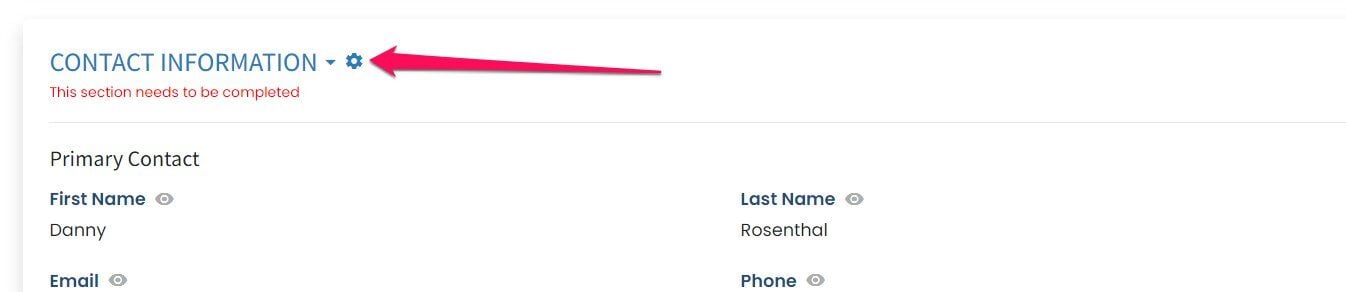
Go to the section you want to be notified about and select the gear icon
Step 3:
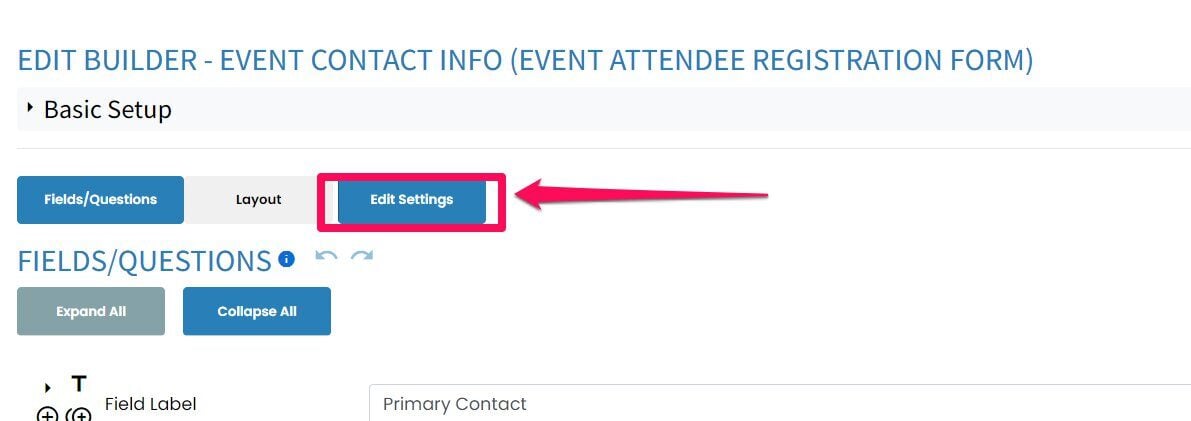
Select Edit Settings
Step 4:
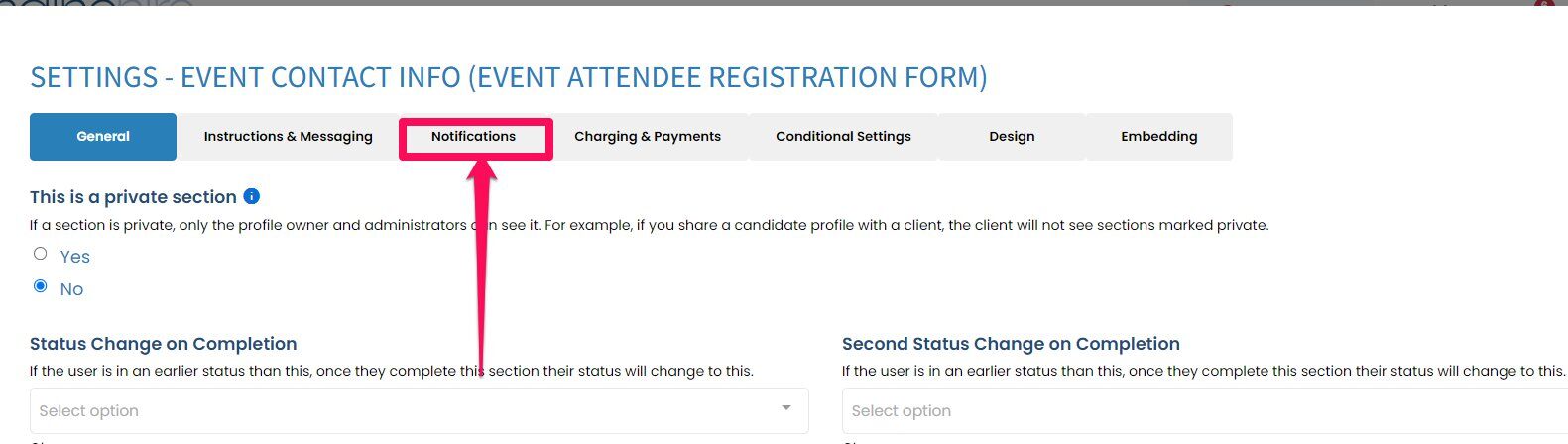
Select Notifications
Step 5:
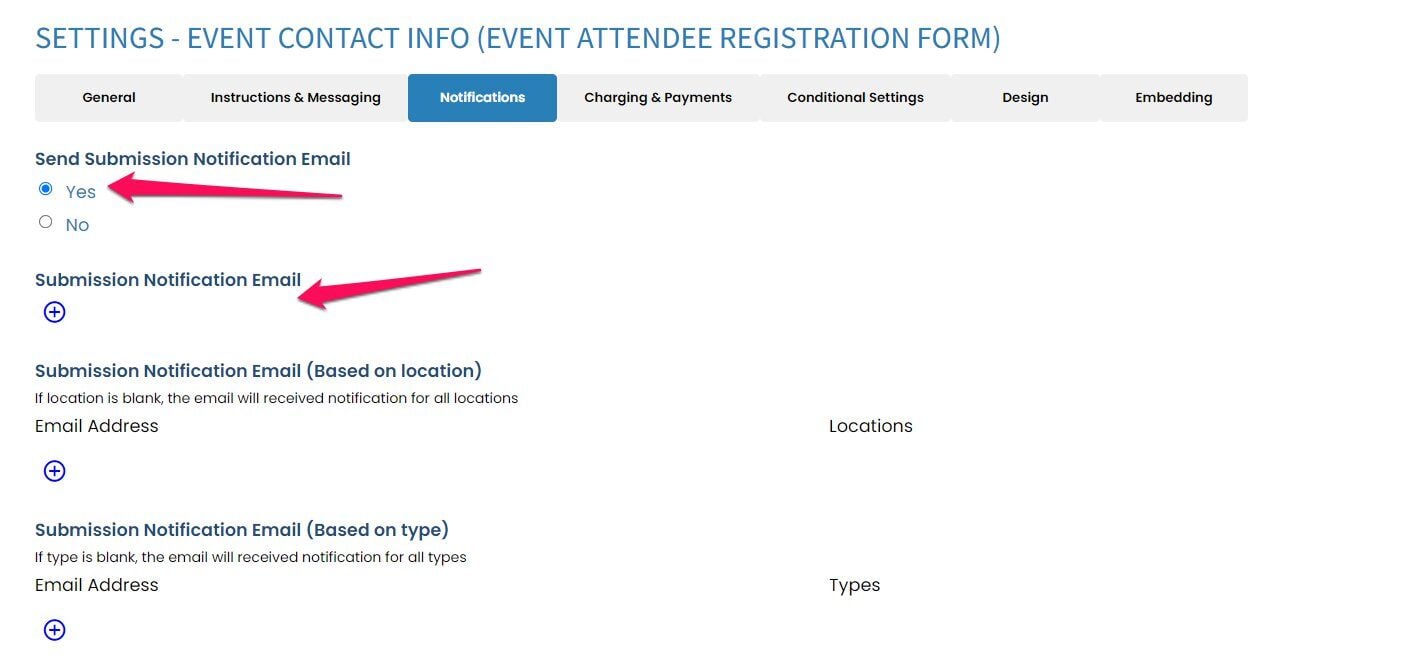
Select YES to send submission notification emails
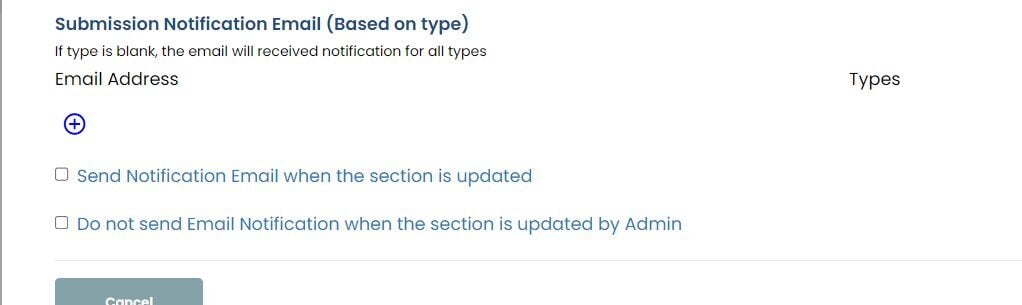
Then add the emails you want to get notified. You can adjust it if you only want it admin to get it if based on their location or type
Step 6 (OPTIONAL)
If you want it to only send if the section is updated, check off the first box.
If you want it to not send if it was updated by admin check off the second box
Step 7:
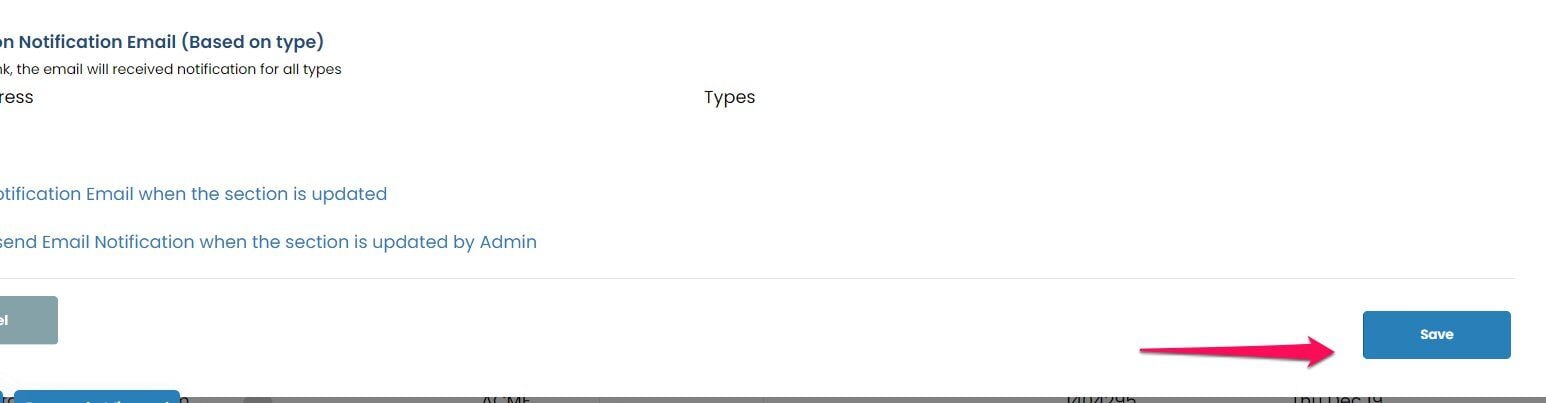
Click Save when done
NOTE:
If you want to do this for more than one section, you will need to do it for each section.
If this doesn't answer your questions you can always contact us by clicking here