Let’s get started 🚀
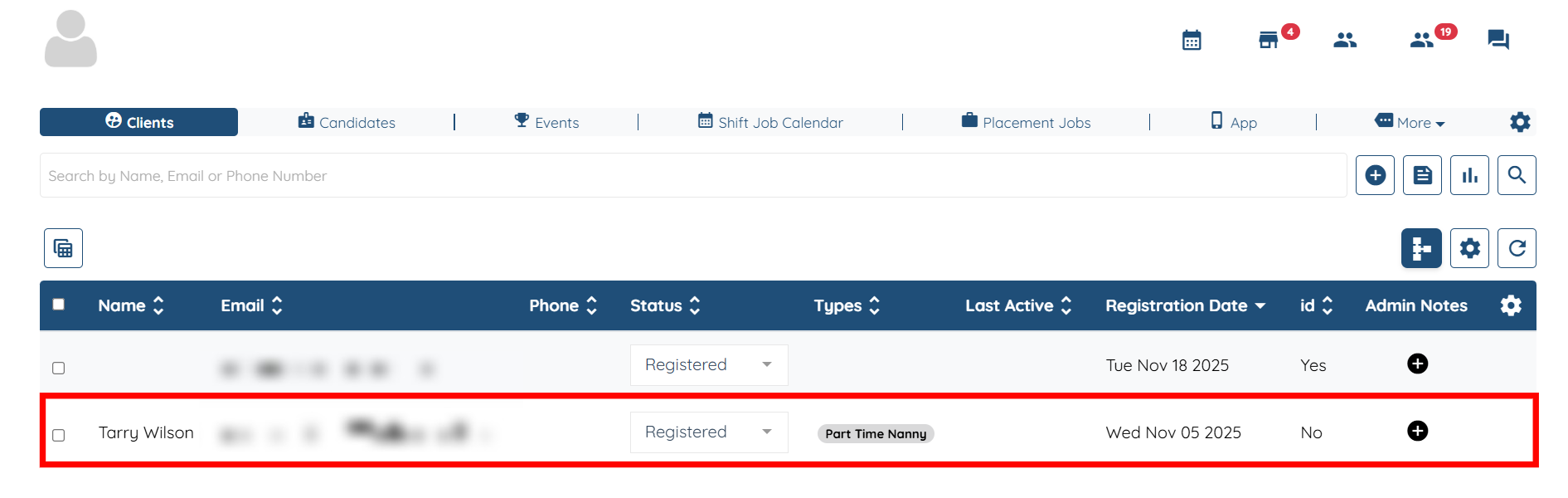
Step 1: Log in to your agent dashboard and click on any client from the list.
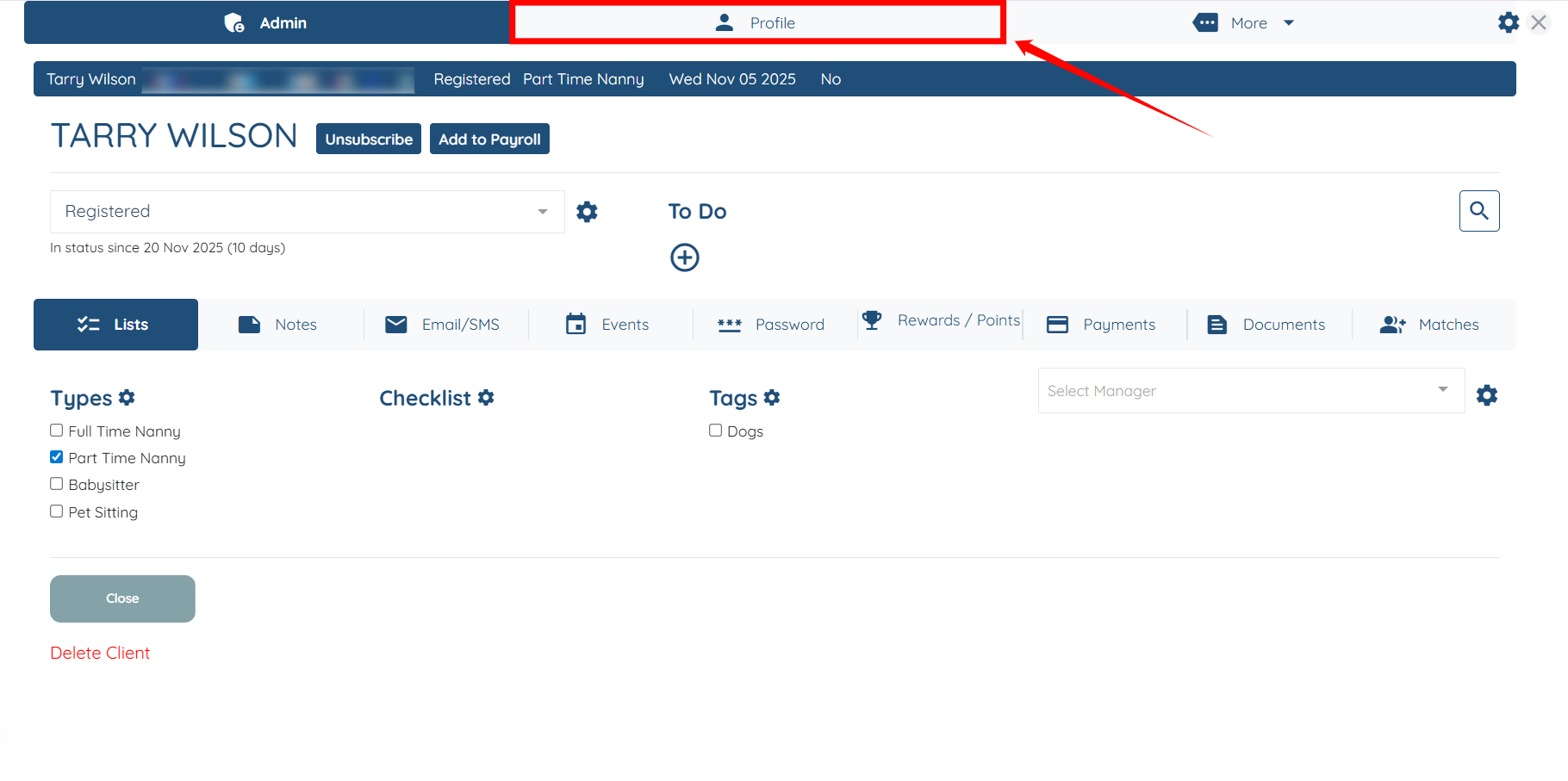
Step 2: Click the Profile tab shown in the screenshot below.
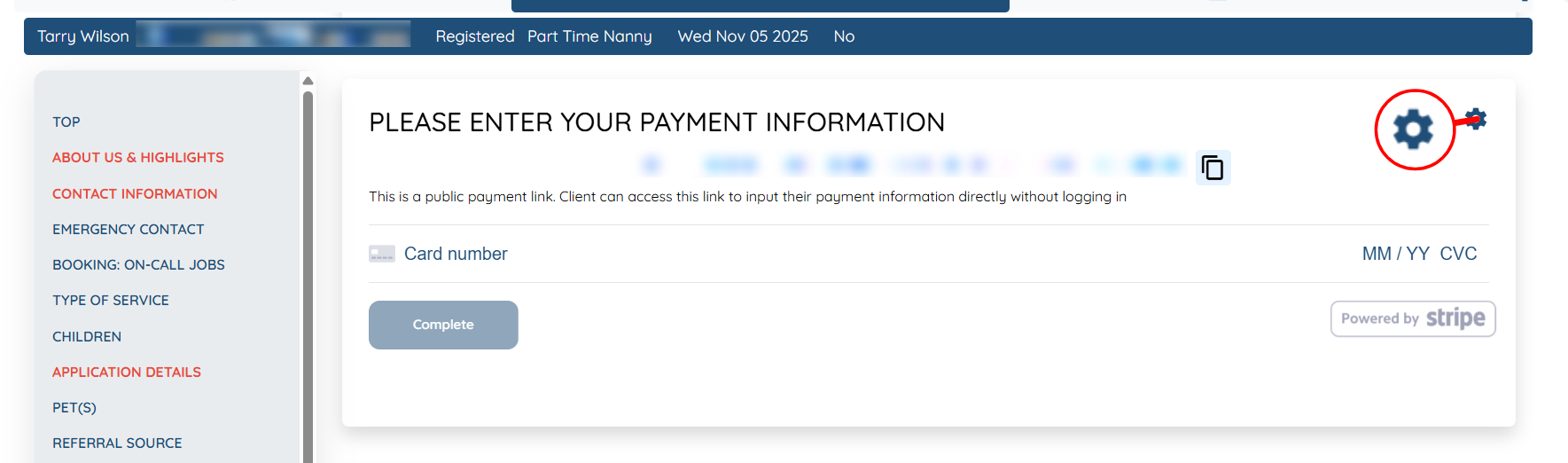
Step 3: Click on the PAYMENT INFORMATION option located in the left navigation bar.
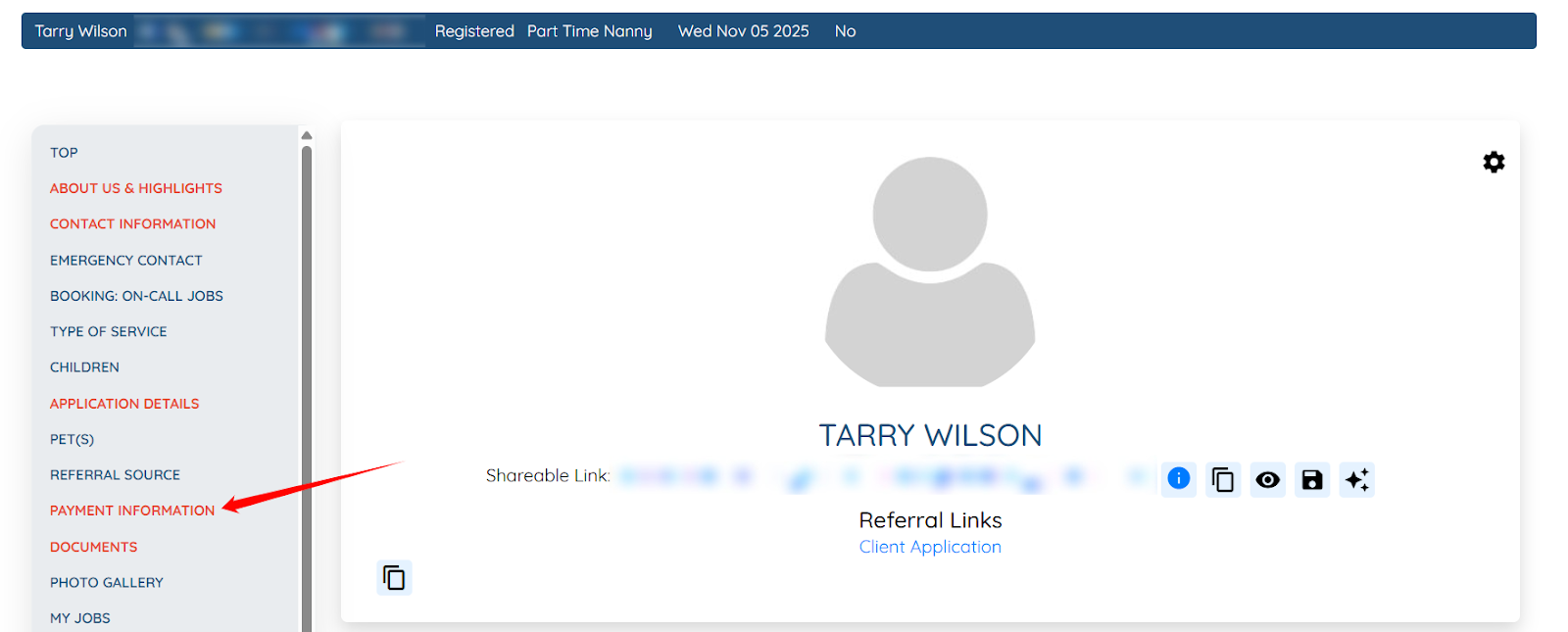
Step 4: Click the Gear icon within the Payment Information block.
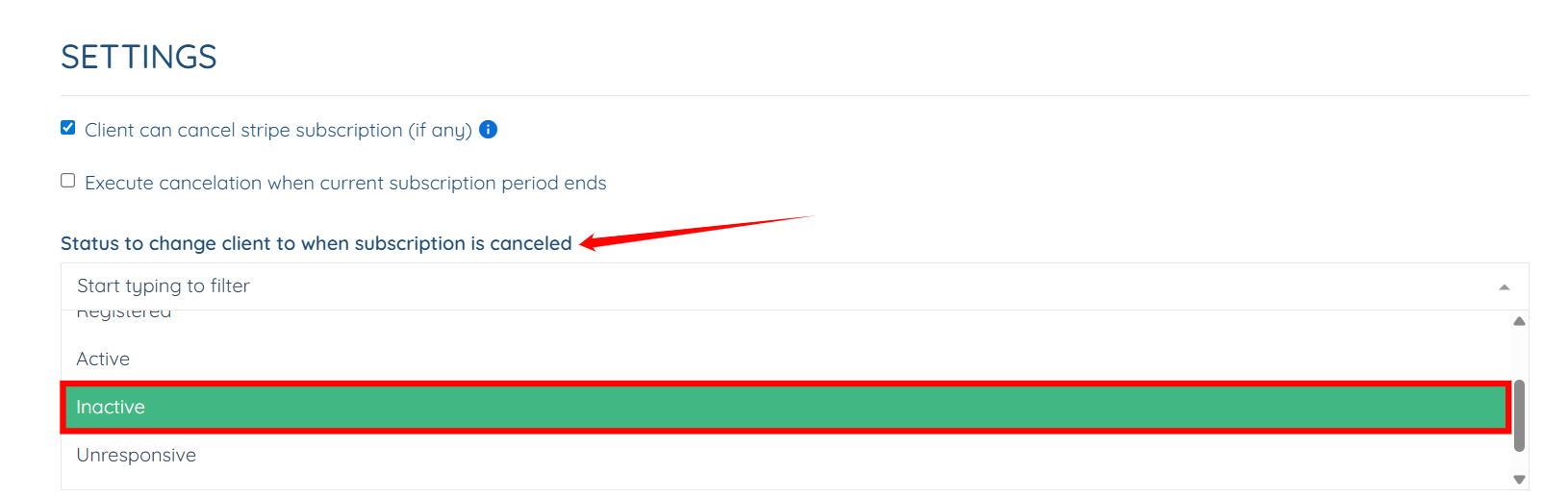
Step 5: Select the status from the “Status to change client to when subscription is cancelled” dropdown.

In
Step 5, when selecting a status from the
Status to change client to when subscription is cancelled dropdown, make sure you choose a status that is already configured under the
Client No Dashboard Access Statuses setting. Only statuses included in the
Client No Dashboard Access Statuses setting will remove the client’s access to the dashboard. This means that once a client cancels their subscription, they will be switched to the status you select in
Step 5, and because that status is marked as
“No Dashboard Access,” the client will no longer be able to access the dashboard. If you have not set up any statuses under
Client No Dashboard Access Statuses setting, refer to the
“Adjust Which Statuses Do Not Have Access to Their Dashboard” documentation before completing this step.
Step 6: Click the Submit button to save the changes.