Let’s get started 🚀
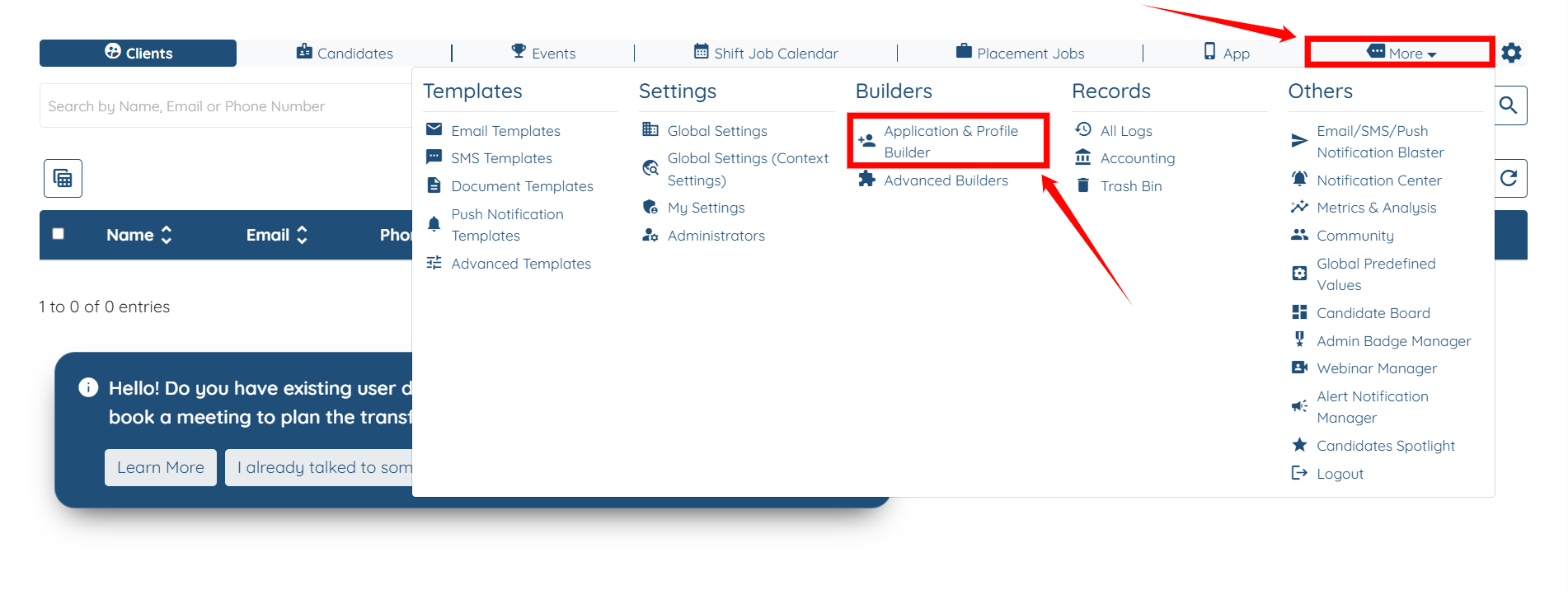
Step 1: Log in to your agent dashboard, then navigate to More > Application & Profile Builder, as shown in the screenshot below.
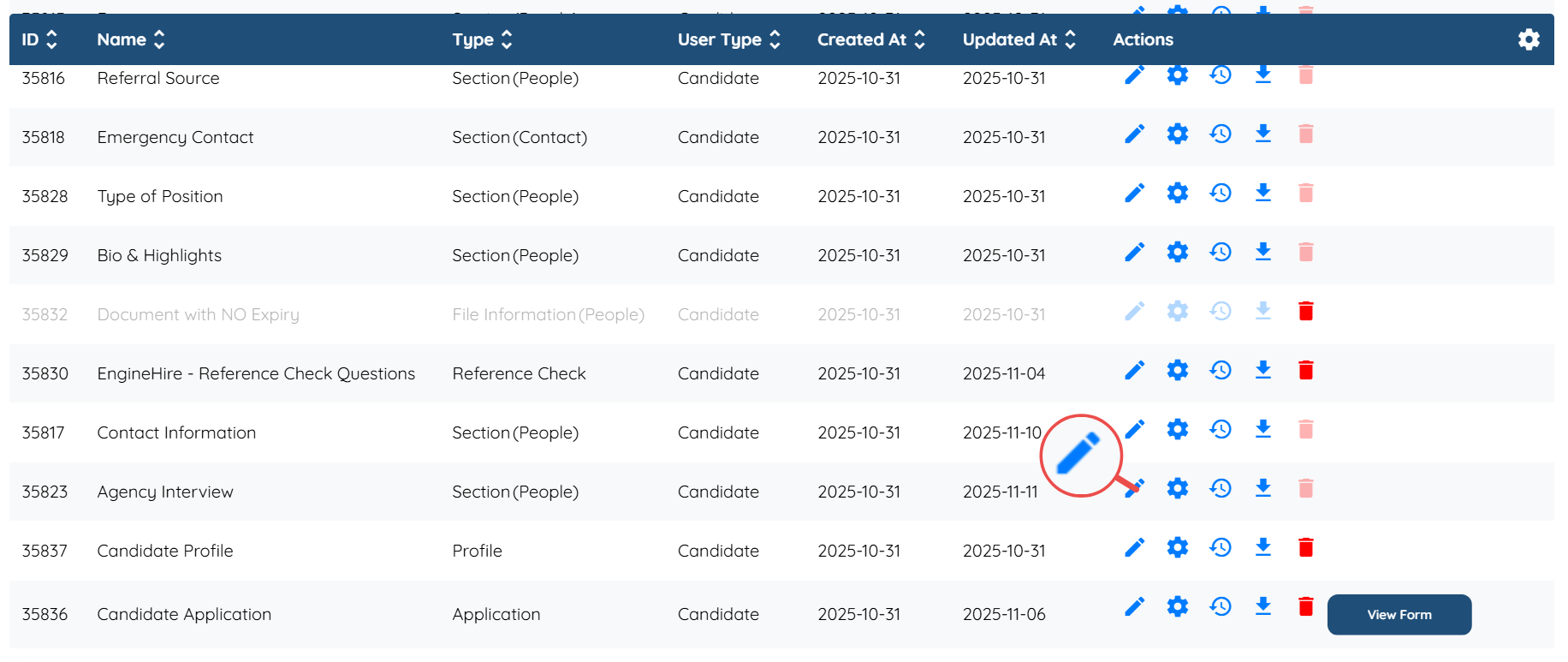
Step 2: Locate the section where you want to add a question, and then click the Pencil icon located in the Actions column for that specific section.
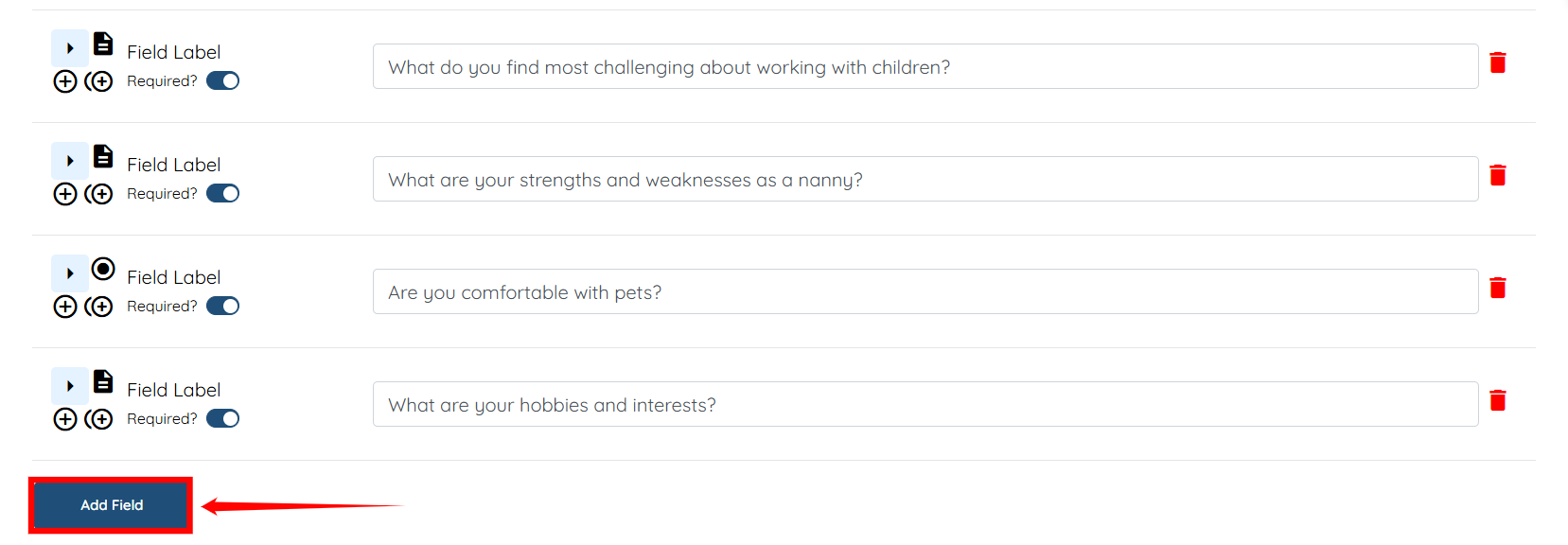
Step 3: Scroll down and click the Add Field button to start adding a new question.
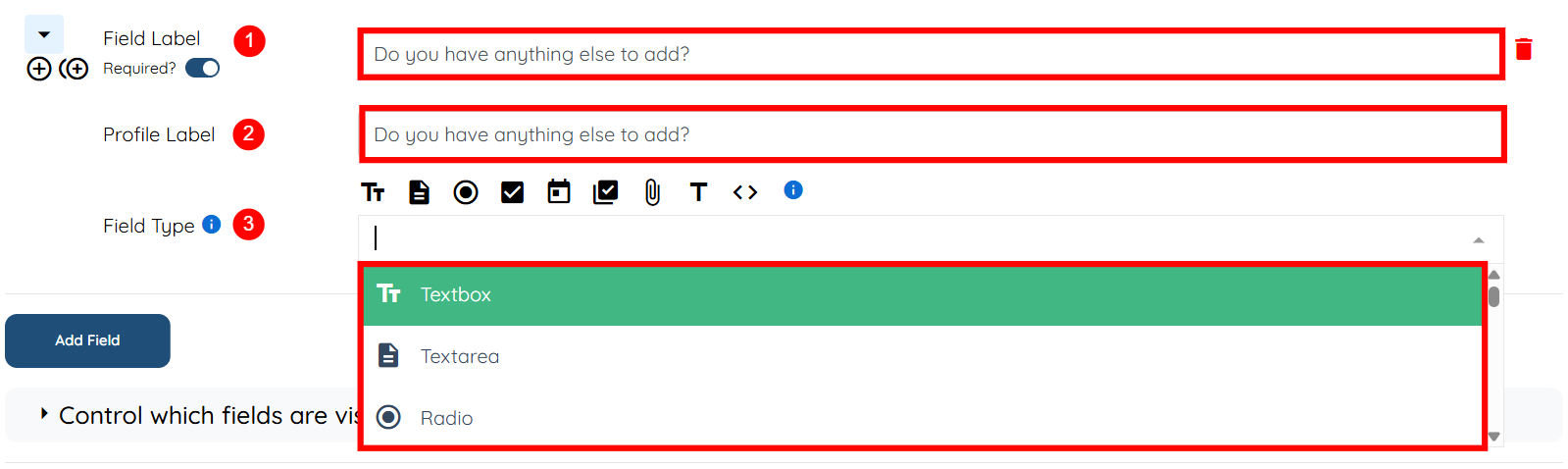
Step 4: Provide all the required details necessary to add a new question.
S.No | Field | Description |
1 | Field Label | It is the text shown to candidates/clients when they are filling out the form. For example, "Do you have anything else to add?" |
2 | Profile Label | It is the text that appears when viewing the profile after the question has been answered. It provides clarity for what information has been provided. |
3 | Field Type | The field type dropdown determines how the answer is captured (e.g., multiple choice, text input, checkbox). It allows you to customize how the question is structured for maximum flexibility. |

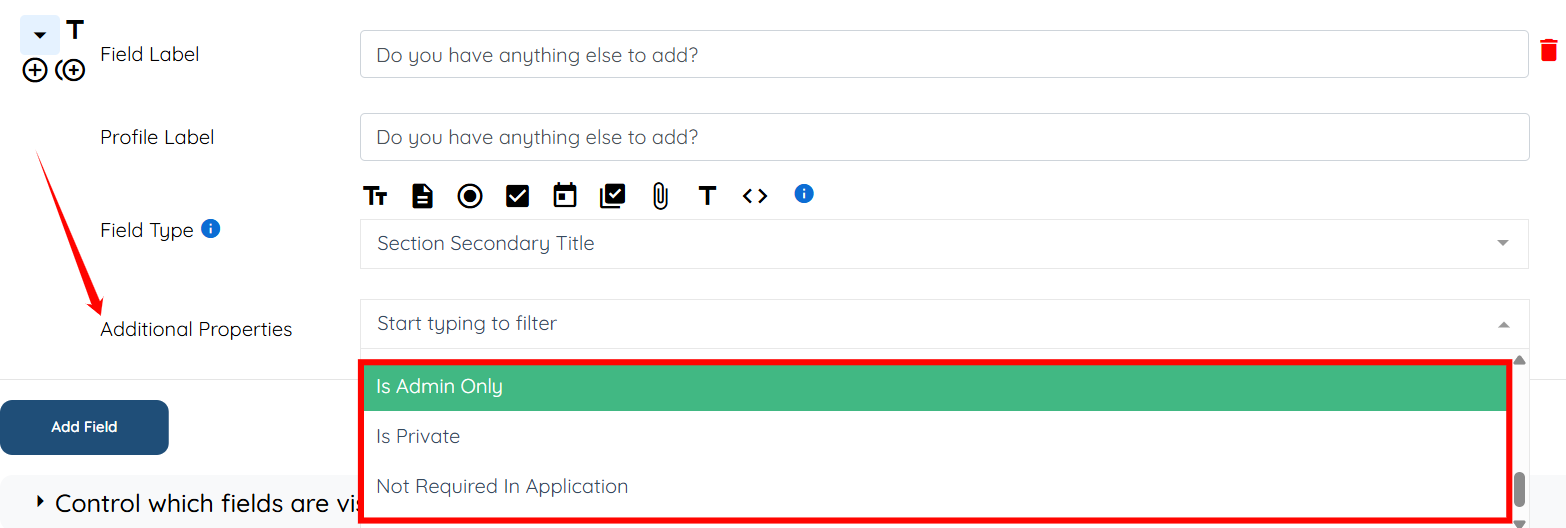
Step 5: You may include any additional property, if desired, from the list of available properties.
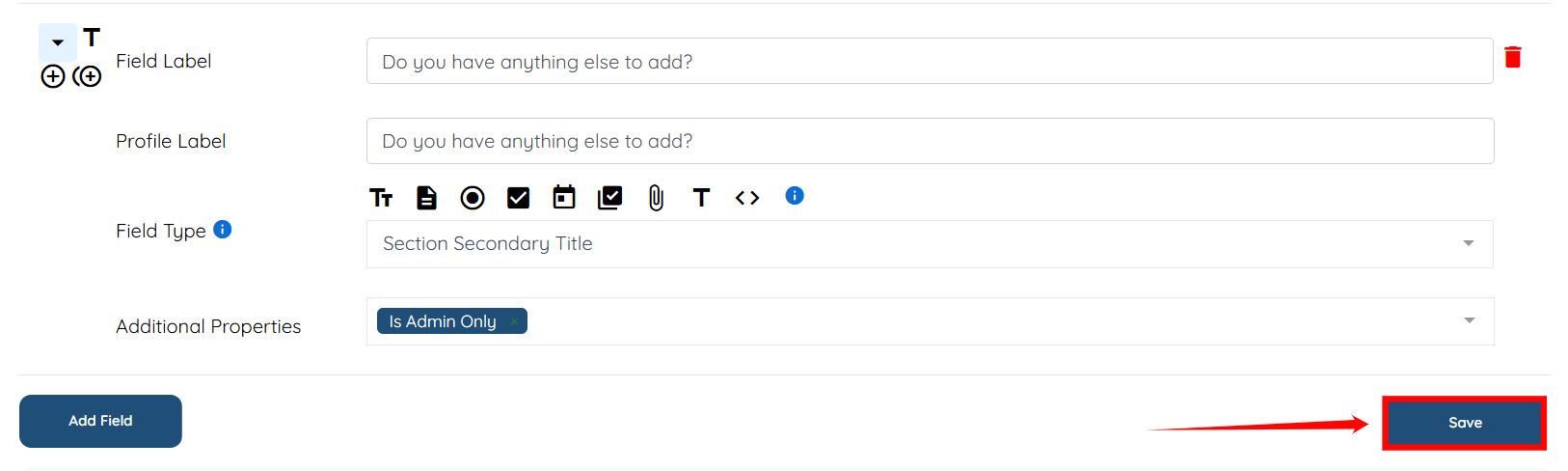
Step 6: Click on the Save button to proceed. The new question will be added successfully.
If this video doesn't answer your questions you can always contact us by clicking here
