In order to make a Candidate's profile visible to Clients when they're assigned to a shift job, you'll first need to make sure the setting to view the profile is activated.
1. Navigate to Global Settings → Candidates → Schedule, Availability and Candidate Shift Job Settings
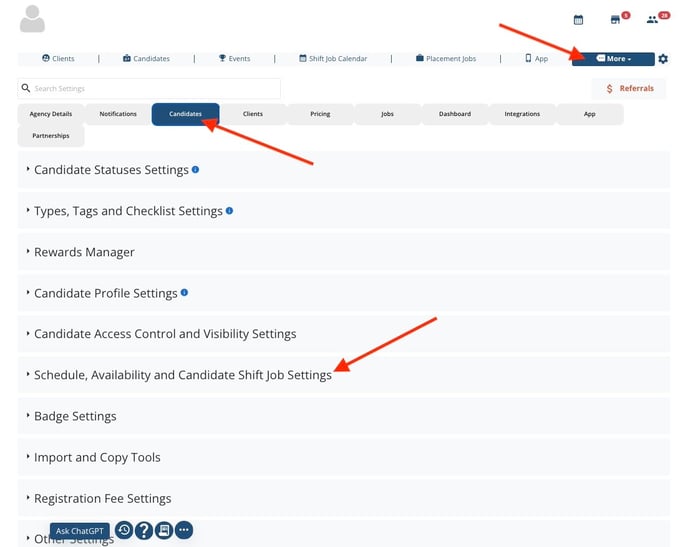
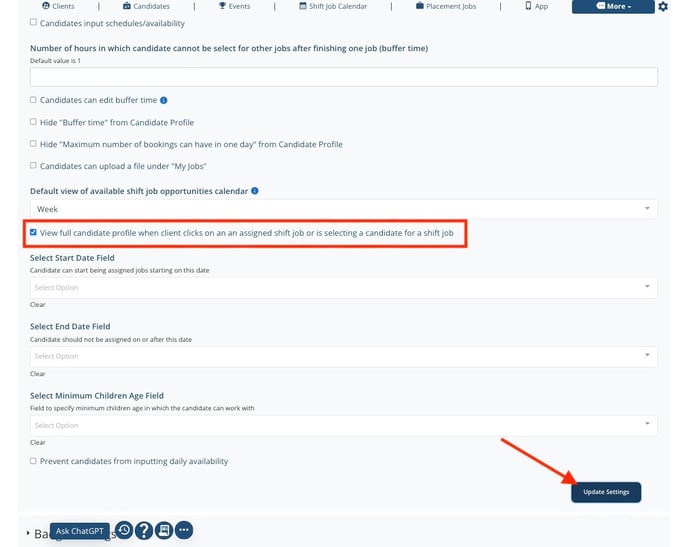
2. Scroll down to the setting labeled 'View full candidate profile when client clicks on an assigned shift job or is selecting a candidate for a shift job.' Check the box to the left to activate this setting and select 'Update Settings'
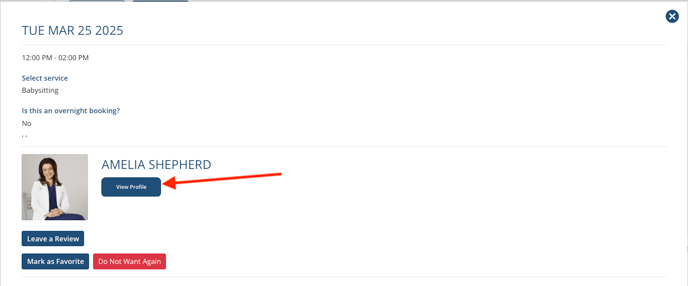
Now when a client enters their profile and selects the shift job - they will see this button:
You can customize what a client can see in a candidate’s profile in the following ways:
3. Navigate to any Candidate profile and select the My Profile tab.
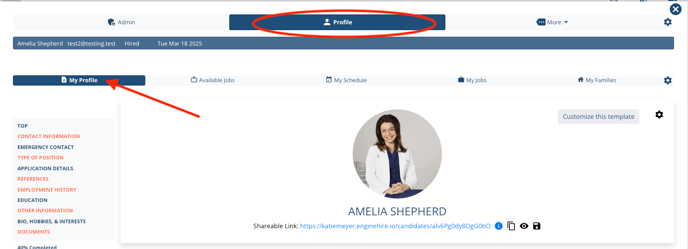
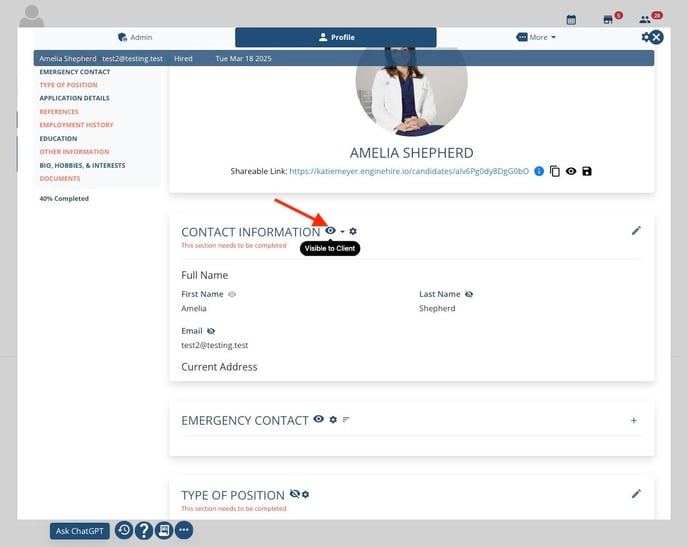
4. To hide an entire section - simply click on the 'eye' icon:
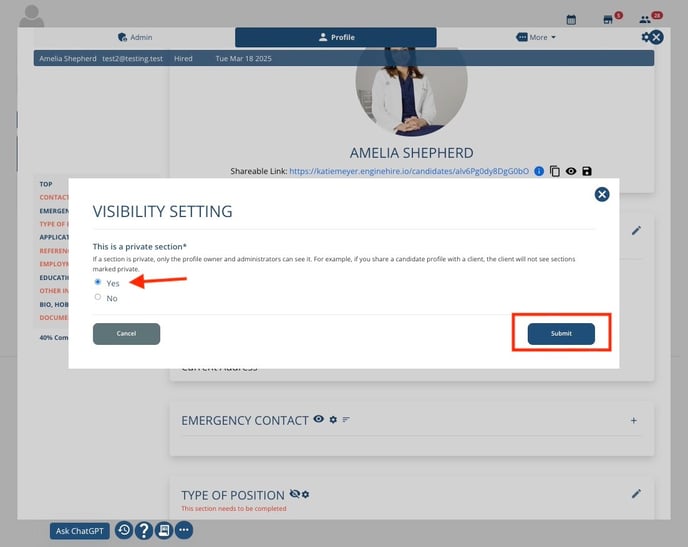
5. Select the radio button next to 'Yes' to make the entire section private and select 'Submit'
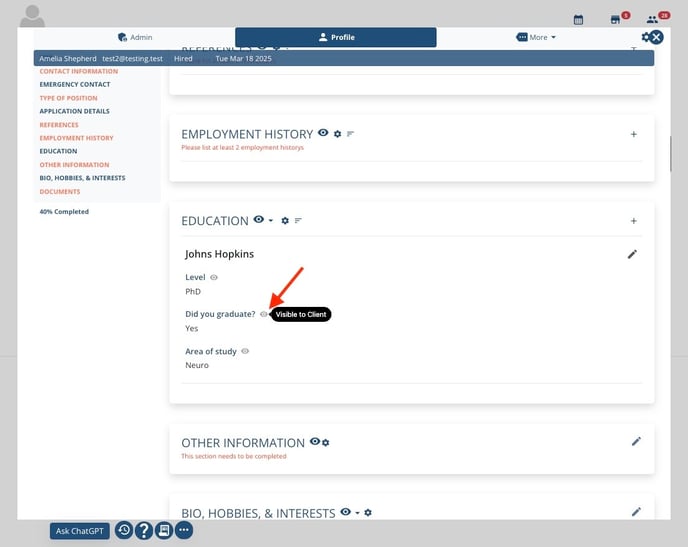
6. To hide specific parts of a section, click the smaller 'eye' icon next to the individual questions and answers you want to hide from the client's view:
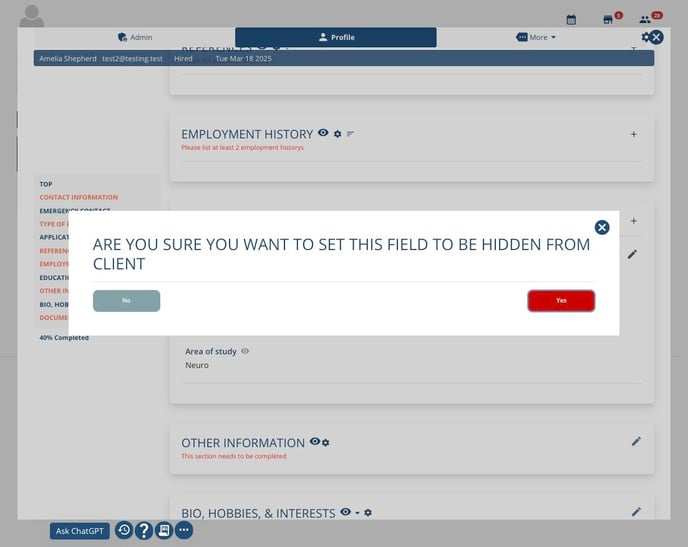
7. Confirm your choice by selecting Yes, or select No if you decide to keep the section visible:
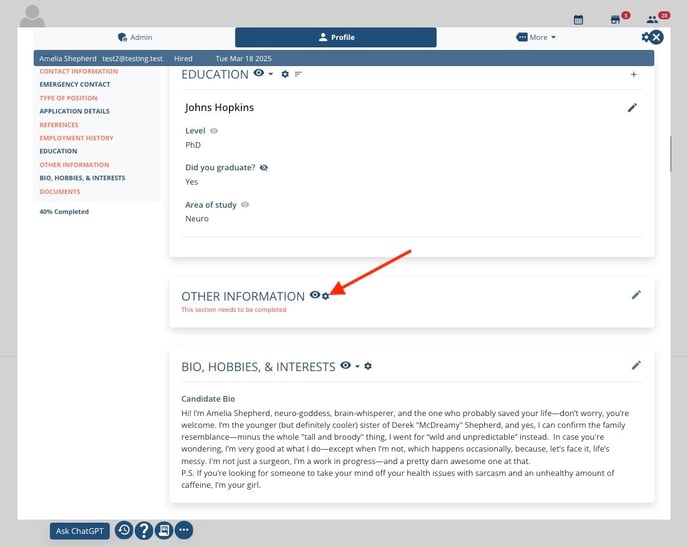
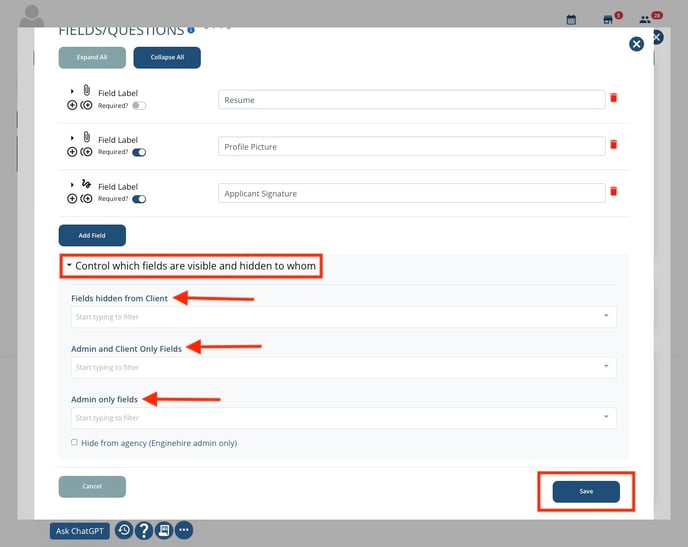
8. Alternatively, click the gear icon, scroll to the bottom of the page, and click the arrow to expand 'Control which fields are visible and hidden to whom'. From there, you can select multiple questions at once to control their visibility:
9. Here, you can choose to hide fields from clients, make a field visible to both clients and admins, or restrict it to admins only. Once you’ve made your selections, click Save to apply the changes:
To check your work, navigate to any Clients profile and select a shift job that's been assigned. Click the 'View Profile' button and you'll be able to see what the Client sees!
If this article doesn't answer your questions you can always contact us by clicking here
