Let’s get started 🚀
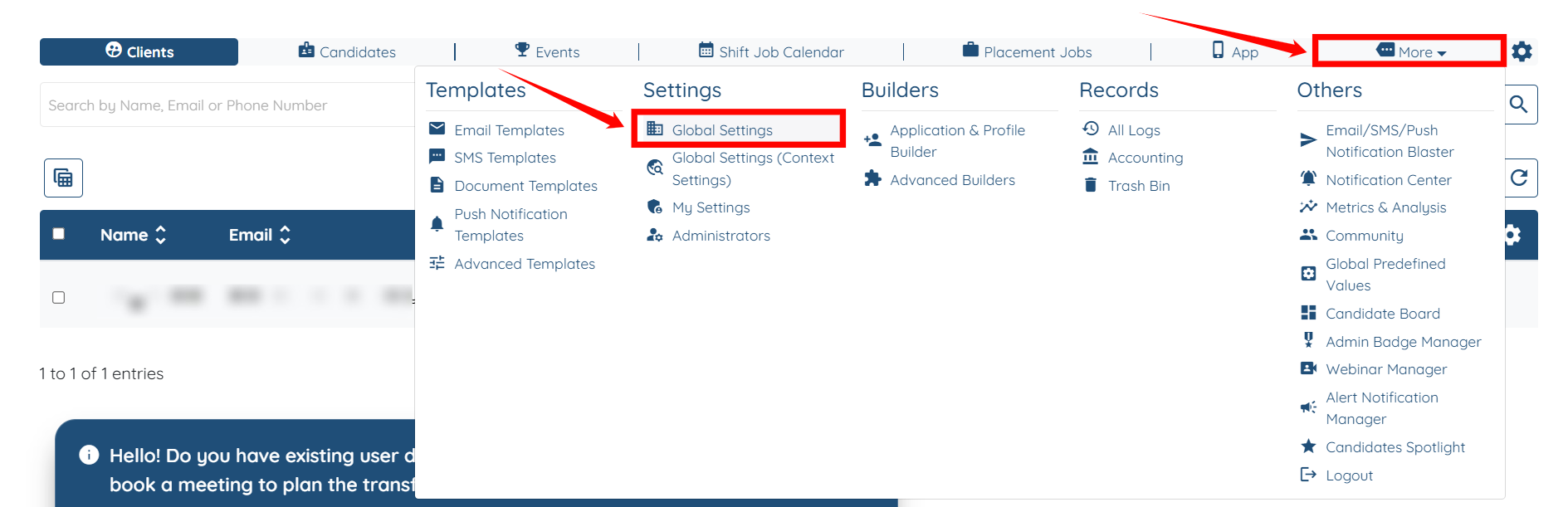
Step 1: Log in to your agent dashboard, then navigate to More > Global Settings, as shown in the screenshot below.
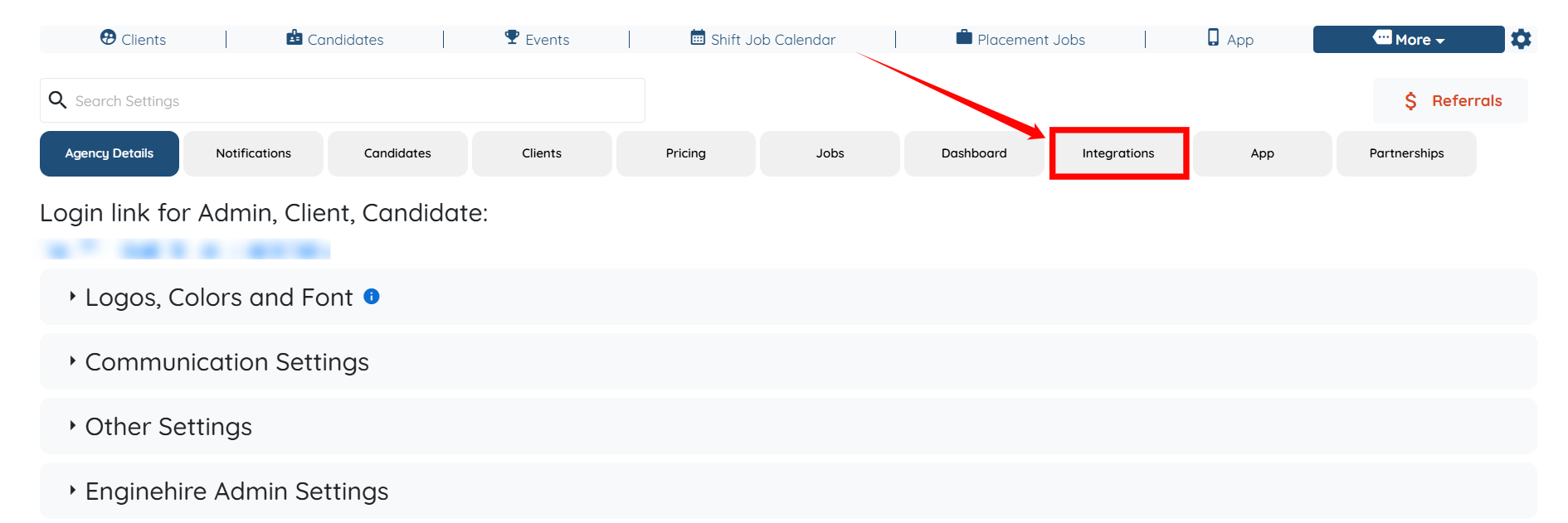
Step 2: Click on the Integrations tab from the list of tabs available.
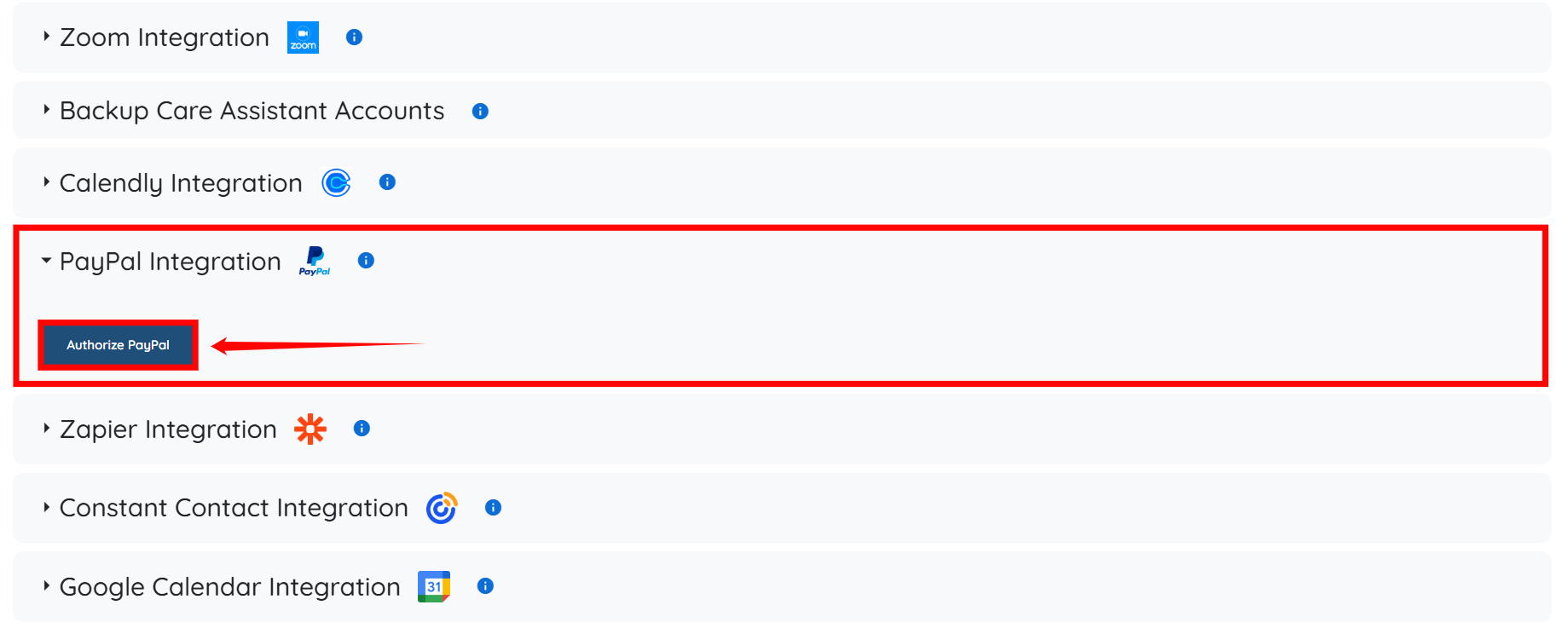
Step 3: Locate and expand the PayPal Integration option from the list of available integrations. After that, click on the Authorize PayPal button to continue.
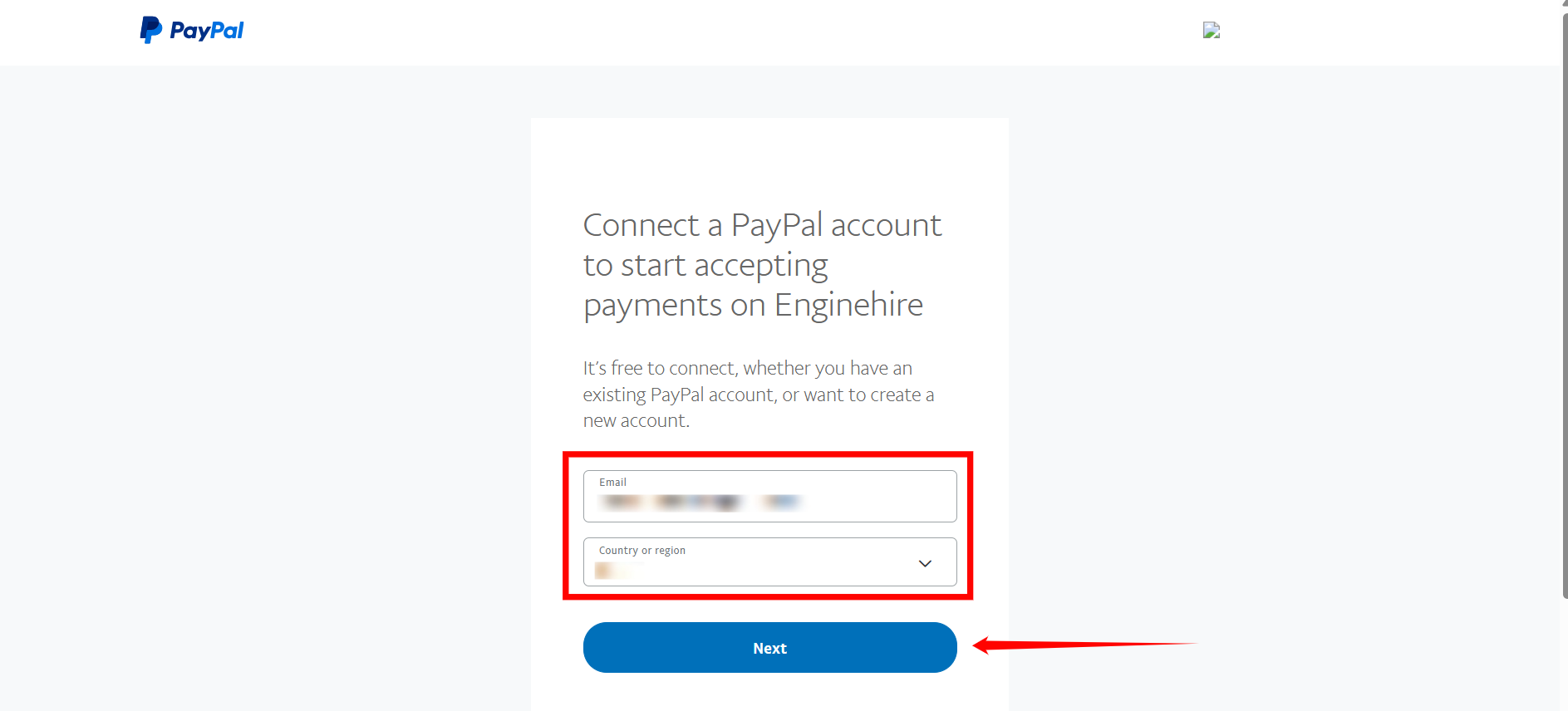
Step 4: Enter the email address associated with your PayPal account, select your country or region, and then click the Next button to continue.
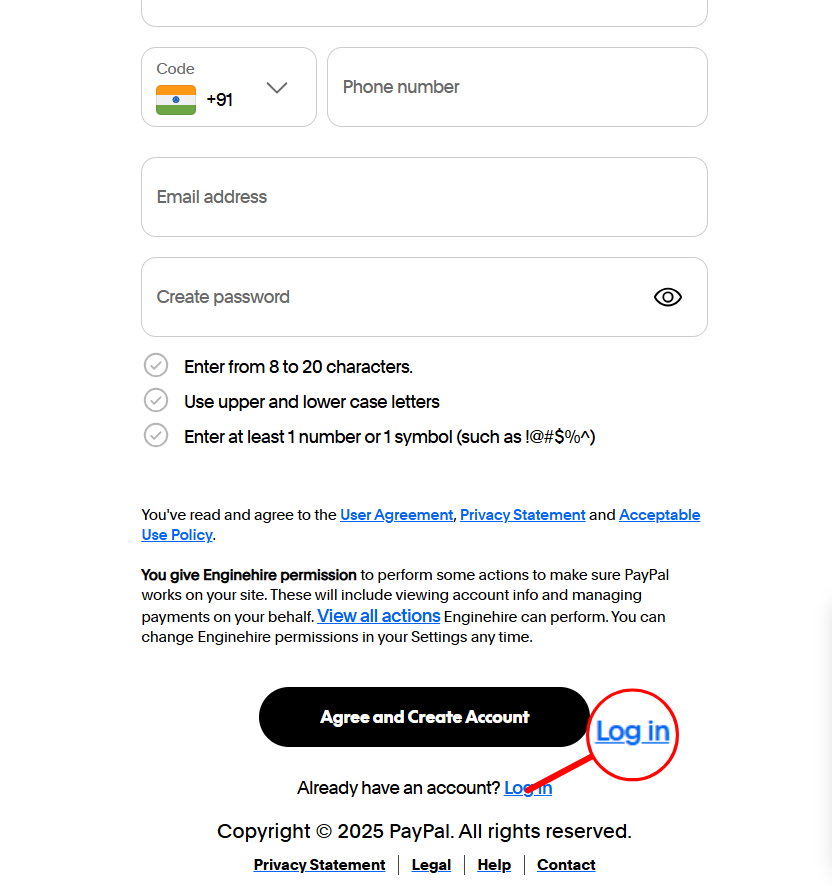
Step 5: Scroll down and click on Log in to proceed further.
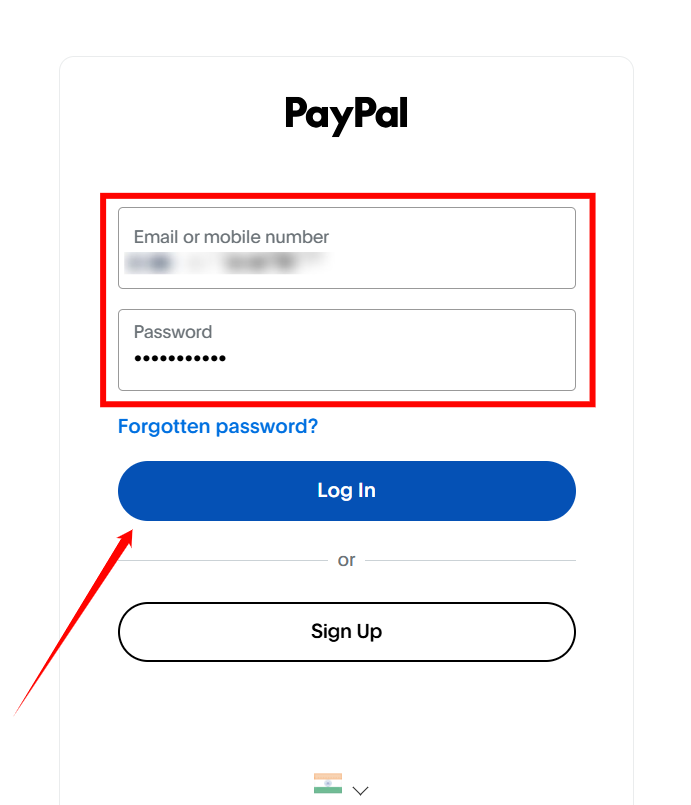
Step 6: Enter the email address or mobile number and password associated with your PayPal account, then click the Log In button.

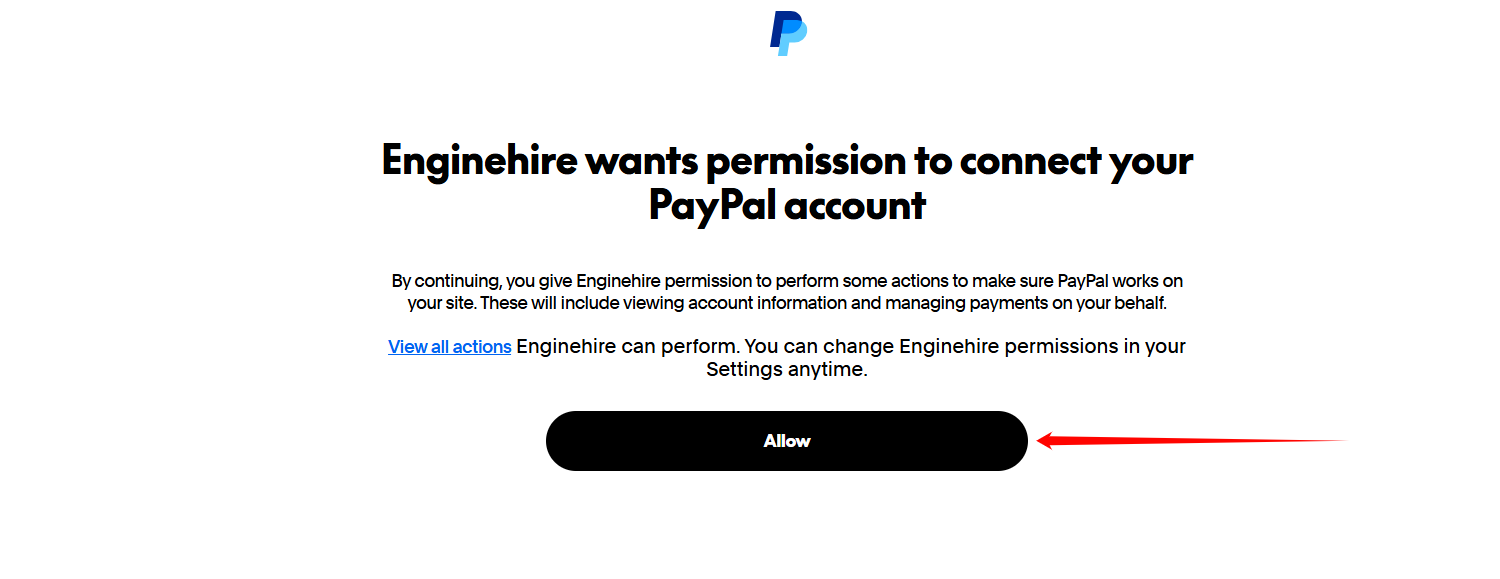
Step 7: Click on the Allow button to proceed.
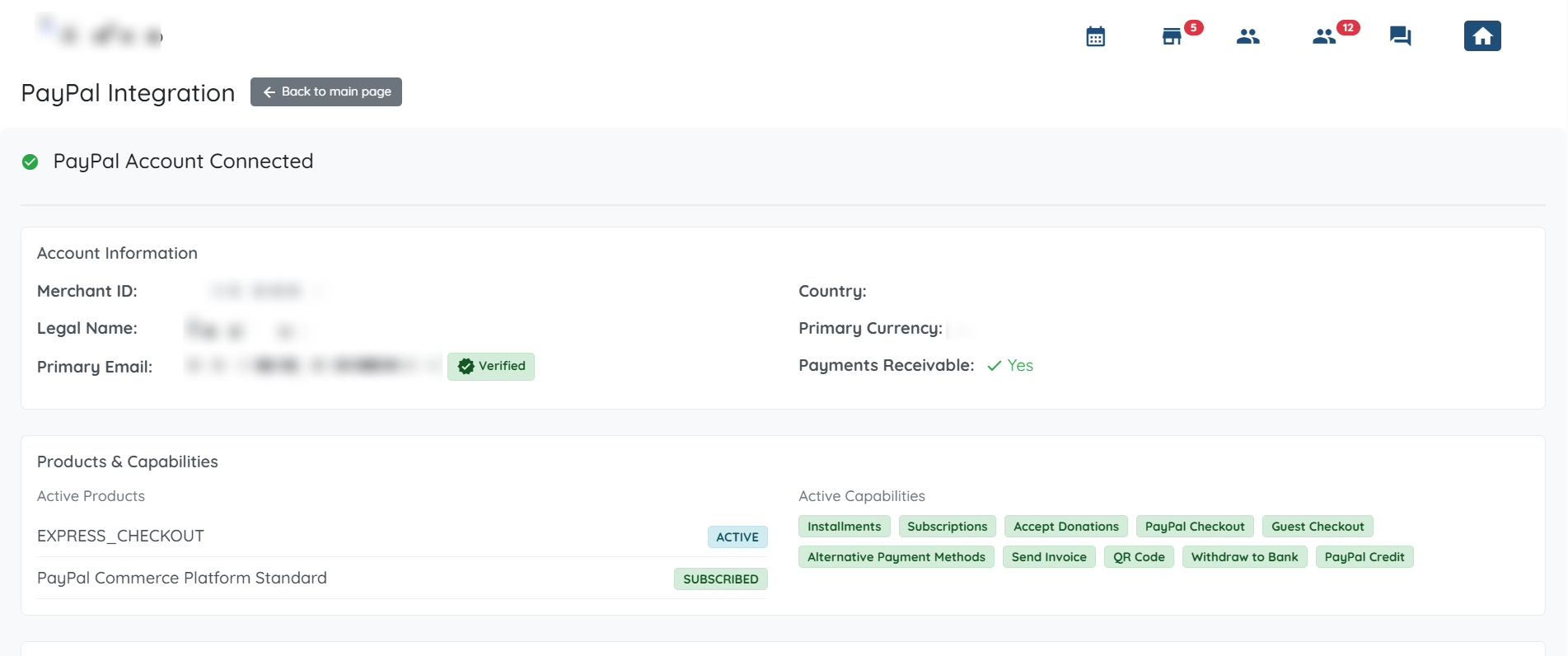
Step 8: Your Enginehire account will be successfully connected with PayPal. Click on the Return to Enginehire button to continue.

You will be successfully redirected to Enginehire.