Let’s get started 🚀
Step 1: Log in to your agent dashboard, and then navigate to Candidates using the top navigation bar.
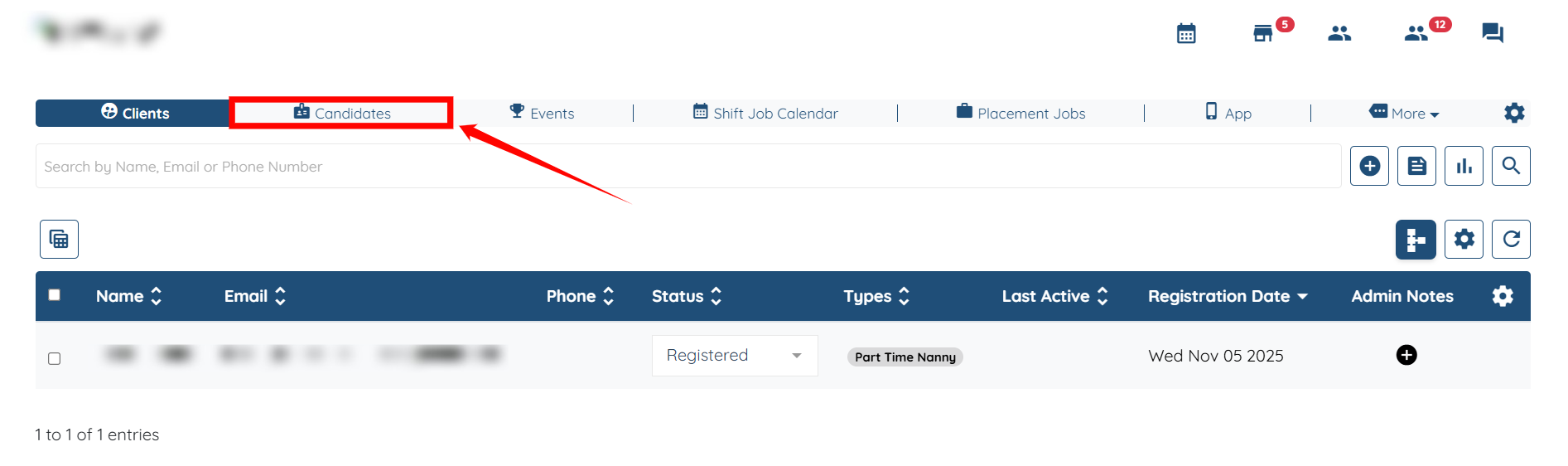
Step 2: Choose the candidate for whom you want to set the weekly hour limit for each job category.
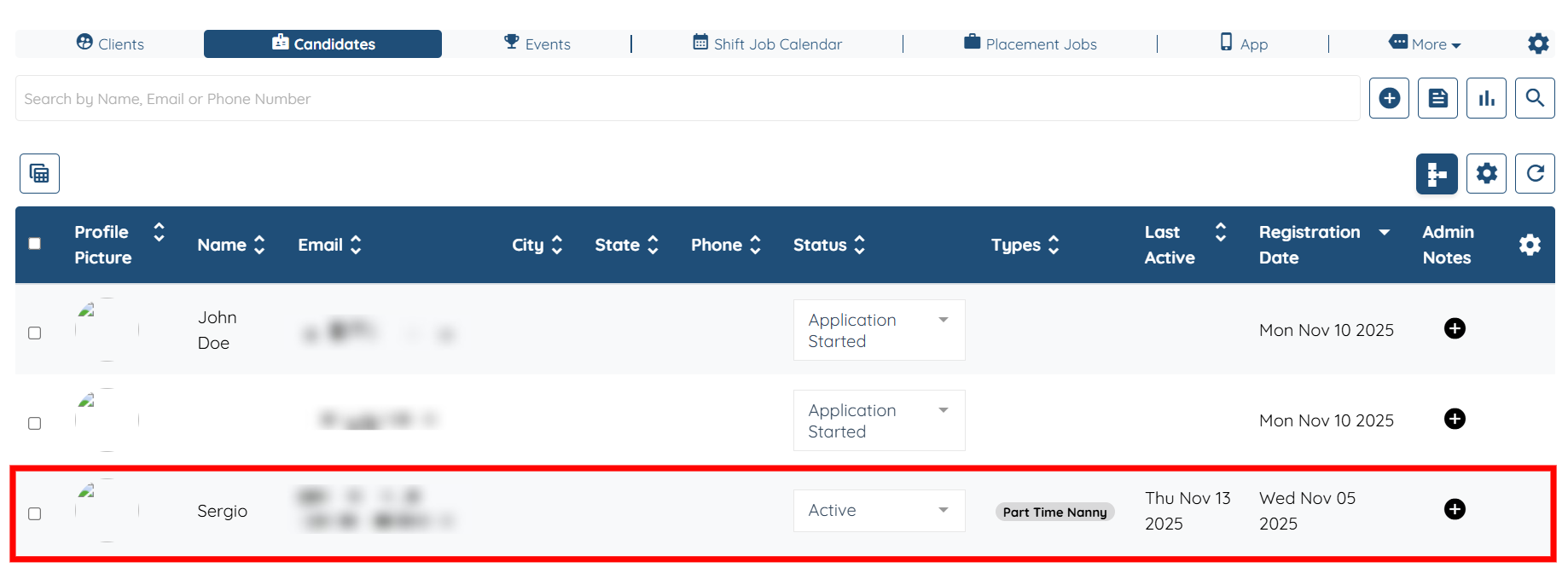
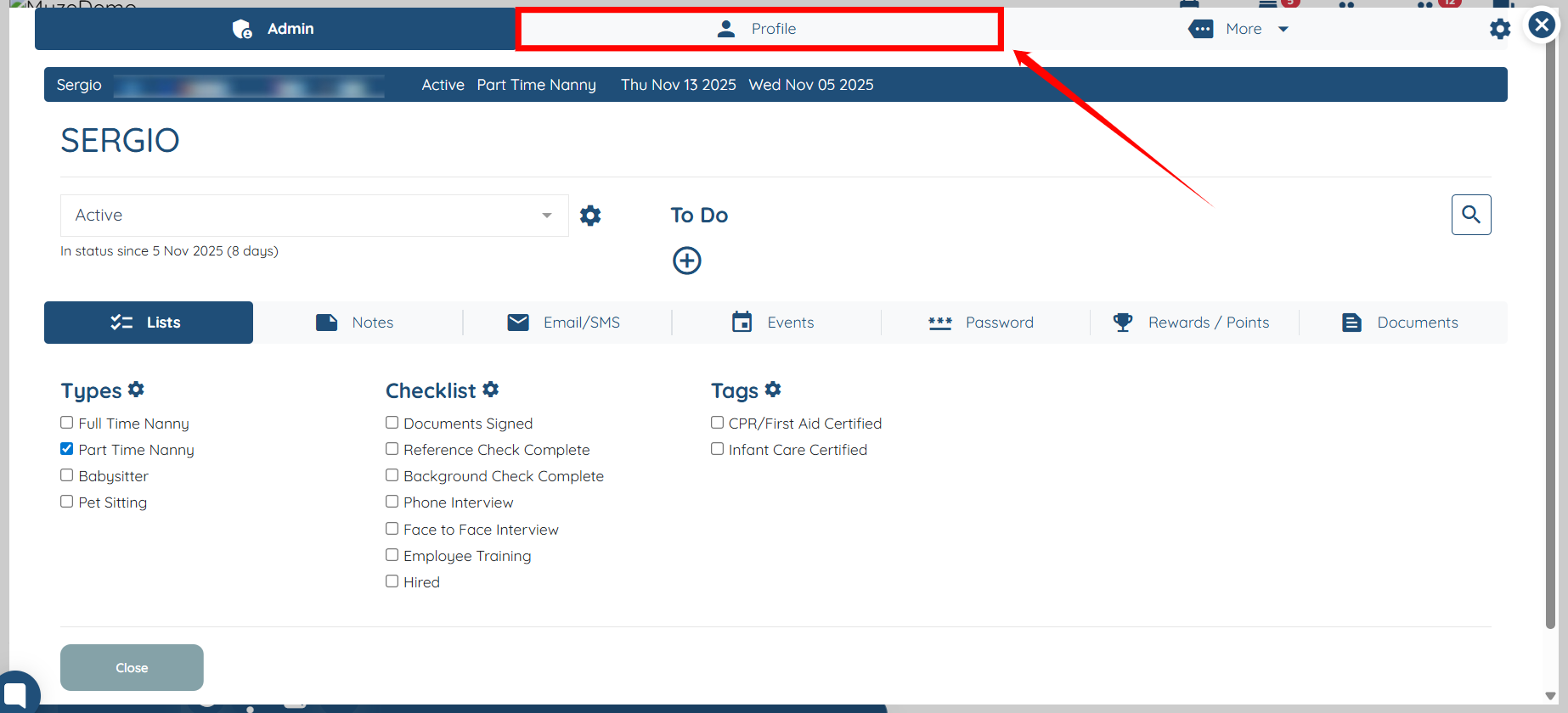
Step 3: Click the Profile Tab to open the chosen candidate’s profile.
Step 4: Click the My Schedule tab in the list of tabs.
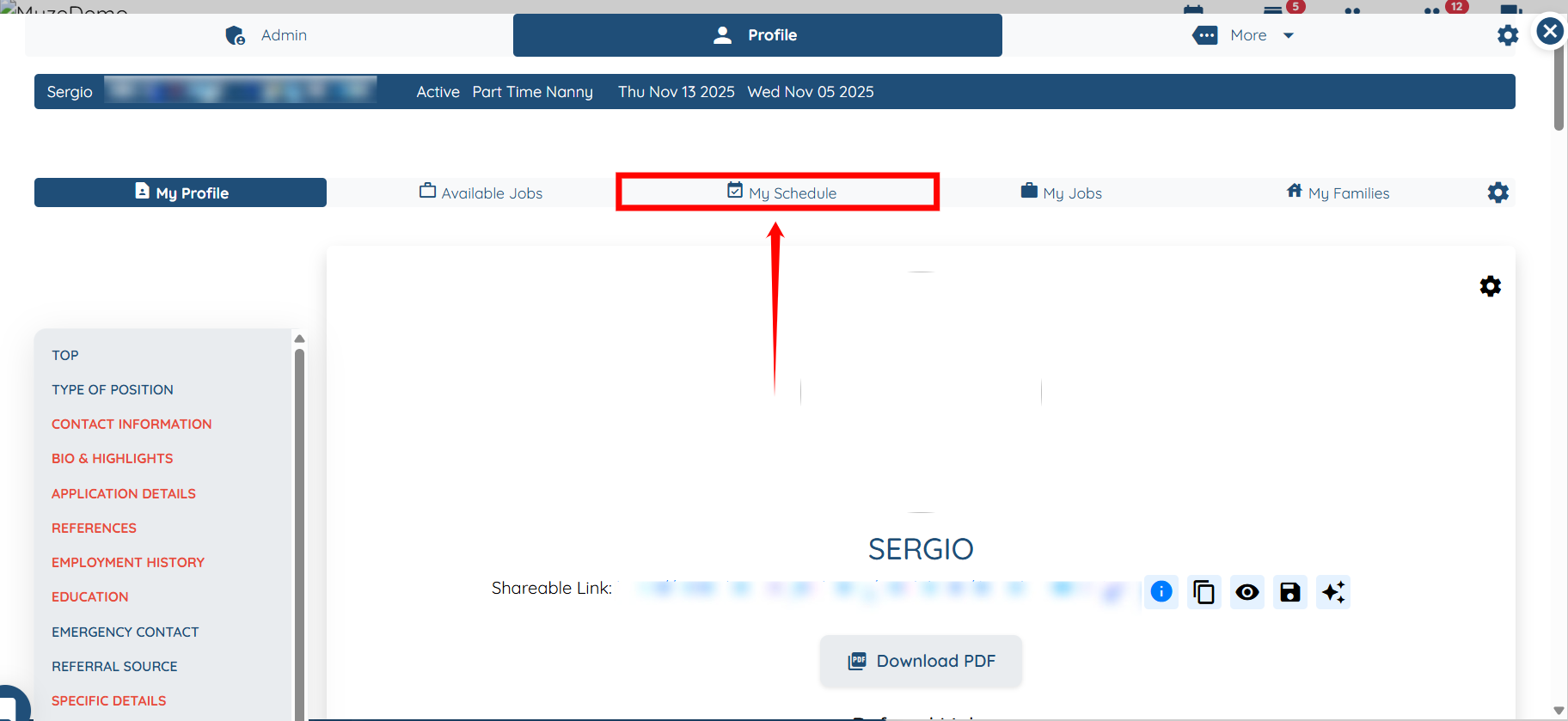
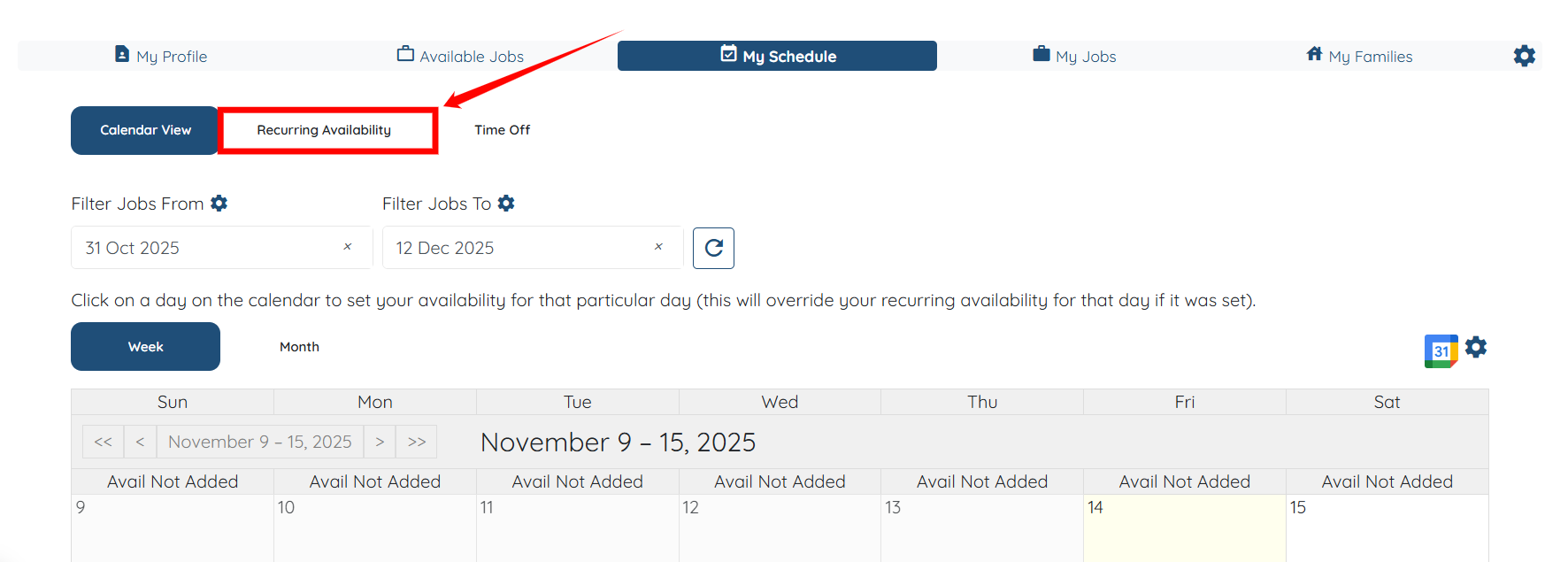
Step 5: Select the Recurring Availability option to continue.
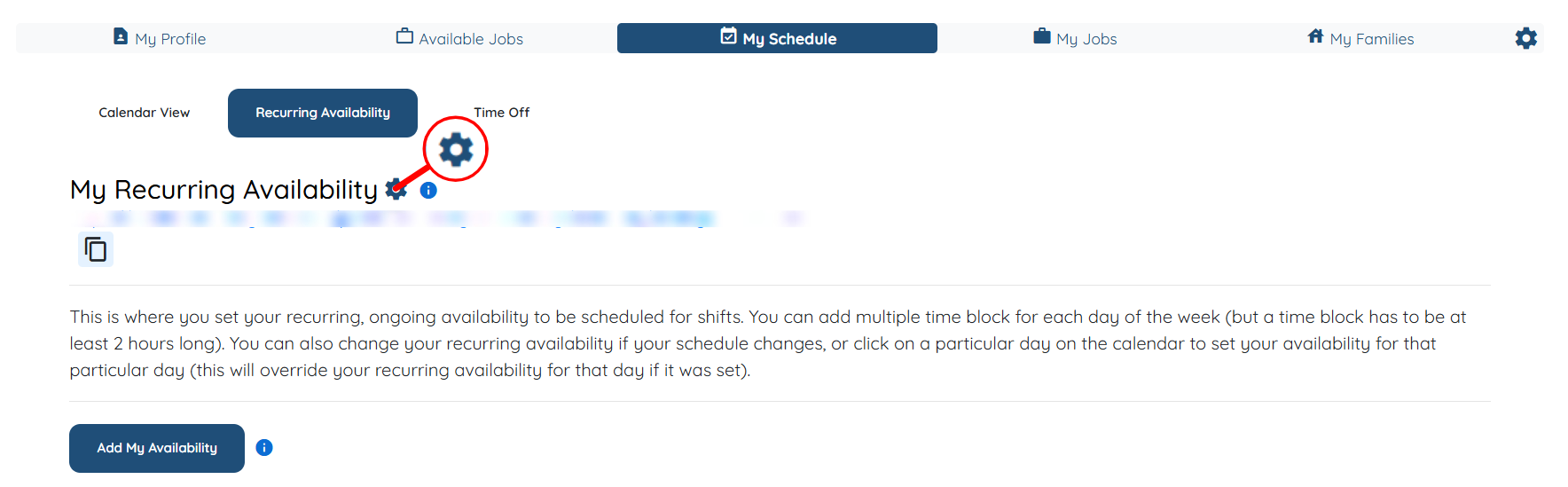
Step 6: Click the Gear icon next to My Recurring Availability.
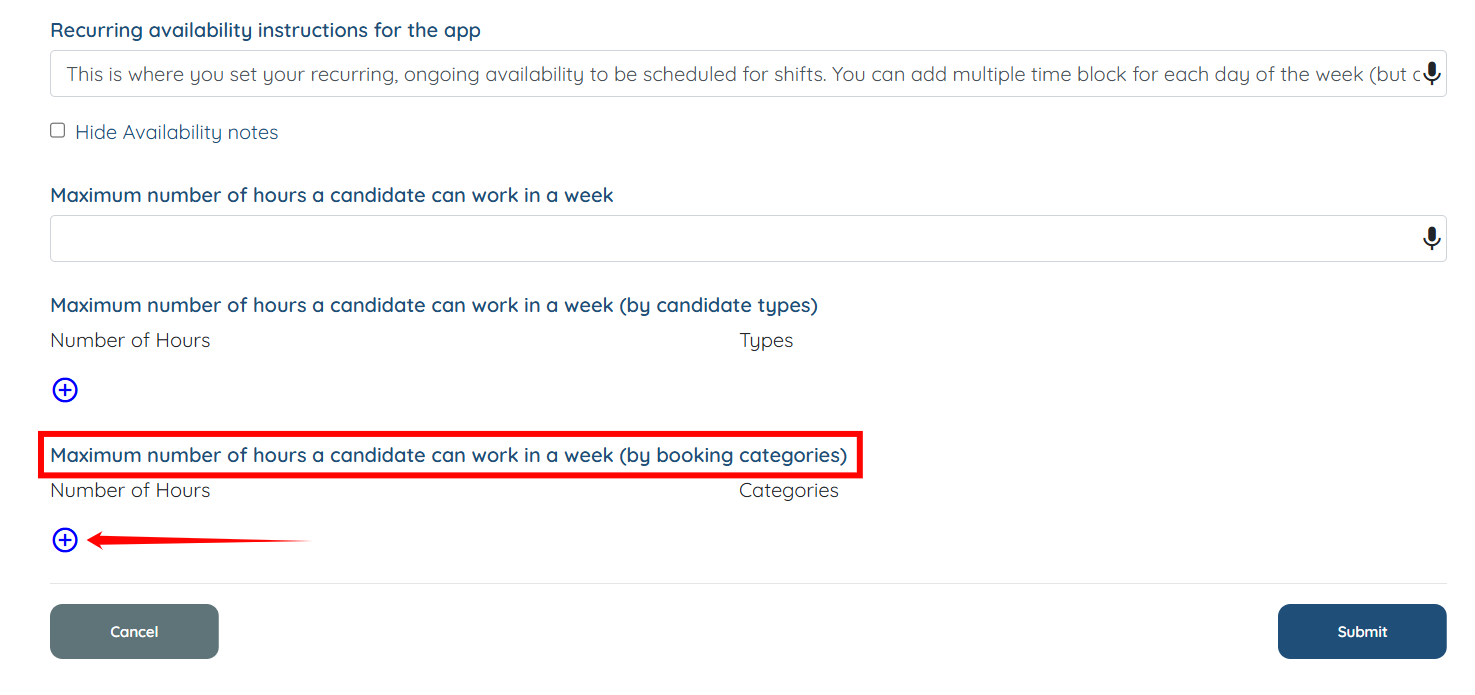
Step 7: Scroll down to the “Maximum number of hours a candidate can work in a week (by booking categories)” option. Then, click the plus icon to begin adding an hour limit for a specific job category.
Step 8: Enter the hours as the candidate’s maximum work limit in the Number of Hours field, and then select the category (for which the candidate should work according to the provided maximum hours) from the Categories dropdown.
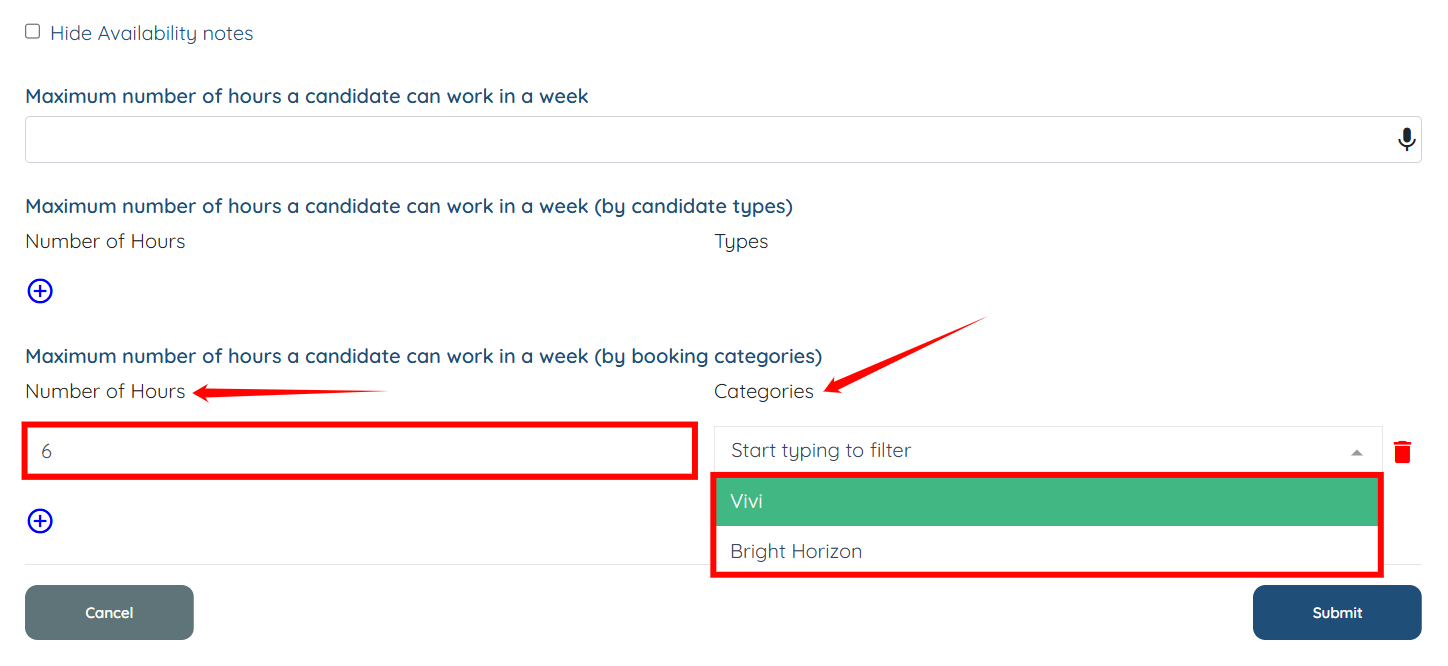
Step 9: Similarly, you can add more entries for other categories (if required), and then click the Submit button.

