
Let’s get started 🚀
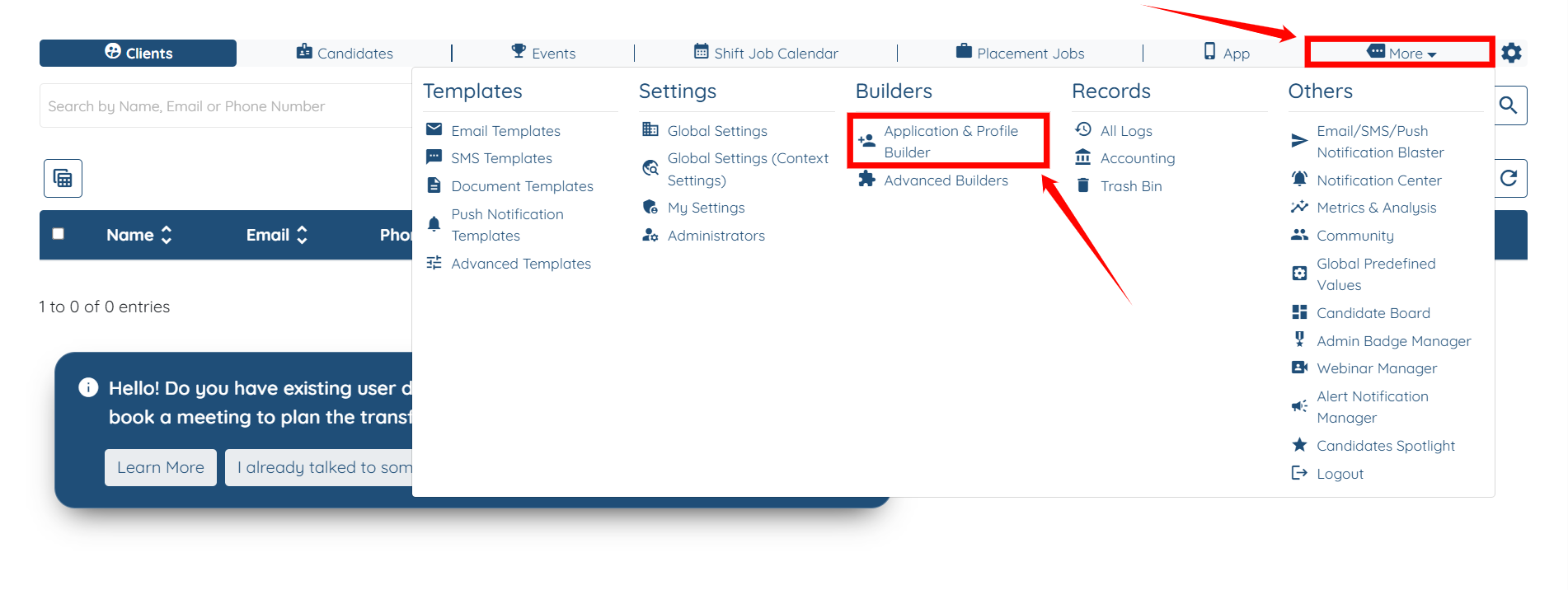
Step 1: Log in to your agent dashboard, then navigate to More > Application & Profile Builder, as shown in the screenshot below.
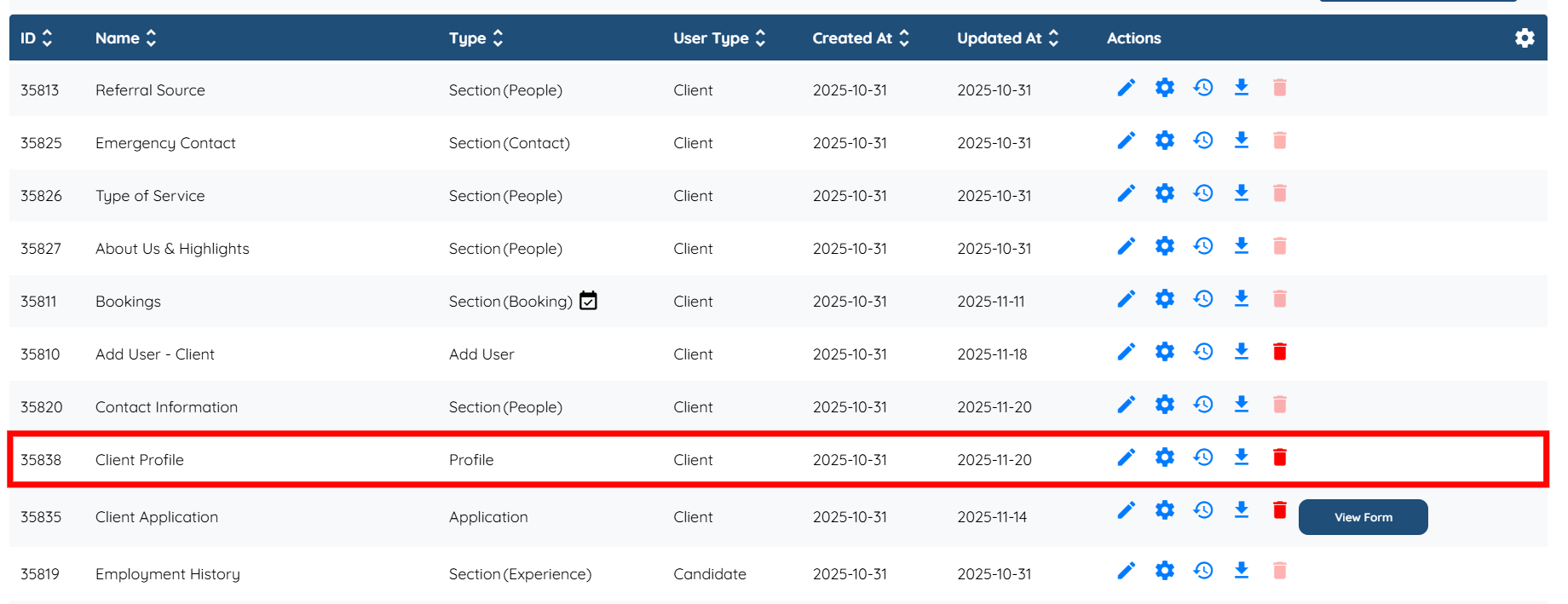
Step 2: Open the Client Profile and add a show condition to the preset section.
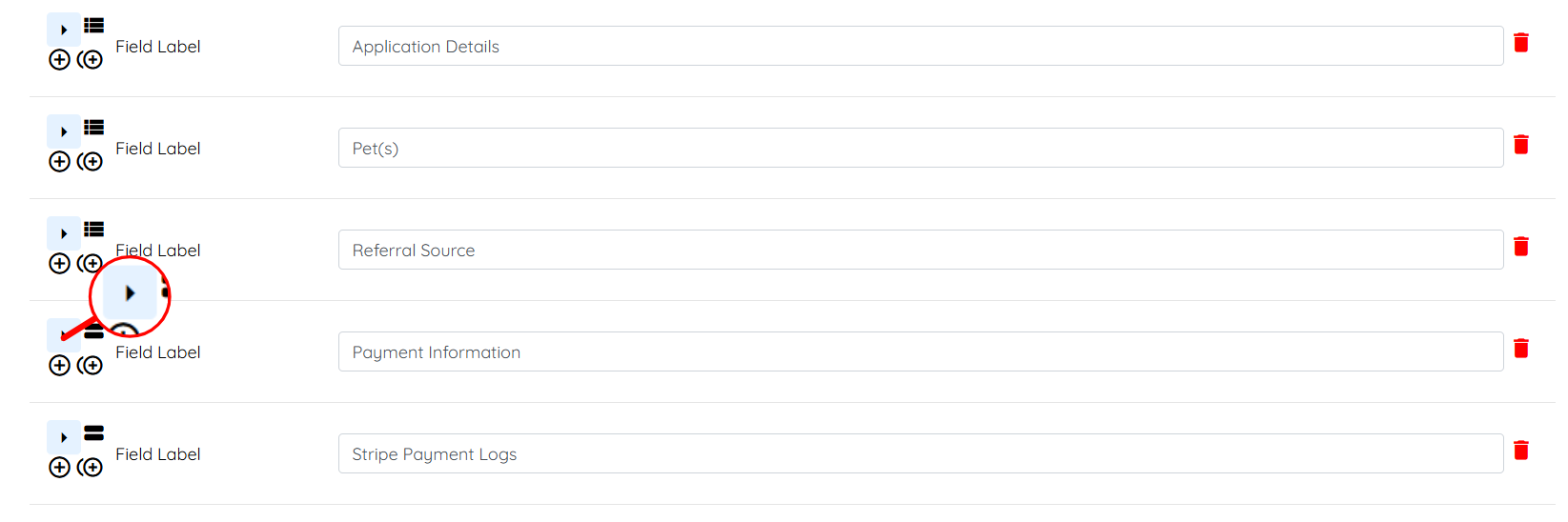
Step 3: Locate the Field configured with the preset section where you want to add a show condition to that preset section, and click the arrow shown in the screenshot below to expand its details.
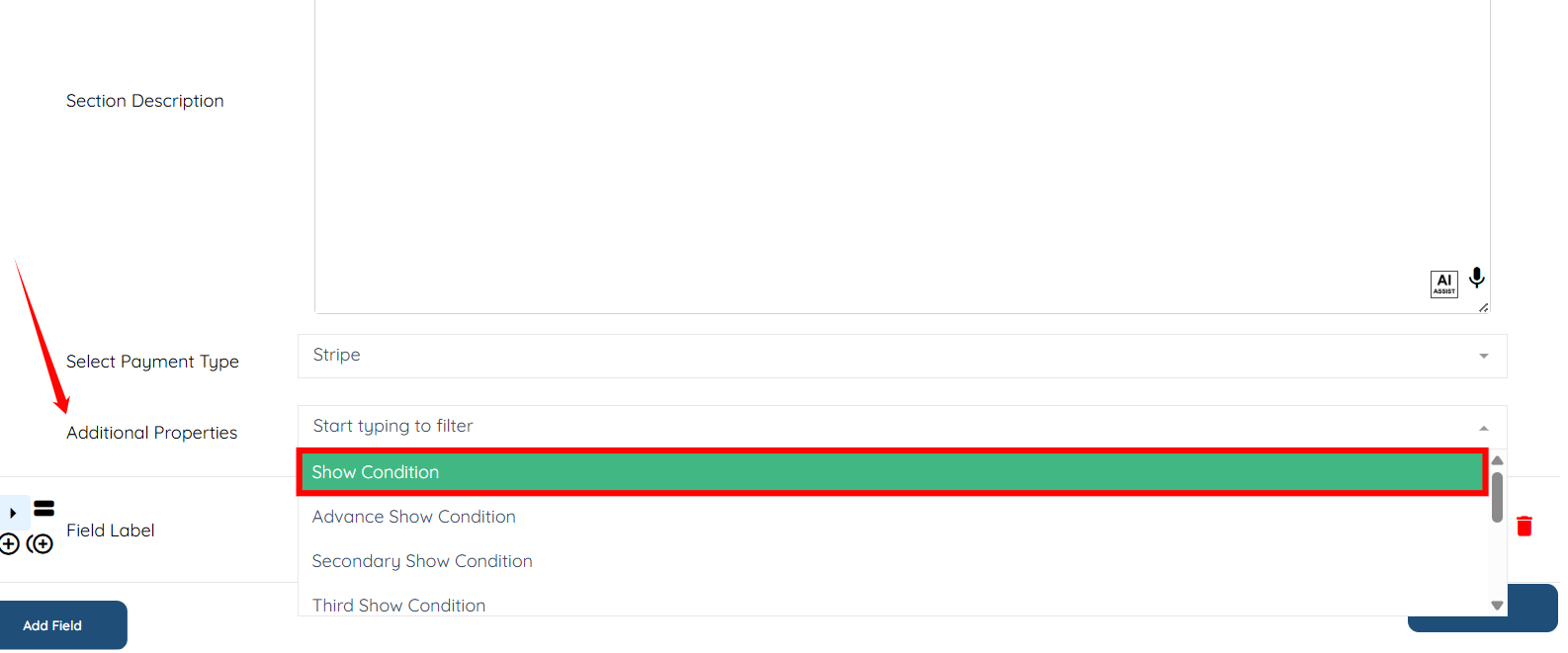
Step 4: Select the Show Condition option from the Additional Properties dropdown.
Step 5: From the Show If dropdown, select the property you want to use to define the criteria for displaying the preset section.
For demonstration purposes, we are selecting User Statuses.
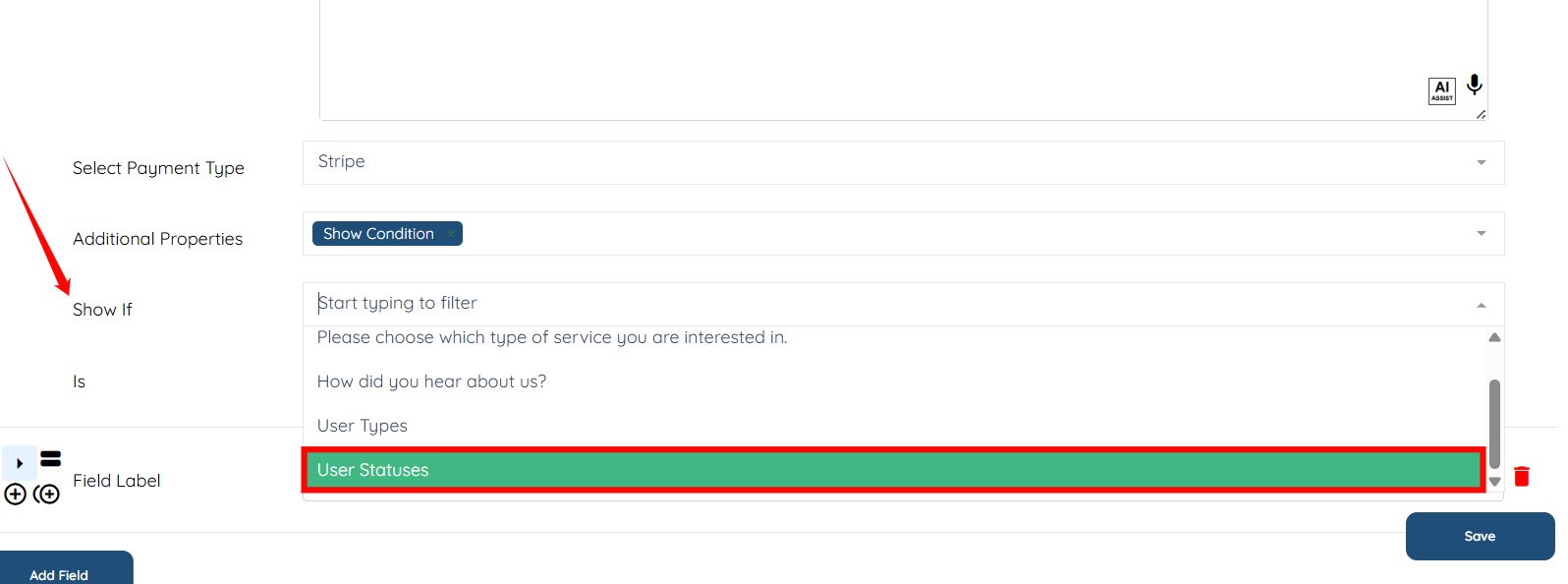
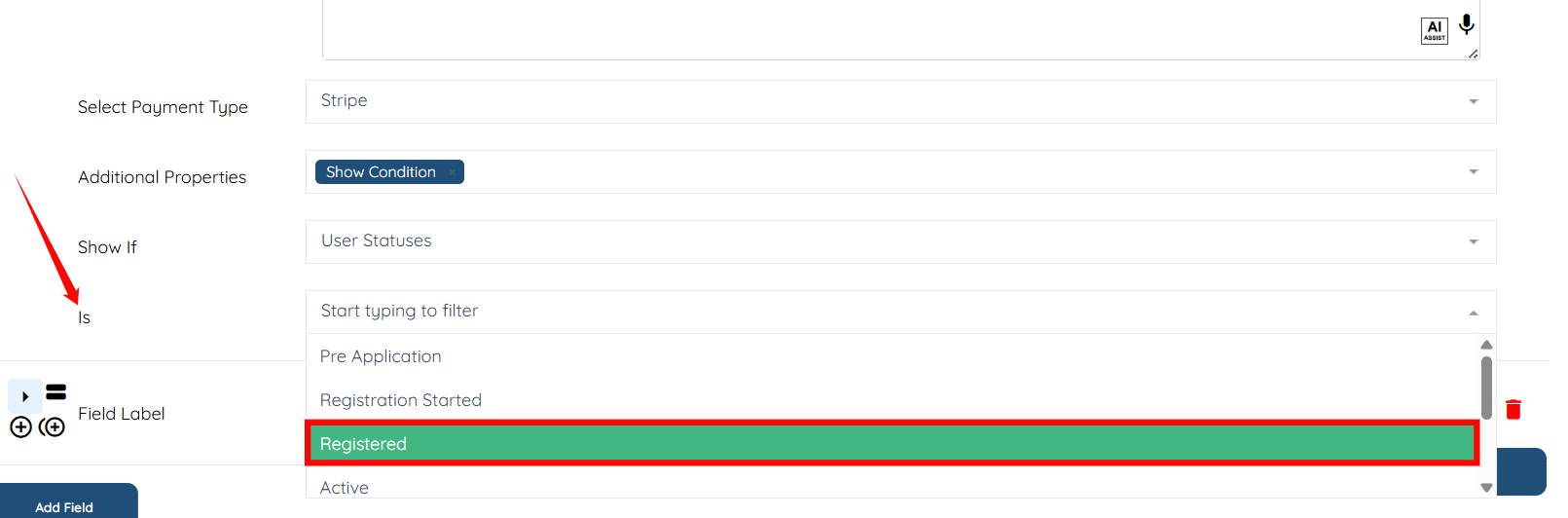
Step 6: In the Is dropdown, choose the specific status that makes the preset section visible.
The preset section appears only for clients whose profiles match the selected status.
For example, selecting Registered means the preset section shows only for clients with the Registered status.
Step 7: Click the Save button to confirm the changes.
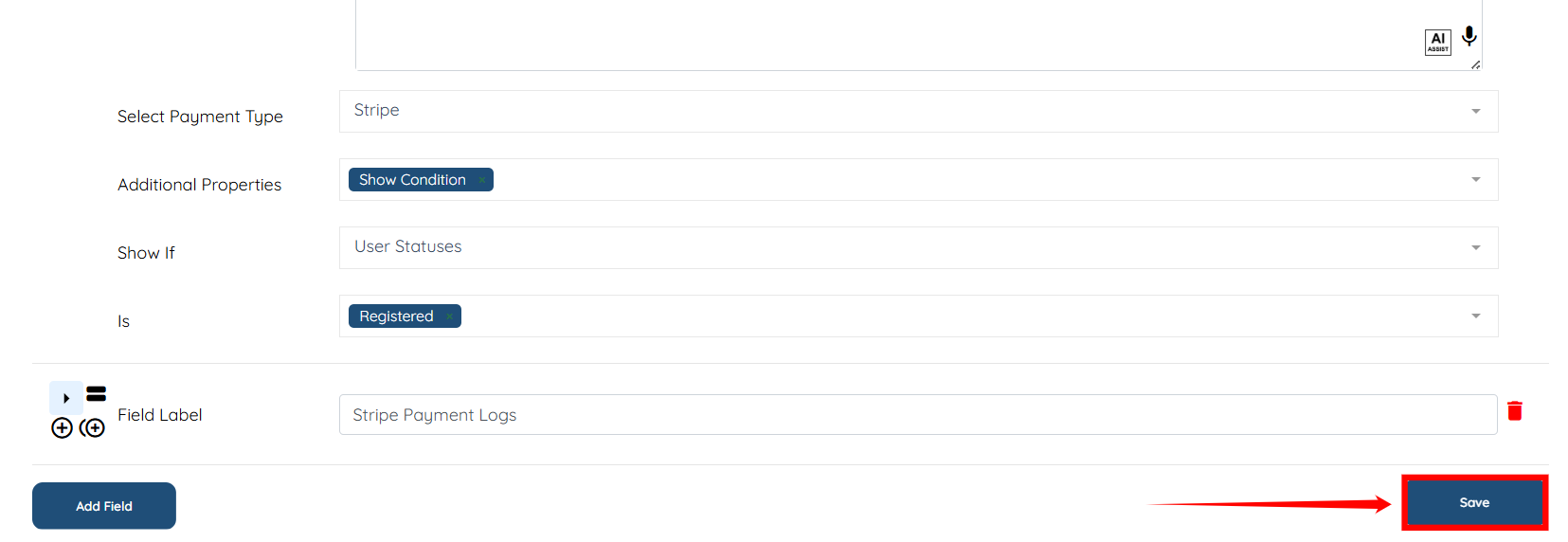
Now, only clients who have a registered status in their profile will see the preset section.
