Requirements:
A paid Indeed account is needed to connect this premium integration.
This is a Premium Integration, with an additional charge of $25/post/month.
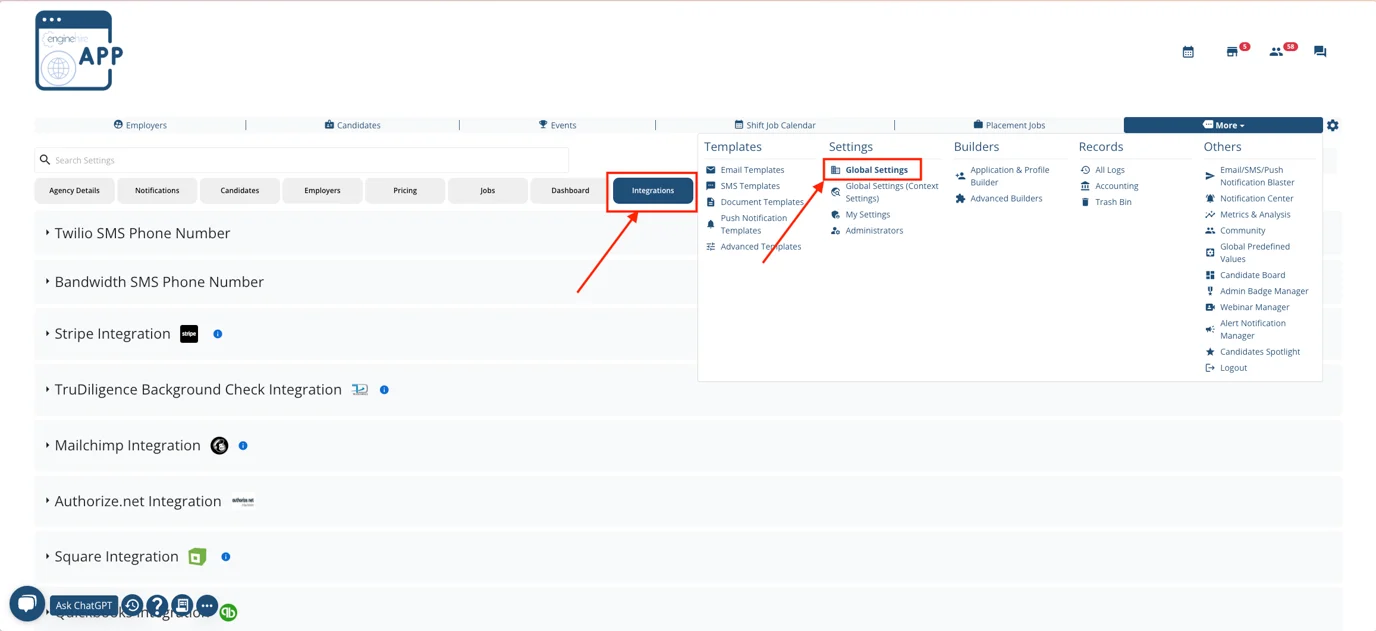
1. On your Enginehire dashboard, navigate to More > Settings > Global Settings > Integrations.
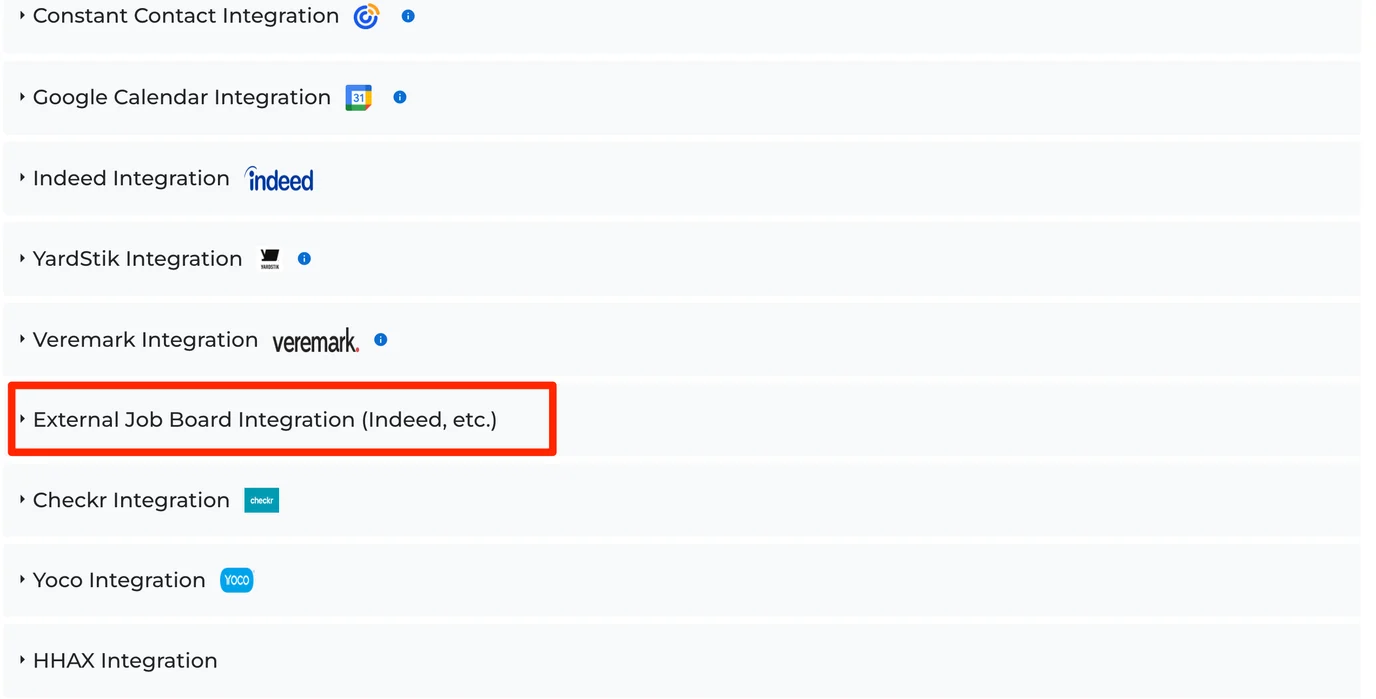
2. In the integrations section, locate the "External Job Board Integration" and click on "Authorize".
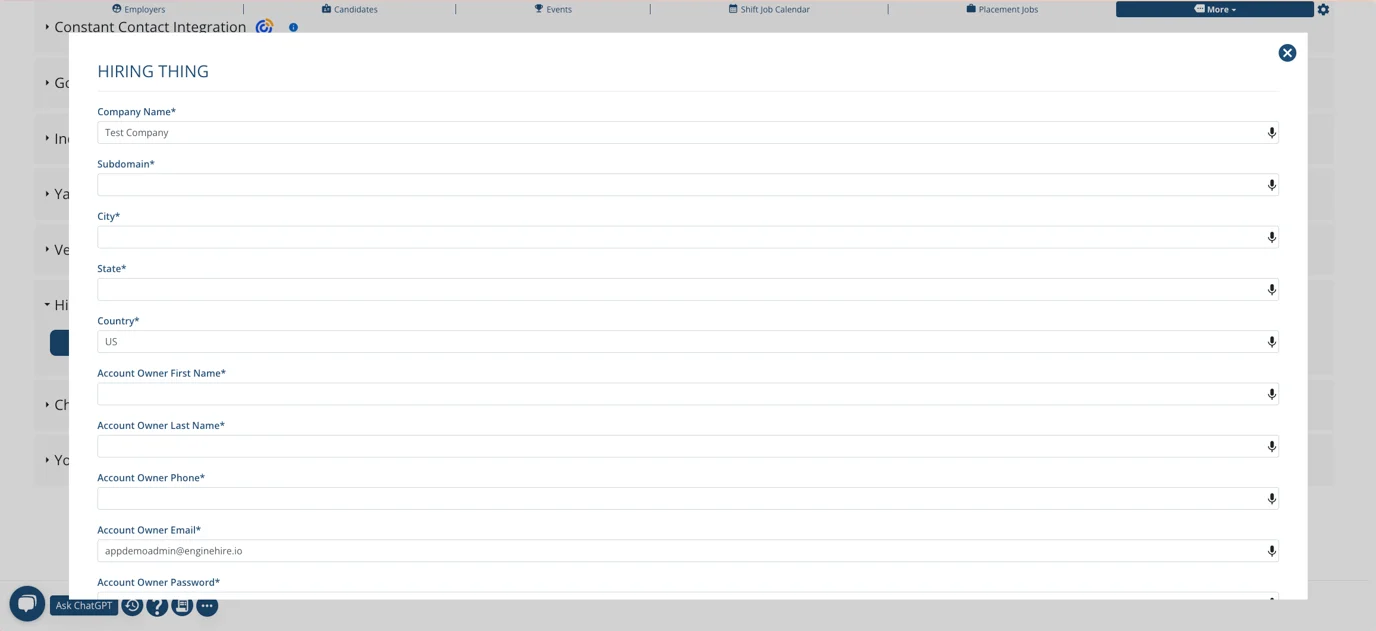
3. Fill out the form to create a new account for the integration. Remember the email and password you used to create this account. Once completed, click "Submit".
Subdomain: This refers to your company domain, Ex: for us it would be "Enginehire".
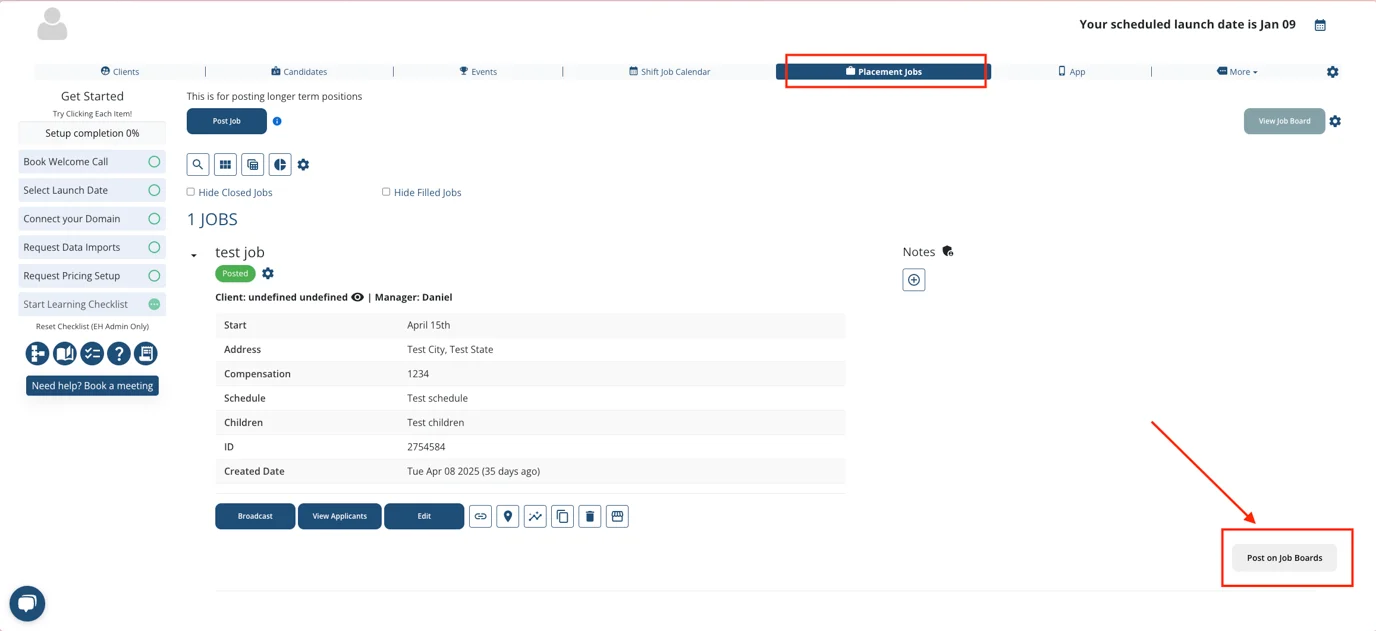
4. To post your first job to the job boards, go to the placement/long-term jobs section on your Enginehire Dashboard. Click on "Post on Job Boards" for any job you’ve created. You will see a form to confirm that the job information is correct. Ensure everything is complete and click submit.
Note: You must post at least one job to the job boards in order to connect your Indeed account.
5. Visit the following link https://login.enginehirerecruit.com/users/login and log in using the credentials you created in step 3.
6. Once logged in, open the main menu and select "Account Details."
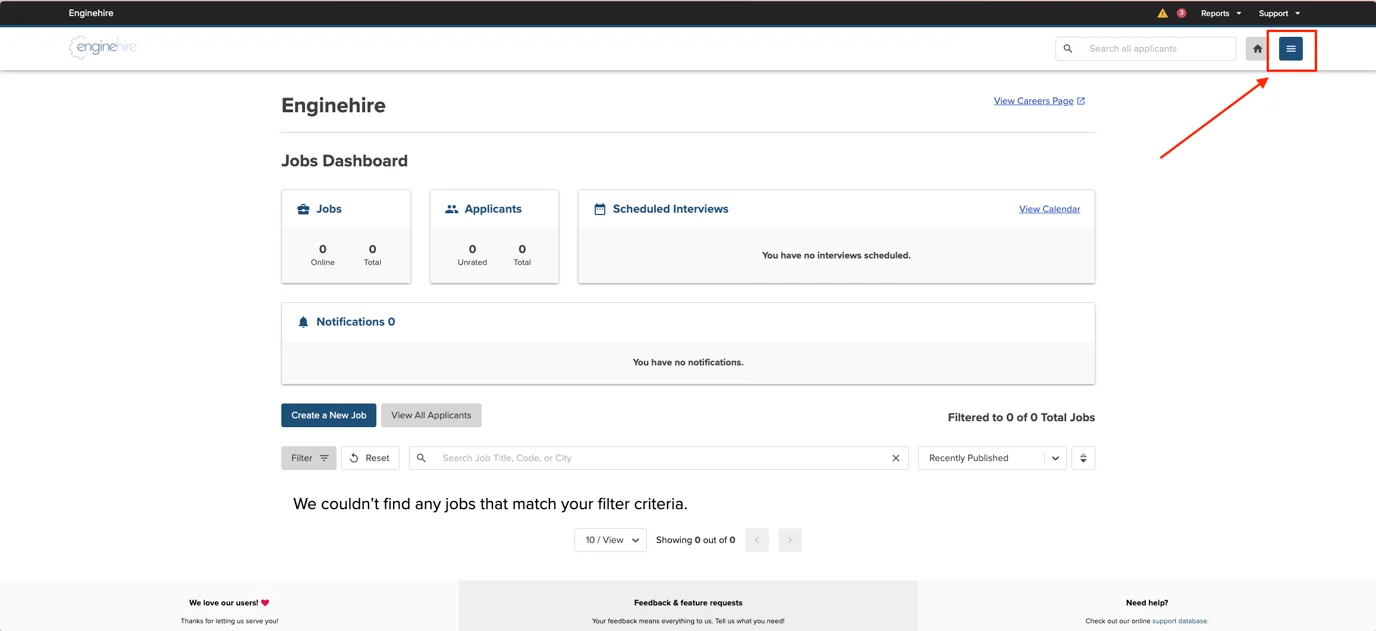
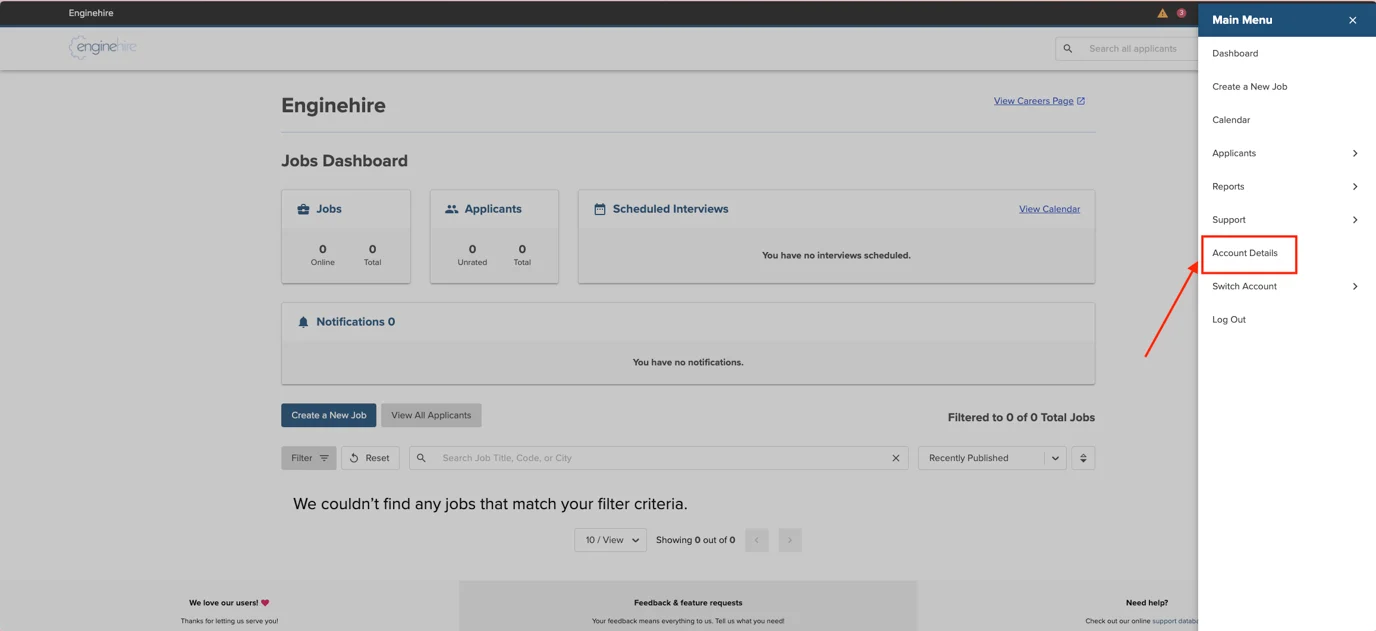
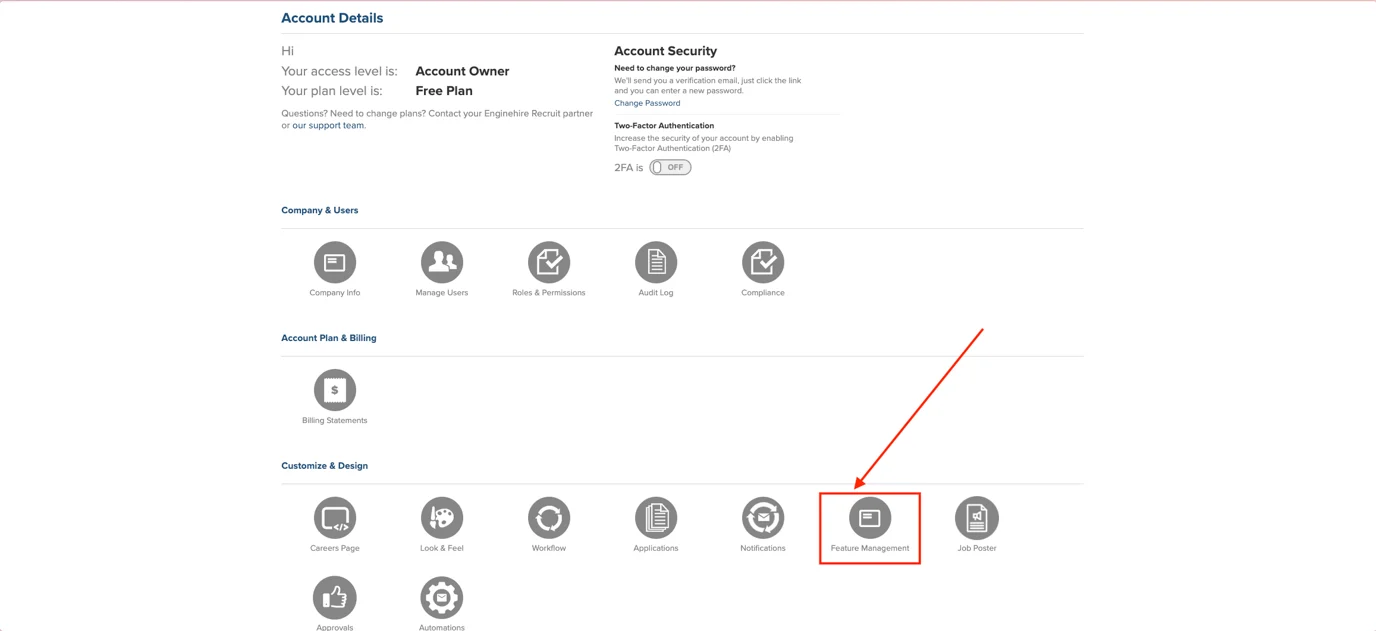
7. Navigate to "Feature Management."
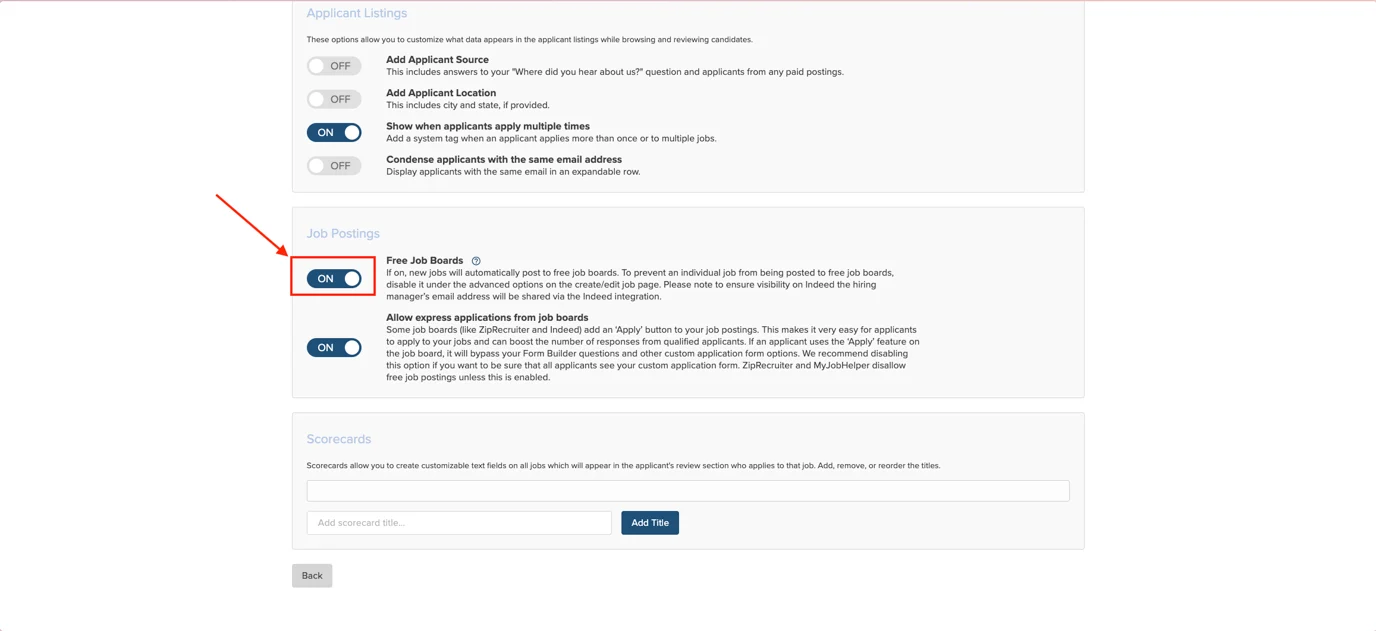
8. In the job postings section, ensure that the "Free Job Boards" toggle is turned on.
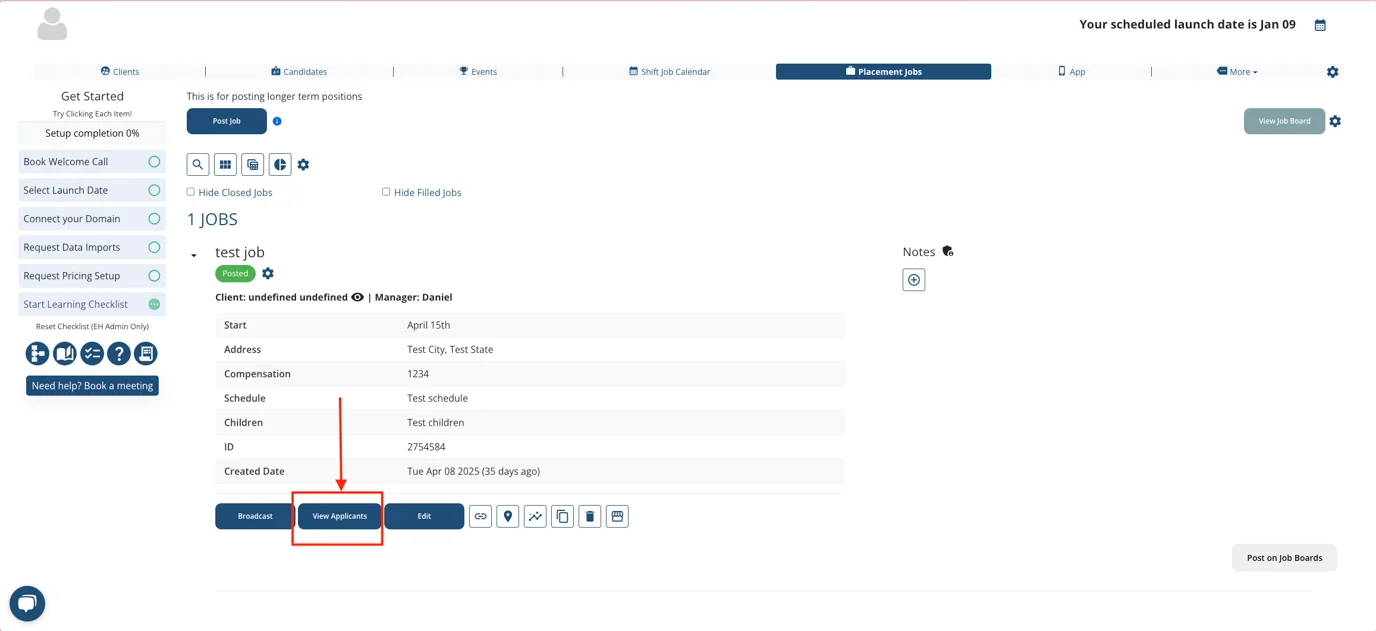
To share jobs on the job boards, navigate to the placement/long-term jobs section on your Enginehire Dashboard. To check if a job has already been posted, click on "Post on Job Boards." If you have the option to delete or update the job, it indicates that the job is currently live on the job boards.
When you click on "View Applicants," you will see a list of all applicants and their sources. These applicants will also be added to your candidates list.
IMPORTANT:
Click here to learn how to remove a job for job boards.
Making a placement or closing a job will not remove it from job boards and if you still be charged for having an active job.
