Let’s get started 🚀
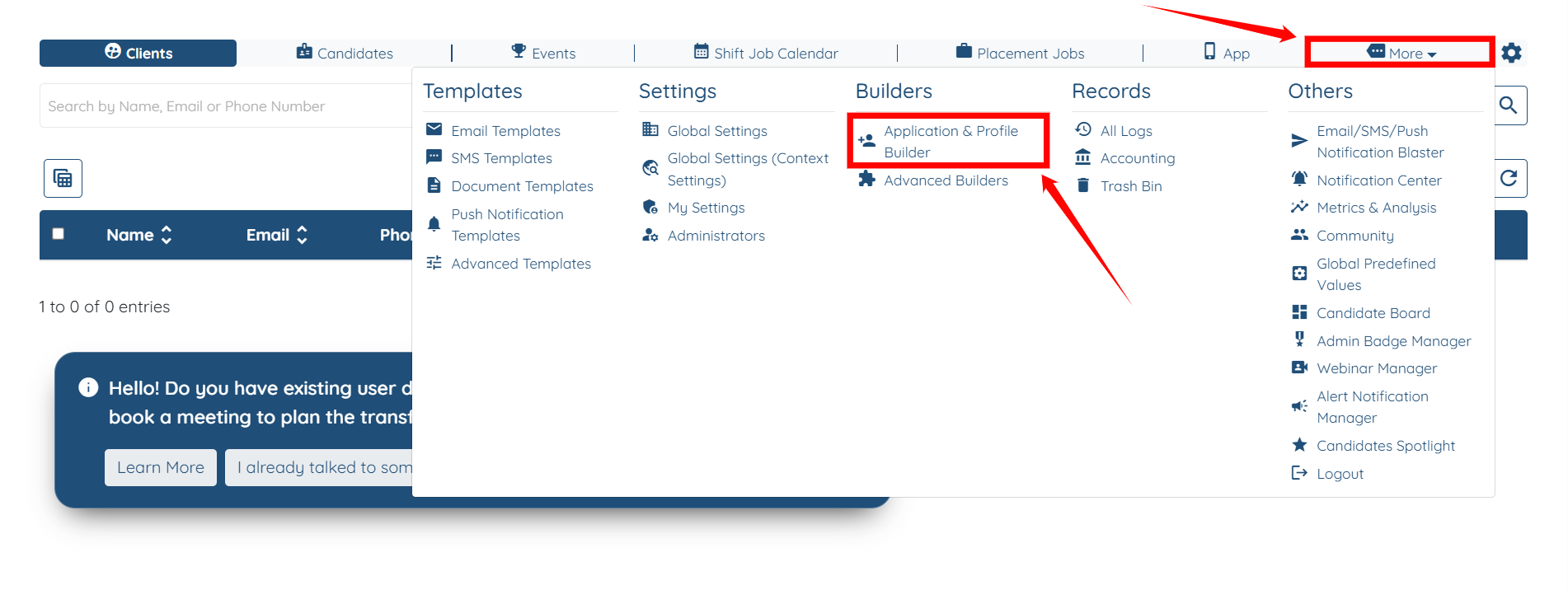
Step 1: Log in to your agent dashboard, then navigate to More > Application & Profile Builder, as shown in the screenshot below.
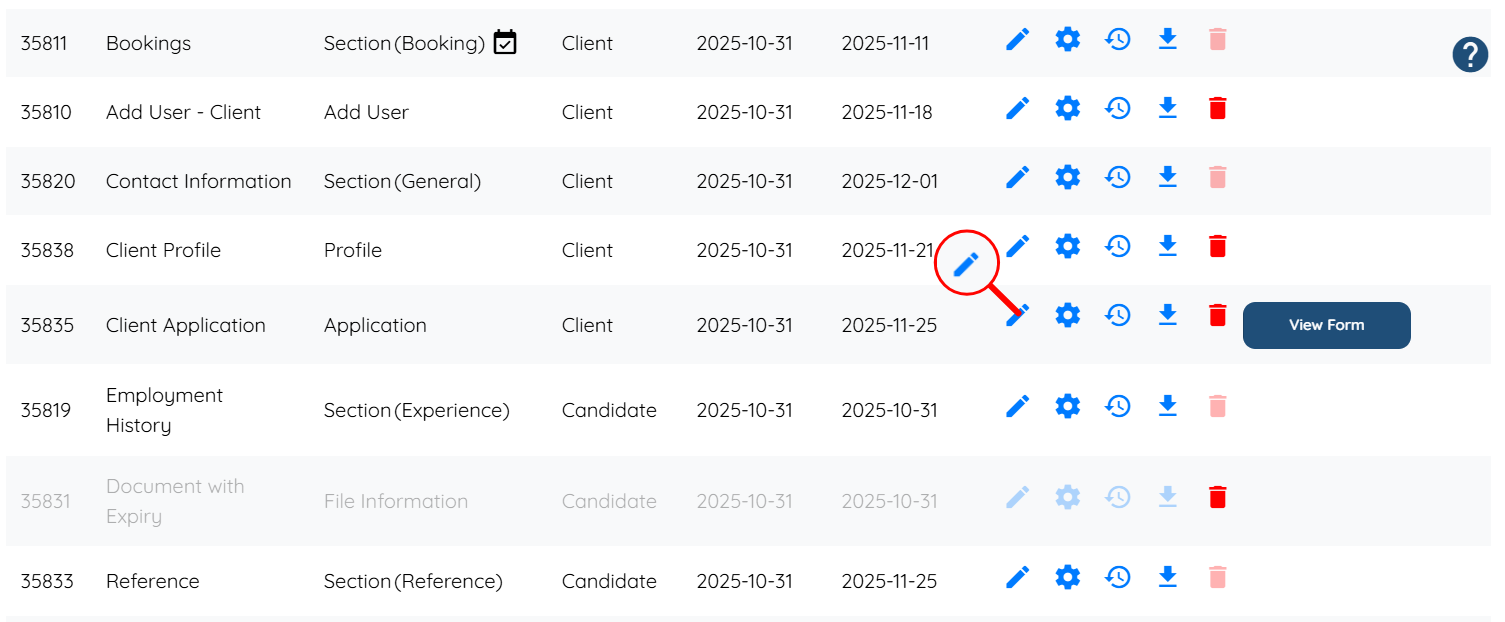
Step 2: Locate the application form where you want to enable the returning applicant button, and then click the pencil icon associated with that form in the Actions column.
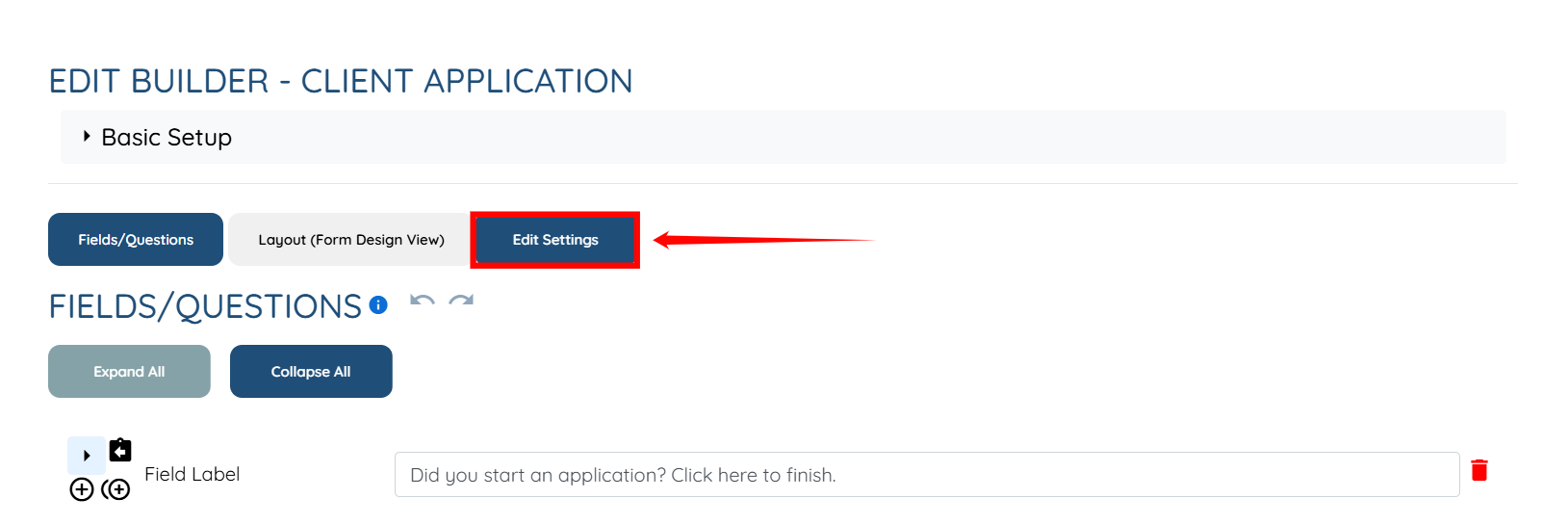
Step 3: Click the Edit Settings button as shown in the screenshot.
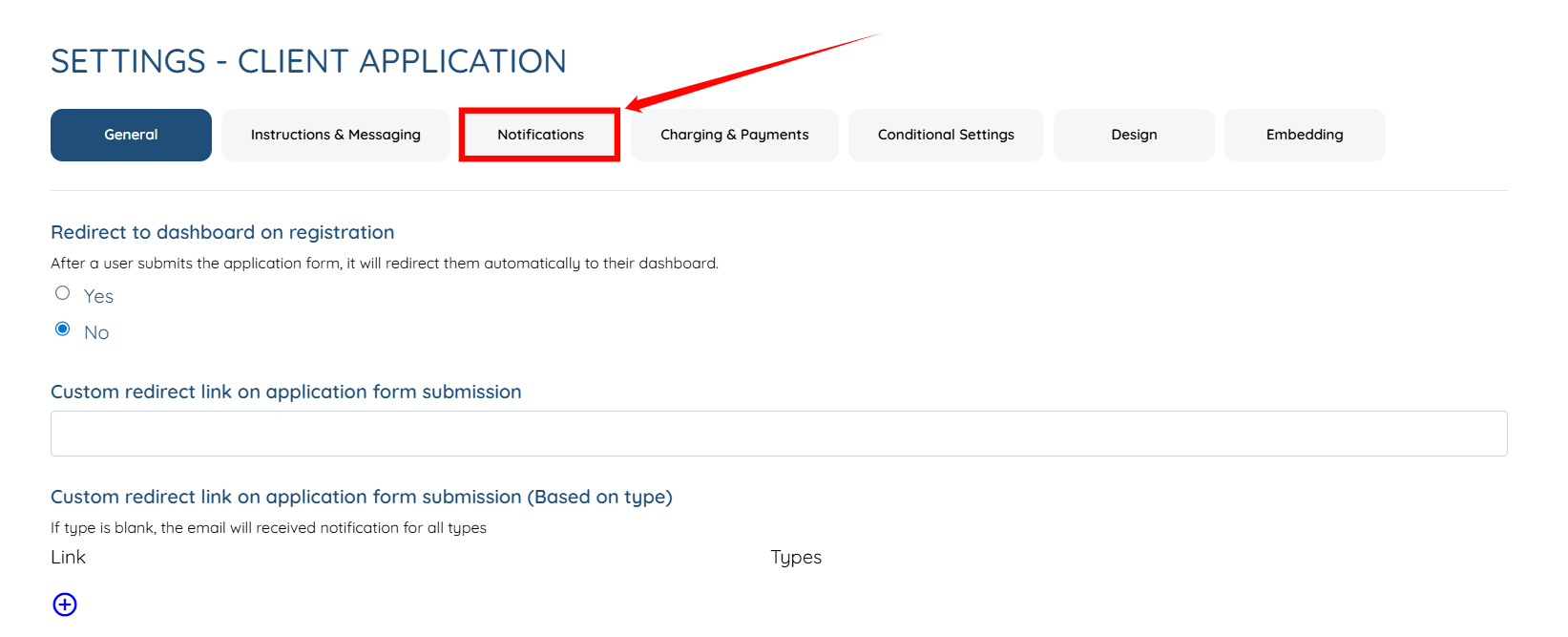
Step 4: Click the Notifications tab from the list of all the available tabs.
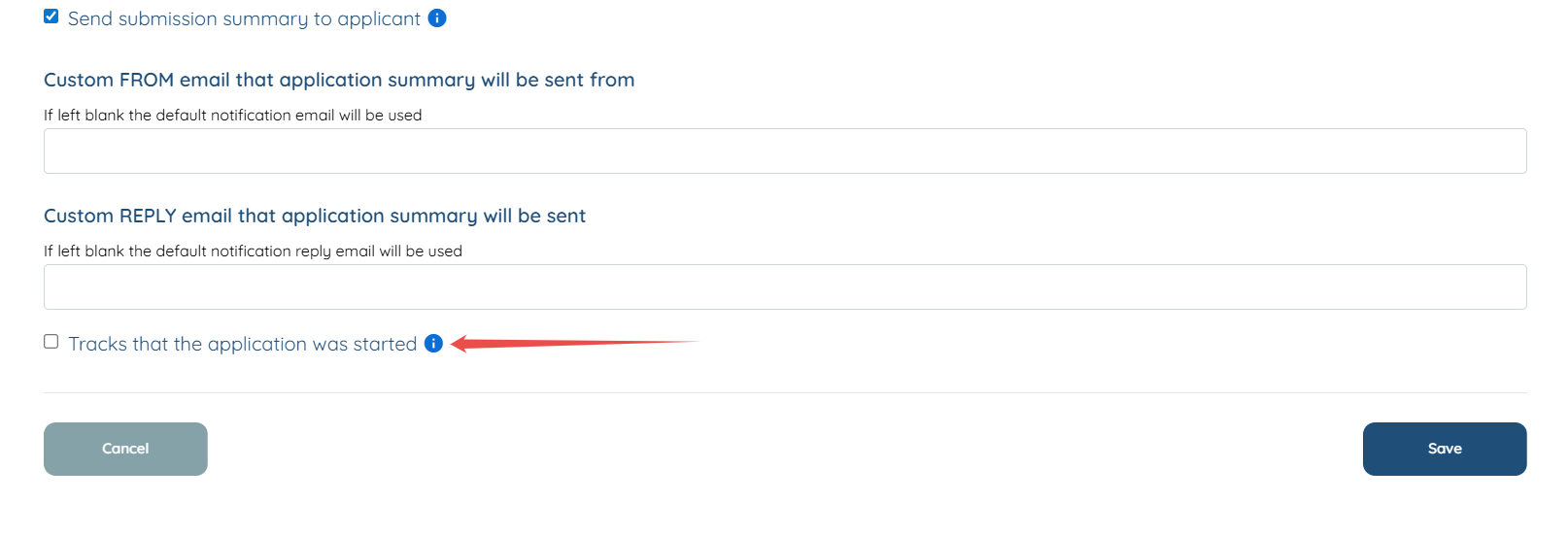
Step 5: Scroll down and check the Tracks that the application was started checkbox.
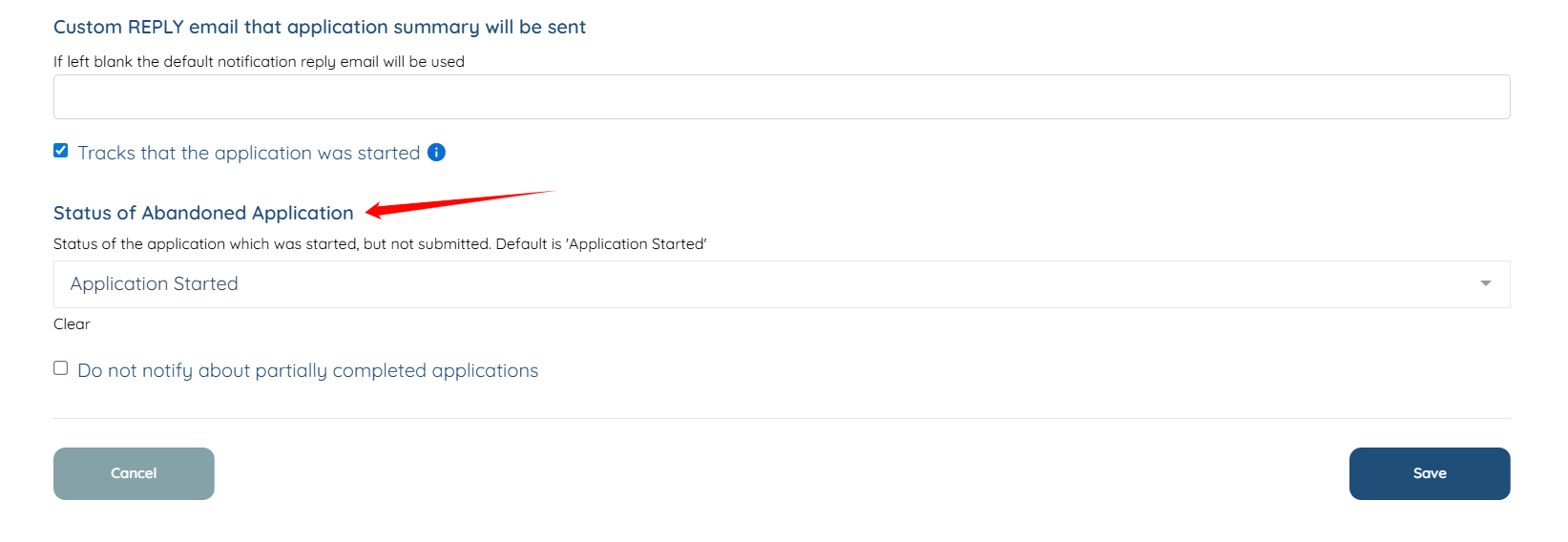
Step 6: Click the Status of Abandoned Application field and select the status you want the Abandoned Application to be in.

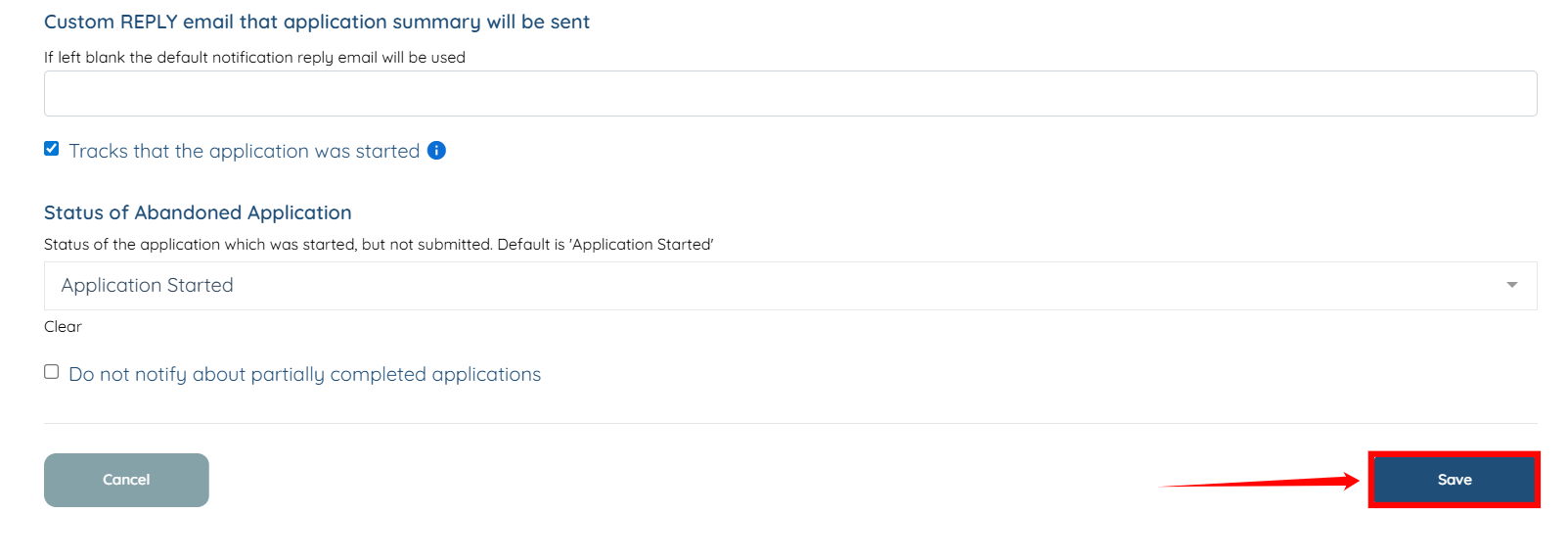
Step 7: Click the Save button to proceed.
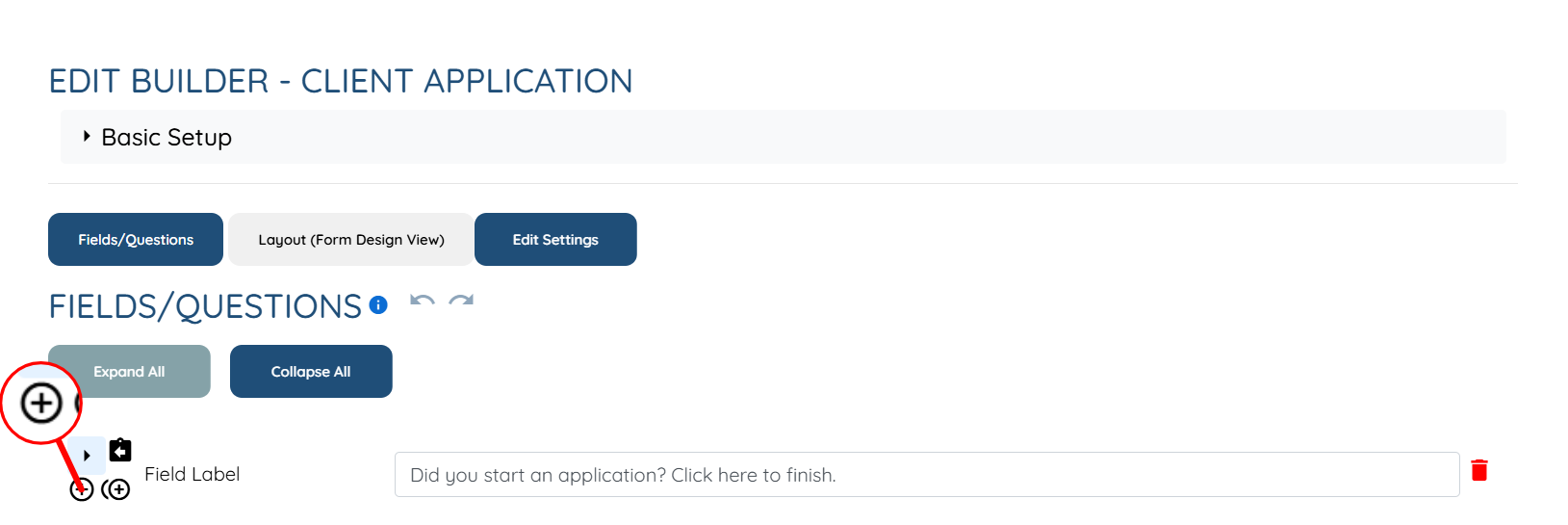
Step 8: Click the + icon as shown in the screenshot to insert a new field.
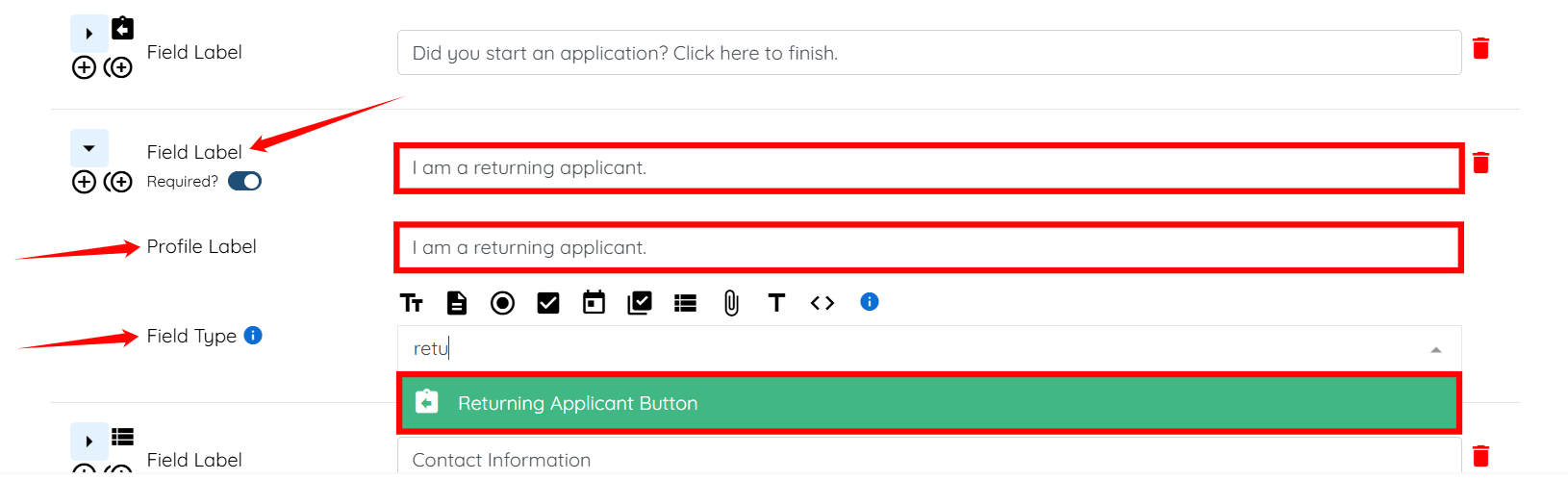
Step 9: Enter the Field, Profile Label, and select Returning Applicant Button as the Field Type.
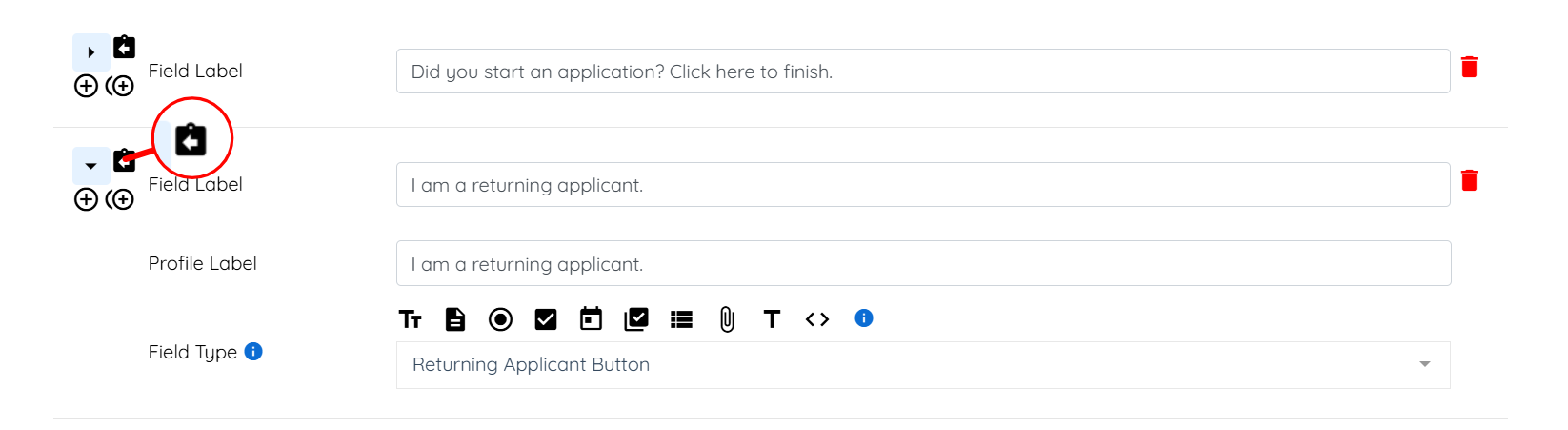
Step 10: Drag the field to the top by hovering over and clicking the icon shown in the screenshot.
Step 11: Click the Save button to proceed.
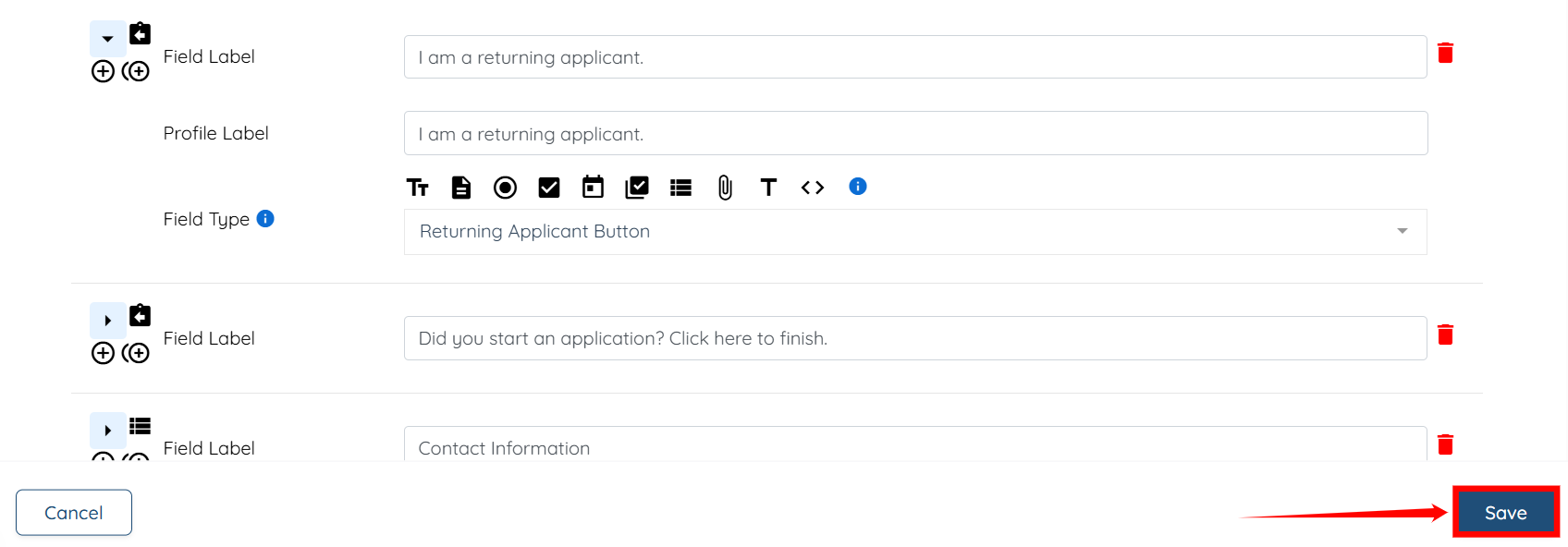
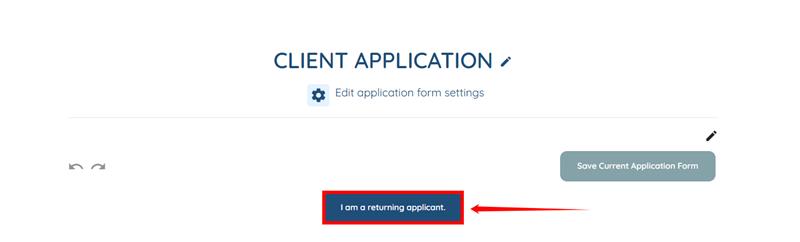
A new button will successfully appear at the top of the application form for returning applicants.