Let’s get started 🚀
Step 1: Log in to your agent dashboard and click Placement Jobs in the top navigation bar.

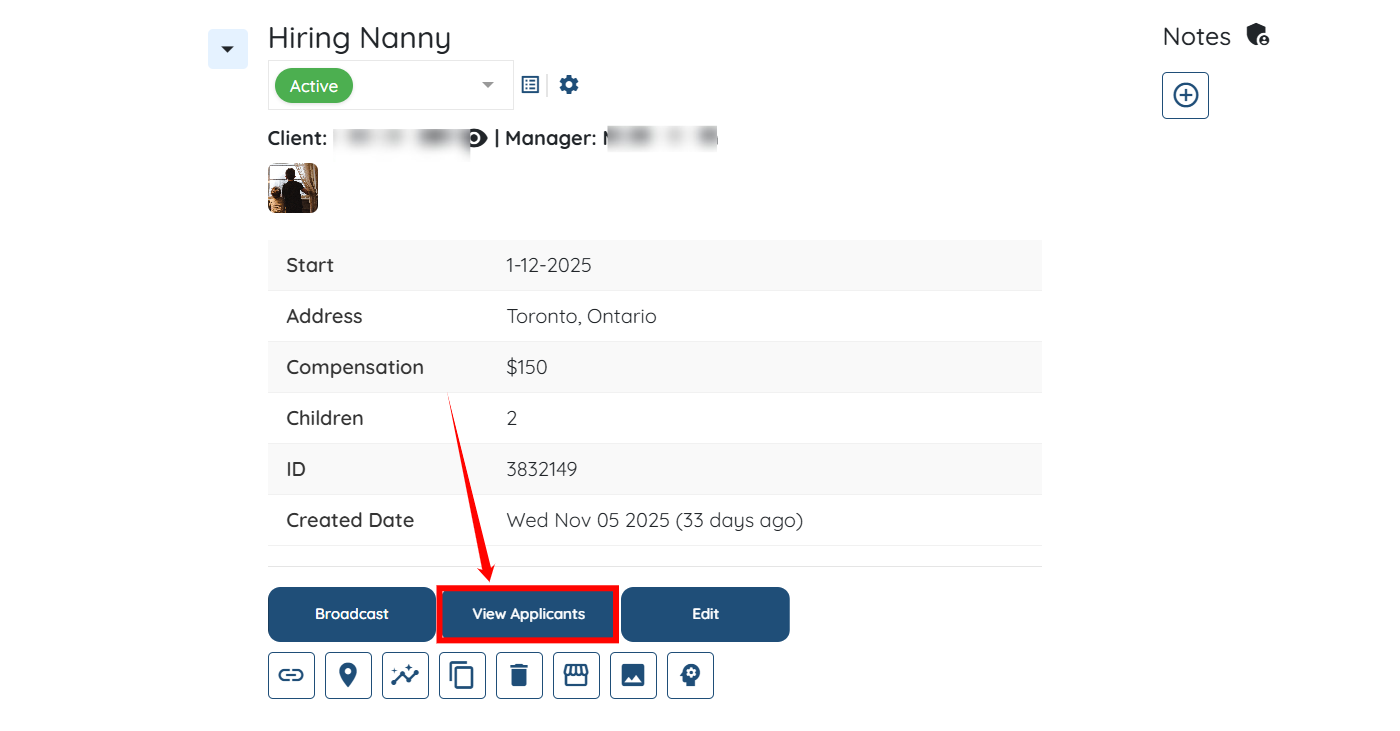
Step 2: Locate the placement job for which you want to view the applicants, and then click the View Applicants button.
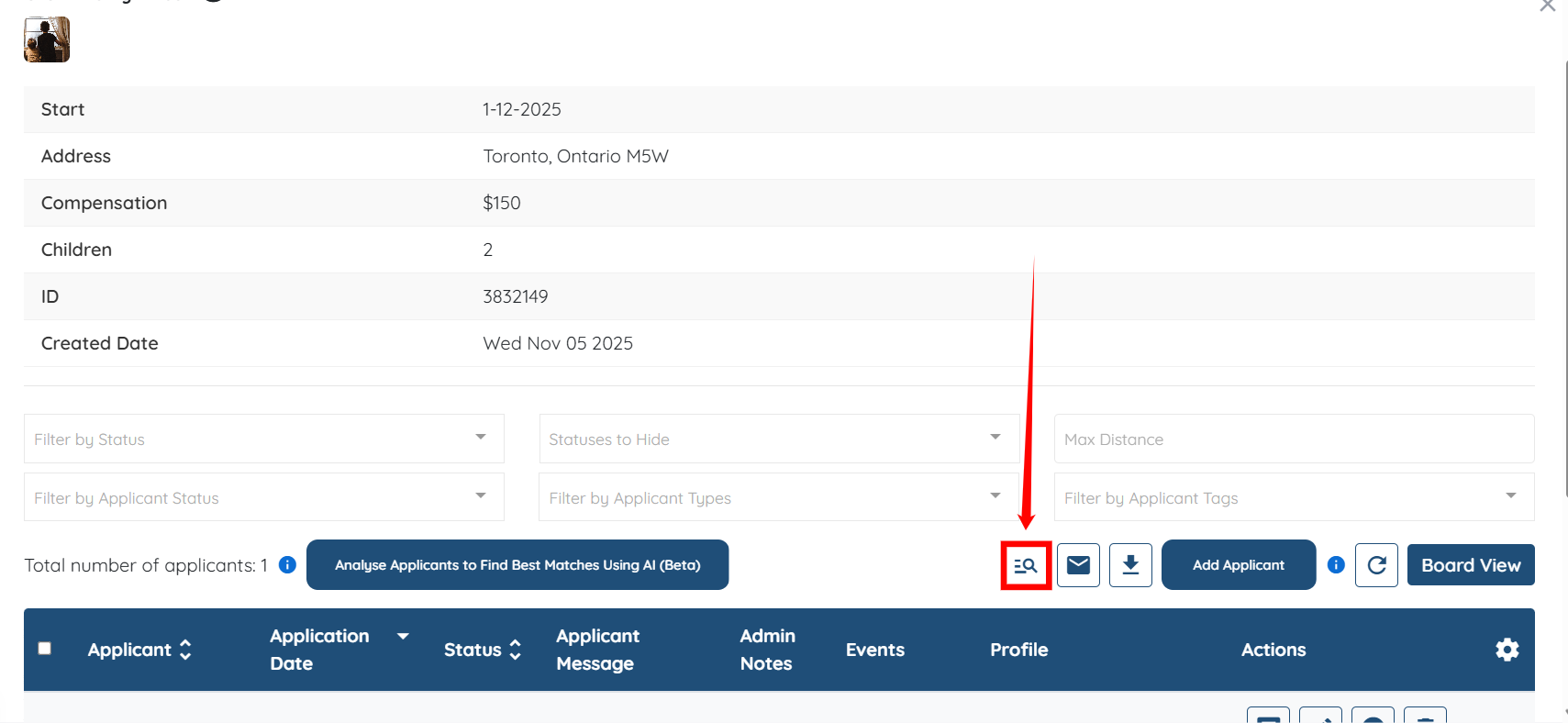
Step 3: Click the Advanced Search button to open the Advanced Search panel.
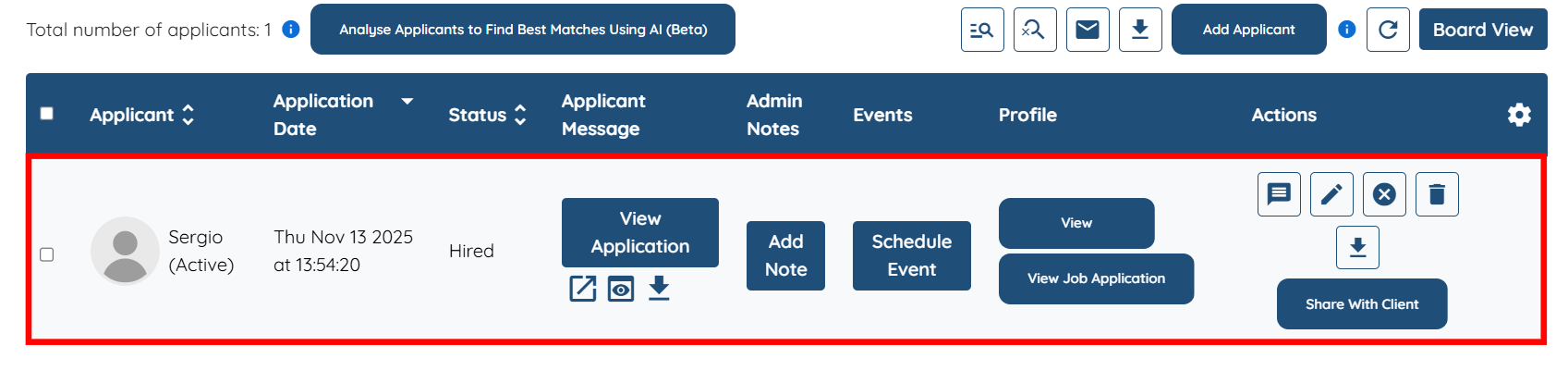
Step 4: Add the filter condition to define exactly who should appear in the applicant list results. For demonstration purposes, we use First Name as the field, Contains as the operator, and enter “S” as the value.

This means it displays only the applicants whose first name contains the letter “S,” enabling you to quickly narrow down the list based on partial matches.
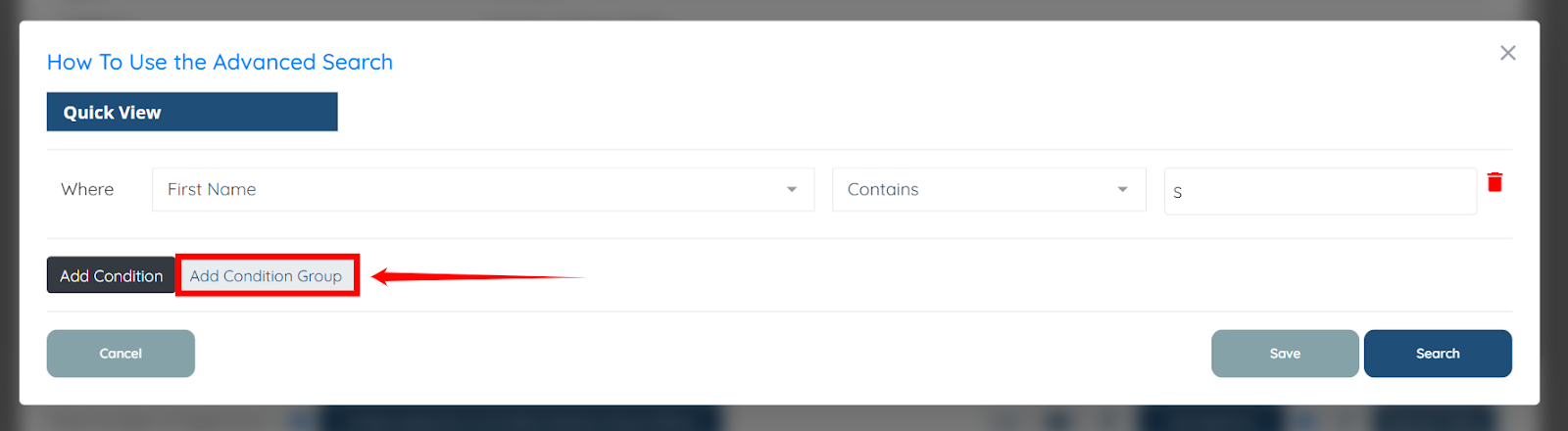
Step 5: You can also use the Add Condition Group button to create additional filters and actively control how those filters work together.
For demonstration purposes, we have added a second condition: Status → Is → Active.
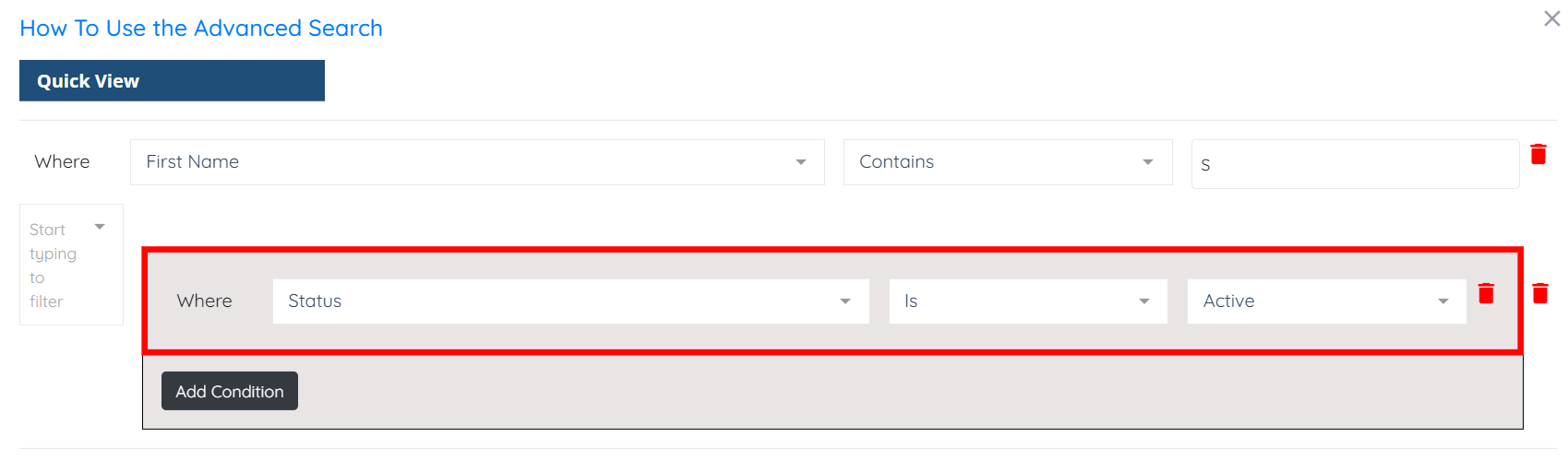
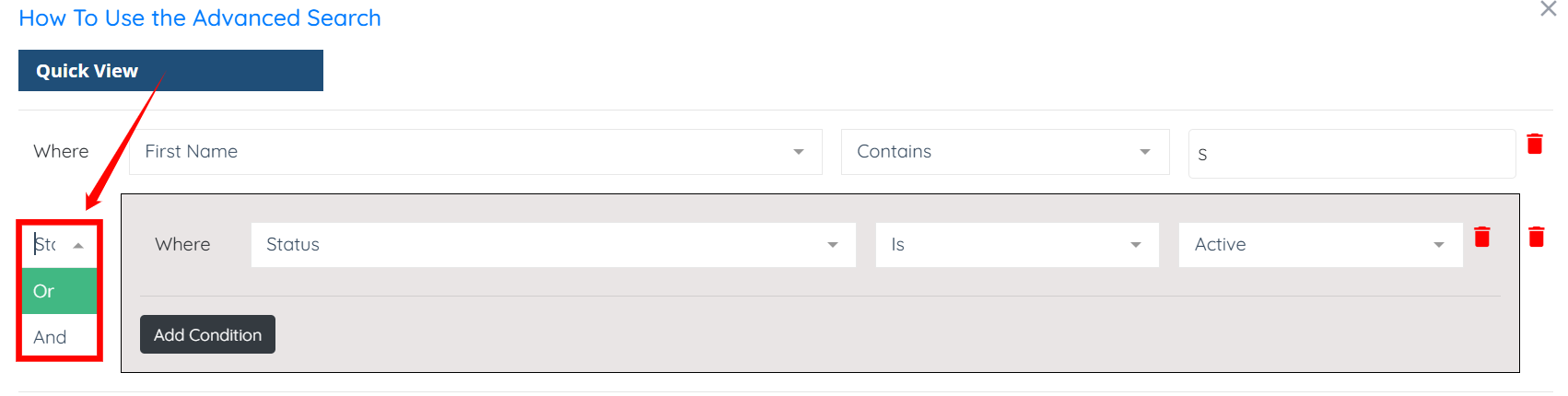
On the left, choose Or or And to define how this condition interacts with your first one:
Select “Or” to show applicants who meet either condition, for example, applicants whose first name contains “S” or applicants with an Active status.
Select “And” to show only applicants who meet both conditions at the same time, for example, applicants whose first name contains “S” and also have an Active status.
Step 6: Click the Search button.
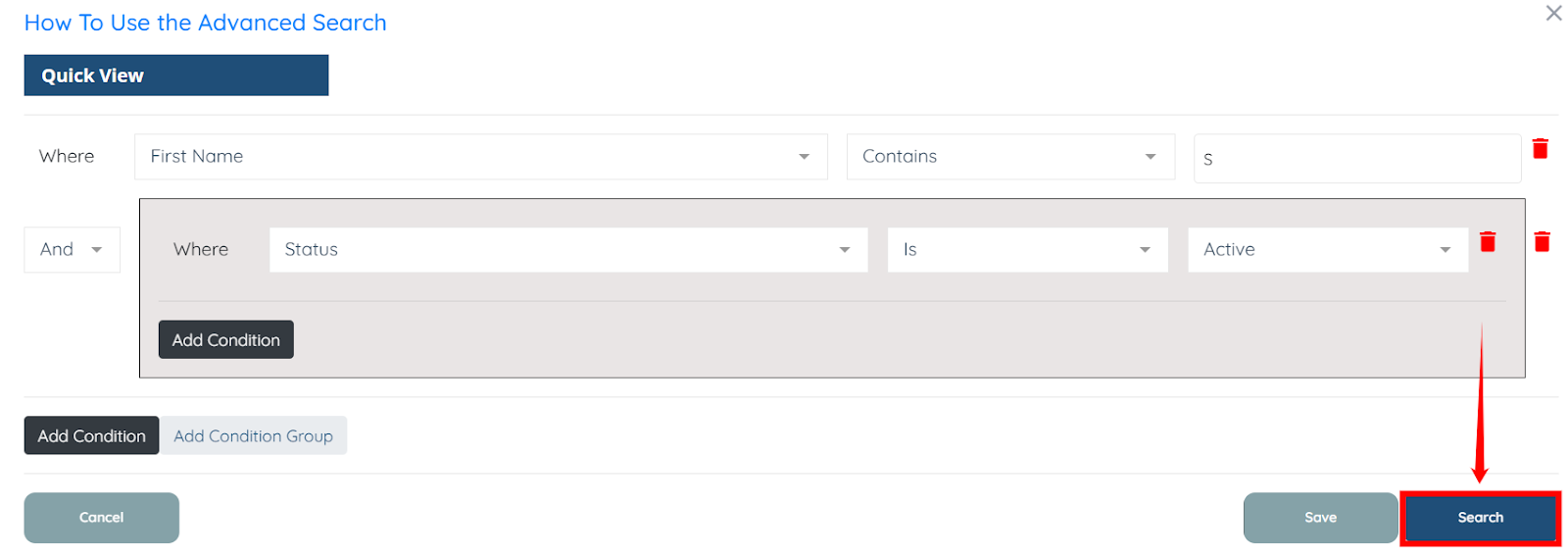
You will then see the list of applicants filtered according to the condition group you set.

