Let’s get started 🚀
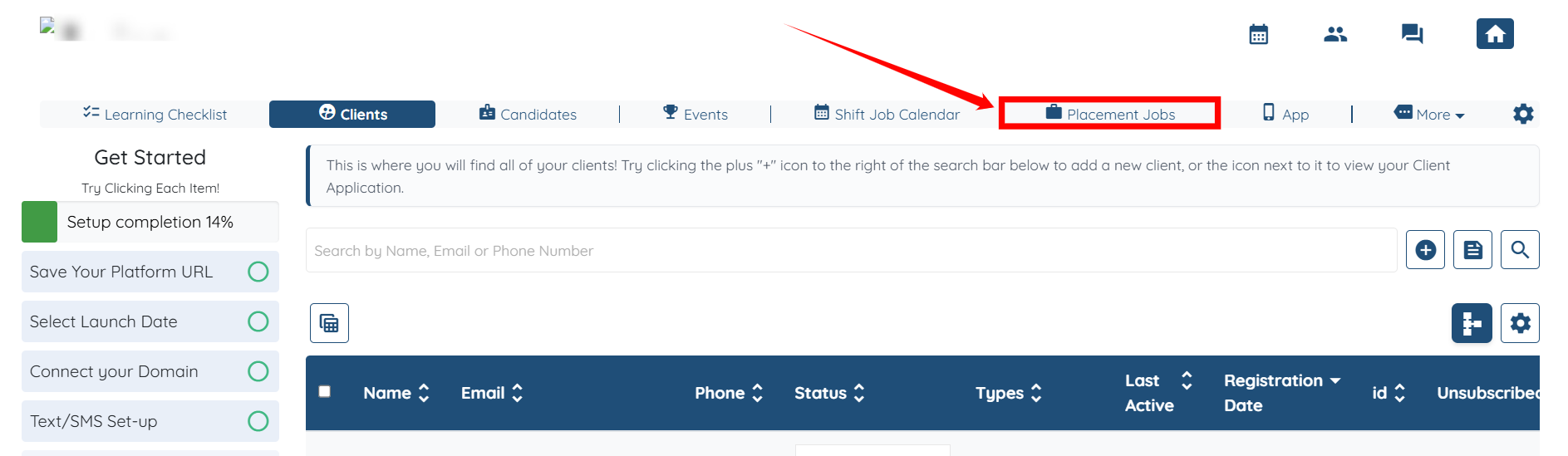
Step 1: Log in to your agent dashboard and click Placement Jobs in the top navigation bar.
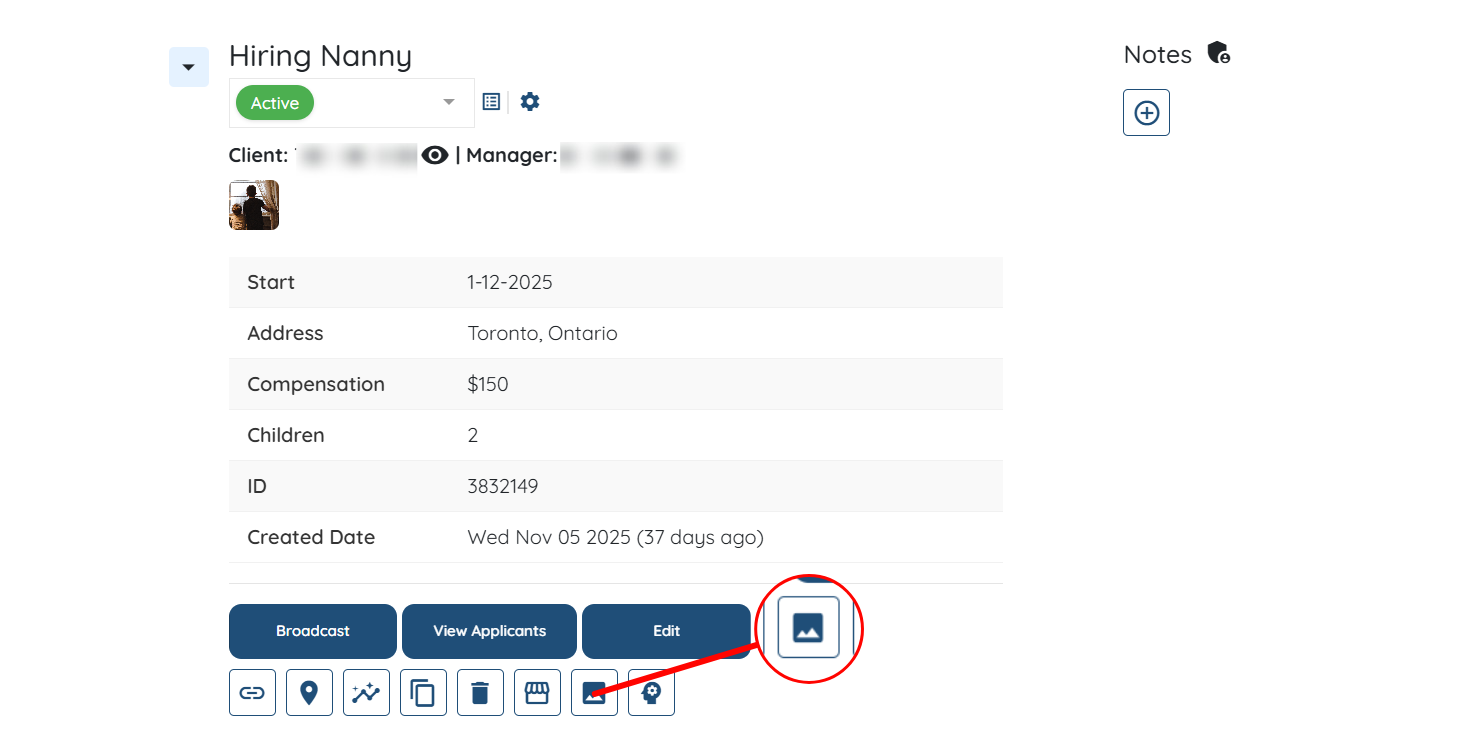
Step 2: Locate the placement job for which you want to create an Instagram post. Then, click the Image icon as shown in the screenshot below.
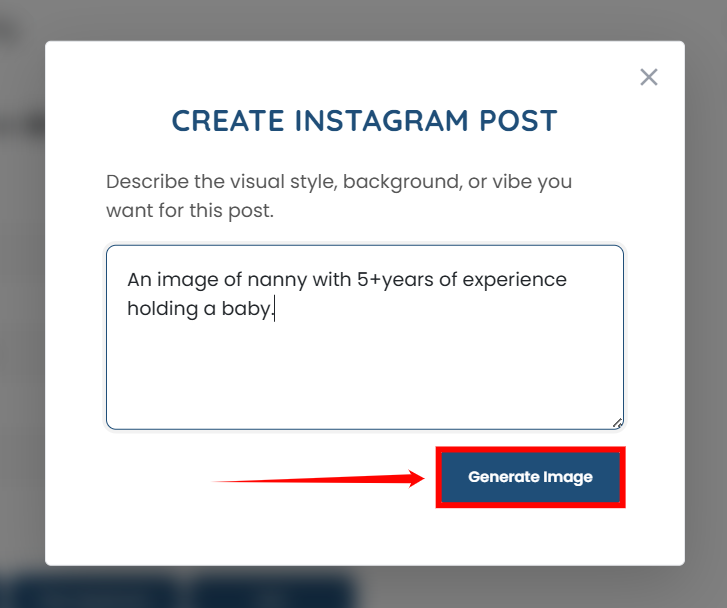
Step 3: Write the text that describes the style, background, or vibe you want for this post.
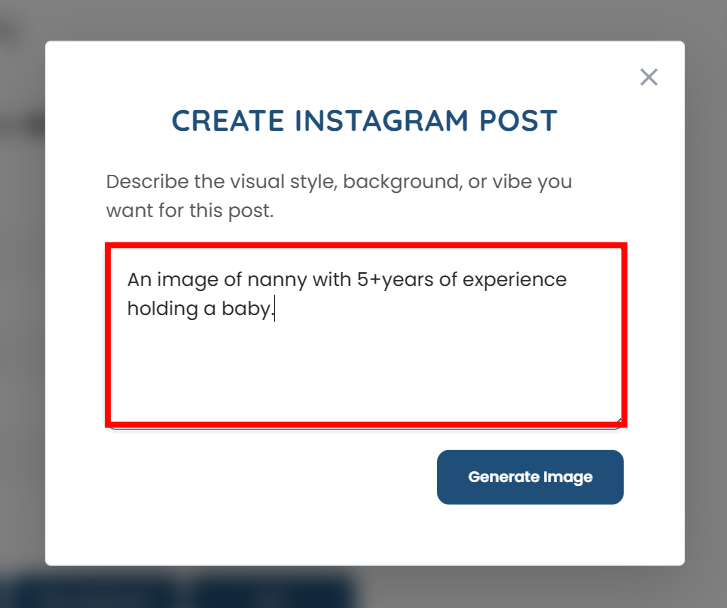
Step 4: Click the Generate Image button to begin generating the image.
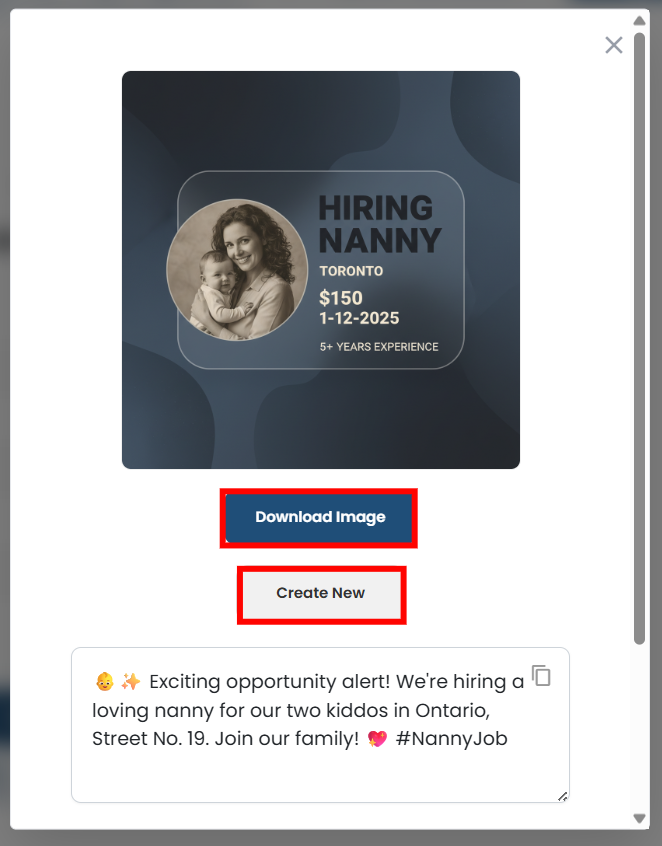
Step 5: The image will generate successfully, and you can download it by clicking the Download Image button.
If you are not satisfied with the currently generated image, you can create a new one by clicking the Create New button.
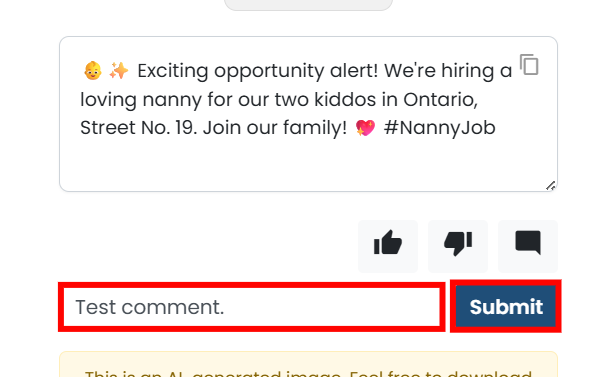
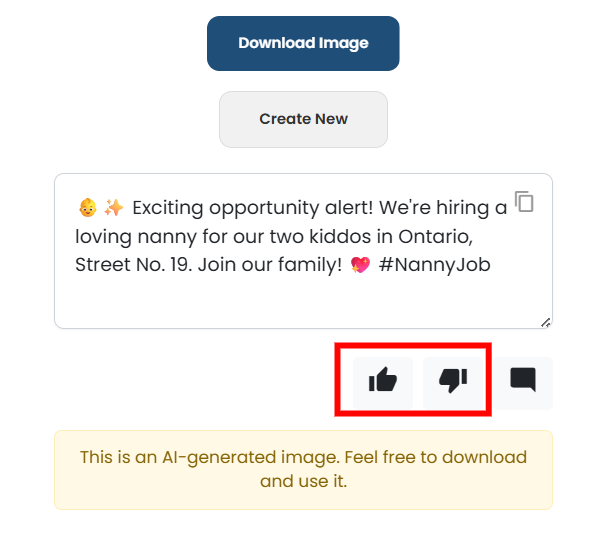
Step 6: You can also provide your feedback on the generated image by clicking the Like or Dislike button.
Step 7: Additionally, you can also add a comment by clicking the icon as shown in the screenshot below.
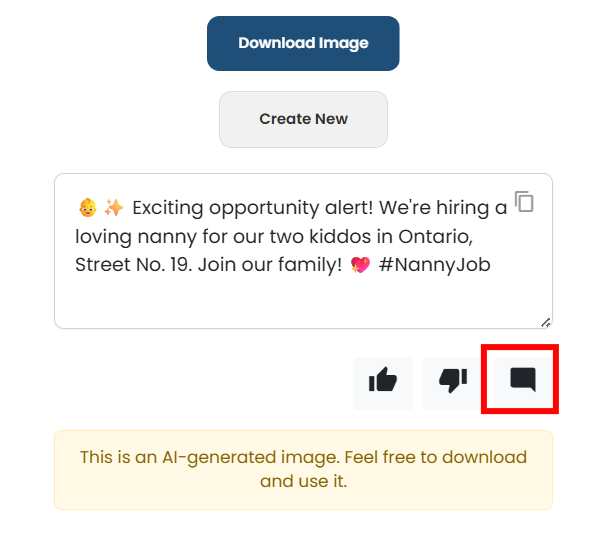
Step 8: After you add the comment, click the Submit button to proceed.