Let’s get started 🚀
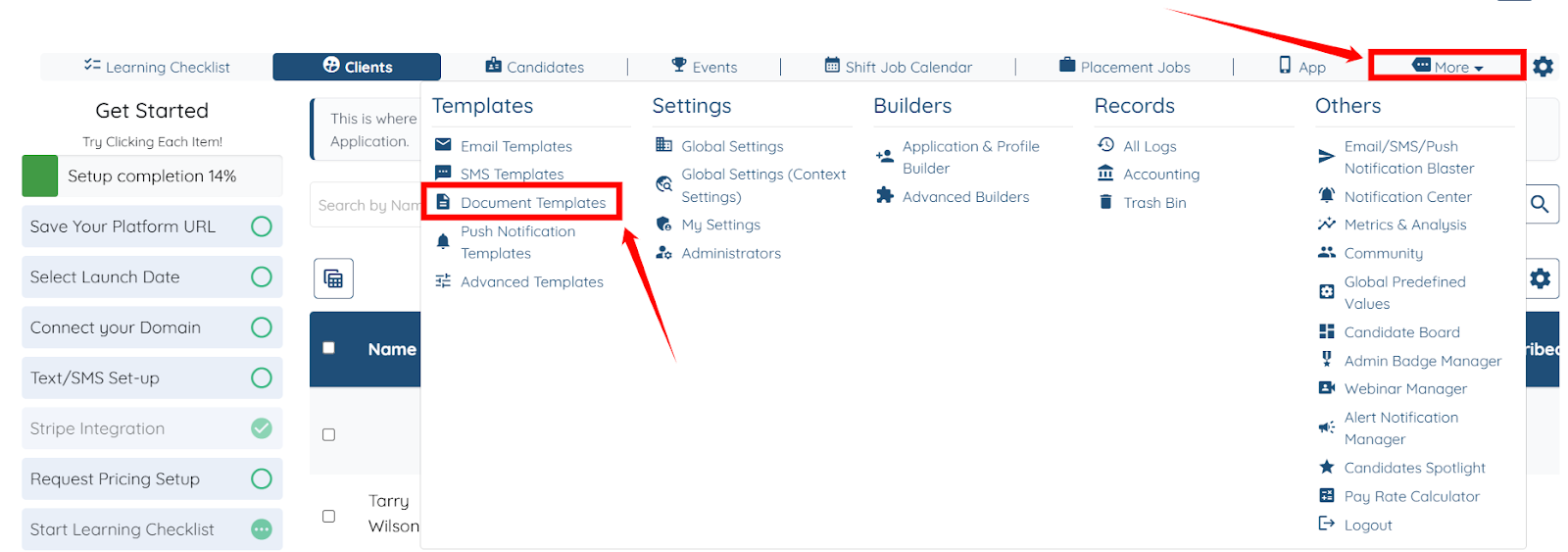
Step 1: Log in to your agent dashboard, then click More > Document Templates, as shown in the screenshot below.
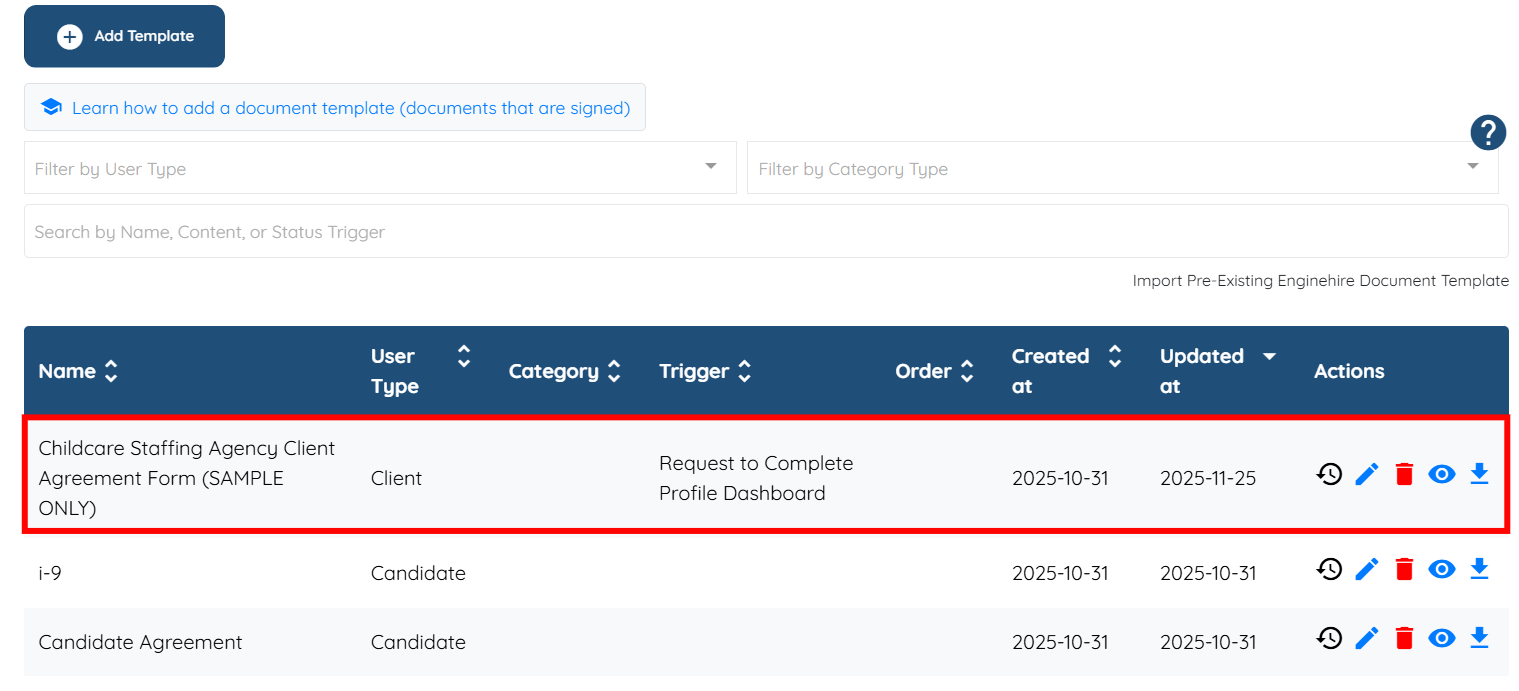
Step 2: Click on and open the document template that you want to edit.
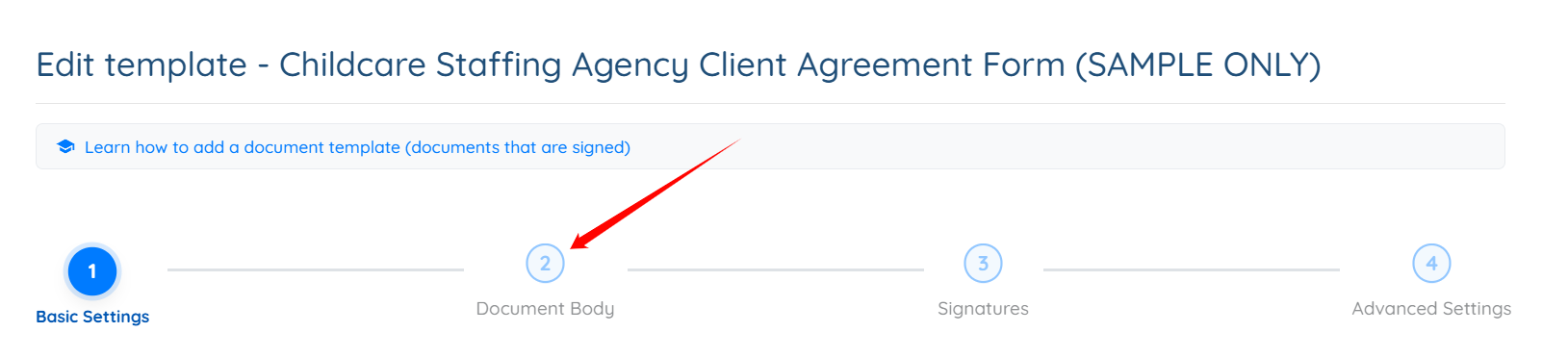
Step 3: Select the Document Body option to begin editing the template.
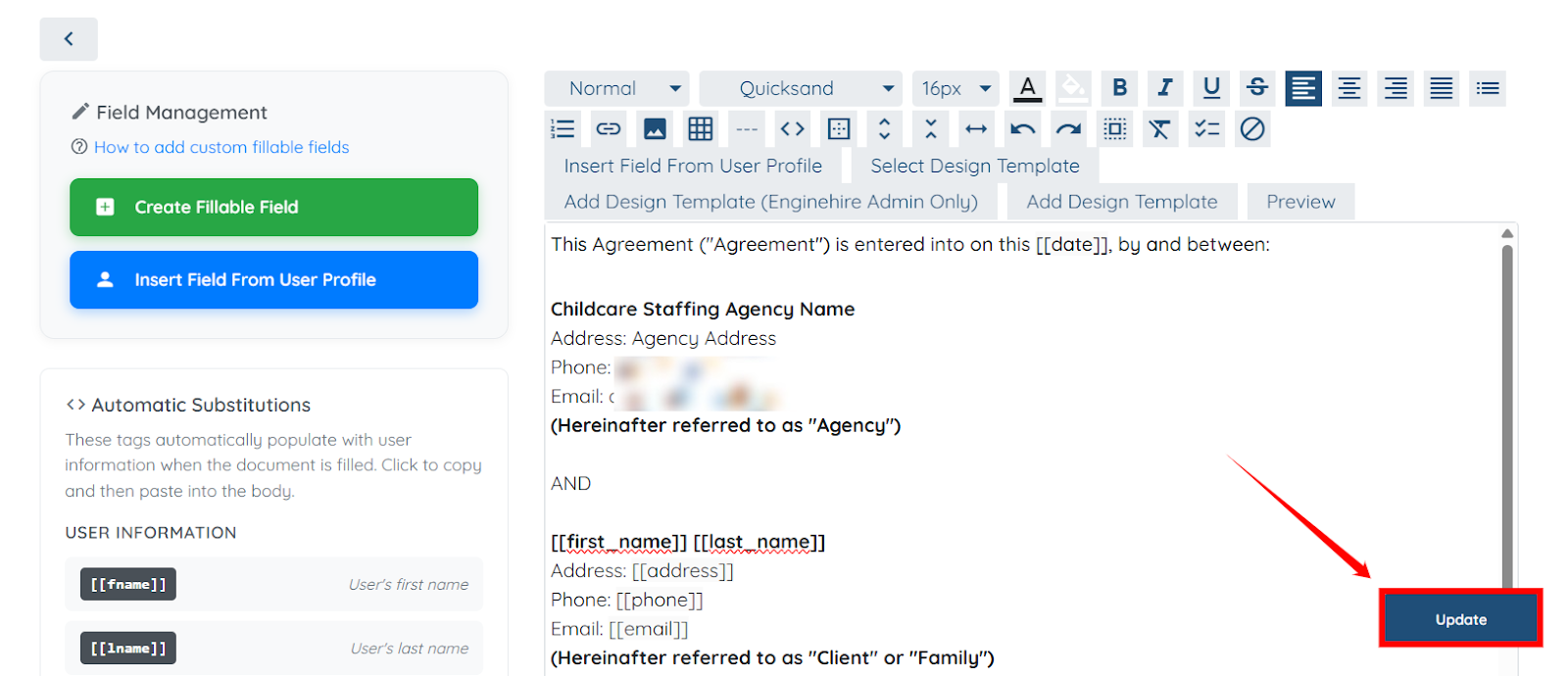
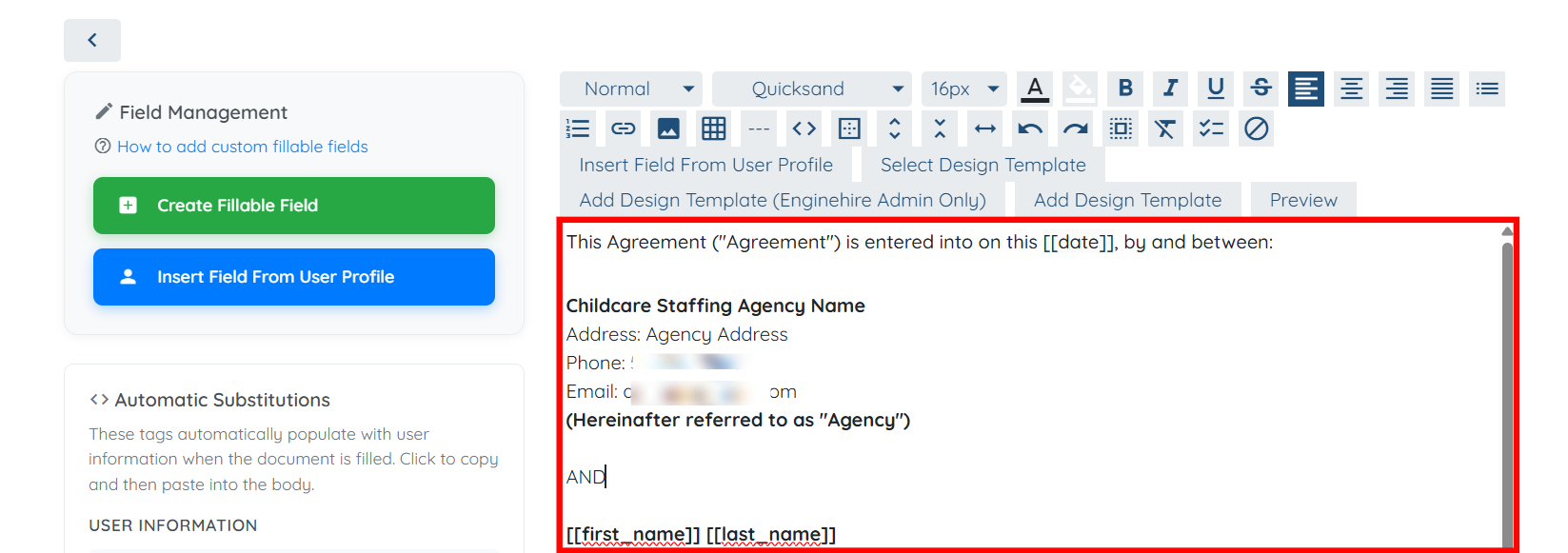
Step 4: Scroll down and edit the template body as you want.
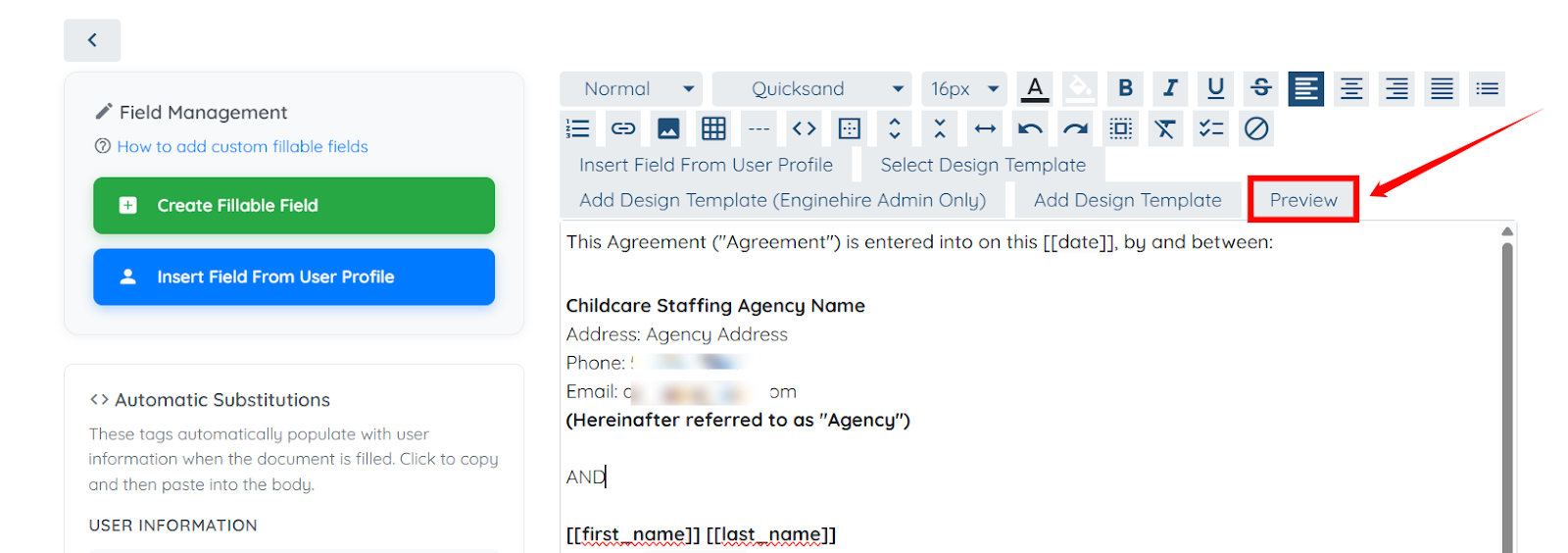
Step 5: Click the Preview button, as shown in the screenshot below, to see how the changes will appear.
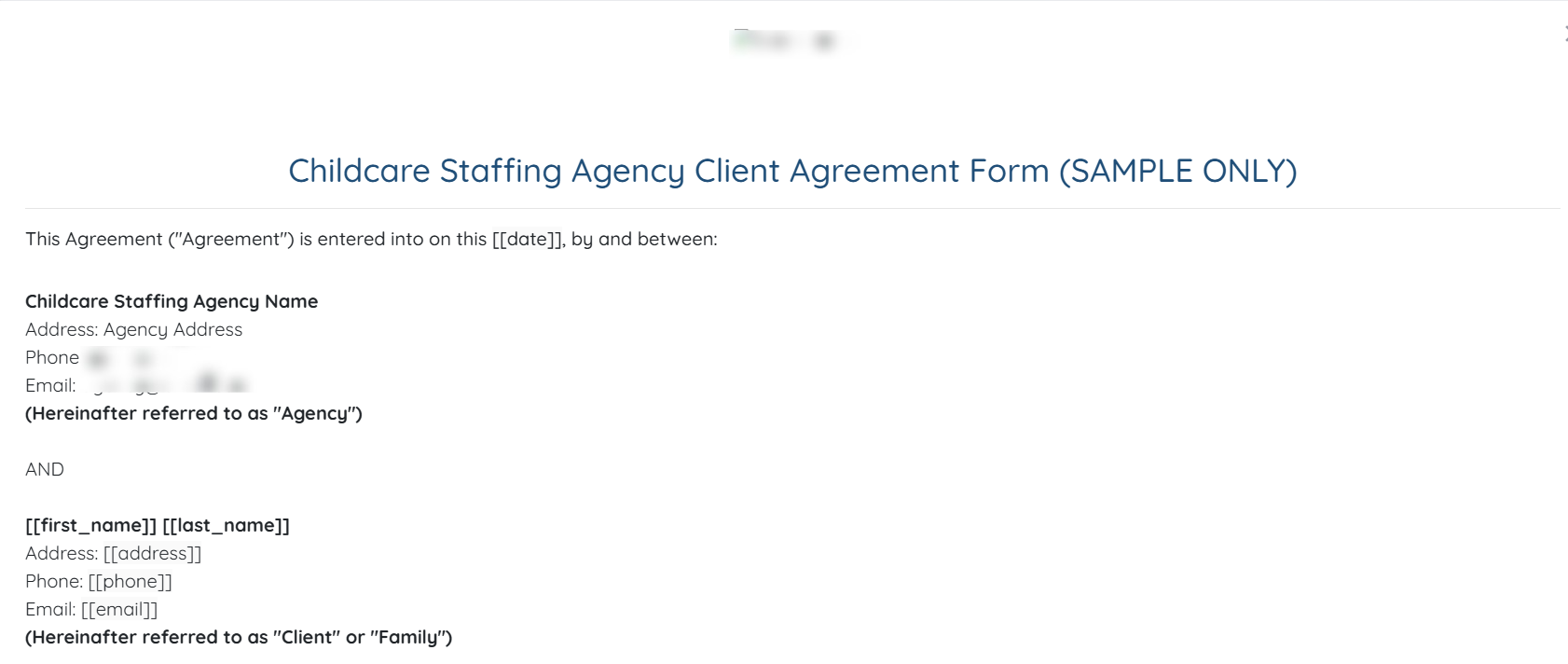
You will be able to preview your document template to see how it looks after you make the required changes.
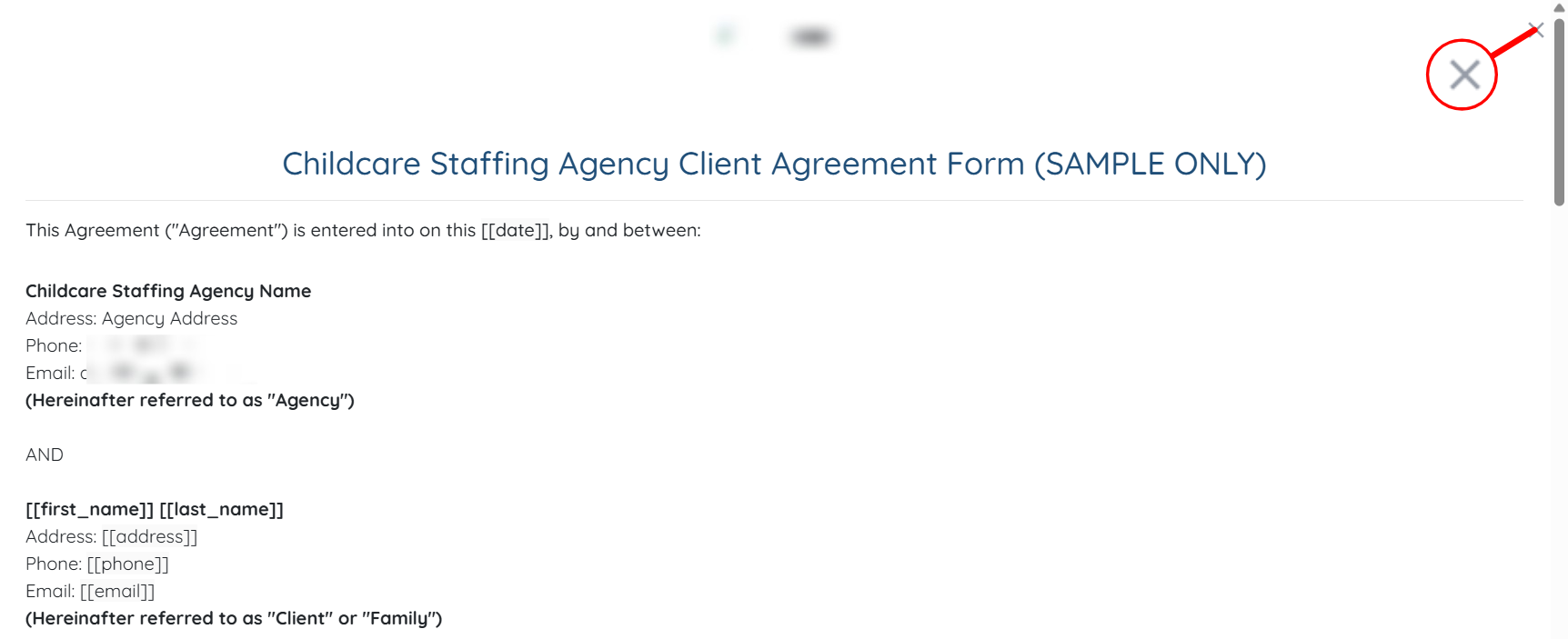
Step 6: Click the cross icon at the top right corner of the preview to close it.
Step 7: You can make additional changes if you wish, or click the Update button to save the template