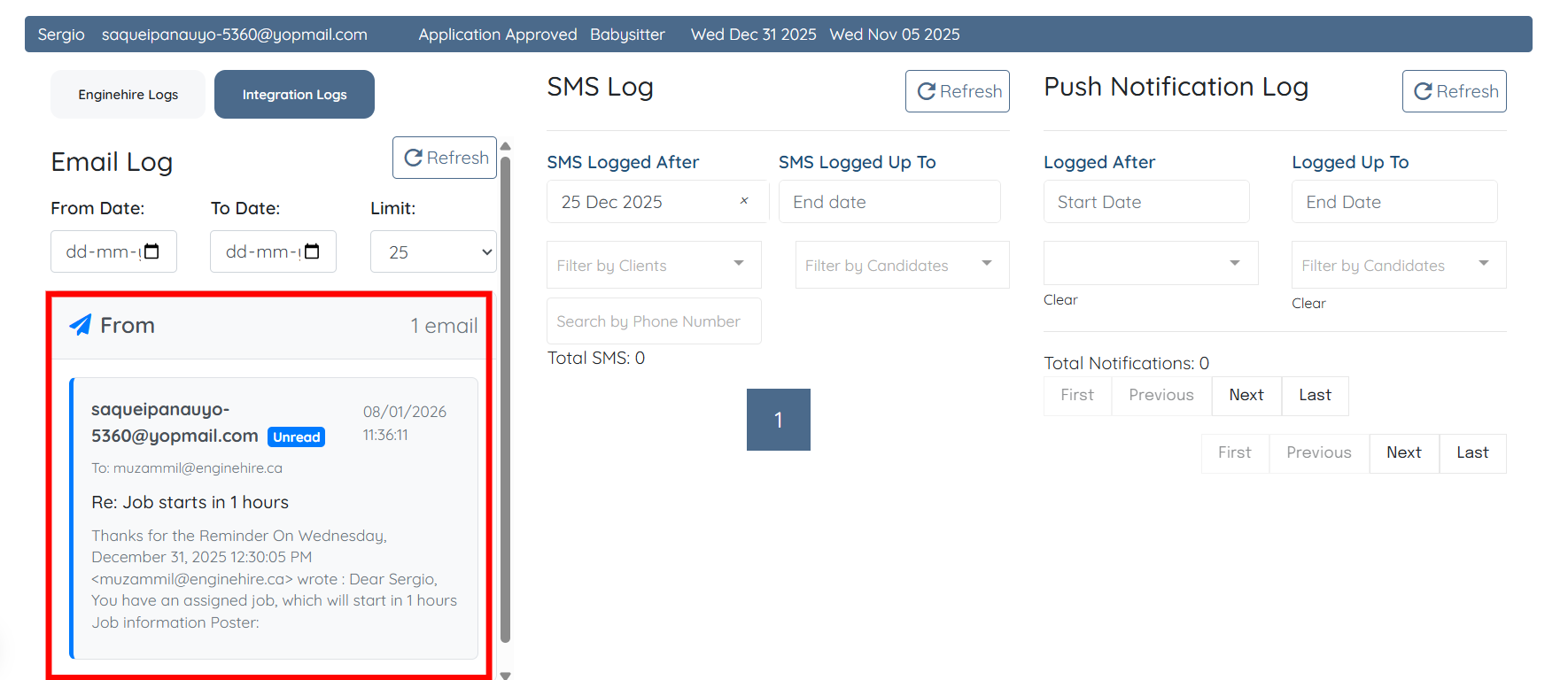
Let’s get started 🚀
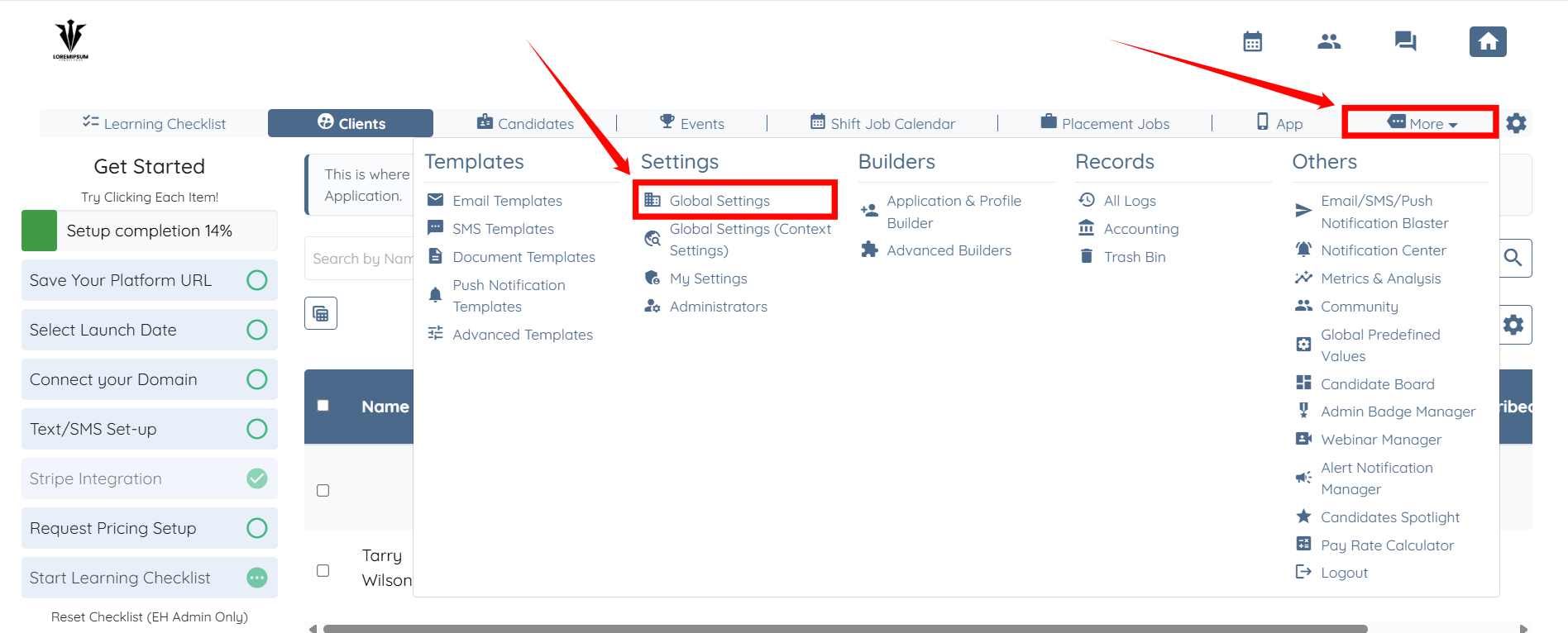
Step 1: Log in to your agent dashboard, and click on More > Global Settings as shown in the screenshot below.
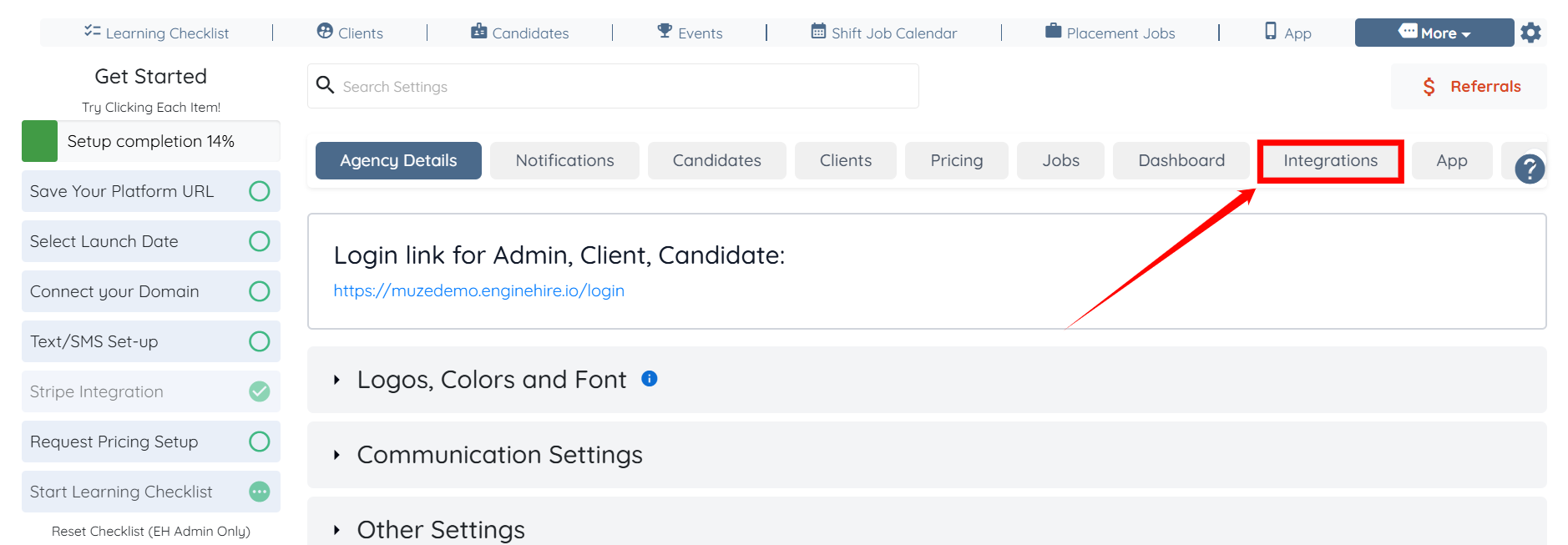
Step 2: Click the Integrations tab from all the available tabs.
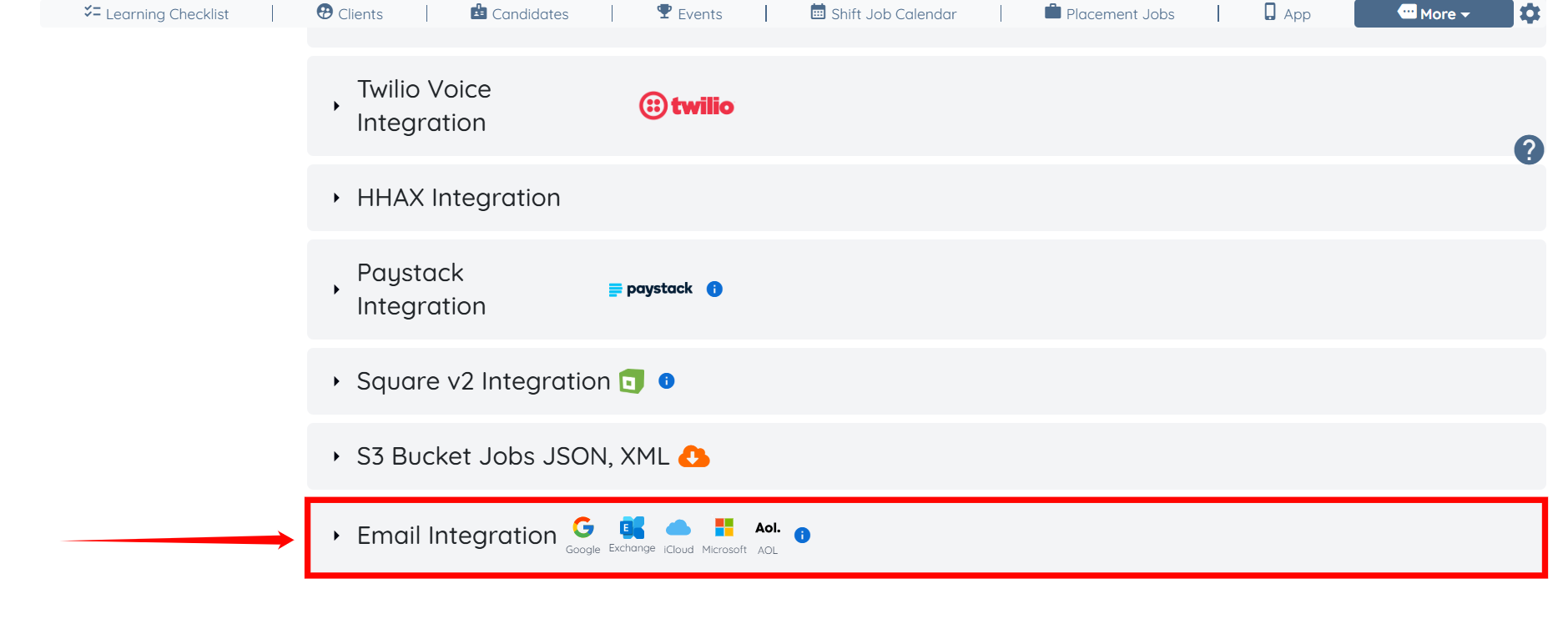
Step 3: Scroll to the bottom of the page and click the Email Integration option to expand its details.
Step 4: Select the email provider you want to integrate with your agency. Then, enter the email address you want to configure for this integration.
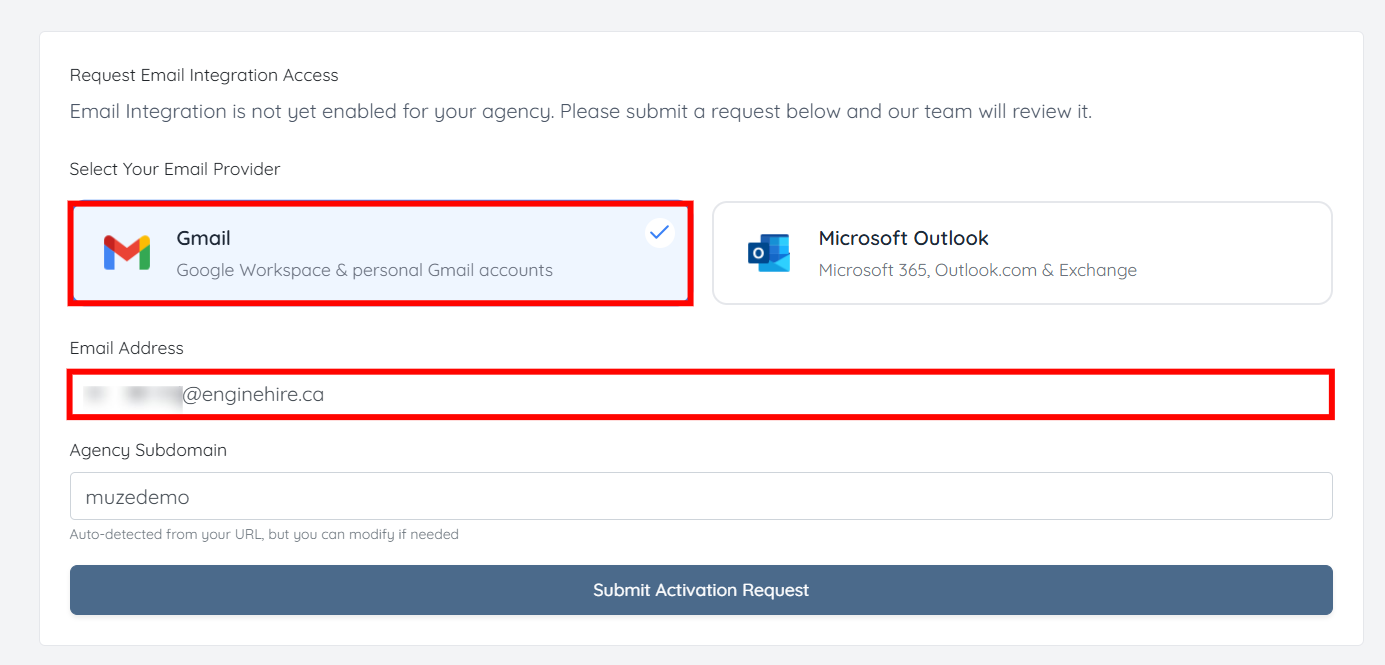
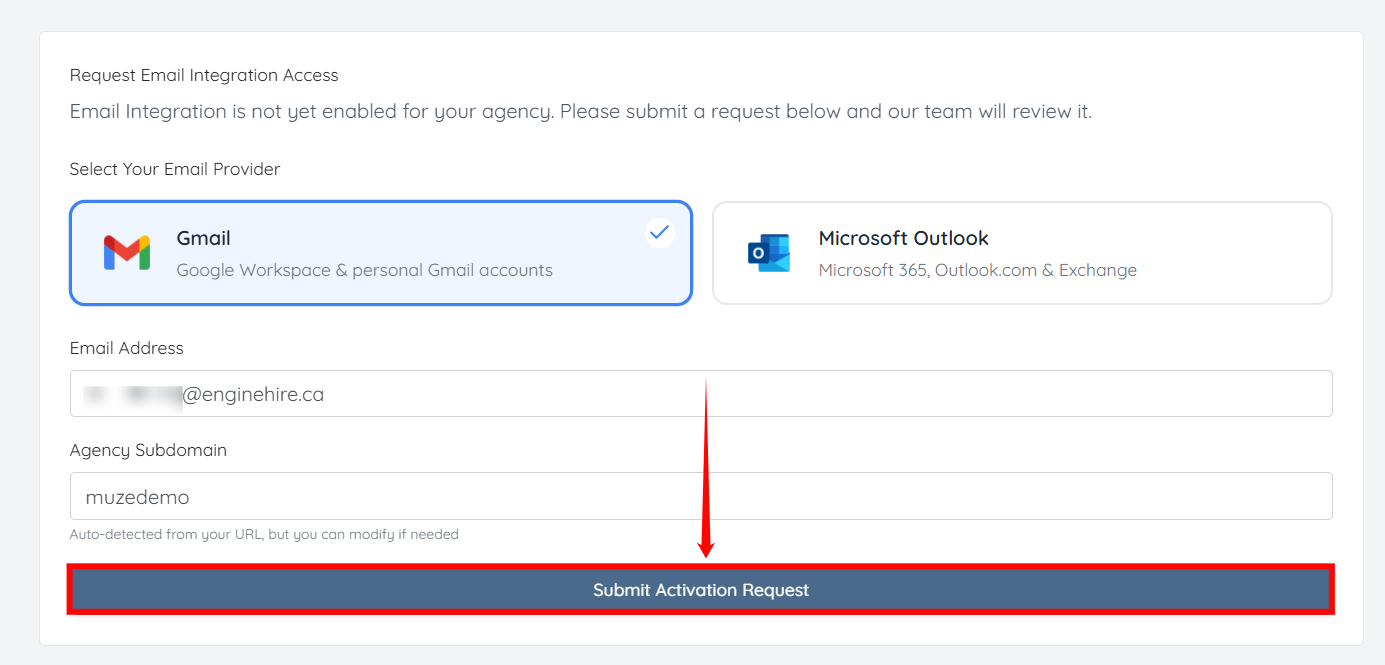
Step 5: Click Submit Activation Request to request email integration access for your agency.

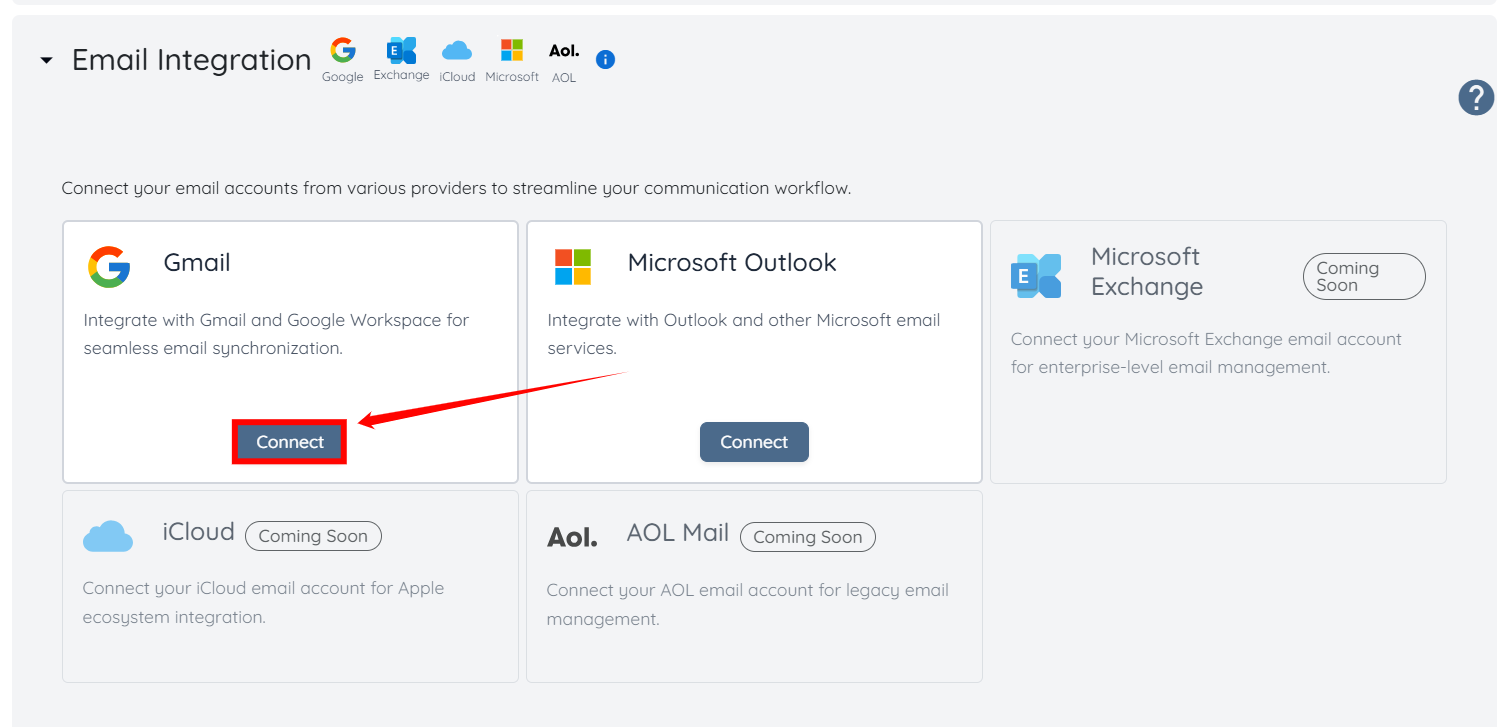
Step 6: Once your email integration request is approved and enabled, a Connect button will appear for the email integrations.
Click the Connect button for the desired email integration.
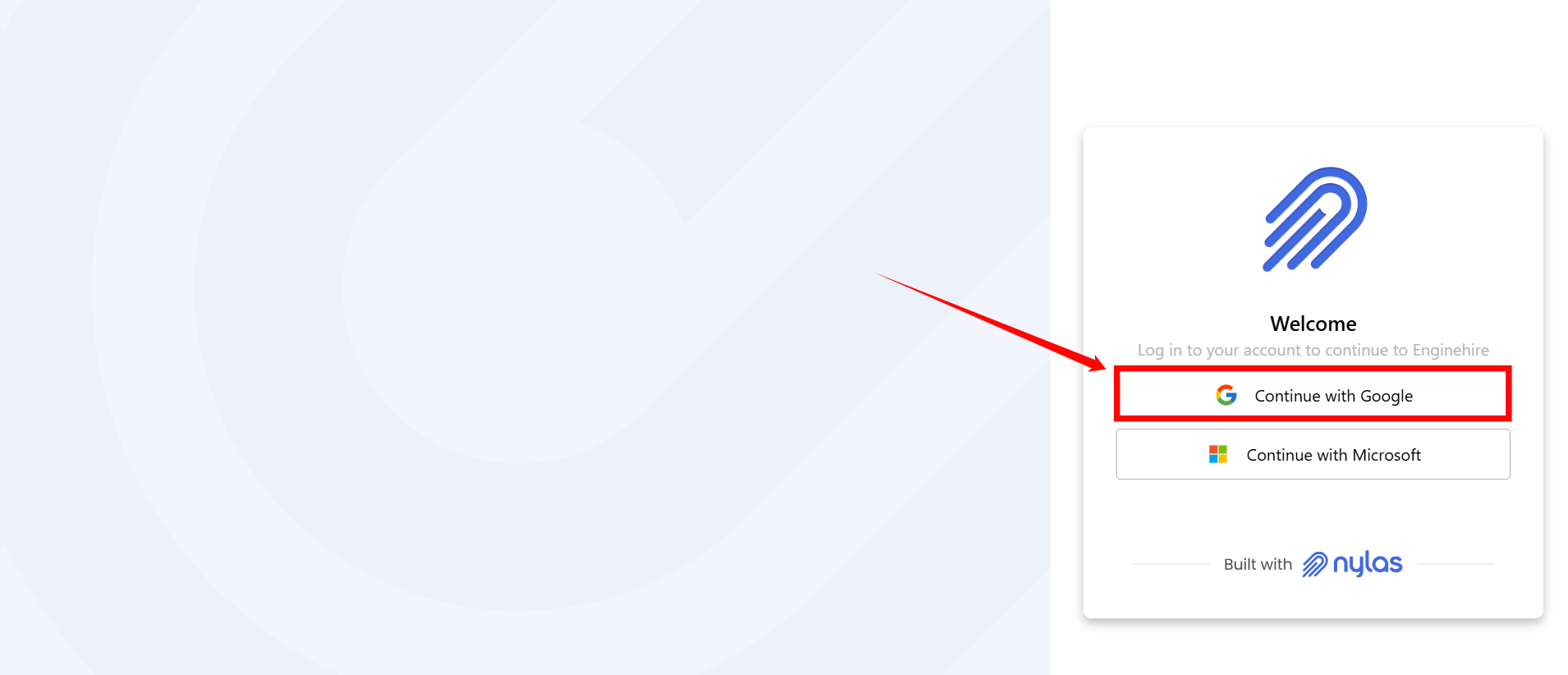
Step 7: Continue by selecting the option associated with the email address you provided in Step 4, and then proceed by following the next instructions.
Step 8: Your email account will be connected successfully. Click the Go to Dashboard button to continue.

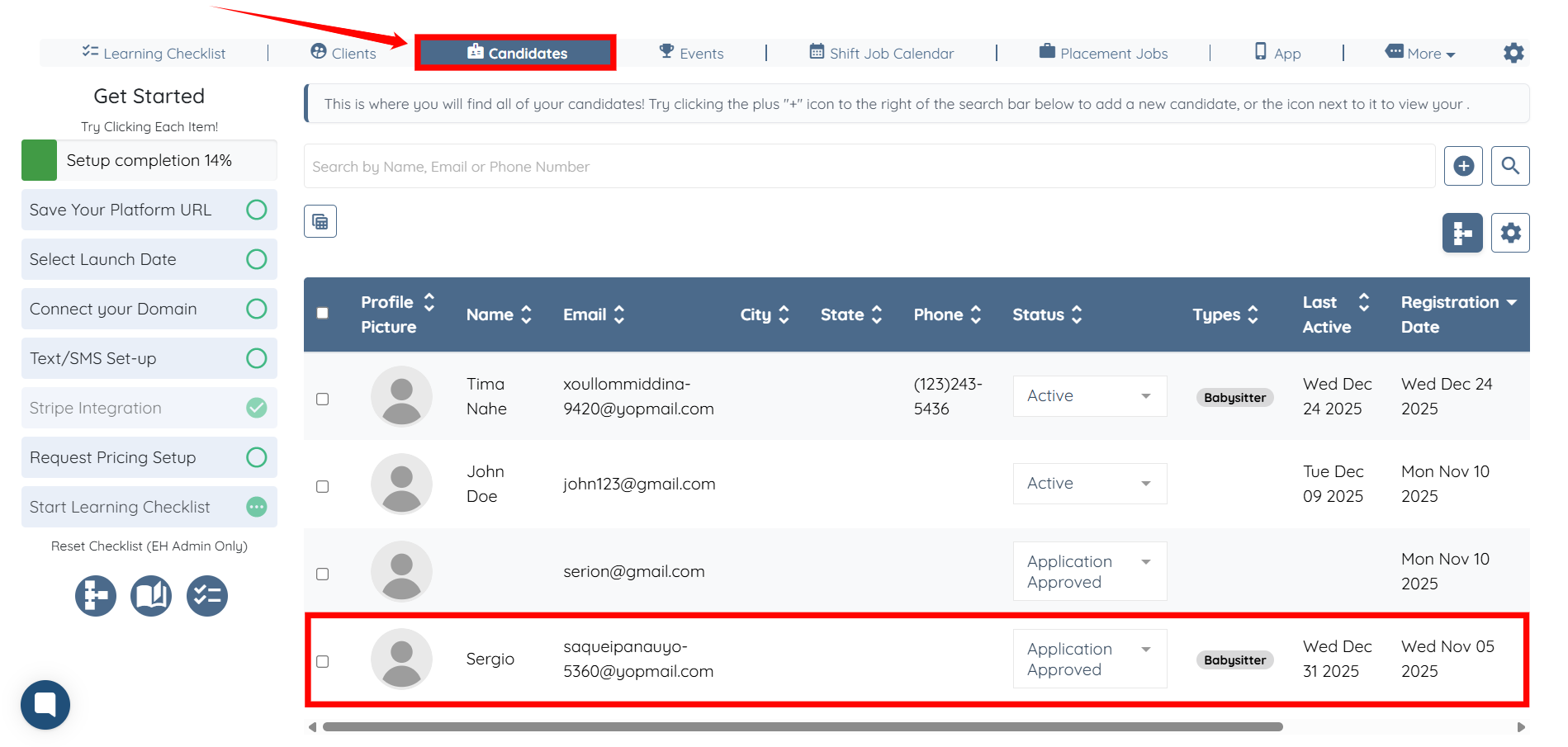
Step 9: From the Candidates section, select any candidate from the list.
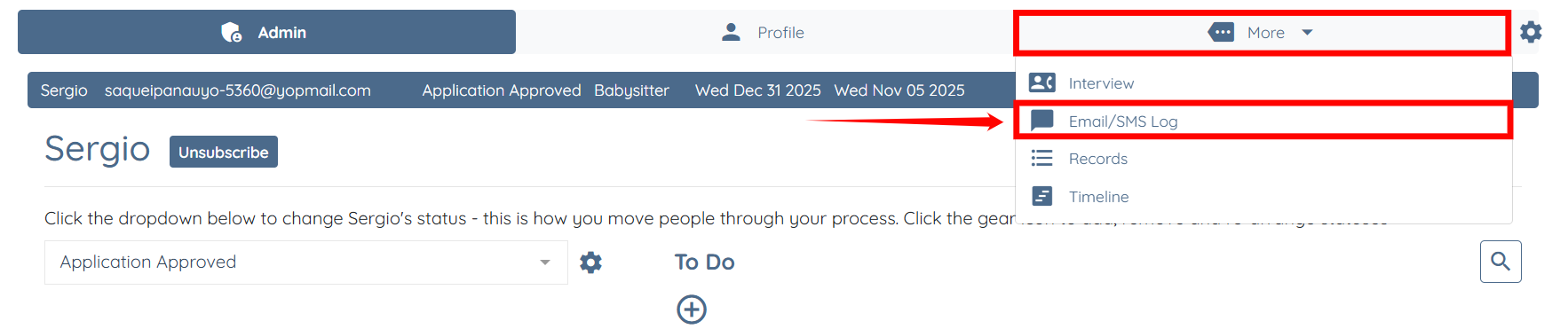
Step 10: Click More, then select Email/SMS Log, as shown in the screenshot below.
Step 11: Click the Integration Logs button.
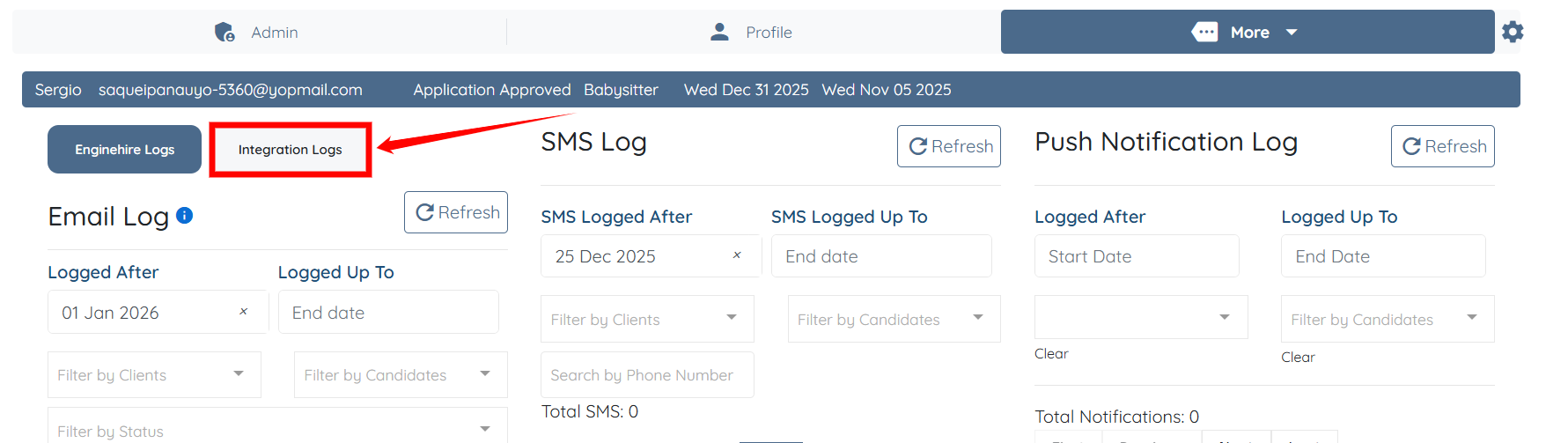
Here you can view all the responses you receive to emails sent from your configured email address.