Let’s get started 🚀
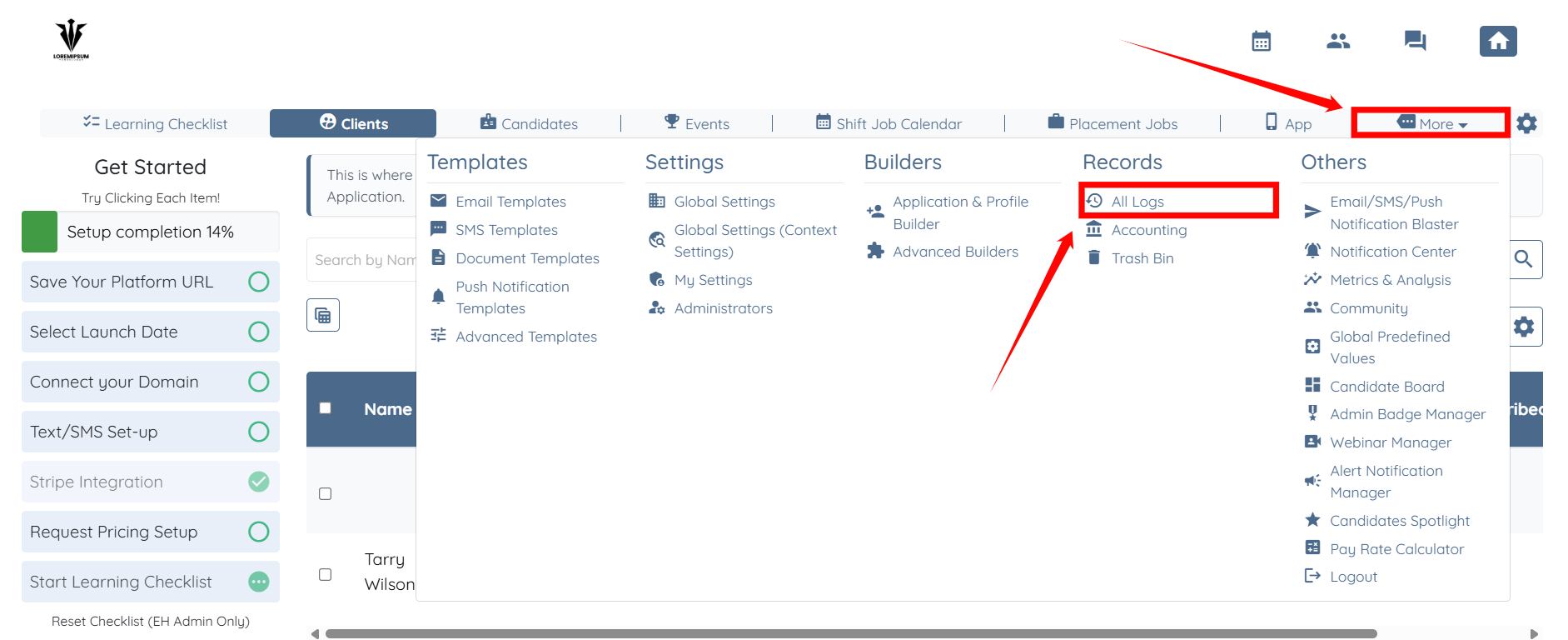
Step 1: Log in to your agent dashboard and click More > All Logs, as shown in the screenshot below.
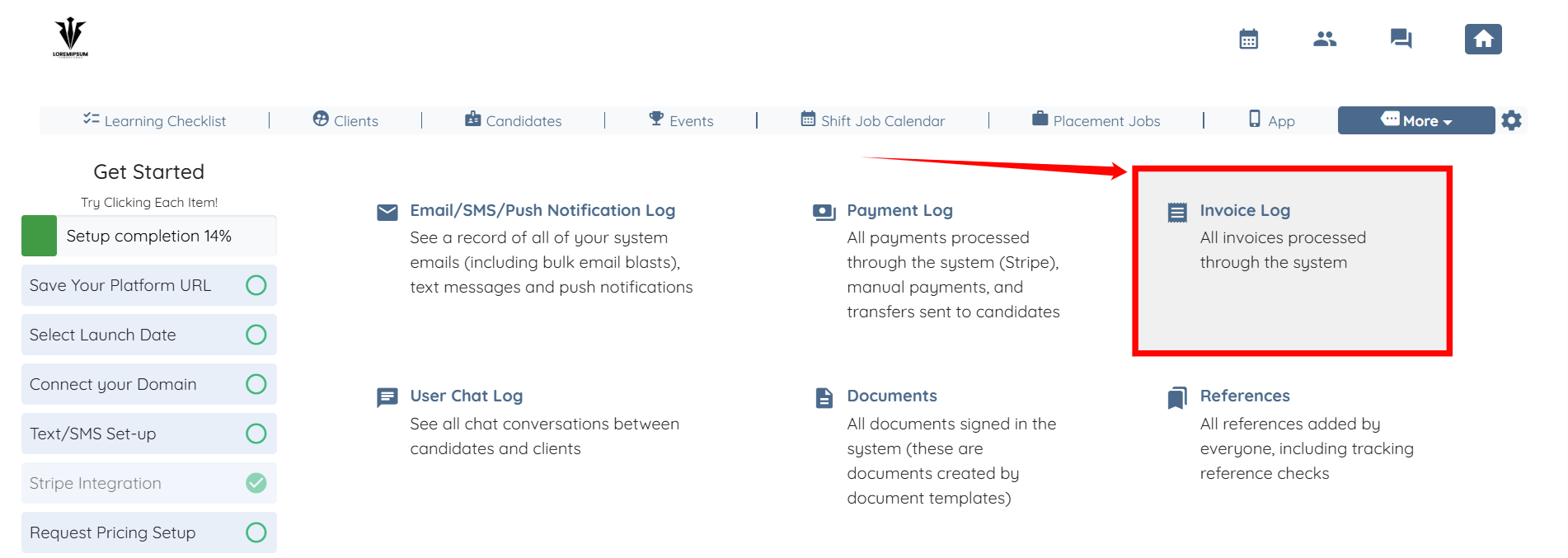
Step 2: Click the Invoice Log option to view all invoice logs.
Step 3: Use the following options to narrow your selection and view invoices based on your requirements.
S.no | Filter | Description |
1 | Start Date | Select the start date to filter invoices created on or after this date. |
2 | End Date | Select the end date to filter invoices created on or before this date. |
3 | Admin | Filter invoices by the admin associated with the invoice. Start typing to search and select an admin. |
4 | Client | Filter invoices by client. Start typing to search and select a client from the list. |
5 | Statuses | Filter invoices based on their current status. Start typing to select one or more statuses. |

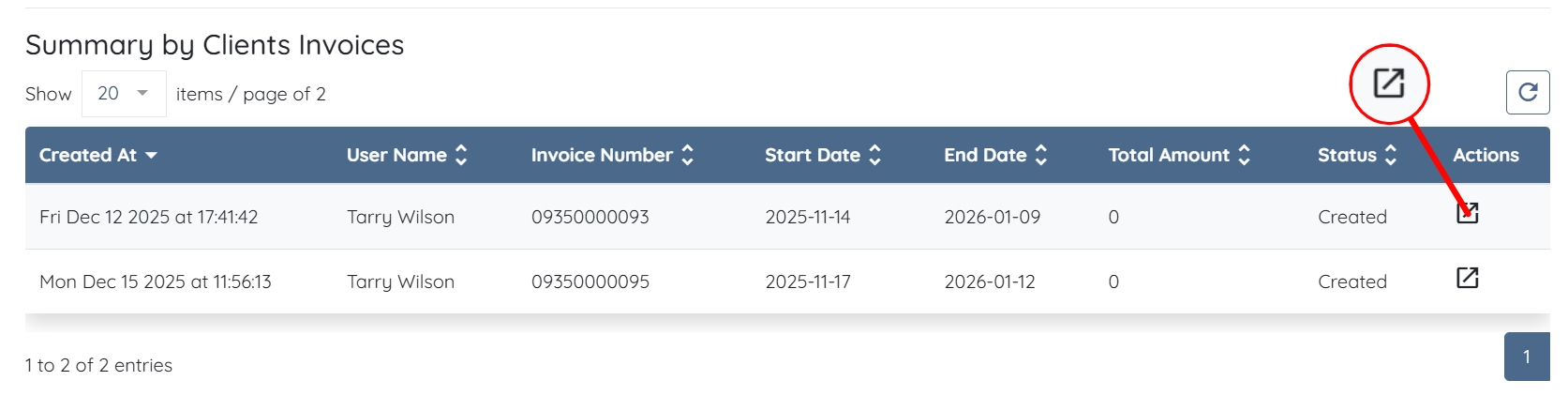
Step 4: After you narrow down the invoices, click the icon shown in the screenshot below to view the invoice.
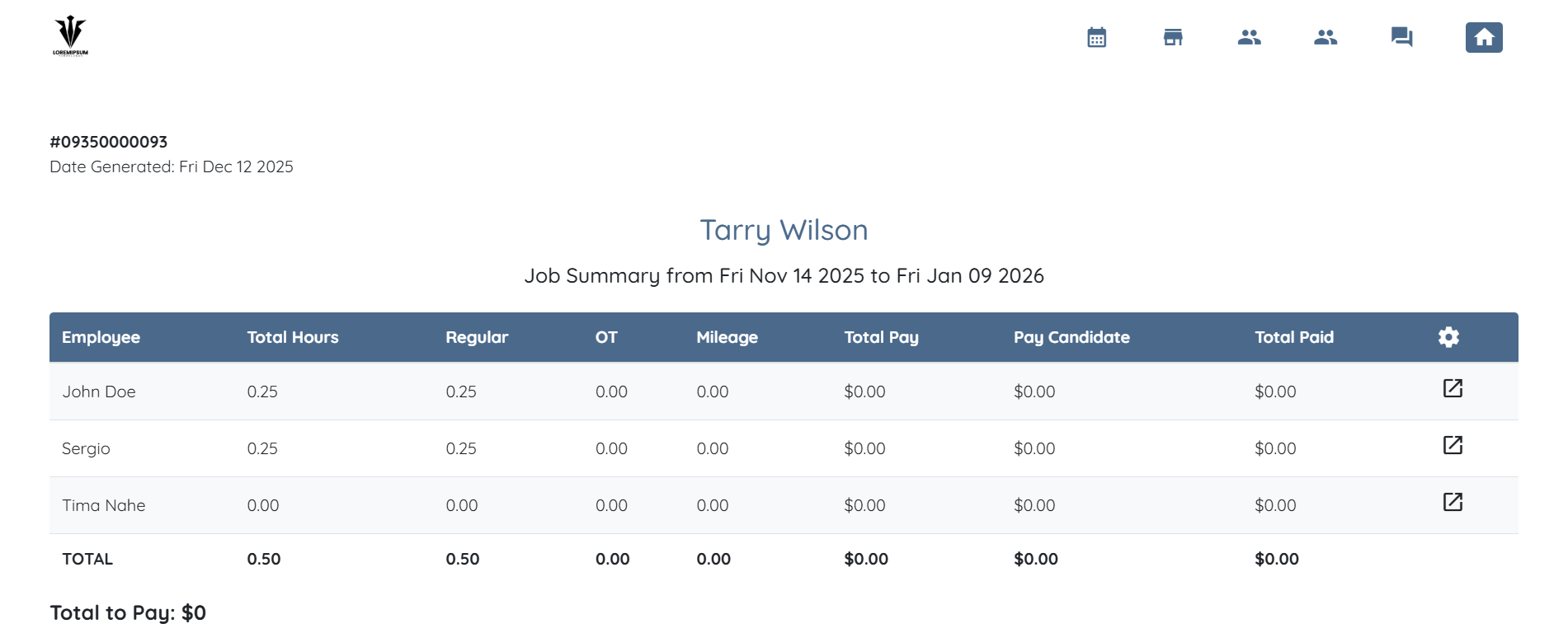
The invoice will open in a new tab with all the necessary details.