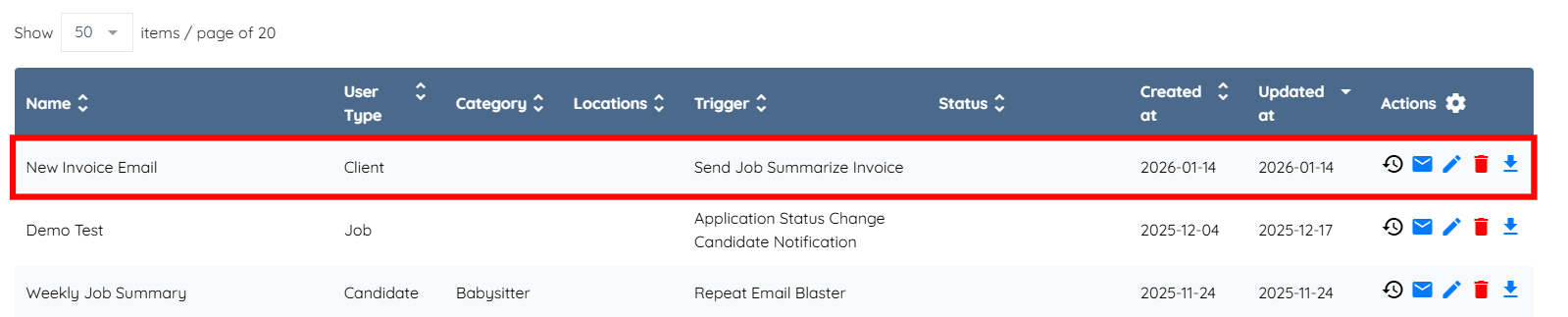
Let’s get started 🚀
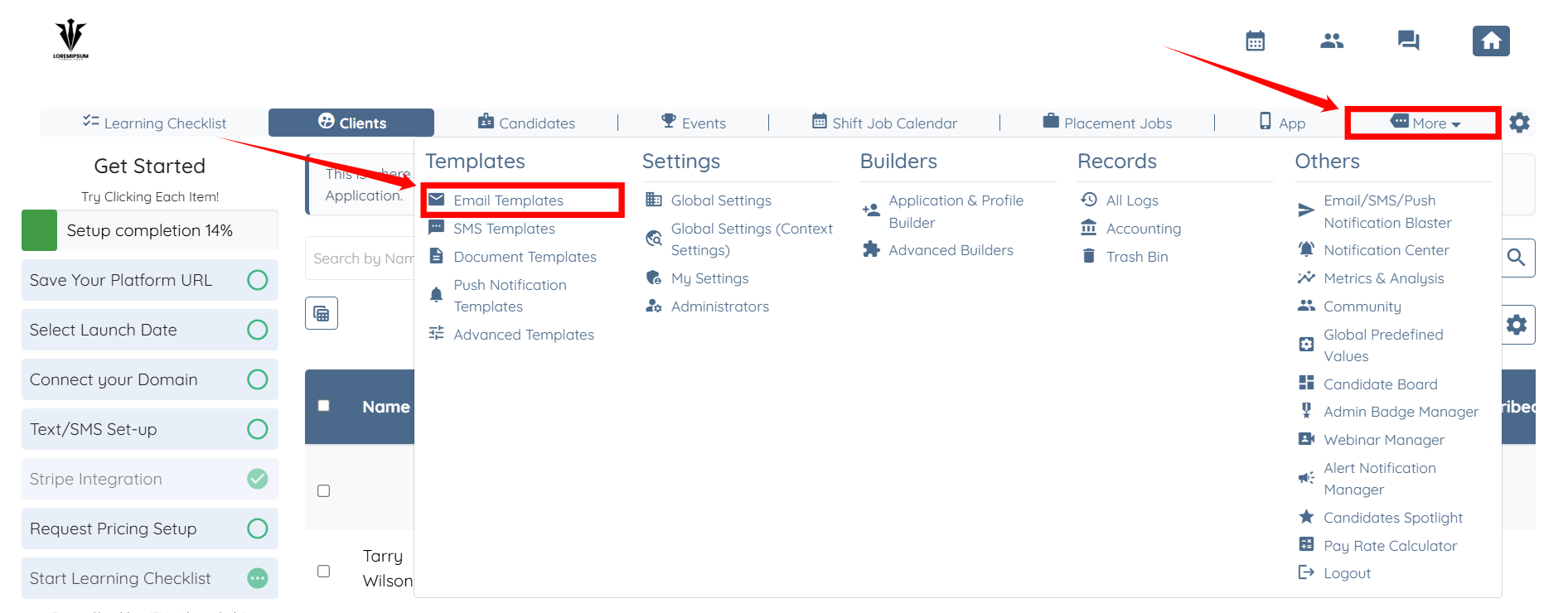
Step 1: Log in to your agent dashboard, then click More > Email Templates, as shown in the screenshot.
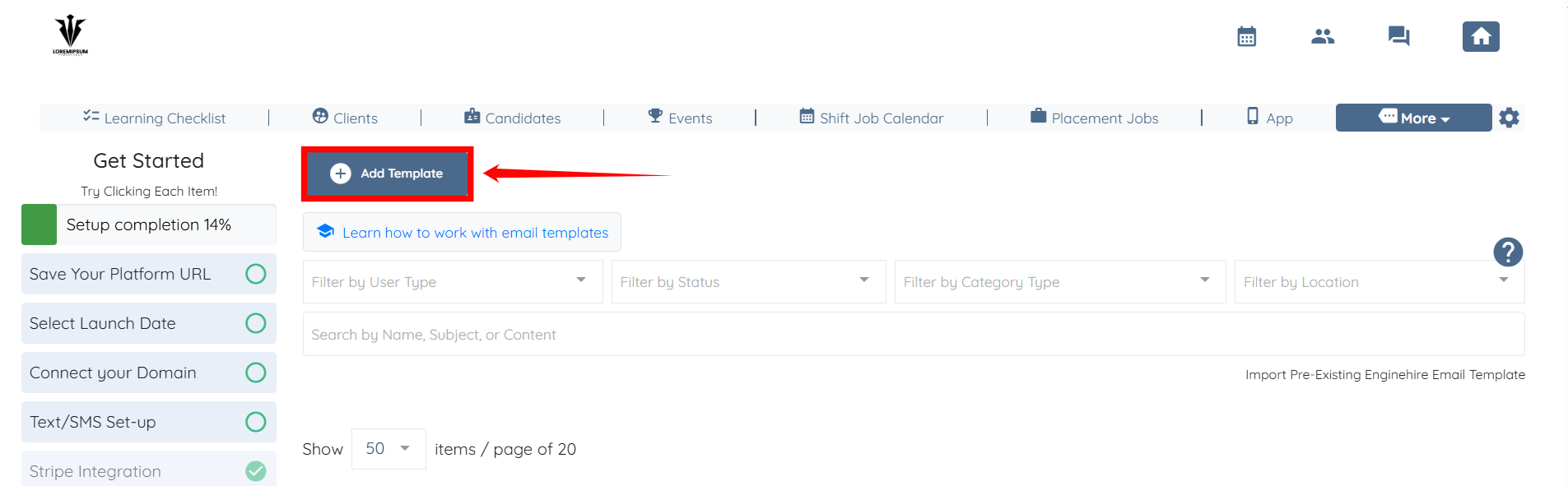
Step 2: Click the Add Template button to start adding a new template.
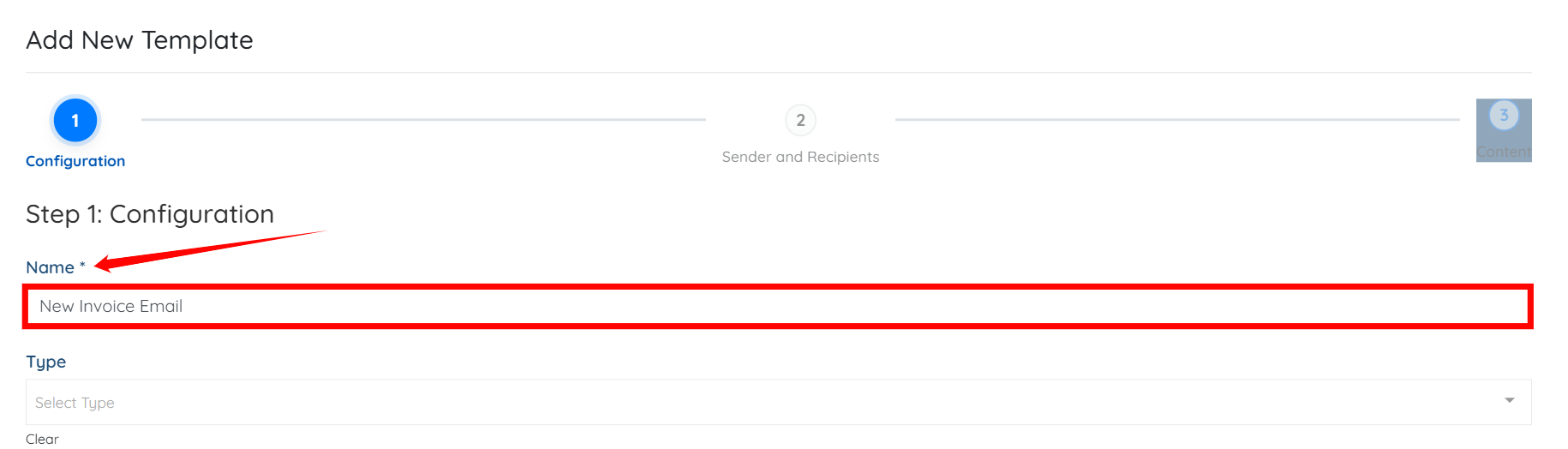
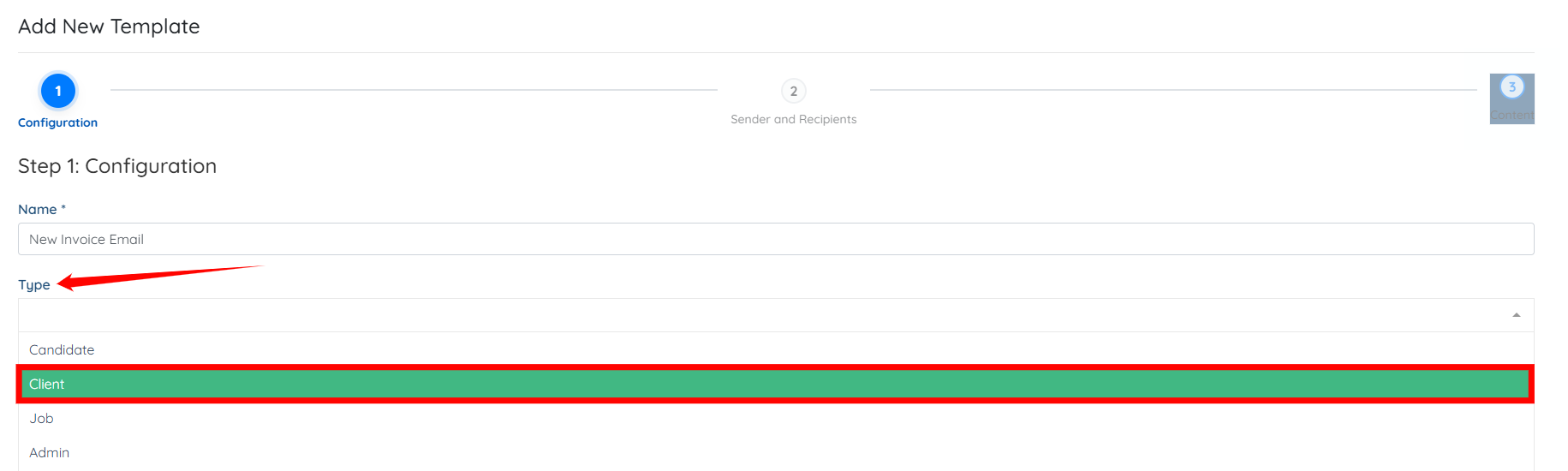
Step 3: Enter name for your template.
Step 4: Select Client as the Type from the dropdown list.
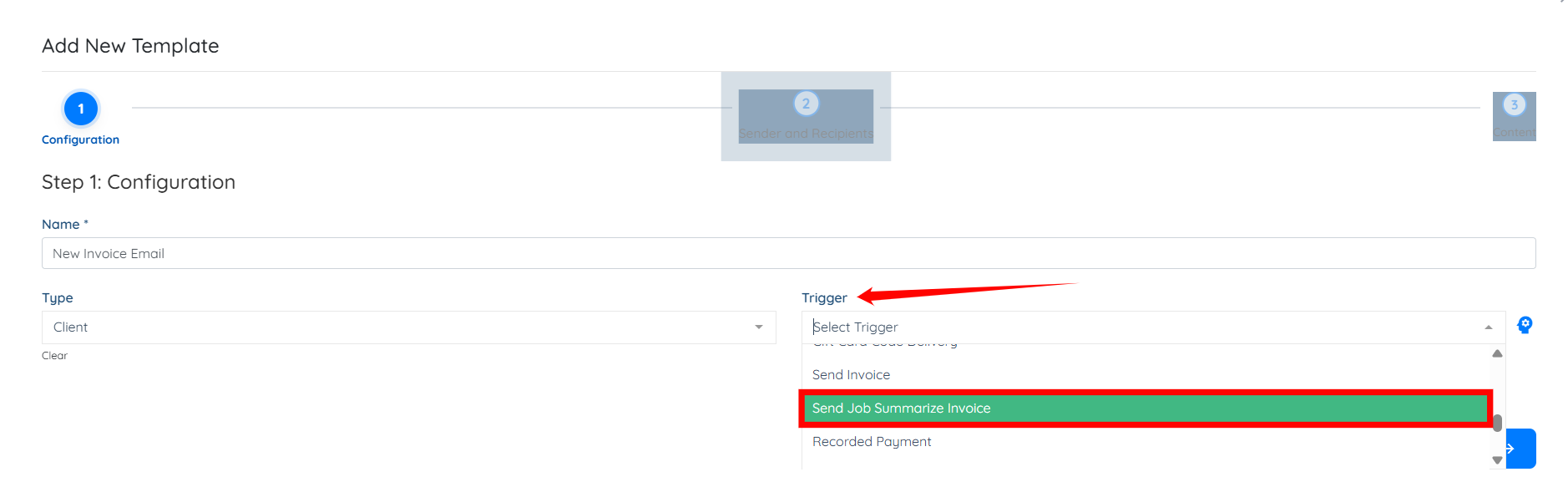
Step 5: Select the Send Job Summarize Invoice trigger from the dropdown list.
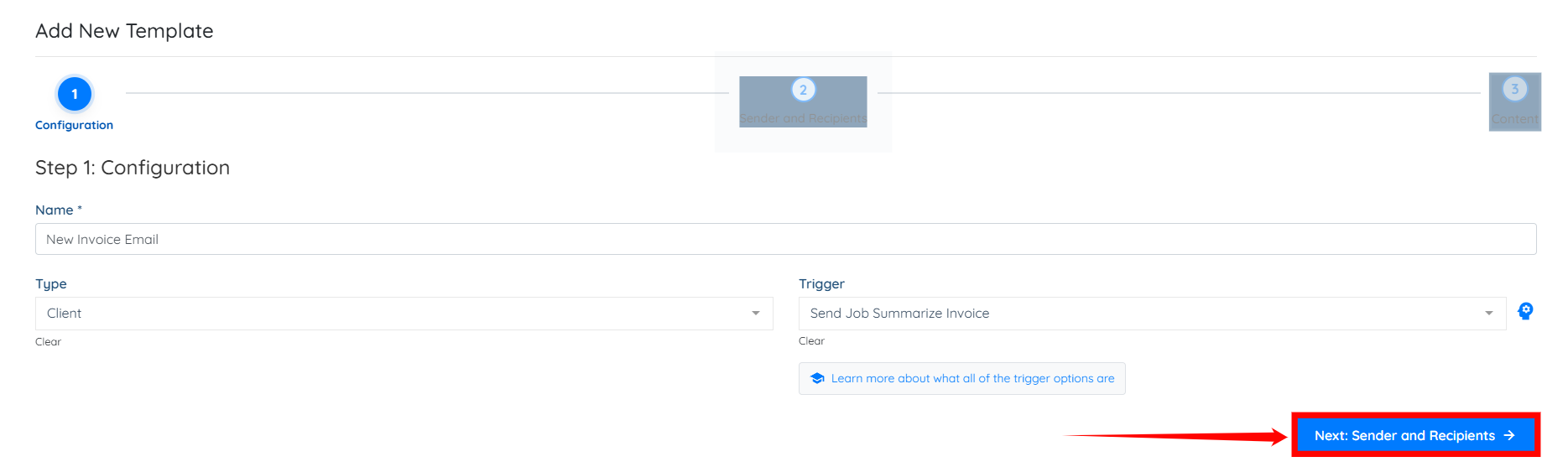
Step 6: Click the Next: Sender and Recipients button.
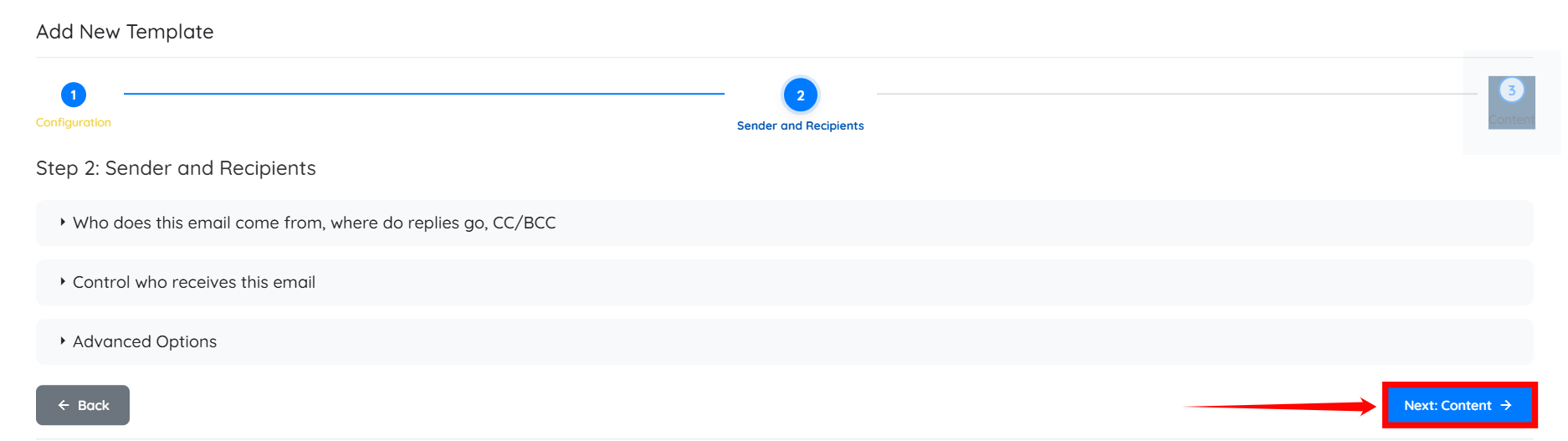
Step 7: Click the Next: Content button.
Step 8: Enter the Subject of your email.

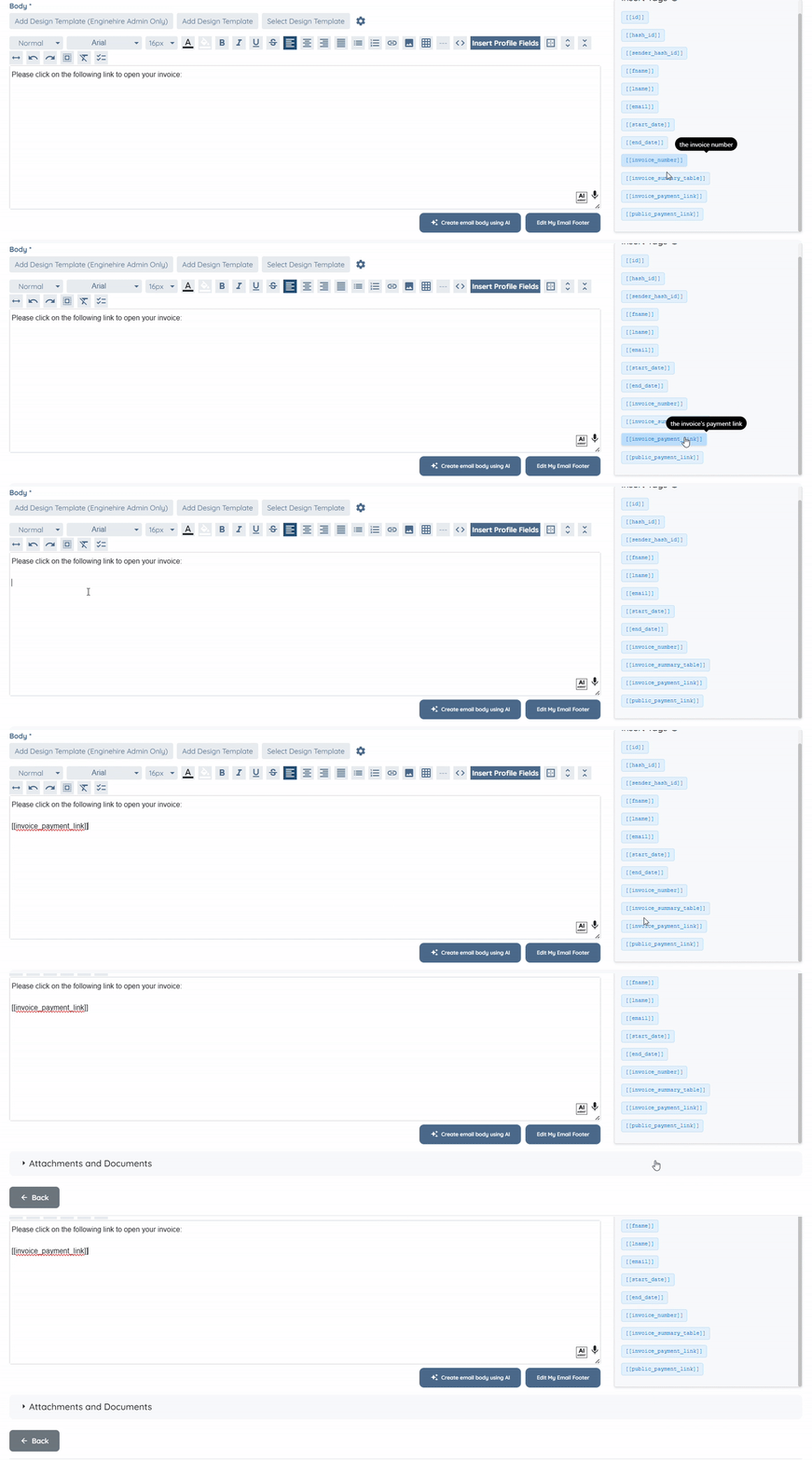
Step 9: Prepare the email body and insert the [[invoice_payment_link]] tag, which will connect to the relevant invoice when you send the invoice via email to the client.
Step 10: Click the Create button to proceed.
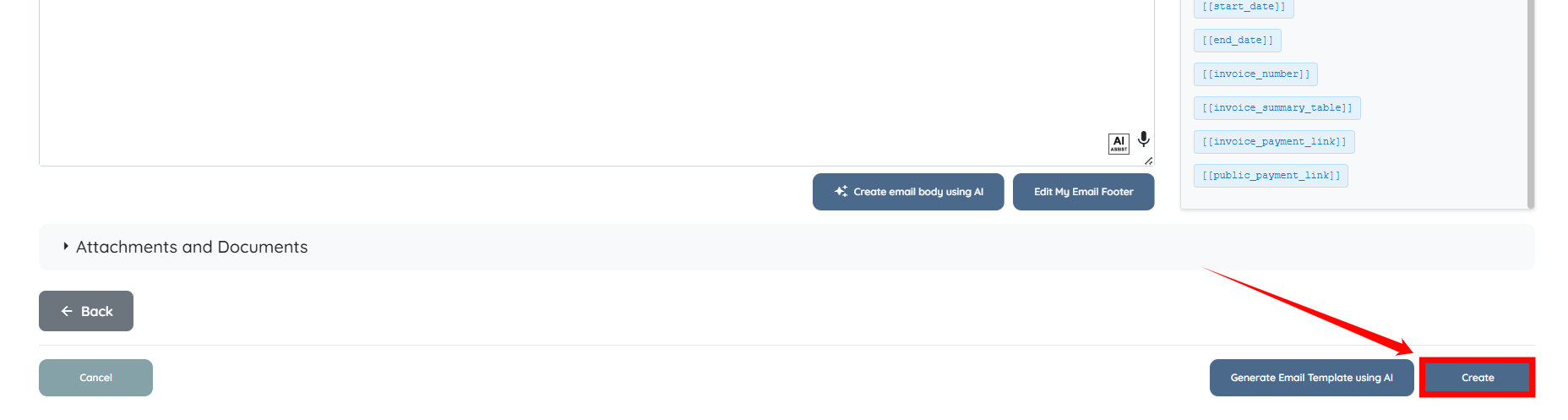
The email template for sending the created invoice via email will be created successfully.