Let’s get started 🚀
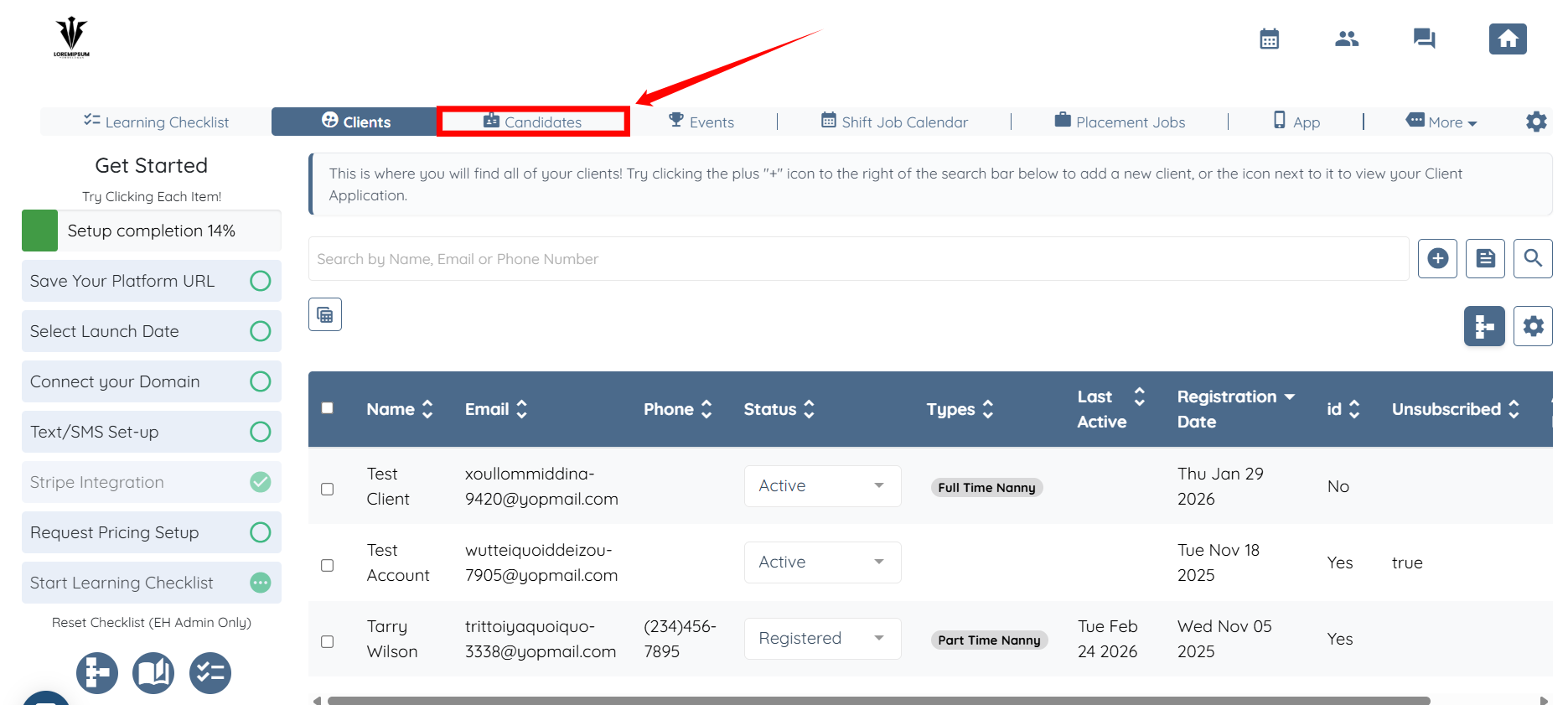
Step 1: Log in to your agent dashboard, and then select Candidates from the navigation bar.
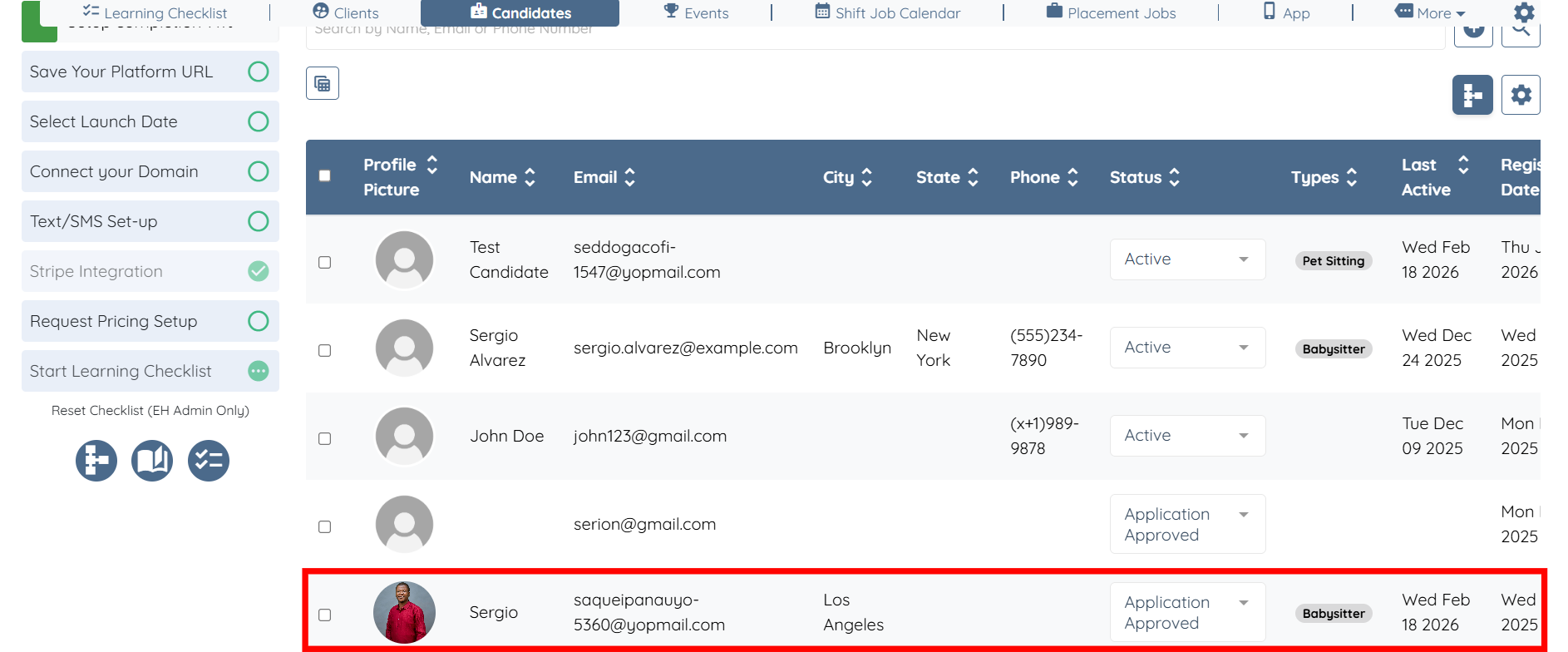
Step 2: Click on any candidate in the candidates list.
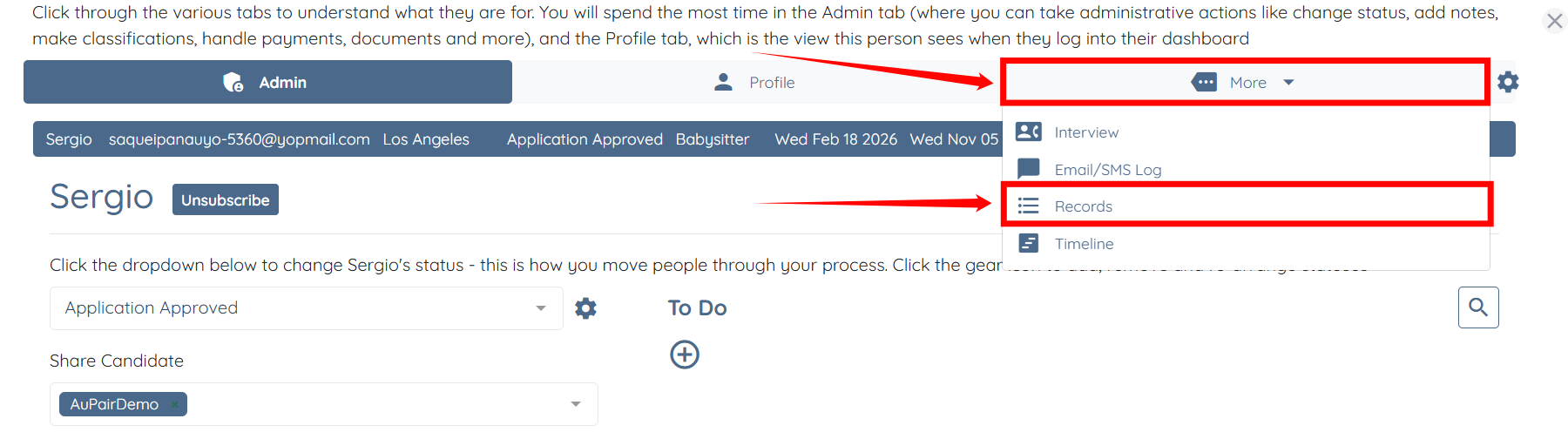
Step 3: Click More, then select Records as shown in the screenshot below.
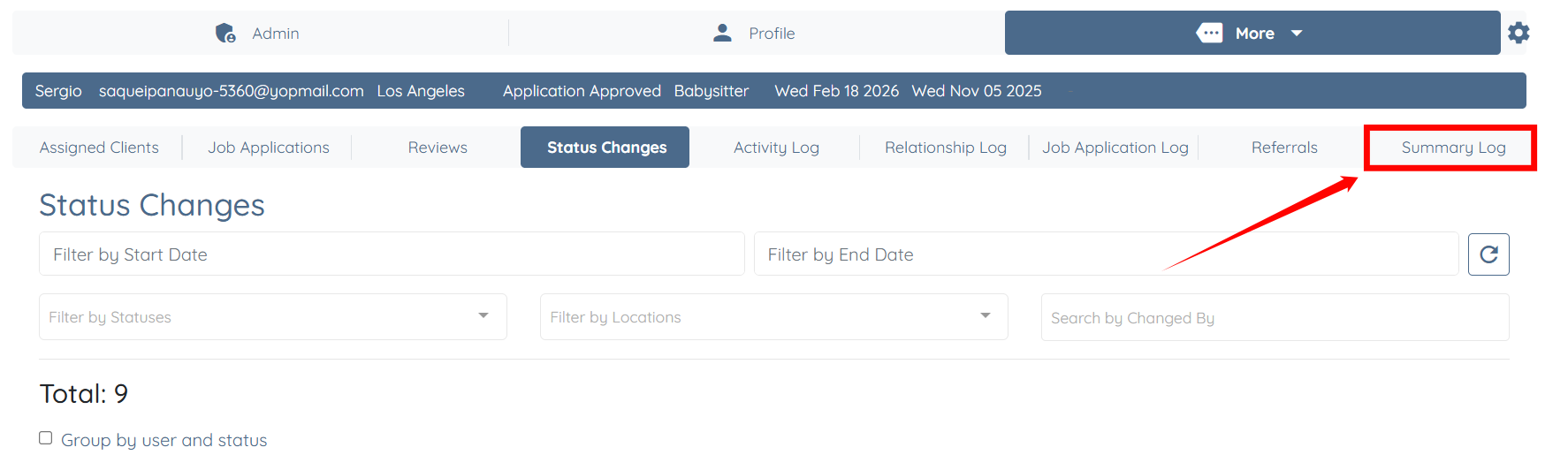
Step 4: Click the Summary Log tab from the available tabs to open the Summary Log table.
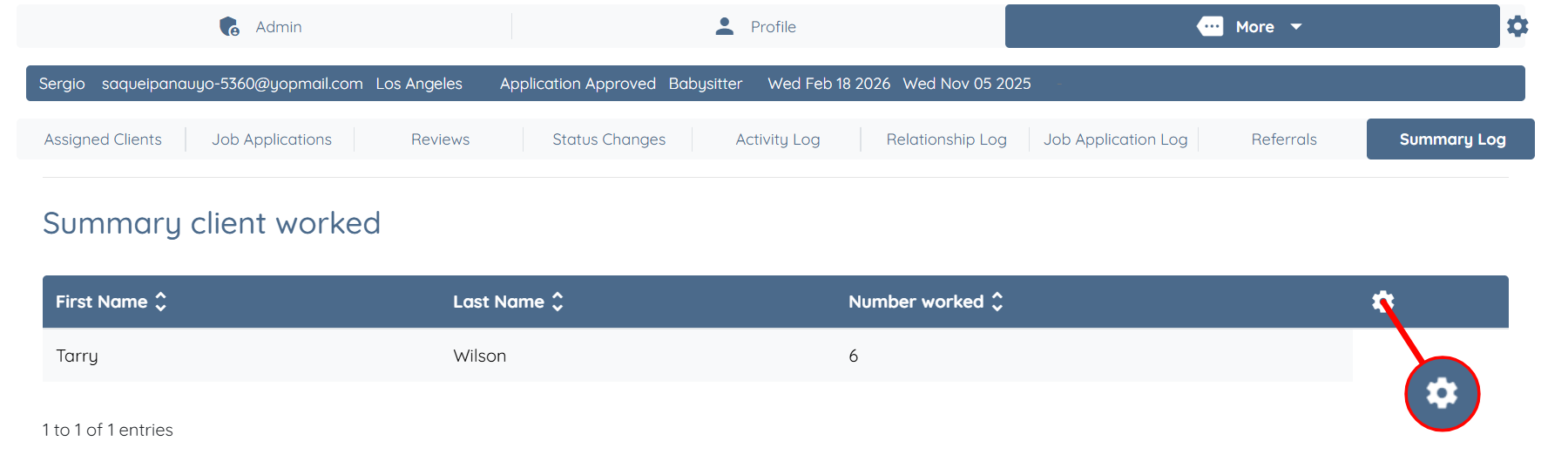
Step 5: Click the Gear icon located on the right-hand side of the table header.
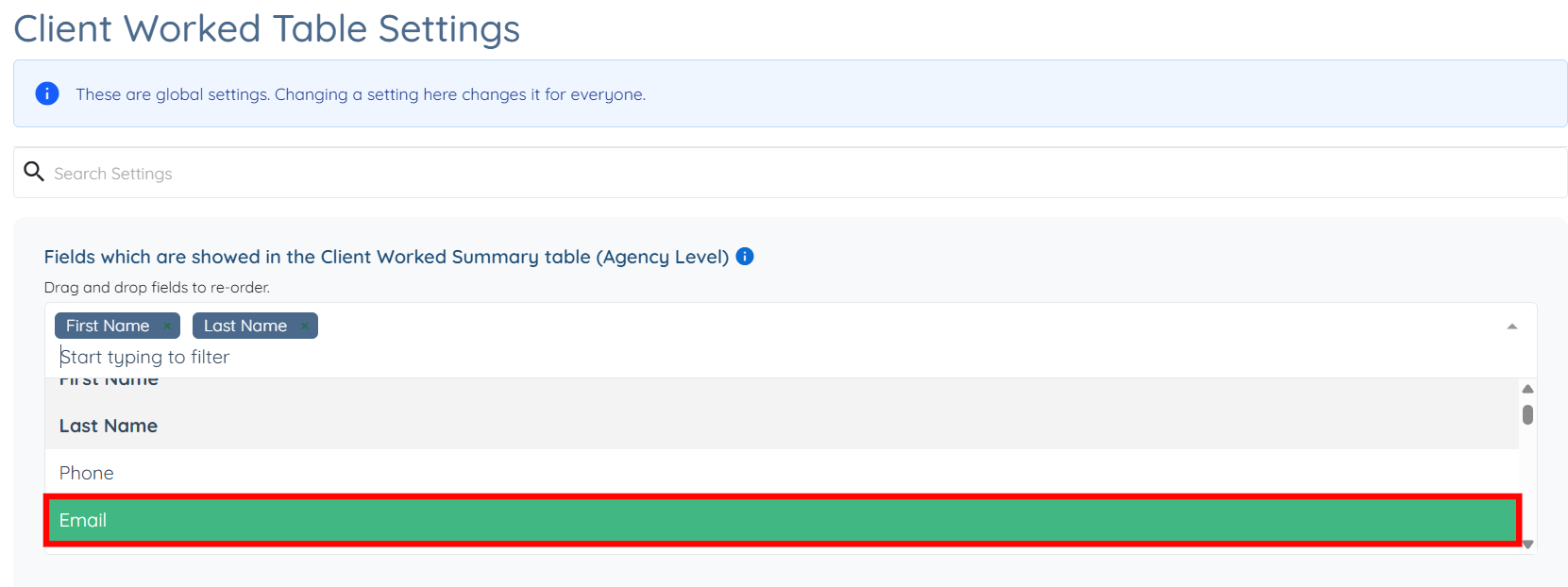
Step 6: Choose the client fields you want to include in the summary log table from the dropdown list. The settings will be saved automatically.
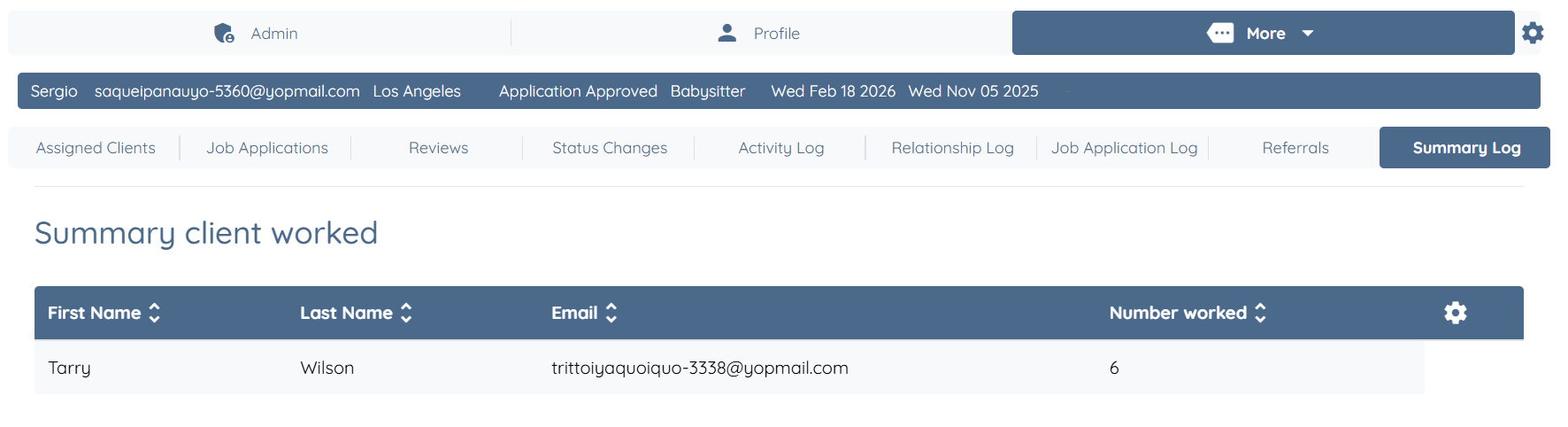
The added client fields are successfully updated in the summary log table.
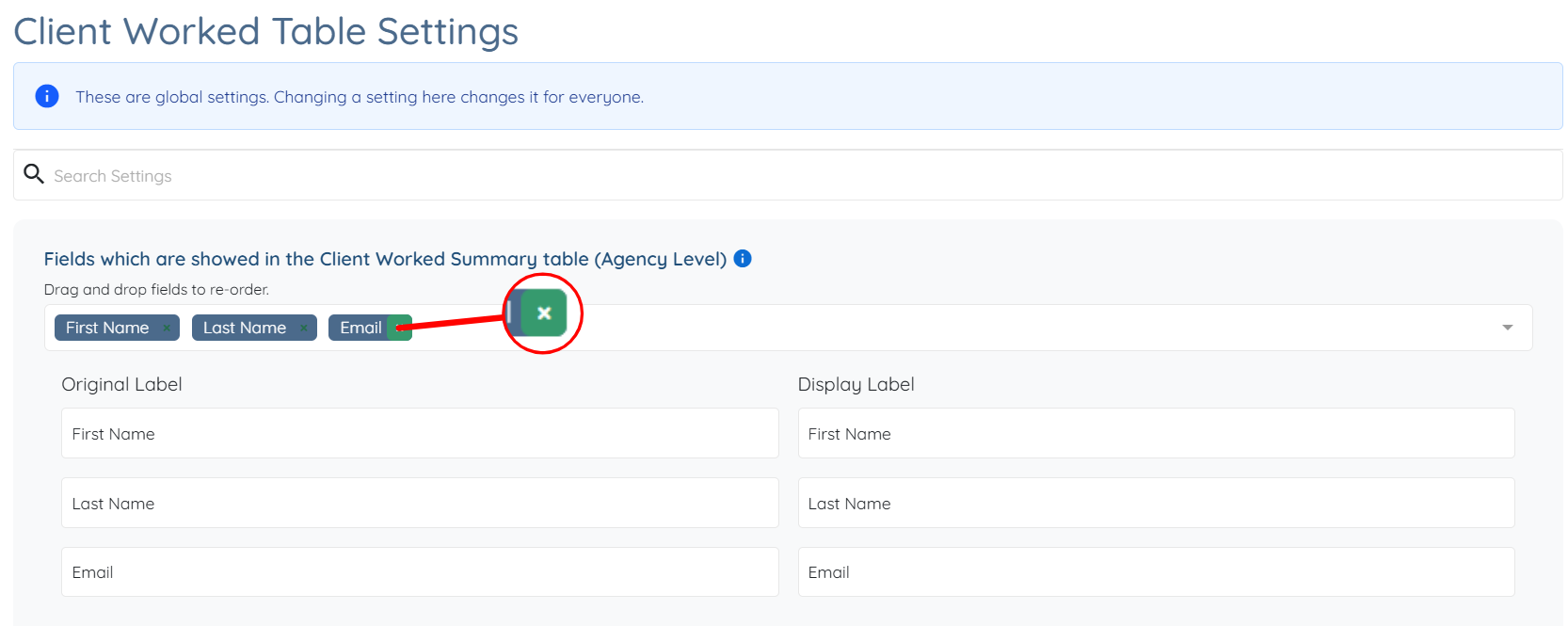
You can remove any field from the summary log table by hovering over the field you want to remove and clicking the cross icon. The settings will be saved automatically.