Let’s get started 🚀
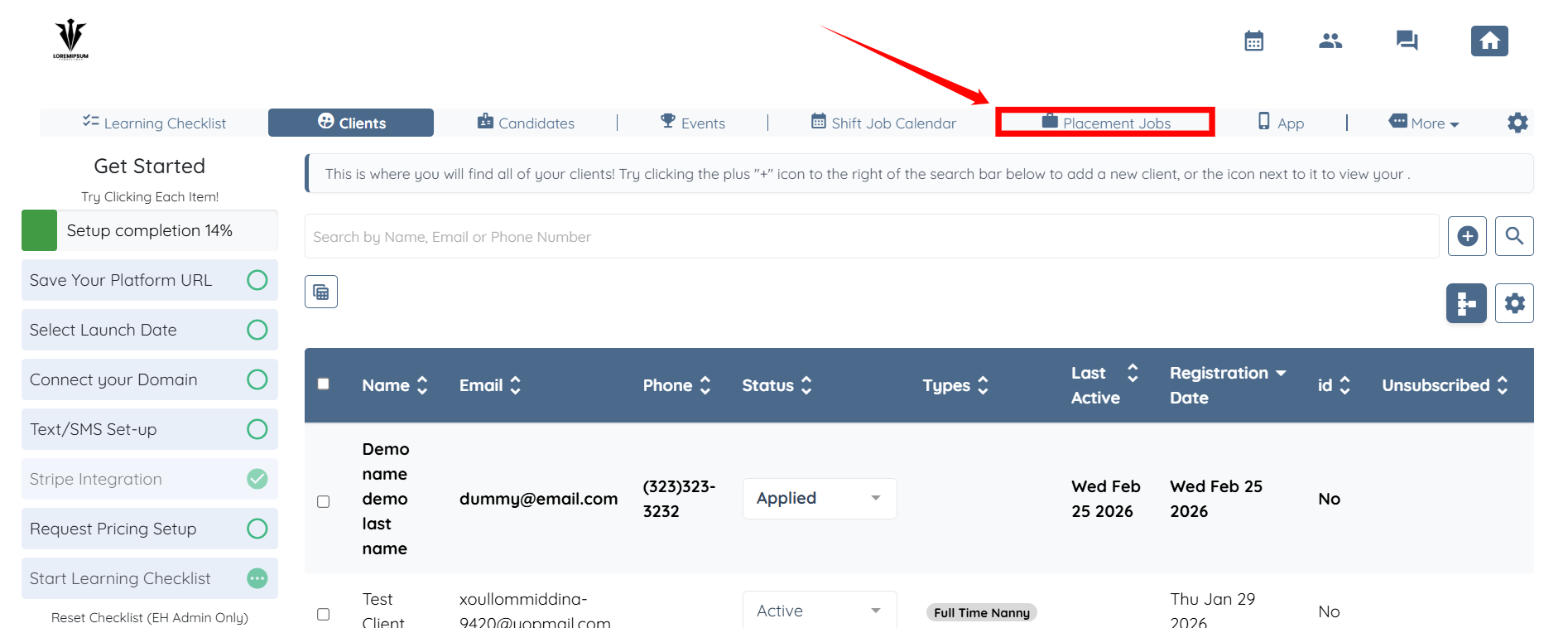
Step 1: Log in to your agent dashboard and click Placement Jobs in the navigation bar.
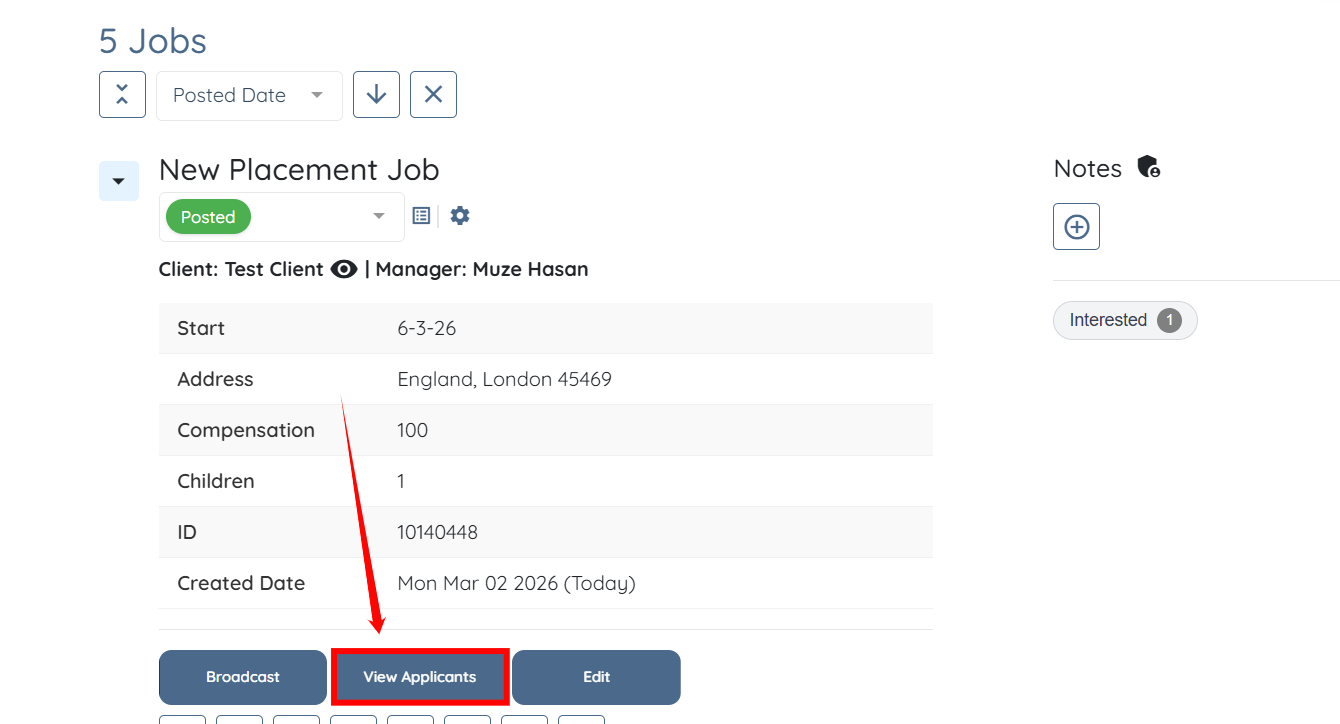
Step 2: Scroll down and click the View Applicants button for the placement job where you want to access the Board View.
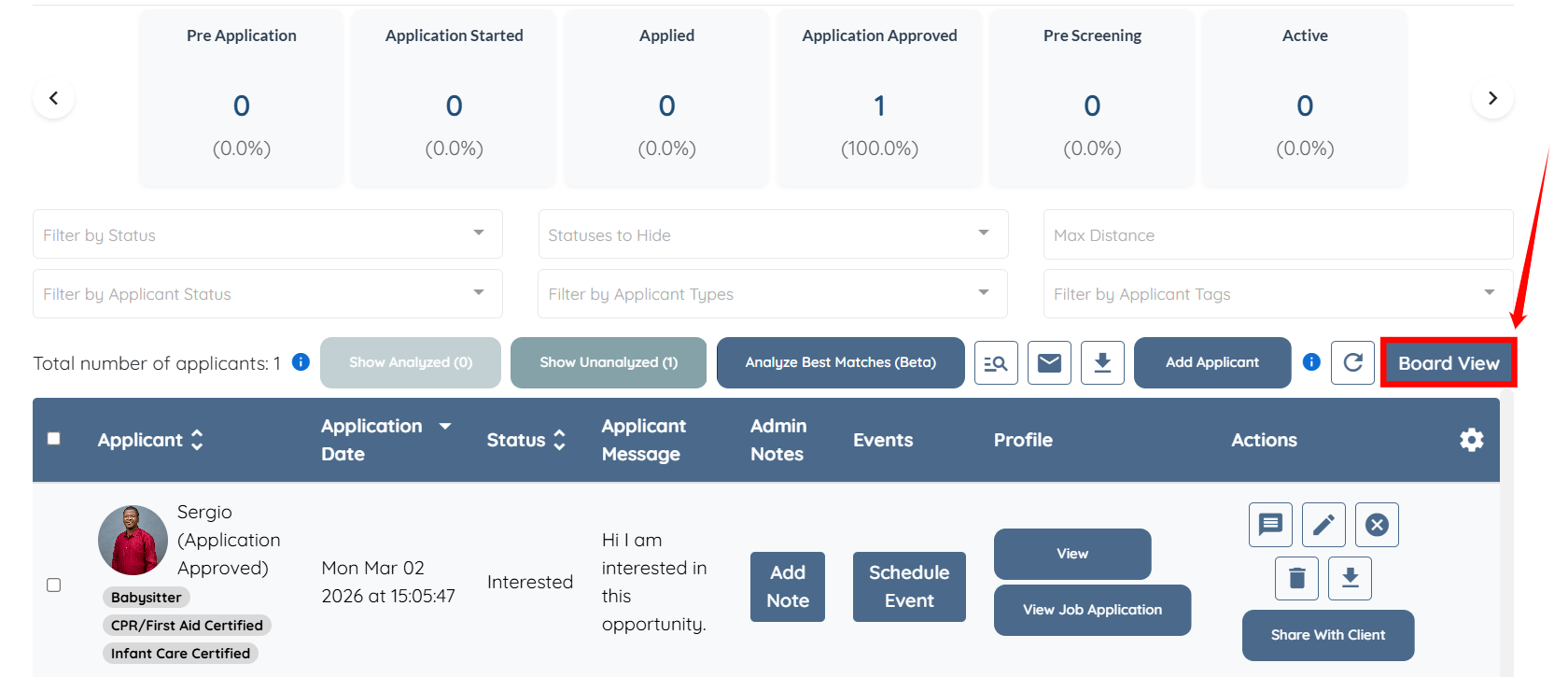
Step 3: Click the Board View button as shown in the screenshot below.
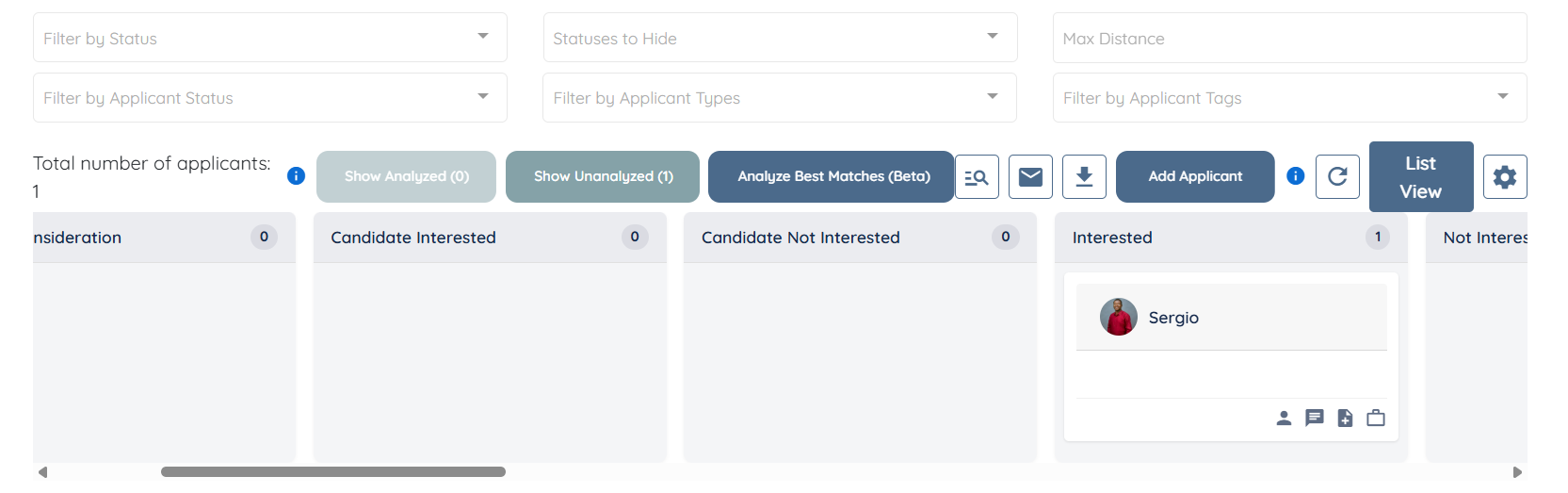
You will now see the applicants displayed in the Board View layout.
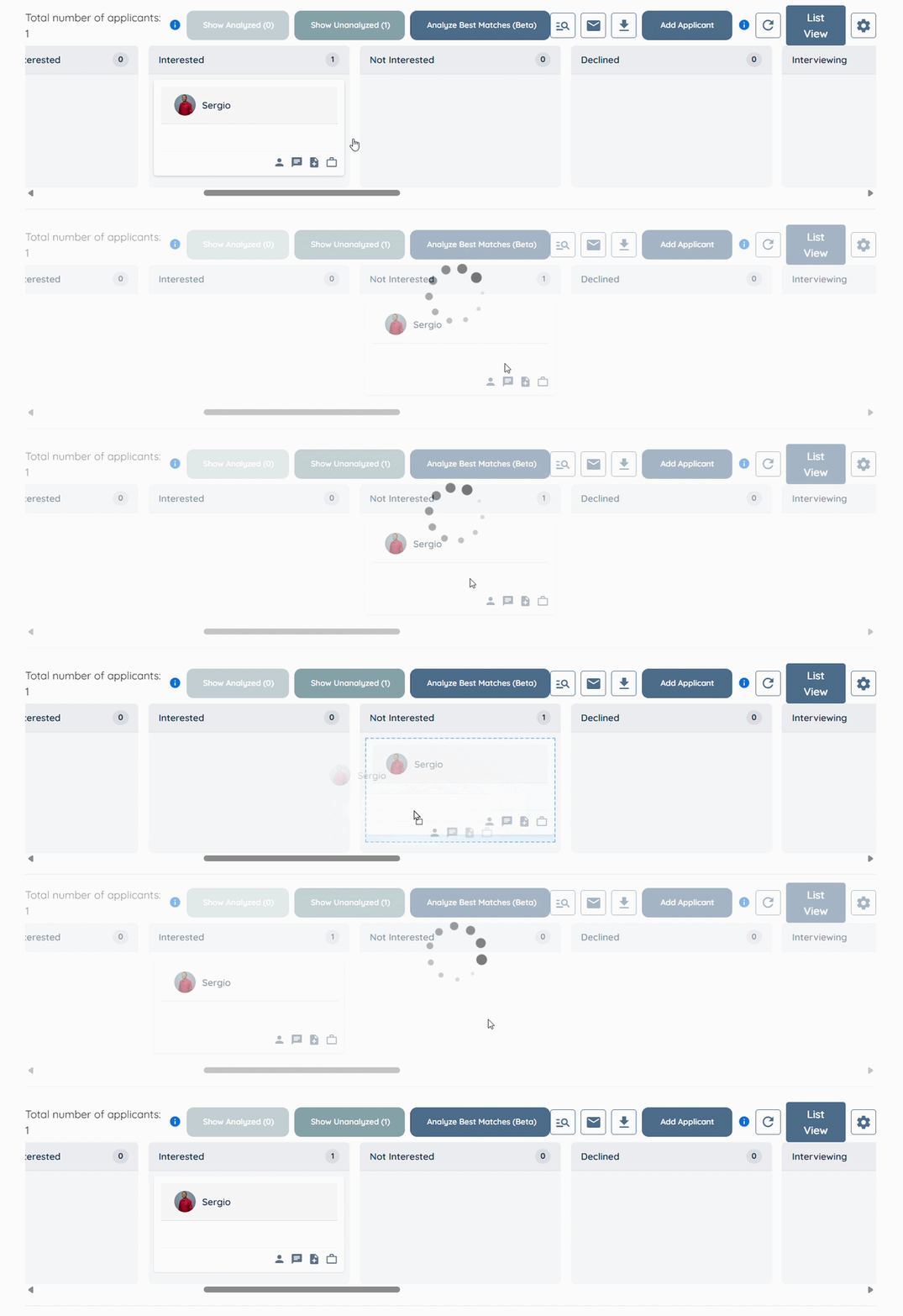
Use the drag-and-drop functionality to move candidate cards between different stages of the recruitment workflow. Simply drag a candidate card and drop it into the desired status column.
Each candidate card includes quick access icons that allow you to view additional information without leaving the Board View. You can:
Open the candidate profile
View the candidate’s application message
Check other jobs the candidate has applied to
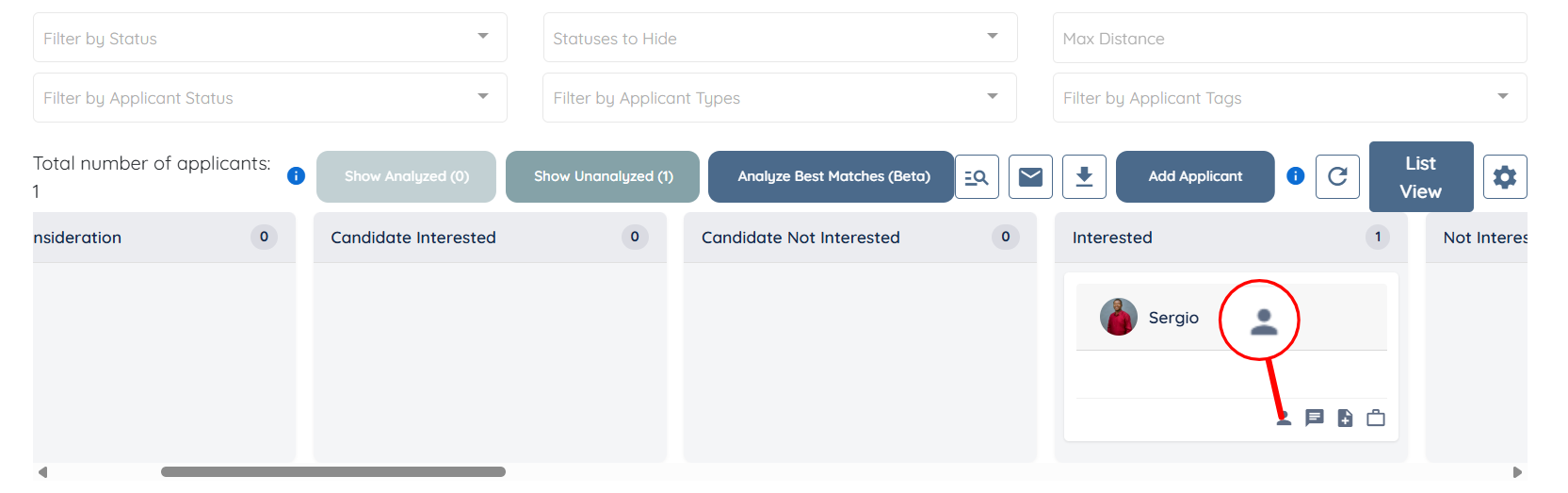
Click the Profile icon on the candidate card to open the candidate’s profile.
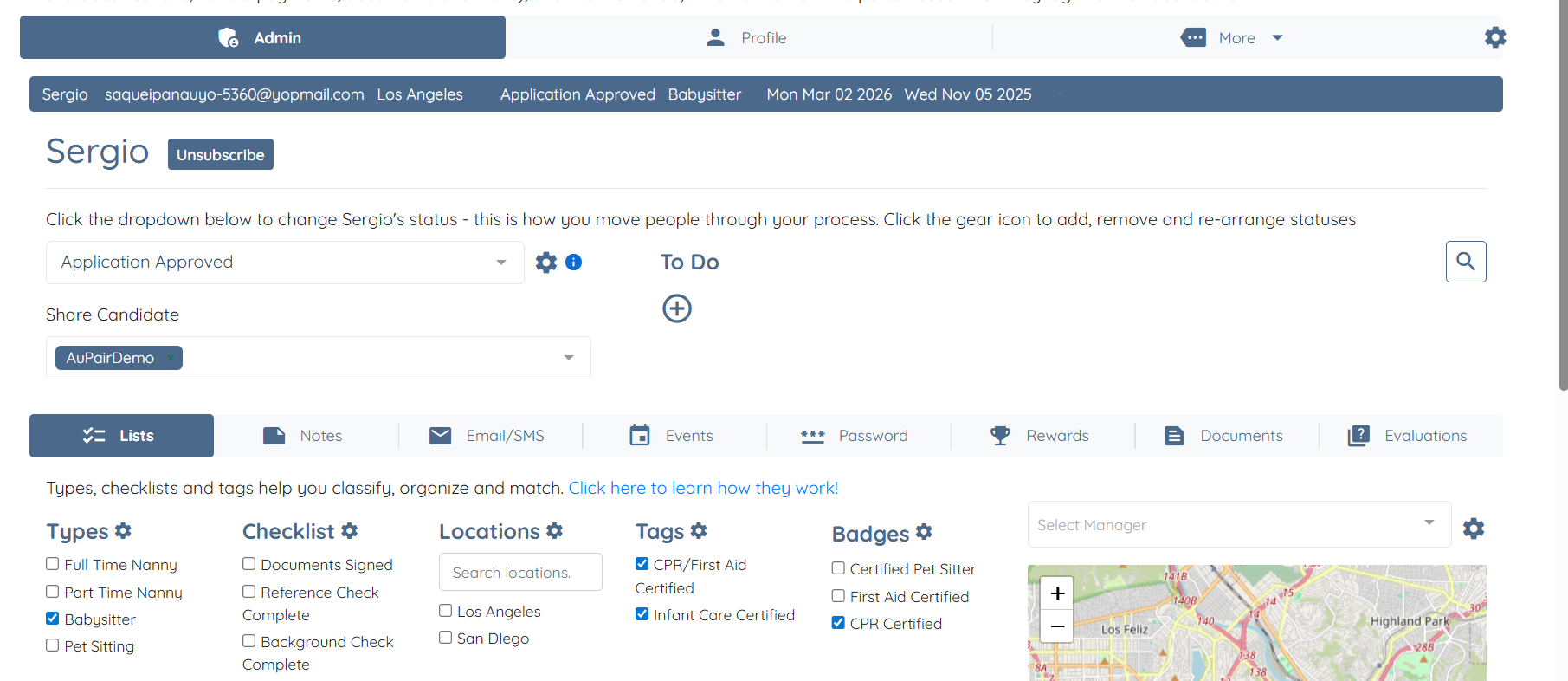
You will be able to access all the profile details of the selected candidate.
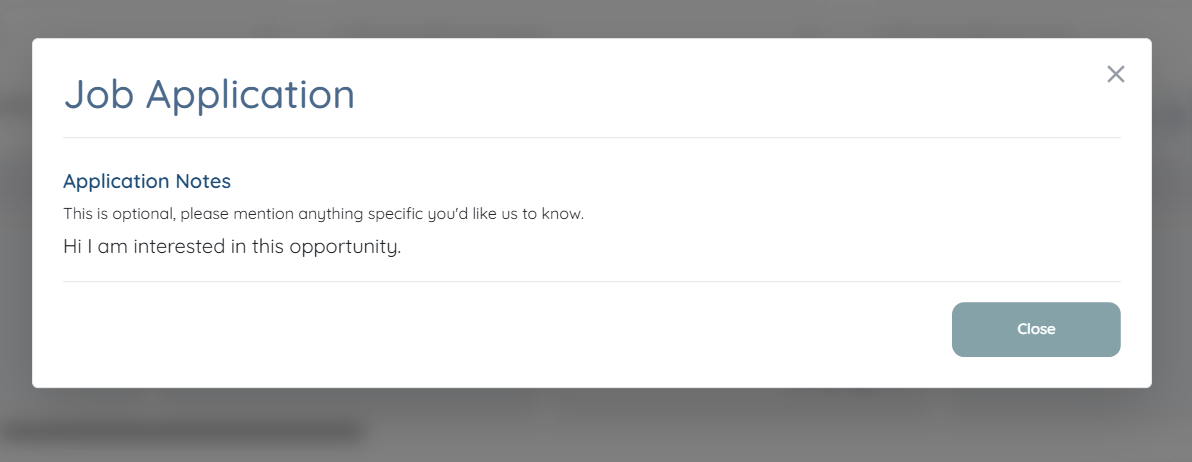
Click the Message icon on the candidate card to view the application message submitted during the placement job application.
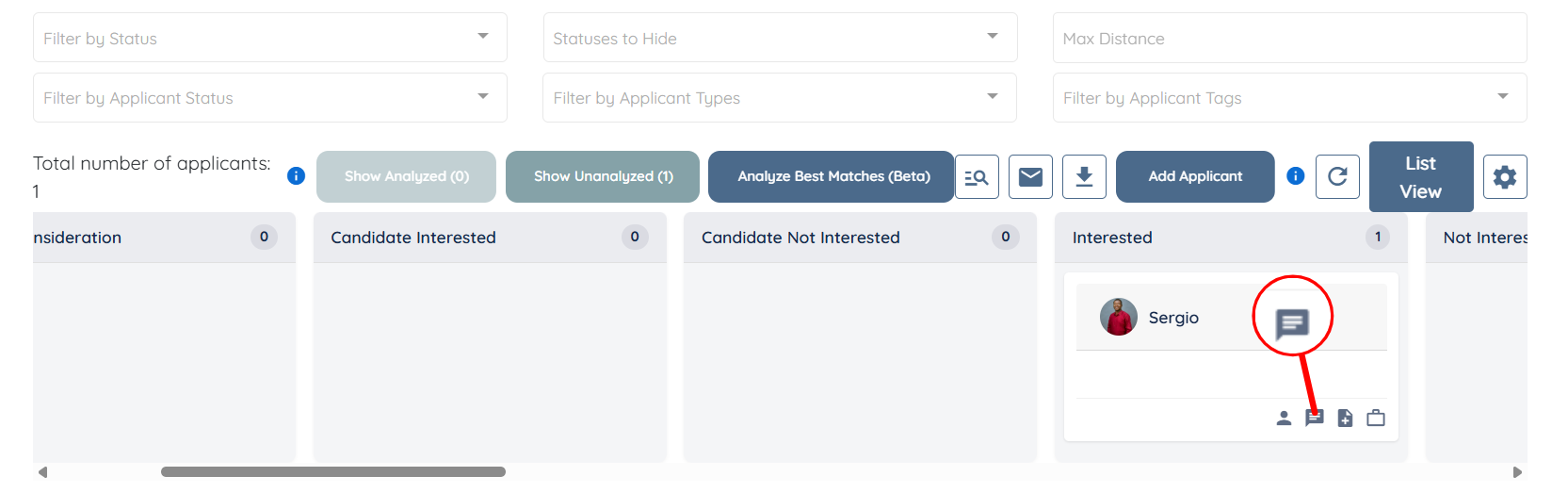
You can check the message that the candidate has submitted under the Job Application panel.
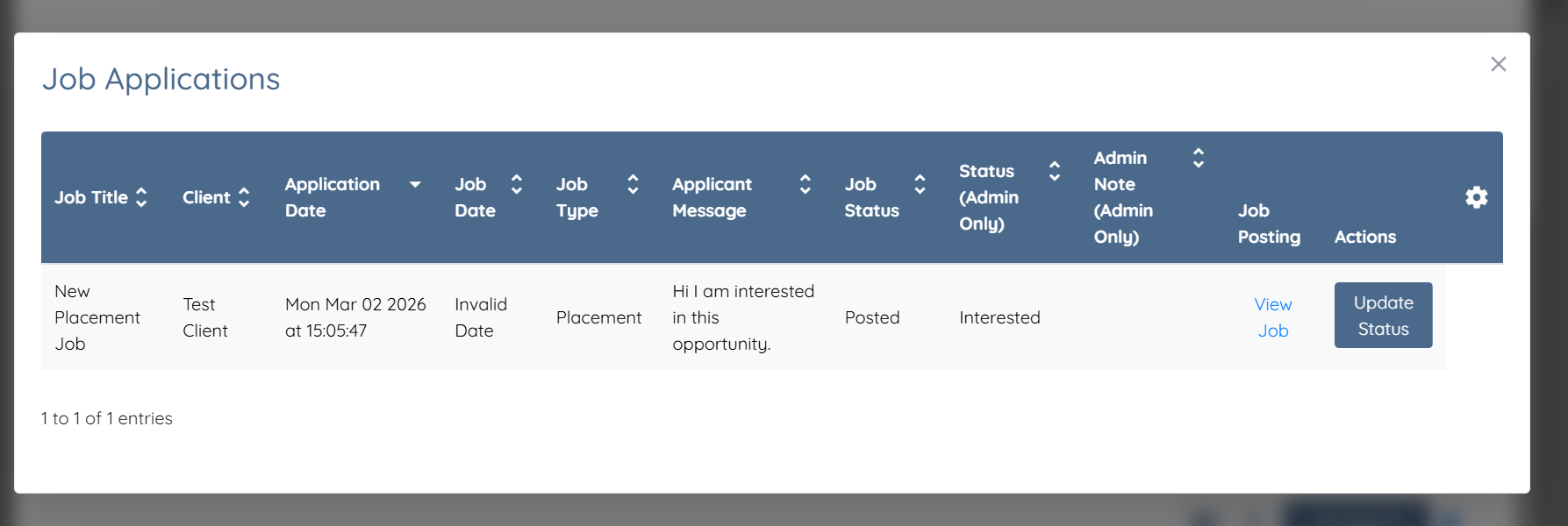
Click the Other Jobs icon to view a list of all placement jobs the candidate has applied to.
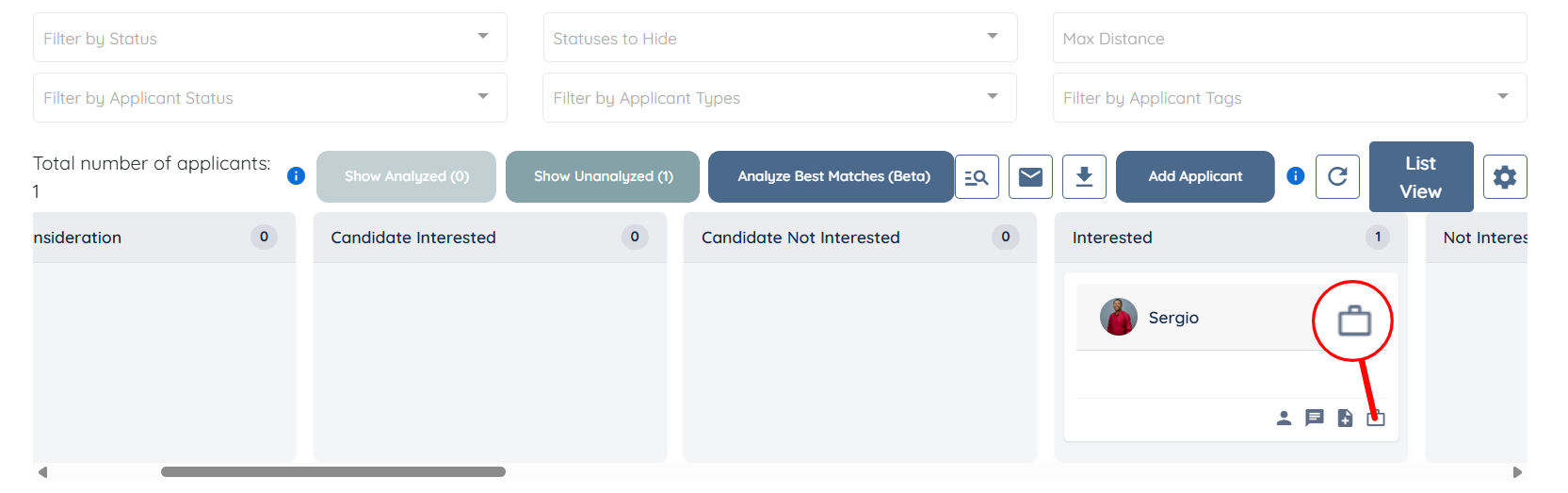
Under the Job Applications heading, you can view all the job applications a candidate has submitted.