Let’s get started 🚀
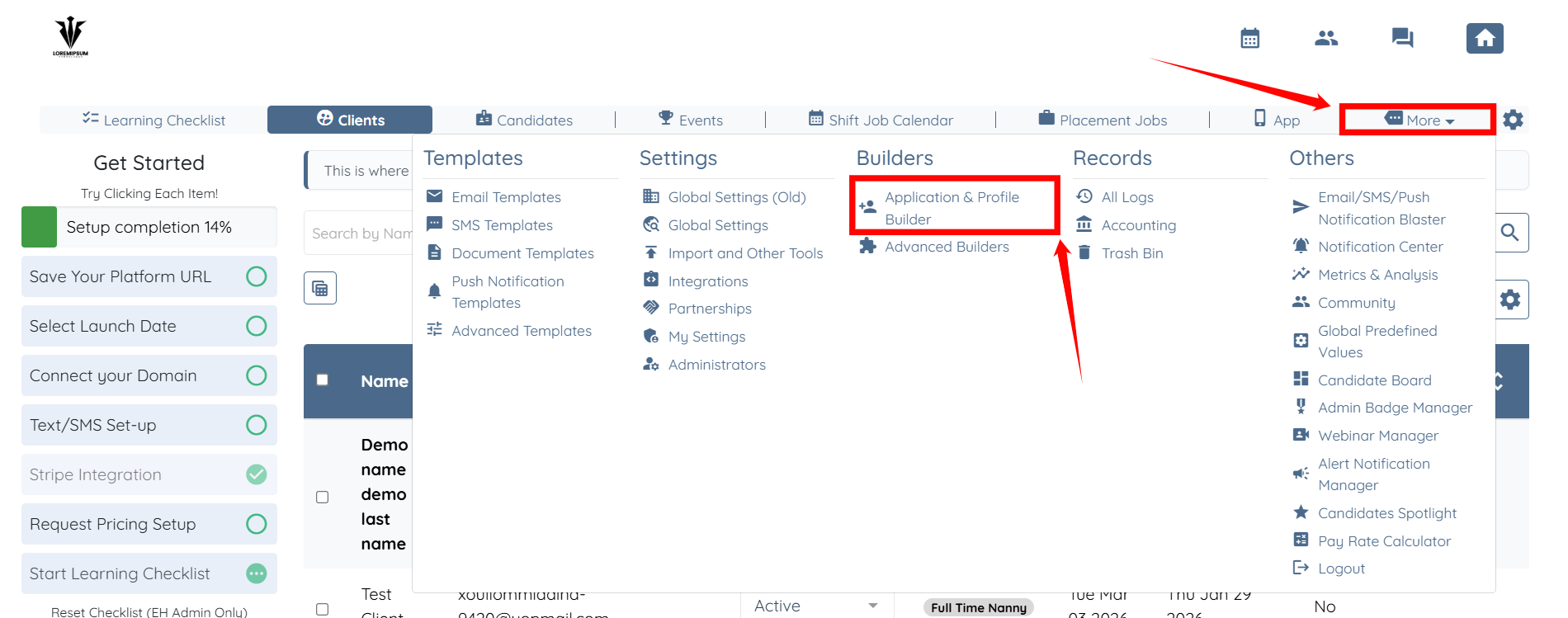
Step 1: Log in to your agent dashboard and click More > Application & Profile Builder as shown in the screenshot below.
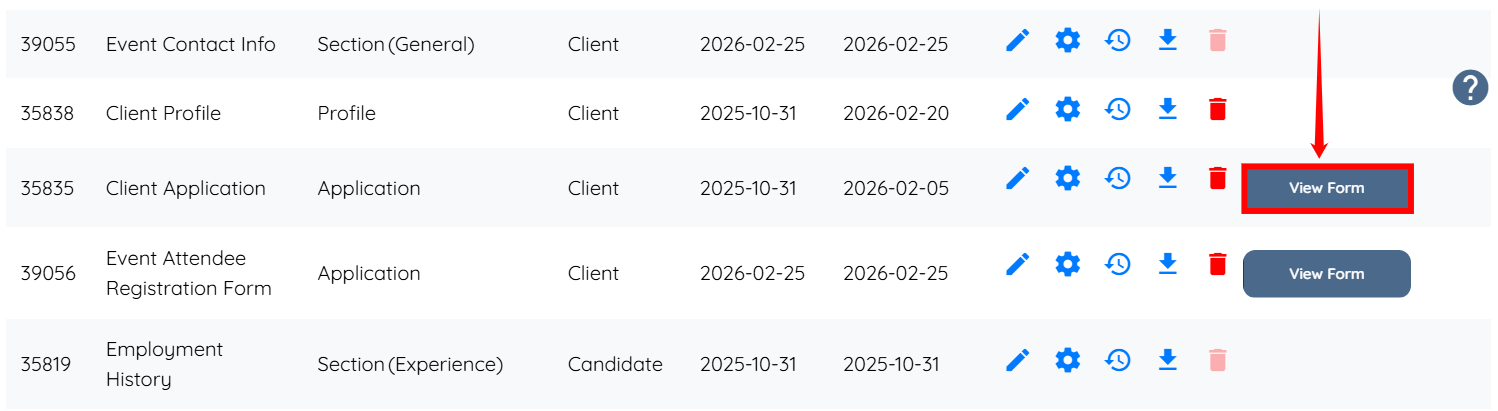
Step 2: Click the View Form button corresponding to the Application Form where you want to configure additional field properties.
Step 3: Drag and drop the field you want to add into the application form.
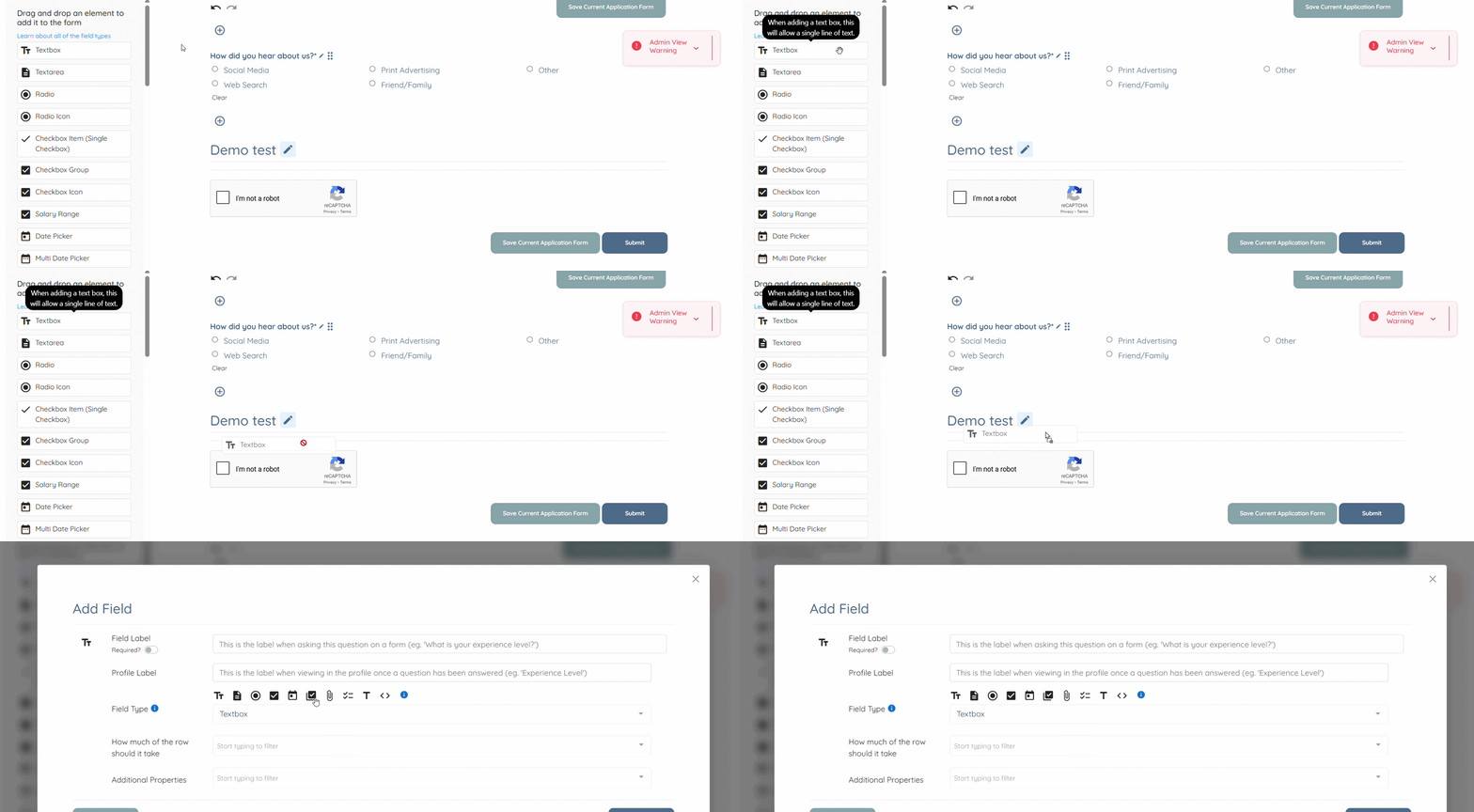
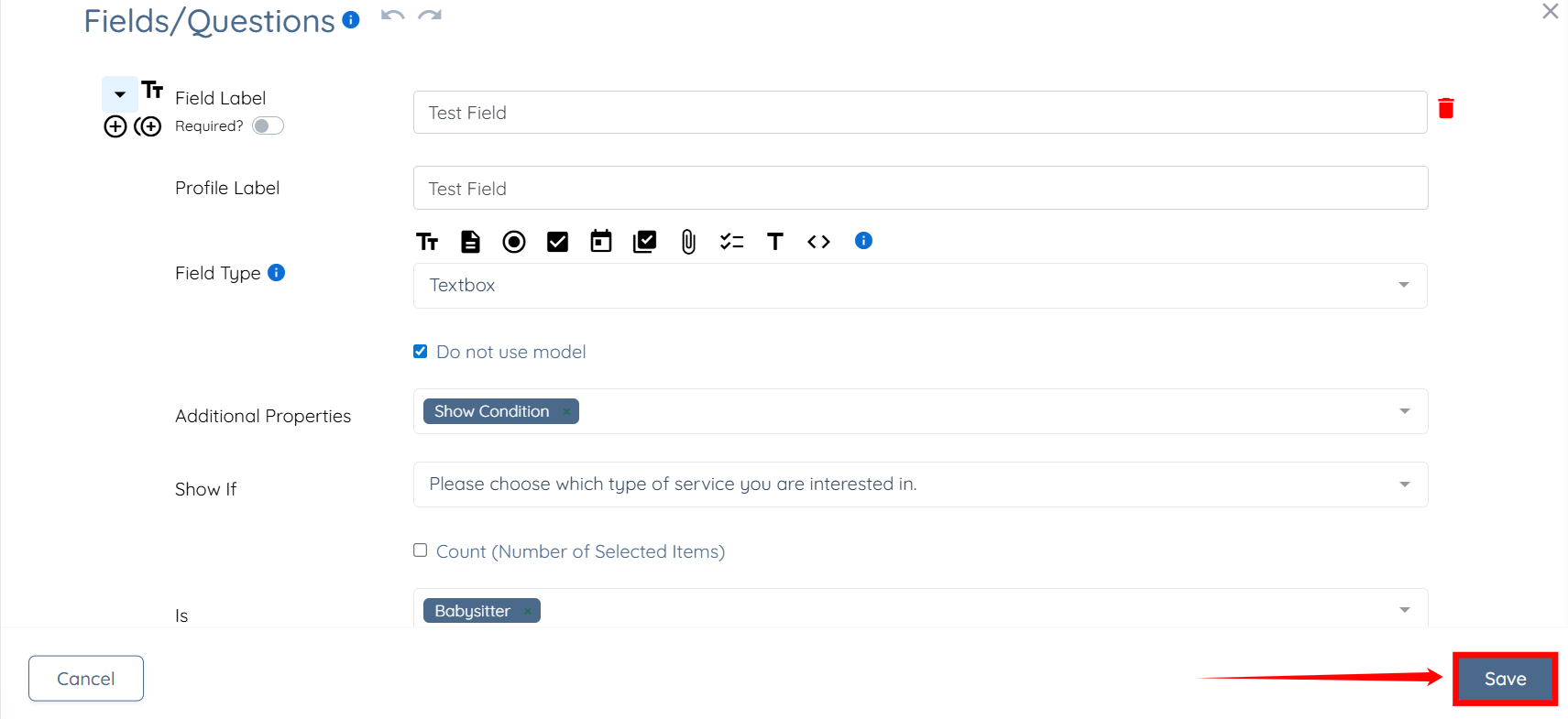
Step 4: Enter the Field Label and Profile Label for the field.
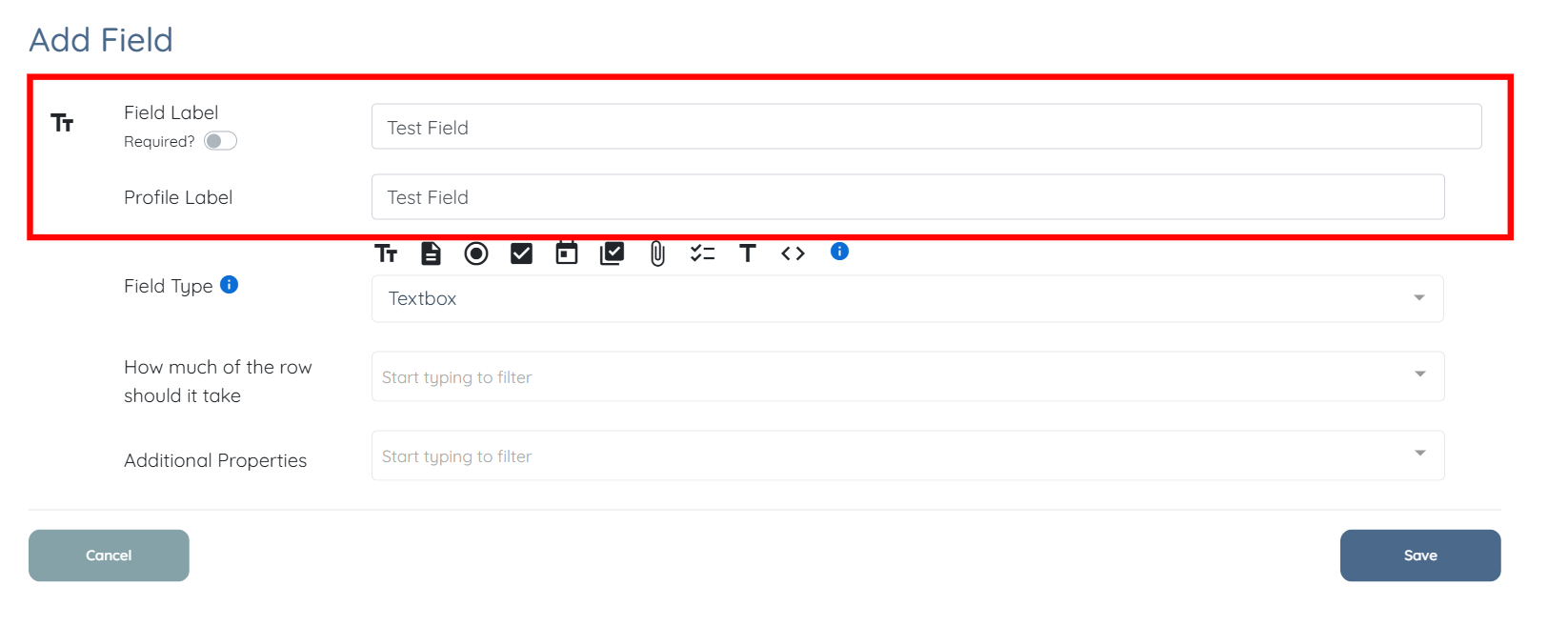
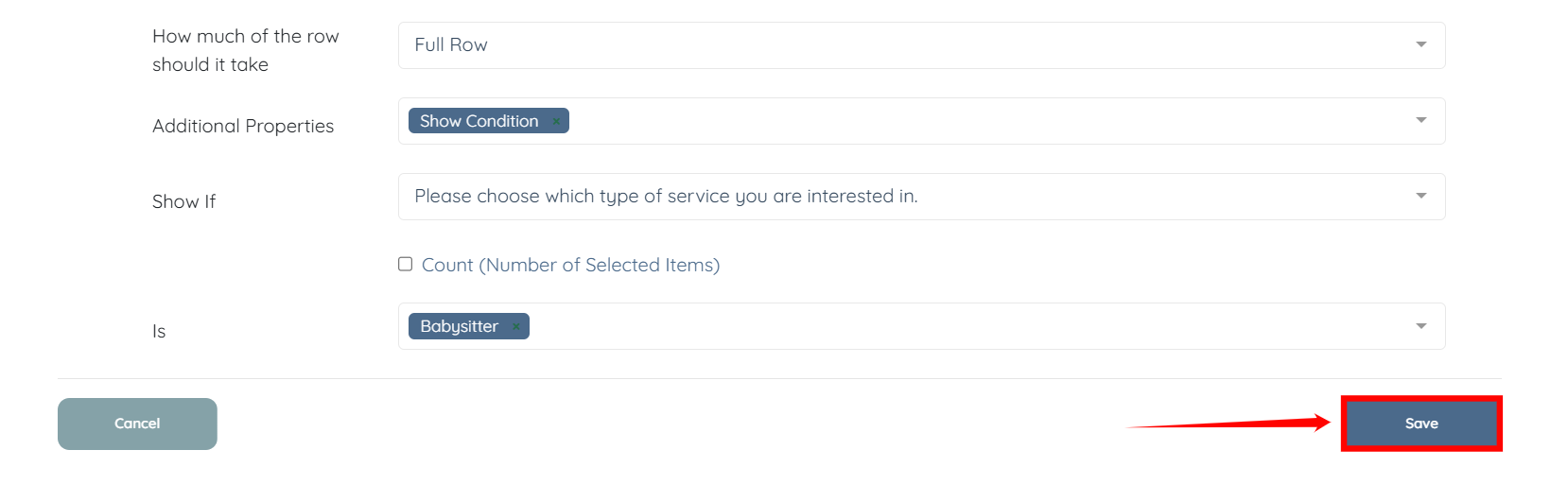
Step 5: Select the required Additional Properties for the field from the dropdown list.
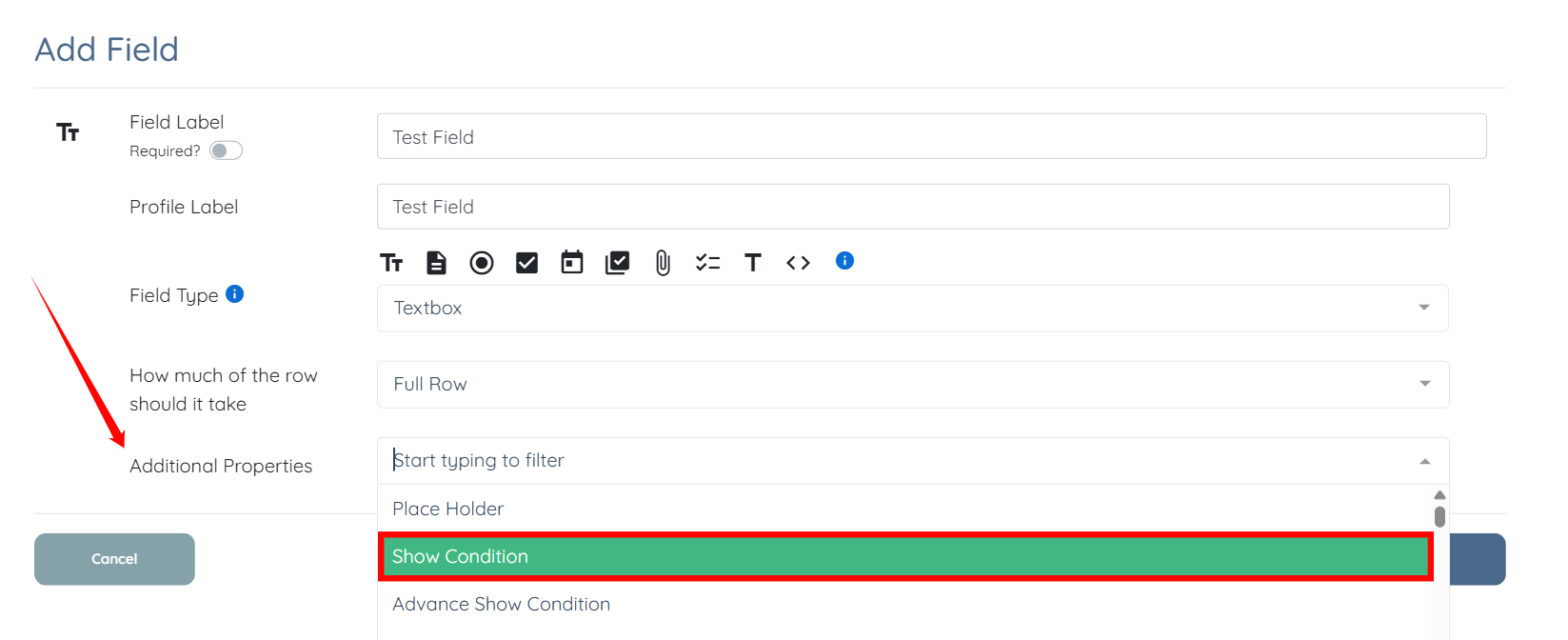
Step 6: Select the appropriate option from the dropdown list for the Show if condition.
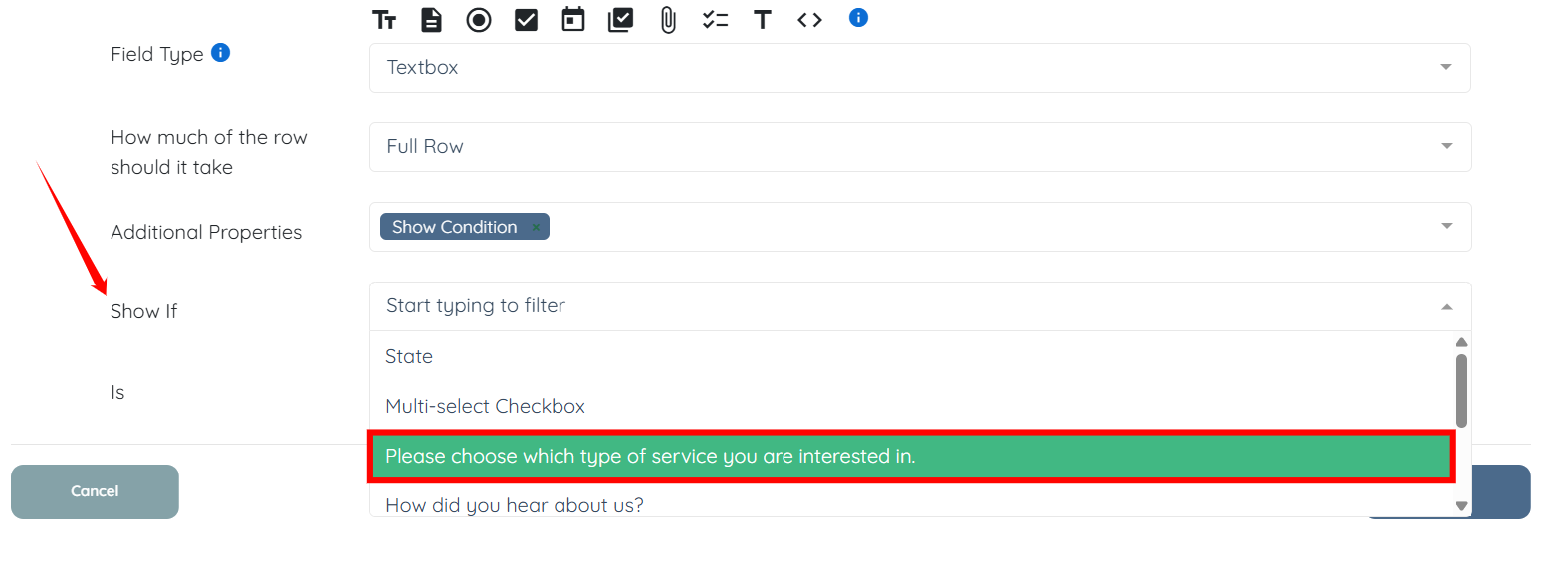
Step 7: Select the option for the Is operator from the dropdown list.
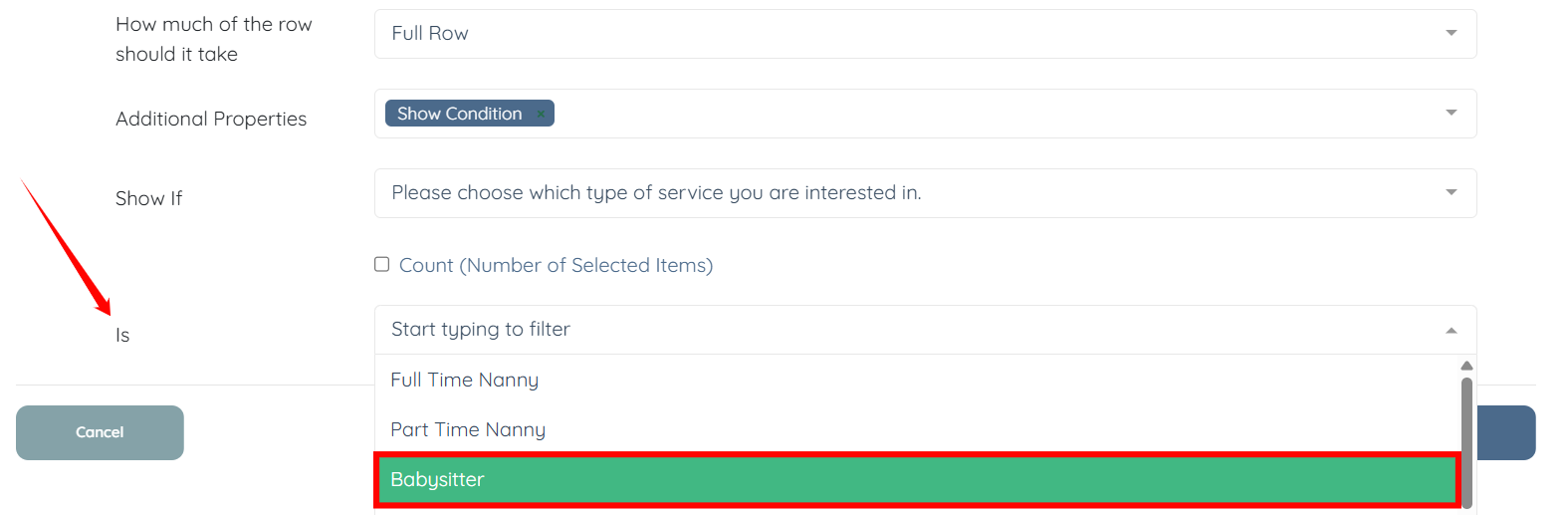
Step 8: Click on the Save button to confirm the changes.
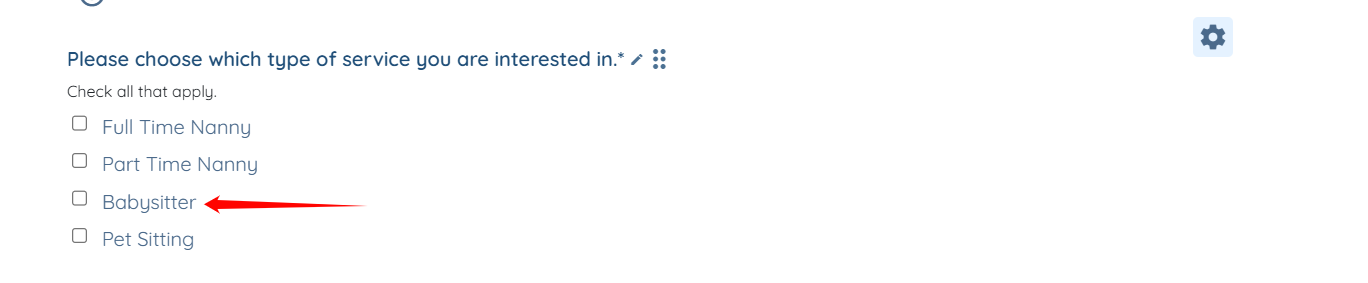
Now, when the user checks the configured option, which is Babysitter in this case.
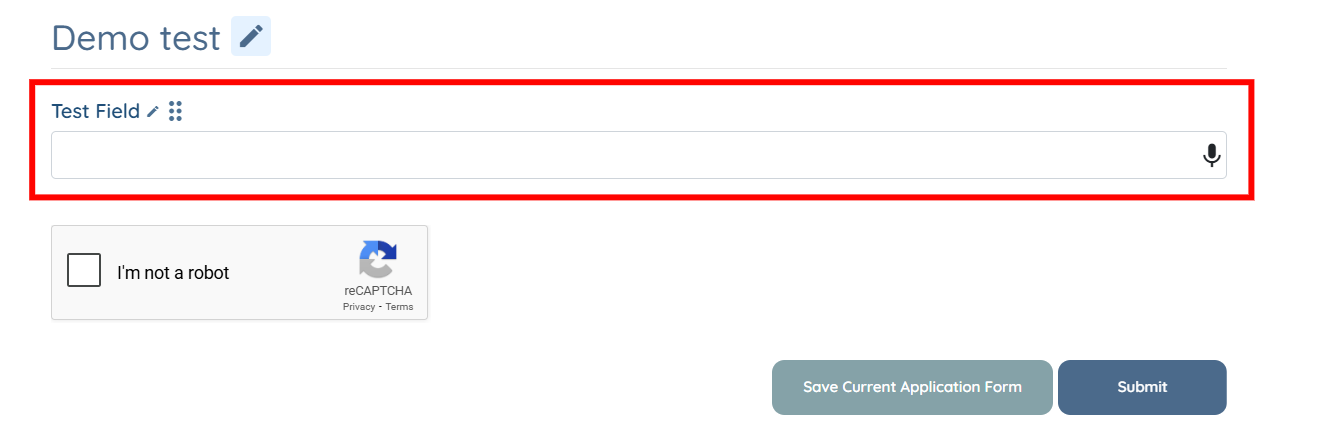
The added field will be successfully displayed according to the additional property set.
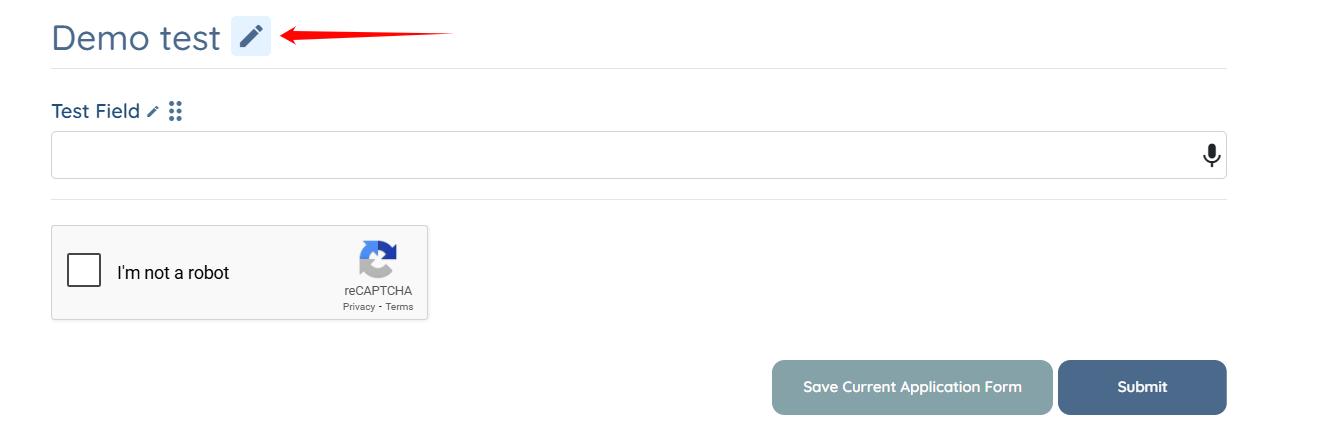
Step 9: Click the pencil icon next to the section header to edit the field you added.
Step 10: Edit the field configuration as required, and then click Save to confirm the changes.