

Let’s get started 🚀
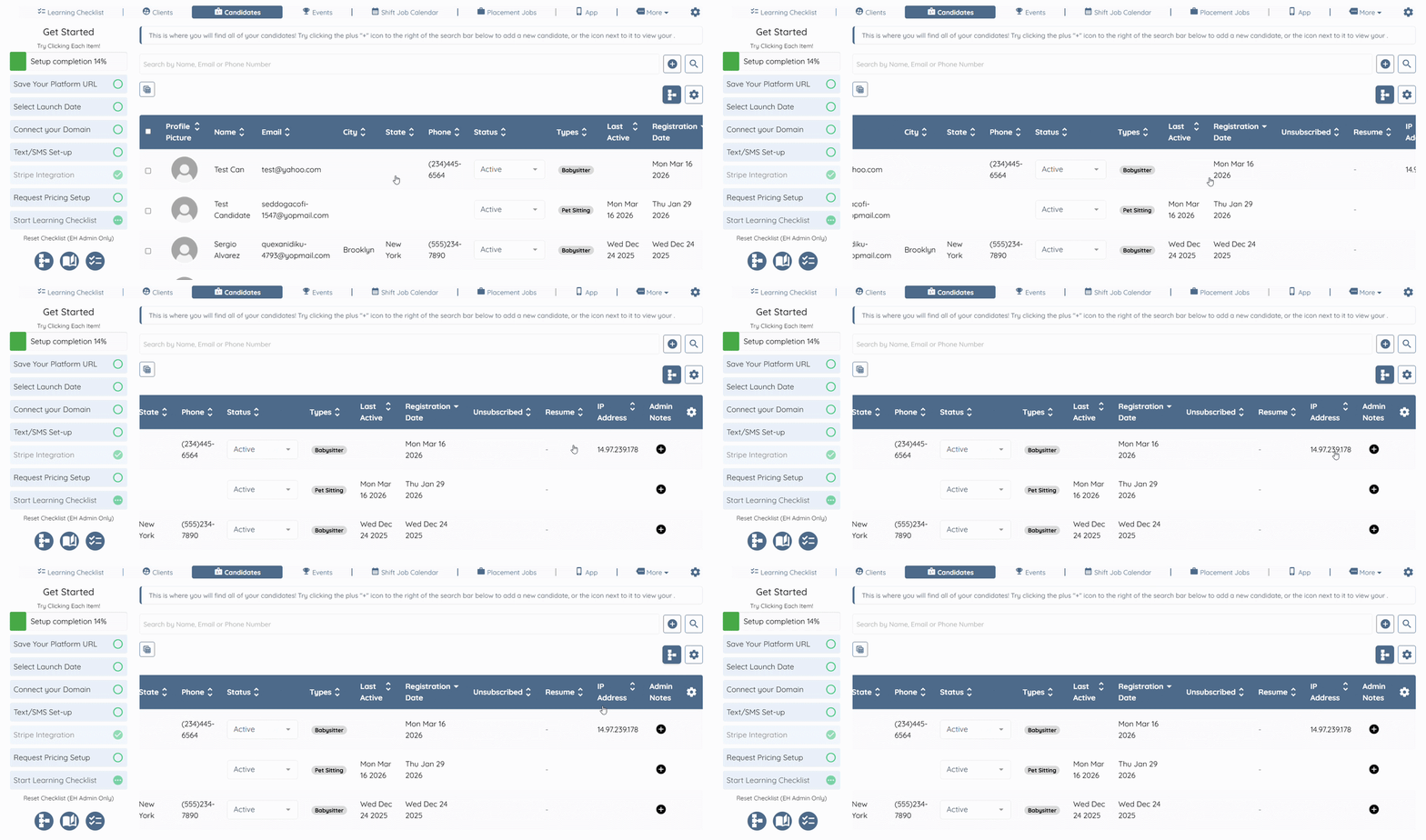
Step 1: Log in to your agent dashboard and click Candidates in the navigation bar.

Step 2: Scroll the candidate table to the left and click the Gear icon in the top-right corner of the table header to open the candidate dashboard settings.
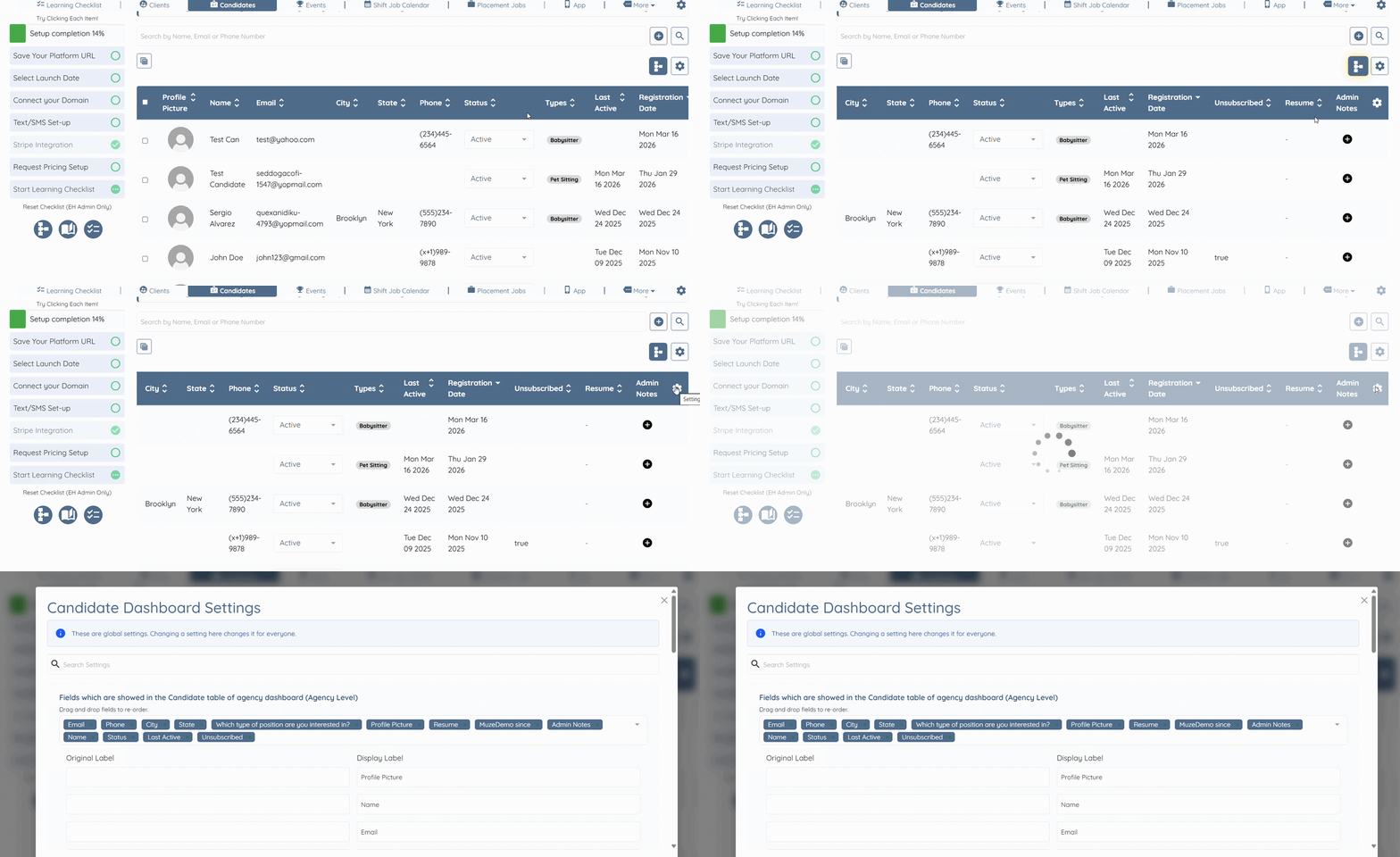
Step 3: Click the field selection box (as shown in the screenshot below) to open the dropdown list.
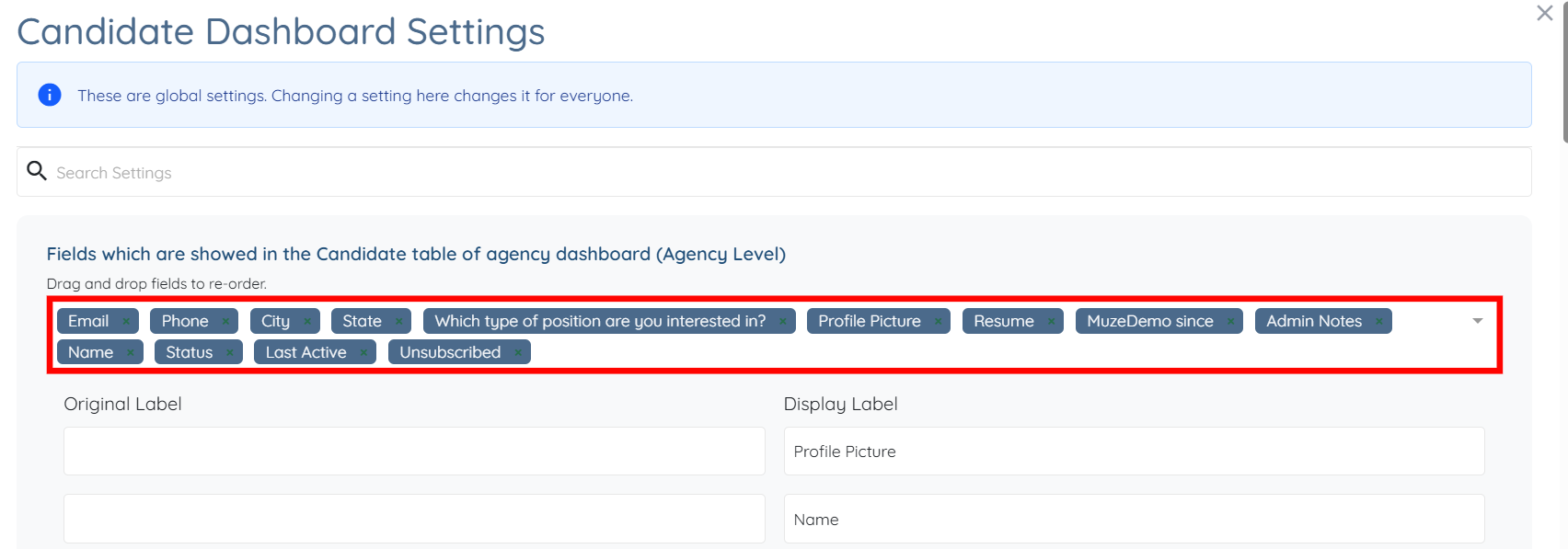
Step 4: Select the IP Address field from the dropdown list.
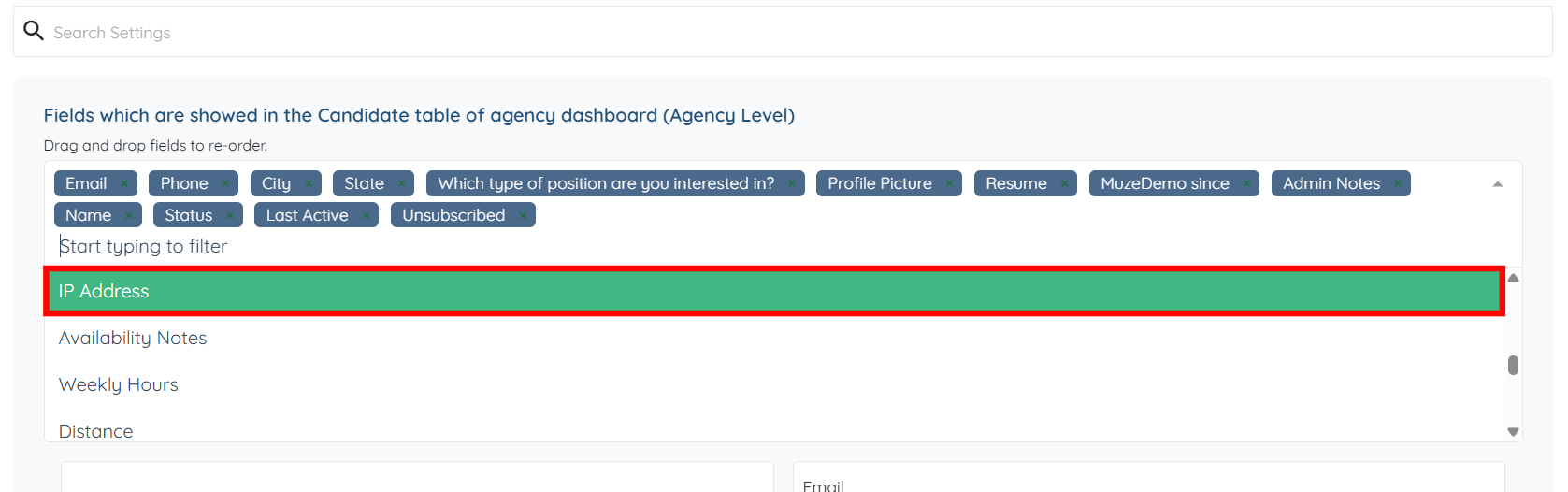
The settings will be saved automatically.
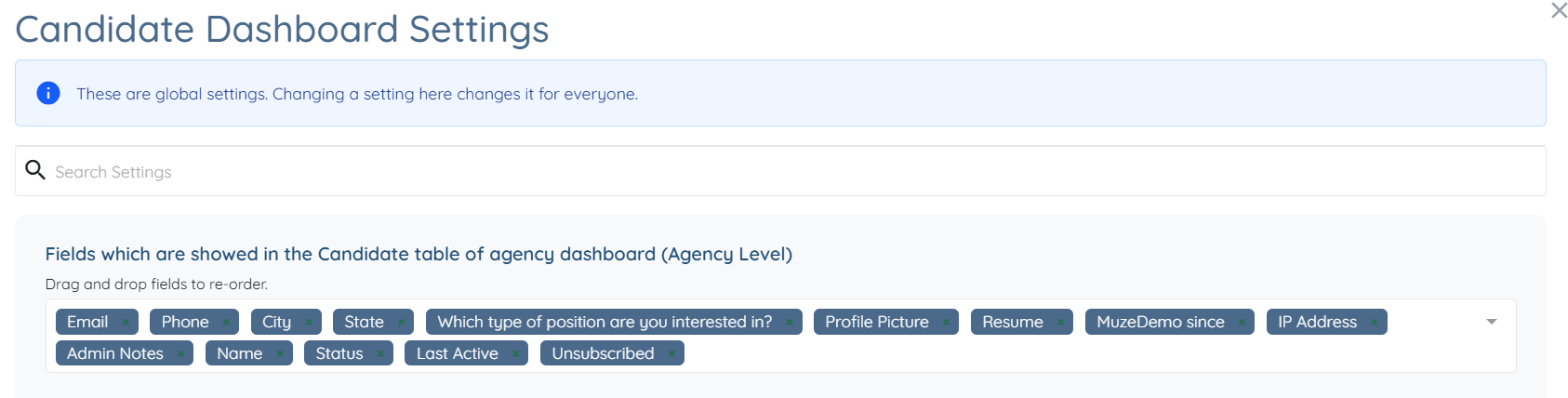
The IP Address field will now appear in the candidate table, and the corresponding IP address values will be displayed for the candidates.
Step 5: Click a candidate from the list who has an IP address recorded.
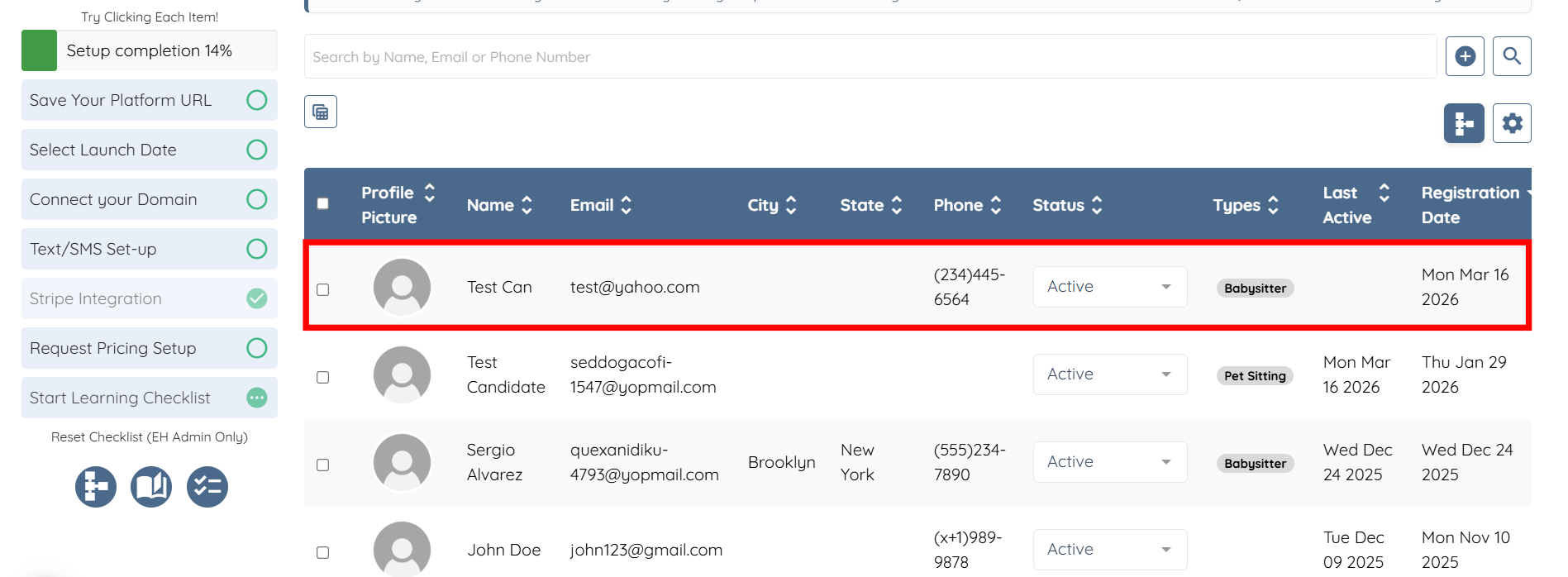
The IP Address will also be displayed in the information bar, as shown in the screenshot below.
