Settings
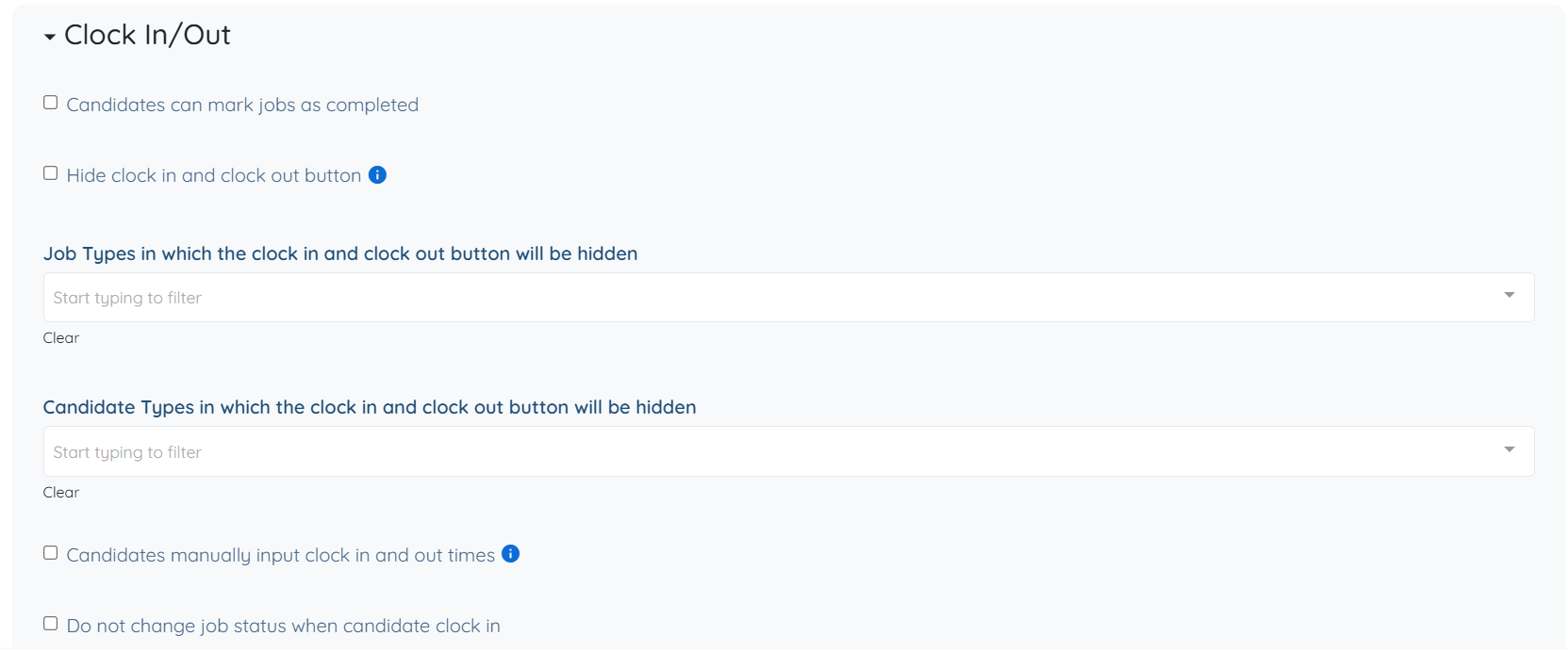
The following settings are available under the Clock In/Out option and can be configured based on your requirements.
Candidates can mark jobs as completed
Allows candidates to manually mark a job as completed.Hide clock in and clock out button
Removes the clock in and clock out options from the candidate view.Job Types in which the clock in and clock out button will be hidden
Defines specific job types where clock in and clock out functionality is disabled.Candidate Types in which the clock in and clock out button will be hidden
Specifies candidate types for which clock in and clock out options are not available.Candidates manually input clock in and out times info
Allows candidates to manually enter their clock in and clock out times.Do not change job status when candidate clocks in
Prevents automatic job status updates when the candidate clocks in.Do not change job status when candidate clocks out
Prevents automatic job status updates when the candidate clocks out.Number of minutes before the shift start time to show the clock in button
Defines how early the clock in option becomes available before the shift start time.Get candidate location when they clock in and out of jobs
Captures the candidate’s location when they clock in and clock out.Status to set shift jobs to when candidate clocks out
Defines the job status after the candidate clocks out.Minutes interval when candidate clock in and out
Controls the allowed time intervals for clock in and clock out actions.If candidate is late clocking in or out by more than X minutes, make adding notes mandatory
Requires candidates to provide notes if they are late beyond a defined threshold.Custom message for candidates on clockout
Displays a custom message to candidates when they clock out.Candidate's signature is required to clock out
Requires candidates to provide a signature before completing clock out.