Let’s get started 🚀
Configure address autocomplete to automatically populate address fields as users start typing, helping reduce manual entry errors and improve accuracy when creating shift jobs.
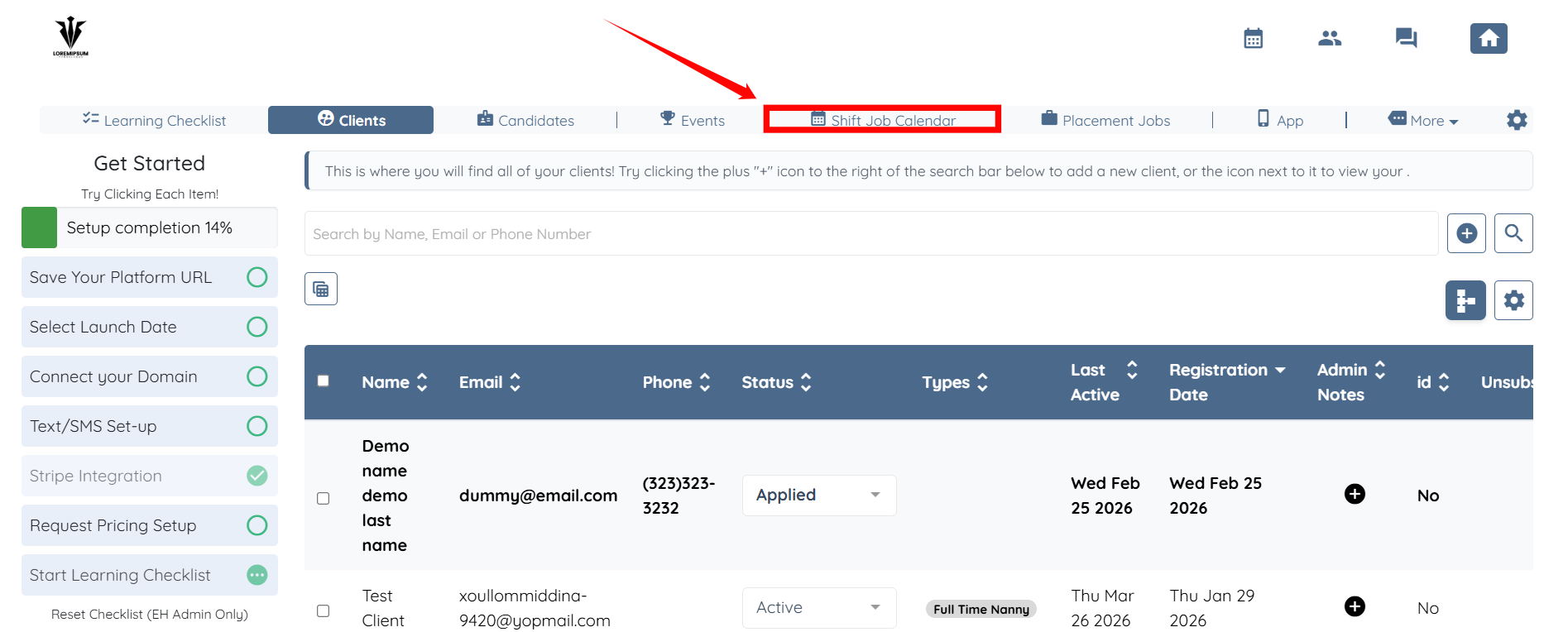
Step 1: Log in to your agent dashboard and click Shift Job Calendar in the navigation bar.
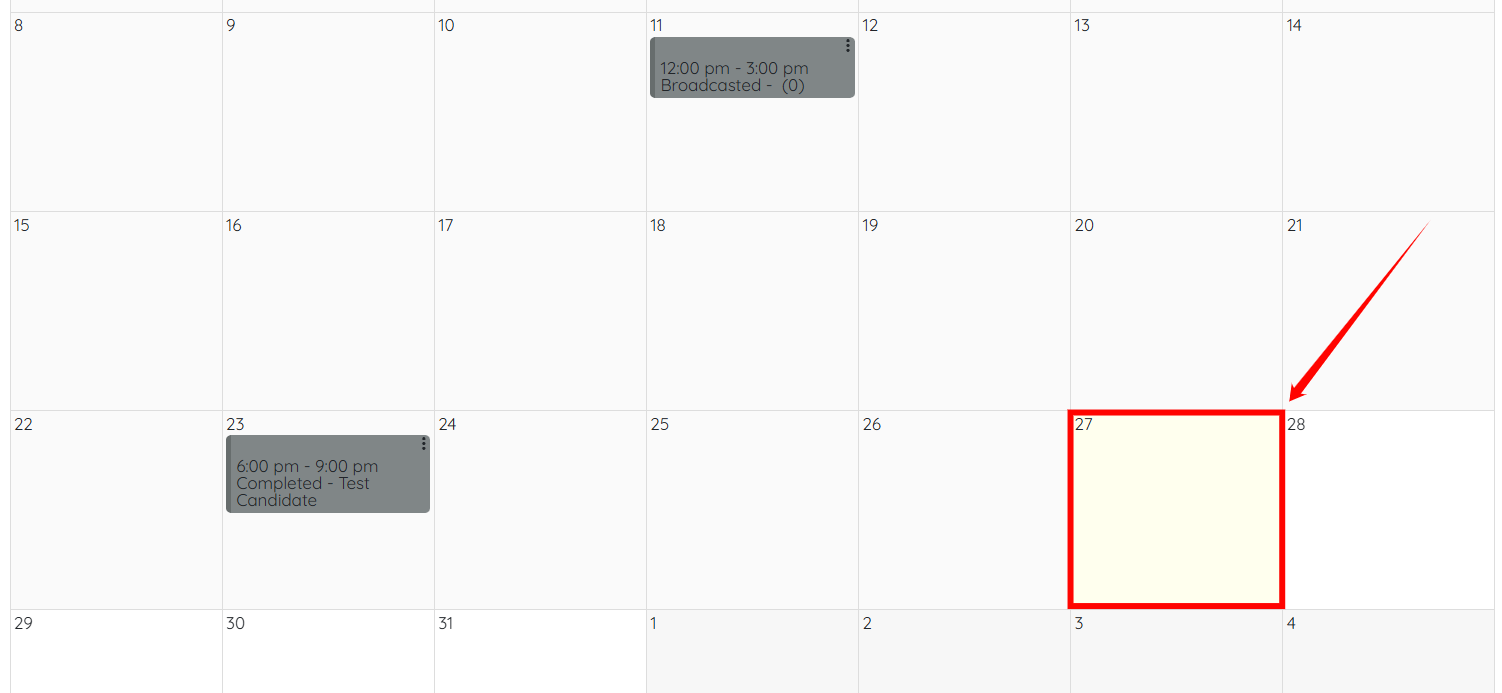
Step 2: Scroll down and click on any date in the calendar to open the booking form.
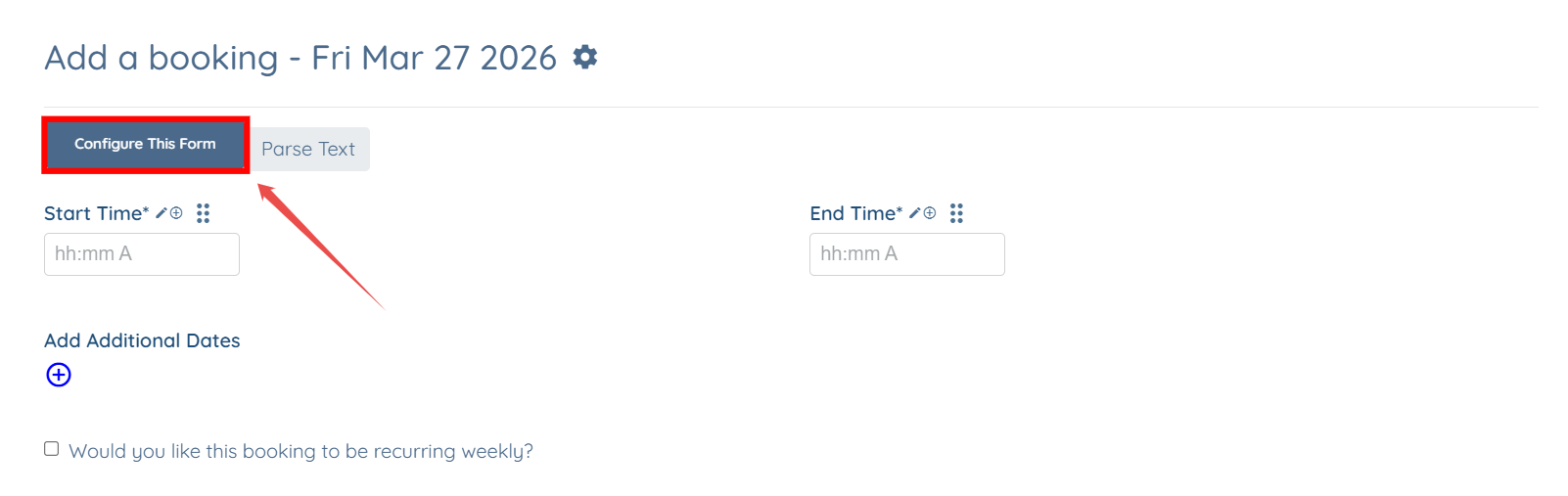
Step 3: Click the Configure This Form button as shown in the screenshot below.
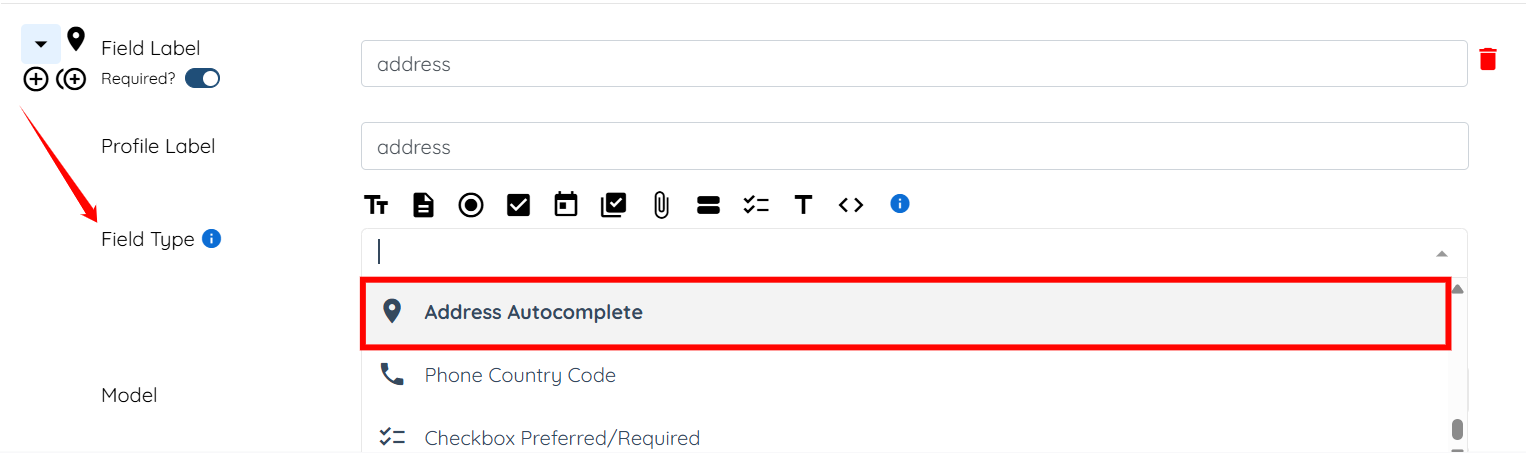
Step 4: Scroll down to the address field and select the Address Autocomplete option from the Field Type dropdown list.
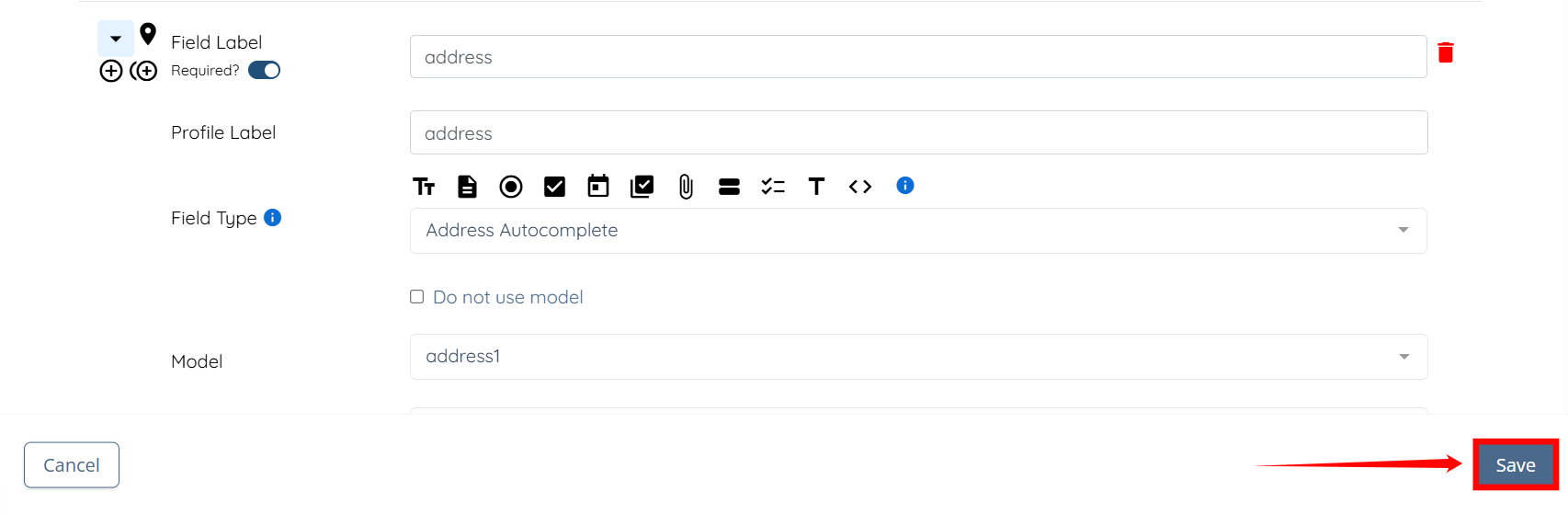
Step 5: Click the Save button to apply the changes.
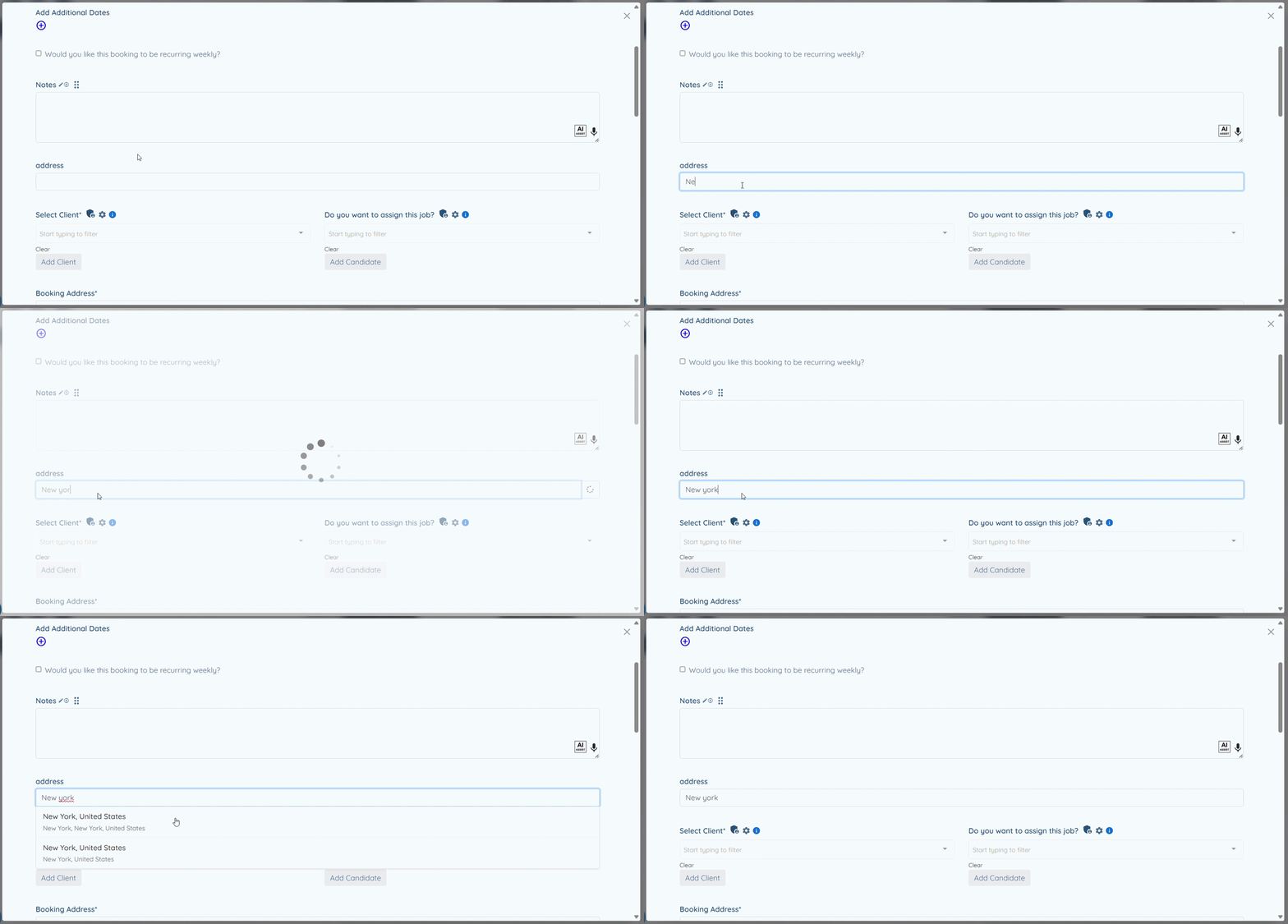
Now, when users enter an address, relevant suggestions will appear automatically, allowing them to select and fill the address quickly and accurately.
Display the actual address for geo-fenced clock in and out to provide better visibility with a clear, readable location.
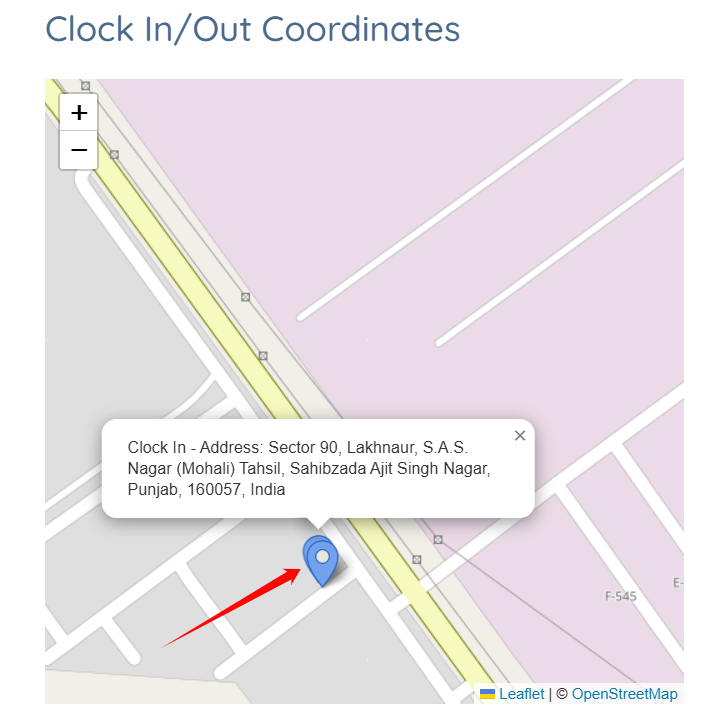
After the assigned candidate completes the job by clocking in and out from the location, you will be able to see the clock in/out coordinates.
Step 1: In the Shift Job Calendar, open the shift job for which you want to check the candidate’s clock-in and clock-out coordinates.
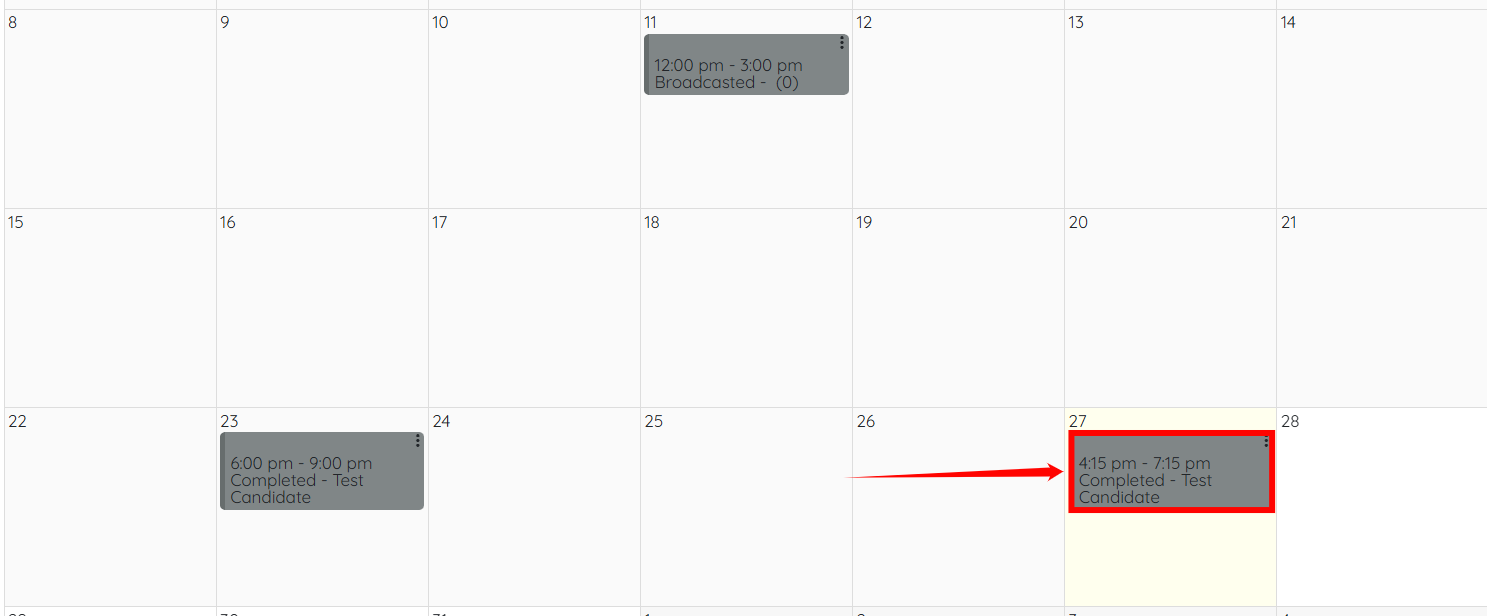
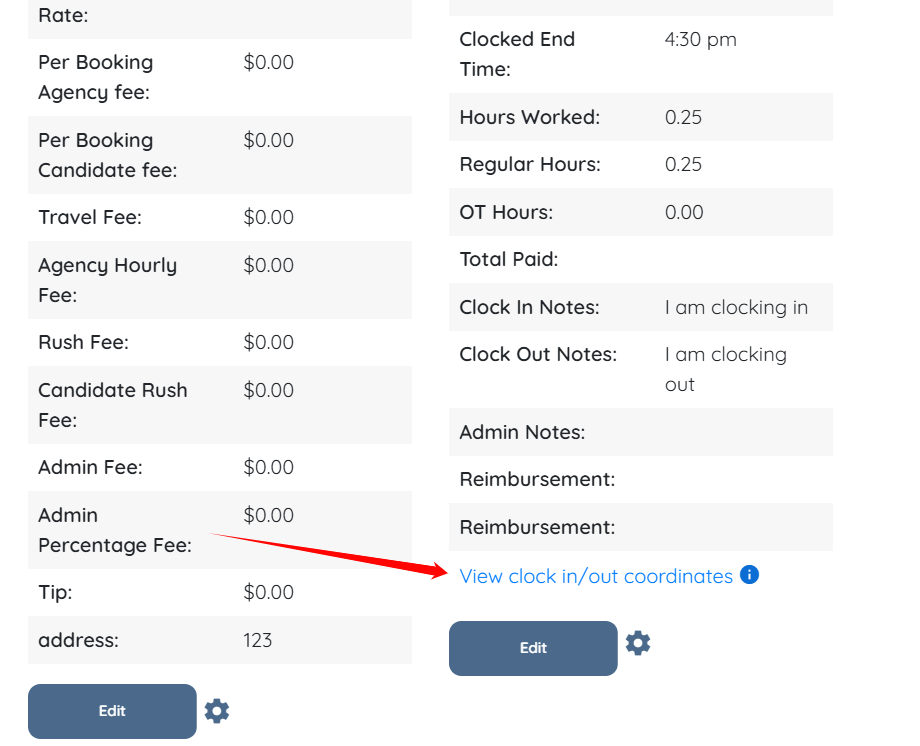
Step 2: Scroll down slightly and click the View clock in/out coordinates option.
Step 3: Use the zoom in (+) and zoom out (–) buttons to adjust the map view for a closer or wider look at the location.
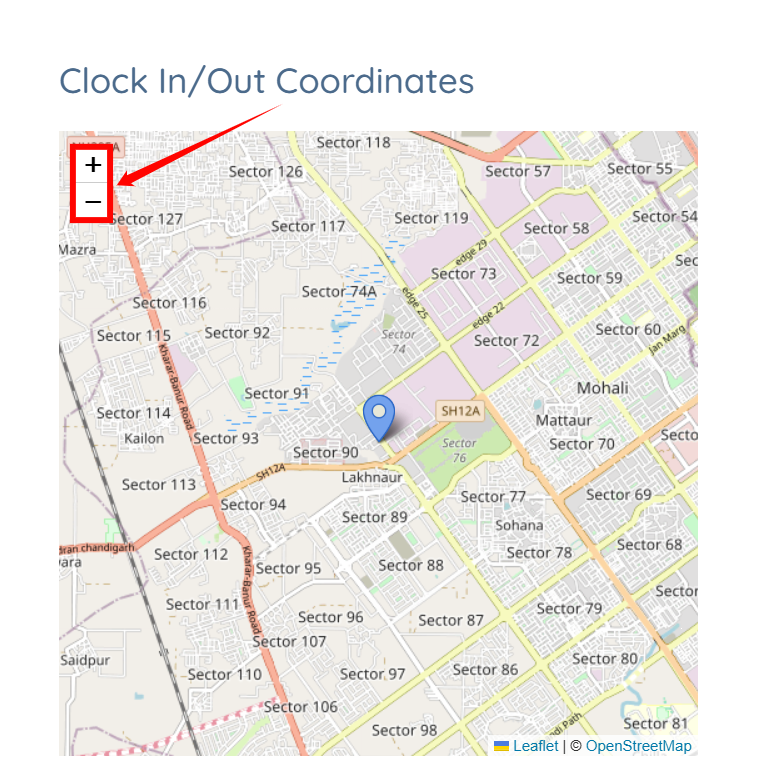
Step 4: Click the map pin to display the actual address.