Let’s get started 🚀
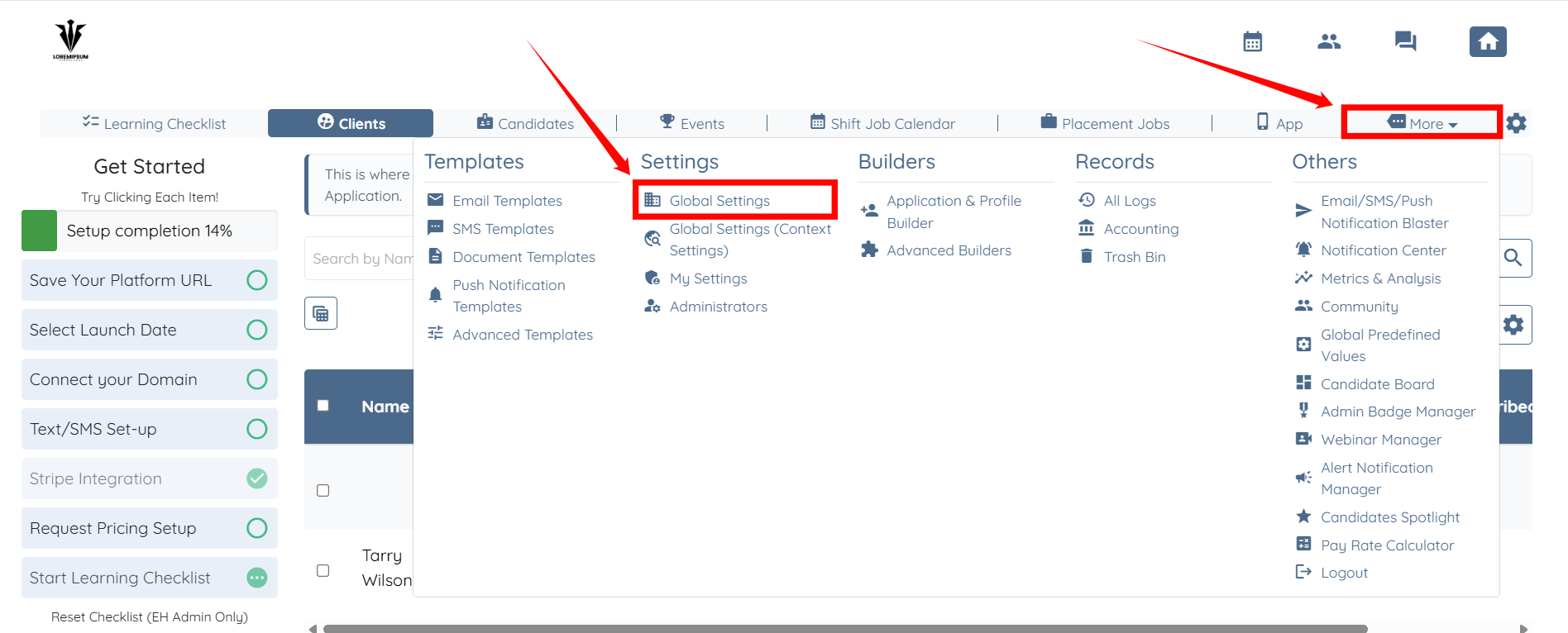
Step 1: Log in to your agent dashboard, then click More > Global Settings, as shown in the screenshot below.
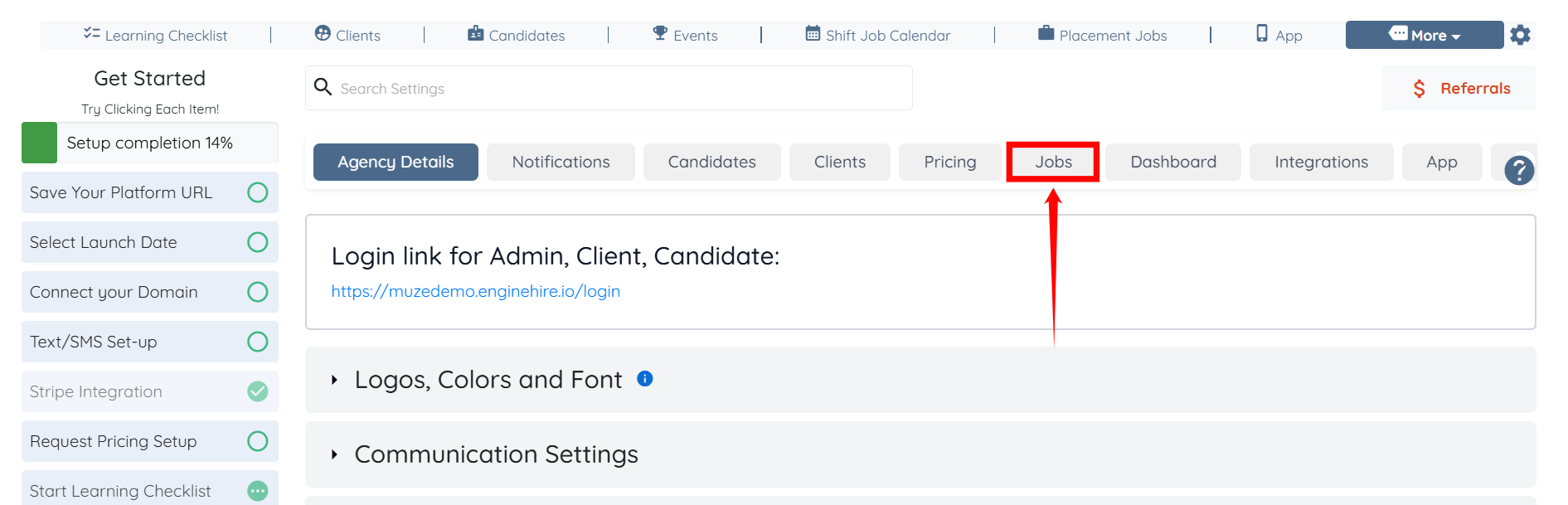
Step 2: Click the Jobs tab from the list of available tabs.
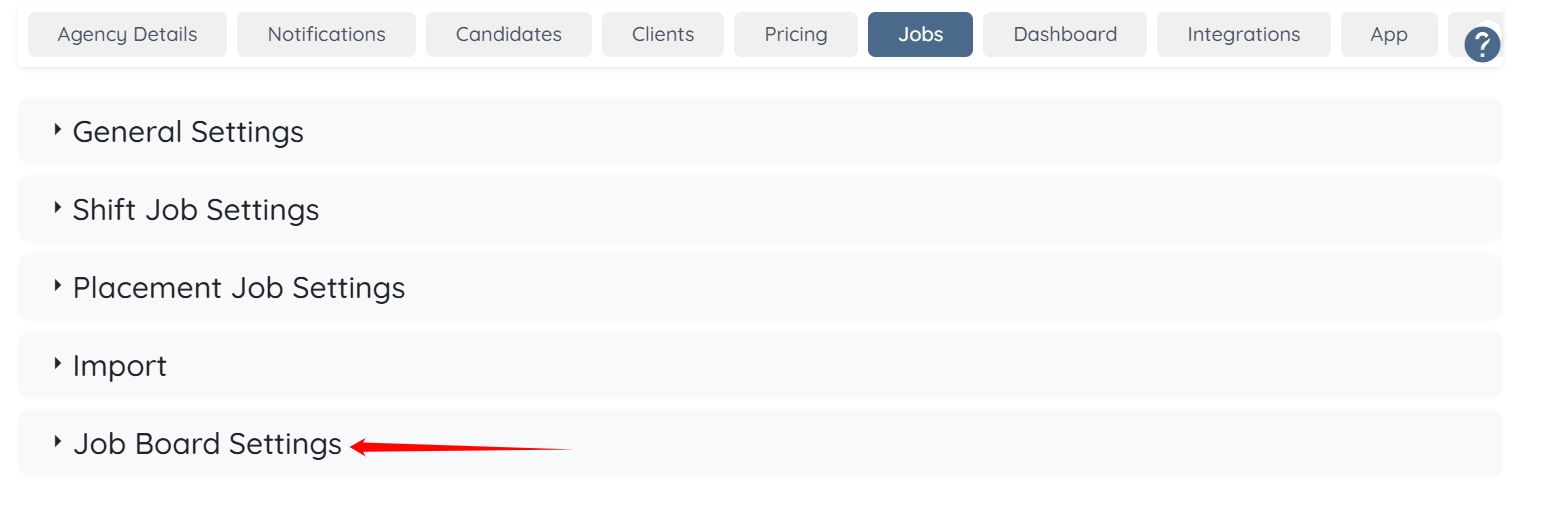
Step 3: Click the Job Board Settings option to expand its details.
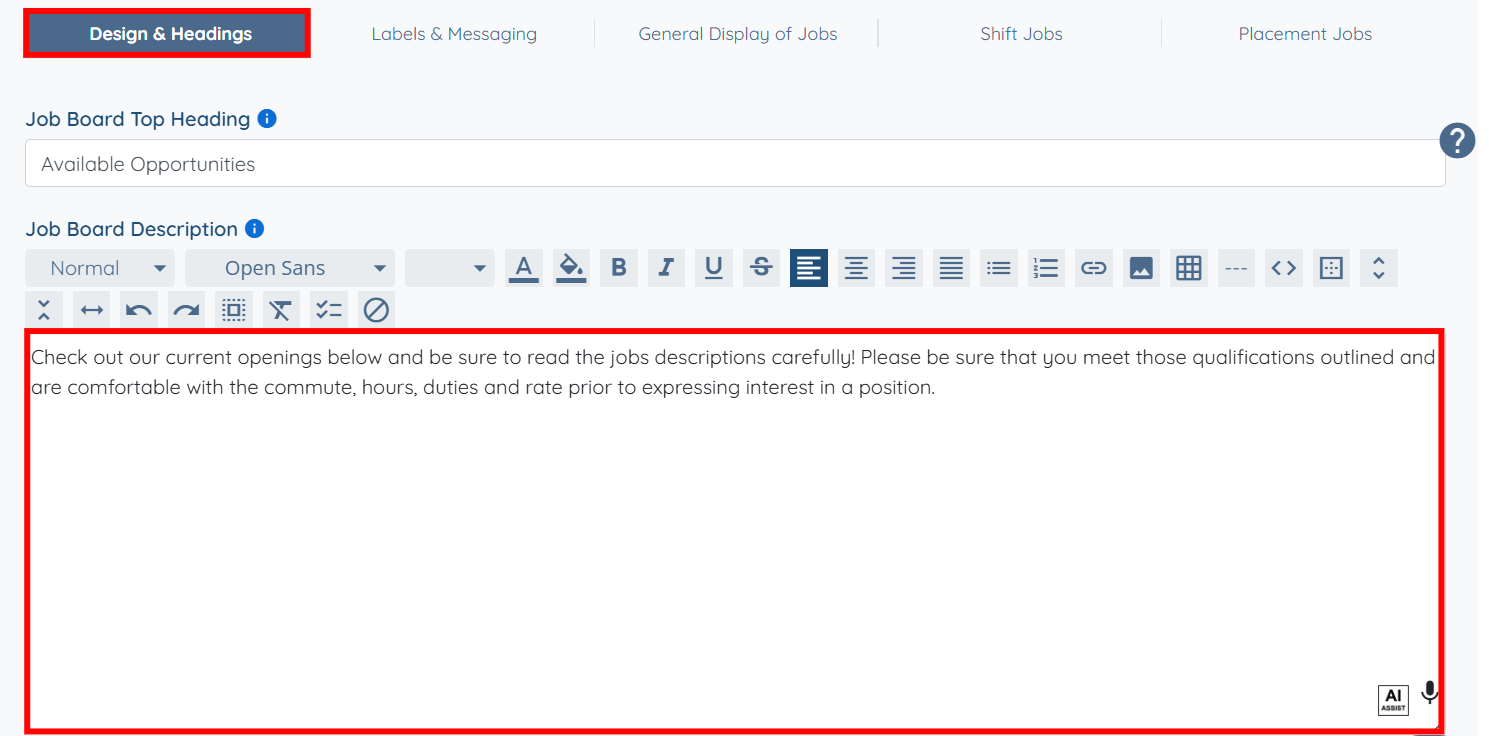
Step 4: Under the Design & Heading tab, you can edit the description in the way you want.

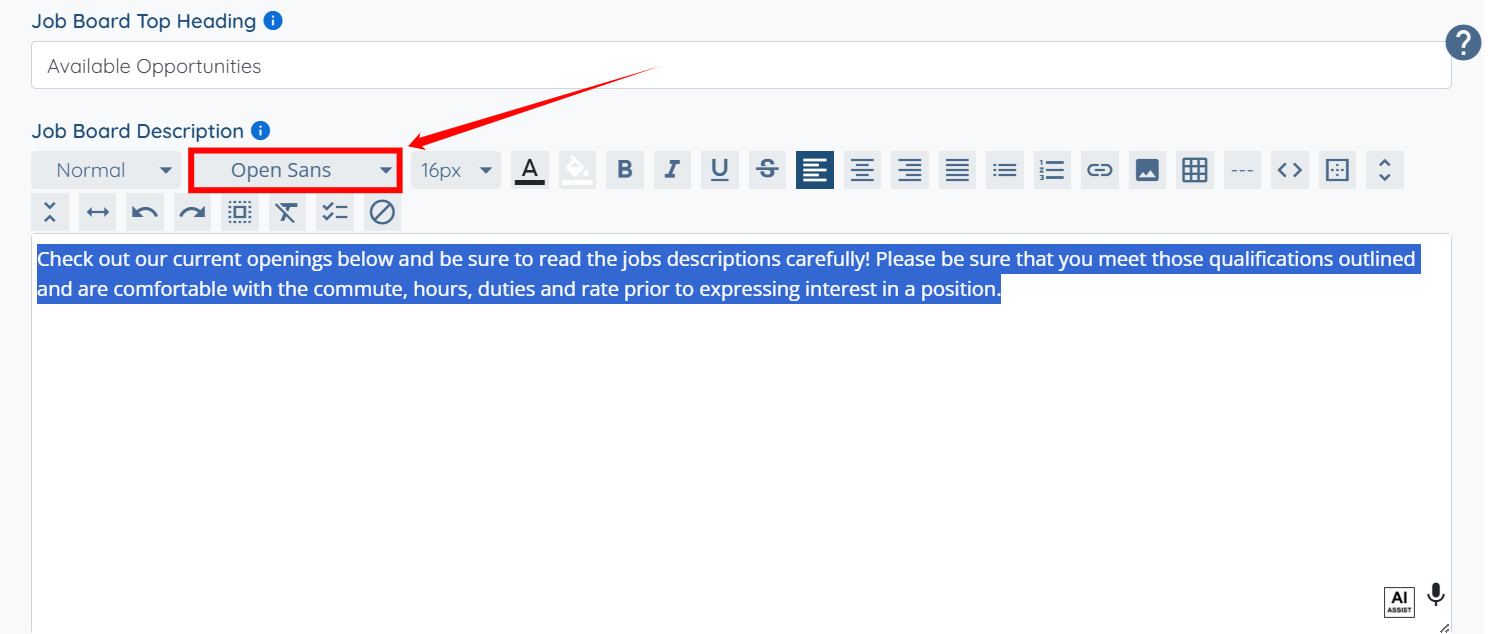
Step 5: You can also change the description’s font as needed. Select the description, then click the Font Family button to view the available fonts.
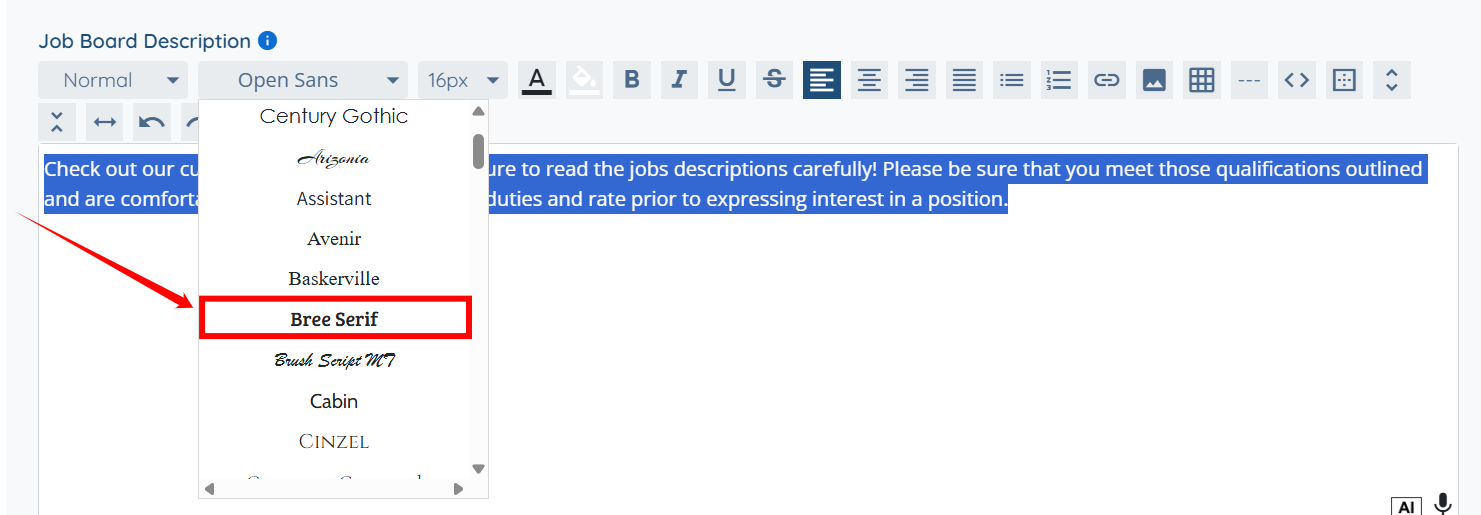
Step 6: Select the font you want to apply to the board description from the available options.
Similarly, you can use the text editor to change the text color and add links or images to the Job Board description.
Step 7: Click the Save icon to confirm your changes after making all the required edits.
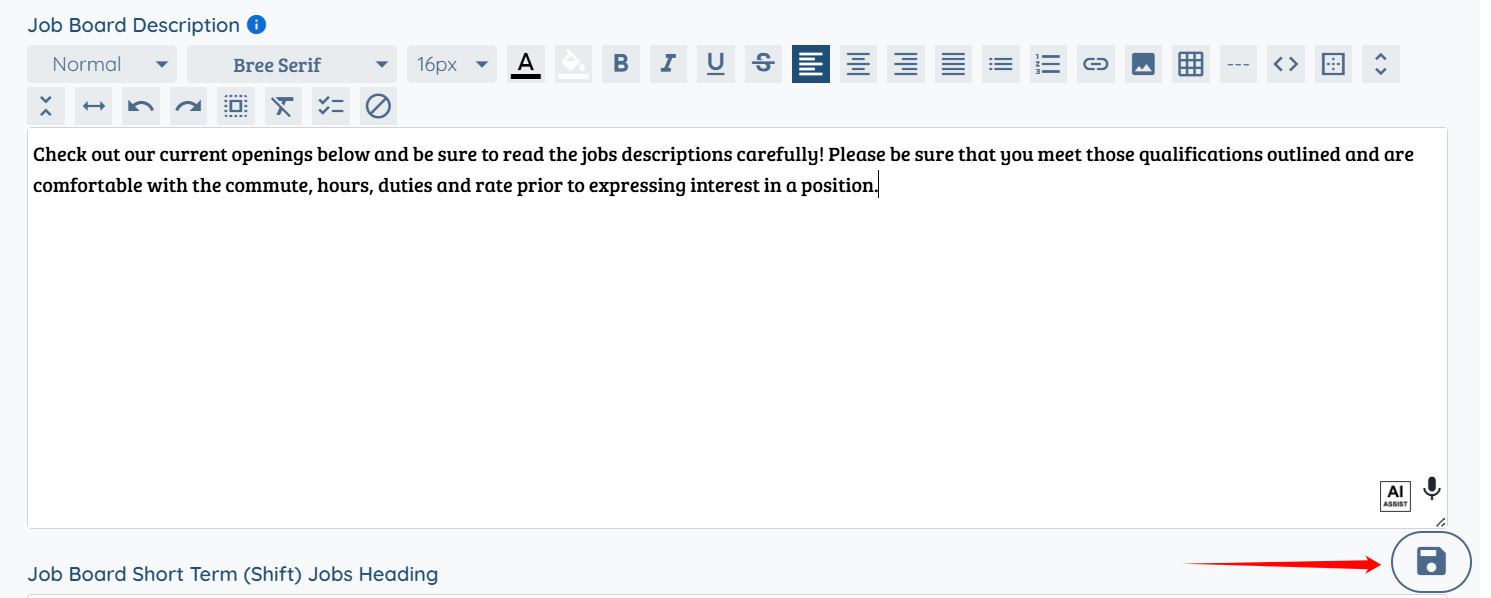
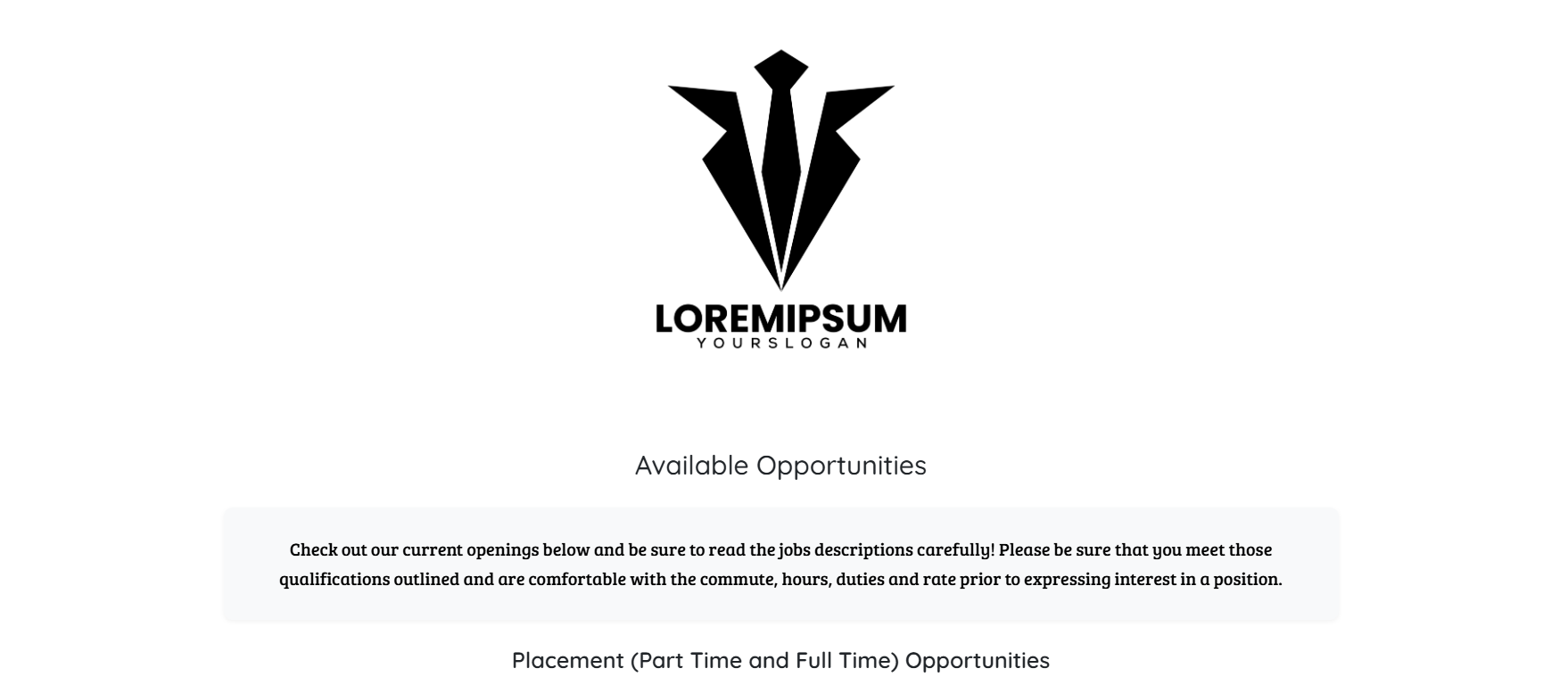
The candidate will see the Job Board Description displayed as follows.