Let’s get started 🚀
Step 1: Log in to your agent dashboard and click Candidates in the top navigation bar.
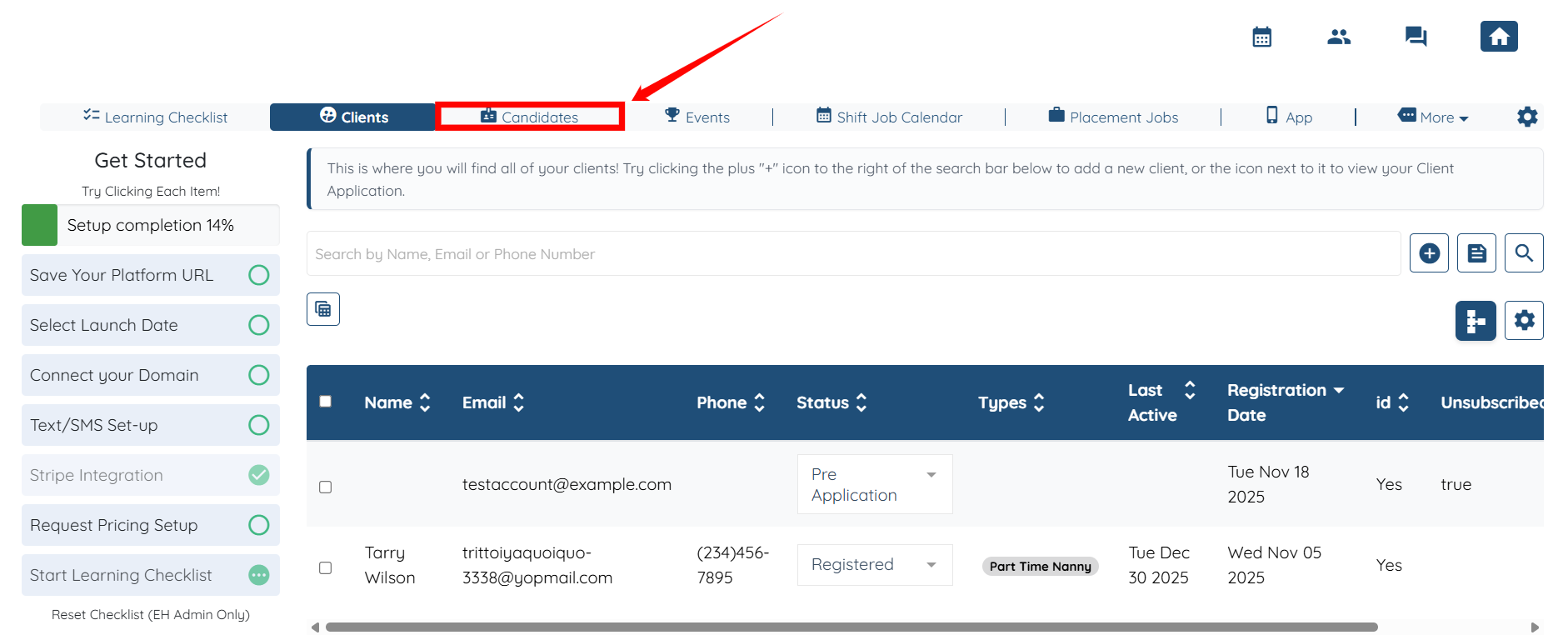
Step 2: Click on any candidate from the list of candidates.
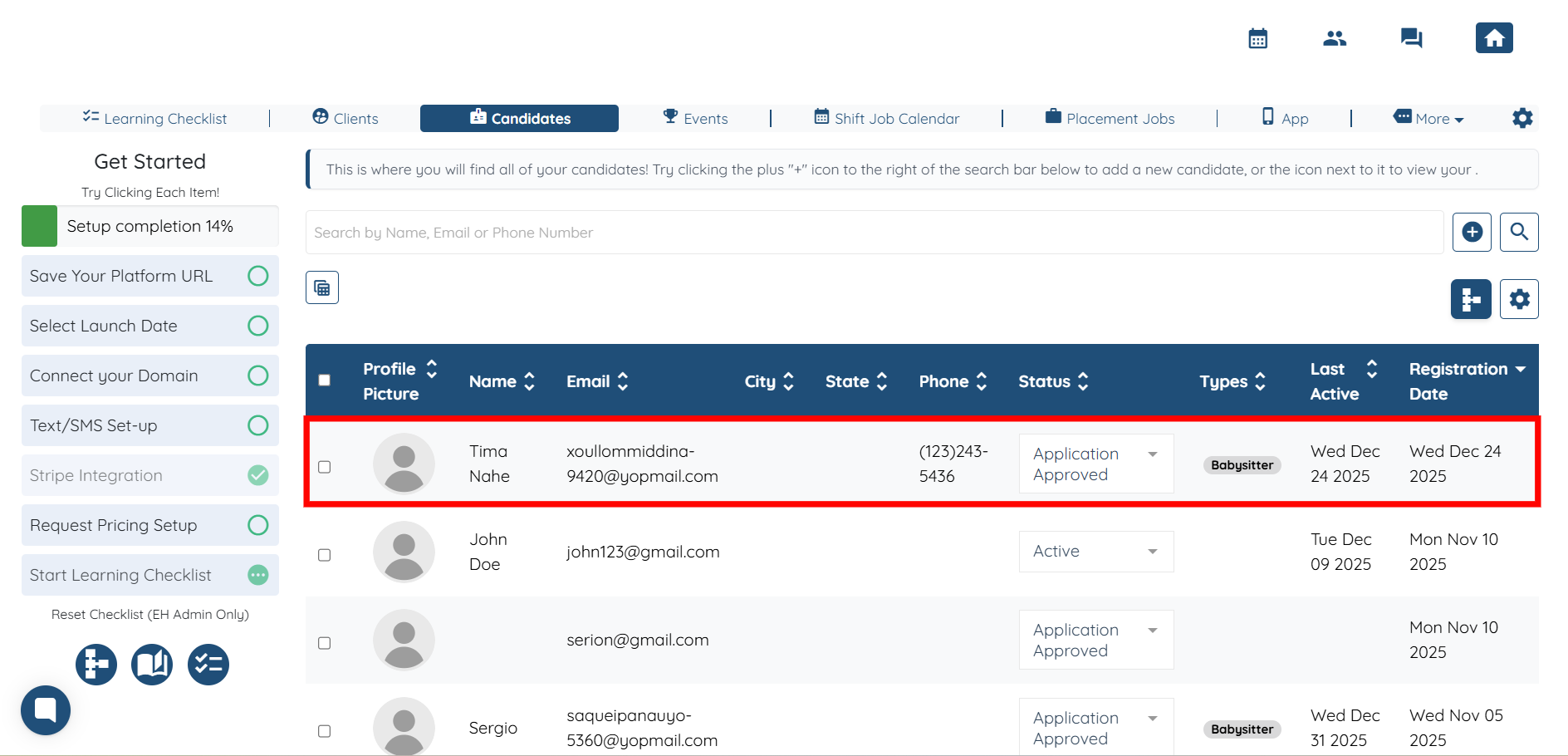
Step 3: Click the Profile tab.
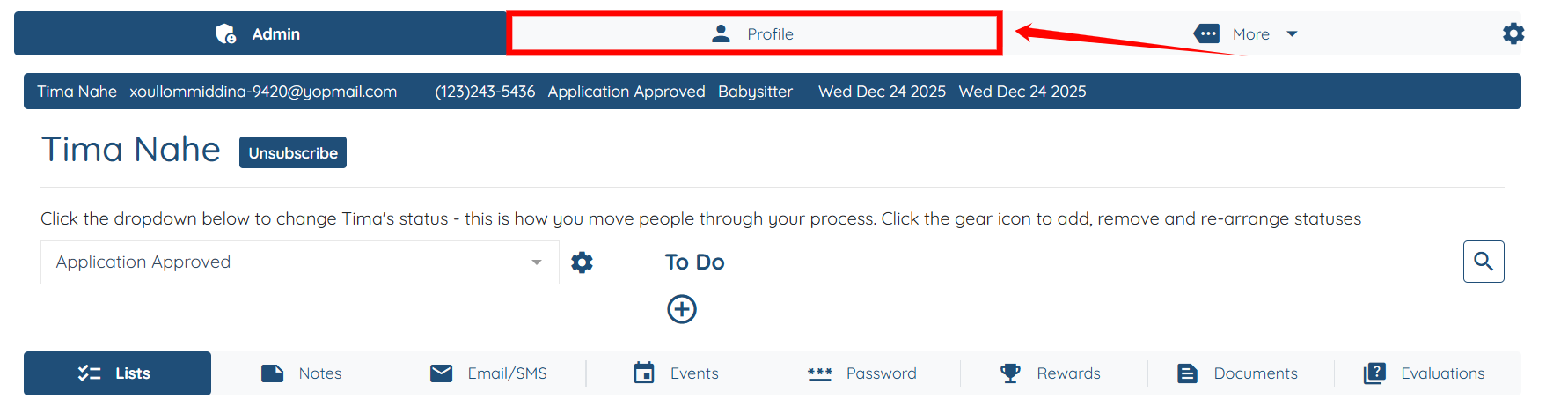
Step 4: Under the Profile tab, click the My Jobs option.
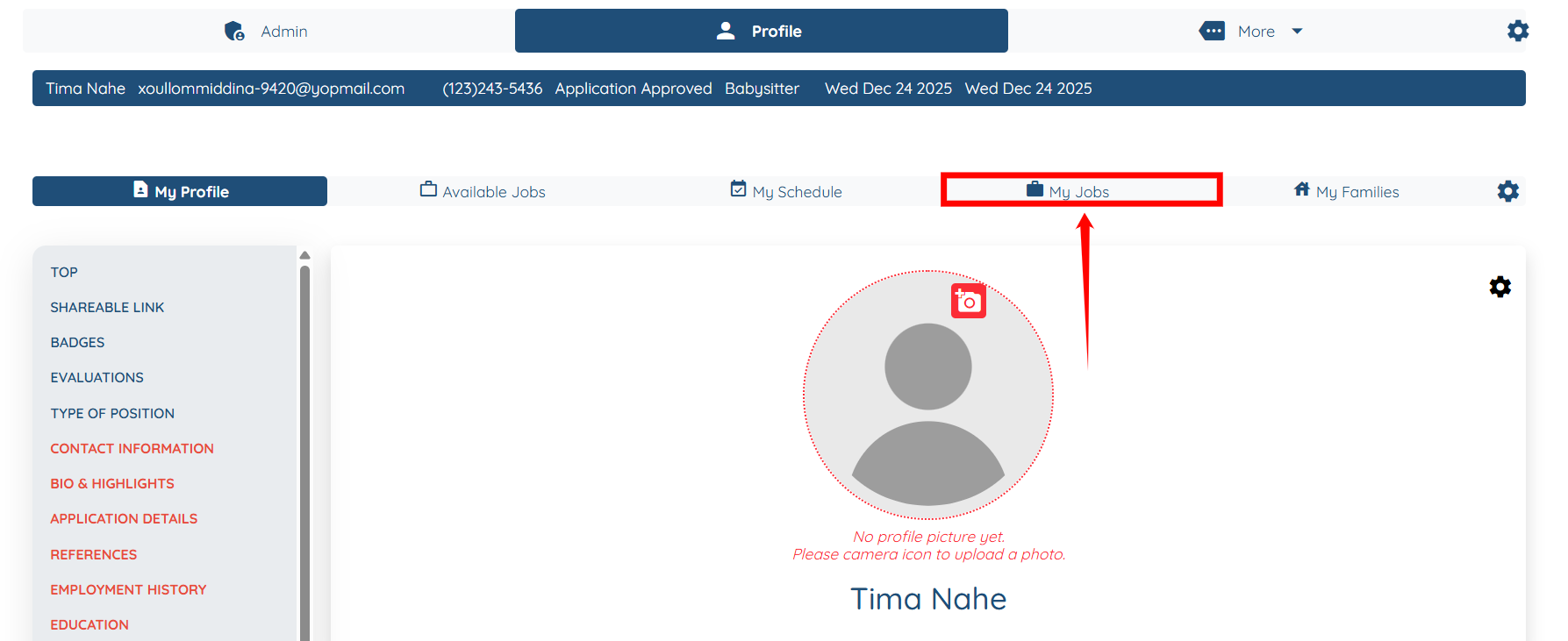
Step 5: Click the Gear icon on the right-hand side of the table, as shown in the screenshot.
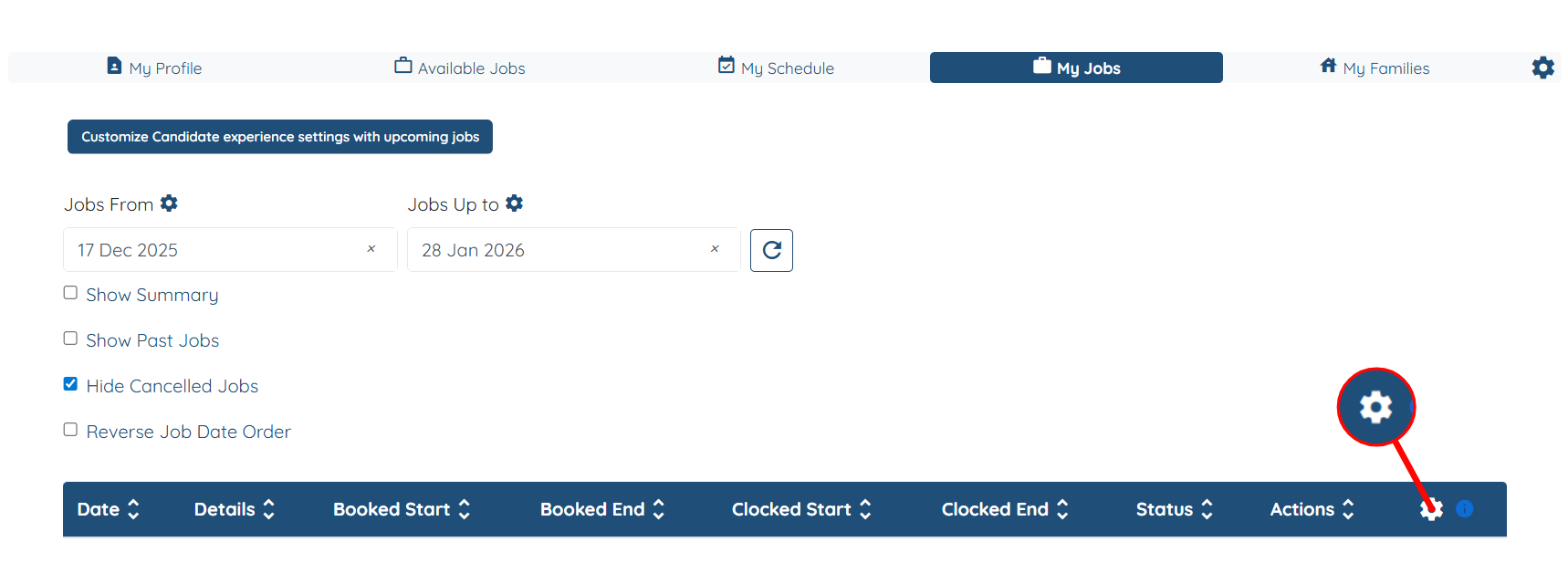
Step 6: From the list of available tabs, click the Reporting a Problem tab.

Step 7: Check the Has a button to let candidate report a problem for assigned shift job checkbox.

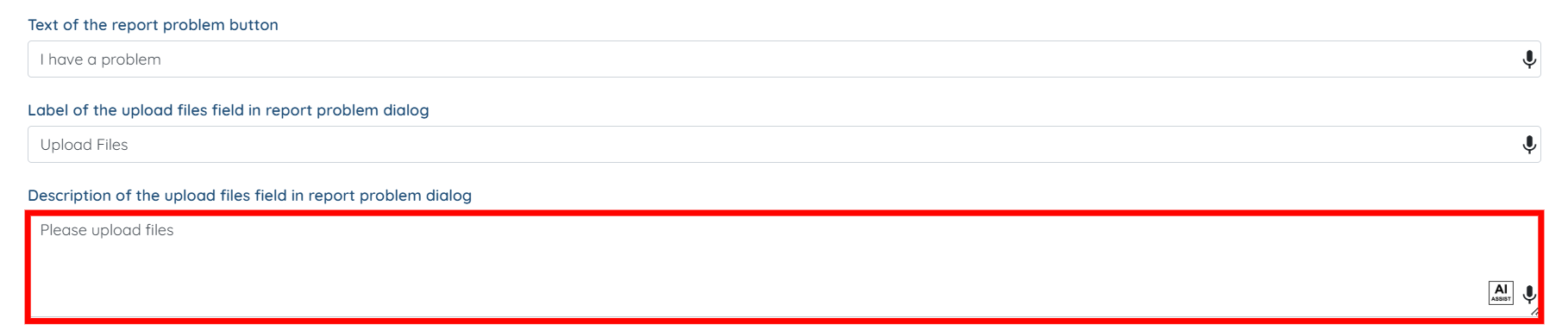
Step 8: Change the Text of the report problem button and the Label of the upload files field in report problem dialog if you want to.

Step 9: Change the Description of the upload files field in report problem dialog if you want to.

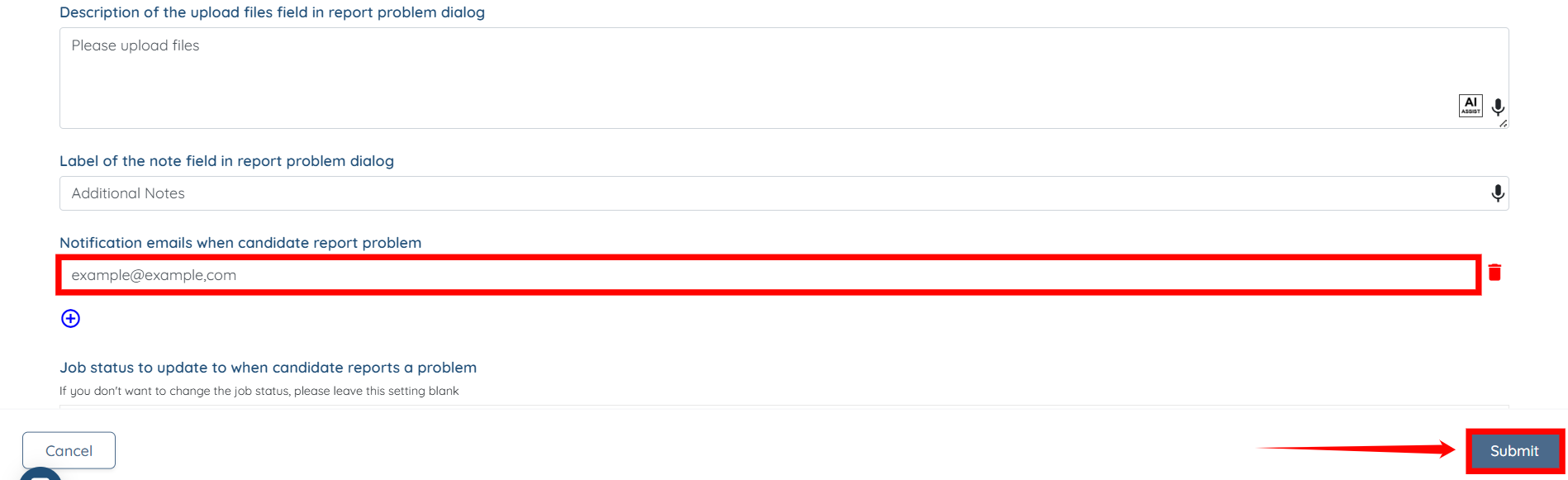
Step 10: Change the text of Label of the note field in report problem dialog if you want to.

Step 11: Click the + icon to start adding the email addresses of the admins you want to notify when a candidate reports a problem.

Step 12: Enter the email address and click the Submit button to confirm your changes.
If you want to know more about the App please book a demo by clicking here.
