
Let’s get started 🚀
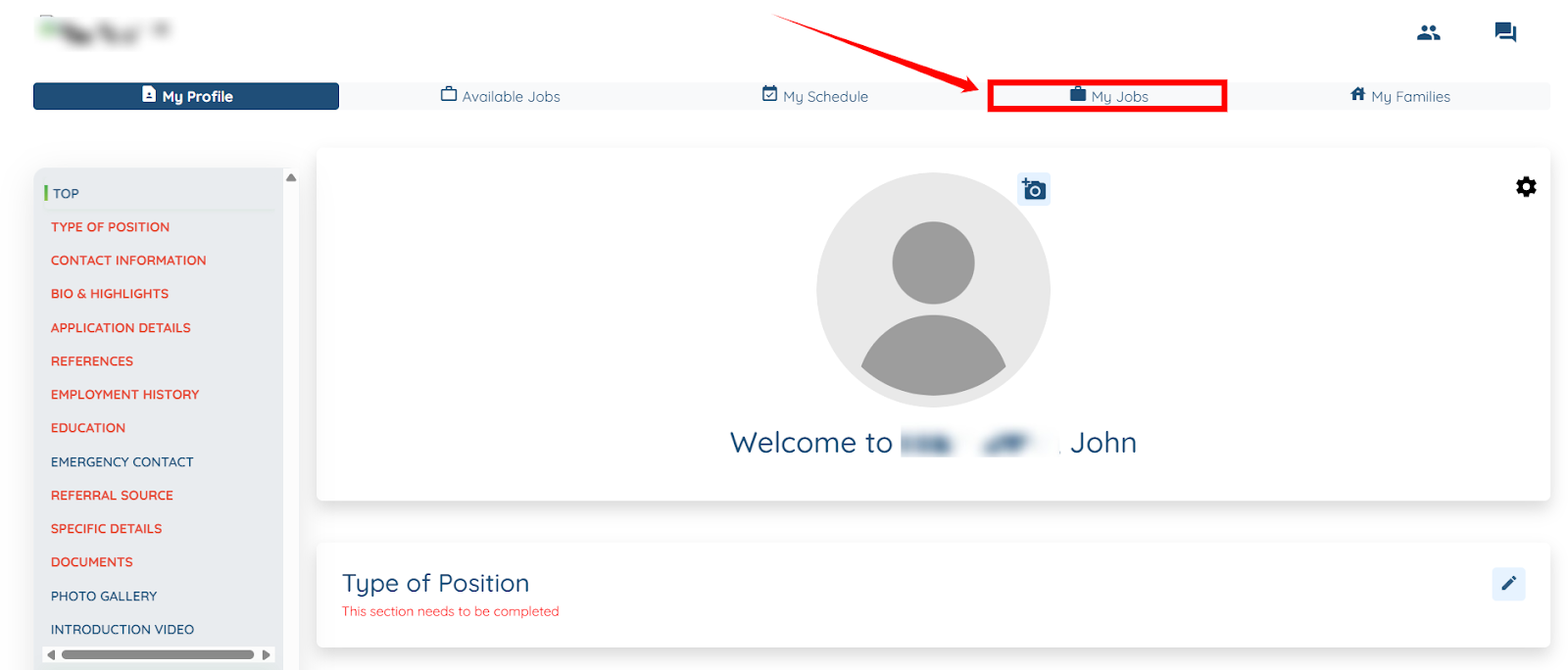
Step 1: Log in to your candidate profile and click the My Jobs tab as shown in the screenshot.
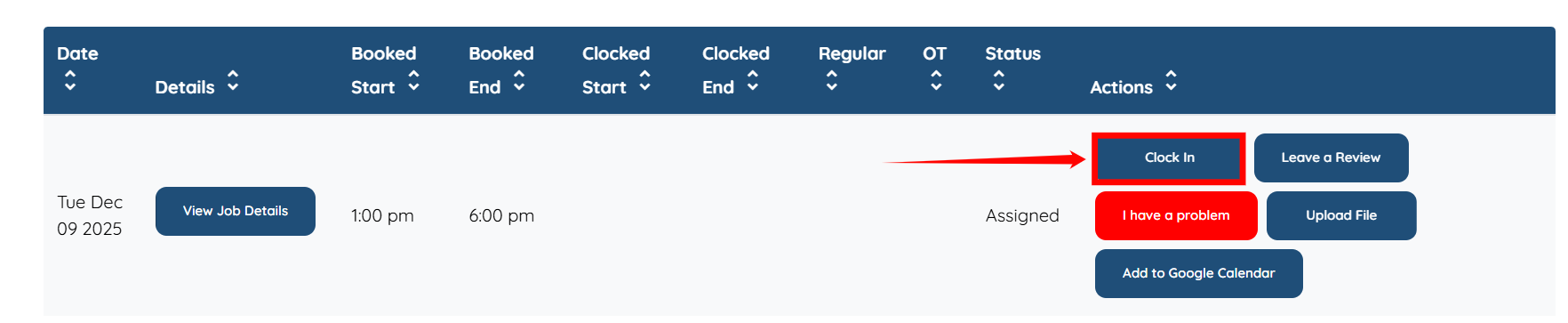
Step 2: Scroll down and click the Clock In button under the Actions column before you start your shift job.
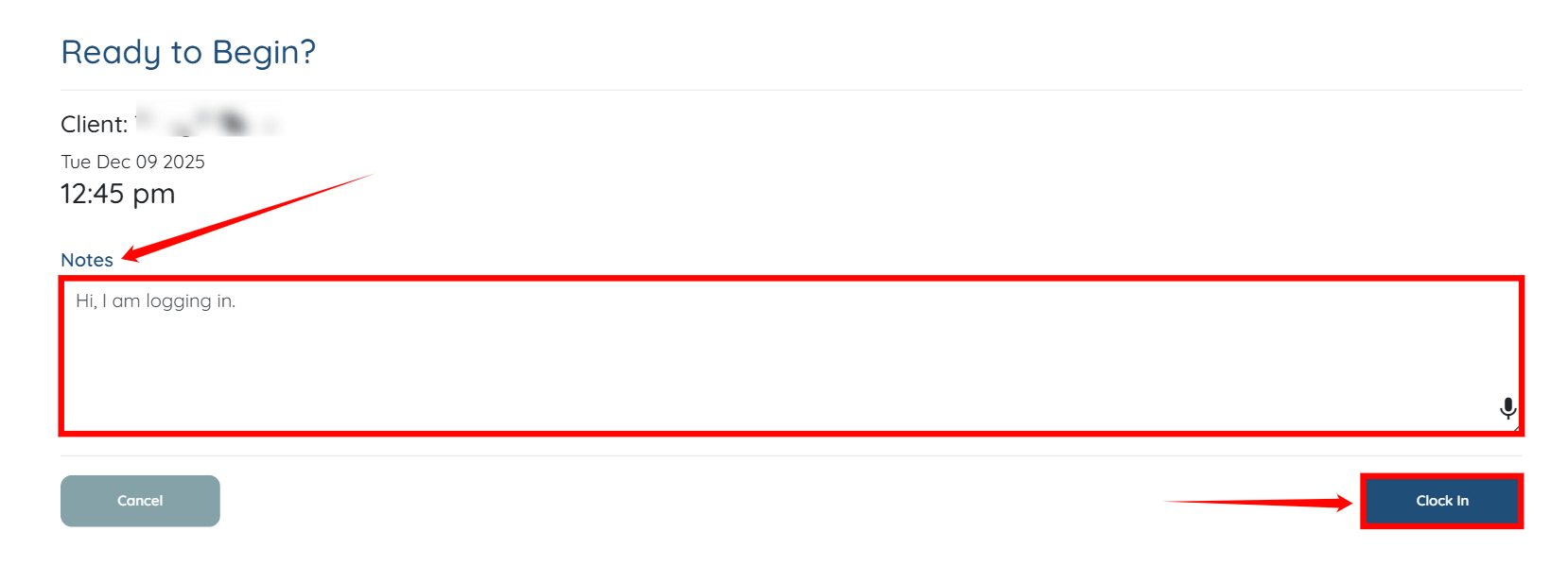
Step 3: Add the notes in the Notes field before you clock in for your shift, and then click the Clock In button.
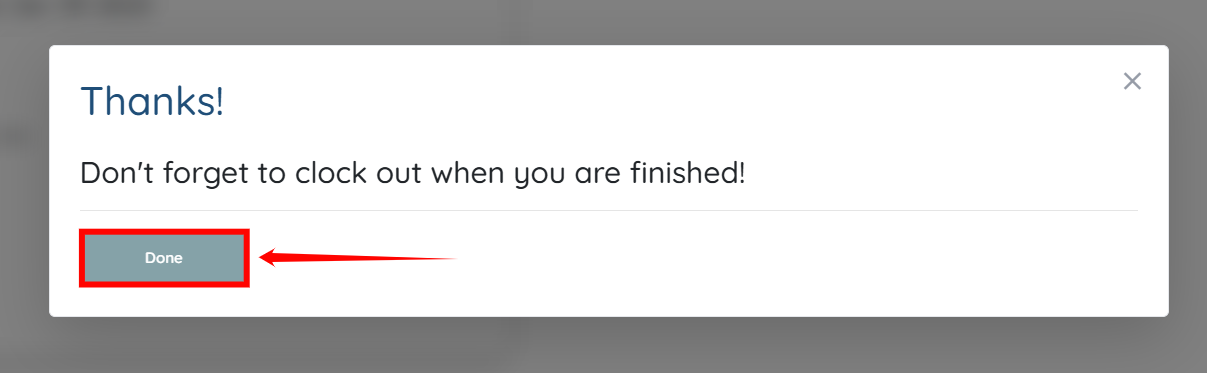
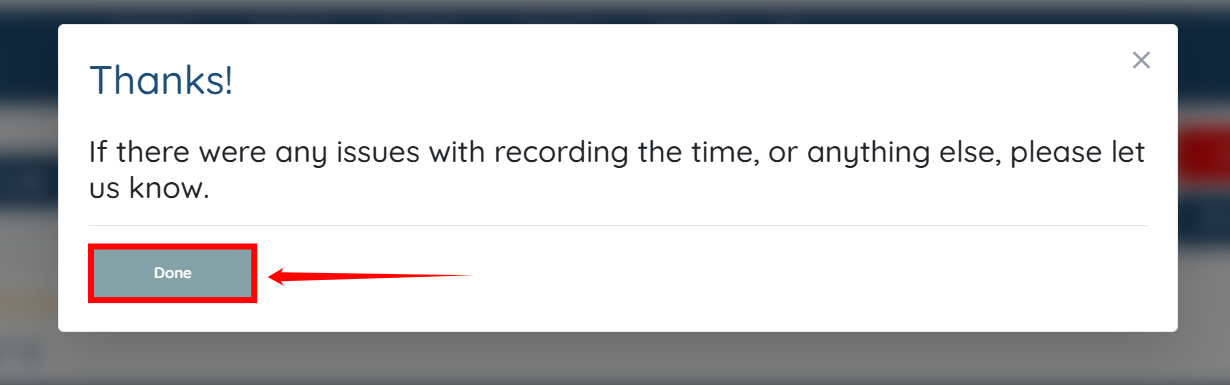
Step 4: Click the Done button.
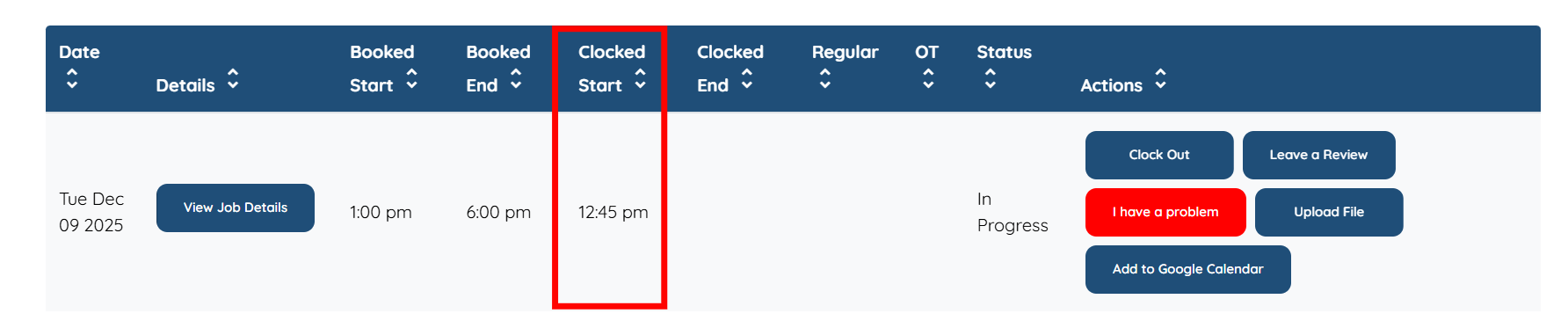
You will see your clock-in time updated under the Clocked Start column in the table as shown in the screenshot.
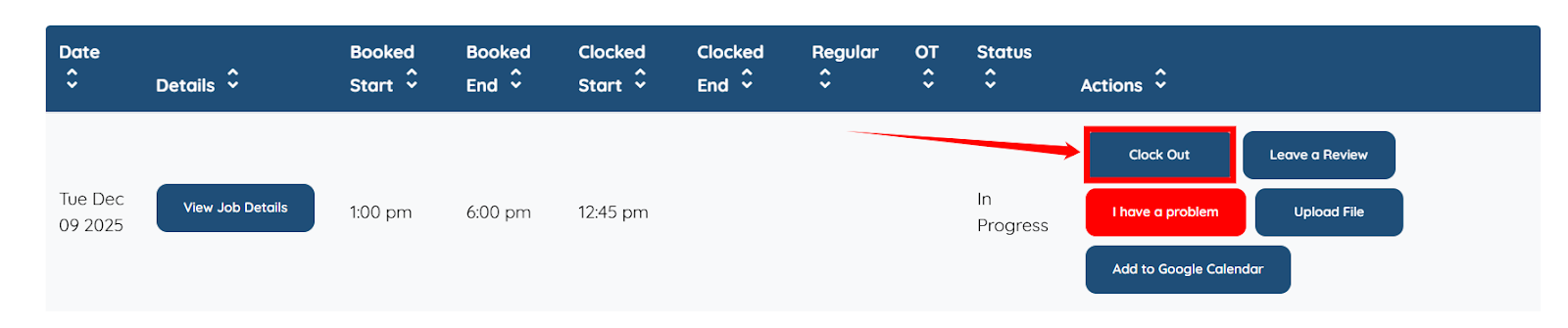
Step 5: Click the Clock Out button under the Actions column when you complete your shift.
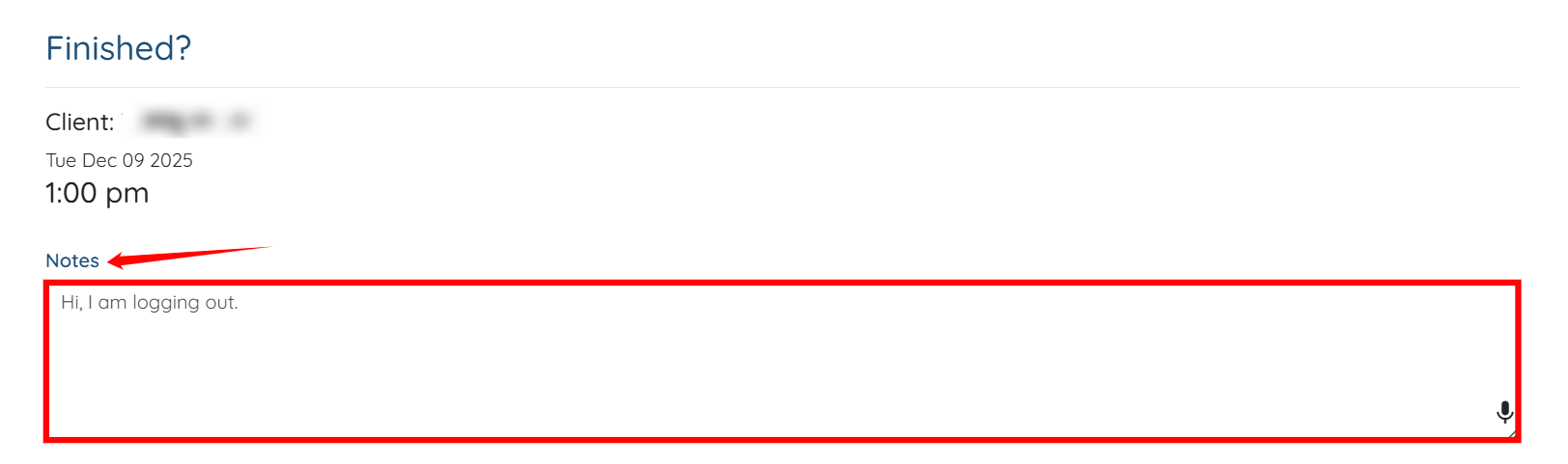
Step 6: Add your notes in the Notes field.
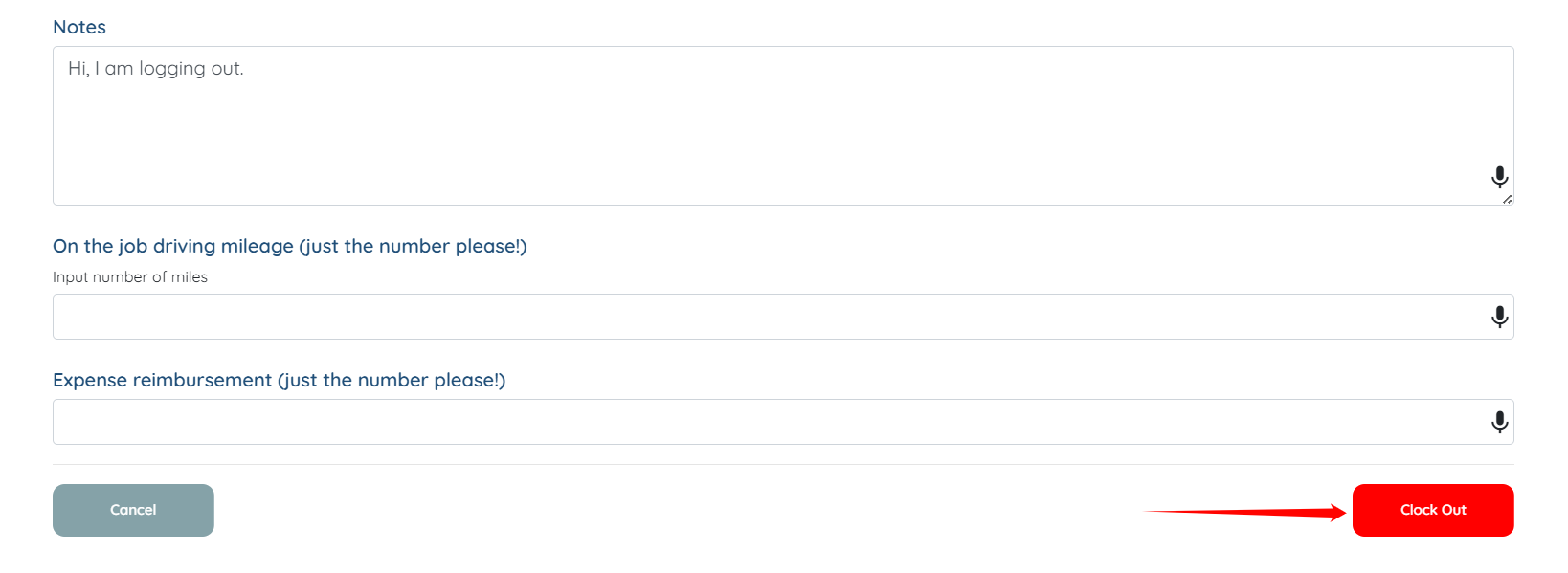
Step 7: Scroll down and click the Clock Out button.
Step 8: Click the Done button to proceed.
Your clock-out time will appear in the Clocked End column of the table, as shown in the screenshot below.
