1. Go to a Candidates. (any candidate will adjust them all.)
2. Click on My Jobs.
3. Select Customize Candidate experience with upcoming jobs.
4. The gear will open the My Jobs table settings.
Select and adjust from the following options.
General
Clock In/Out
Client Confirmations
Reporting a Problem
Mileage and Reimbursement
Candidate Self Job Creation
Record Breaks and File Uploads
Job Reports
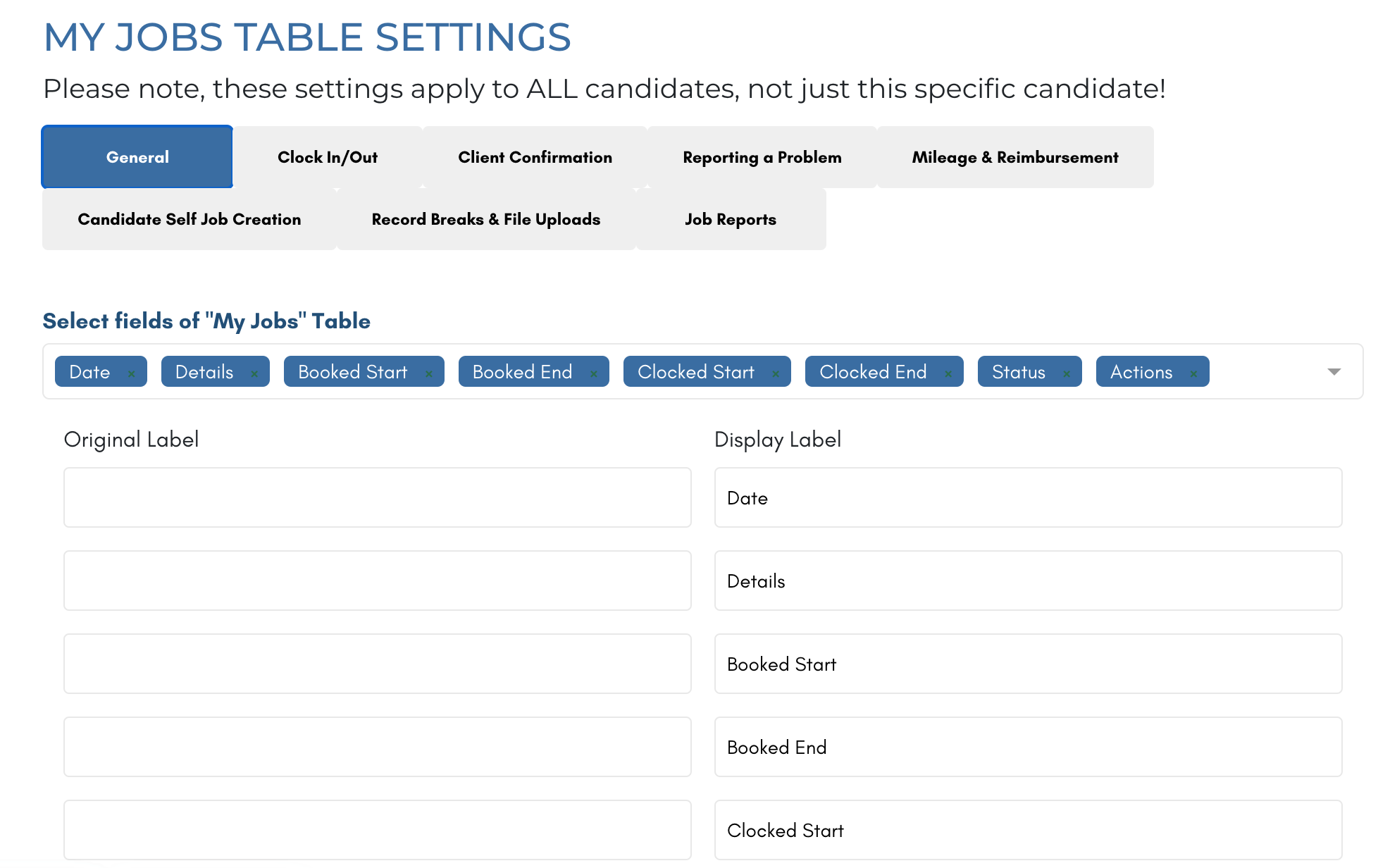
Controls the order and informational contents of the table
My Jobs table has multiple tabs
Don’t allow candidates to leave reviews
If candidate has not worked a shift job for X days, set to a status
Show Past Jobs
Show cancelled job
Allow candidates to submit shift job change requests to clients
Add a custom message for candidate on clock out.
Candidates can mark jobs complete.
Hide the clock in and out buttons.
Select job types where clock in and out are hidden.
Select candidate types where clock in and out are hidden.
Candidates manually input clock in and out timesinfo
When clocking out, initialize default time to minimum booking duration
Get candidate location when they clock in and out of jobs
Status to set shift jobs to when candidate clocks out
Minutes Interval when candidate clock in and out
If candidate is late clocking in or out by more than X minutes, make adding notes mandatory
Notify a candidate of a shift job starting in X hours and Method
Send a reminder to candidate X minutes after scheduled clock in time
Send a reminder to candidate X minutes after scheduled clock out time
Method to Notify Candidate for Clock In/Out
Client can confirm clock in/out (on client's booking section)
Client can confirm clock in/out on the candidate’s phone
Client confirms using signature drawing pad
Client confirmation is required for clock out
Client confirmation is only required if the clocked start or end time does not match the booked start or end time
Client confirmation is required if the clocked start or end time does not match by more than X minutes
Status of Job after client confirm clock in and clock out time
Status of Job after client disapprove clock in and clock out time
Client can see fee breakdown and add tip when confirming on the candidate’s phone
Charge client and pay candidate through Stripe when client approves shift
Has a button to let candidate report a problem for assigned shift job
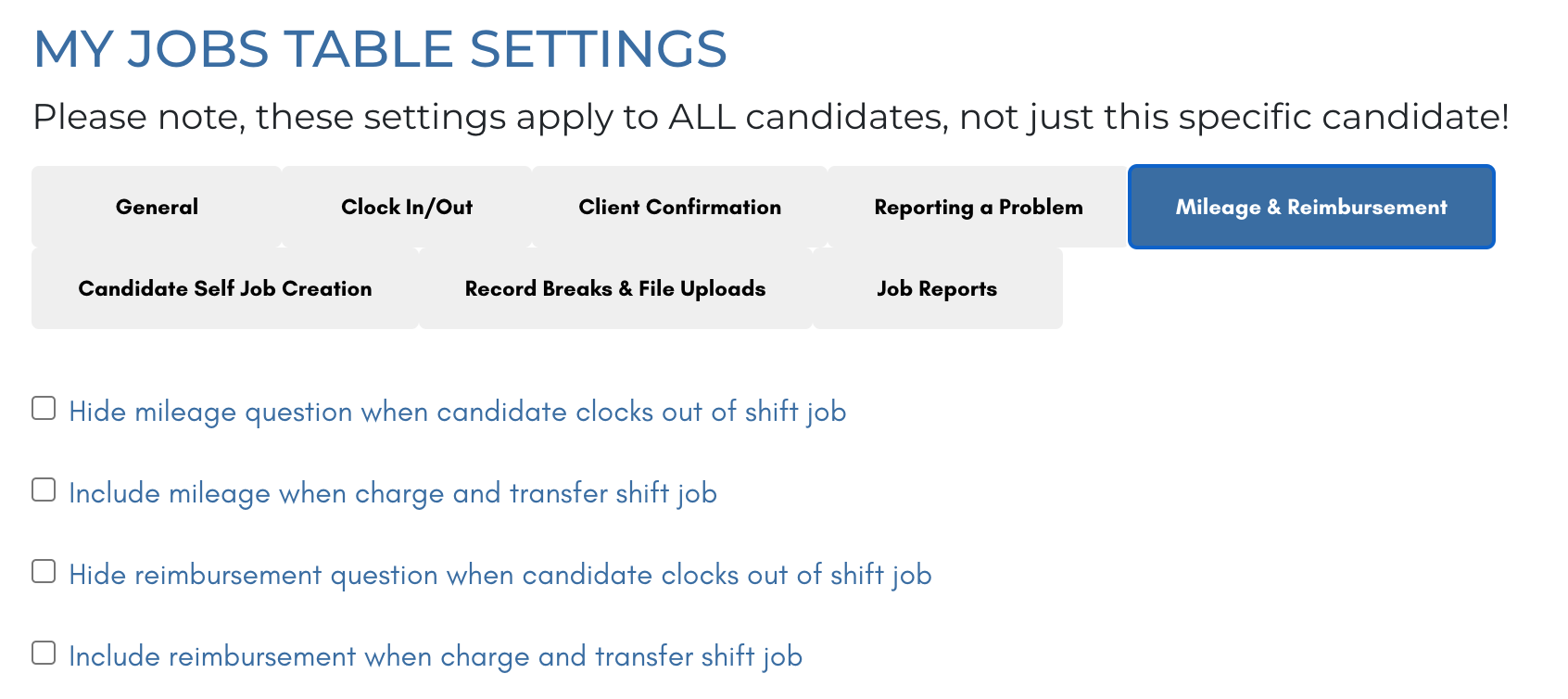
Hide mileage question when candidate clocks out of shift job
Include mileage when charge and transfer shift job
Hide reimbursement question when candidate clocks out of shift job
Include reimbursement when charge and transfer shift job
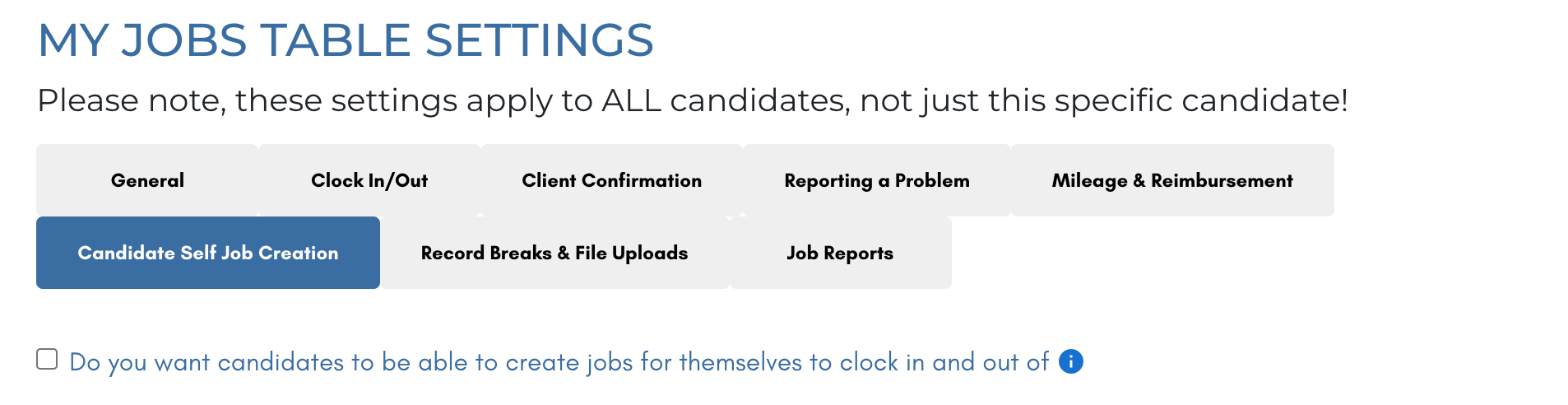
Do you want candidates to be able to create jobs for themselves to clock in and out of
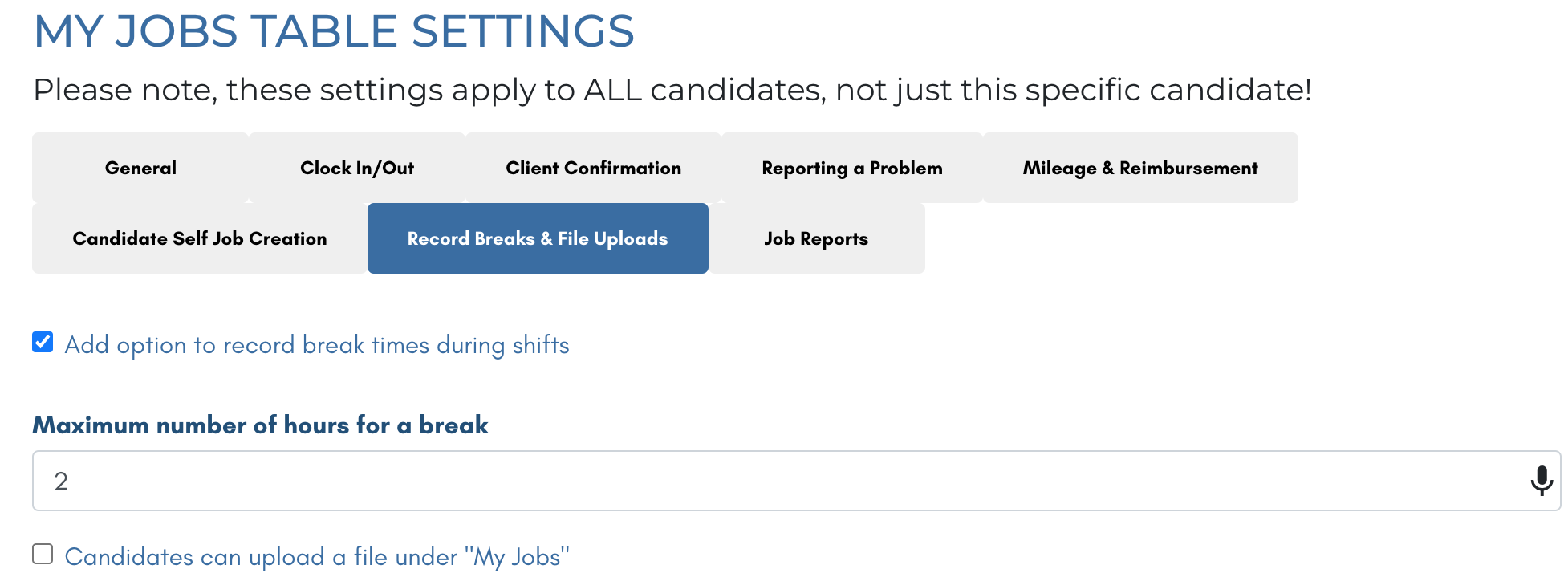
Add option to record break times during shifts
Maximum number of hours for a break
Candidates can upload a file under "My Jobs"
Admin emails to notify when a candidate upload a shift job file
Candidate can submit shift job report
Candidate types that submit shift job report
Shift job report is admin only
Shift job report is mandatory BEFORE clock-out
Candidate types for which submitting a shift job report is mandatory before clocking out
Candidate can see their submitted shift job reports
Candidate can see all previous shift job reports for their client, including those submitted by other candidates
Customize "Submit Report" button label
Admin emails notified when shift job report submitted
Update status of shift job to when shift job report submitted
Note
Check out this video from a previous version of the platform for more guidance.
If this doesn't answer your questions you can always contact us by clicking here
