Let’s get started 🚀
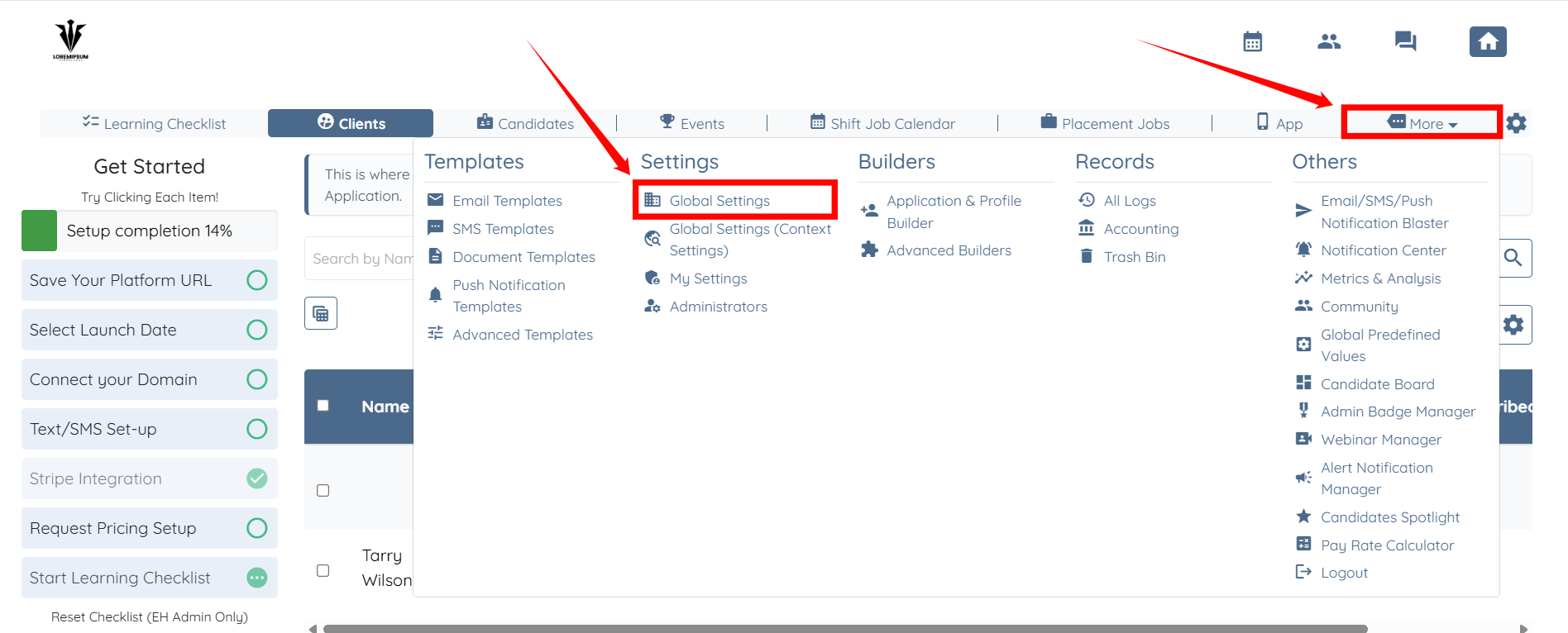
Step 1: Log in to your agent dashboard and click More > Global Settings, as shown in the screenshot below.
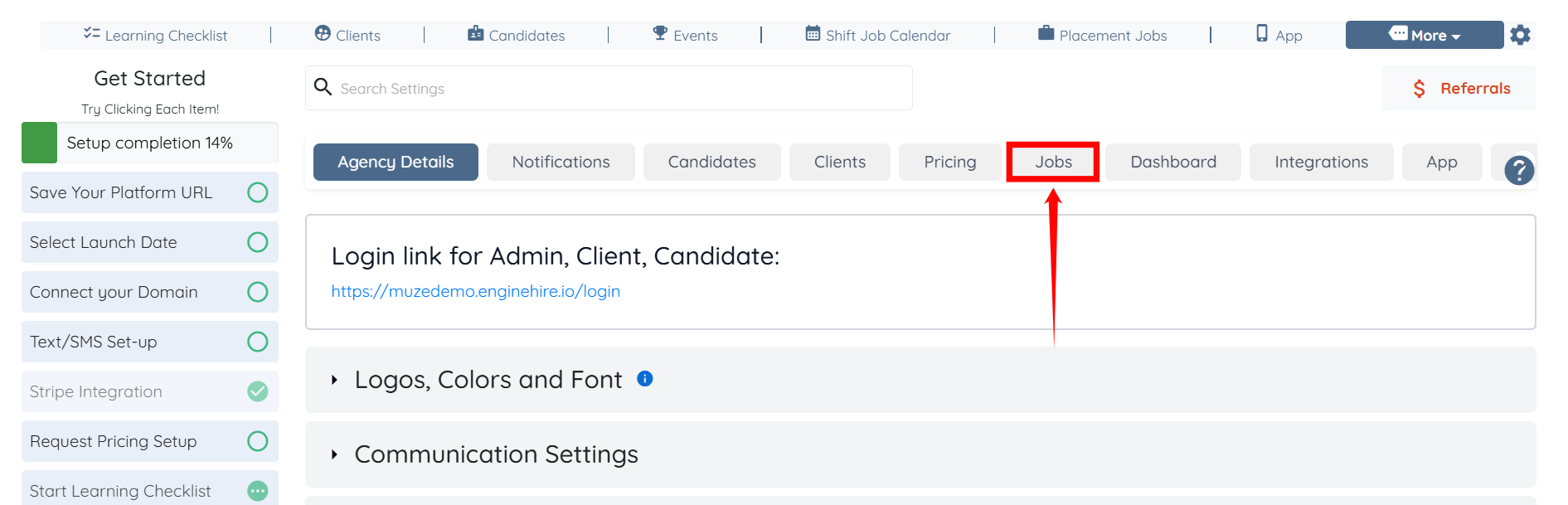
Step 2: Click the Jobs tab from the list of available tabs.
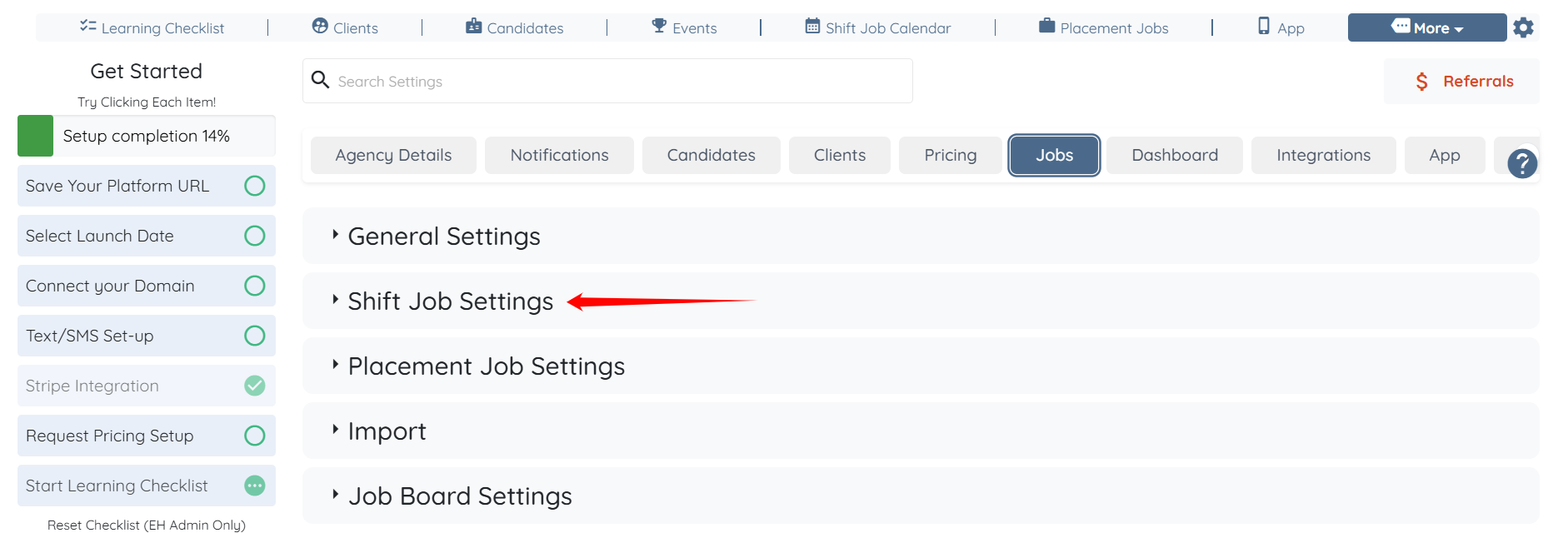
Step 3: Click the Shift Job Settings option to expand its details.
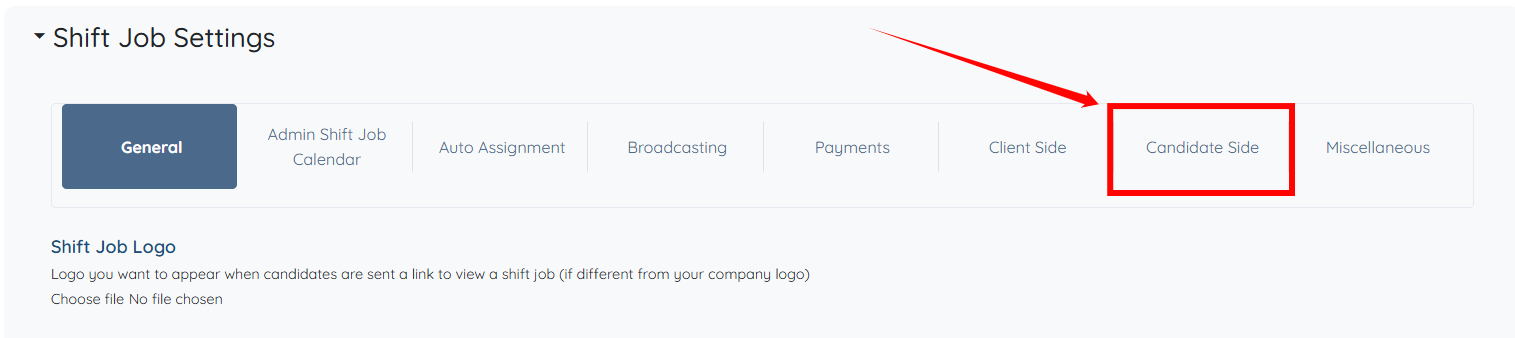
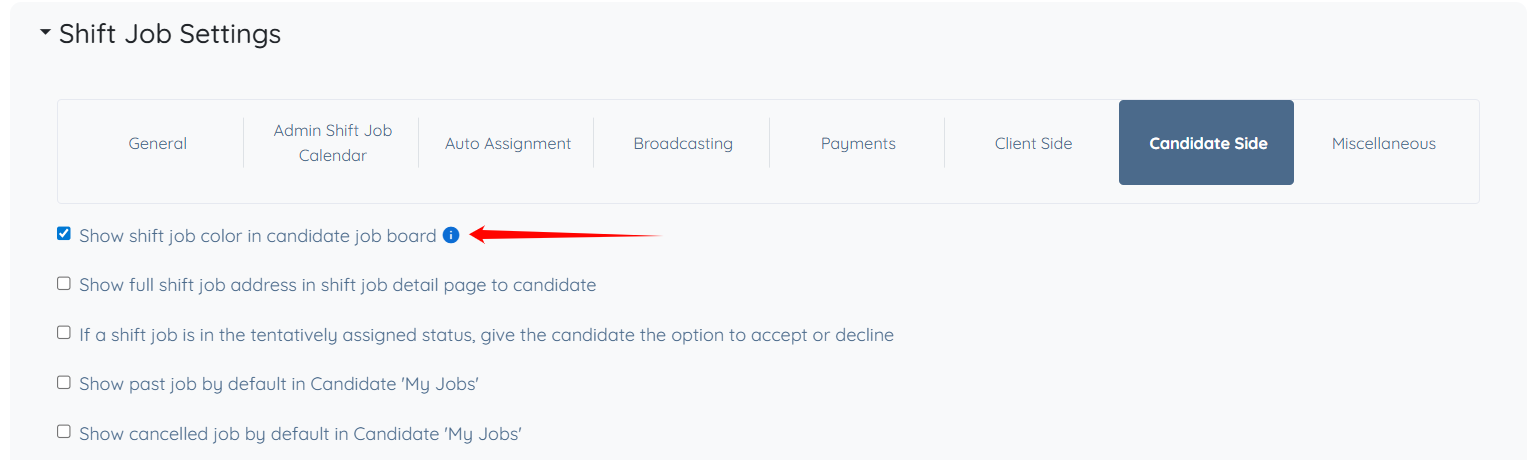
Step 4: Click the Candidate Side option from the list of available options.
Step 5: Check the Show shift job color in candidate job board checkbox.
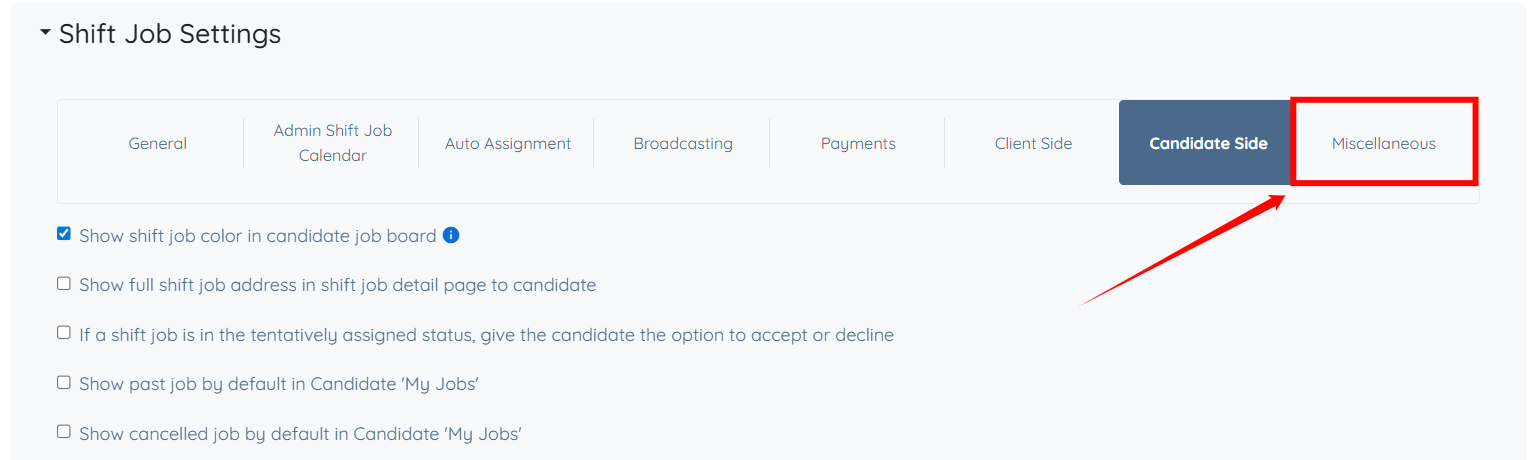
Step 6: Click the Miscellaneous option from the list of available options.
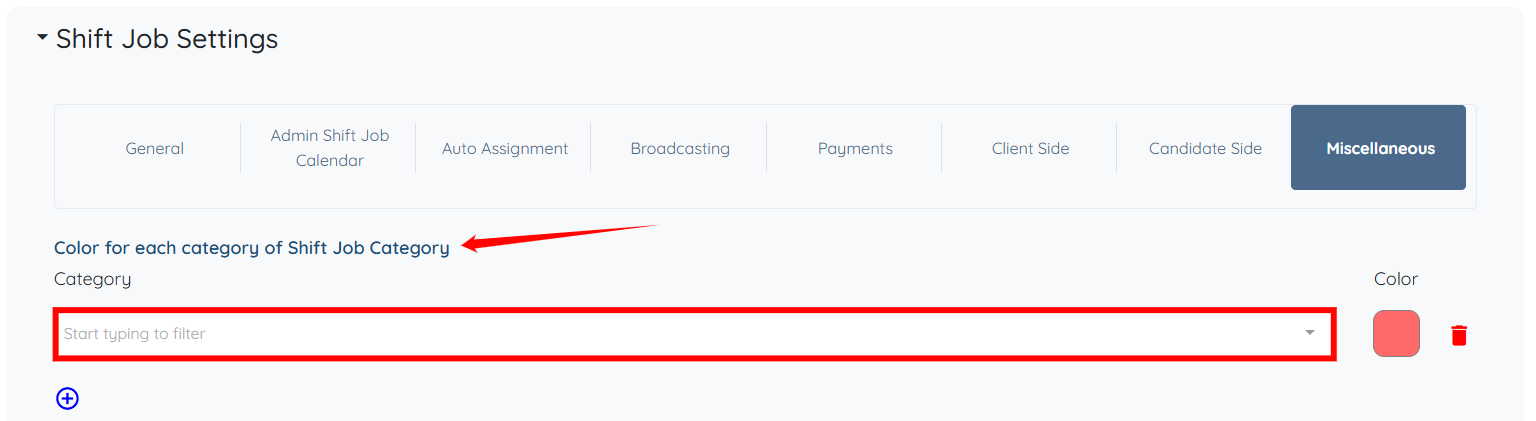
Step 7: Click the box under the Color for each category of Shift Job Category field to activate the dropdown list.
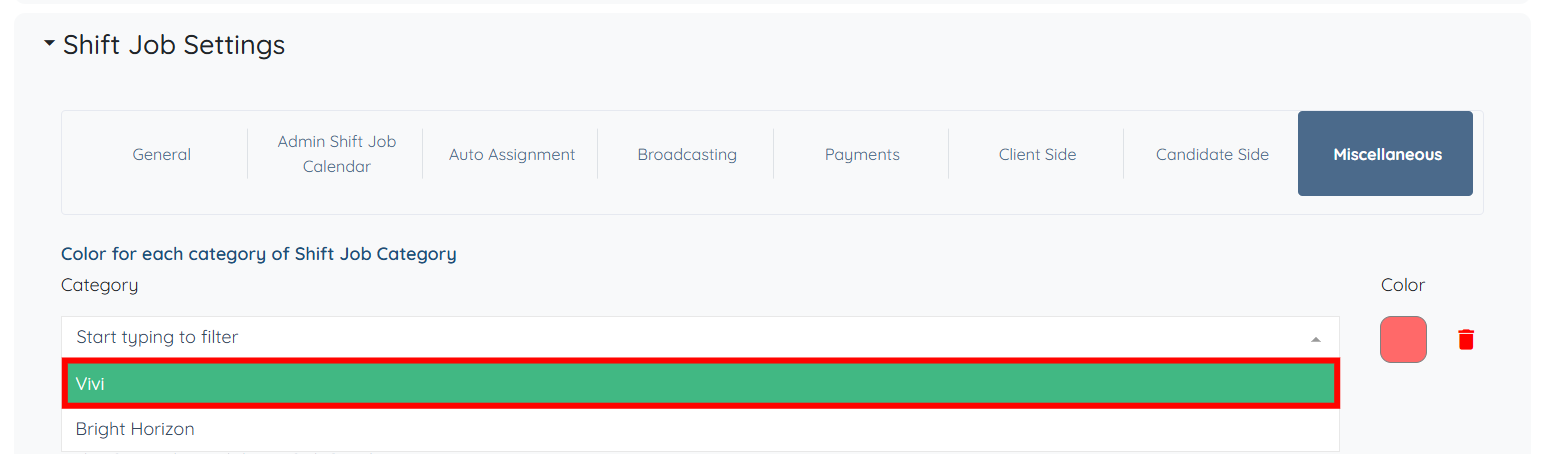
Step 8: Select the shift job category for which you want to set the color.
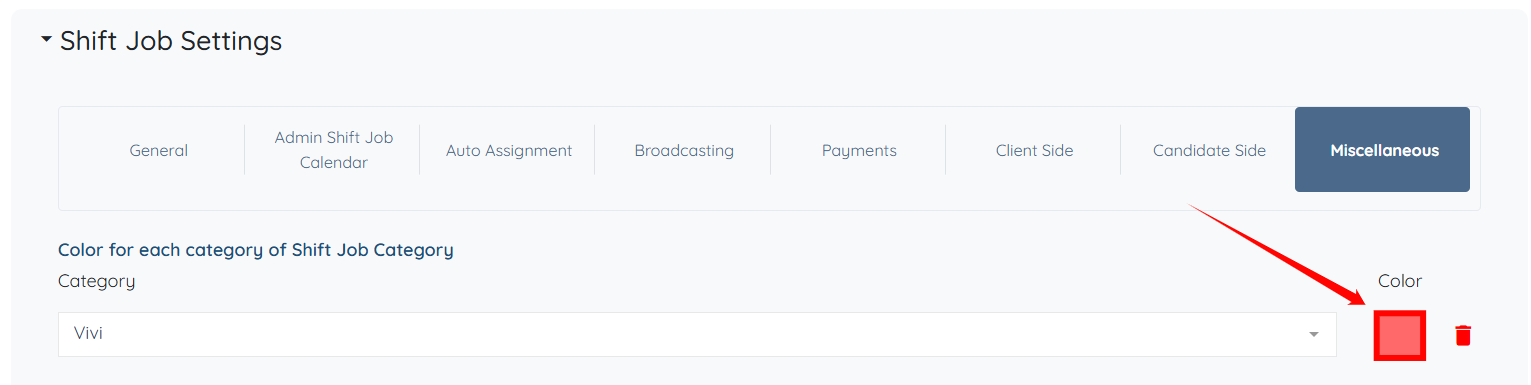
Step 9: Click the color tile to choose a custom color for the selected category.
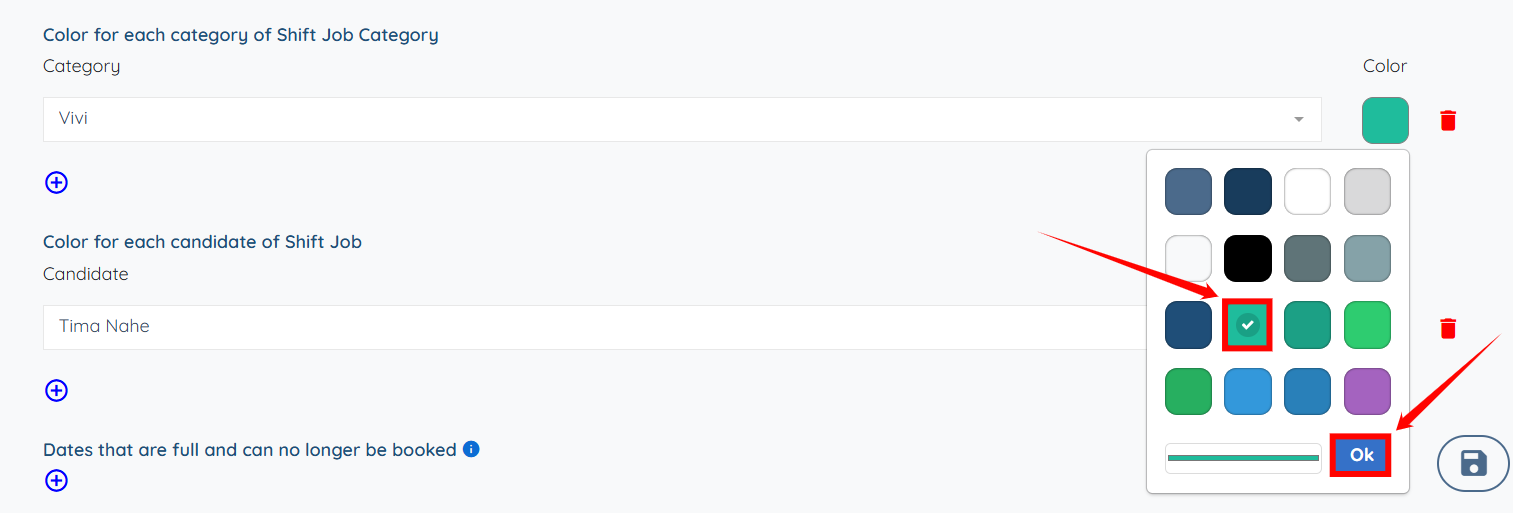
Step 10: Select the required color from the available options as needed. After that, click the OK button.
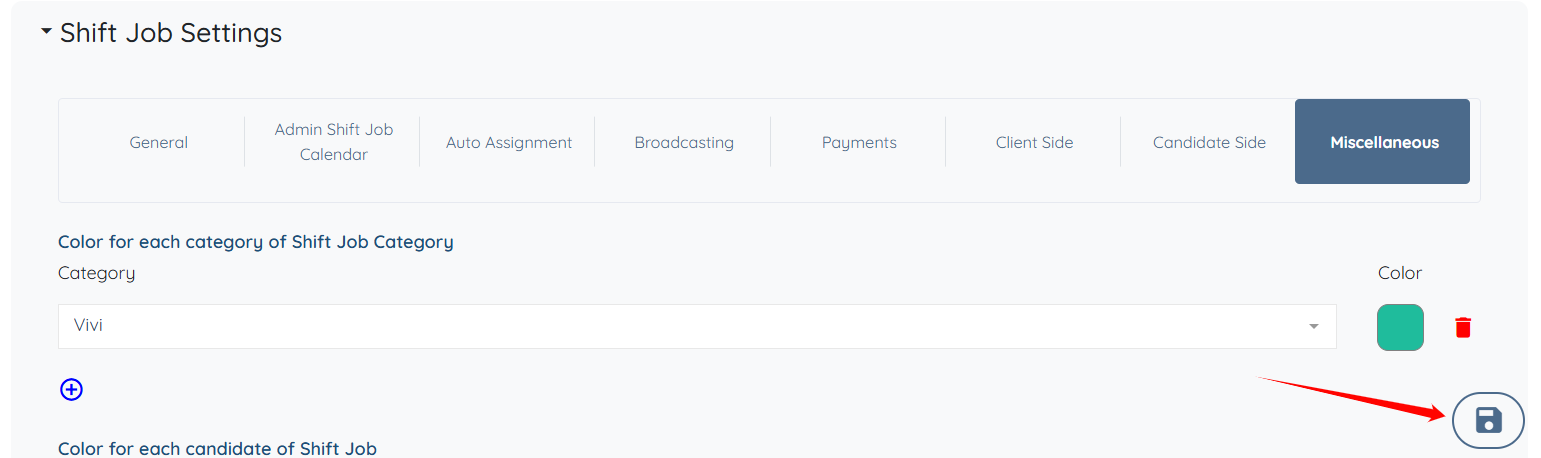
Step 11: Click the Save icon to confirm the changes.
If this Content doesn't answer your questions you can always contact us by clicking here
