Let’s get started 🚀
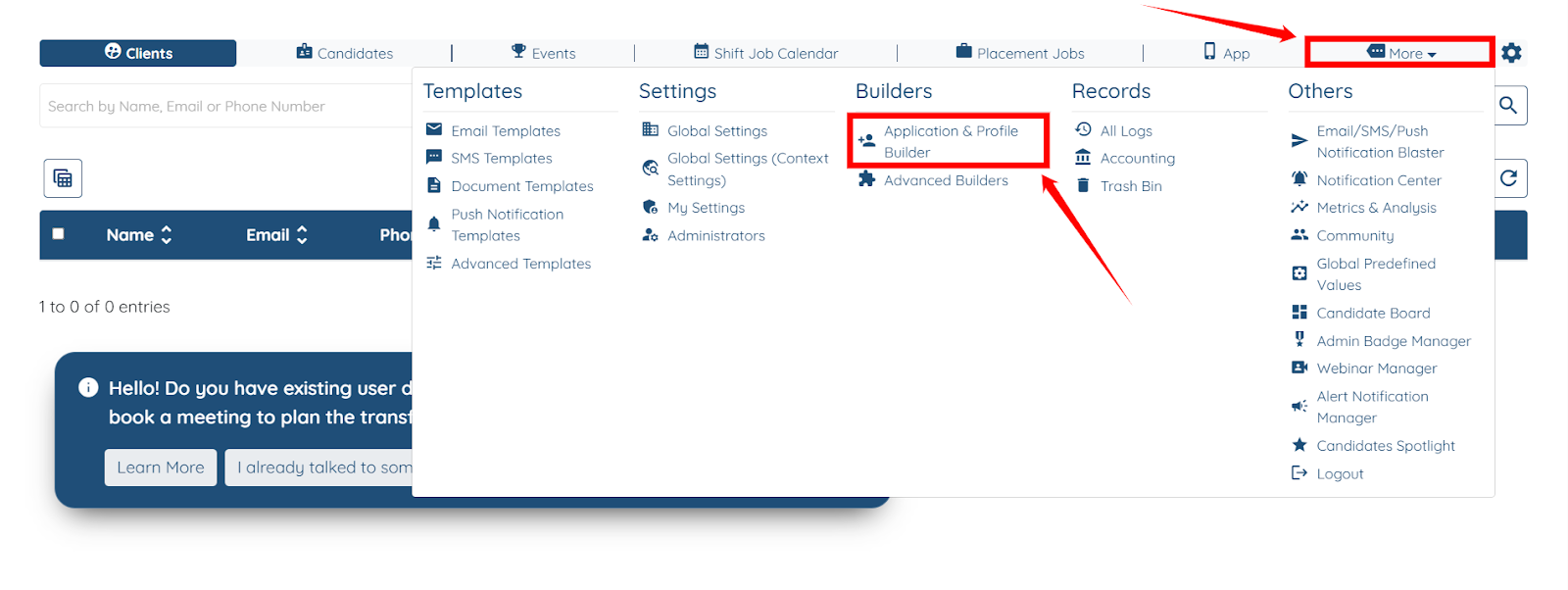
Step 1: Log in to your agent dashboard, then navigate to More > Application & Profile Builder, as shown in the screenshot below.
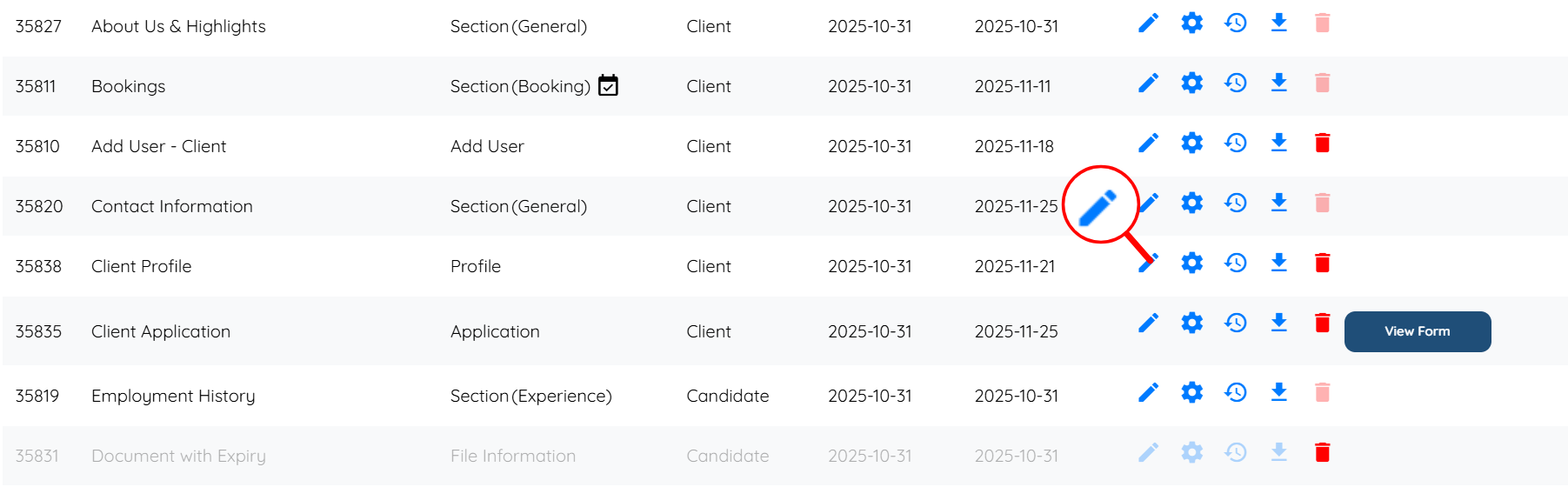
Step 2: Locate the profile where you want to hide a section, and then click the Pencil icon in the Actions column for that profile.
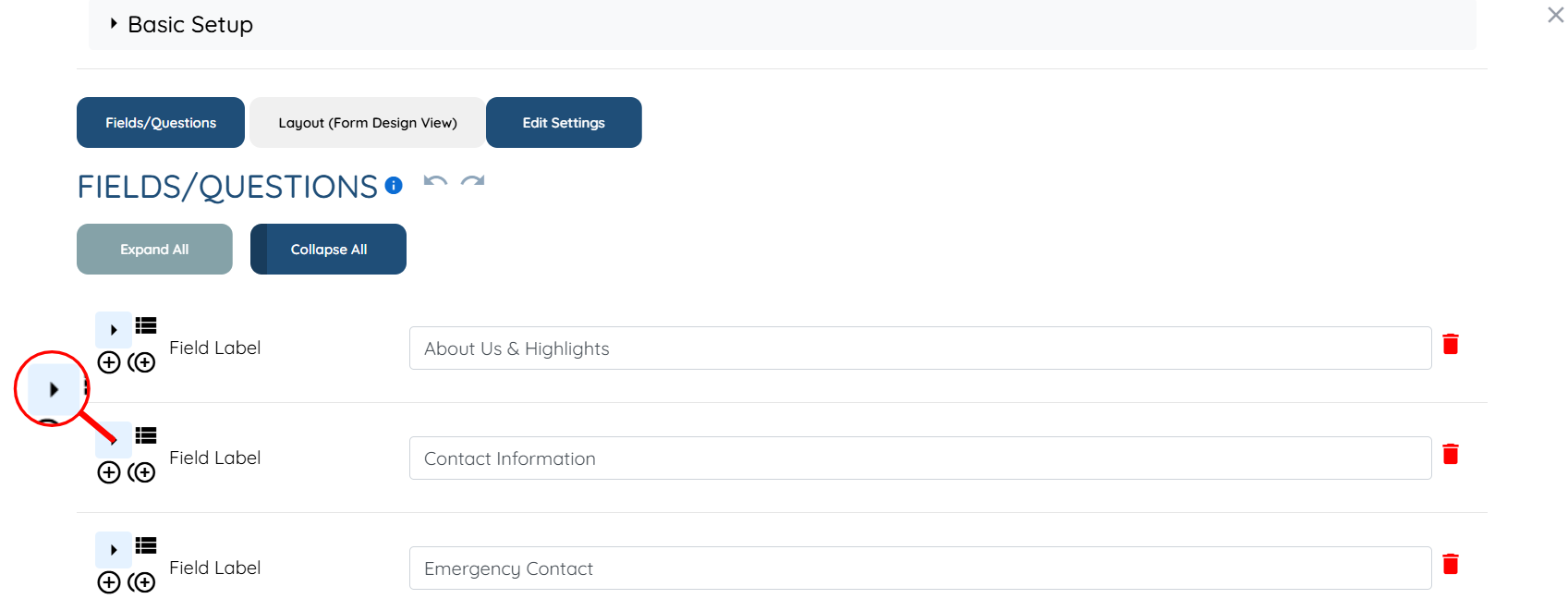
Step 3: Click the arrow button on the left side of the field where you added the section builder
Step 4: Click the Edit Section Builder button.

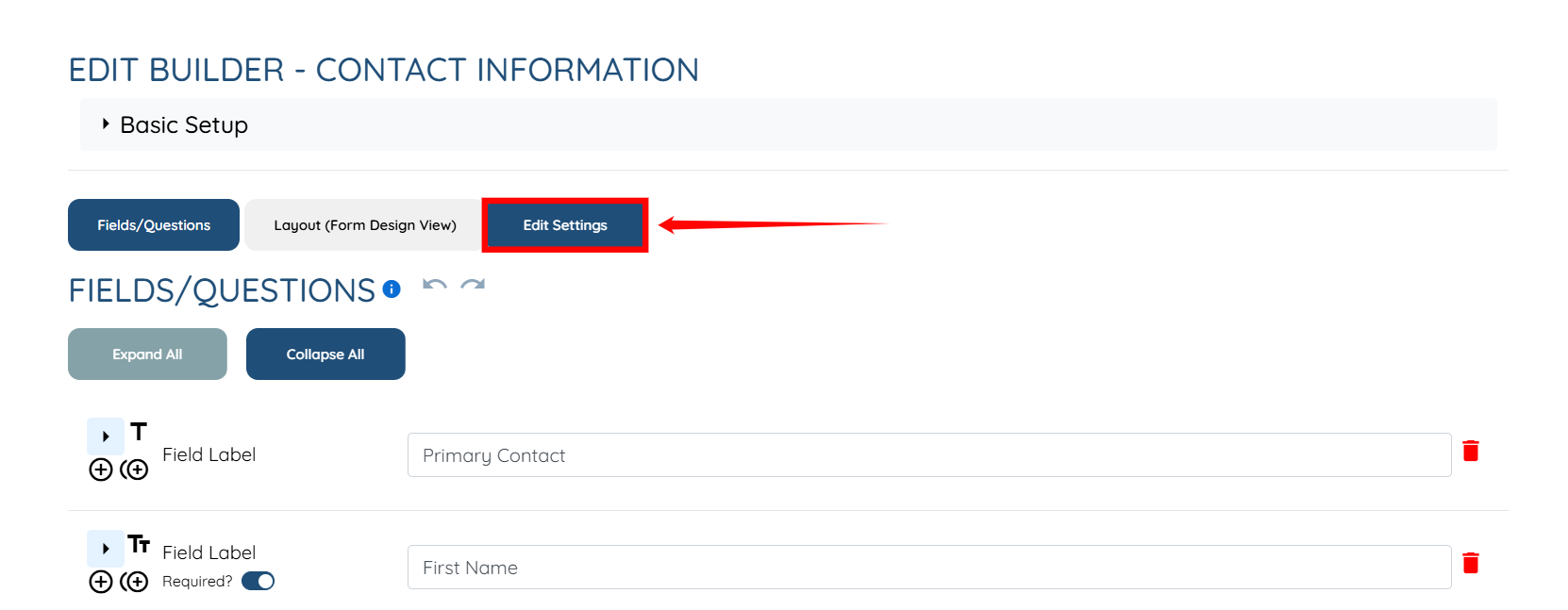
Step 5: Click the Edit Settings button.
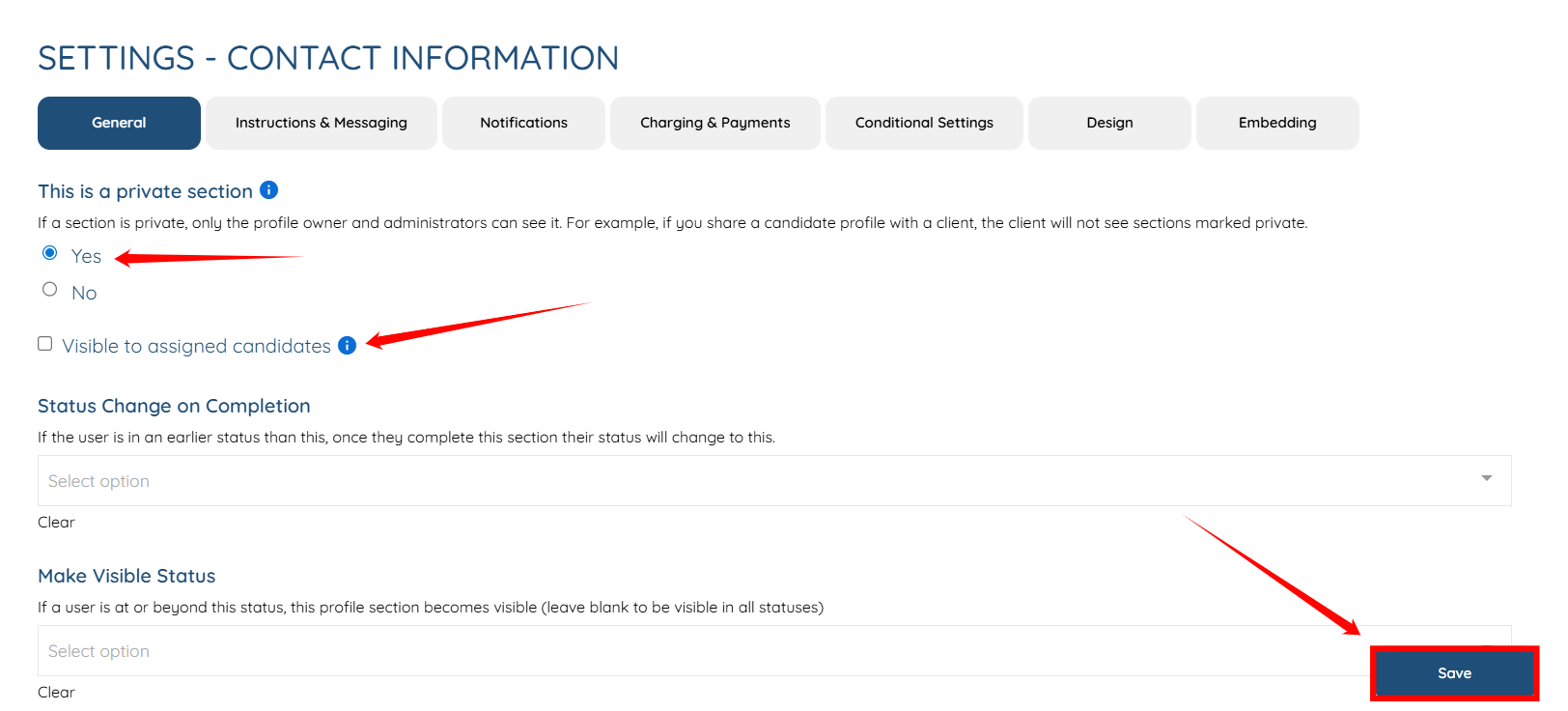
Step 6: Click the Yes radio button under the This is a private section field, and check the Visible to assigned candidates checkbox if you want the section to remain visible to the assigned candidates. After that, click the Save button to proceed.