
Let’s get started 🚀
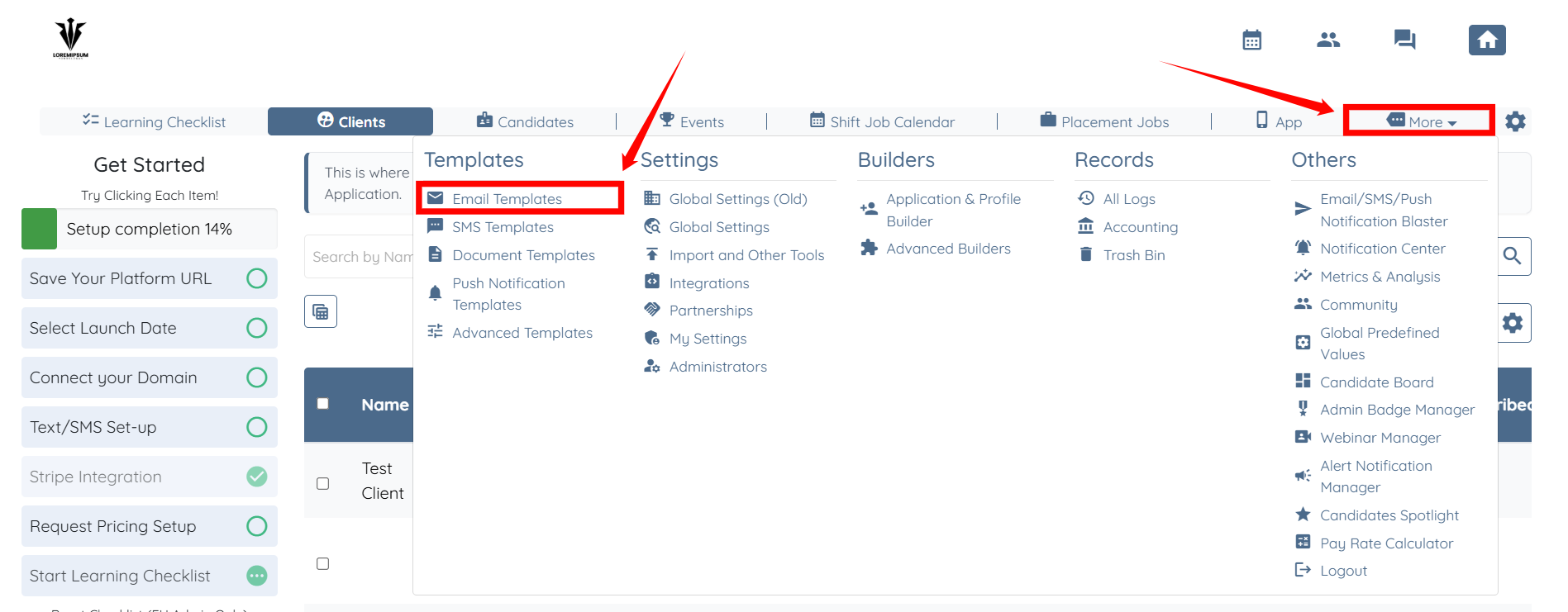
Step 1: Log in to your agent dashboard, then click More > Email Templates, as shown in the screenshot below.
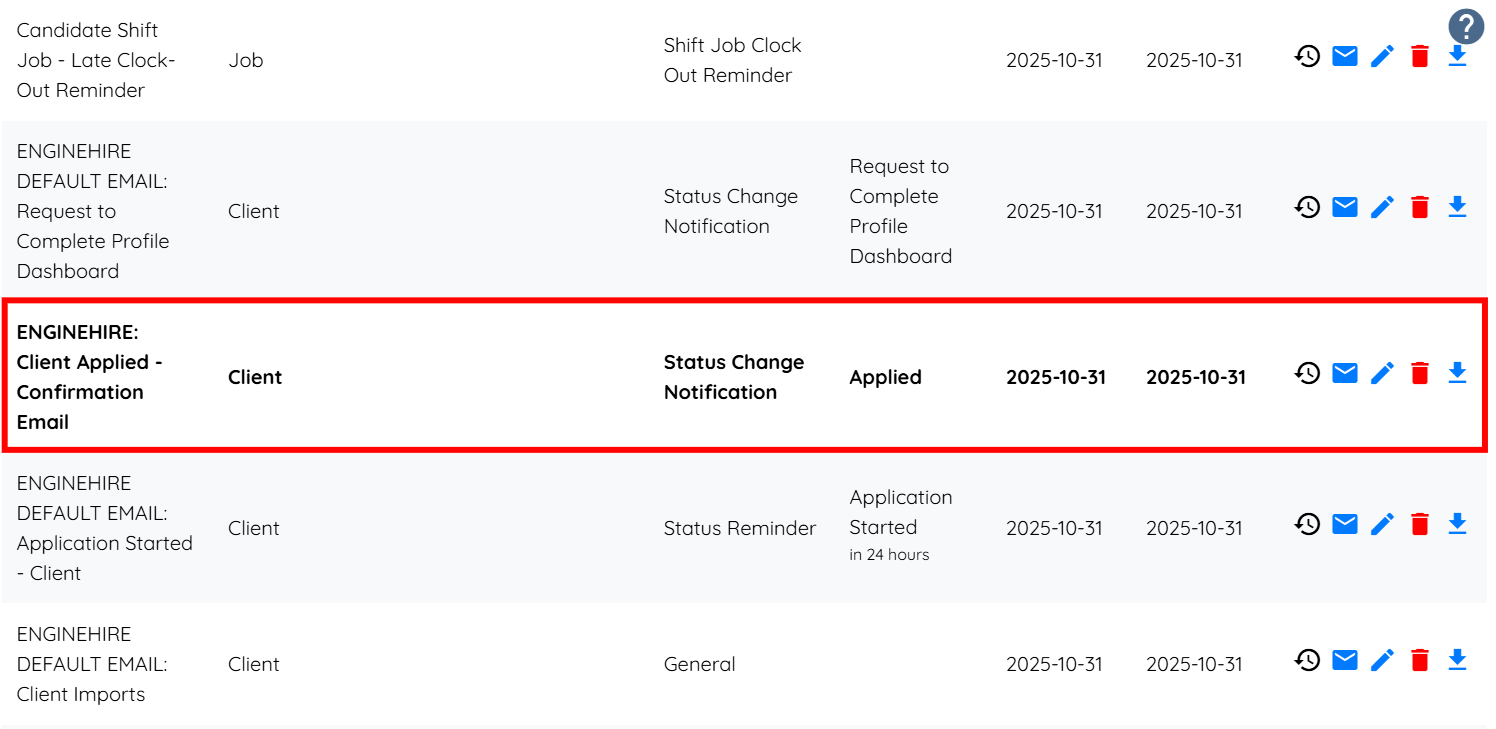
Step 2: Locate the email template to which you want to add the document template, and then click on it.
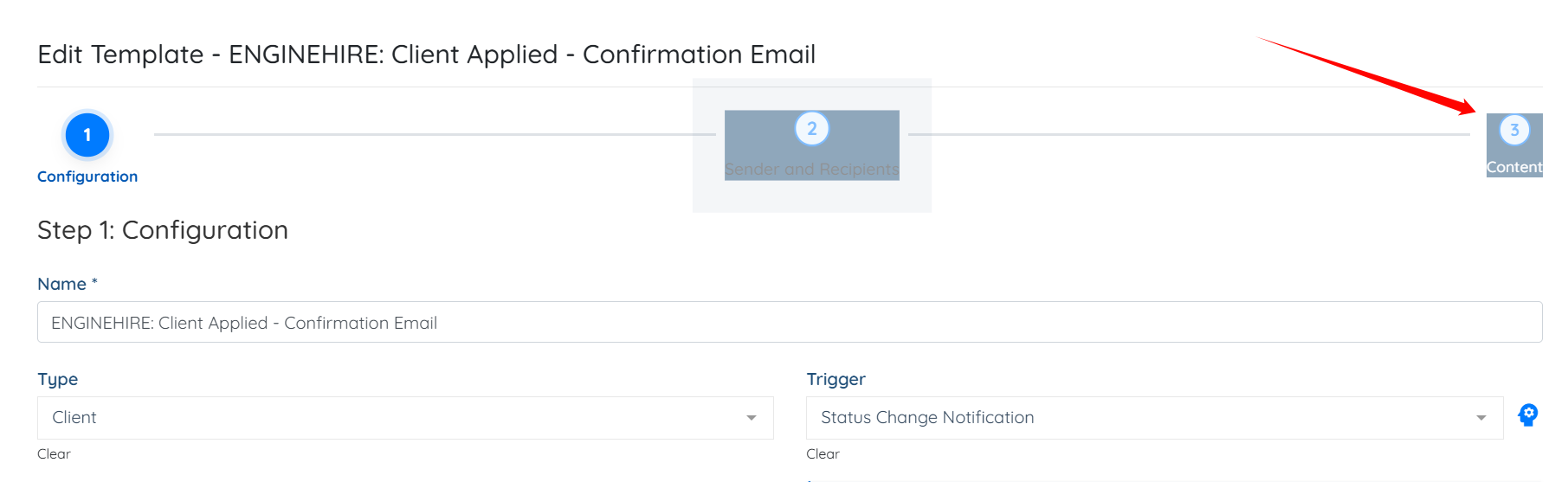
Step 3: Click the Content option to go to the email content section.
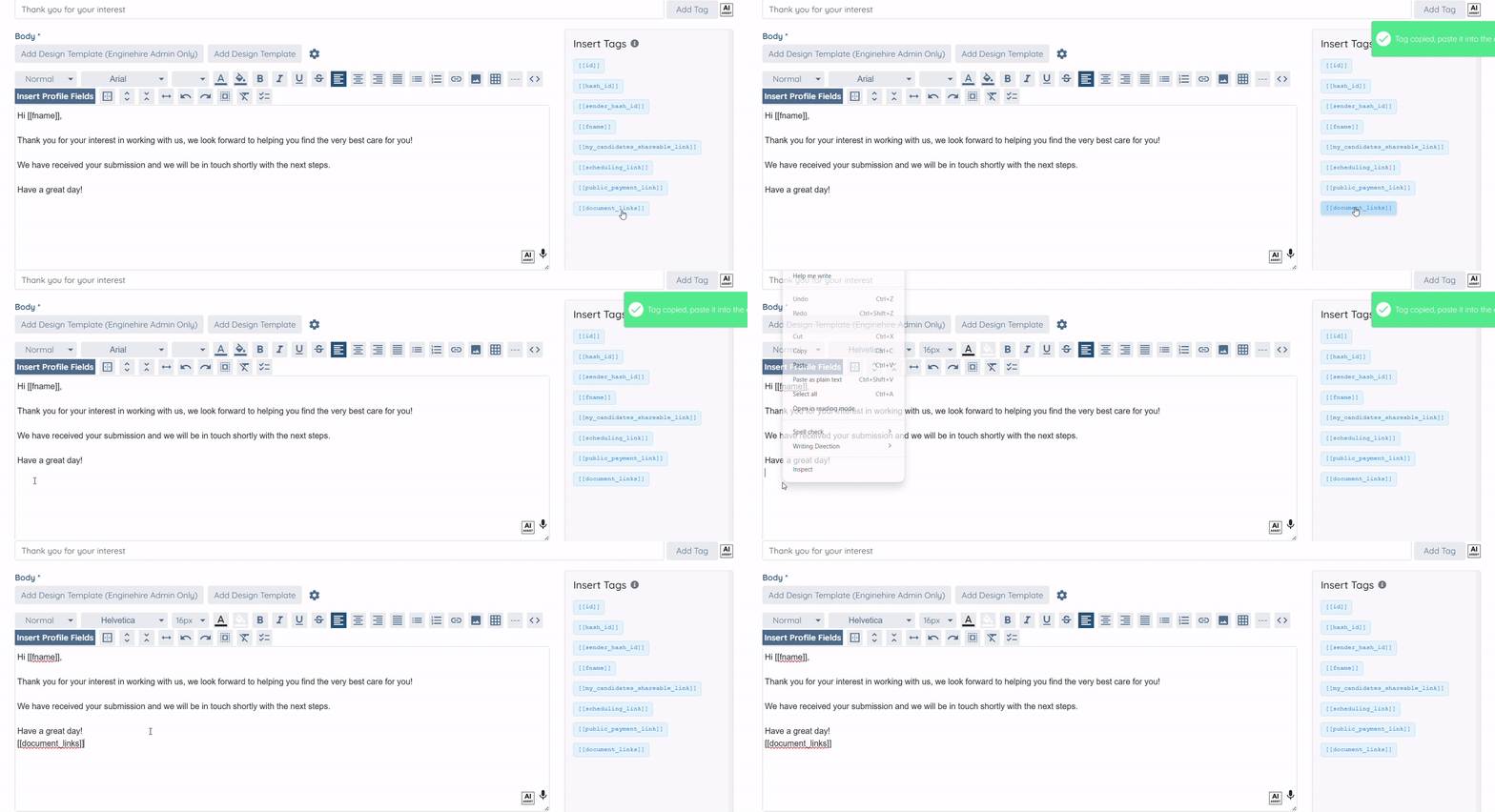
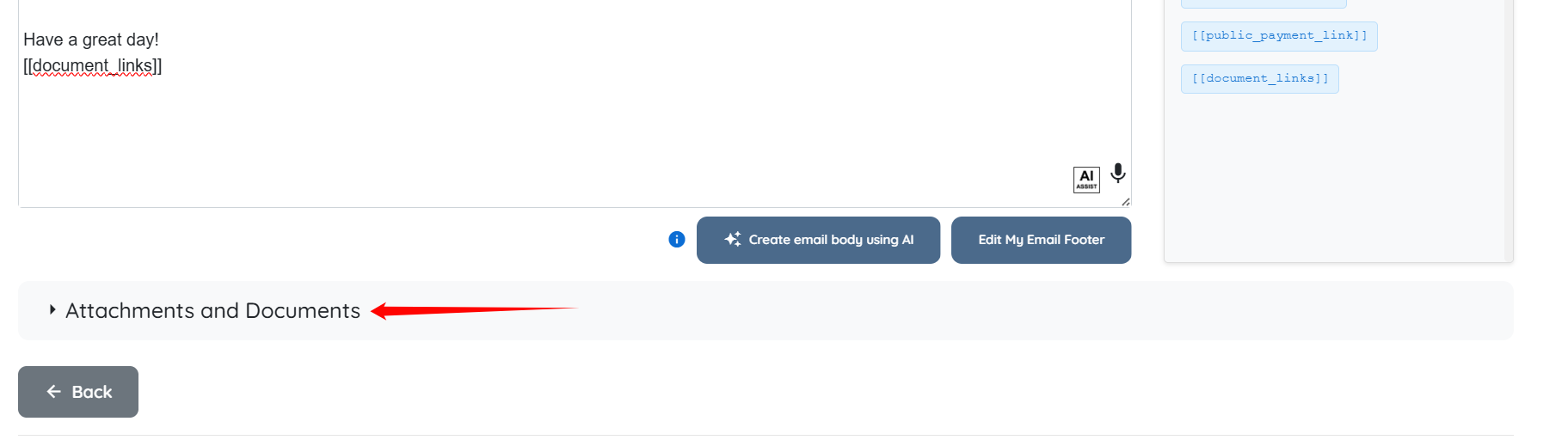
Step 4: Click the [[document_links]] tag to copy it, then paste it into the email body as required.
Step 5: Click the Attachments and Documents option to expand it and view its details.
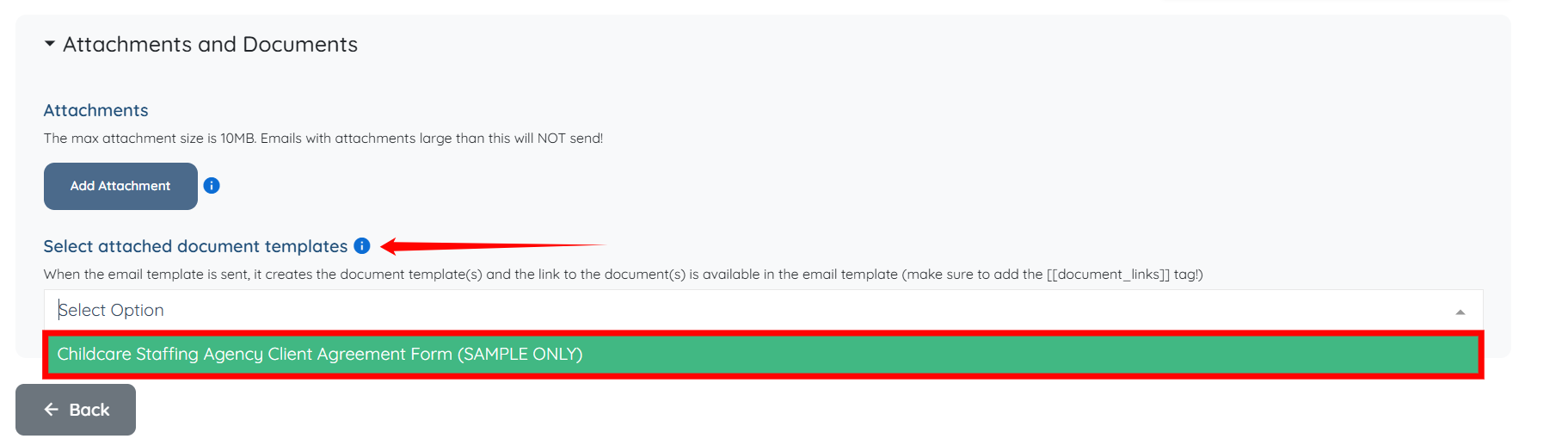
Step 6: In the Select attached document templates field, select the document template(s) that you want to attach to the email template.
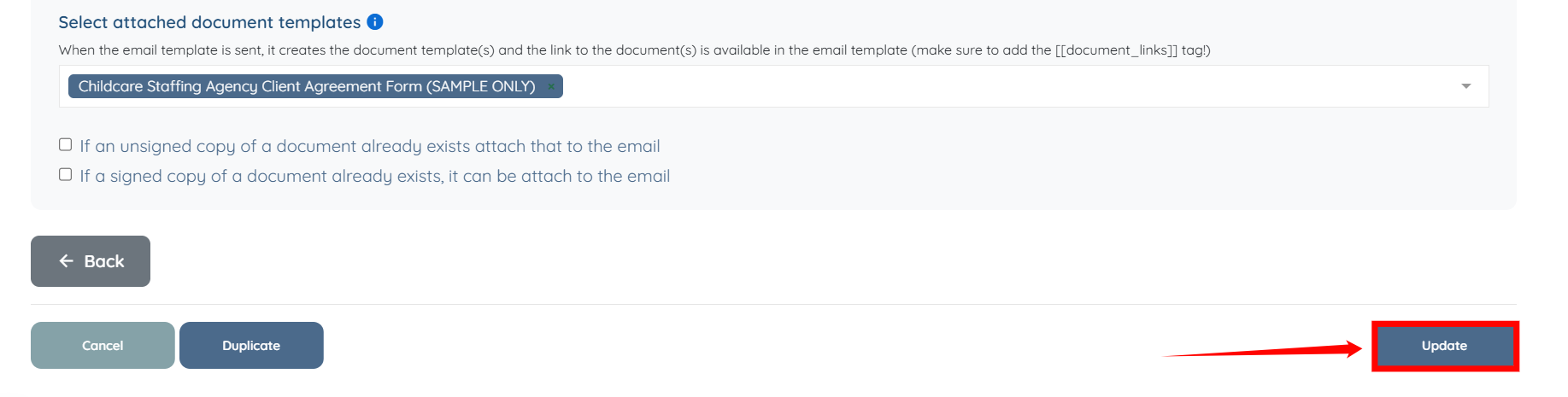
Step 7: Click the Update button to save the changes.
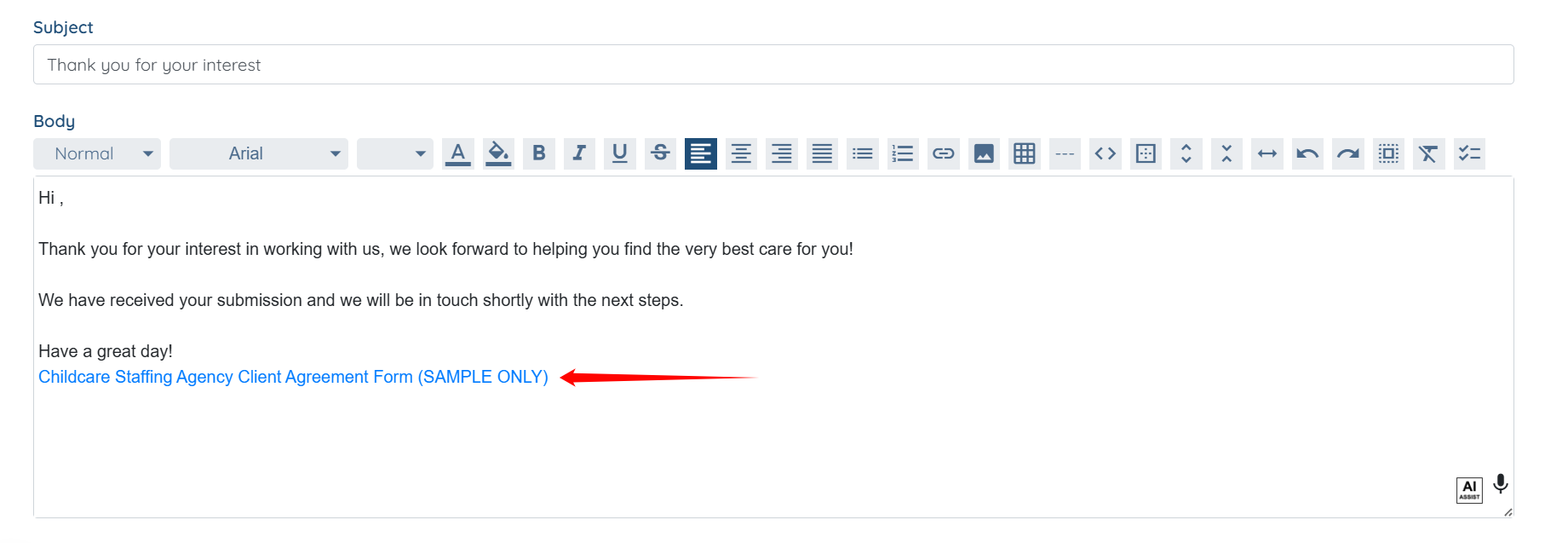
The attached document template in the email body will appear in this format when sending any email to a candidate or a client.
If this doesn't answer your questions you can always contact us by clicking here