Let’s get started 🚀
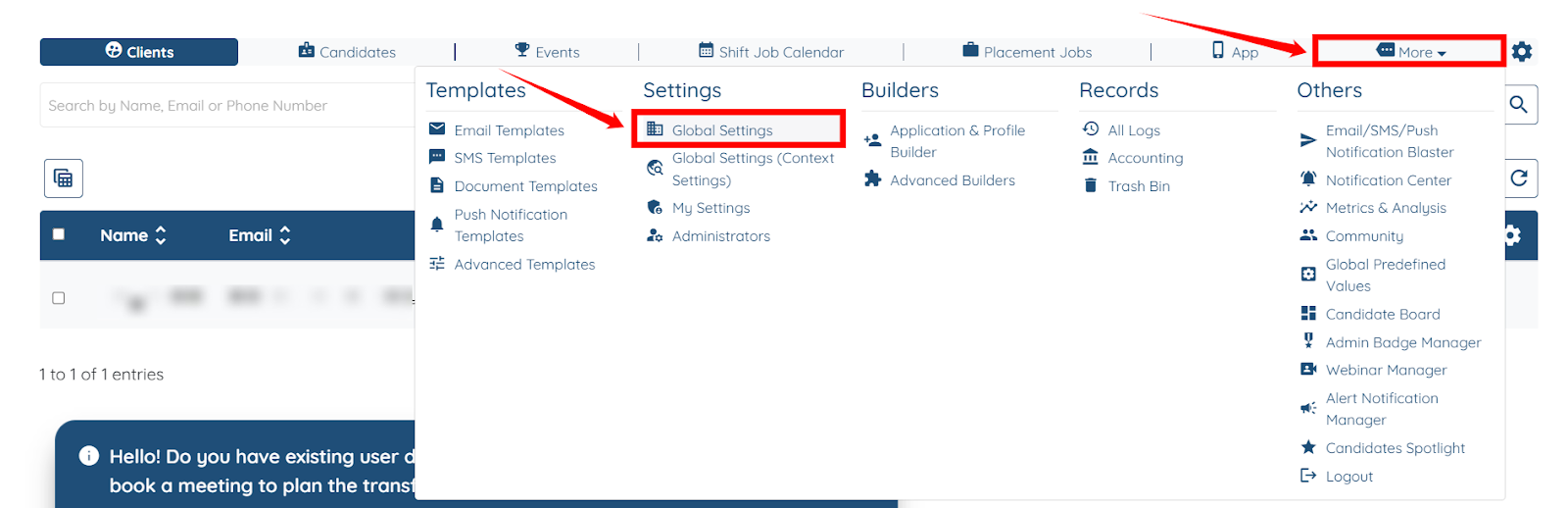
Step 1: Log in to your agent dashboard, then navigate to More > Global Settings, as shown in the screenshot below.
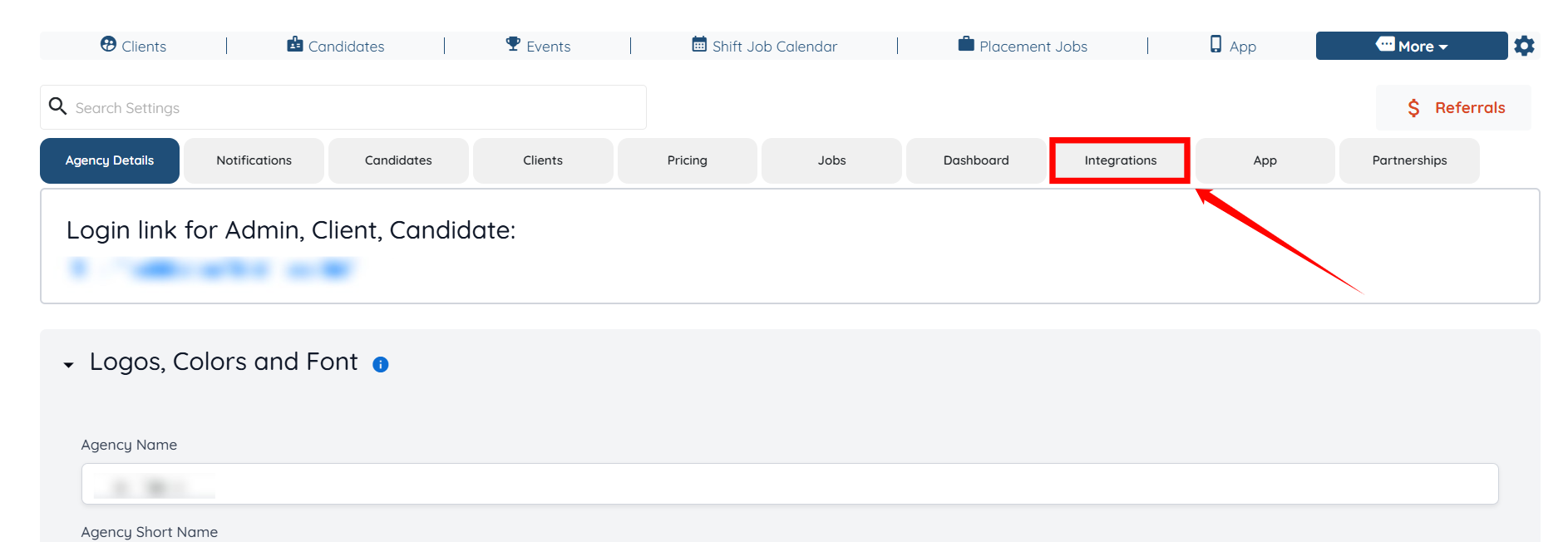
Step 2: Click on the Integrations tab from the list of tabs available.
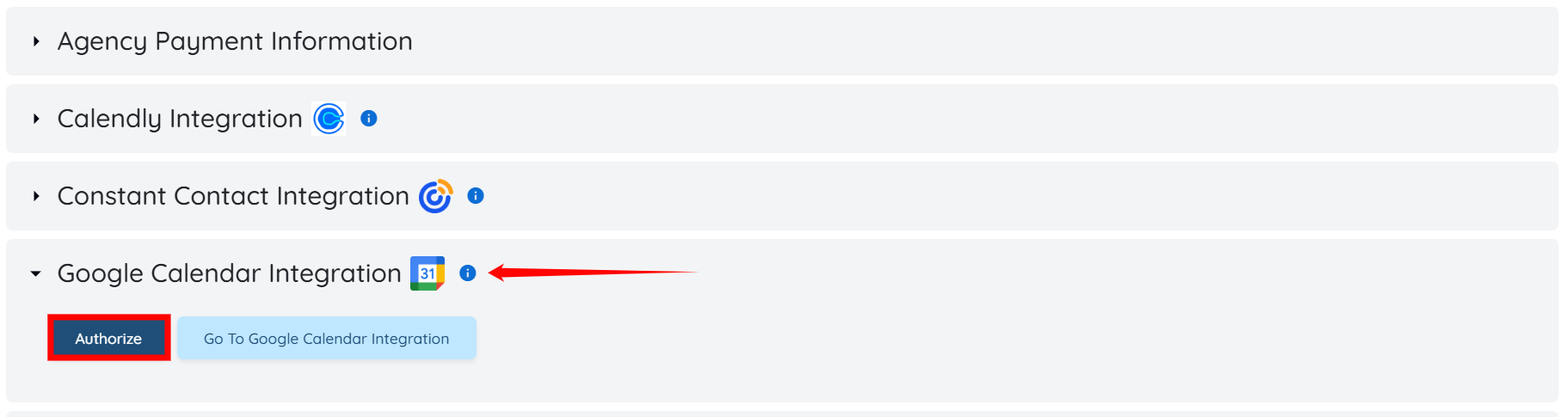
Step 3: Locate and expand the Google Calendar Integration option from the list of available integrations. After that, click on the Authorize button to continue.
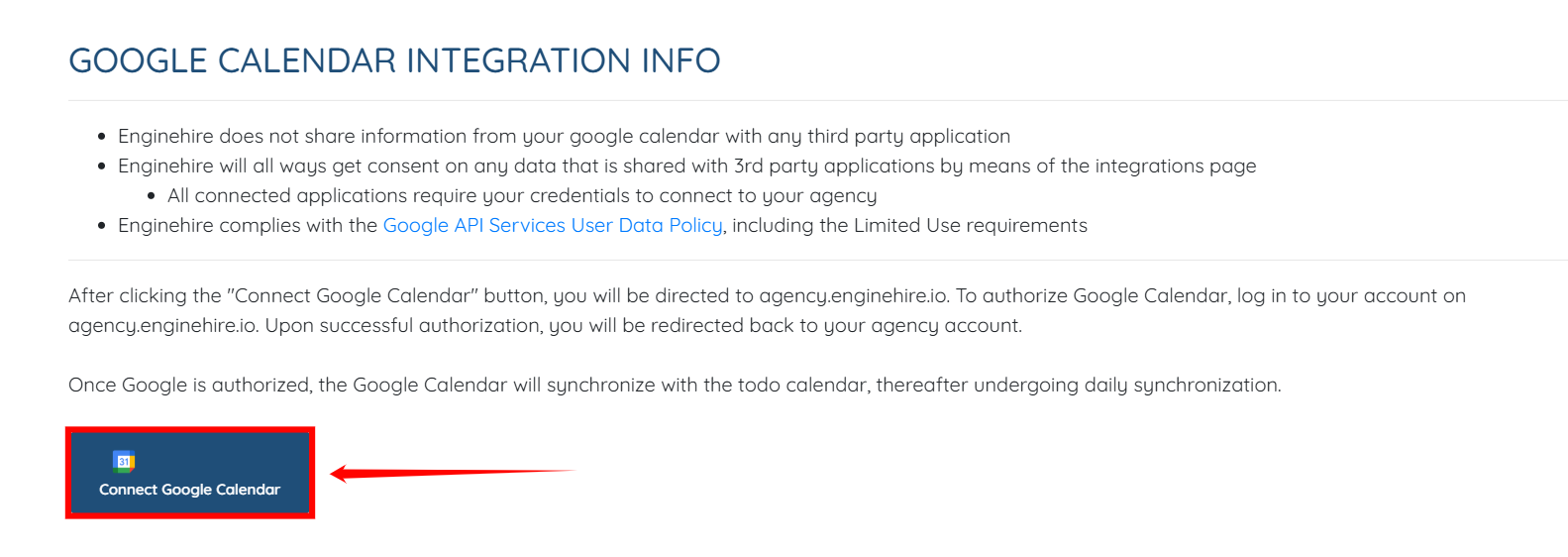
Step 4: Click the Connect Google Calendar button to start integrating Google Calendar into your dashboard.
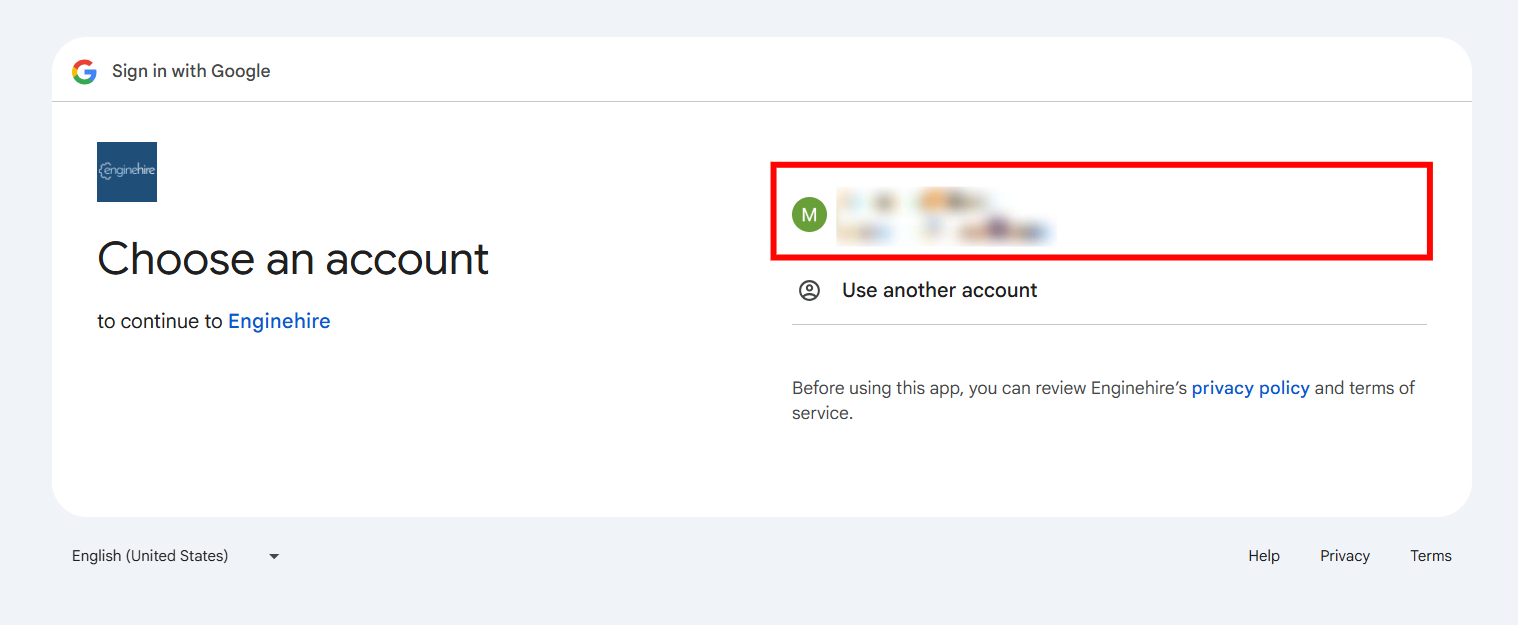
Step 5: Select the account you want to use to connect the Google Calendar.
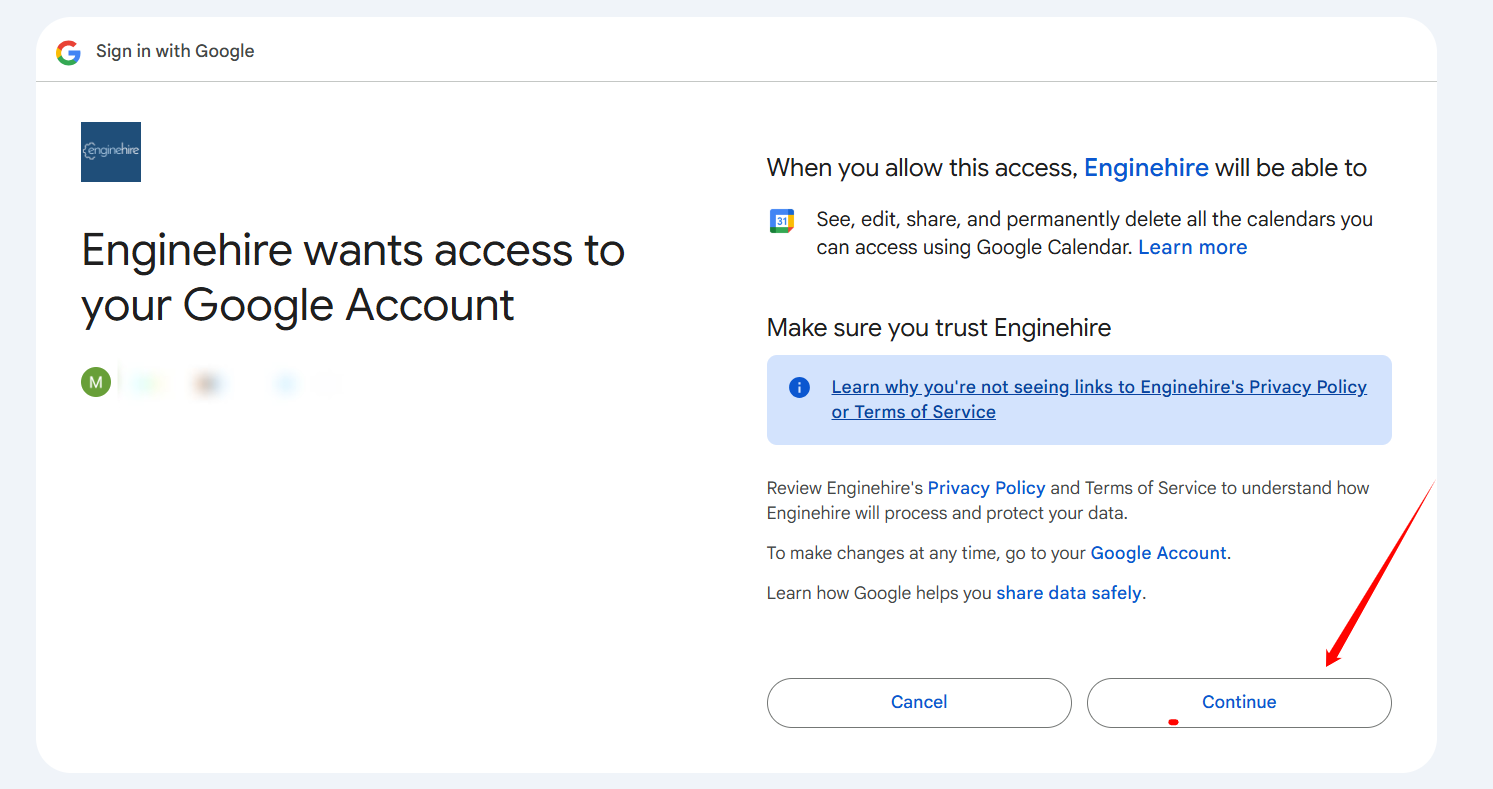
Step 6: Click the Continue button to proceed.
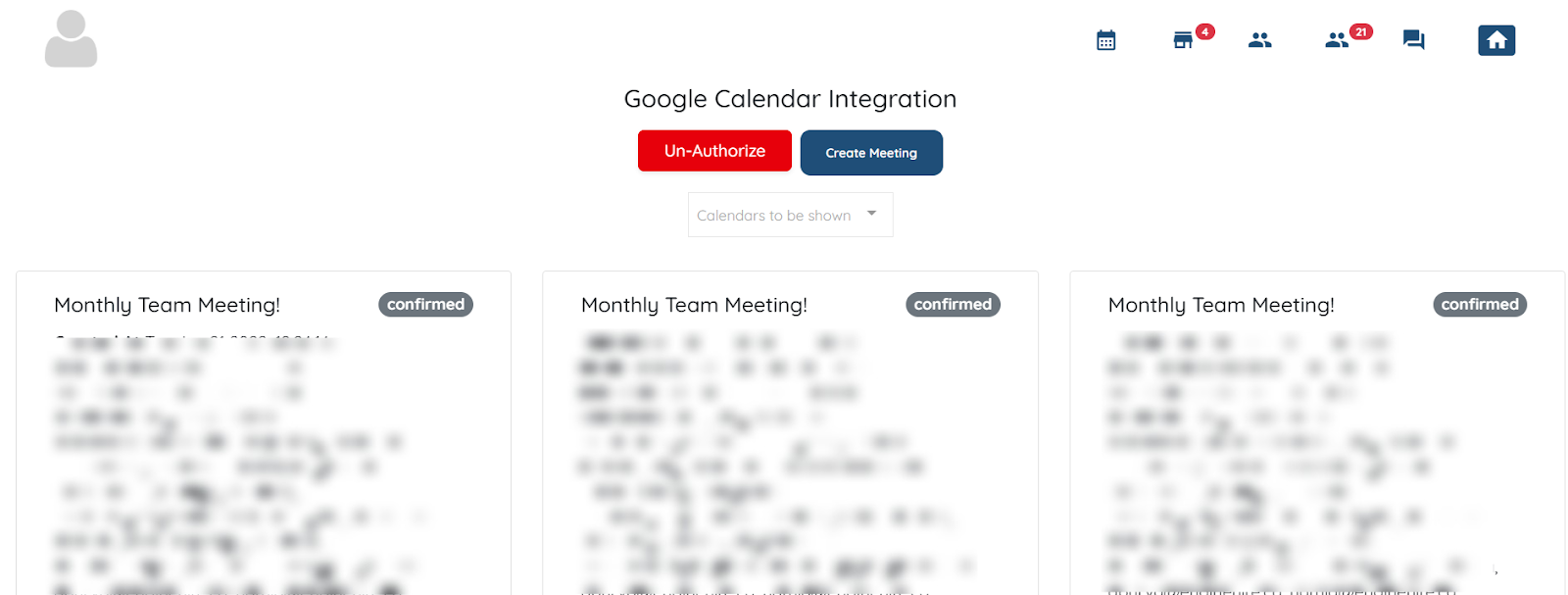
The Google Calendar will be successfully integrated into your agent dashboard, and you can Create a new meeting or Un-Authorize the integration whenever you want.
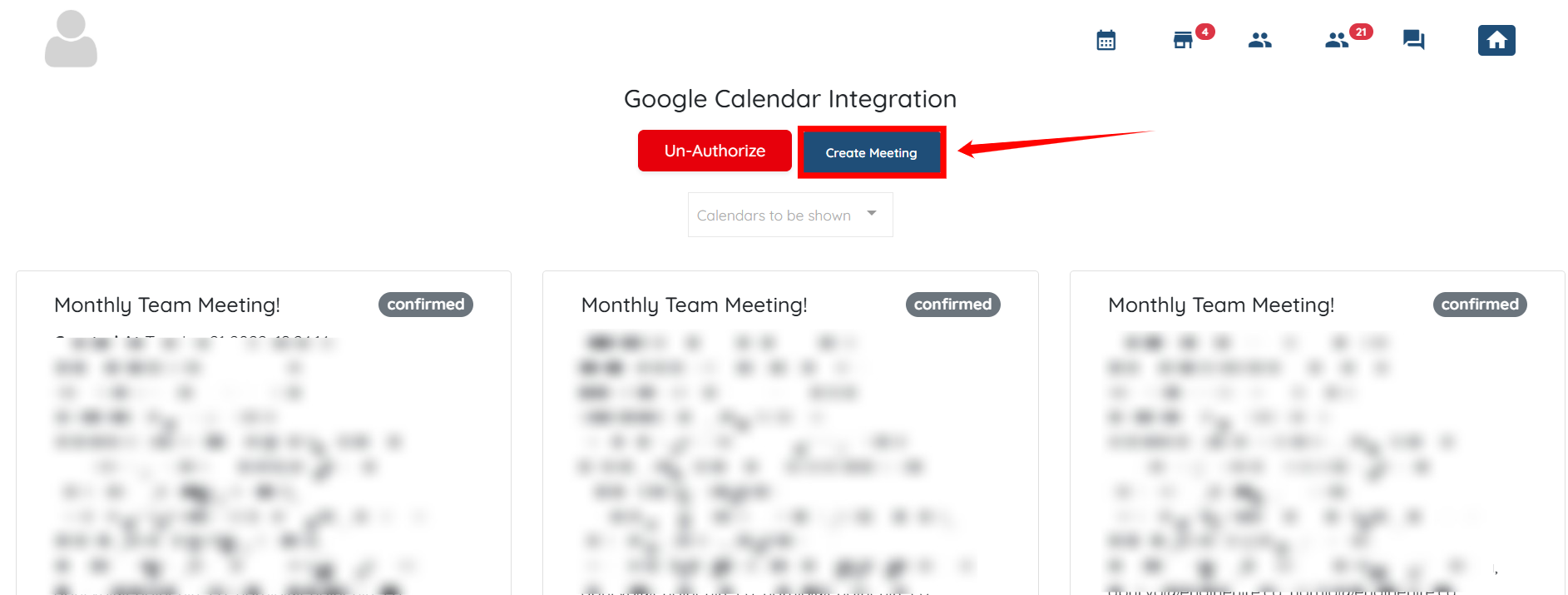
Create a new meeting directly from your Agent Dashboard and have it sync to your connected Google Calendar. Follow the steps below to create a new meeting.
Step 1: Click the Create Meeting button to begin creating the meeting.
Step 2: Provide all the necessary information for your meeting, including the start date and time, end date and time, and a short event summary.
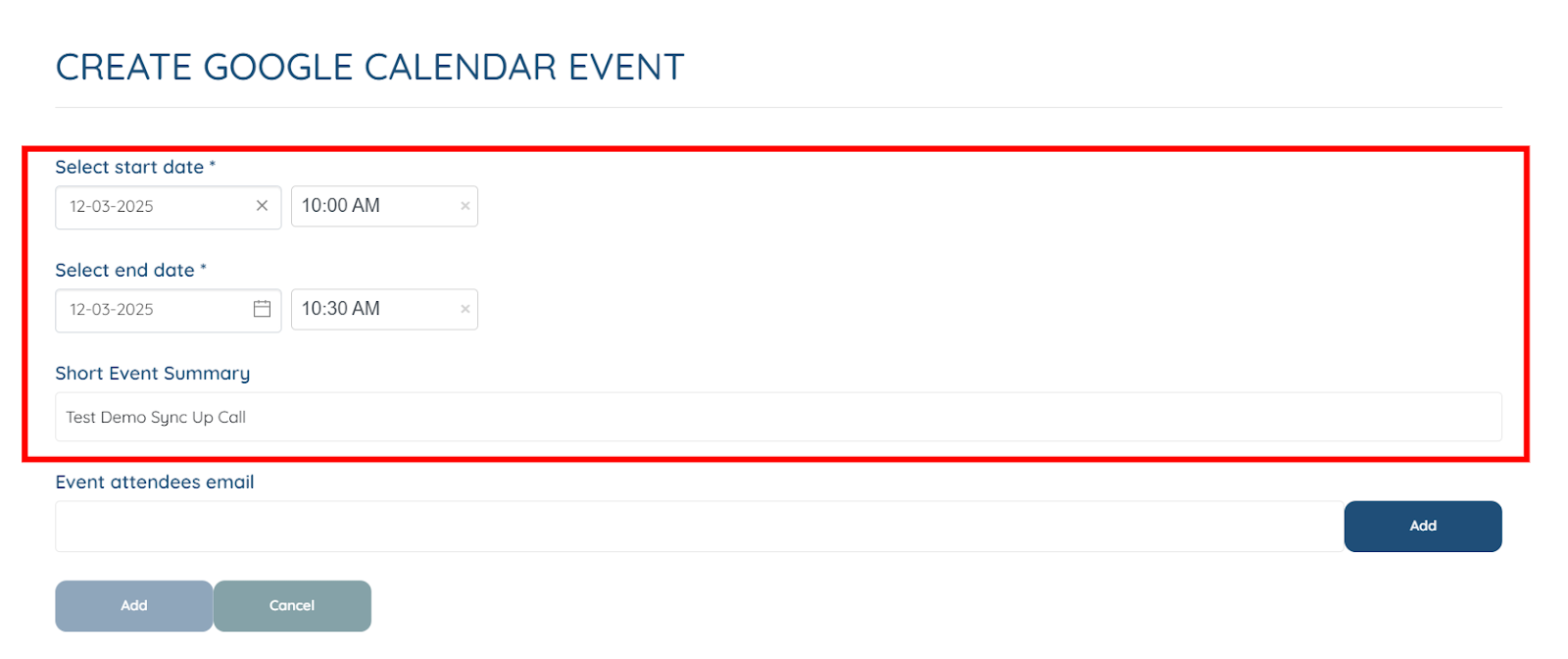
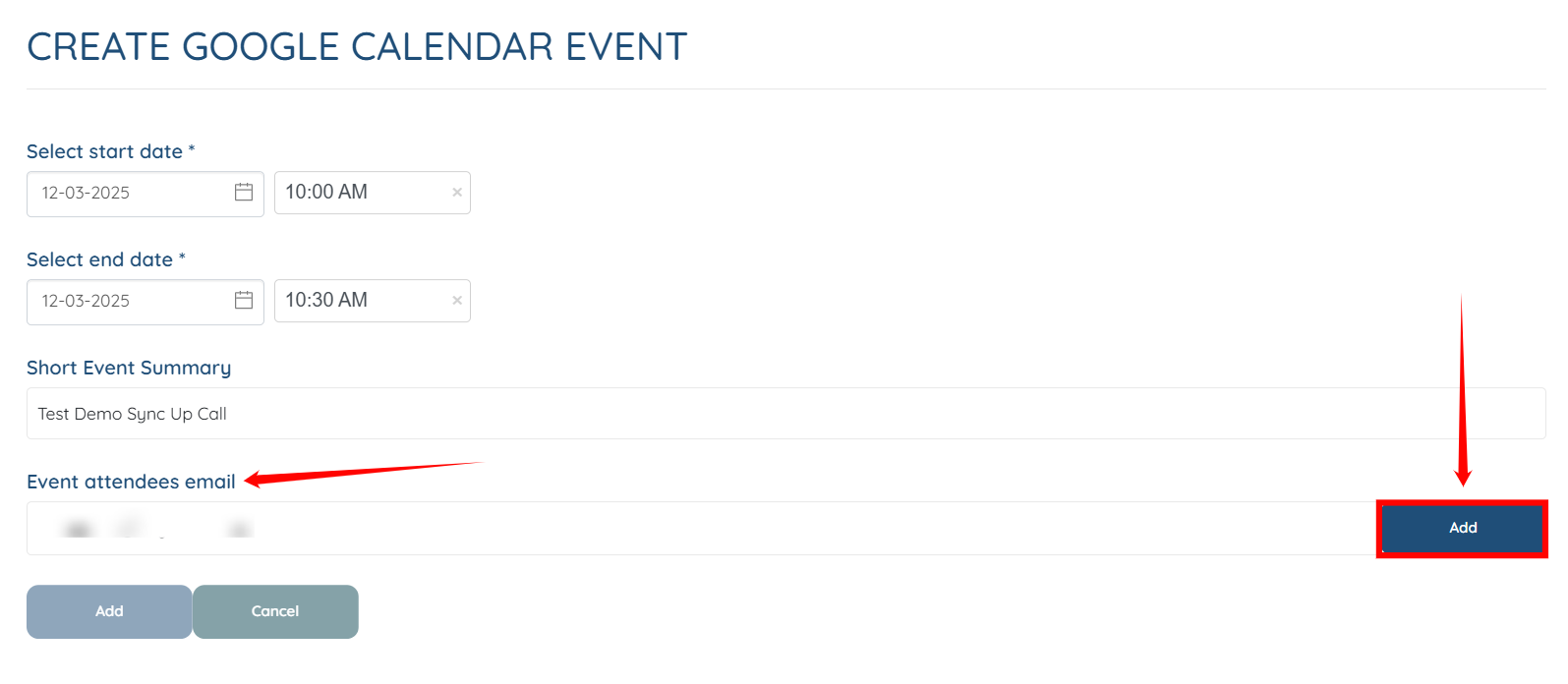
Step 3: Enter the email addresses of the attendees you want to include in your meeting, and then click the Add button to proceed.
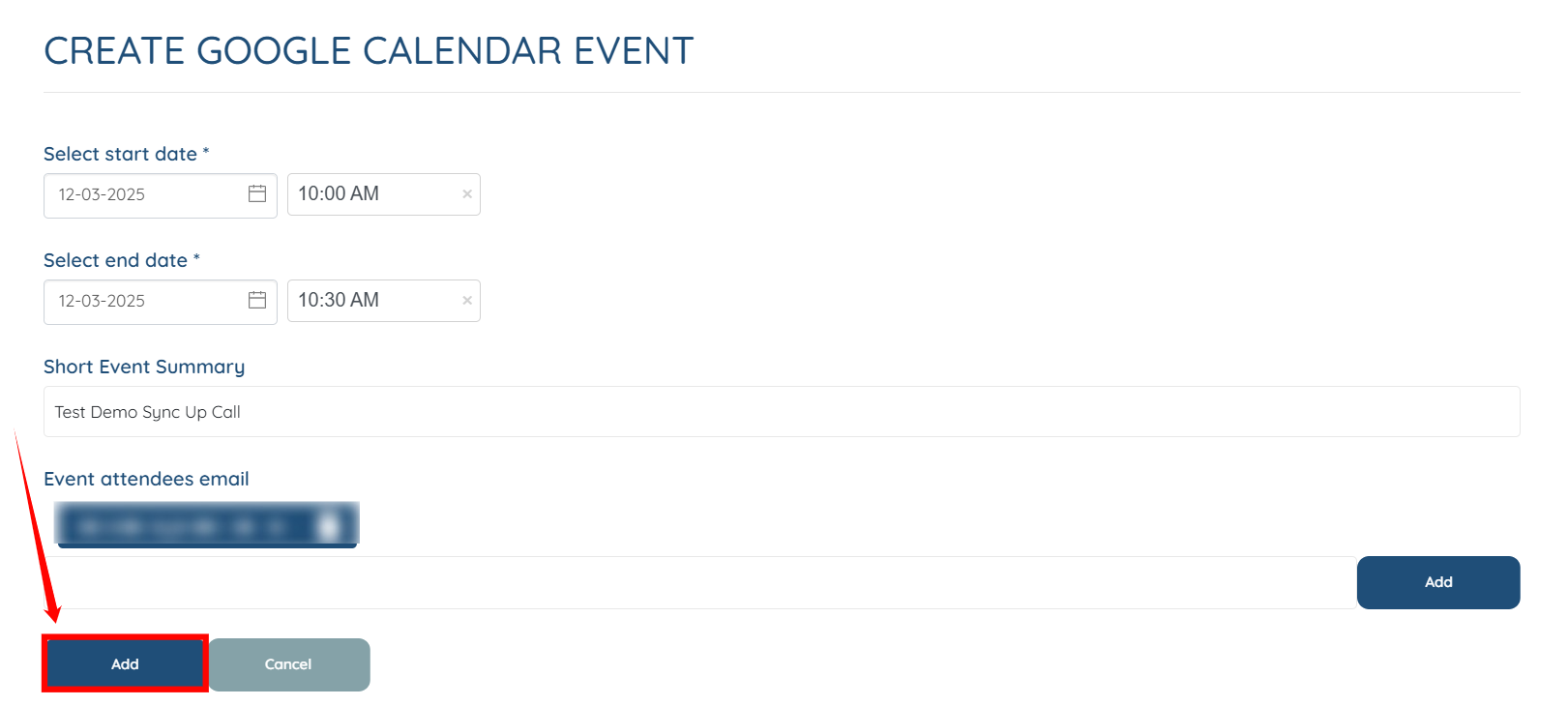
Step 4: After you add all the necessary information, click the Add button, as shown in the screenshot, to send the meeting invite.
If this doesn't answer your questions you can always contact us by clicking here
