
Let’s get started 🚀
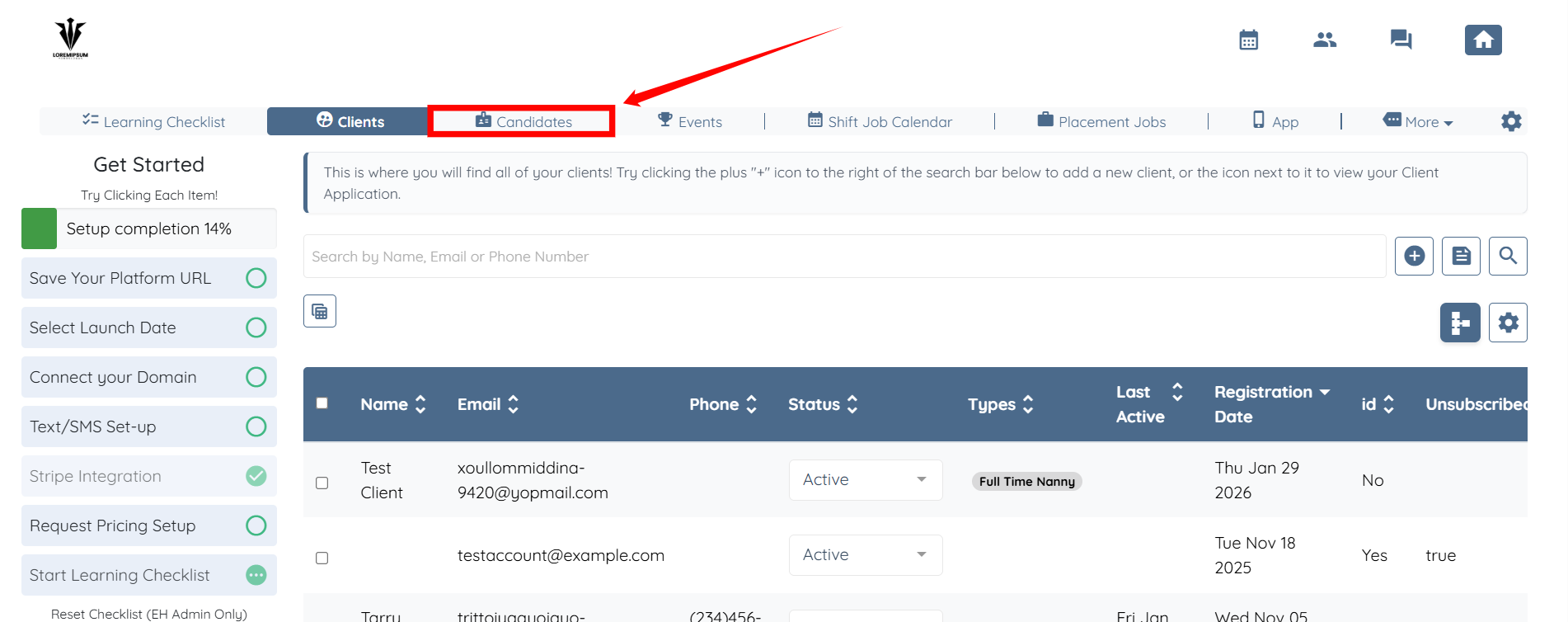
Step 1: Log in to your agent dashboard and click Candidates in the navigation bar.
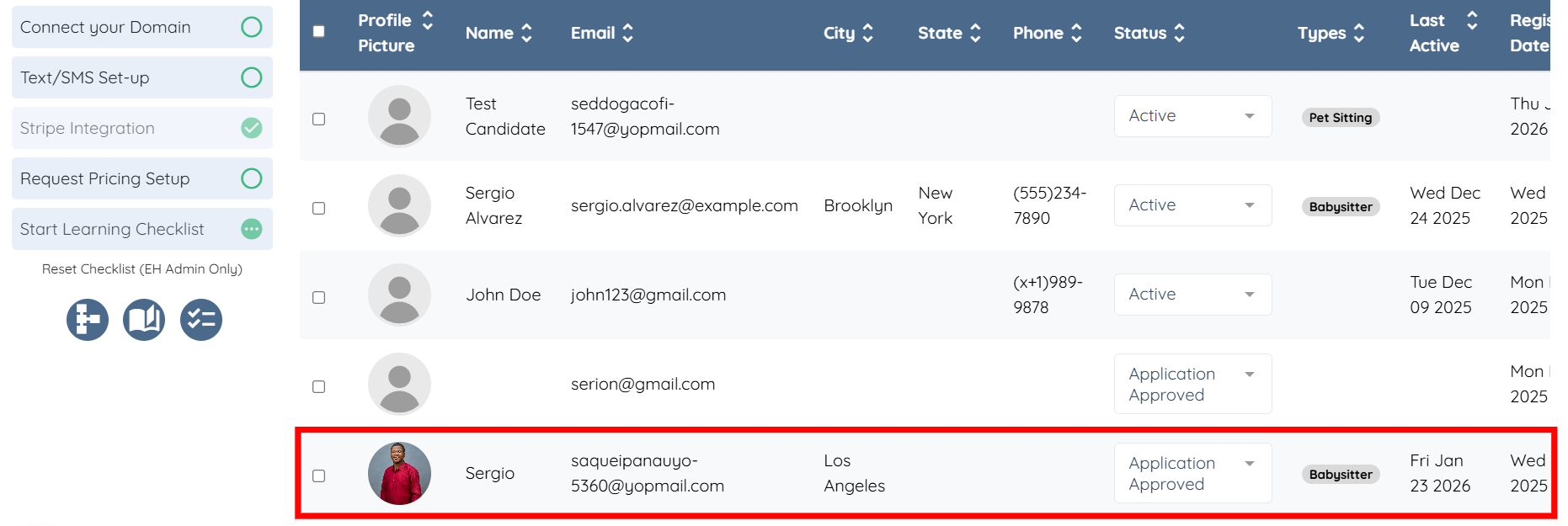
Step 2: Click on any candidate in the list to view and manage their SMS.
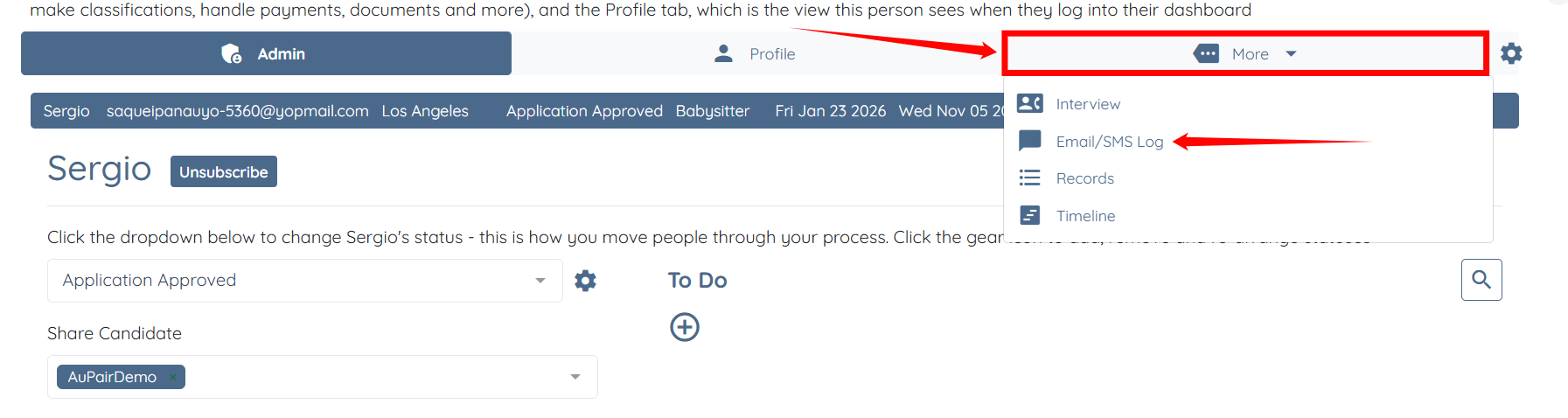
Step 3: Click on More > Email/SMS Log option.
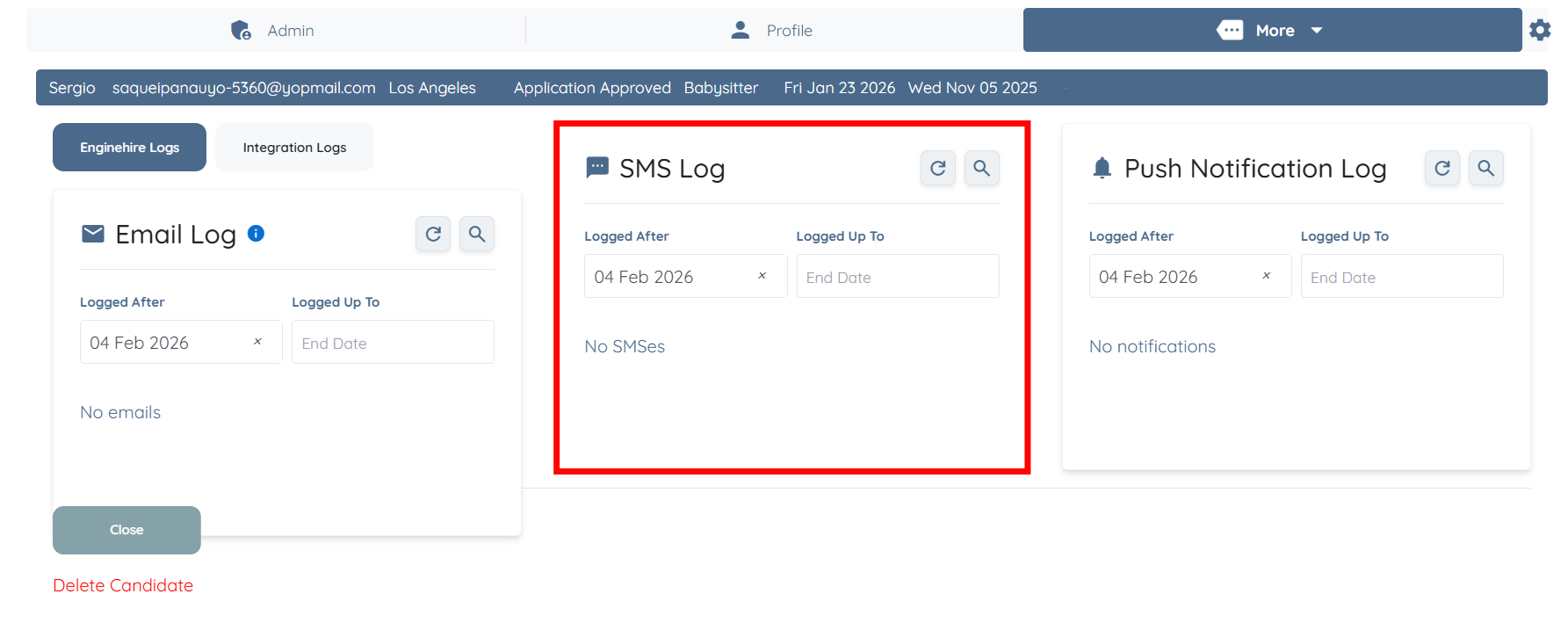
Here, you can view all SMS sent and received under the SMS Log, including message history and timestamps.
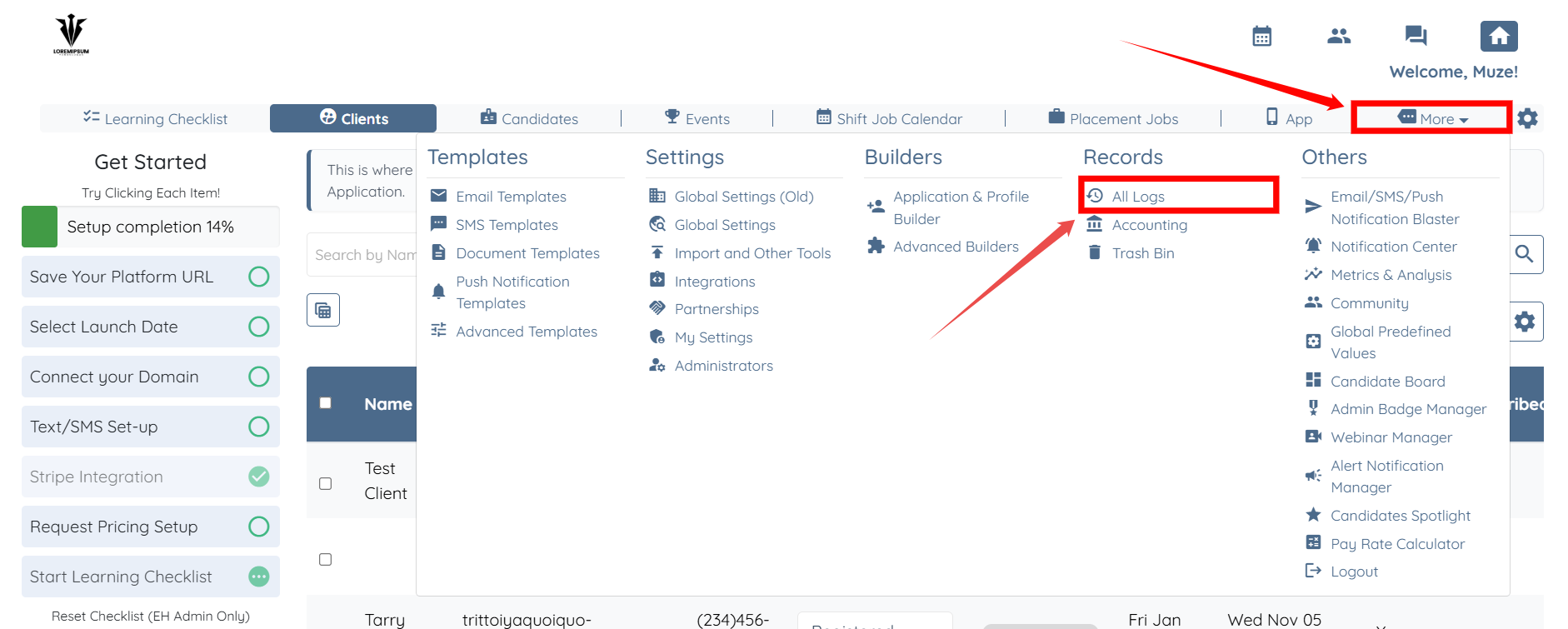
Step 1: On your agent dashboard, click More, then select All Logs, as shown in the screenshot below.
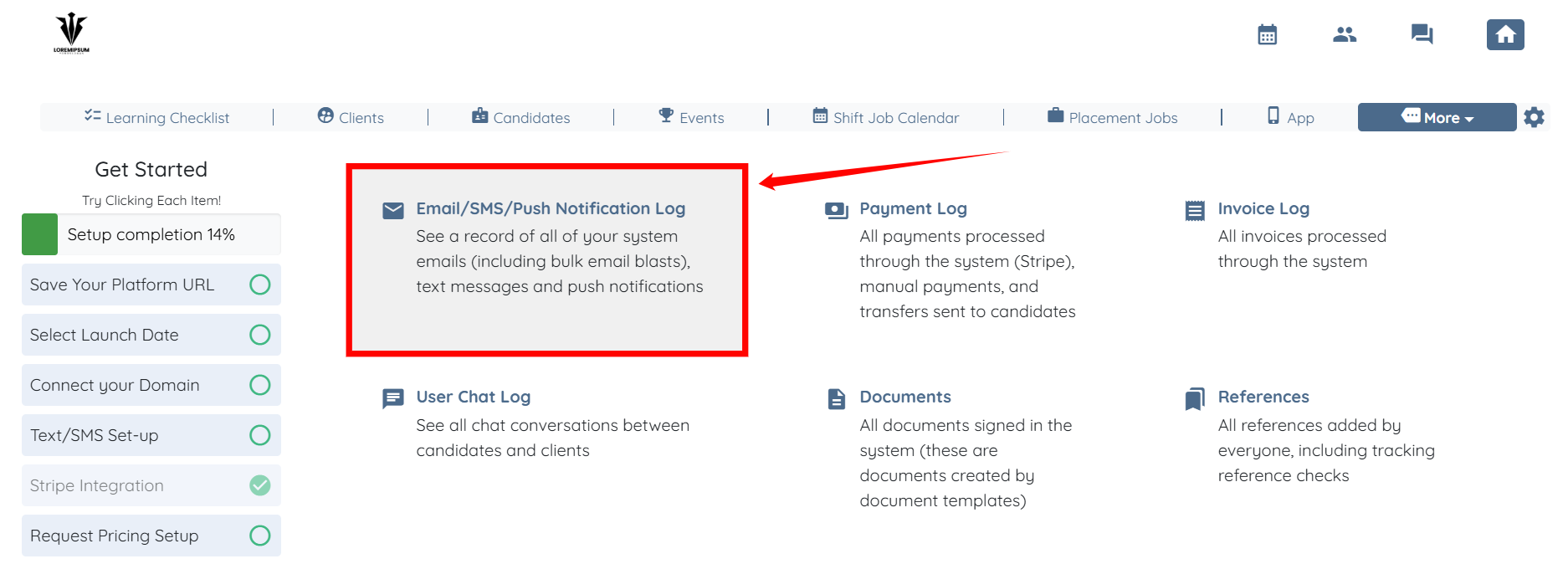
Step 2: Click the Email/SMS/Push Notification Log option.
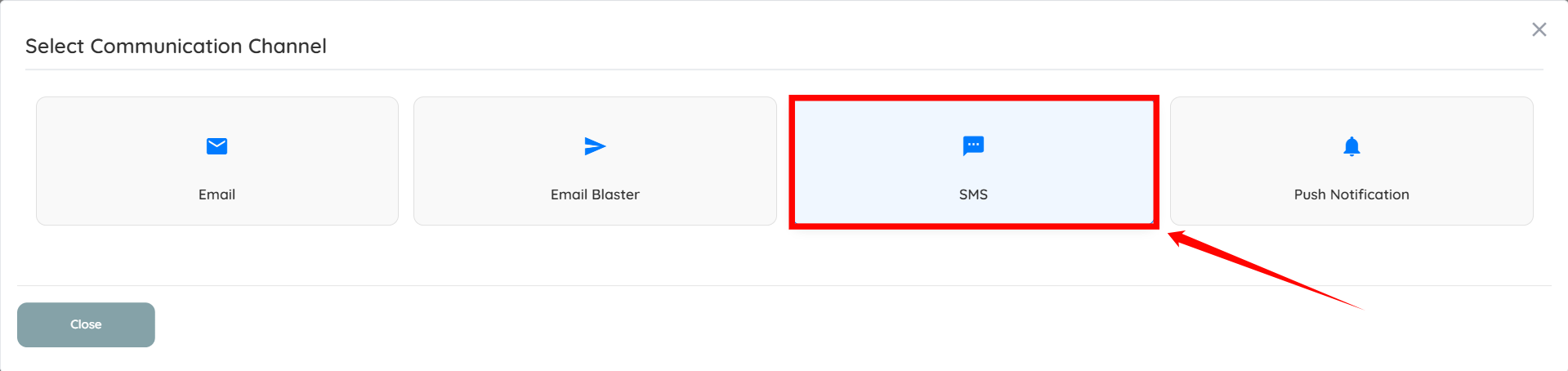
Step 3: Click the SMS option from the list of available options.
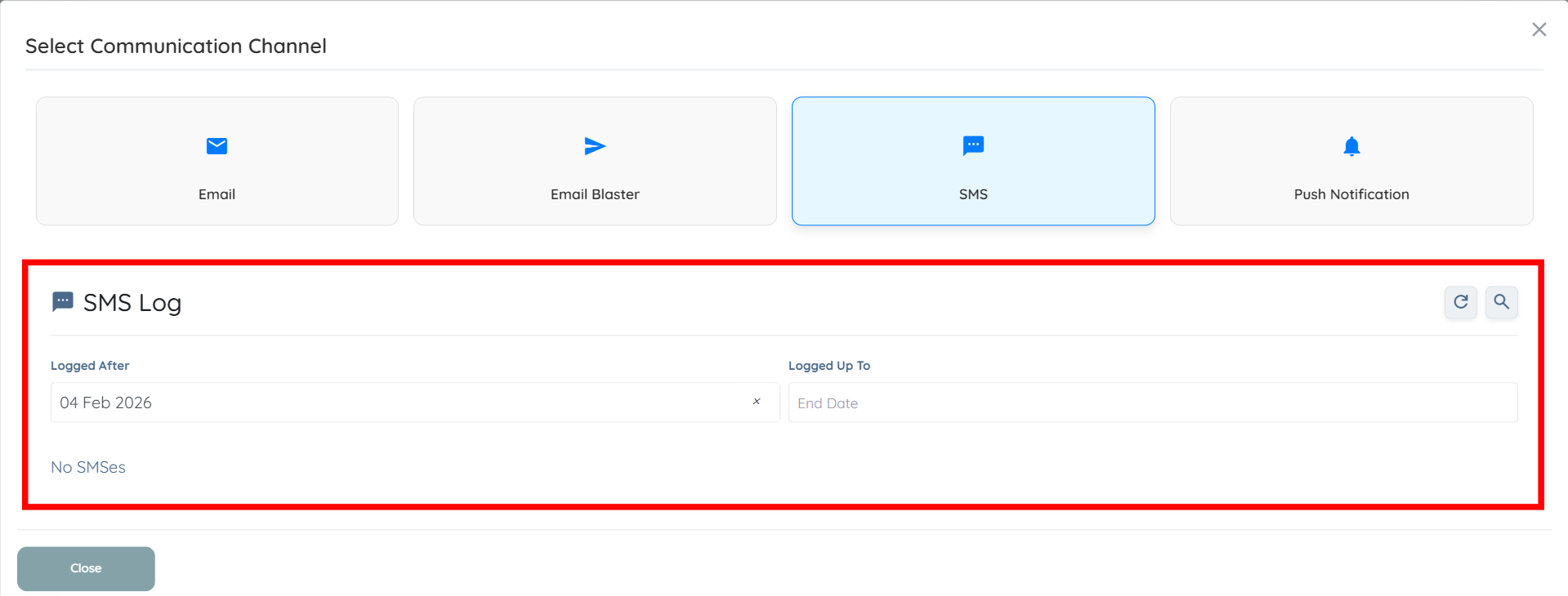
Here, you can view all SMS sent and received under the SMS Log, including message history and timestamps.
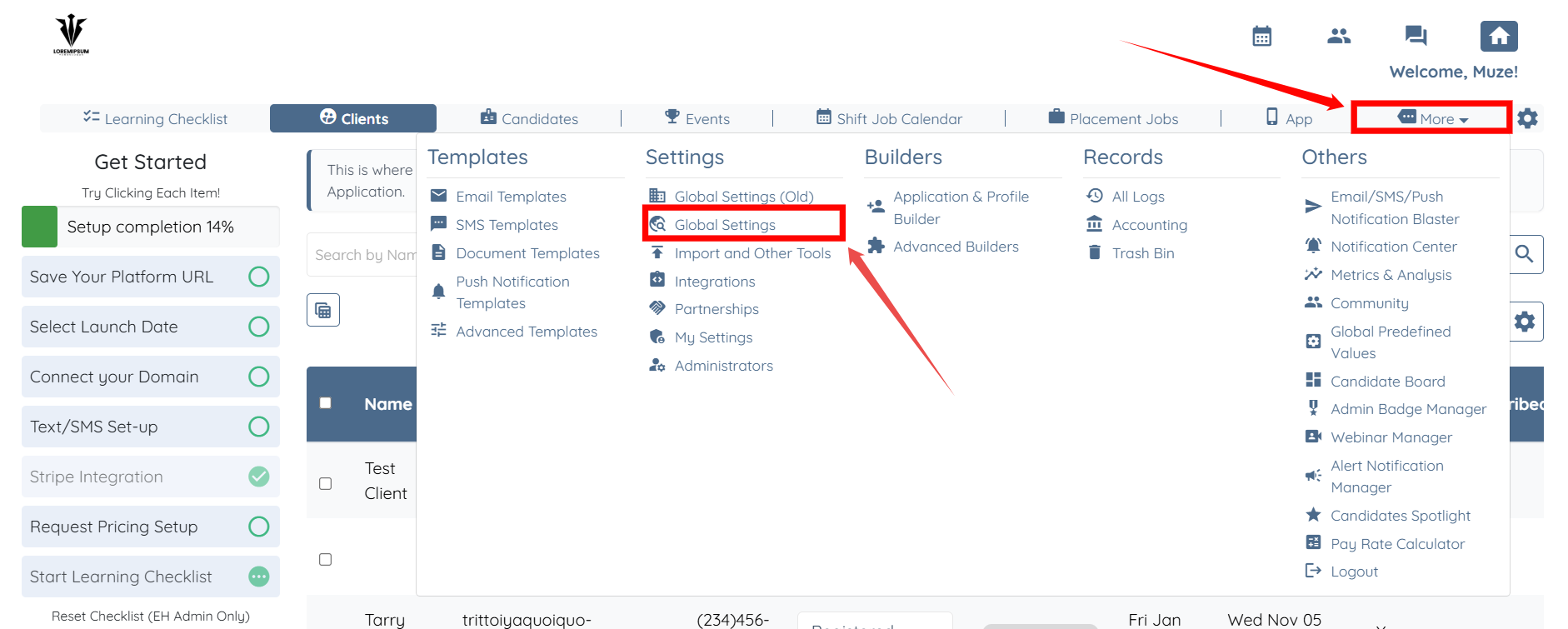
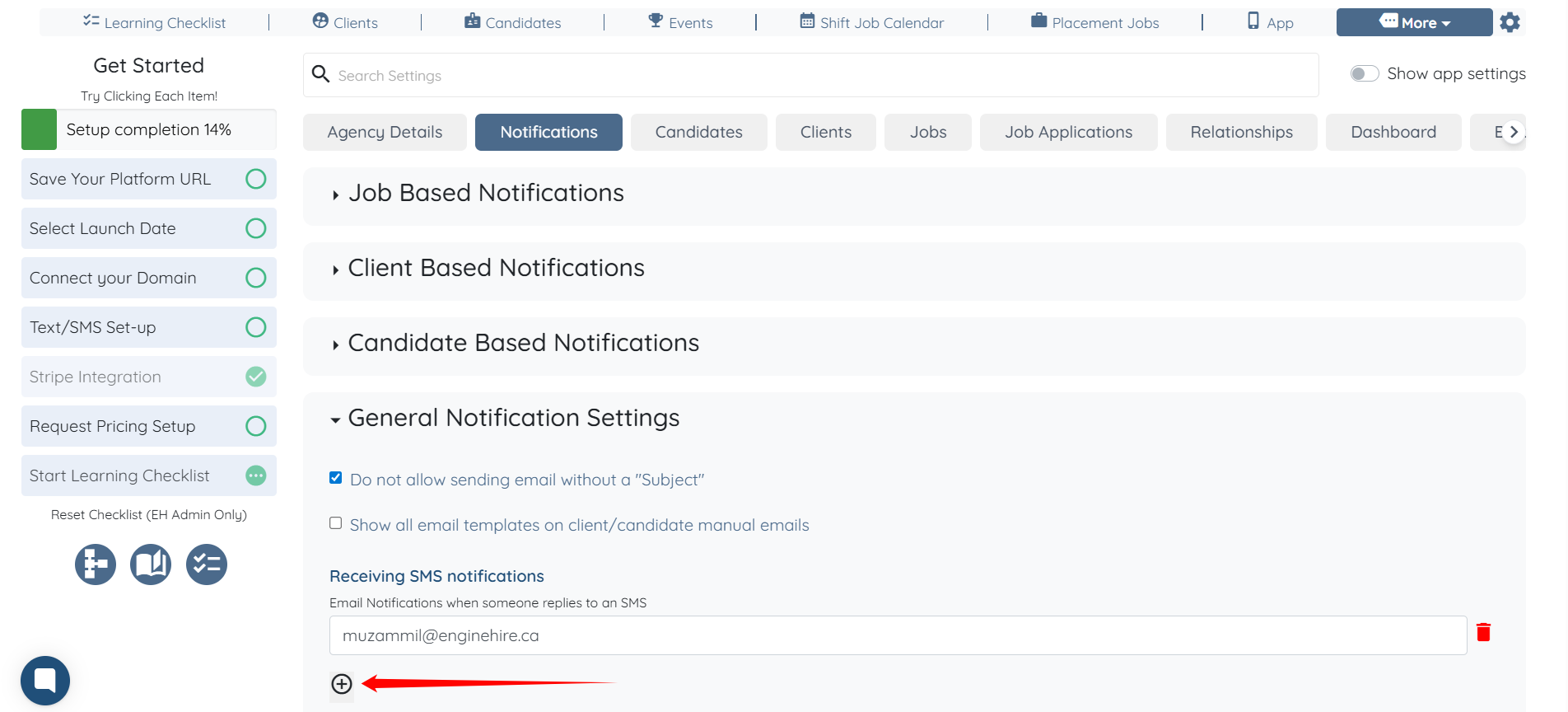
Step 1: On your agent dashboard, click More > Global Settings, as shown in the screenshot below.
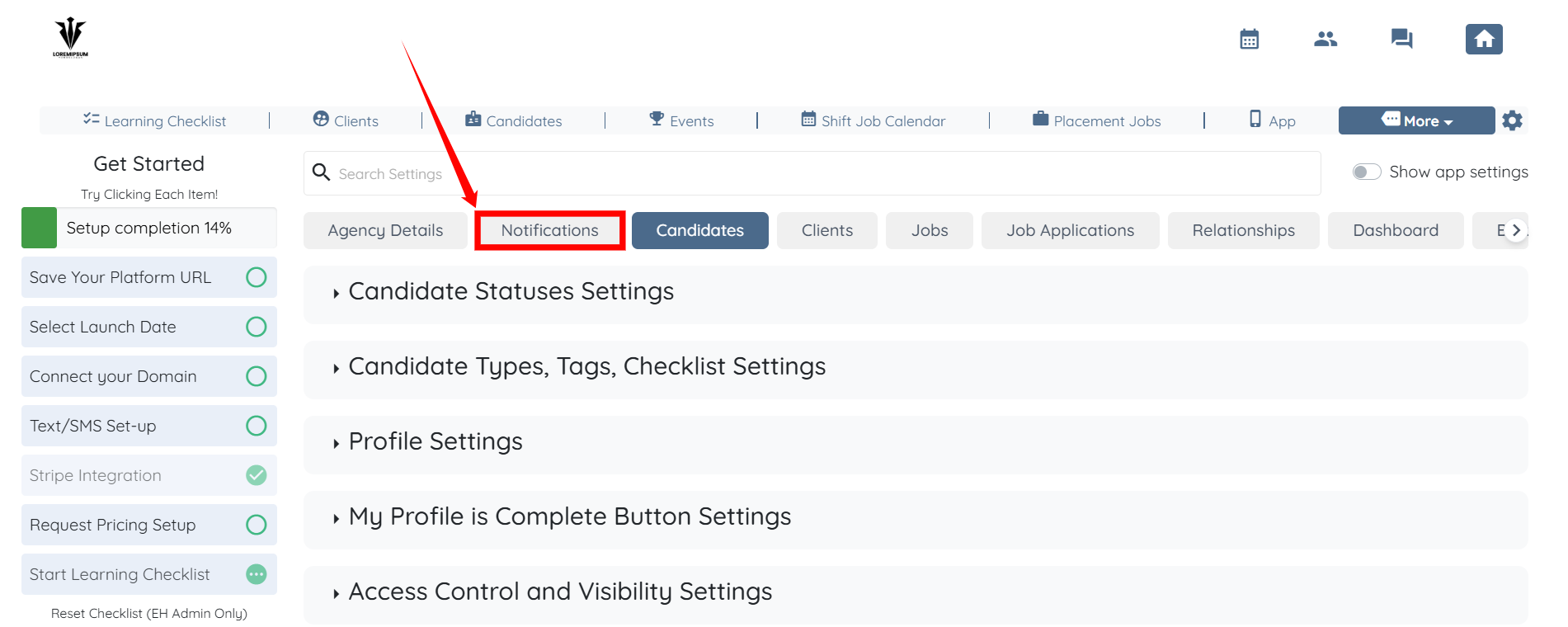
Step 2: From the available tabs, click the Notifications tab.
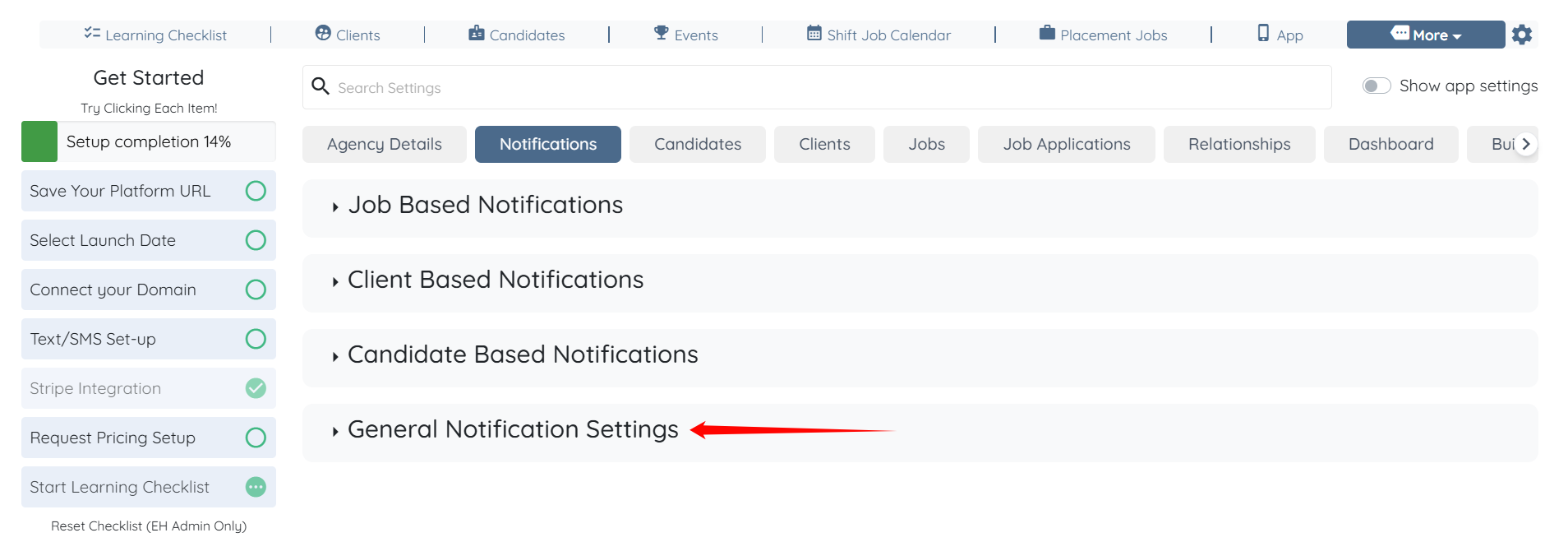
Step 3: Click General Notification Settings to expand the section and view its details.
Step 4: Enter the email address of the person who should receive email notifications when someone replies to an SMS.
The system will save your settings automatically.
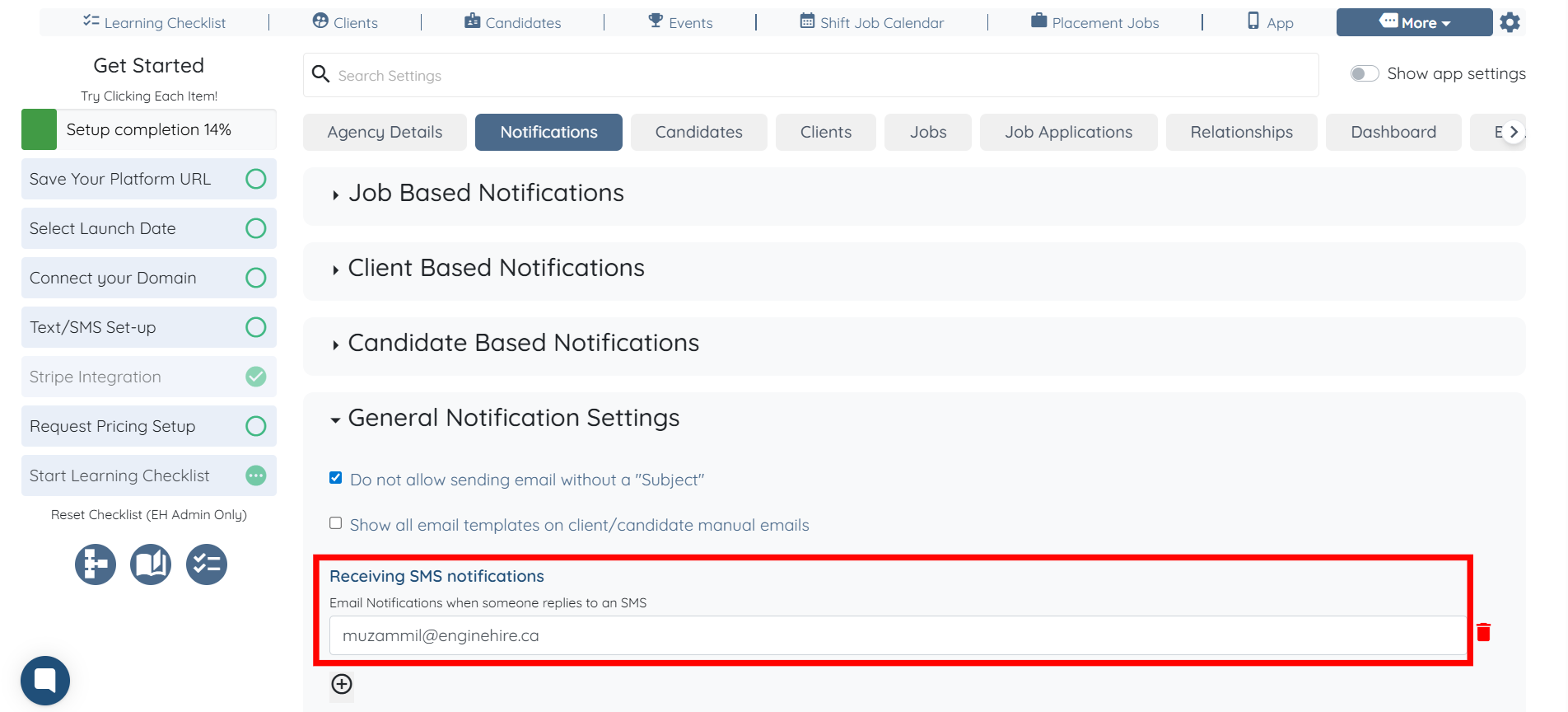
You can add more than one email address by clicking the + icon, if you would like to do so.
If this doesn't answer your questions you can always contact us by clicking here
