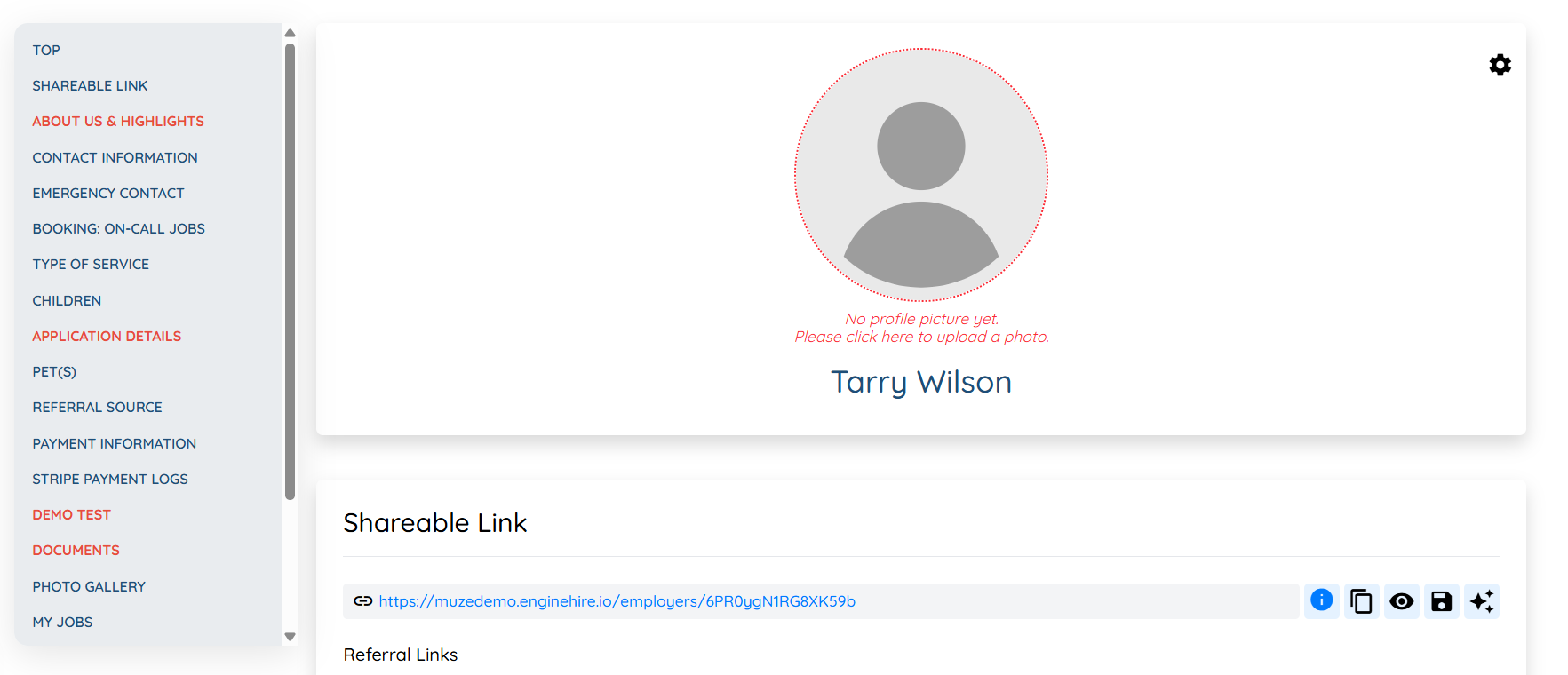
Let’s get started 🚀
Step 1: Log in to your agent dashboard, then use the top navigation bar to select either Client or Candidate.
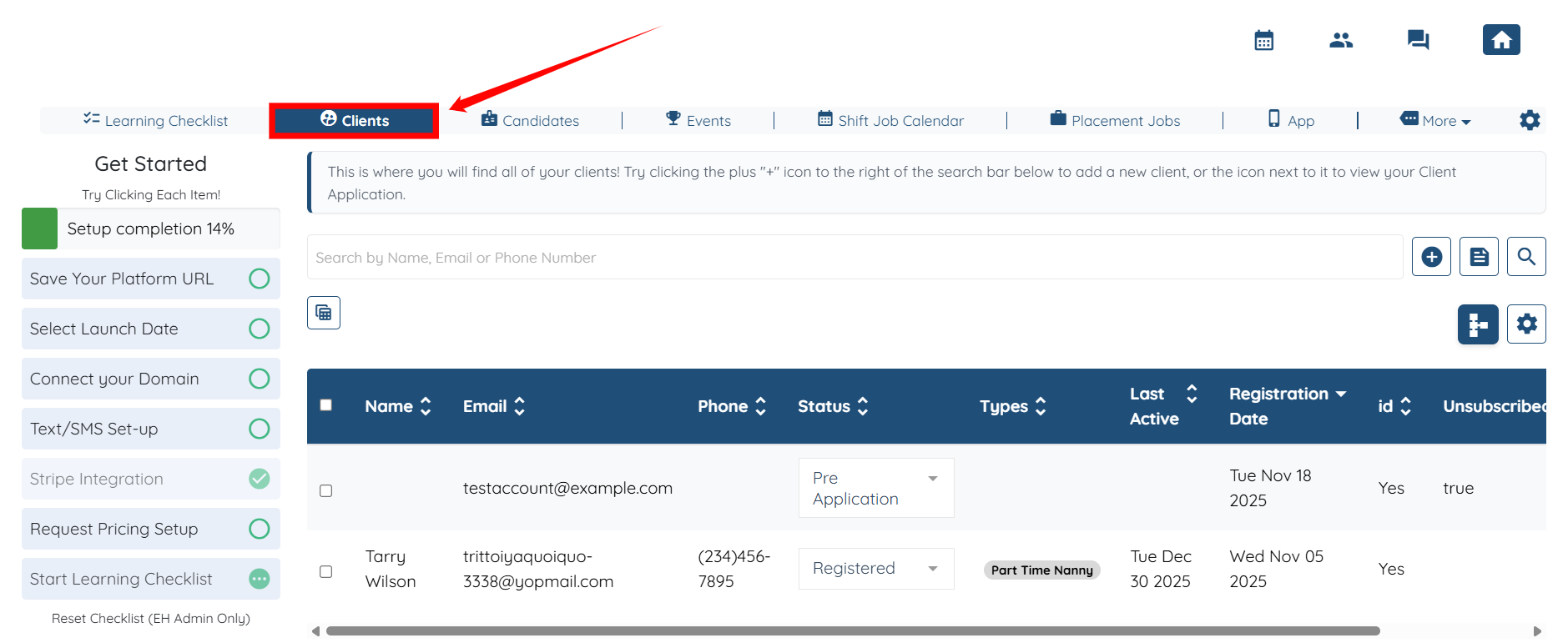
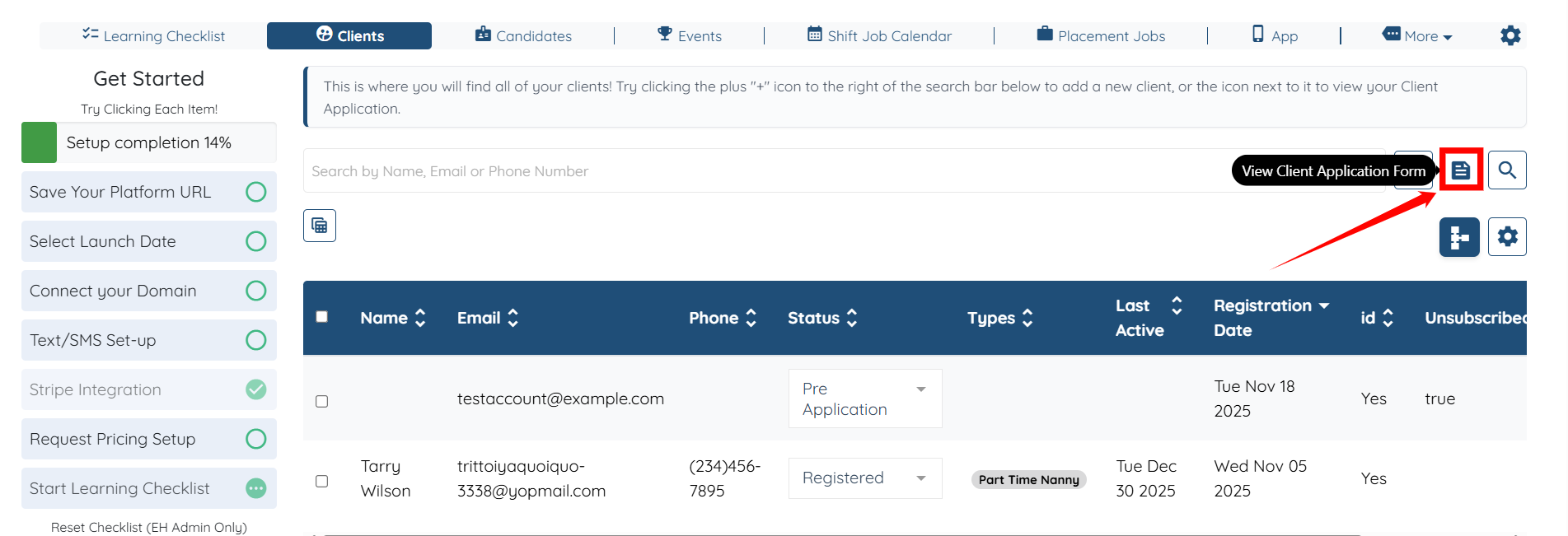
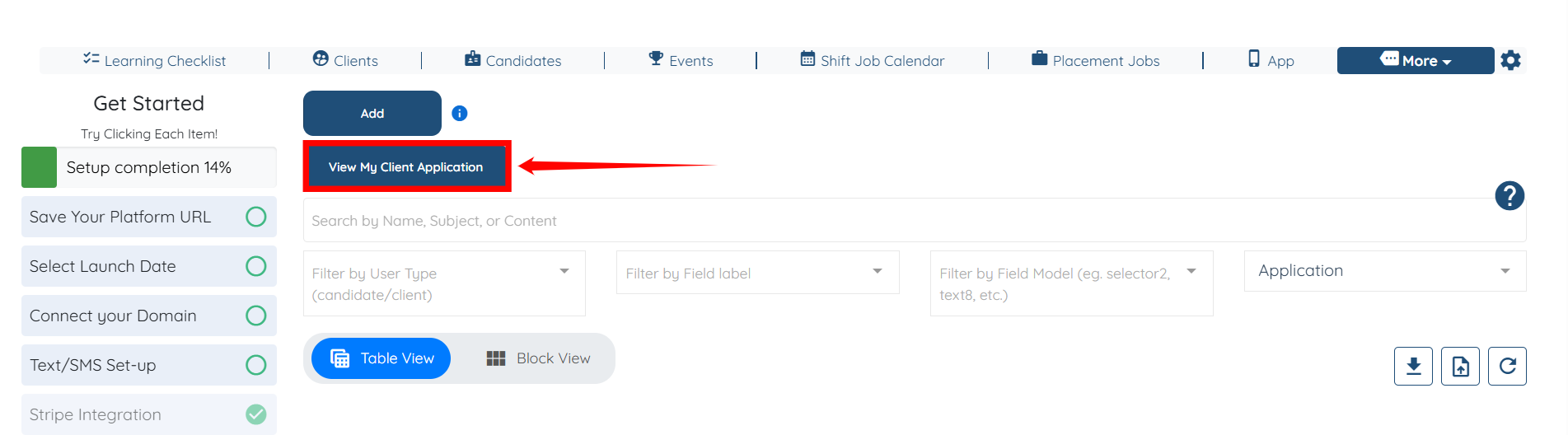
Step 2: Click the View Client Application Form button as shown in the screenshot.
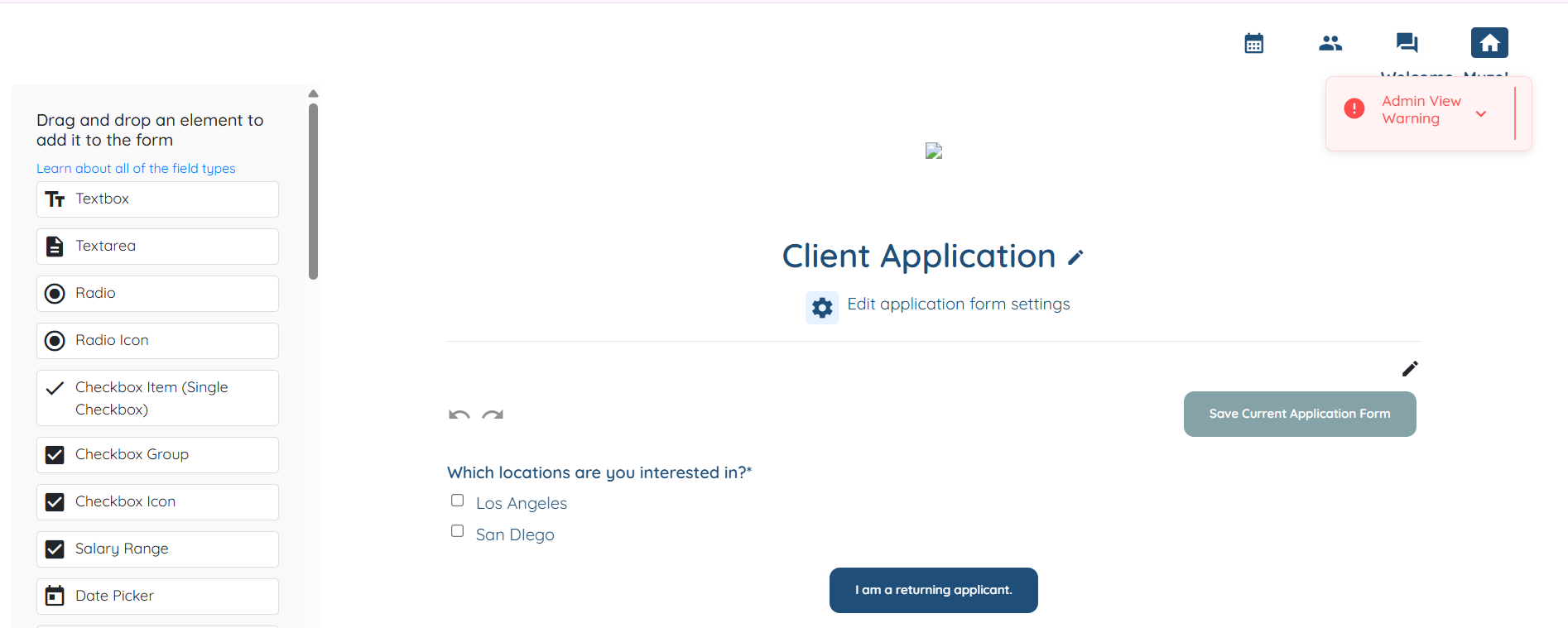
You will be able to successfully view the Client Application Form.
Step 1: From the top navigation bar, click More, and then select Application & Profile Builder, as shown in the screenshot.
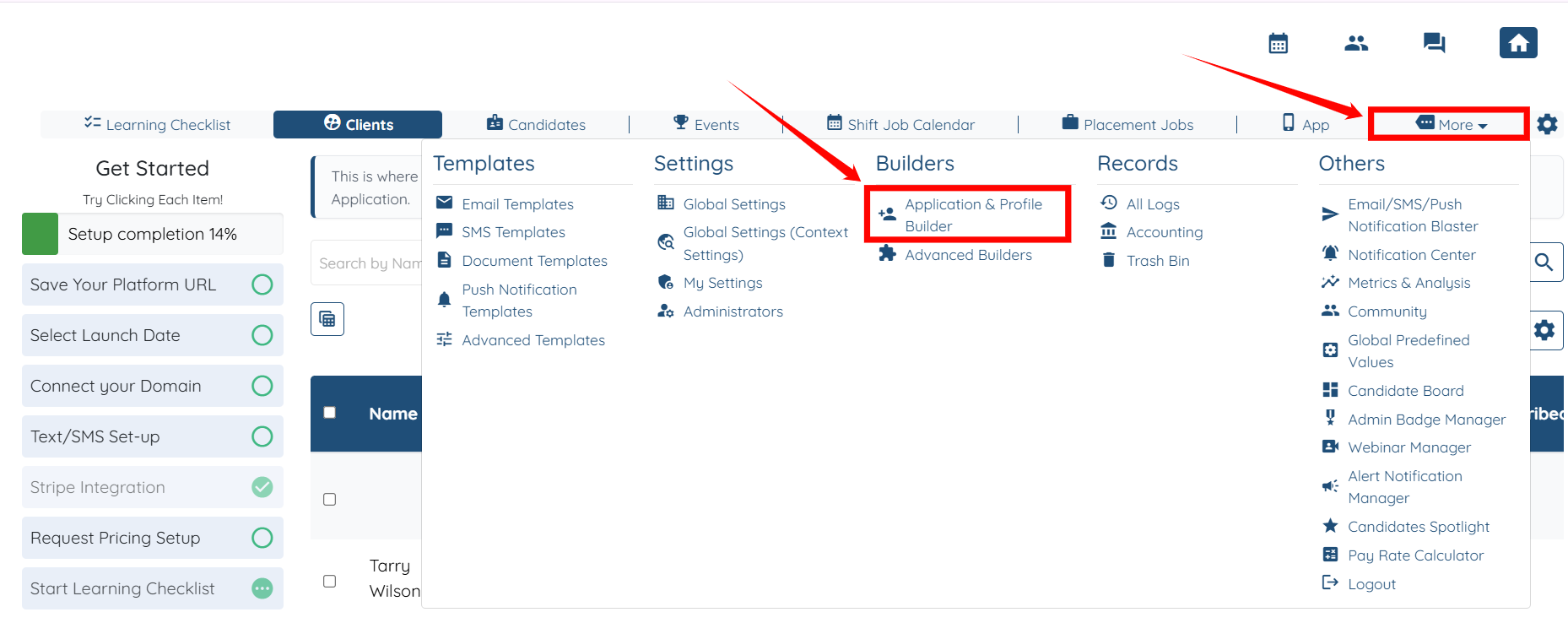
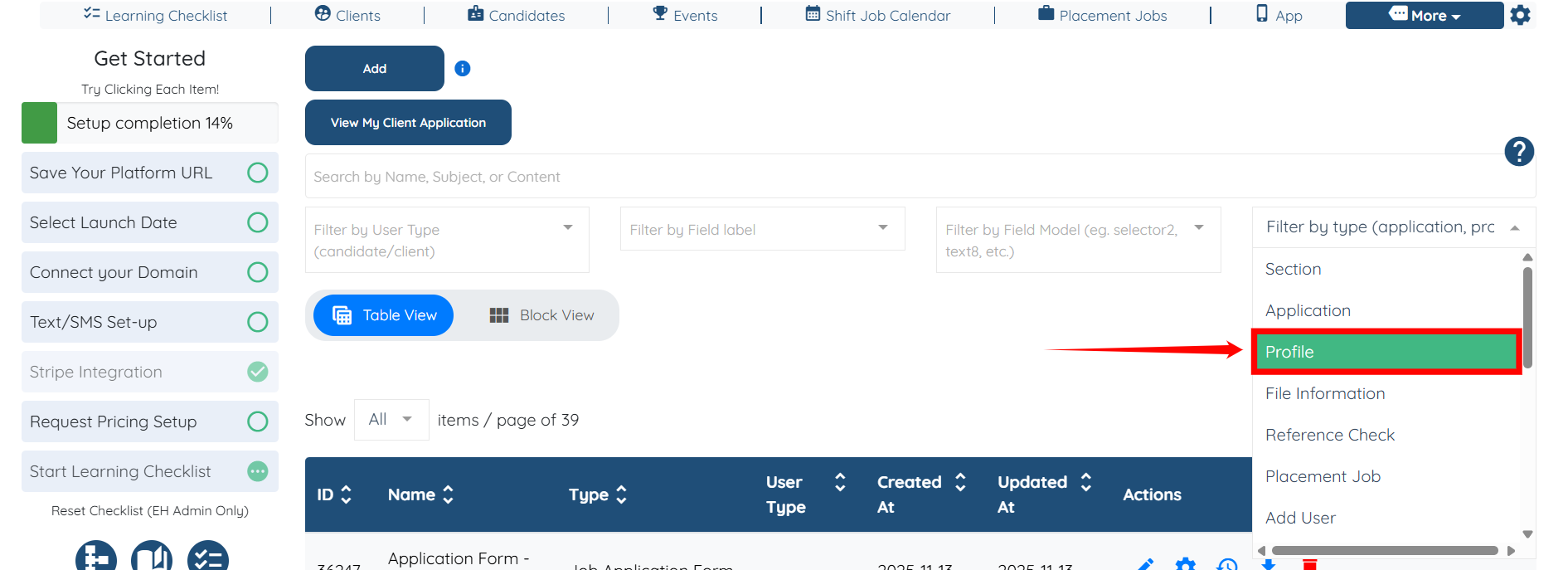
Step 2: Click the Filter by type box to activate the drop-down list.
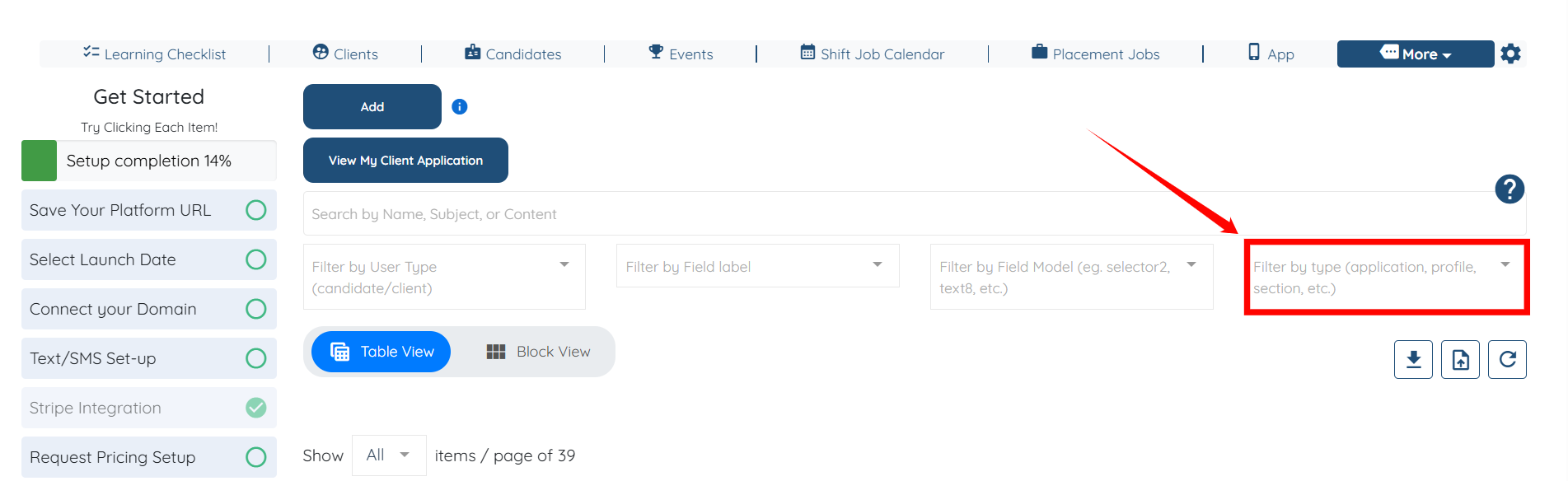
Step 3: Select Application from the dropdown list.
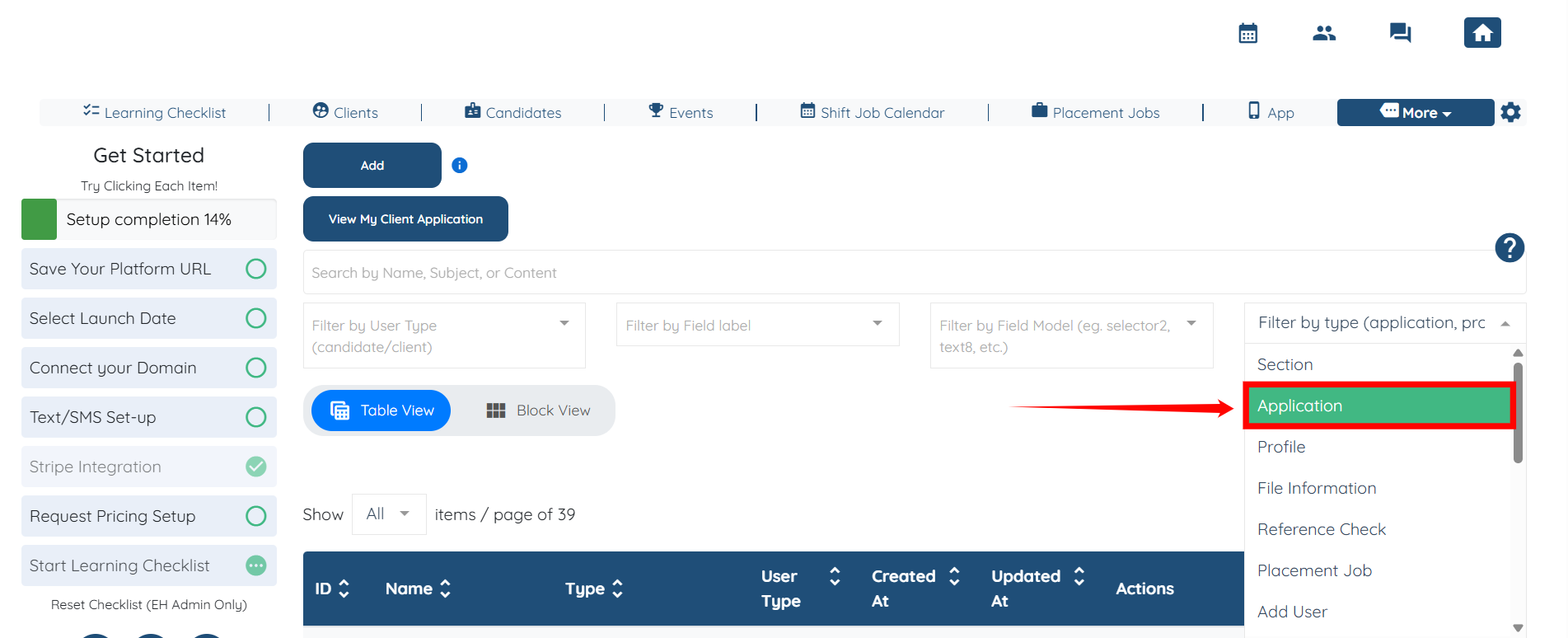
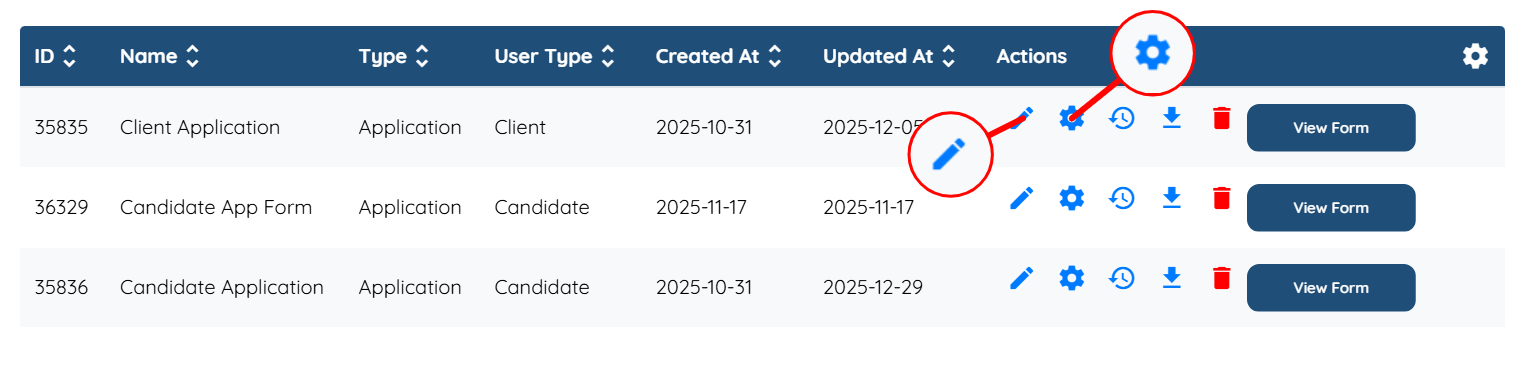
The builders will be filtered based on the application type. You can now click the View Form button corresponding to the application form you want to open.

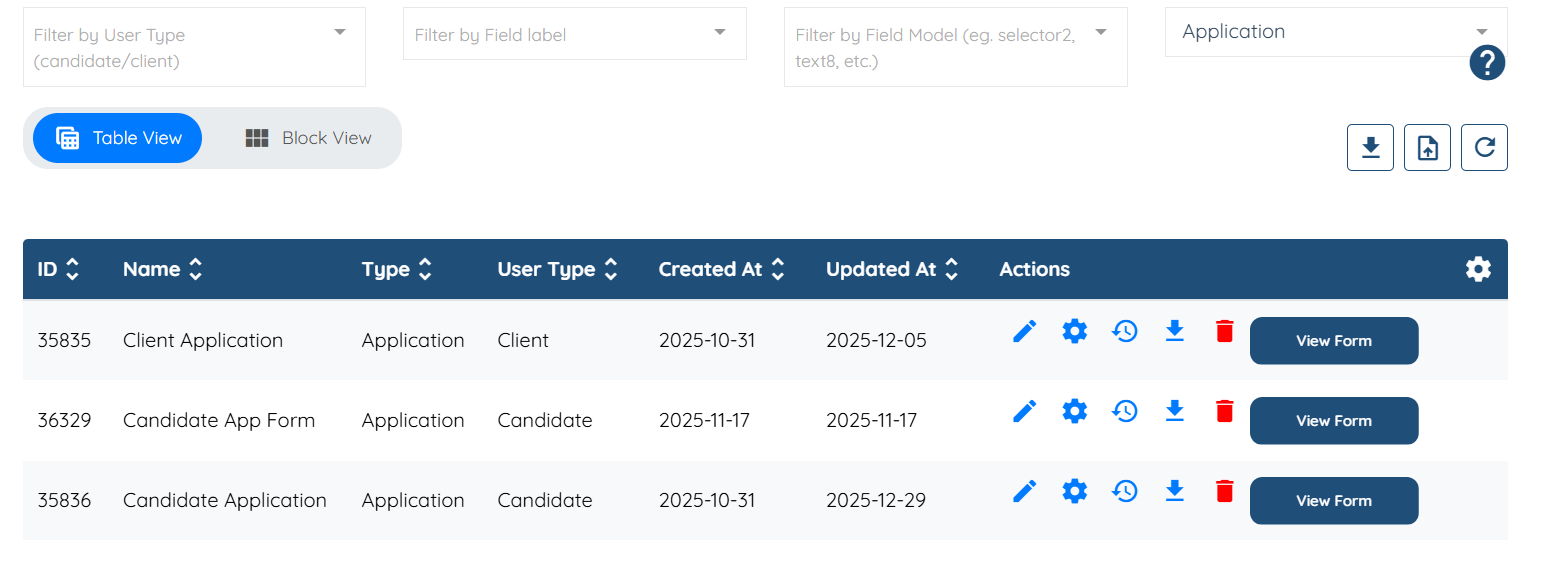
If you have only one client application and one candidate application, you can select them directly by clicking the View My Client Application button.
You can also edit any form by clicking on the corresponding Pencil icon and the Gear icon.
Step 1: Follow the same steps (1–3) outlined in the above section; however, select Profile from the dropdown list.
Step 2: You can click the Pencil Icon to adjust the Profile.
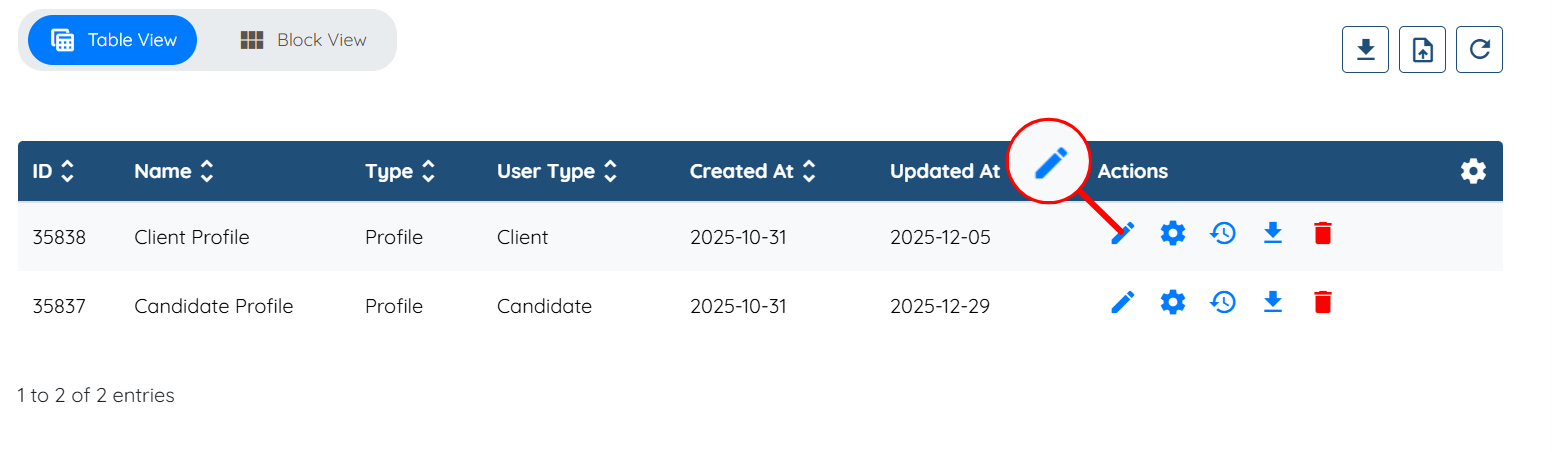
Step 3: You can click the Gear icon to adjust the Profile’s settings.
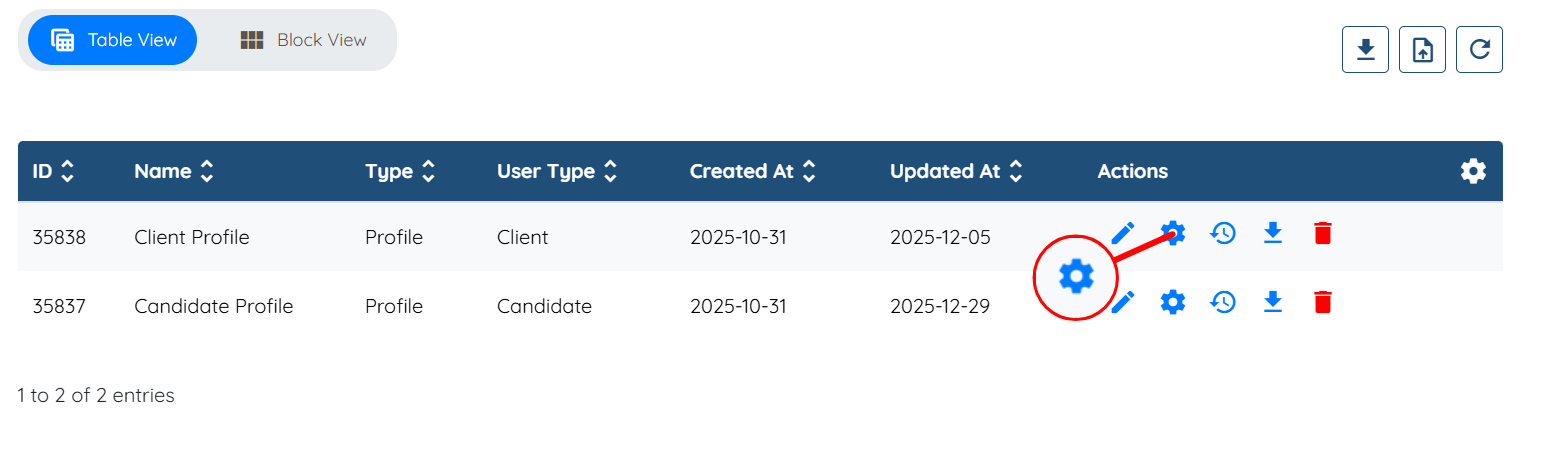
In some cases, adjusting profiles may be easier if you open a client or candidate profile and use the gear icon to make changes directly from the profile view.