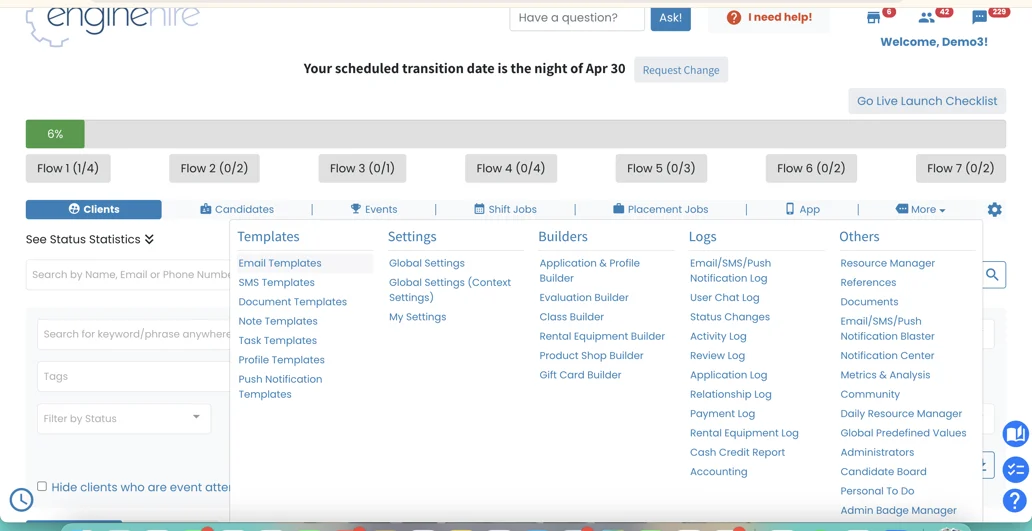
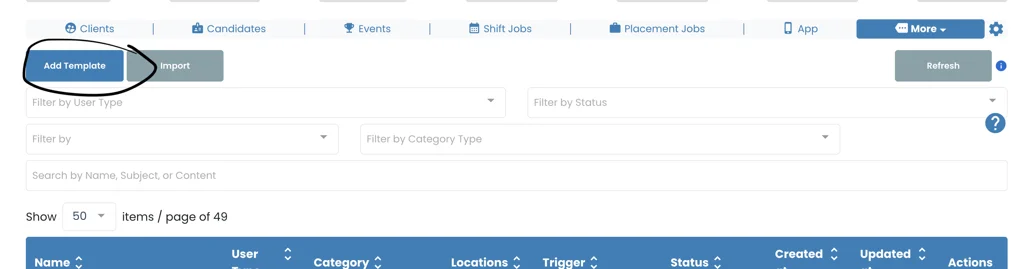
For all of these templates, name them something that makes them easily recognisable (normally the trigger is a good thing to also name the template)

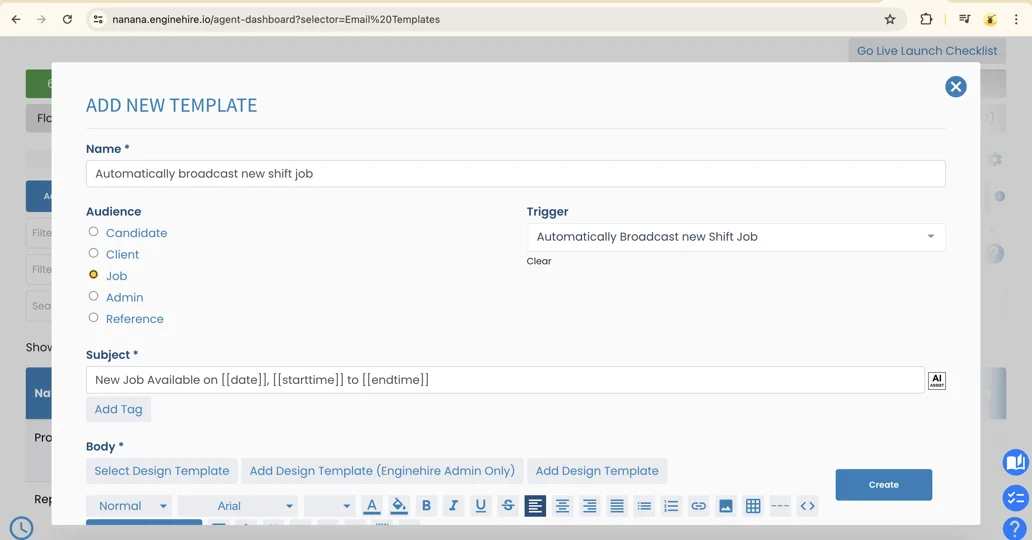
- you can add fields below by copying and pasting it into the body of the email. E.g. if you copy and paste [[date]] it will show the date of the booking to the client/candidate.
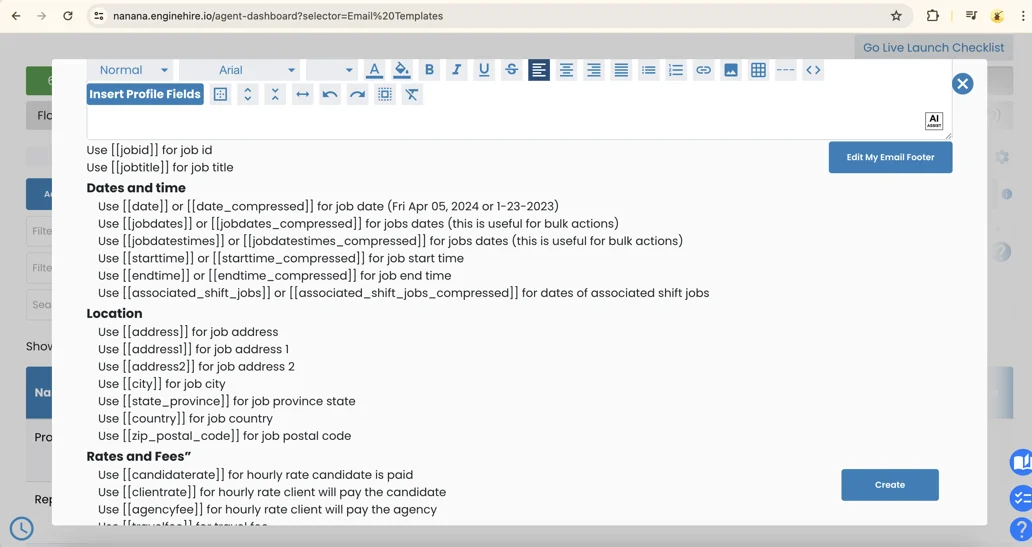
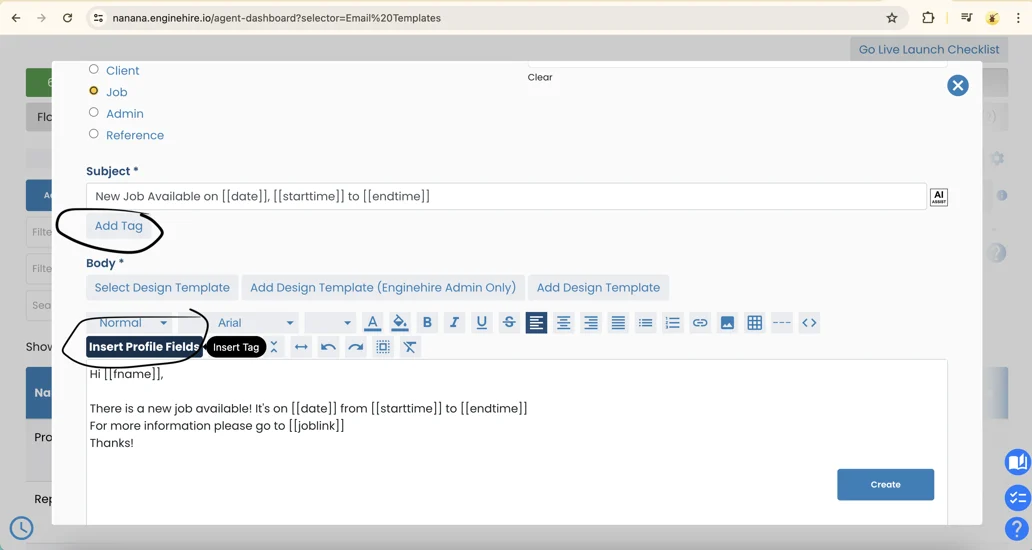
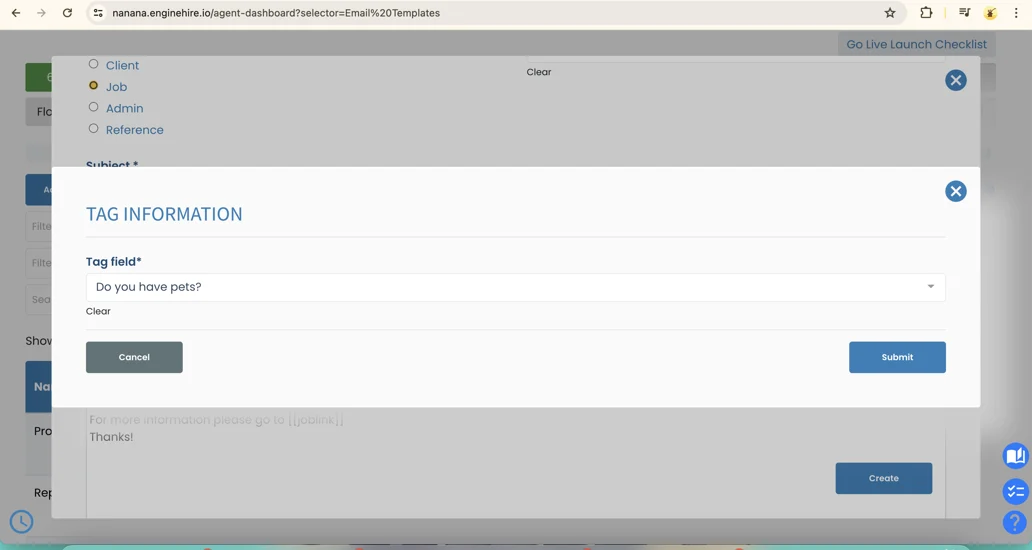
1. Automatically Broadcast new Shift Job
Functionality: when you have your settings on automatic broadcast setting on, this is the email that goes out with all details such as time/day etc.
2. Automatically Rebroadcast Shift Job
There is the ability to re-broadcast a shift job, if hasn't been filled. This template will have details such as the time/day of the shift job.
3. Shift Job Candidate Reminder
You can remind your candidates about upcoming jobs through this email template. You can set time parameters and also control how they get this notification - email/push or text via turning on the setting, here is an article on this!
4. Shift Job Client Reminder
5. Shift Job Clock In Reminder
If you require your candidates to clock in, you can remind them through creating this email to over-ride the default one!
6. Shift Job Clock Out Reminder
7. Unfilled Shift Job Client Reminder
If a shift job hasn't been been filled, you can turn on a setting which will trigger this default email. To change it, simply add a new email template. Audience = job, trigger = unfilled shift job reminder.
8. Candidate Booking Confirmation
When you assign a candidate for a shift job, this email will populate automatically. To change it, please either amend the one that is already in your email templates (it could have been put in as default) or create a new one if it isn't!
9. Shift Job Report Client Notification
This is a setting that needs to be turned on if you want your clients to report about how the shift job went.
10. Shift Job Tipping Notification
11. Shift Job Updated Candidate Notification
If a client updates the time, adds notes to a booking, the candidate will receive this email.
12. Shift Job Unassigned Candidate Notification
When you unassign a candidate, this email will be sent out to them.
13. Job Assigned To Other Candidate Applicant Notification
14. Shift Job Declined Client Notification
This email template will help notify your candidates that their shift job application got declined and help them apply to other available shift jobs.
15. Shift Job Accepted Client Notification
This template is not for when you assign a candidate, it is when they 'accept' a booking. If you have your broadcast settings on in which clients can select who they want to send the booking to and the candidates accept - this is the email that is sent to them.
16. Shift Job Accepted Candidate Notification
If you would like your candidate to know they've been accepted by the client for a shift job, this template is the one for you!
17. Shift Job Interested Client Notification
If you would like your clients to know if a candidate is 'interested' in their shift job, you can use this trigger to over-ride the default email.
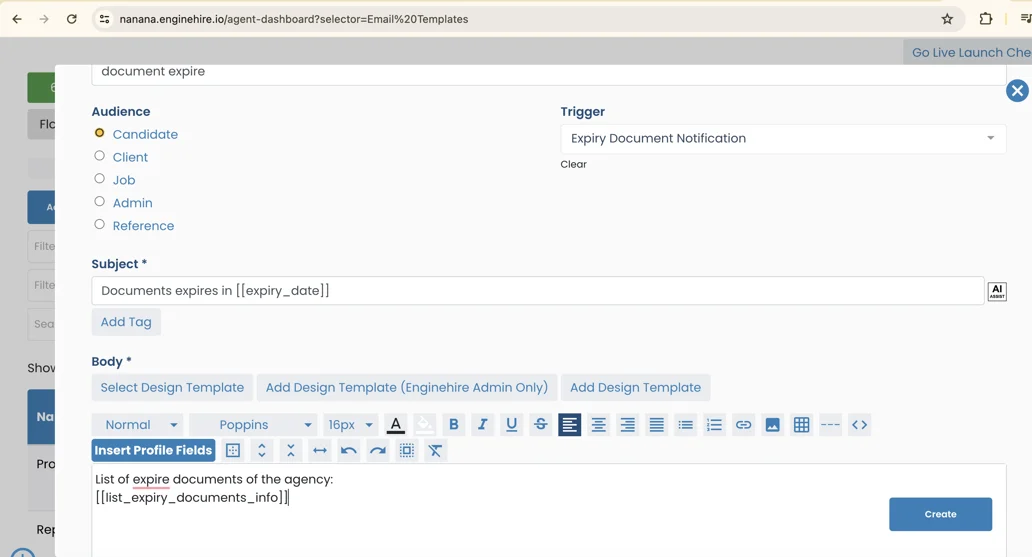
1. Expirying Document Notification (email going to candidate)
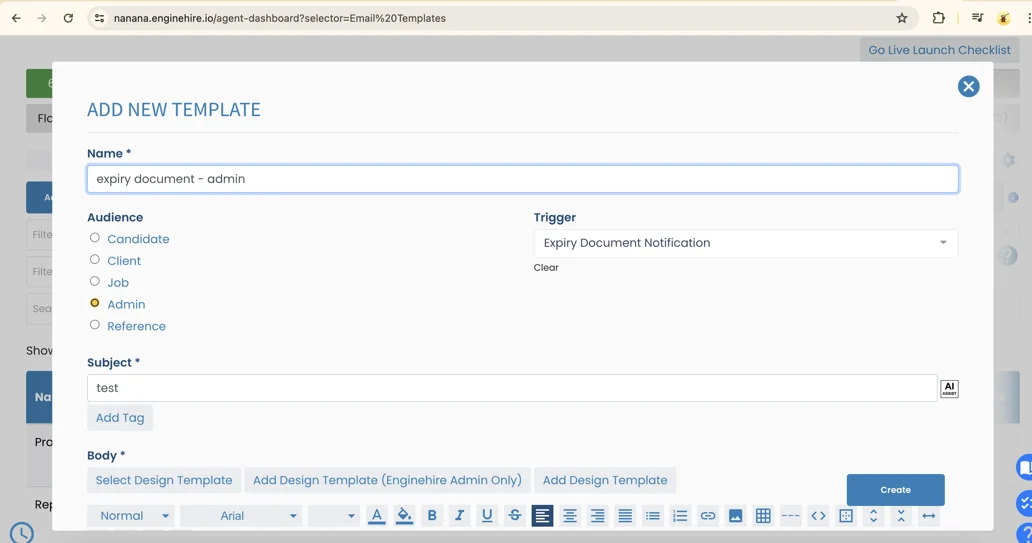
2. Expiry Document Notification (for admin)
3. Payment submitted Notification
4. Expiry document notification
Voila! Good luck setting them up and if you have any questions, please don't hesitate to contact customer support via the below form.
If this doesn't answer your questions you can always contact us by clicking here