Let’s get started 🚀
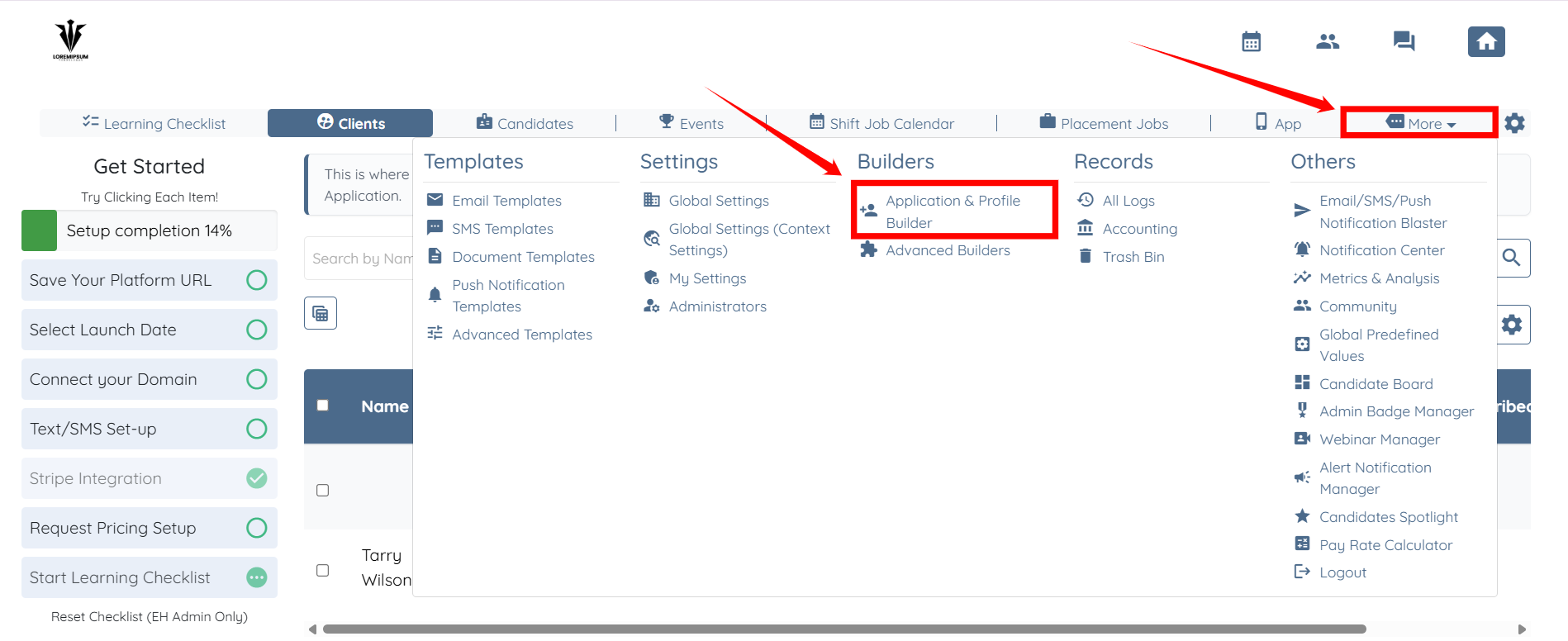
Step 1: Log in to your agent dashboard and click More > Application & Profile Builder, as shown in the screenshot.
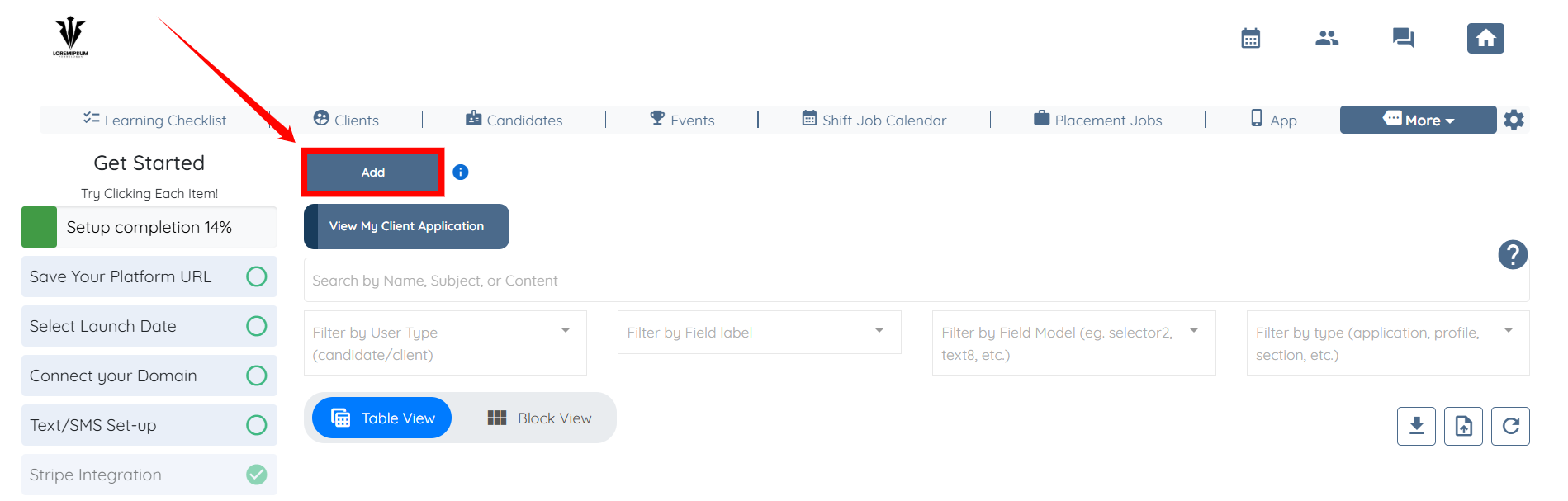
Step 2: Click the Add button to begin adding a new section for credit packages and memberships.

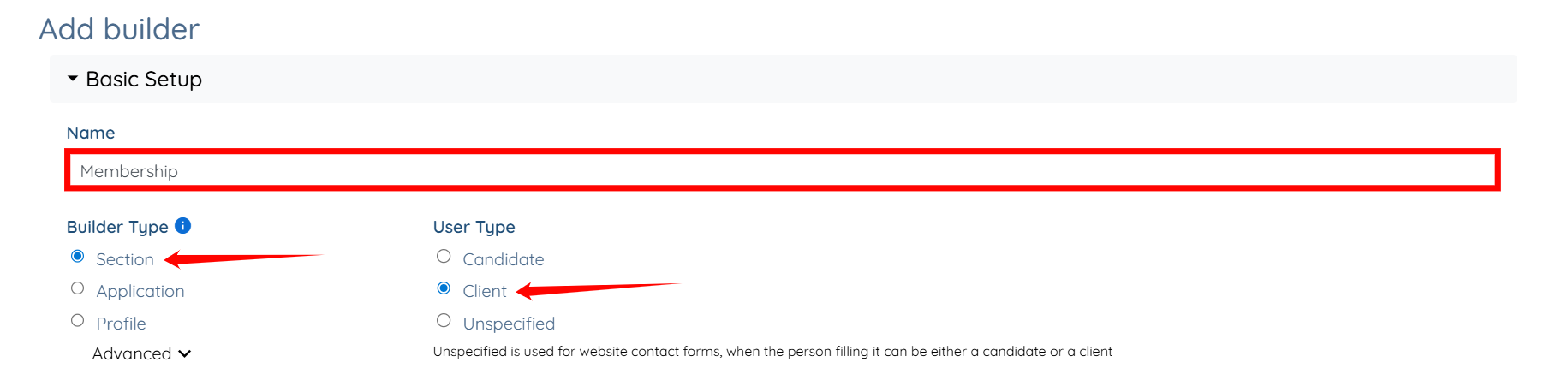
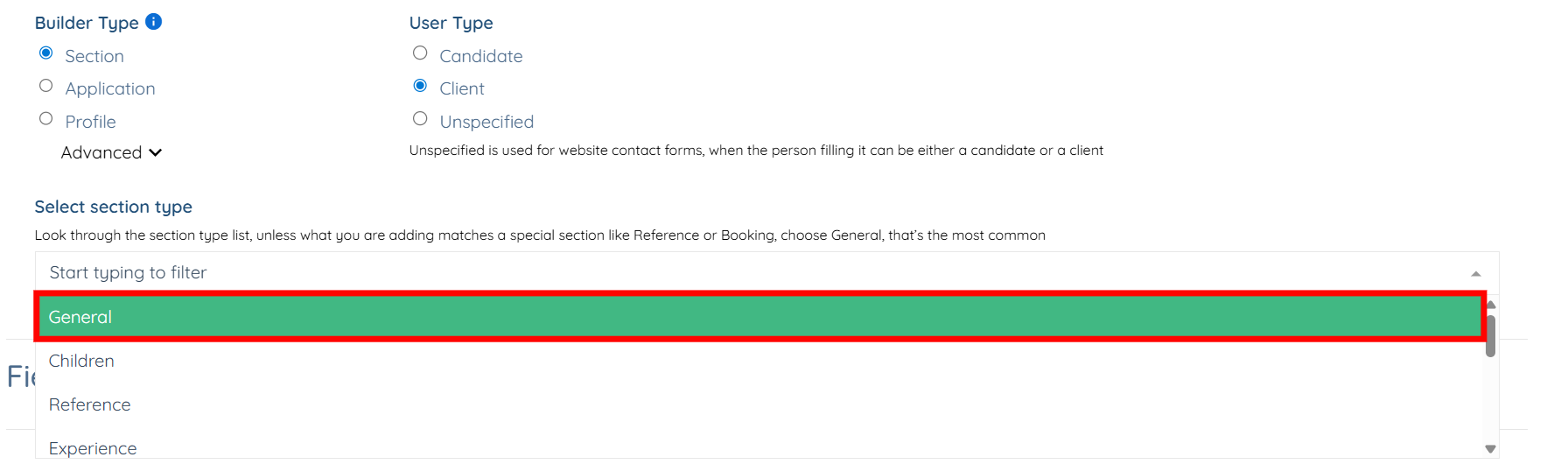
Step 3: Enter a name for your section, select Section as the Builder Type, and then select Client as the User Type.
Step 4: Select General from the drop-down list as the section type.
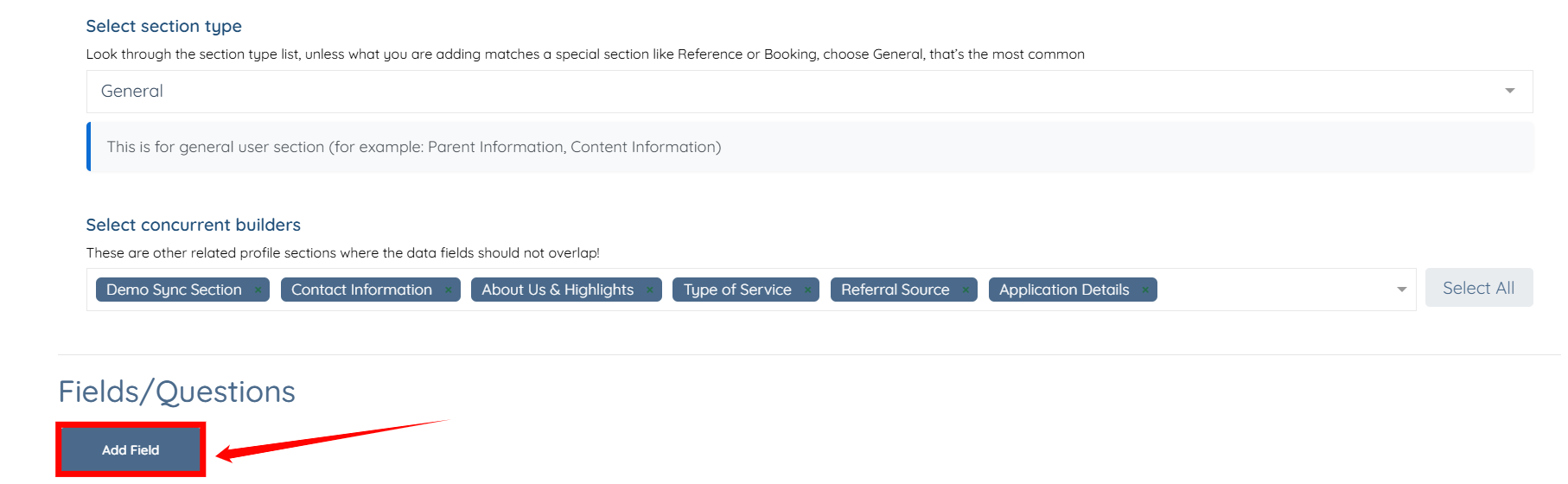
Step 5: Click the Add Field button to begin adding a new question.
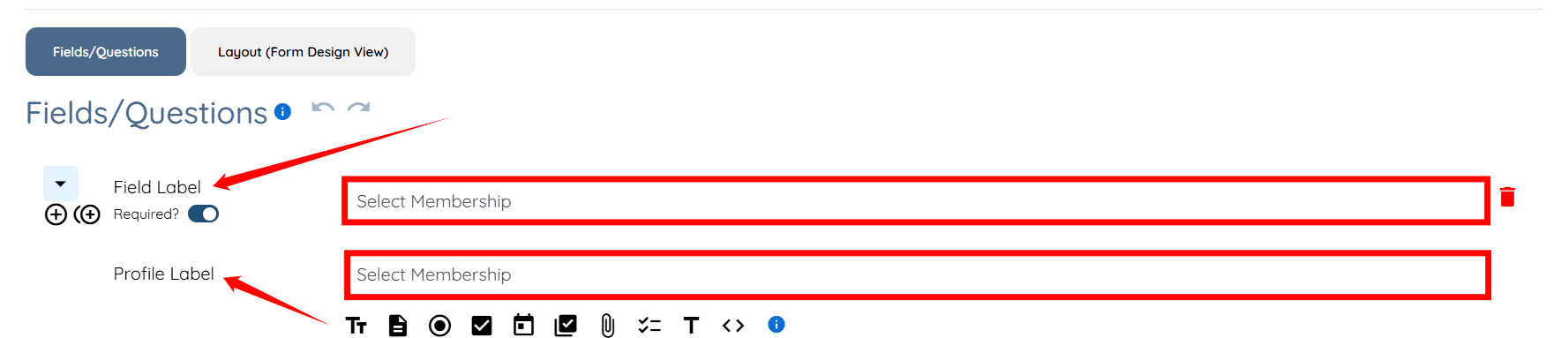
Step 6: Enter the Field Label and Profile Label for your question.
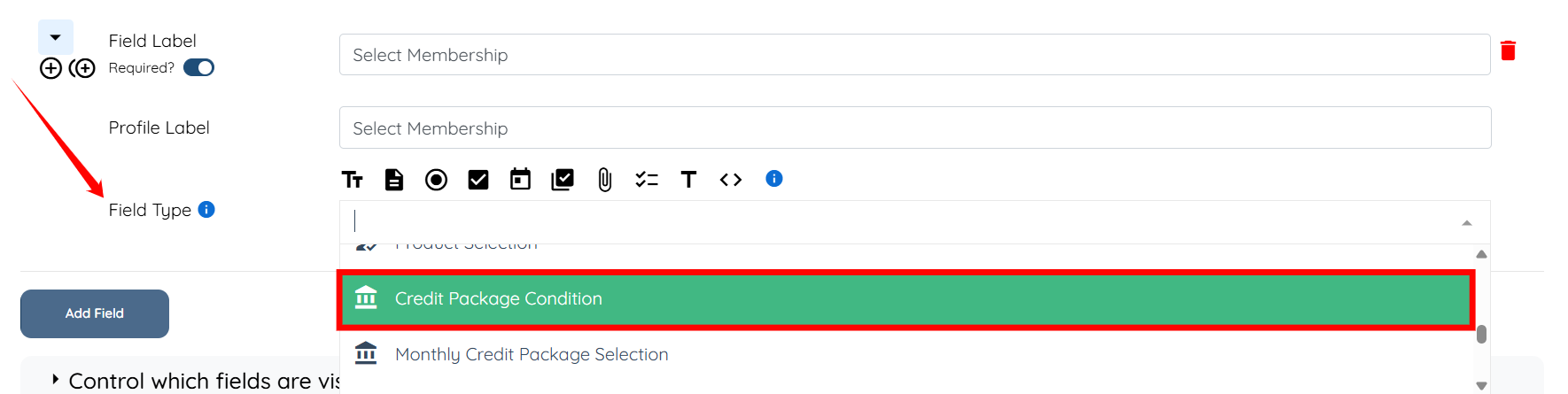
Step 7: Select Credit Package Condition for the Field Type.
When adding packages into a section, you’ll see two different options depending on how you want to structure billing and credits:
This option allows you to assign credits to a client based on the package they select and charge them accordingly.
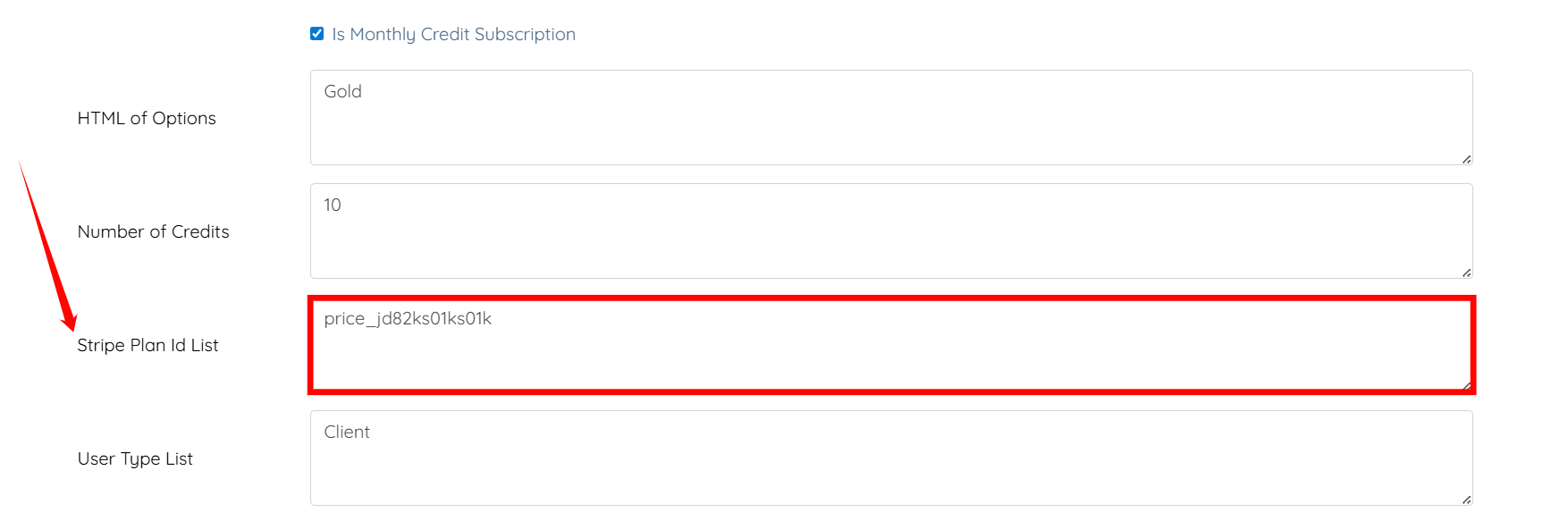
If you want the credits to renew monthly, select “Is monthly credit subscription.” When enabled, you’ll need to enter the Stripe ID code so the package renews automatically in Stripe each month.
If you only want it to be a one-time charge for credits (no renewal), simply leave the monthly credit subscription box unchecked.
Example: A family selects a $50 package that includes 5 booking credits.
With monthly subscription checked: they’ll be charged $50 each month and receive 5 new credits monthly.
Without monthly subscription: they’ll be charged $50 once and receive 5 credits one time.
This option is used when you want to charge clients a recurring fee without giving them credits.
Perfect for memberships or access fees such as monthly or yearly plans.
Clients pay the recurring amount, but no booking credits are included.
Example: A $50 monthly membership fee that gives families access to your agency’s services, but booking credits must be purchased separately.
Step 8: Check the Is Monthly Credit Subscription checkbox if you want your membership to be billed on a monthly basis; otherwise, leave it unchecked.
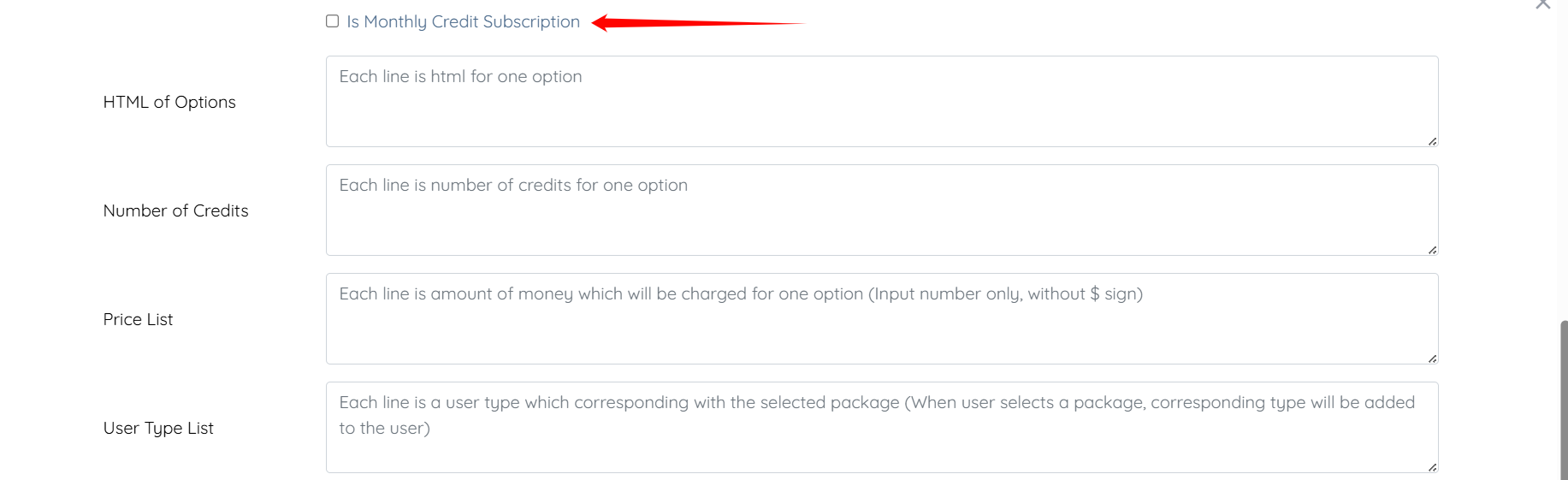
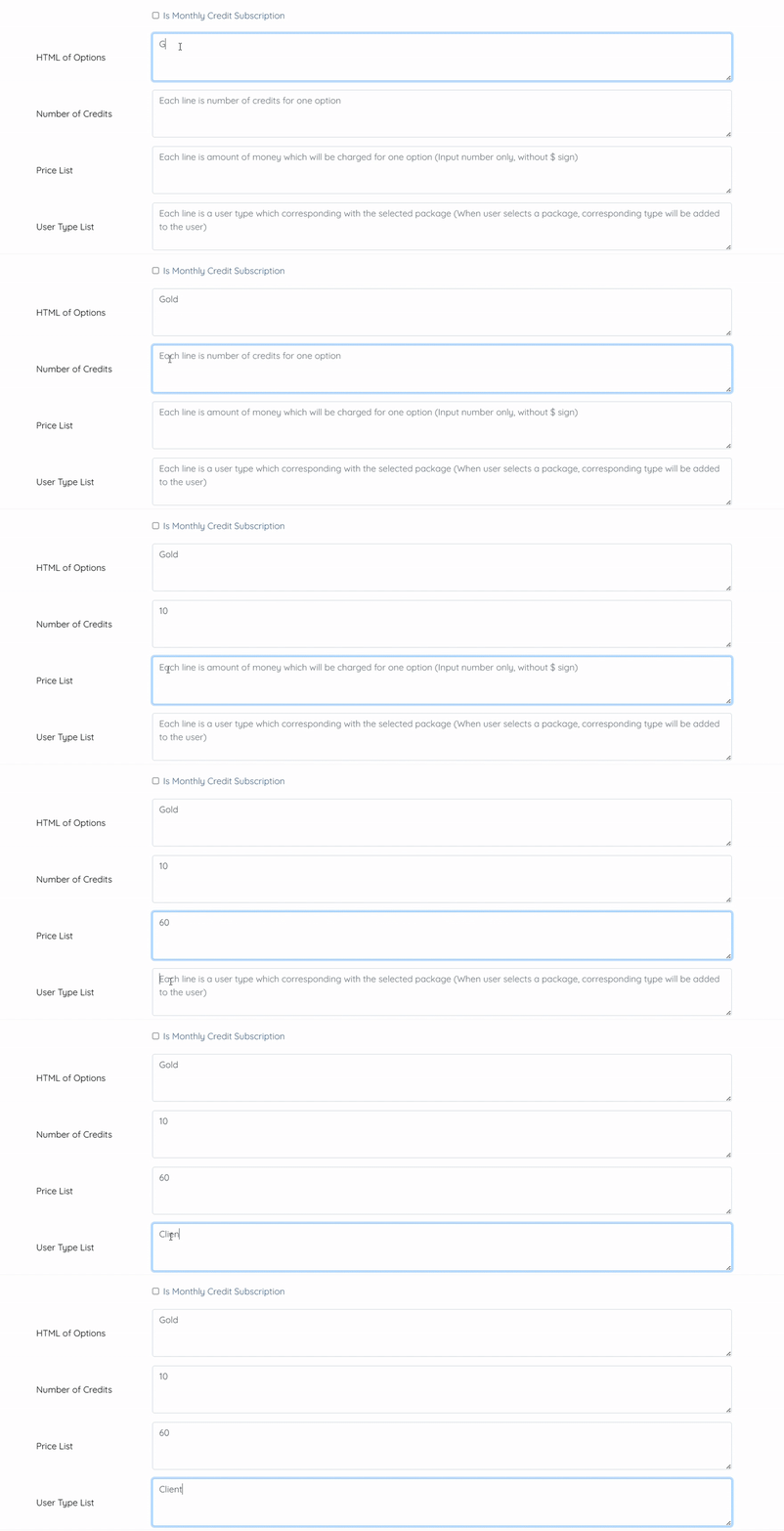
Step 9: Enter the options you need to provide in the credit package, then add the Number of Credits, the Price List, and the User Type List for each option.
If you checked the Is Monthly Credit Subscription checkbox in Step 8, you must set up the membership codes in Stripe and then use those codes in the Stripe Plan Id List field for each option you listed.
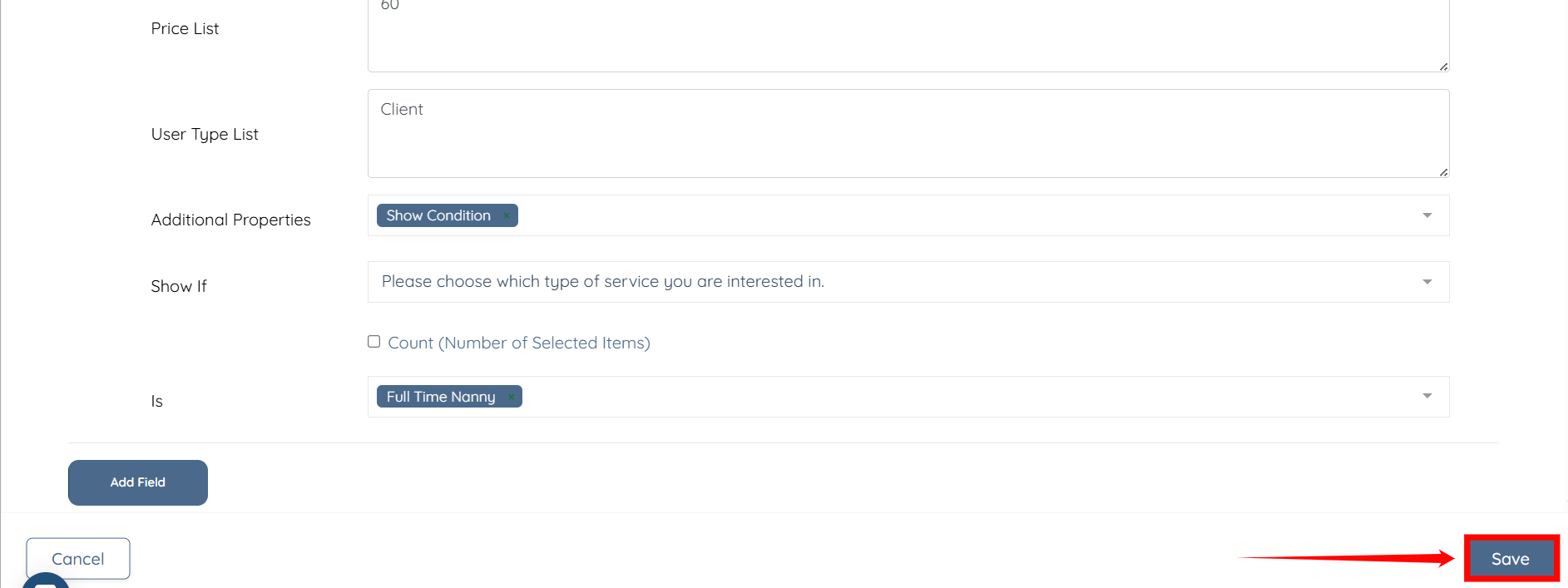
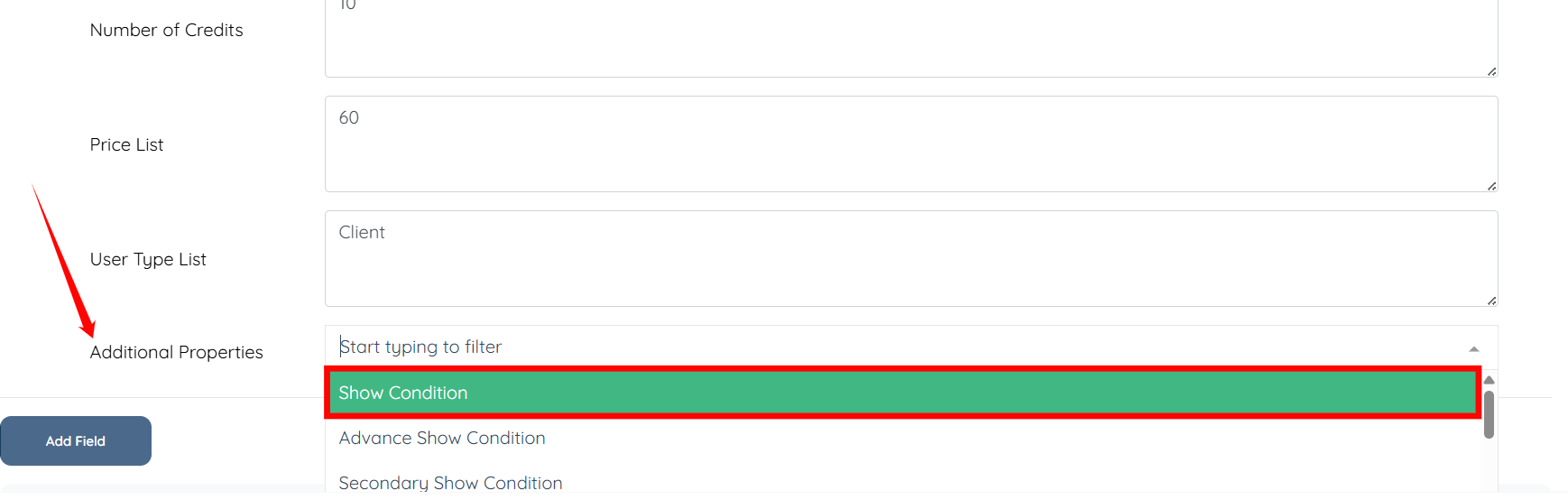
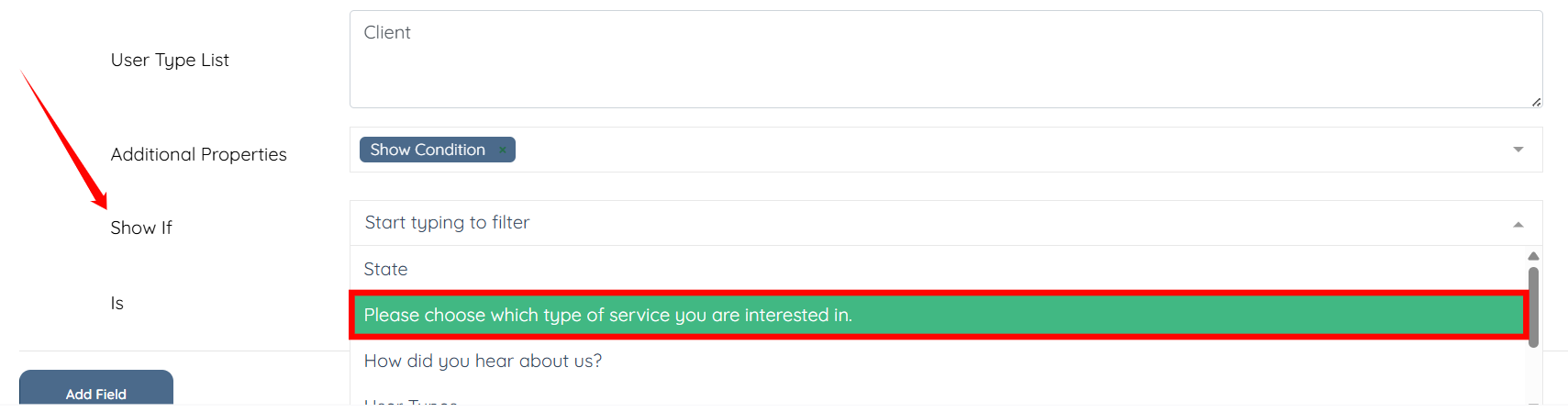
Step 10: In the Additional Properties field, select the Show Condition option from the dropdown list.
Step 11: Select Please choose which type of service you are interested in from the dropdown list for the Show If field.
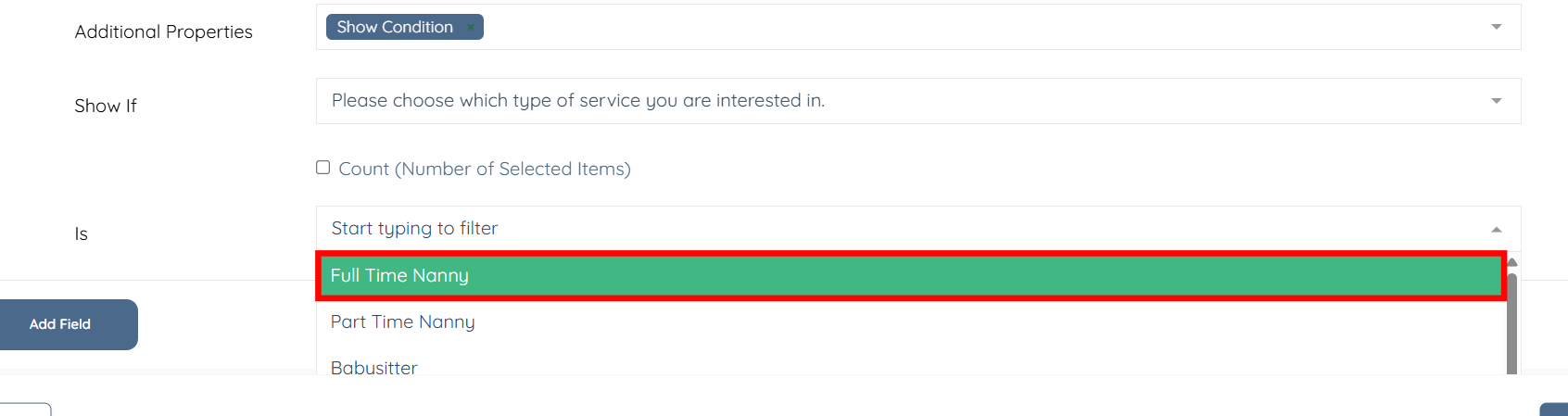
Step 12: Select the option for which you want to display this membership question, for example, Full Time Nanny.
Step 13: Click the Save button to proceed.