
Let’s get started 🚀
Step 1: Log in to your agent dashboard and click on any of the clients from the list.
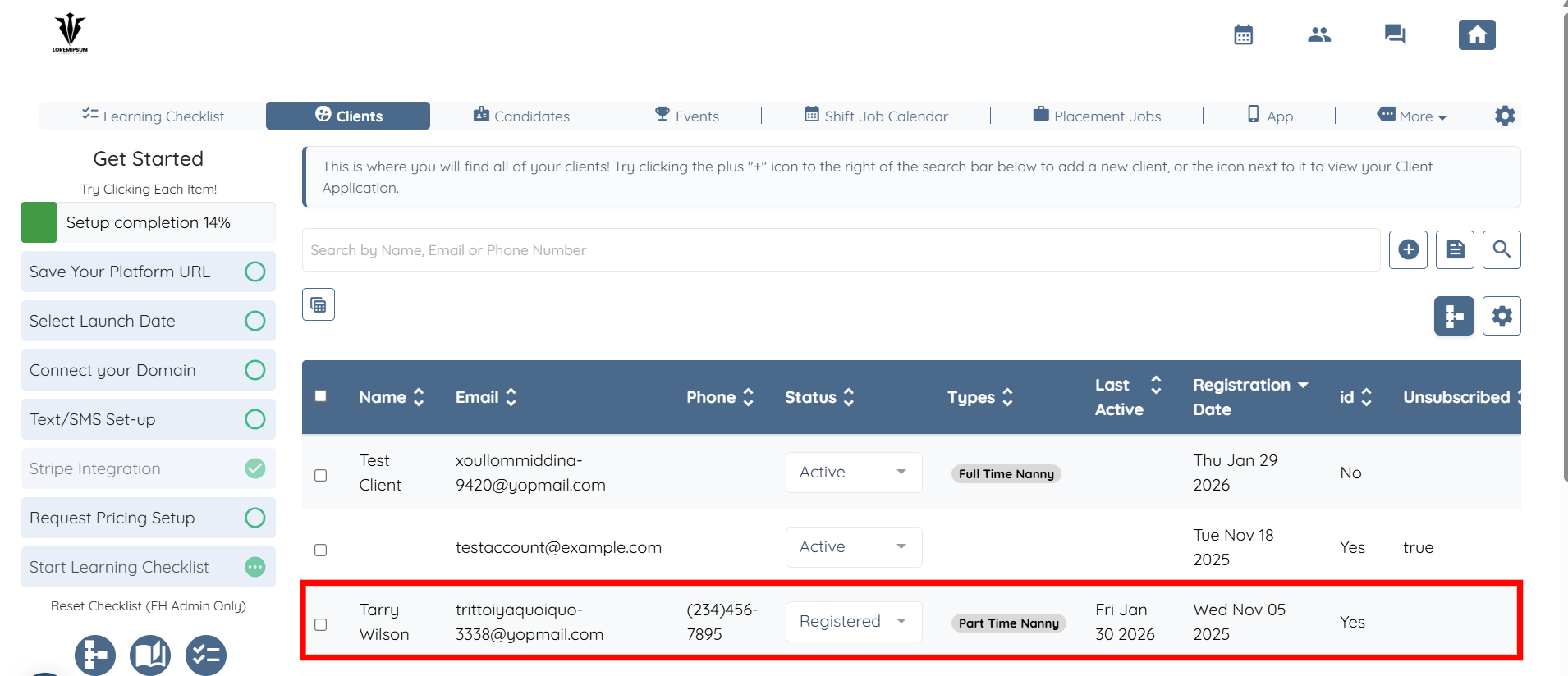
Step 2: Navigate to the client profile by clicking the Profile tab.
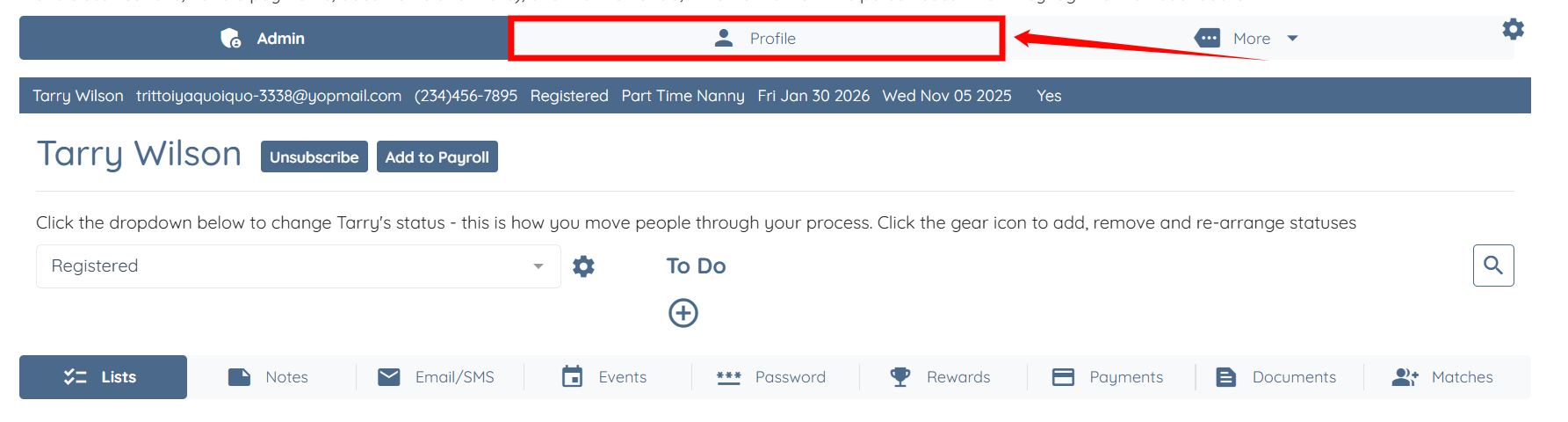
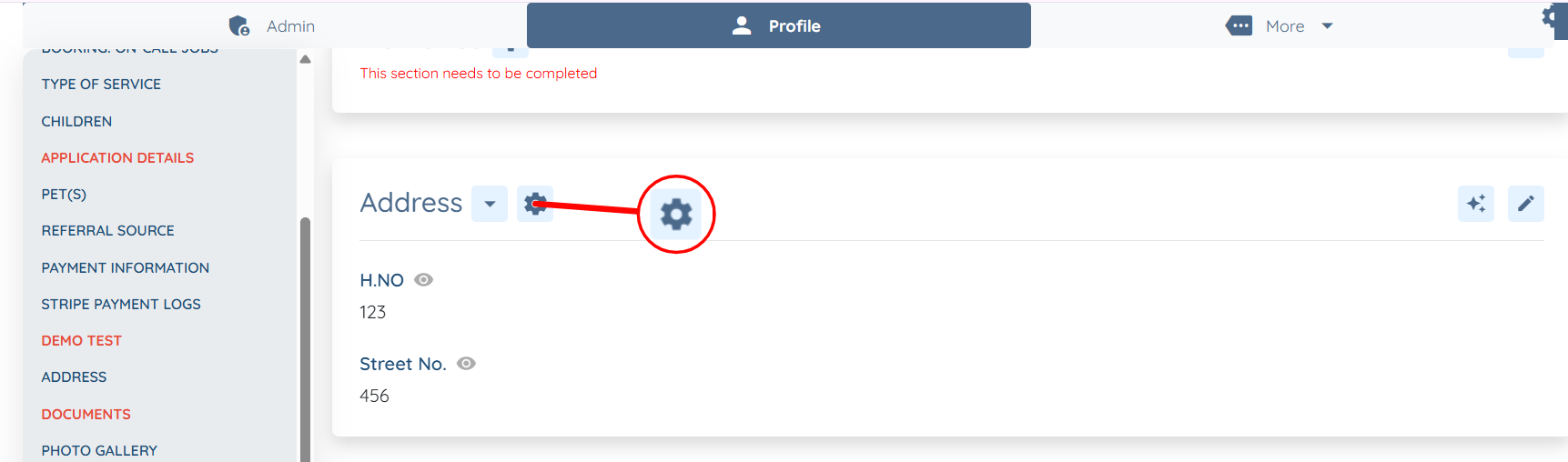
Step 3: Locate the section in the client profile from which you want to move the information of a field to a new one. Then, click the Gear icon next to the section name.
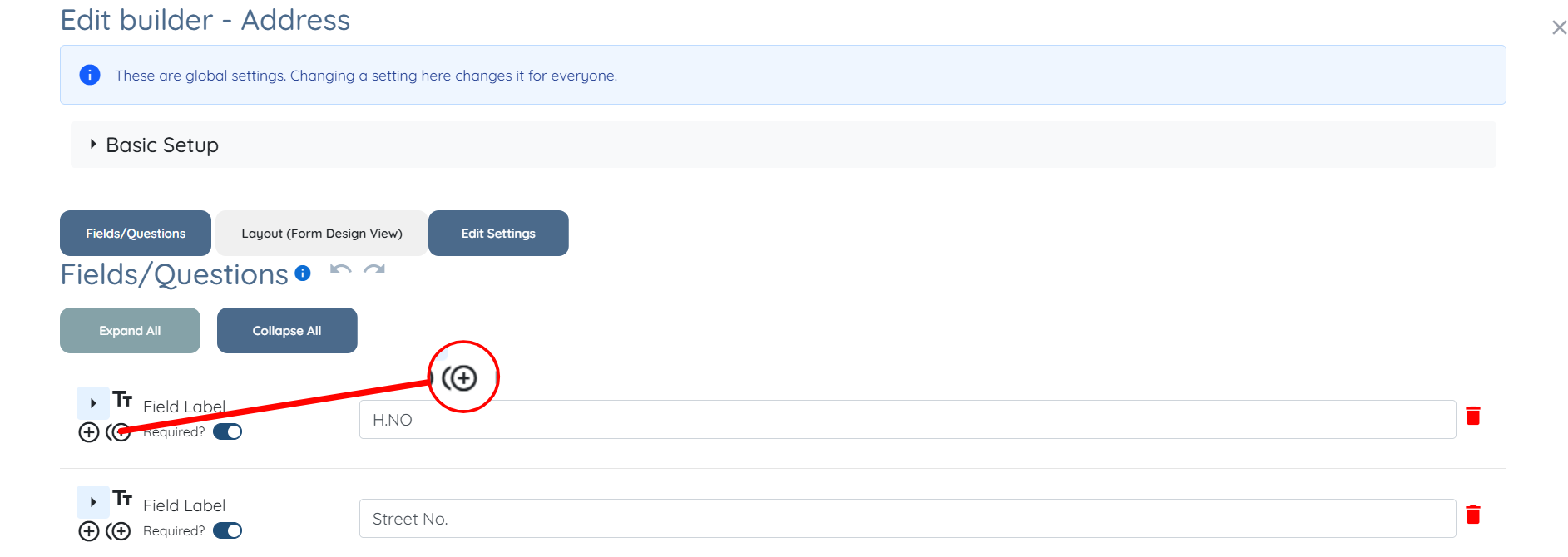
Step 4: Scroll down and click the Duplicate icon shown in the screenshot below of the field whose information you want to move.
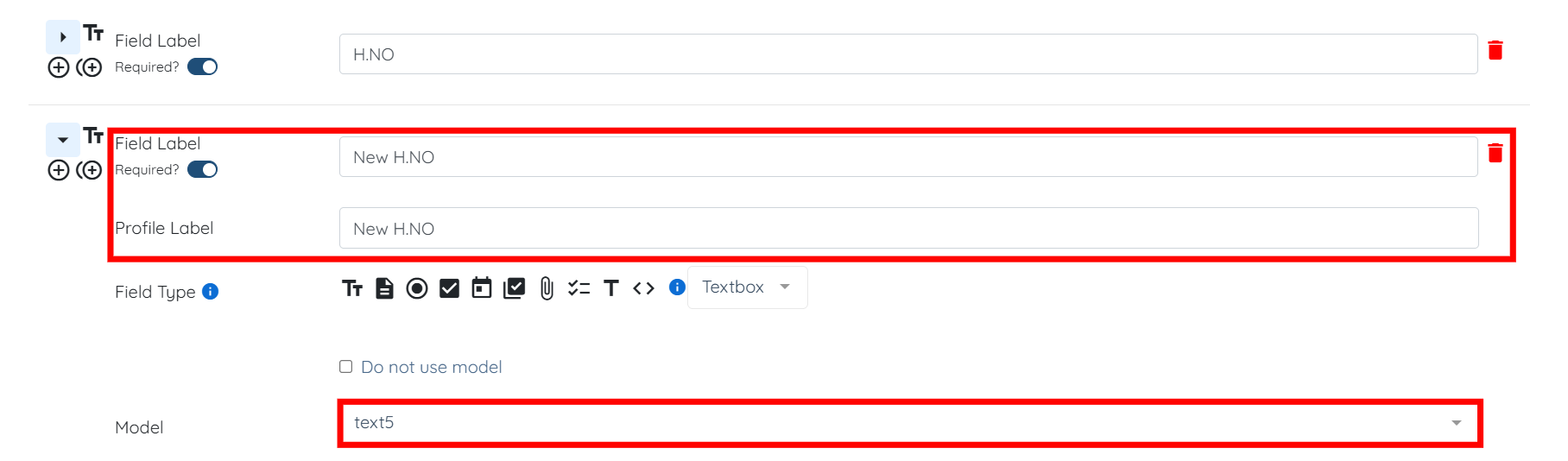
Step 5: Modify the Field Label and Profile Label of the newly duplicated field. Then select the new model in the Model field to move the information to it.
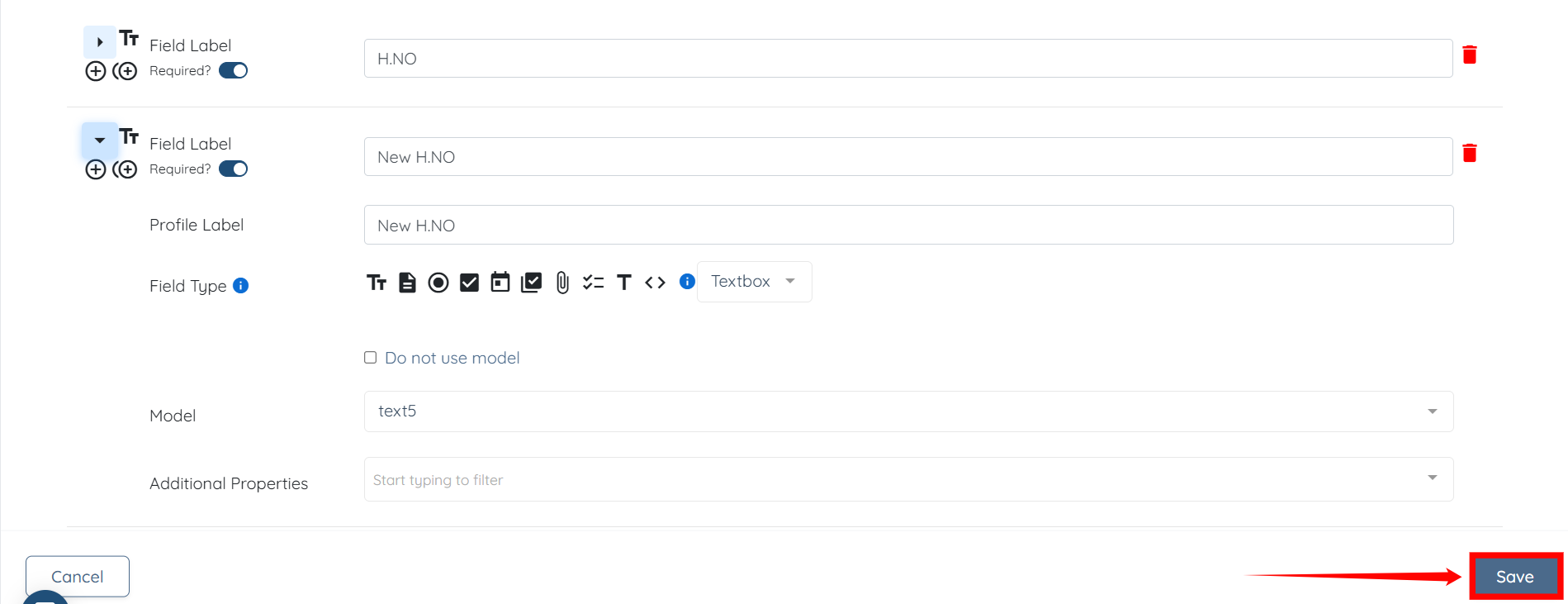
Step 6: Click the Save button to confirm the changes.
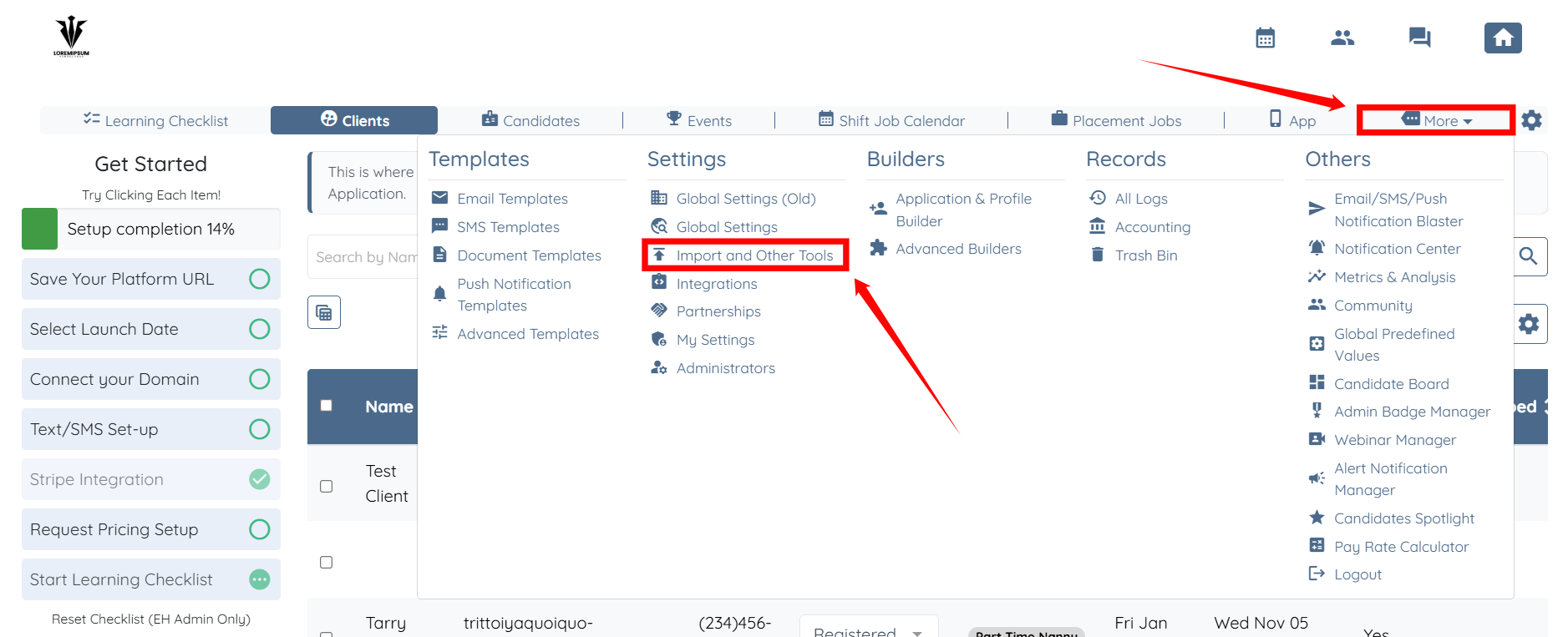
Step 7: On your agent dashboard, click More, then select Import and Other Tools, as shown in the screenshot below.
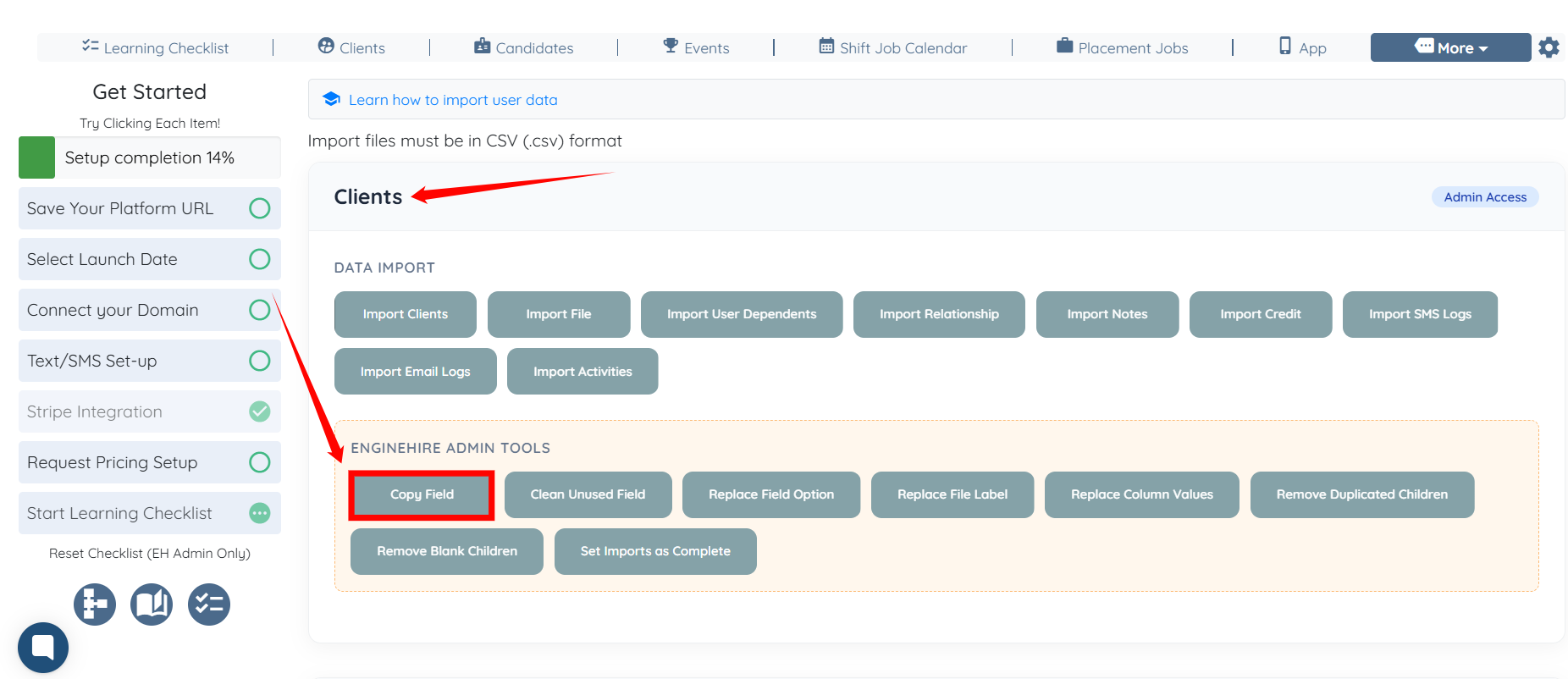
Step 8: Click the Copy Field button located under the Clients section.
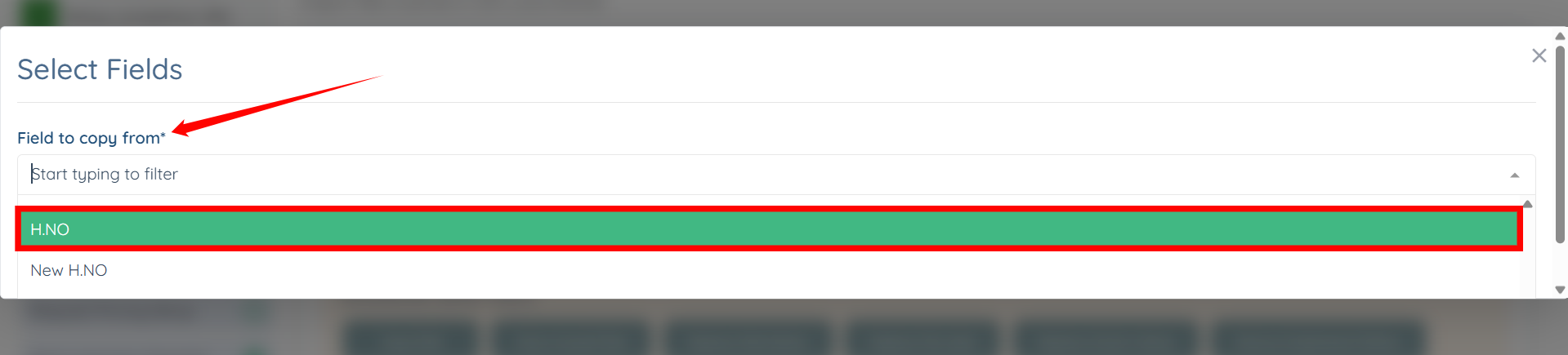
Step 9: Select the field from the dropdown list that you want to copy the information from.
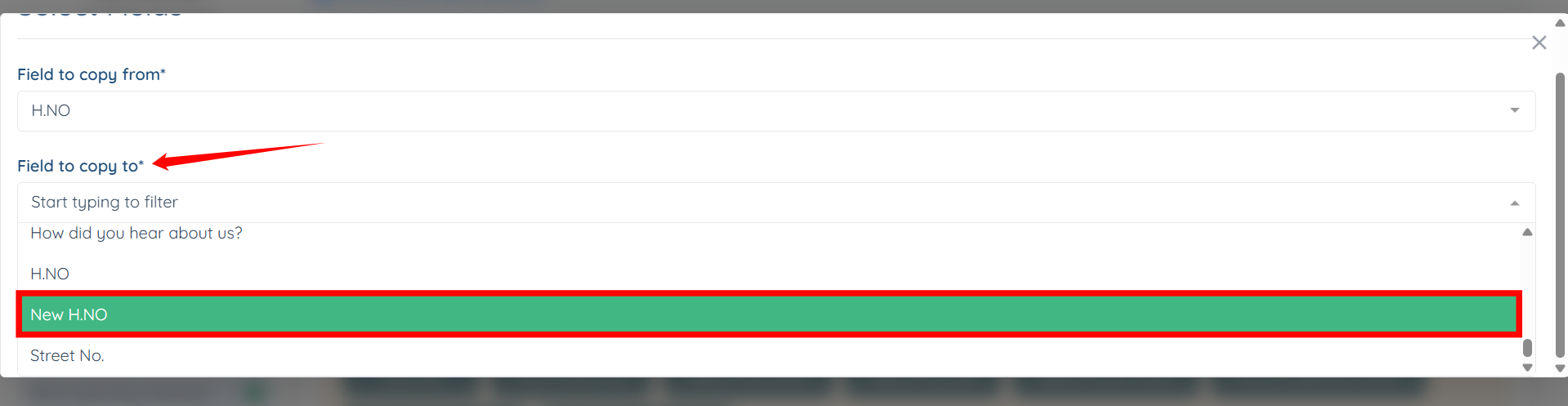
Step 10: Select the field from the dropdown list where you want to copy the information.
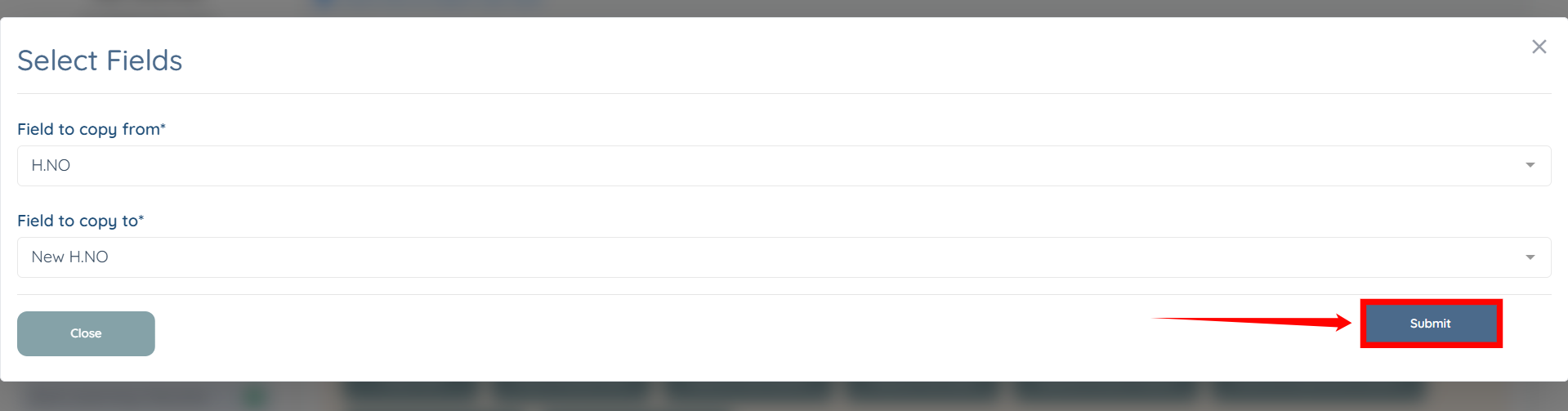
Step 11: Click the Submit button to confirm the changes.
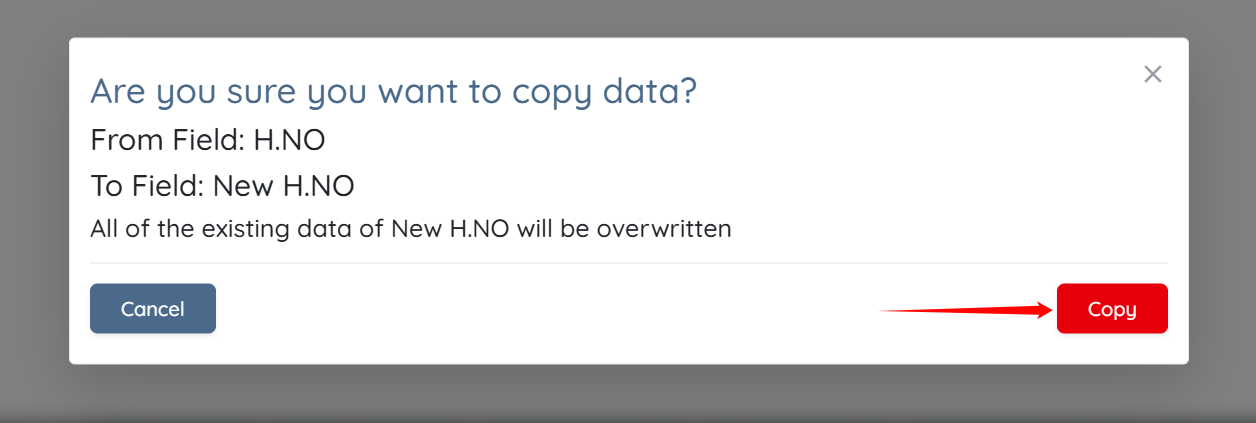
Step 12: Click the Copy button to continue.
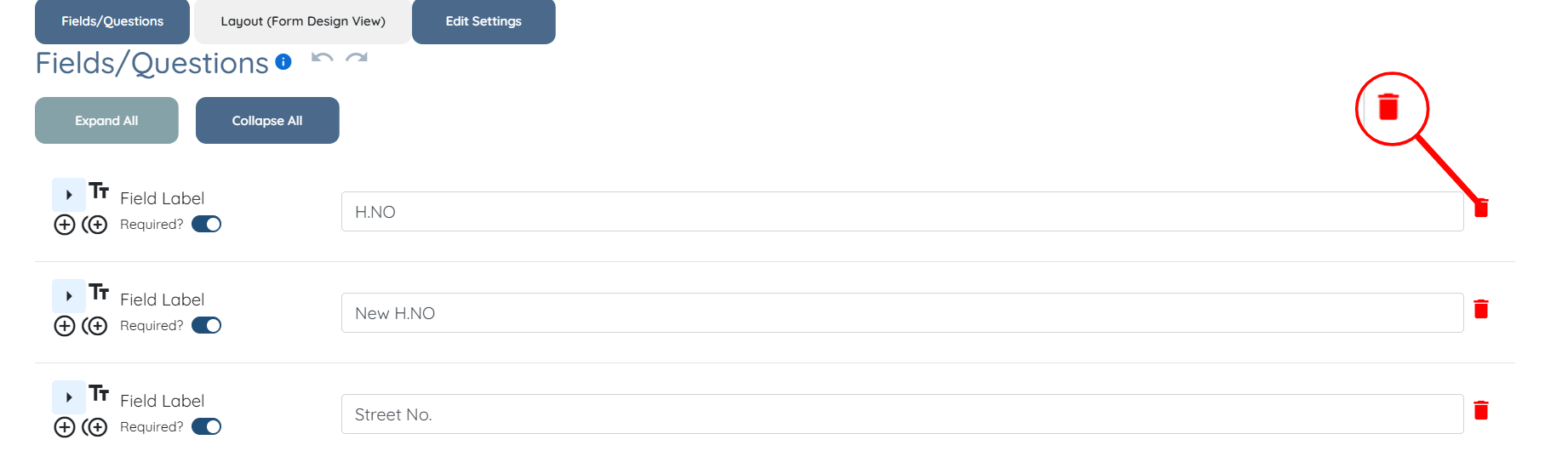
Step 13: You should now delete the old field by clicking the trash icon.
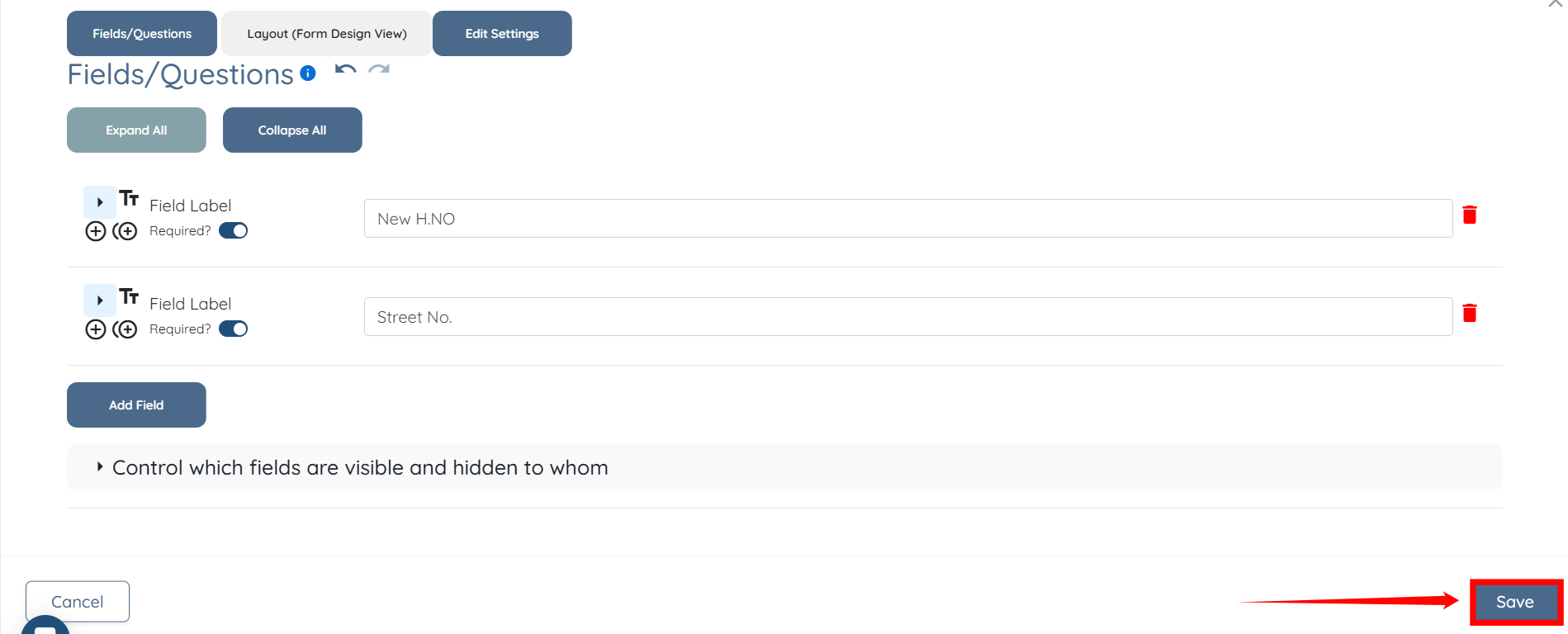
Step 14: Click the Save button to confirm the changes.
If this doesn't answer your questions you can always contact us by clicking here
