
You may be wondering why this step is necessary once again. Apple typically releases new agreements approximately every two months, making it essential for you to accept their most current agreements.
Case 1: Steps to Complete the Pending Agreement (PLA)
Step 1: Go to Apple Developer Portal
Open your browser and go to: https://developer.apple.com
Step 2: Sign In to Your Account
Click on Account at the top right.
Log in using the Apple ID credentials of the Account Holder (only the Account Holder can accept agreements).
Step 3: Locate the Agreement Notification
Once logged in, you'll see a notice saying:
"The program license agreement need to be Accept."
Click the blue “Review” button as shown in the highlighted box.

Step 4: Accept the Updated Agreement
A popup window will appear with the new Apple Developer Program License Agreement.
Scroll through the agreement if needed.
Click "Agree" or "Accept" at the bottom to finalize.

Step 5: Confirmation
Once accepted, the notification will disappear.
If you don’t see the “Review” button for the PLA agreement (Case 1), it might be due to another pending action. In that case, please follow the steps under Case 2 to complete any other pending agreements or actions.
Case 2: Steps to Complete the Pending Action
Go to Apple App Store Connect
Visit Apple App Store Connect.
Login with the AppleID and password used to register for your developer account.
Navigate to Business
Click on the "Business" section.
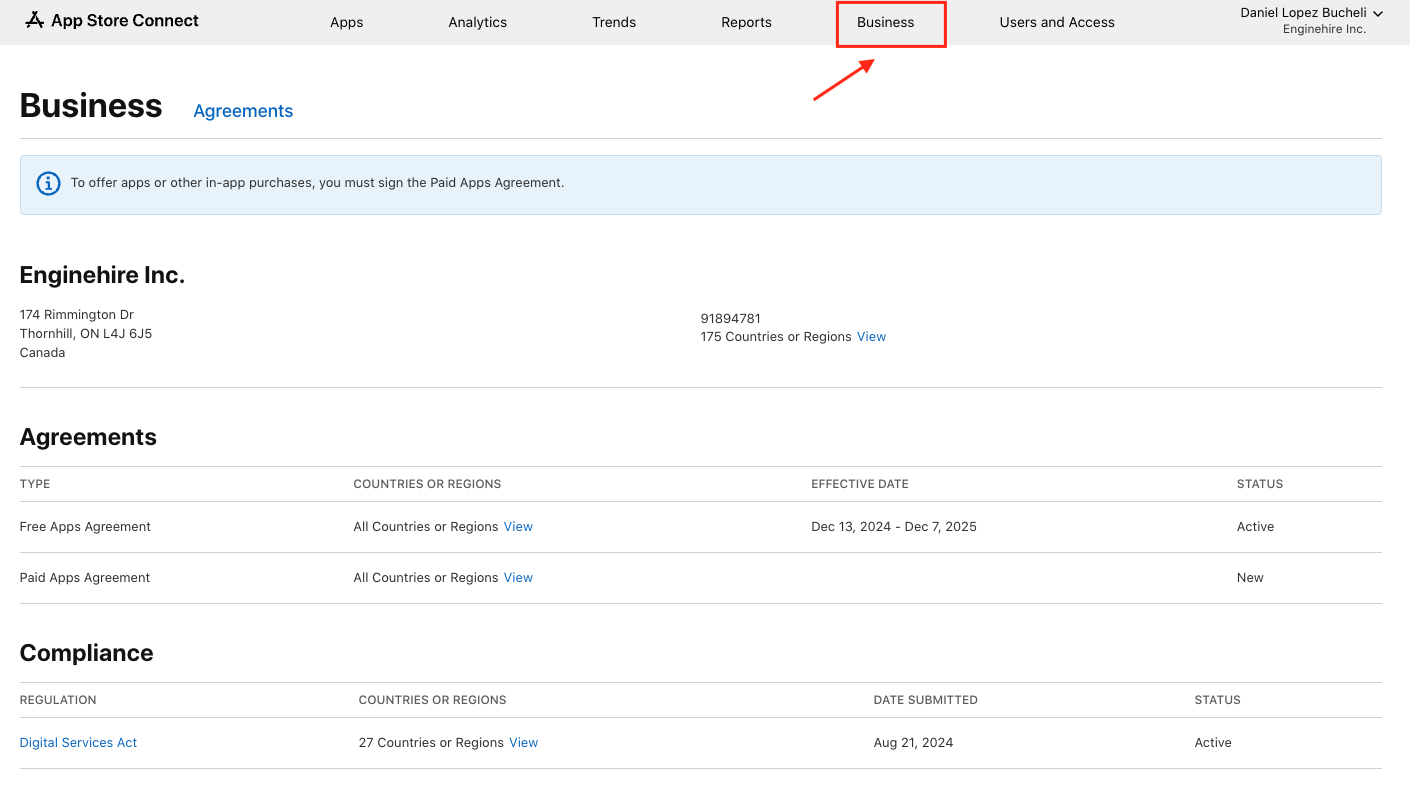
Scroll to Agreements
Scroll down to the "Agreements" and "Compliance" section.
4. Accept the Free Apps Agreements
Click on the "Free Apps Agreements" and accept them.
Note: You do not need to sign the Paid Apps Agreement.
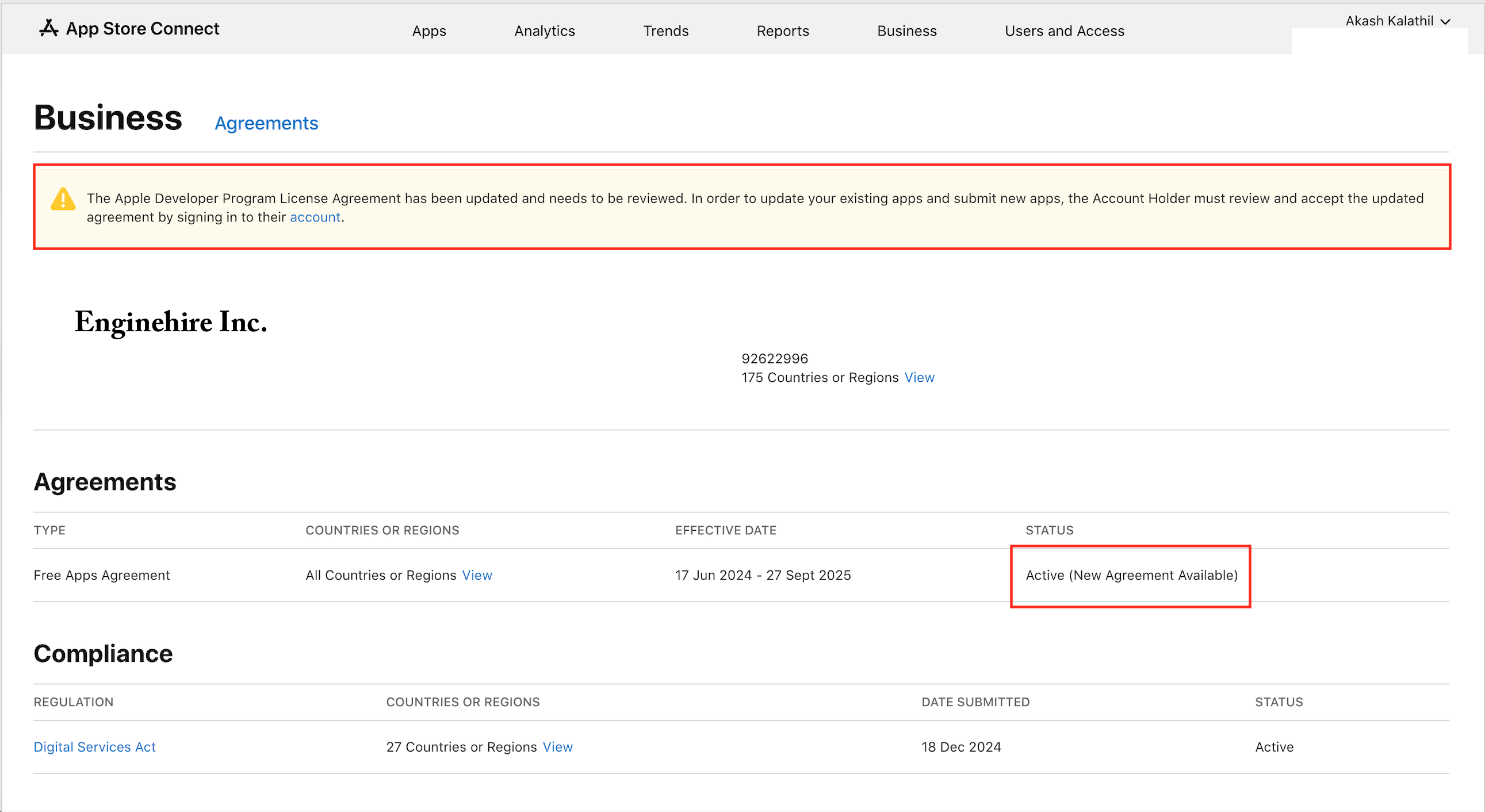
5. Verify that there are no outstanding agreements remaining.
Make sure you have fulfilled all the necessary agreements and compliance requirements, excluding the Paid Apps Agreement.
Importance of Completing This Action
Completing this action is crucial as it will enable us to submit updates to your apps. Without this step, we will be unable to proceed with the necessary updates and improvements.