
Here’s an example of a field remark. Let’s go through the steps to add it.
Step 1:
Go to MORE-> Application and Profile Builder
Step 2:
Once there, look for the section from where you want to add the field remark and click the edit / pencil icon of the section.
Step 3:
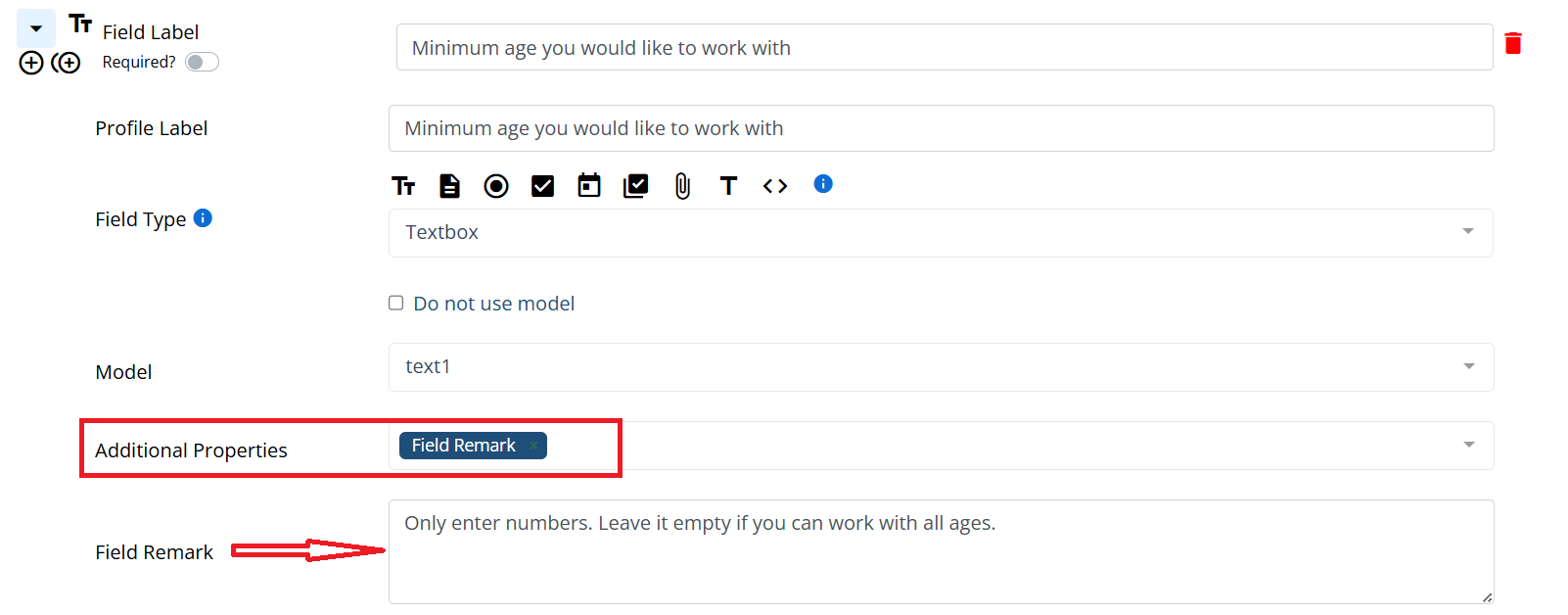
Look for the field you want to add a field remark. Example - "Minimum age you would like to work with"
Under Additional Properties select "Field remark"
Field Remark - Enter required information in this text area, example - Only enter numbers. Leave it empty if you can work with all ages.
Result - This is how you will see a field remark on application form,
The following video is from a previous interface but the information is still accurate.
If this video doesn't answer your questions you can always contact us by clicking here