
When a new user account is created in the system:
1. It will generate a unique, complex password (12 random characters, including letters, numbers, and symbols).
2. Email the password to the account holder's email address upon account creation.
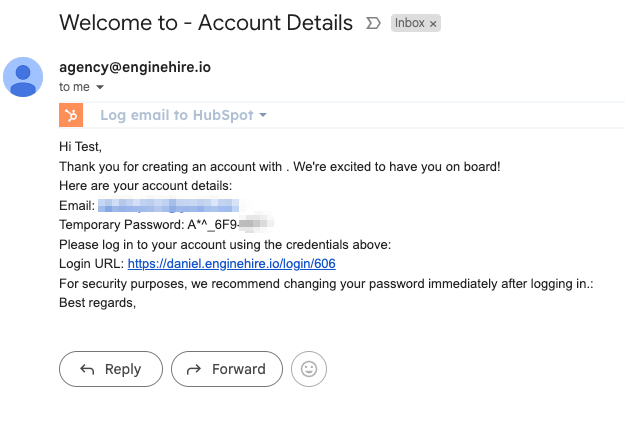
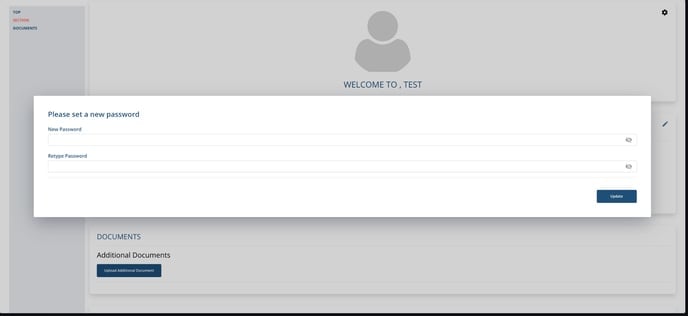
3. Force a password reset upon the first login. It cannot be skipped.
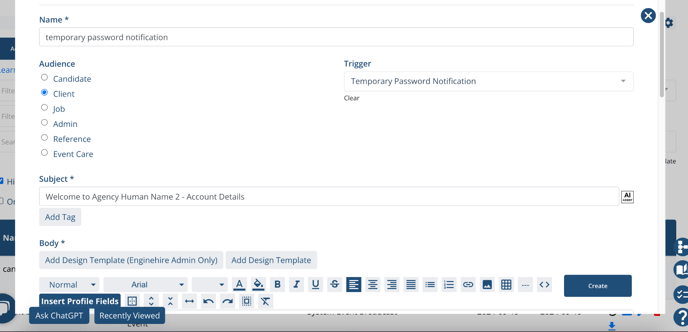
Email template for the temporary secure password
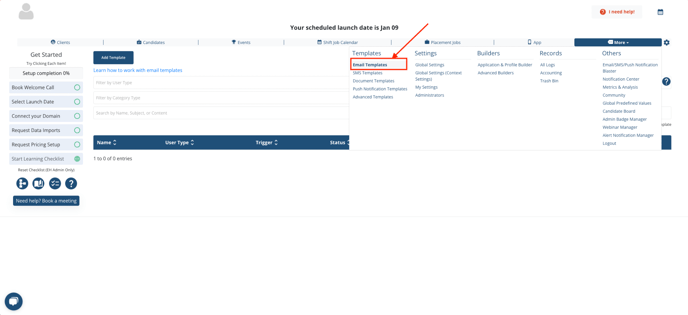
If you wish to modify the email sent to new account holders, please go to More > Templates > Email Templates and create a new template with the setup provided below.
For Existing Accounts
To reset their password to a more secure one:
1. Please choose the users whose passwords you would like to reset and click on “Bulk Set Random Password”
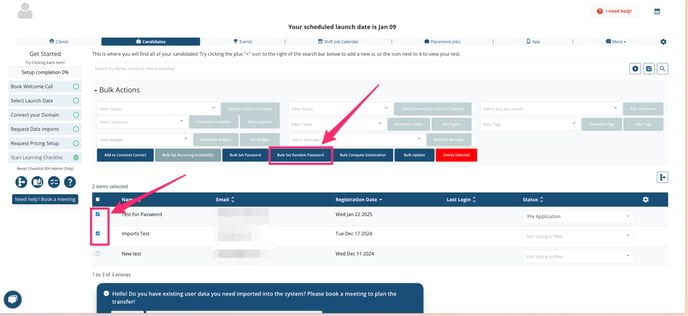
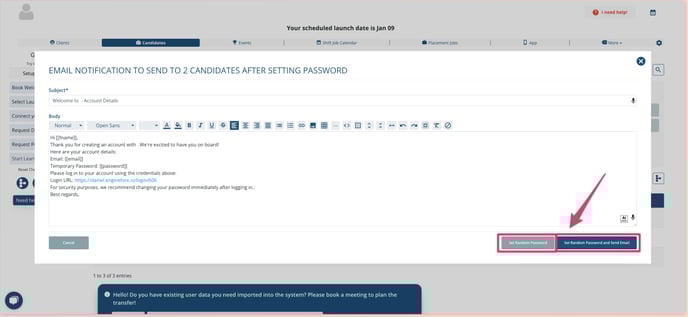
2. To reset a user's password and send them a notification, click on “Set Random Password and Send Email.” However, if you want to reset the password without notifying the user—such as when temporarily blocking access—click on “Set Random Password” instead.
If this doesn't answer your questions you can always contact us by clicking here.