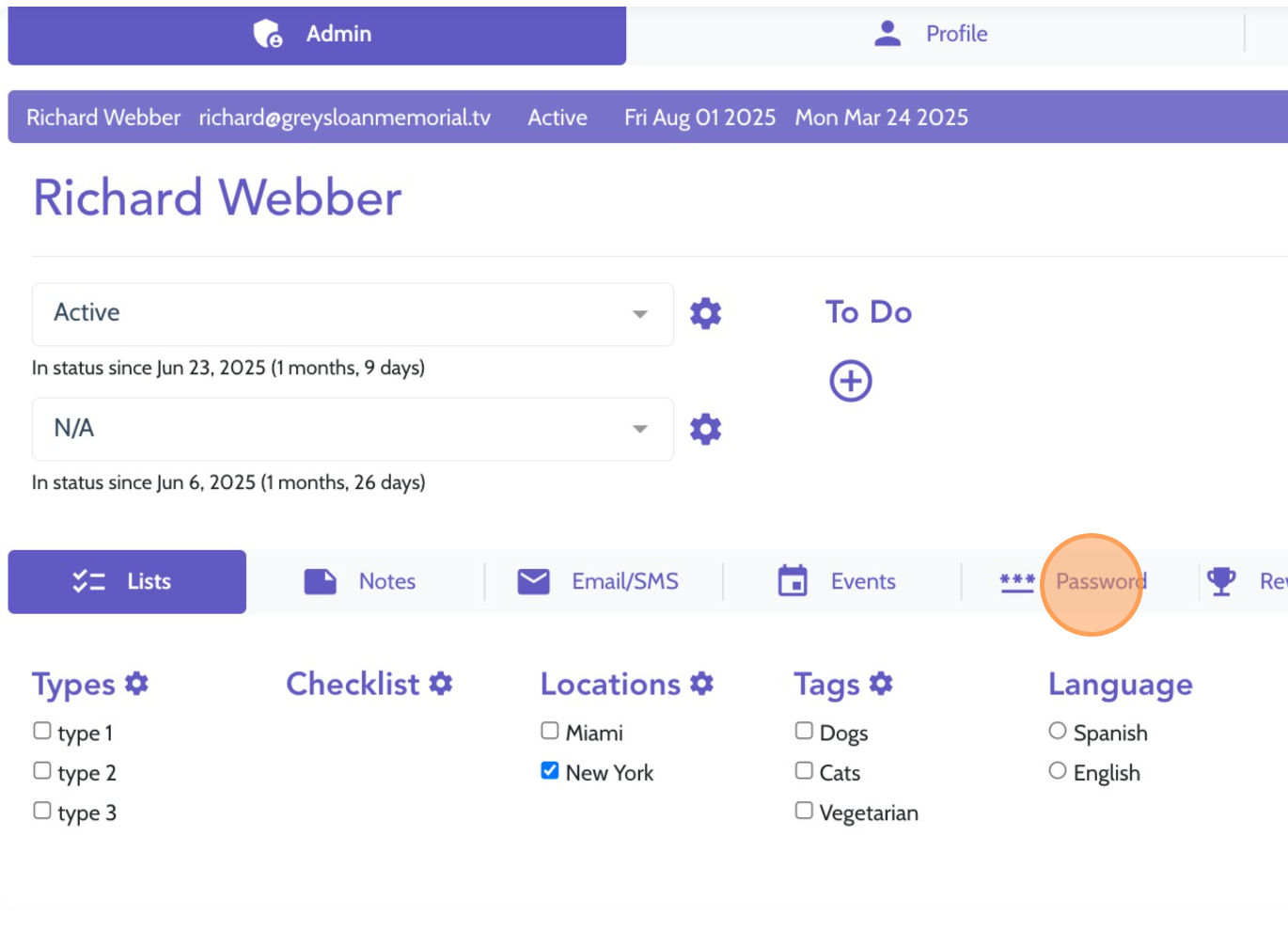
1. Enter the client account that needs a secondary login added, i.e. for a hiring manager and click Password
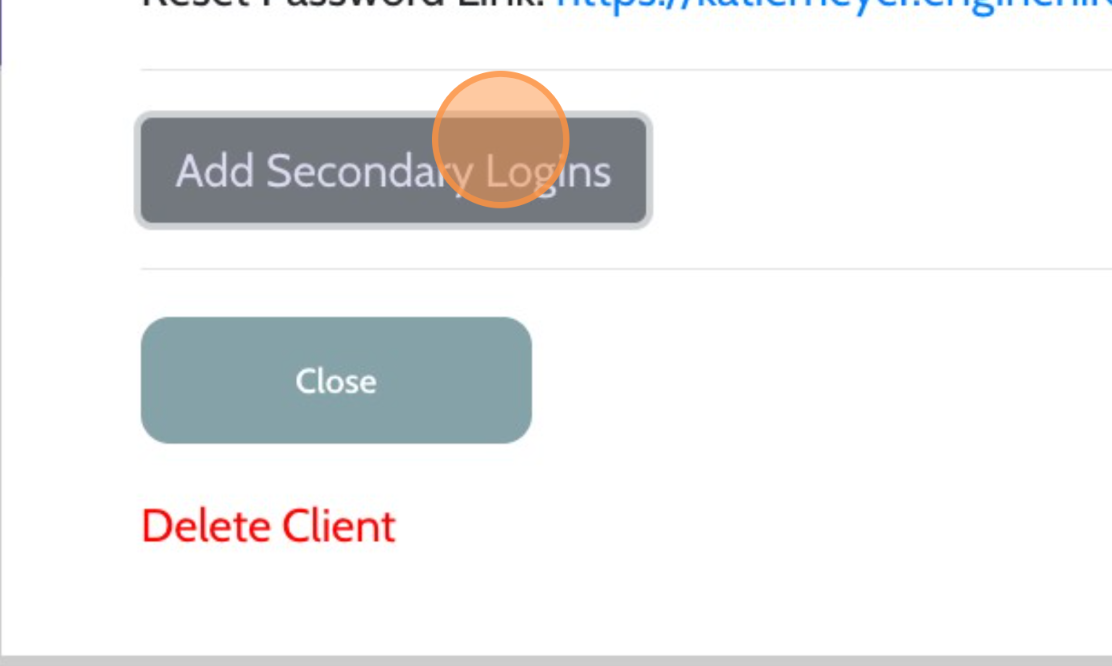
2. Click the button for Add Secondary Logins towards the bottom left of this screen.
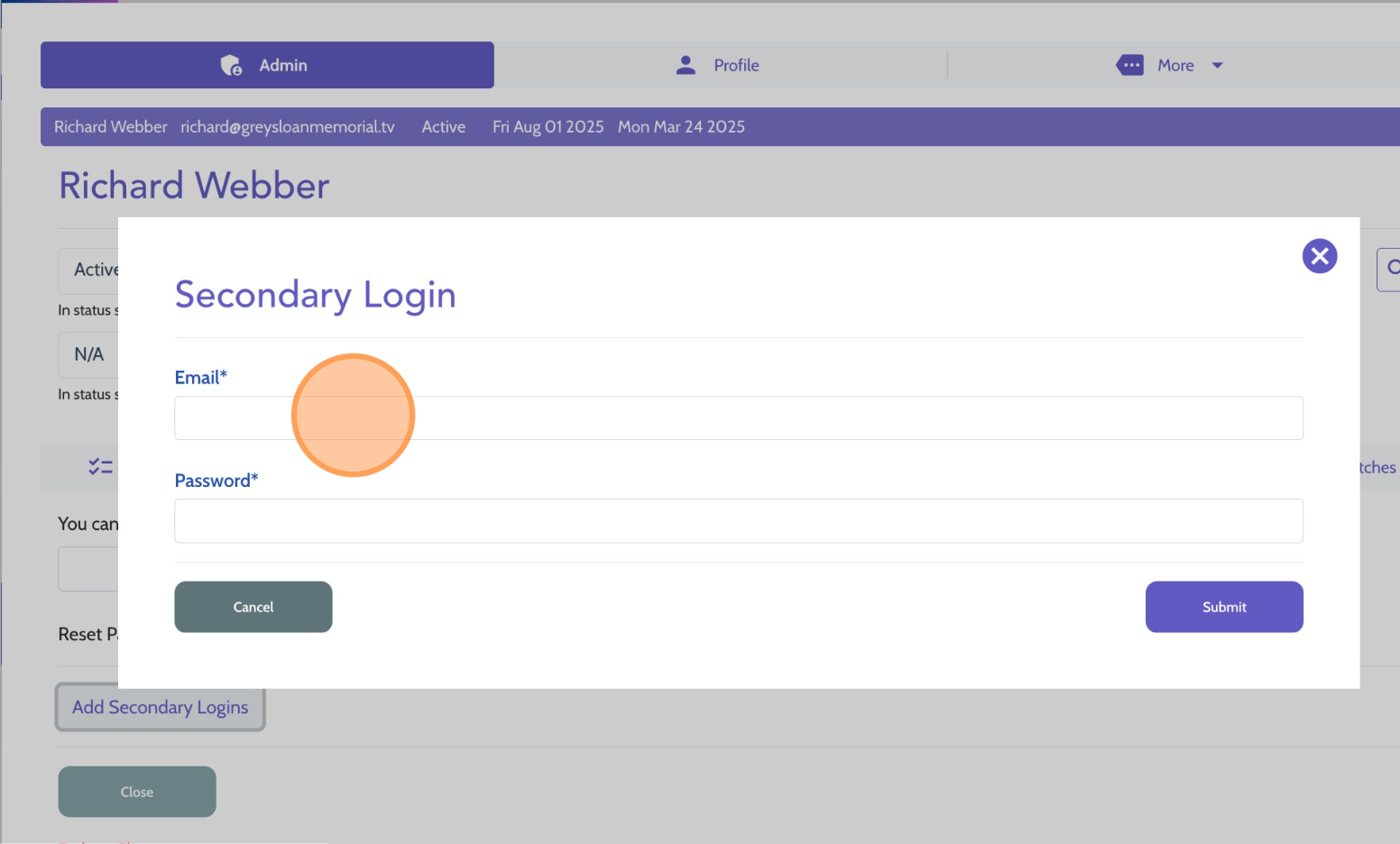
3. Enter the email and password for the new login. Note, the user will be prompted to reset their password upon first login so the easiest step may be to make the user name and password both the email for first login.
4. Repeat these steps for all other accounts where this user needs to have access.
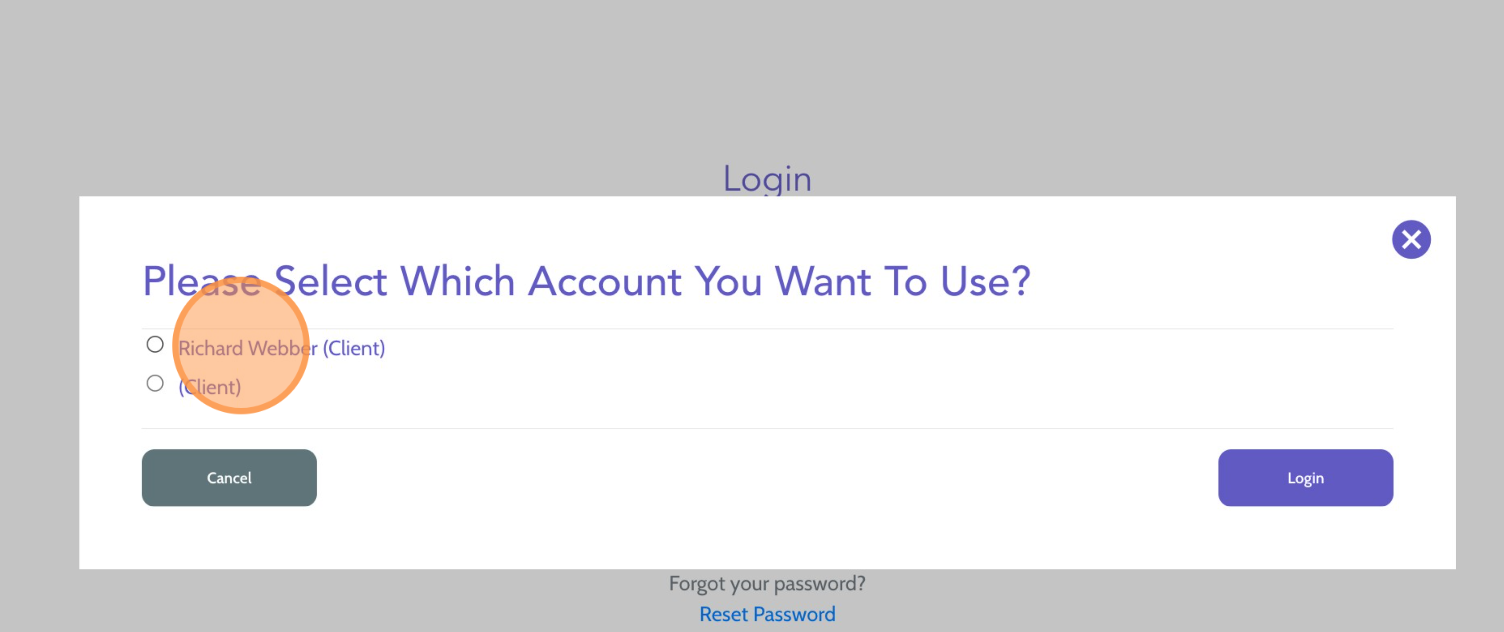
5. When the user logs into their dashboard they will see a prompt for Which account do you want to use?
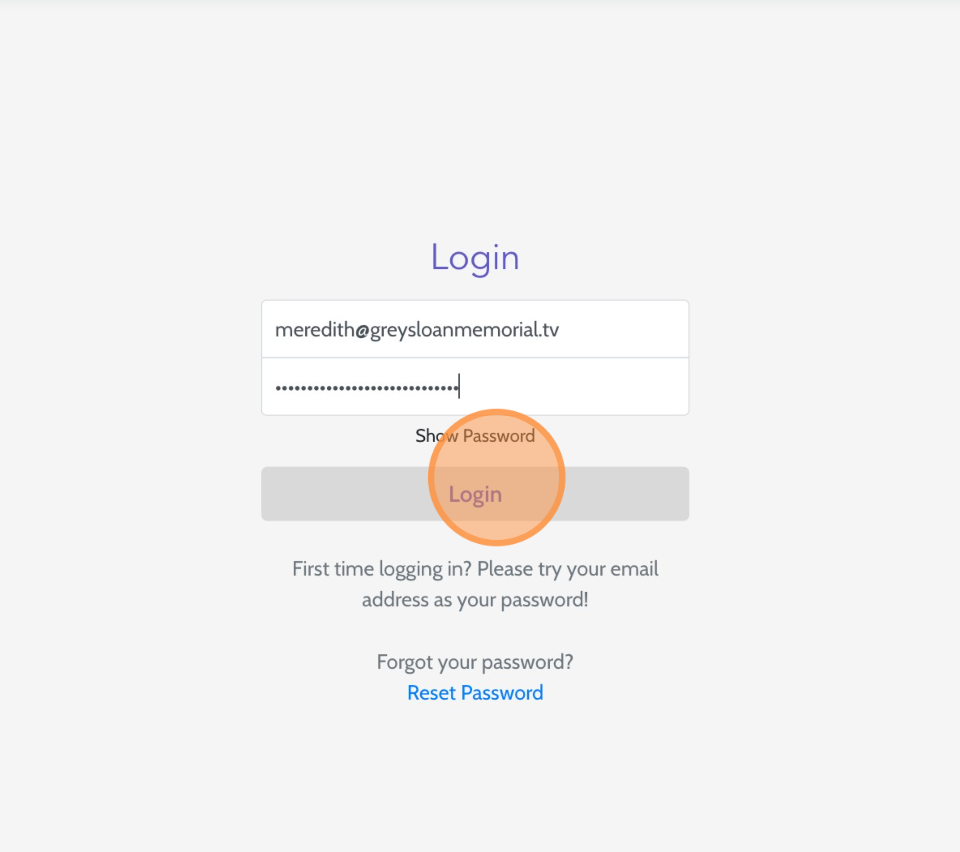
6. The user can simply select the Office or Client account they wish to access and click Login.
7. To switch accounts, the user will click the gear icon in the top right corner of their dashboard welcome message and simply select Switch Account
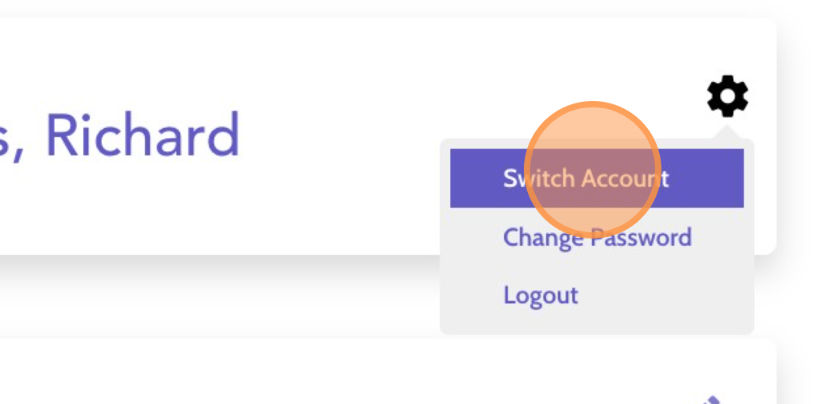
8. They will then be able to switch between accounts as needed.
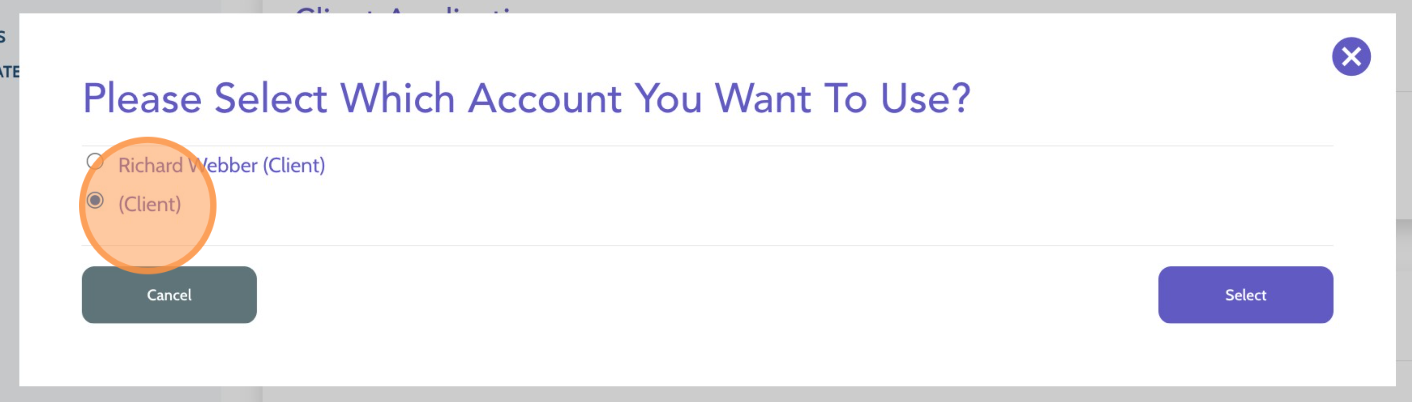
Switch between different accounts you have access to, such as client and candidate accounts, without logging out. This allows you to move between roles and continue working in the current workspace seamlessly.
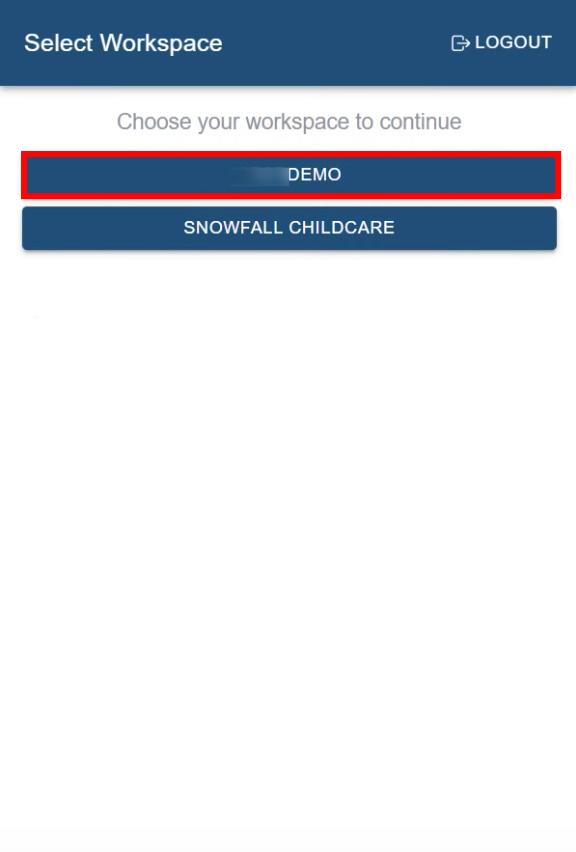
Step 1: Log in to the Enginehire mobile app and select the workspace you want to access.
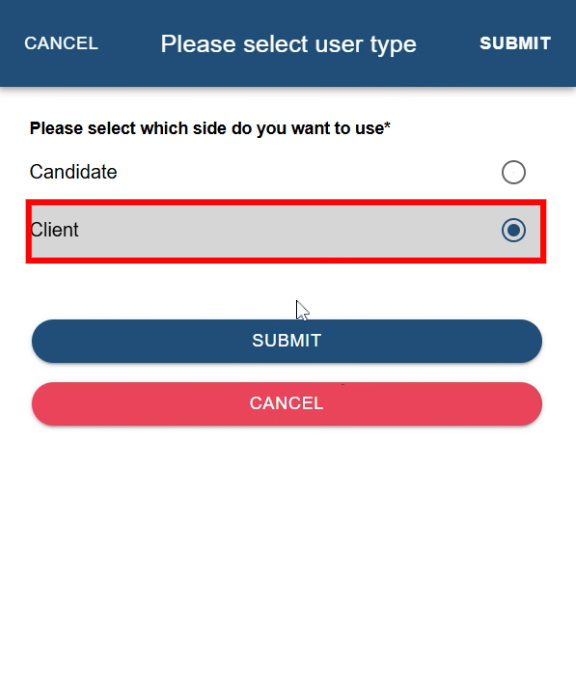
Step 2: Choose the user type that you want to use.
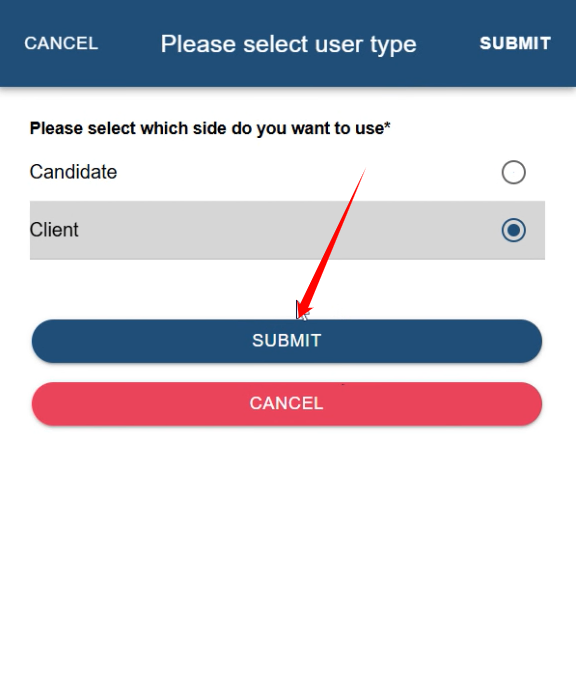
Step 3: Click the SUBMIT button to proceed.
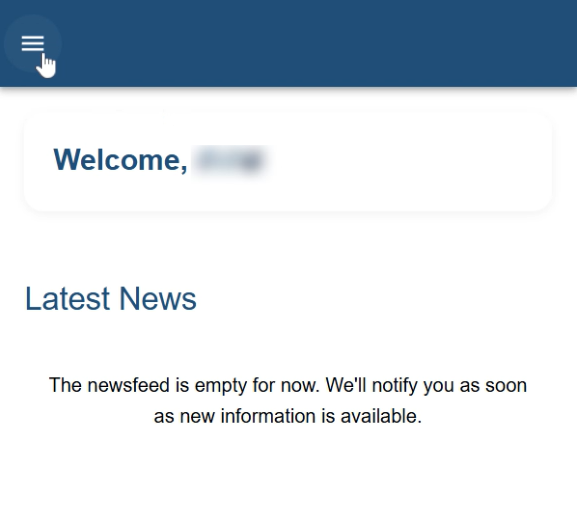
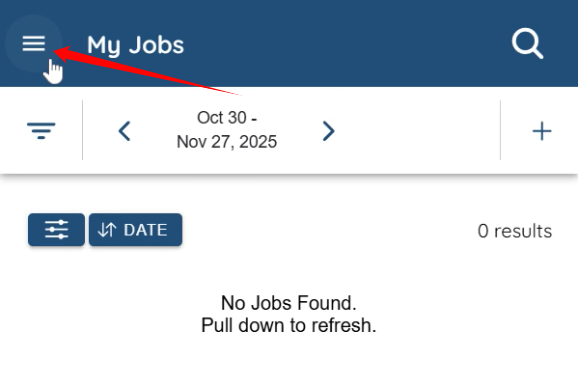
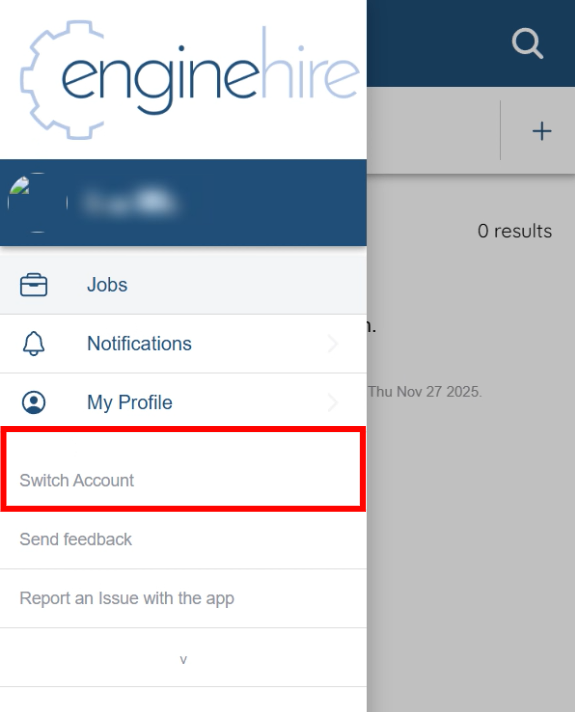
Step 4: Click the hamburger menu icon located at the top left corner of the interface.
Step 5: Click the Switch Account option.
Step 6: Select the other account you want to switch to.
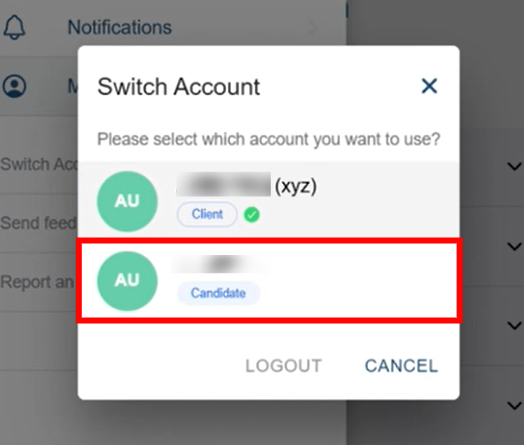
You will be successfully switched to another account within the same workspace.