
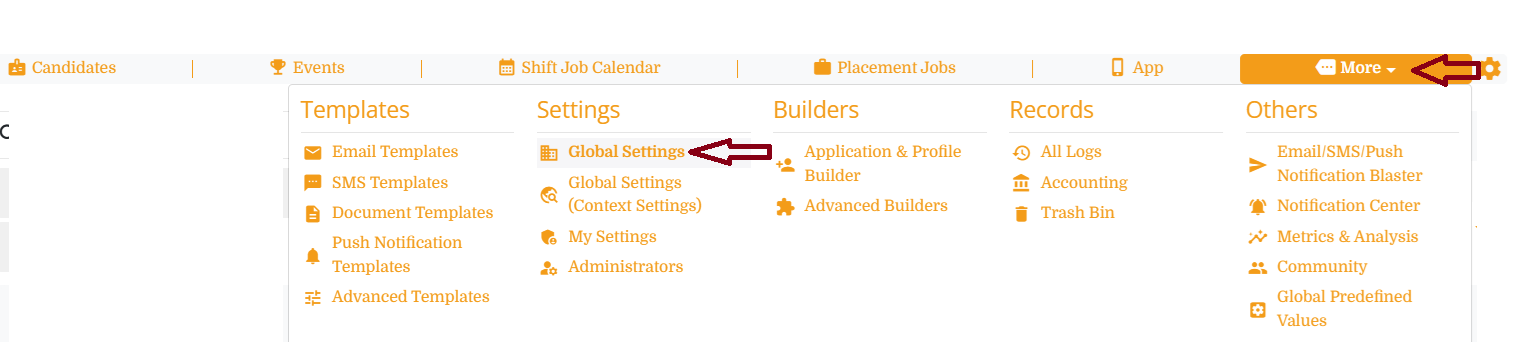
1. Select More.
2. Select Global Settings.
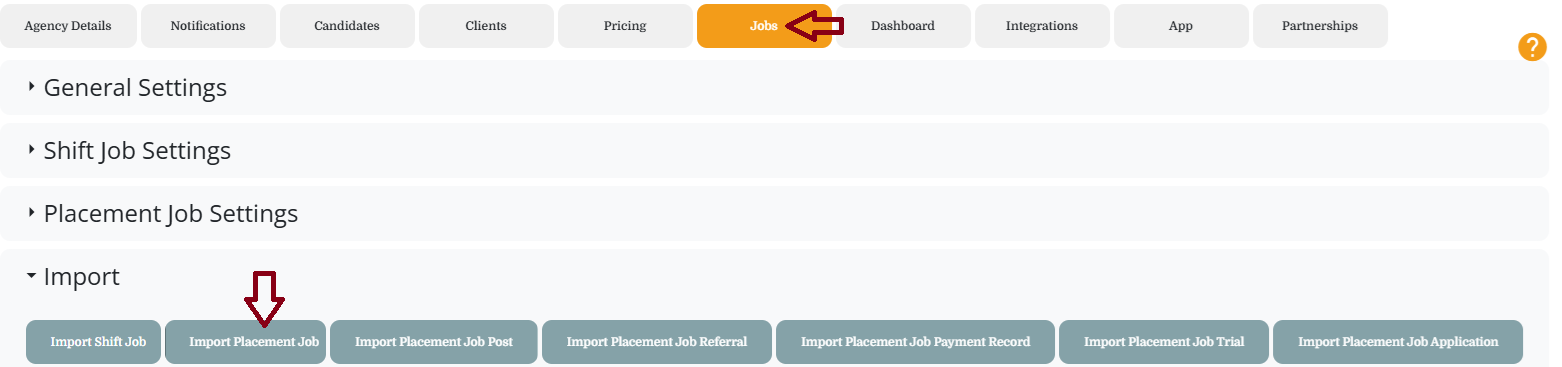
3. Select Jobs to import placement jobs.
4. Select Import and click on button “Import Placement Job“.
5. Select a CSV file and choose Open.
The labels in the top line of the CSV file will be used to correlate where this data will go. In our example Client Email in CSV will be selected as Client Email in Enginehire.
Mandatory field to import jobs,
Client Email - Make sure the job data have client email and client is present in Enginehire
Optionally a placement job can have candidate assigned in that case you can map it with candidate email. You can have all fields mapped those are available in placement job form including description, status, etc.

6. Select the fields for each column of the CSV's data to be added.
7. Continue until all the fields are added.
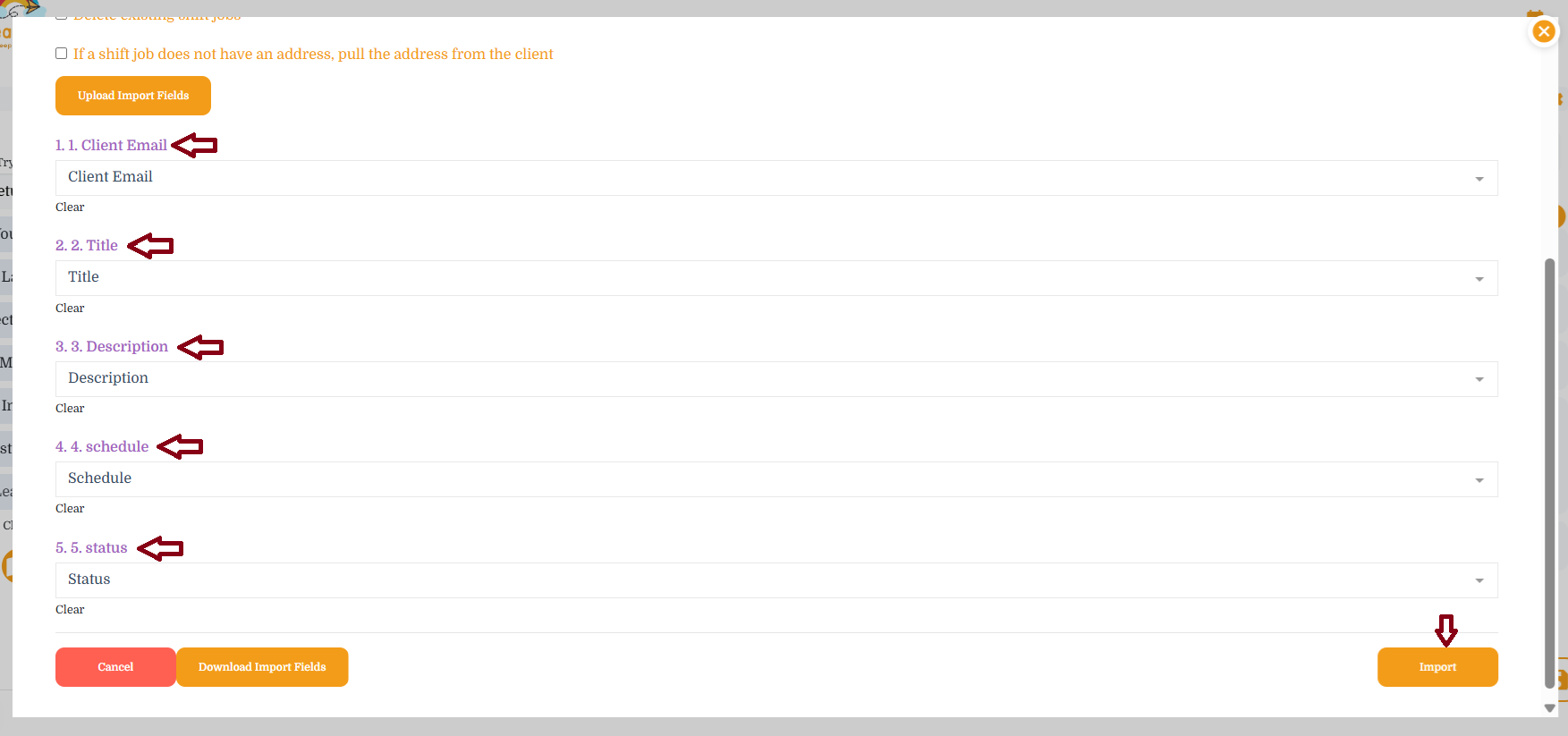
8. Click on “Import” button. It will import jobs into the system.
Optionally you can also download the json file which can be used later to import similar files (using the button “Upload Import Fields“ which is located at top of the importer) to map all fields auto-populate by clicking “Download Import Fields“
Now It's Your Turn.
Gather a CSV of data to import and follow the above steps.
Related Articles,
If this doesn't answer your questions you can always contact us by clicking here