
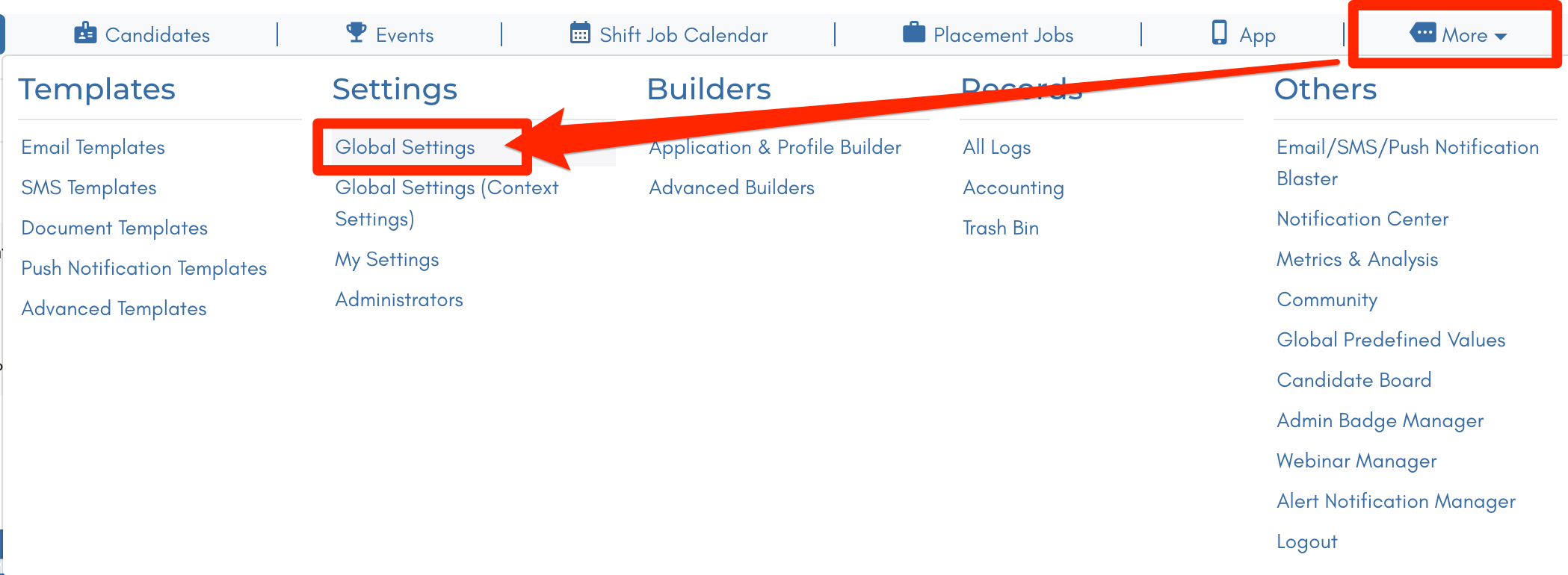
1. Select More.
2. Select Global Settings.
3. Select Candidate to import candidate data or select Clients to import client data.
Example is for Candidates.
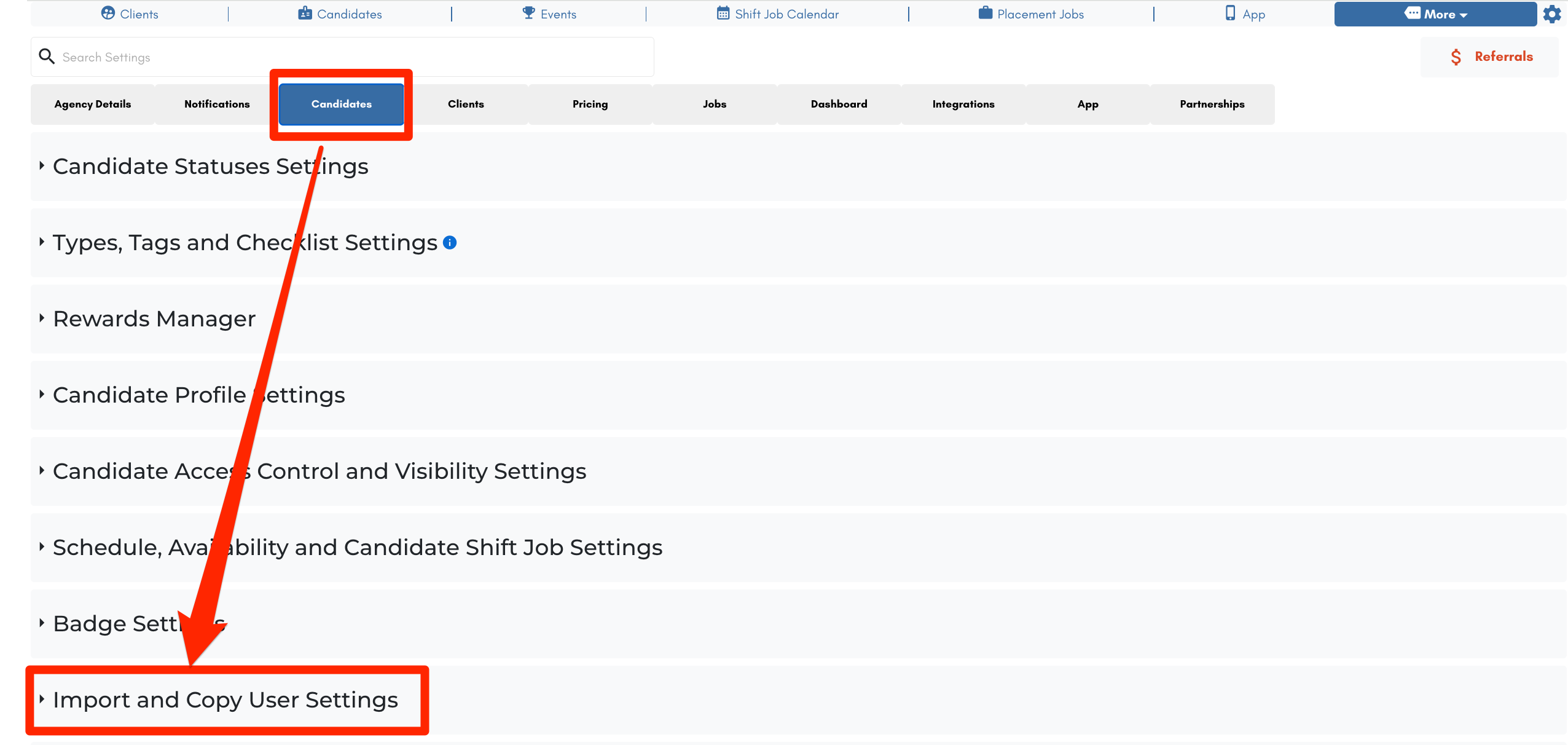
4. Select Import.

5. Select a CSV file and select Open.
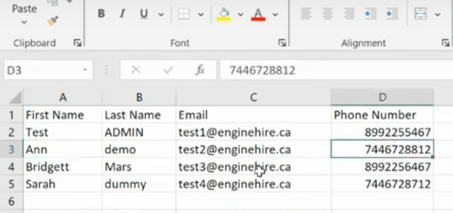
The lables in the top line of the CSV file will be used to correlate where this data will go. In our example First Name in CSV will be selected as First Name in Enginehire.
6. Select a Profile Builder for this data to be added in.
The Profile Build is the type of profile this will be added into. Select a Candidate Profile for candidates and select a Client Profile for clients.
Example:Childcare Application Form.
7. Select the fields for each column of the CSV's data to be added.
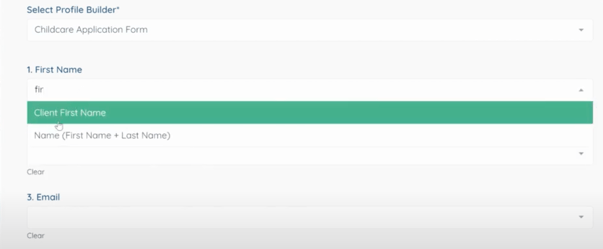
Example: First Name will want to be aligned with the column in the CSV that has first names.
8. Continue until all the fields are added.
9. Select a Status for these candidates or clients to applied into.
Import different statuses in separate imports.
Example: Import all the "Applied" then, import all of the "Placed"
10. Select Types or Tags as applicable.
11. Select Import.
Now It's Your Turn.
Gather a CSV of data to import and follow the above steps.
Watch the video for a step by step process.
Related Articles
If this doesn't answer your questions you can always contact us by clicking here