Let’s get started 🚀
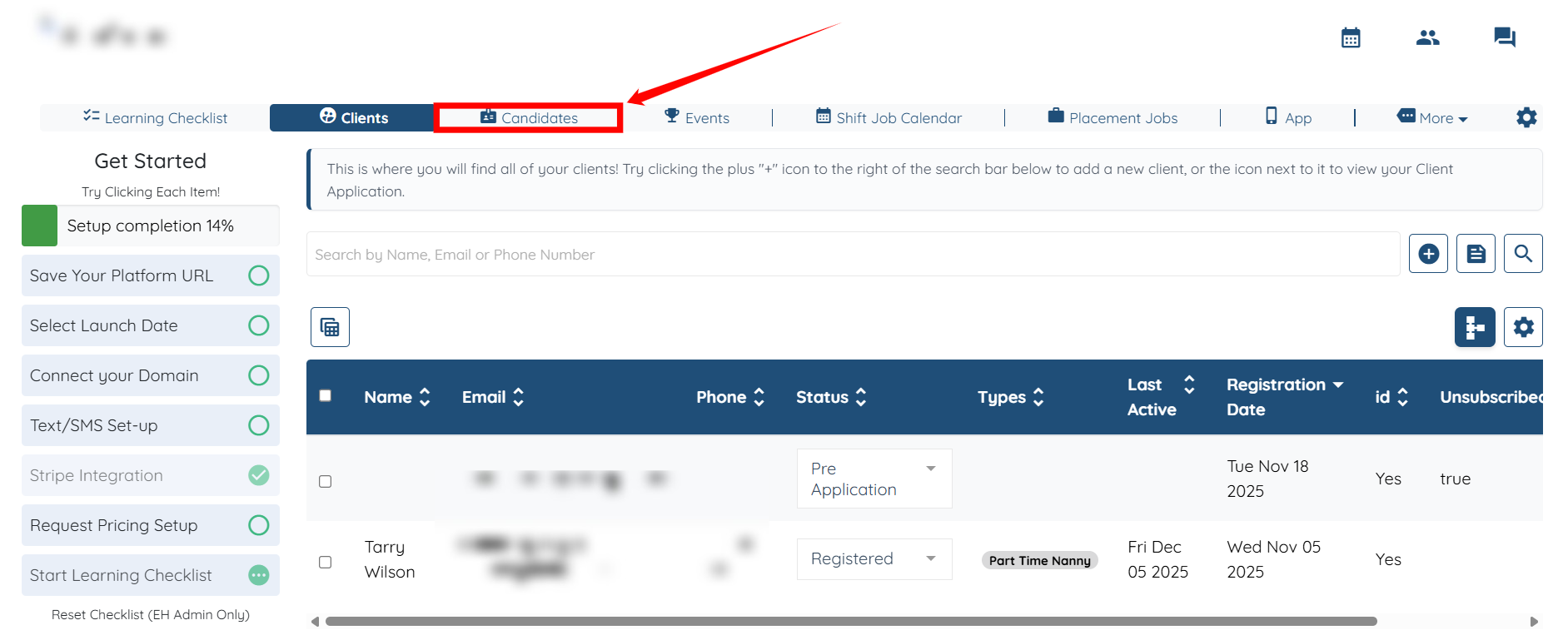
Step 1: Log in to your agent dashboard, and click Candidates on the top navigation bar.
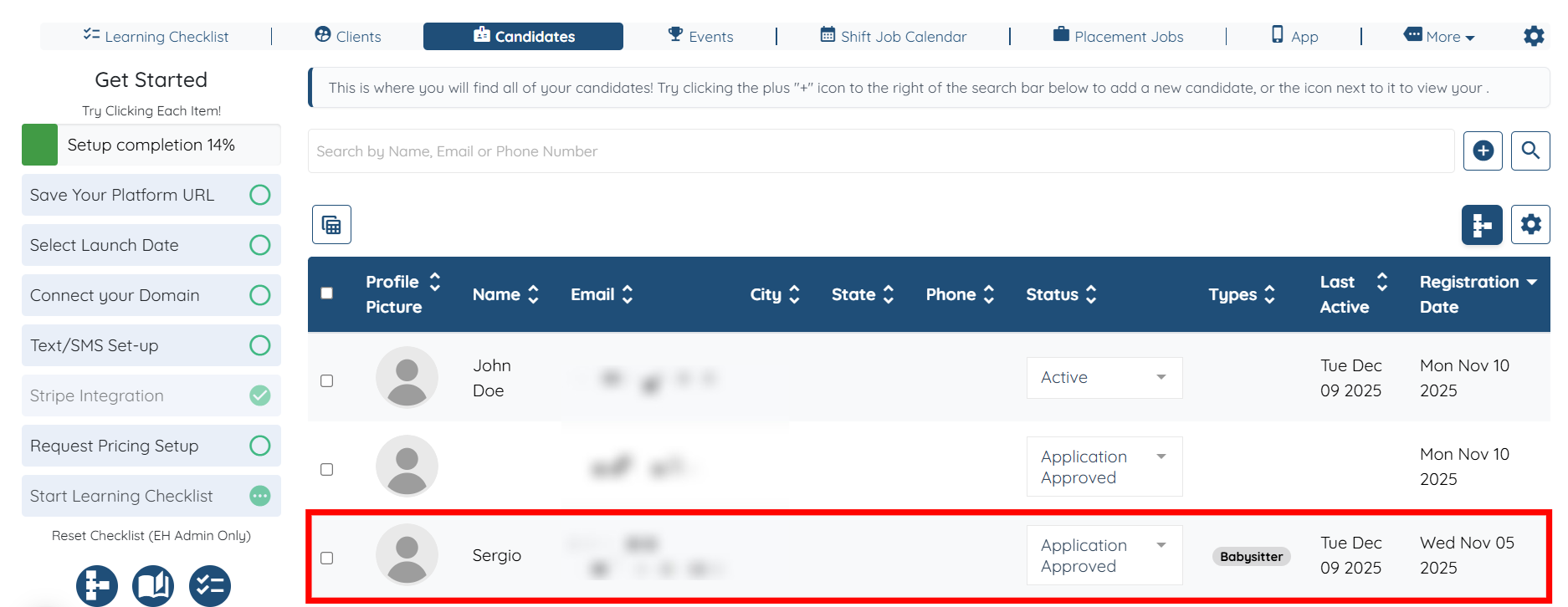
Step 2: Click any of the candidates from the list.
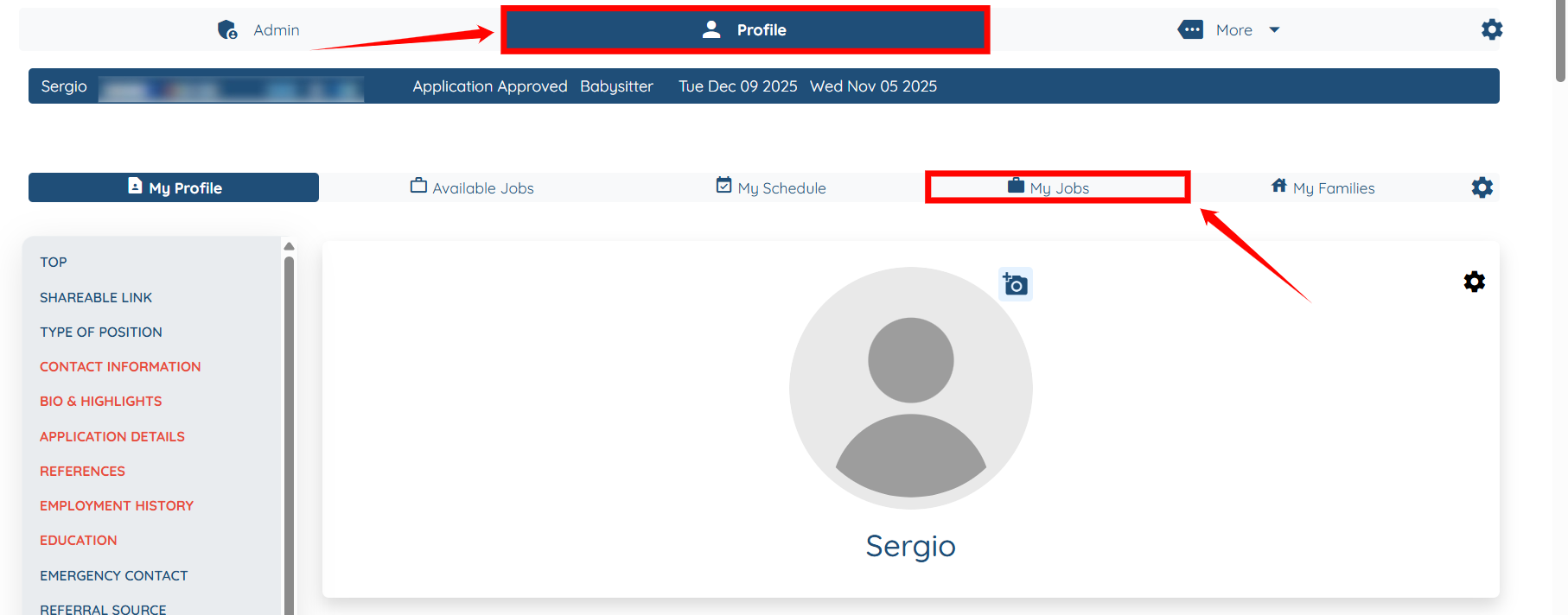
Step 3: Under the Profile section, click the My Jobs option exactly as shown in the screenshot below.
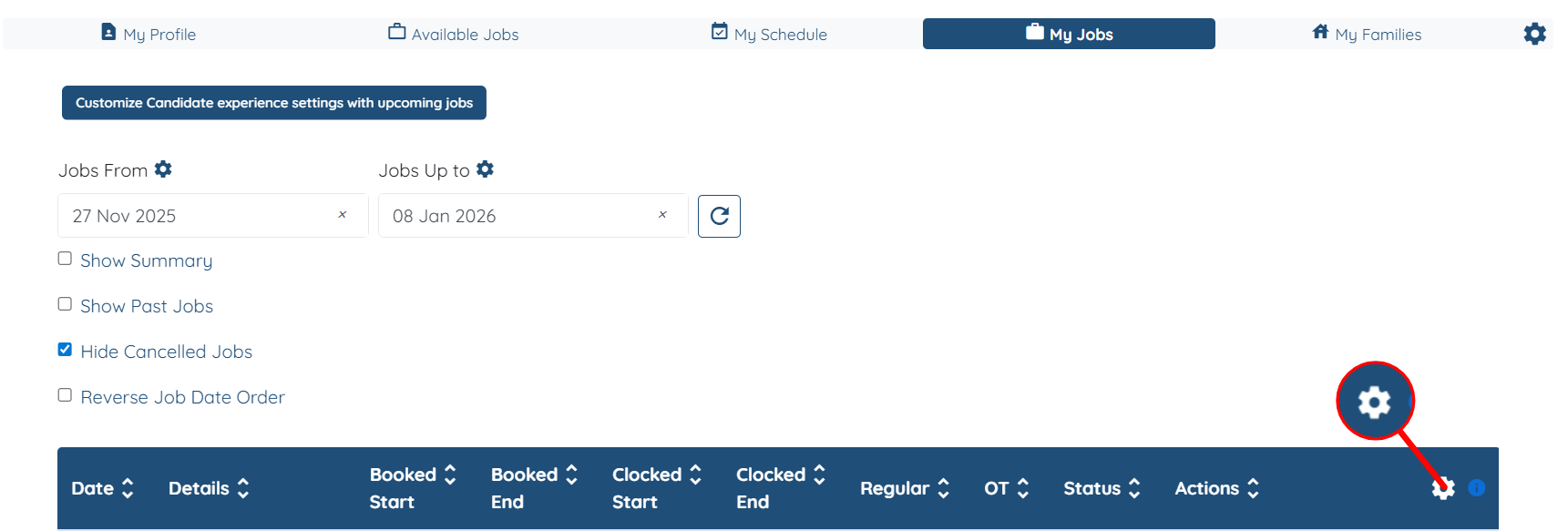
Step 4: Click the Gear icon on the right-hand side of the table header.
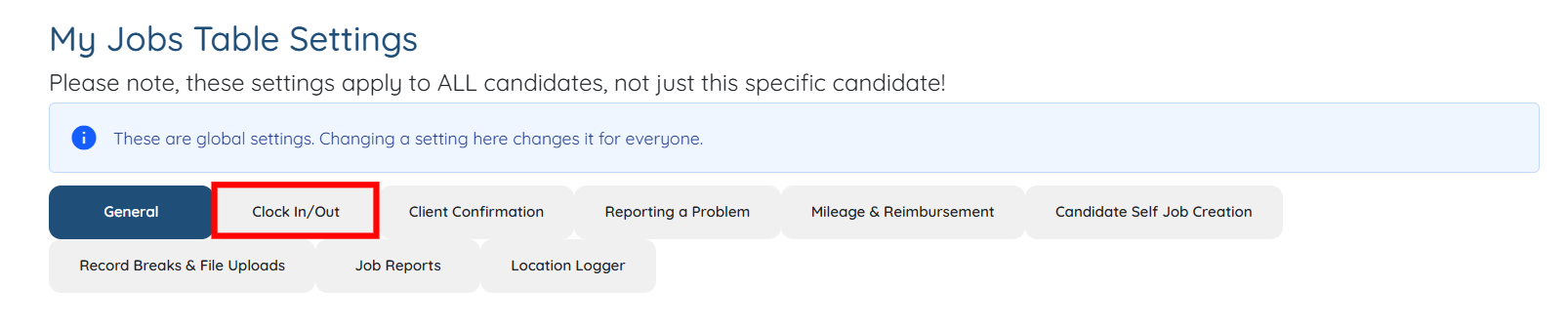
Step 5: Click the Clock In/Out tab to configure the Clock-In/Out functionality.
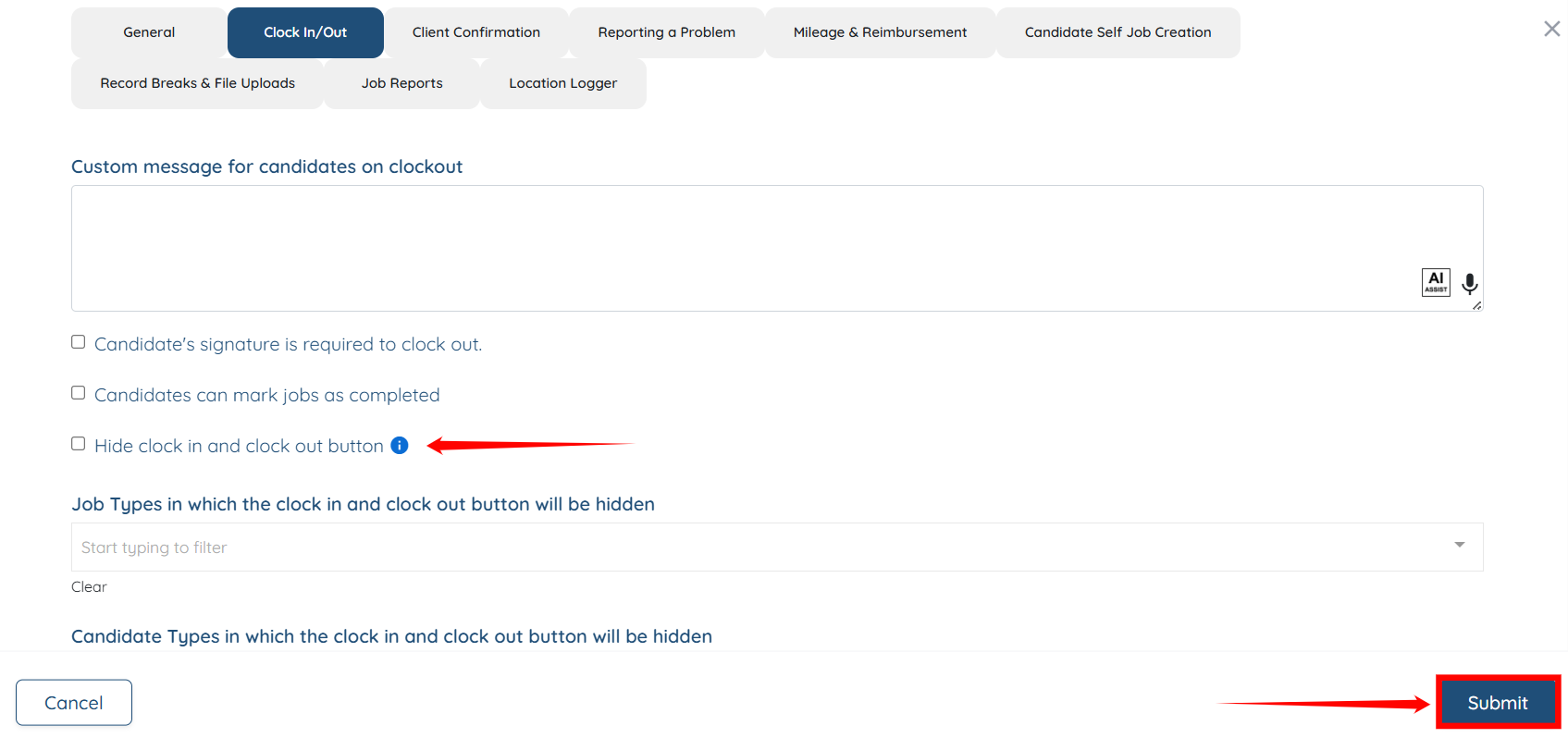
Step 6: Ensure that the Hide clock in and clock out button checkmark remains unchecked, and configure all other Clock In/Out settings as needed.
Then, click the Submit button to proceed.
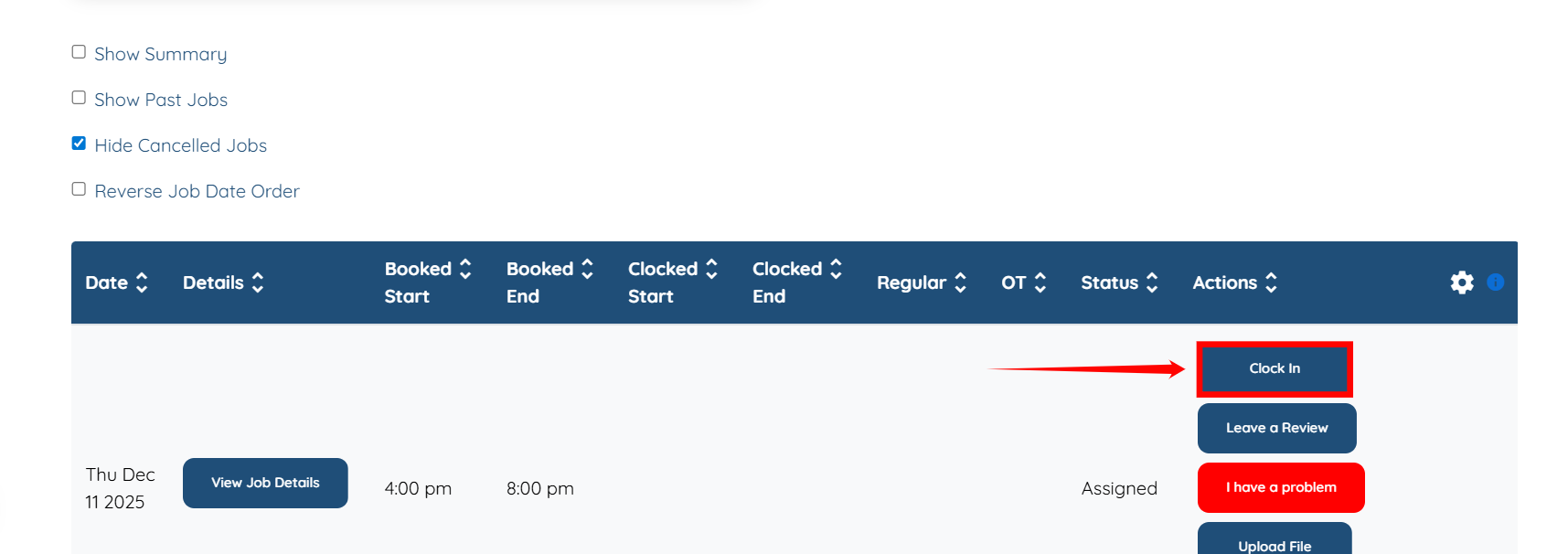
The Clock In button will now appear in the table as shown in the screenshot below, from where the candidate can click it to start their shift job.
Later, when the shift is about to end, the candidate can click the Clock Out button and complete their shift job.