Let’s get started 🚀
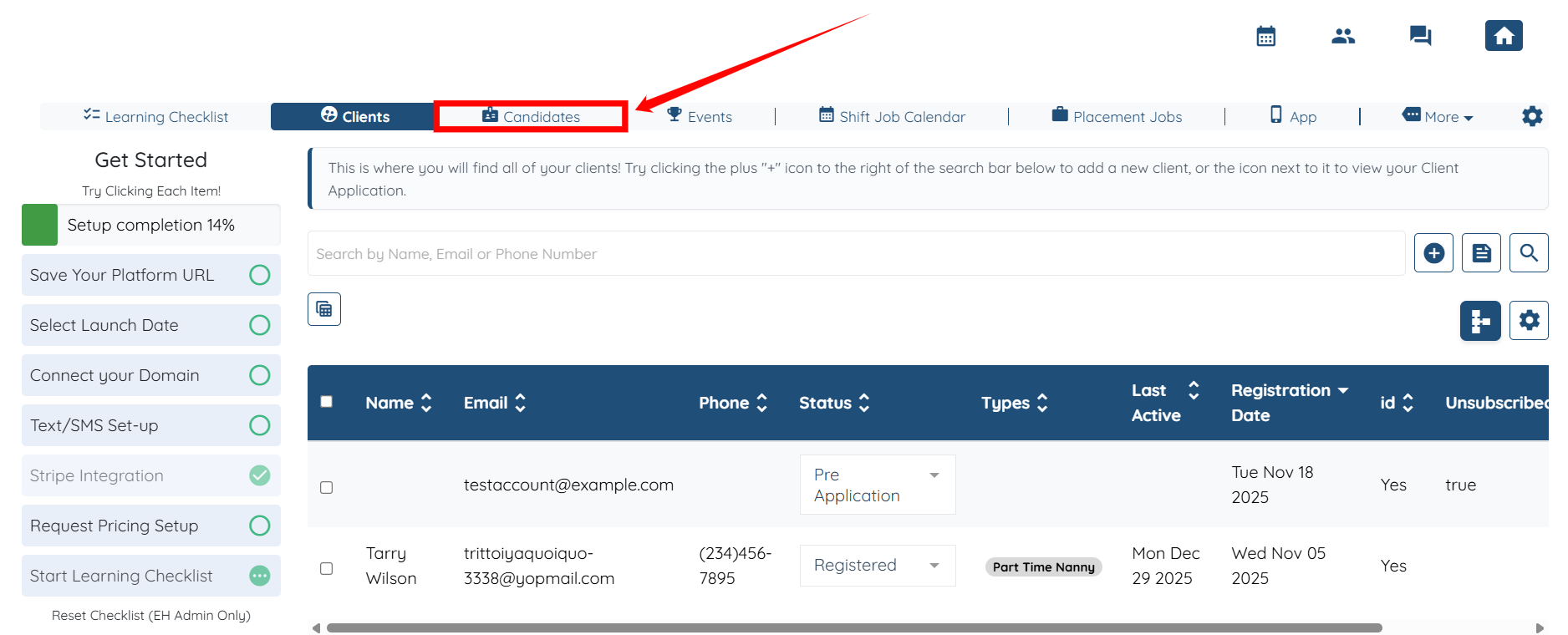
Step 1: Log in to your agent dashboard and click Candidates in the top navigation bar.
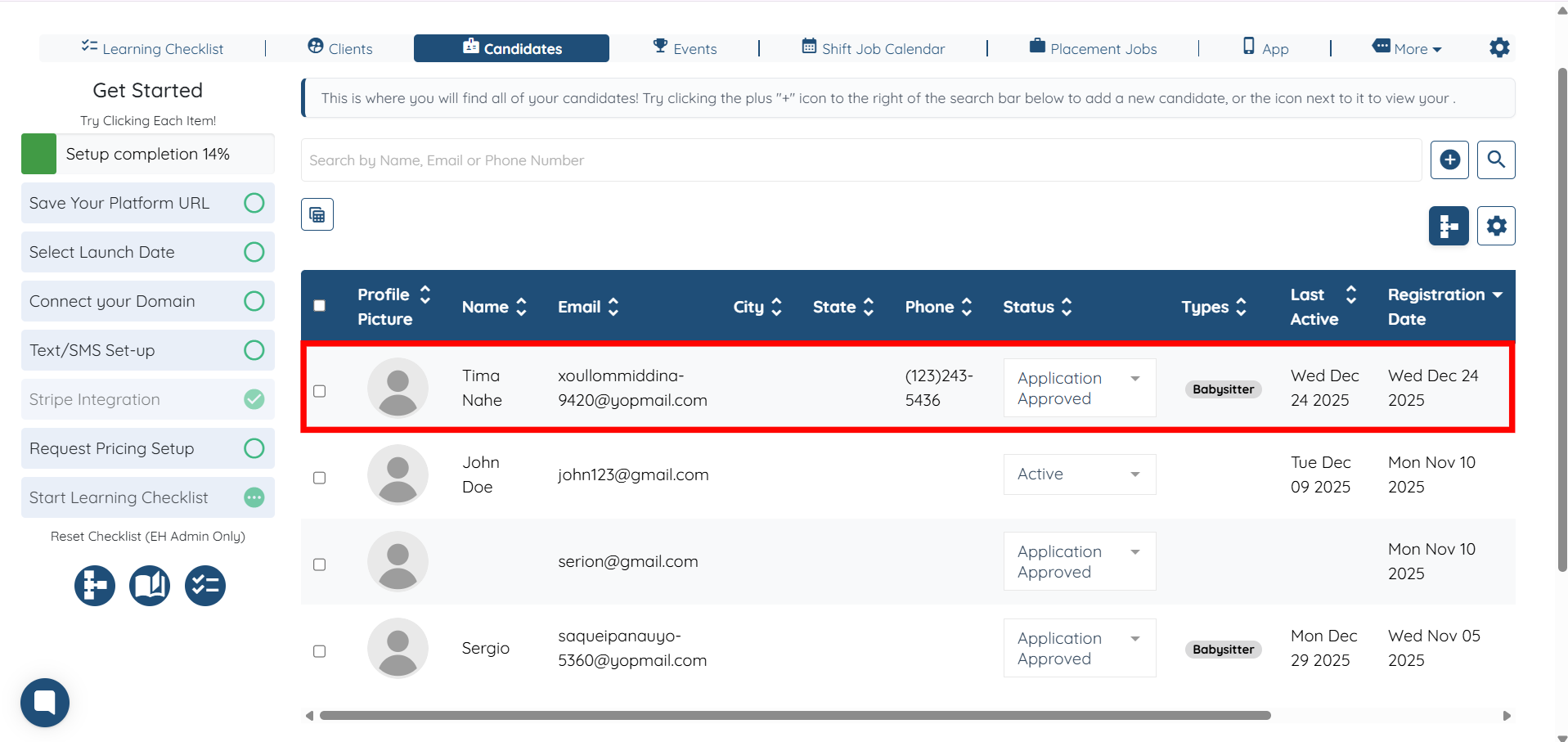
Step 2: Select any candidate from the list of candidates
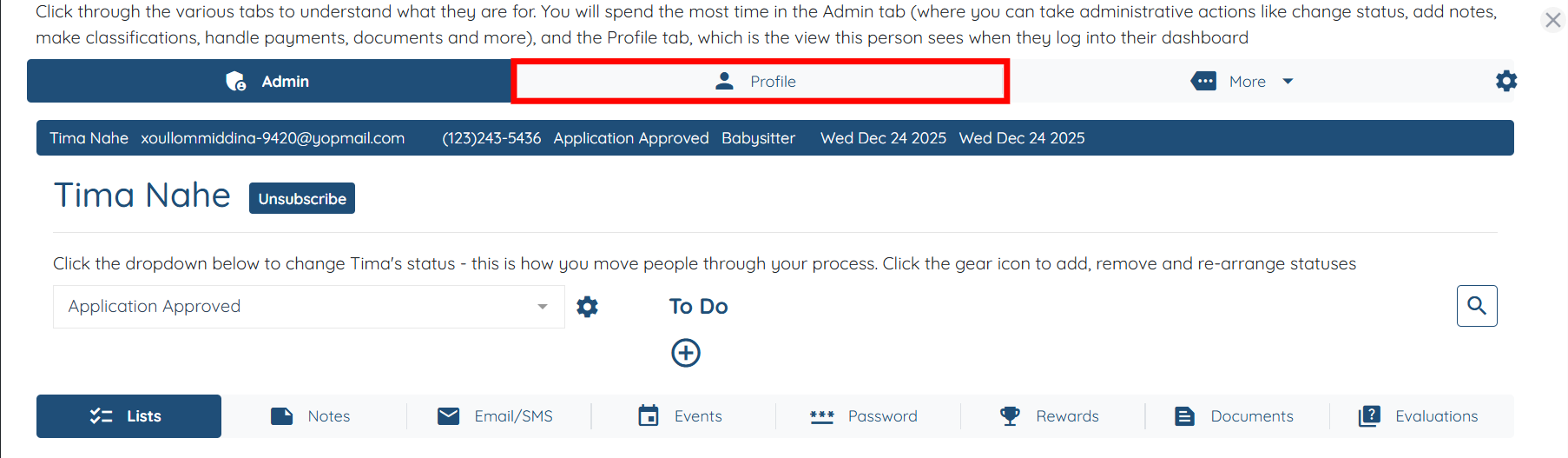
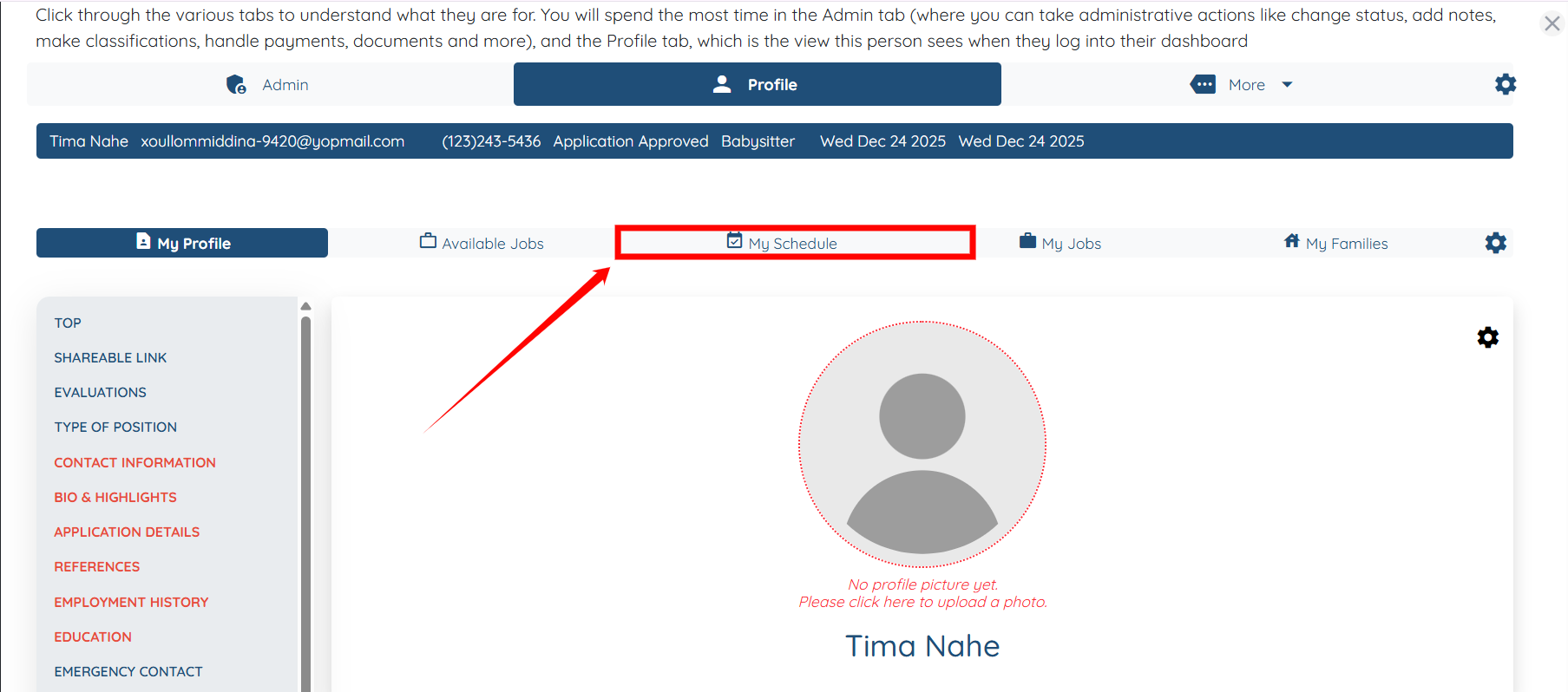
Step 3: Click on the Profile tab, as shown in the screenshot.
Step 4: Click the My Schedule option.
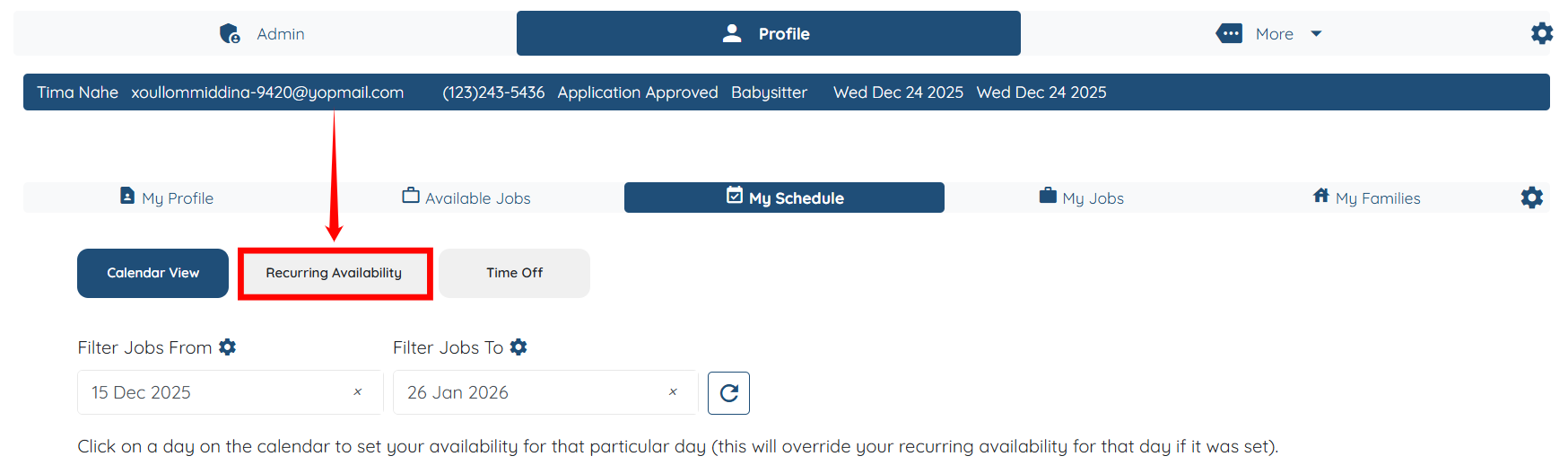
Step 5: Under the My Schedule option, click the Recurring Availability button.
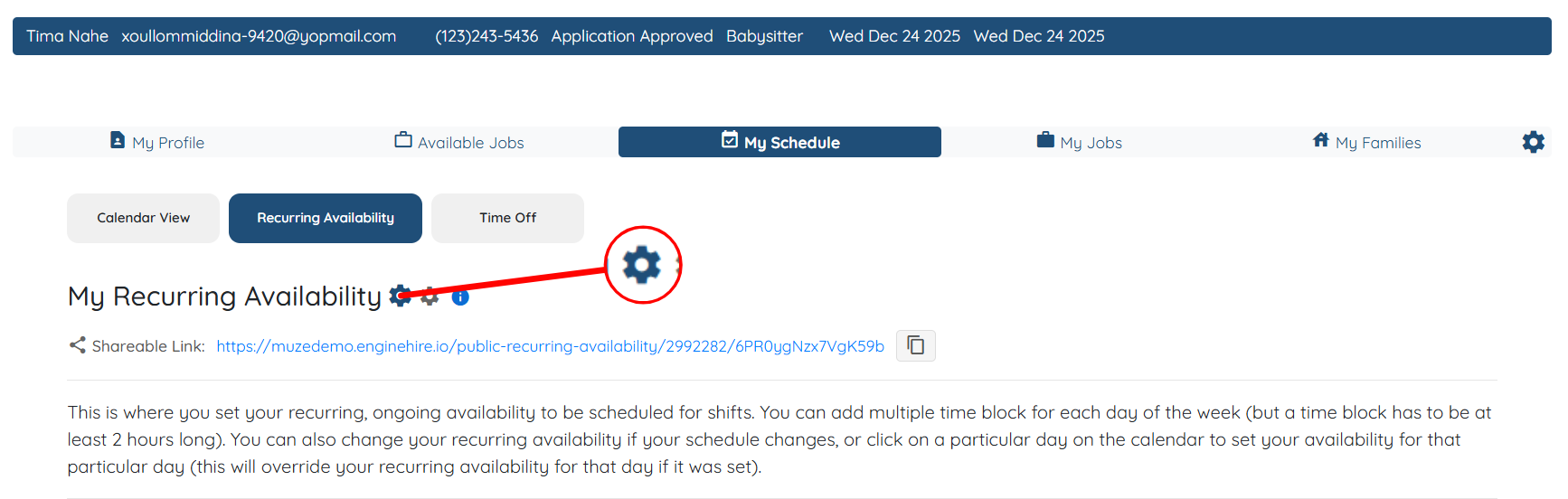
Step 6: Click on the Global settings for recurring availability gear icon, as shown in the screenshot.
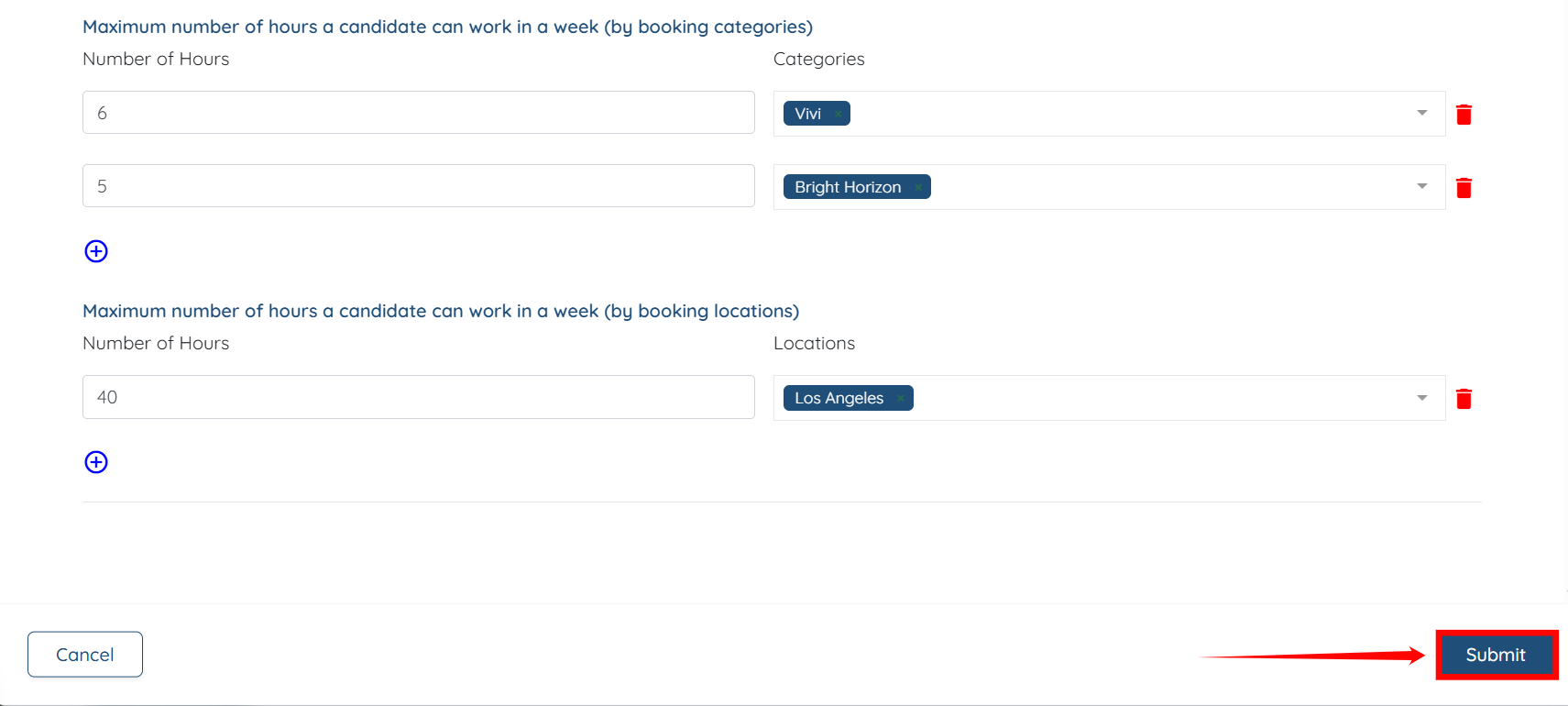
Step 7: Scroll down and locate the option “Maximum number of hours a candidate can work in a week (by booking locations).” Then click the plus icon to begin adding the number of hours for each location.
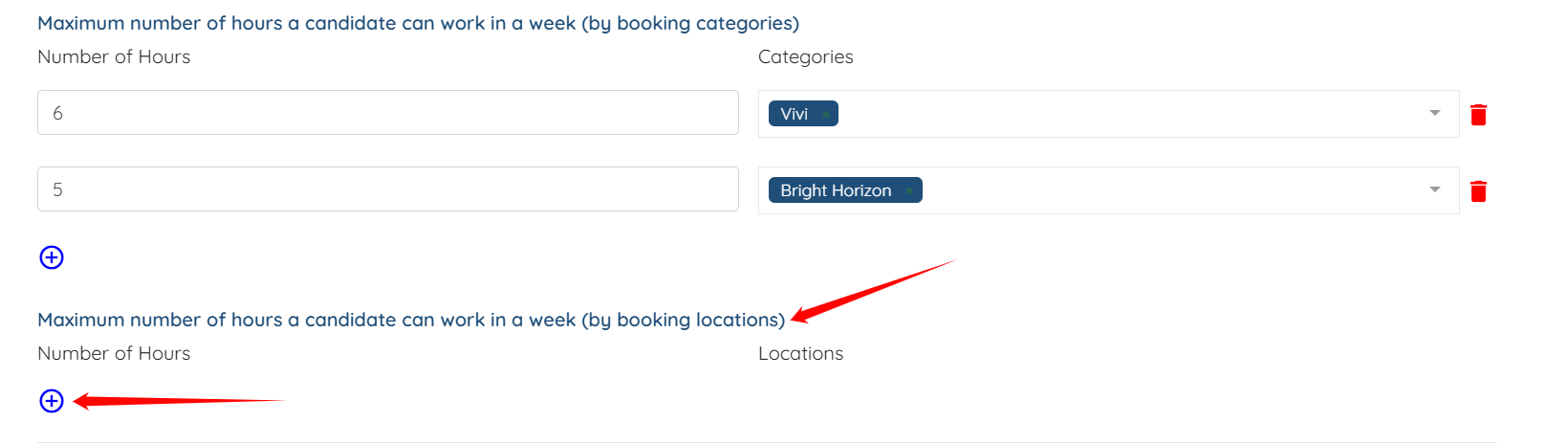
Step 8: Enter the maximum number of hours and select the location for which you want to apply this hours limit.

Step 9: Click the Submit button to save the changes.