Let’s get started 🚀
Create intake note template for clients to structure consultations and capture relevant information consistently during client interactions.
Step 1: Log in to your agent dashboard and select any client from the list.
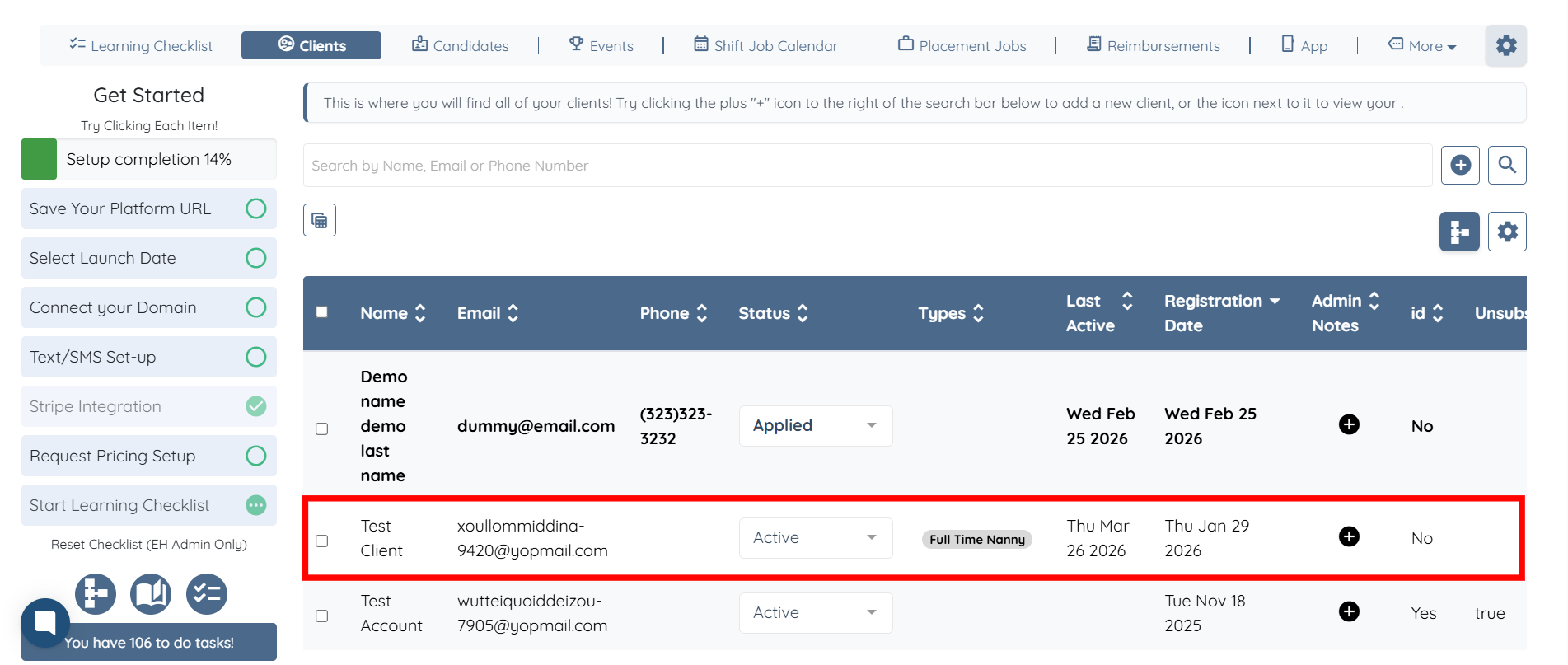
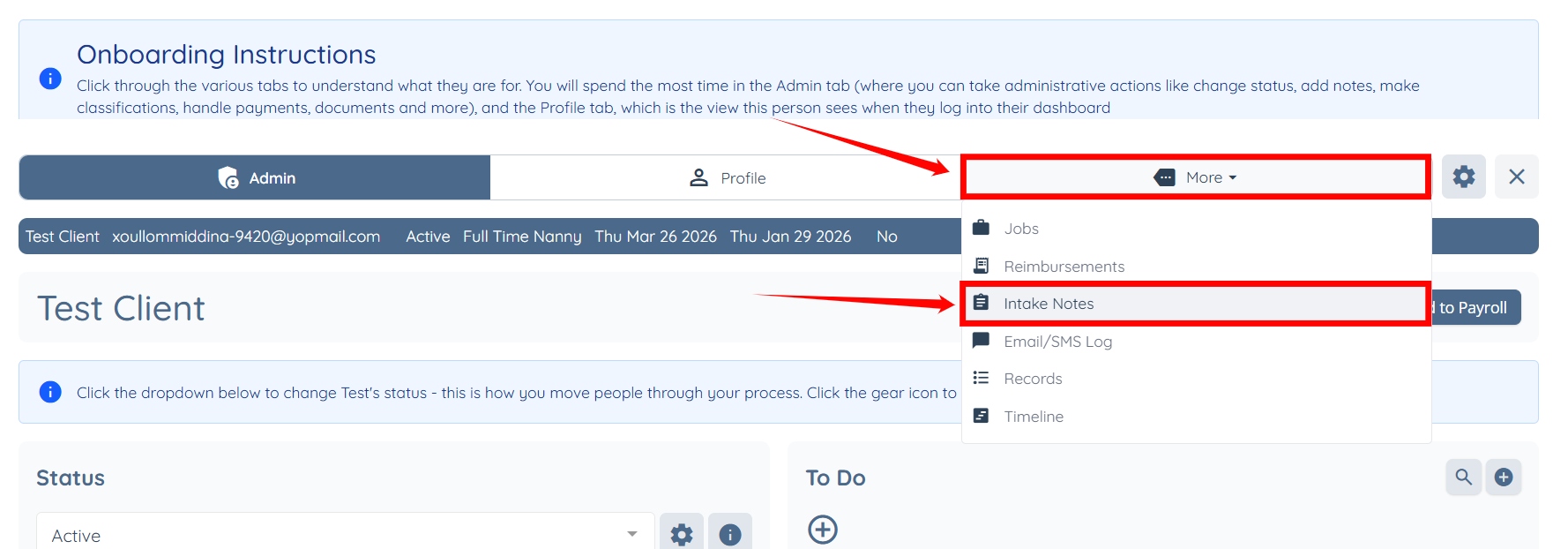
Step 2: Click More > Intake Notes as shown in the screenshot below.
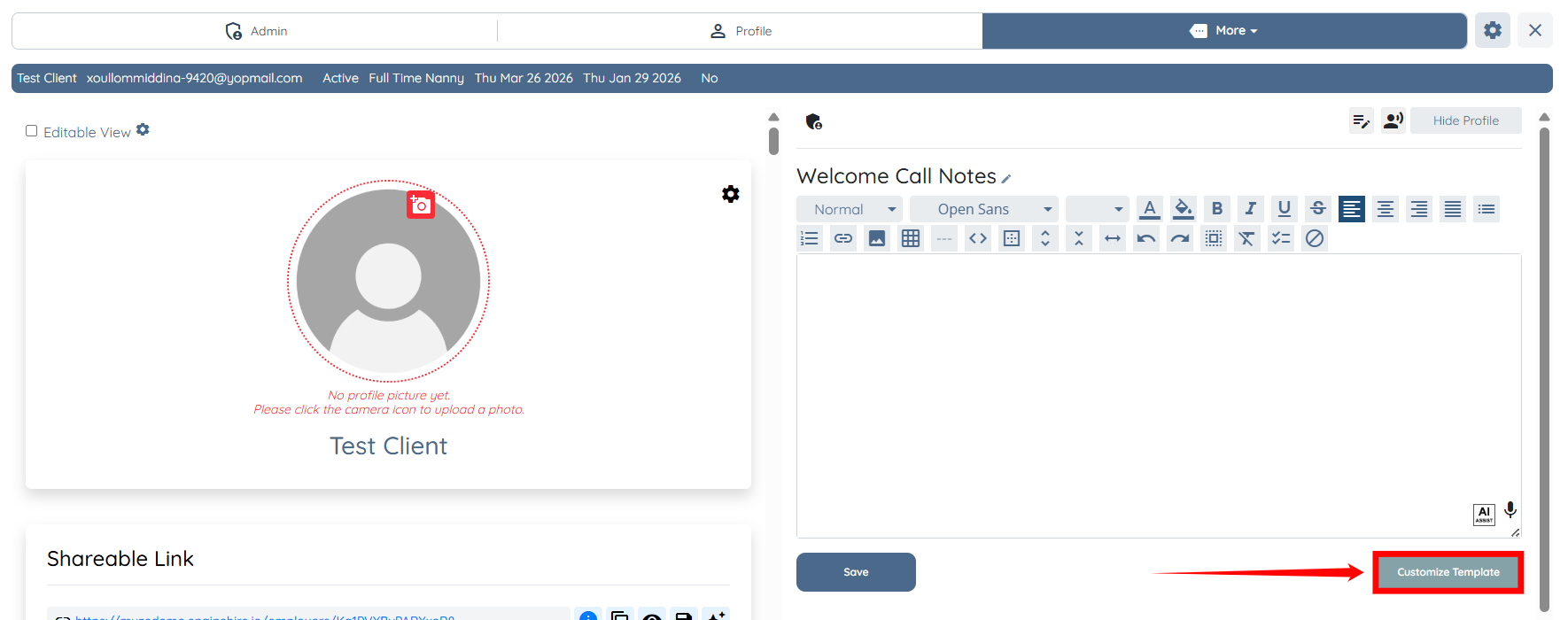
Step 3: Click the Customize Template button.
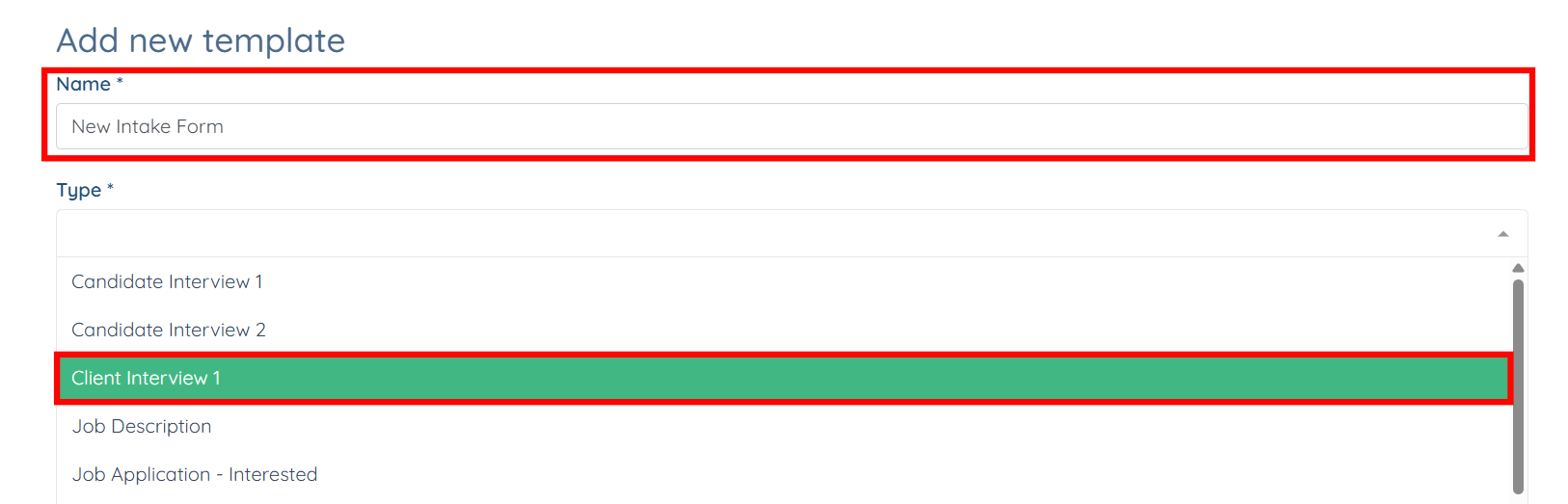
Step 4: Enter a name for your template, then select the template type from the dropdown list.

Step 5: Enter the questions in the template body. Then, click the Create button.
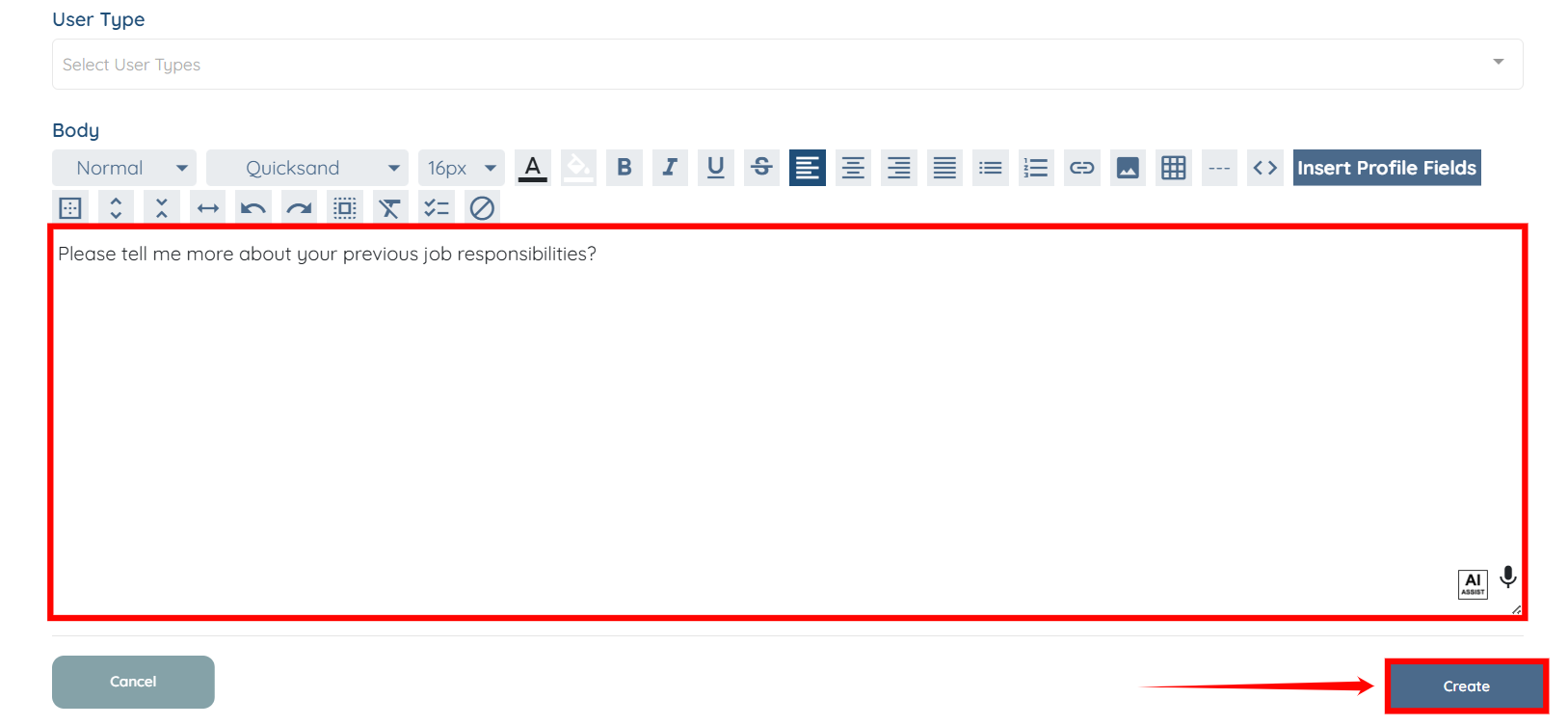
The template will be created successfully.
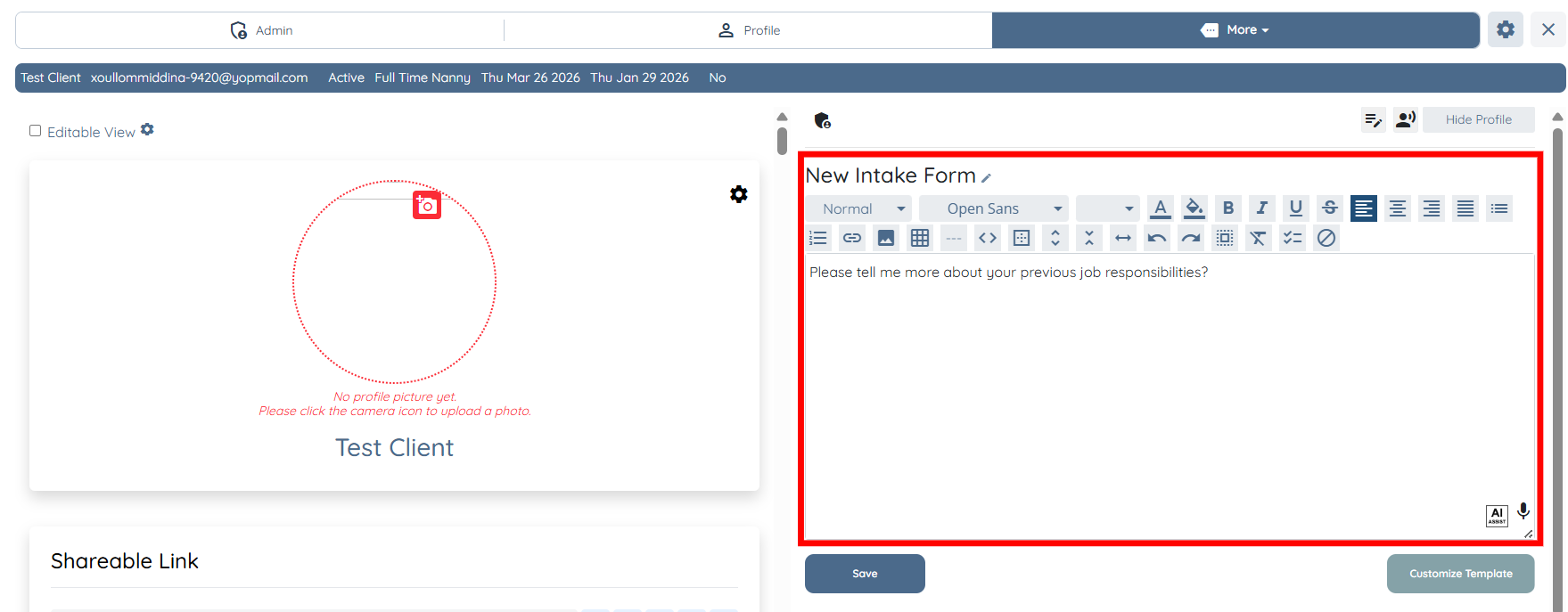
Create interview template for candidates to guide interviews and ensure all required information is captured during the process.
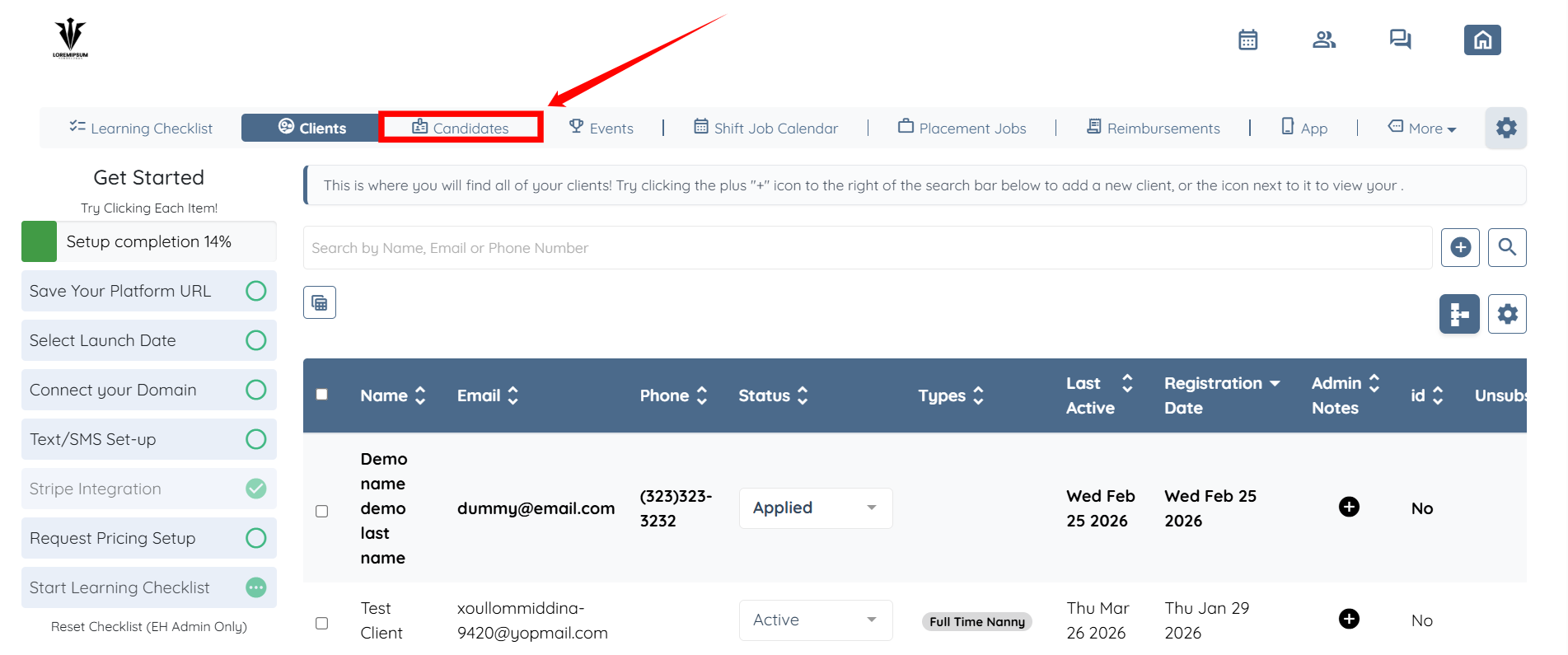
Step 1: Log in to your agent dashboard and click Candidates in the navigation bar.
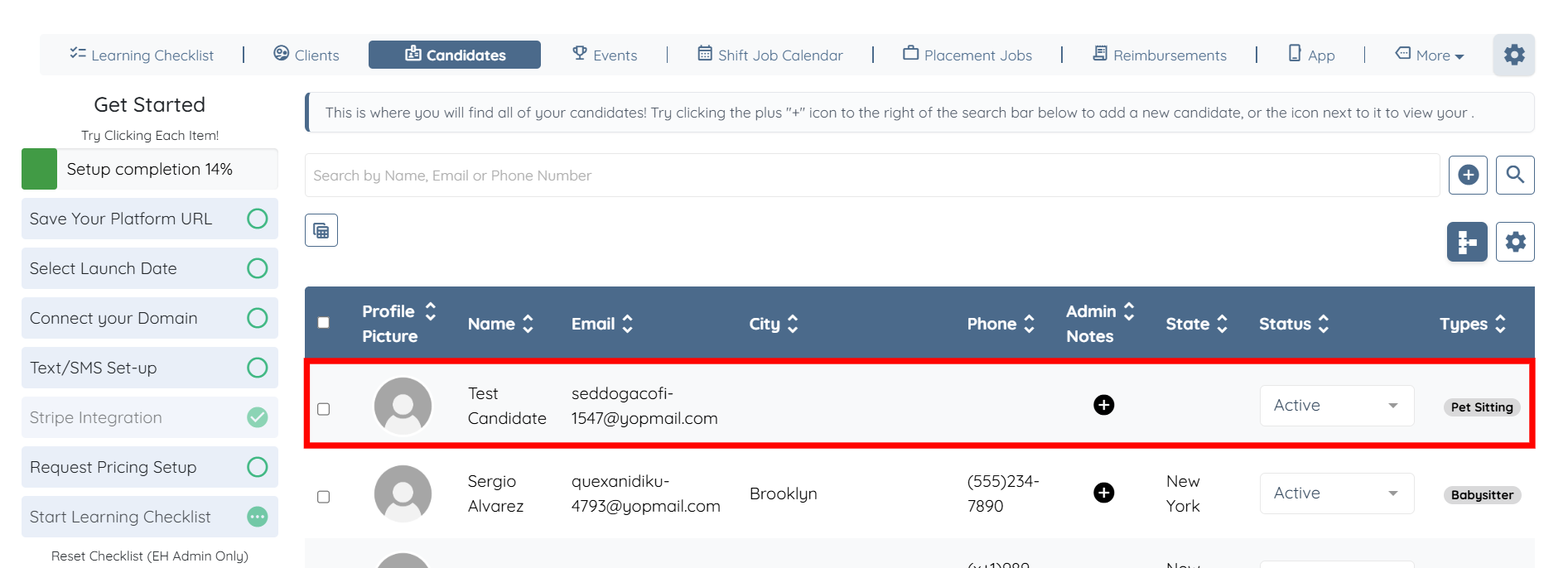
Step 2: Select any of candidate from the list.
Step 3: Click More > Interview as shown in the screenshot below.
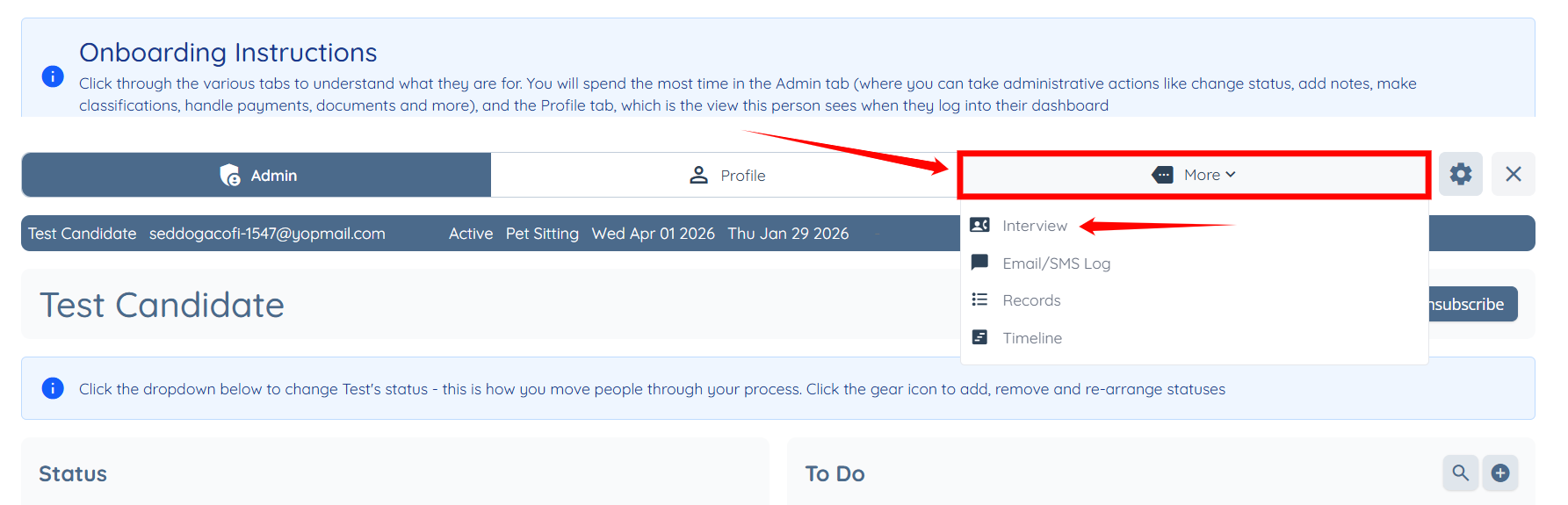
Step 4: Follow Steps 3–5 from the Create Template for Clients section to create an interview template for candidates.
Edit existing templates to update questions or adjust content based on your requirements.
Step 1: Click the Customize Template button.
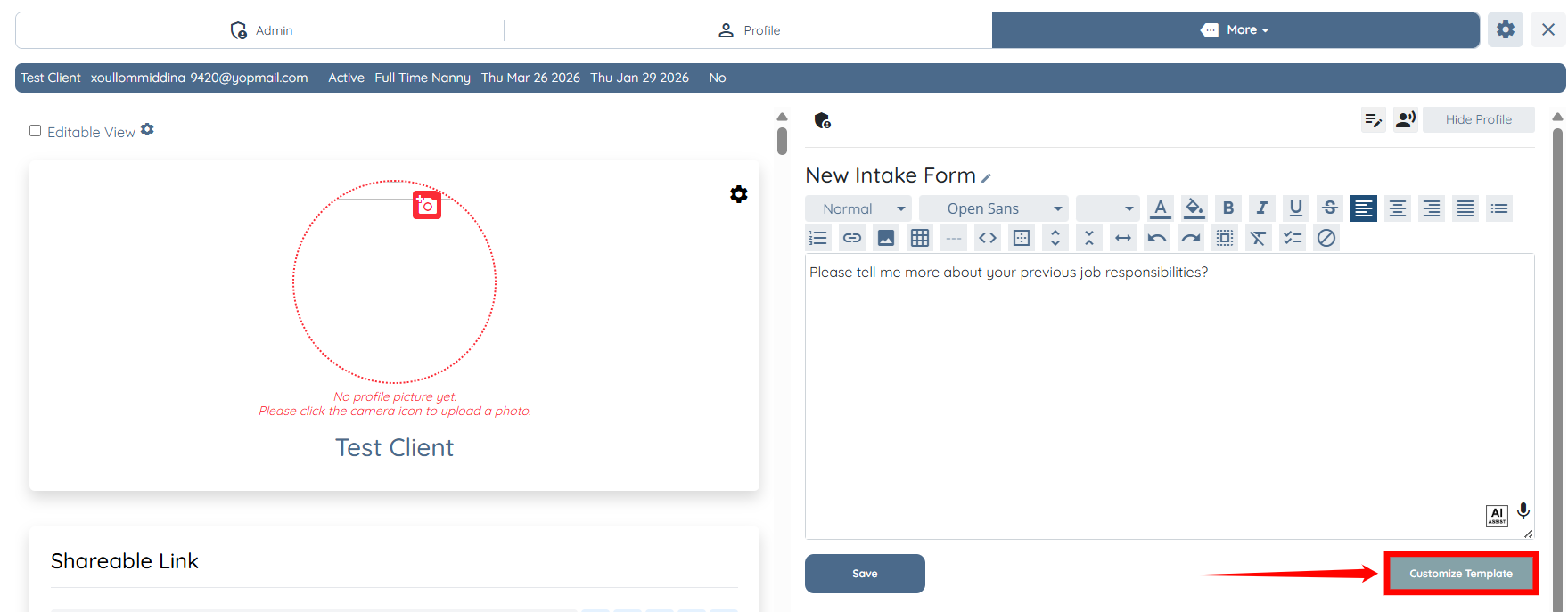
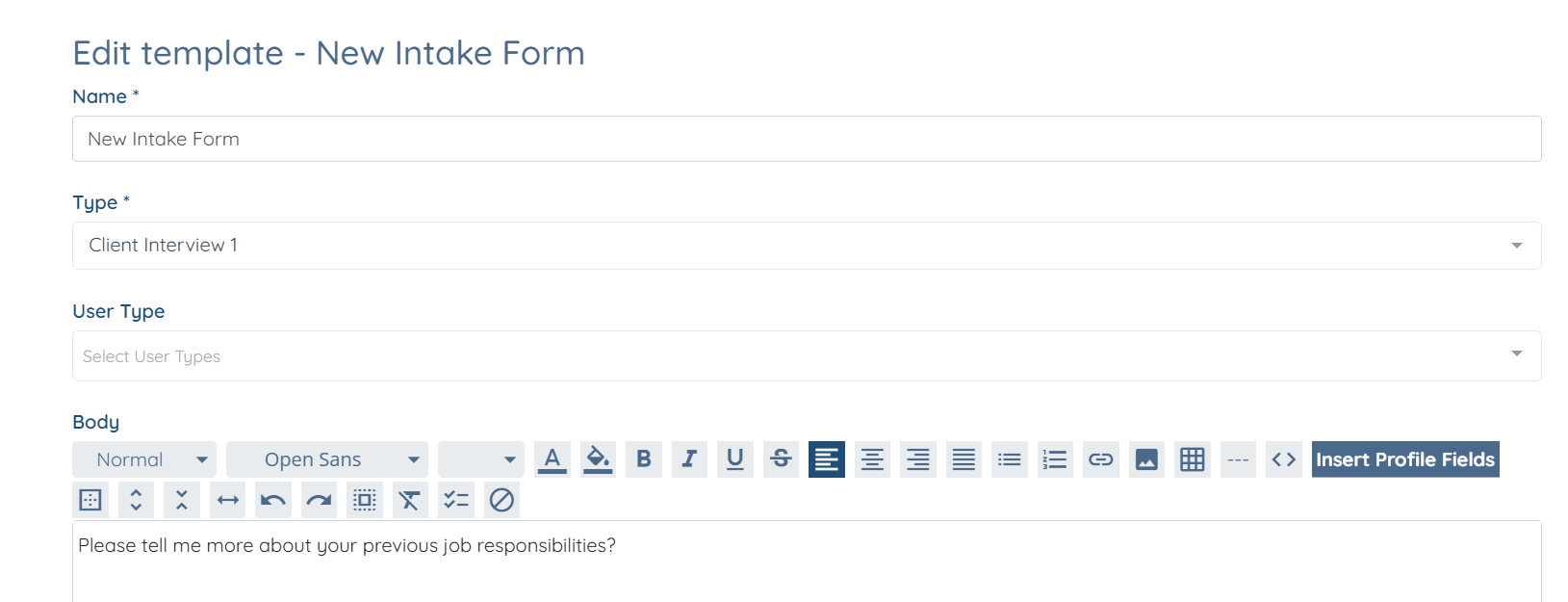
Step 2: Edit the template as required.
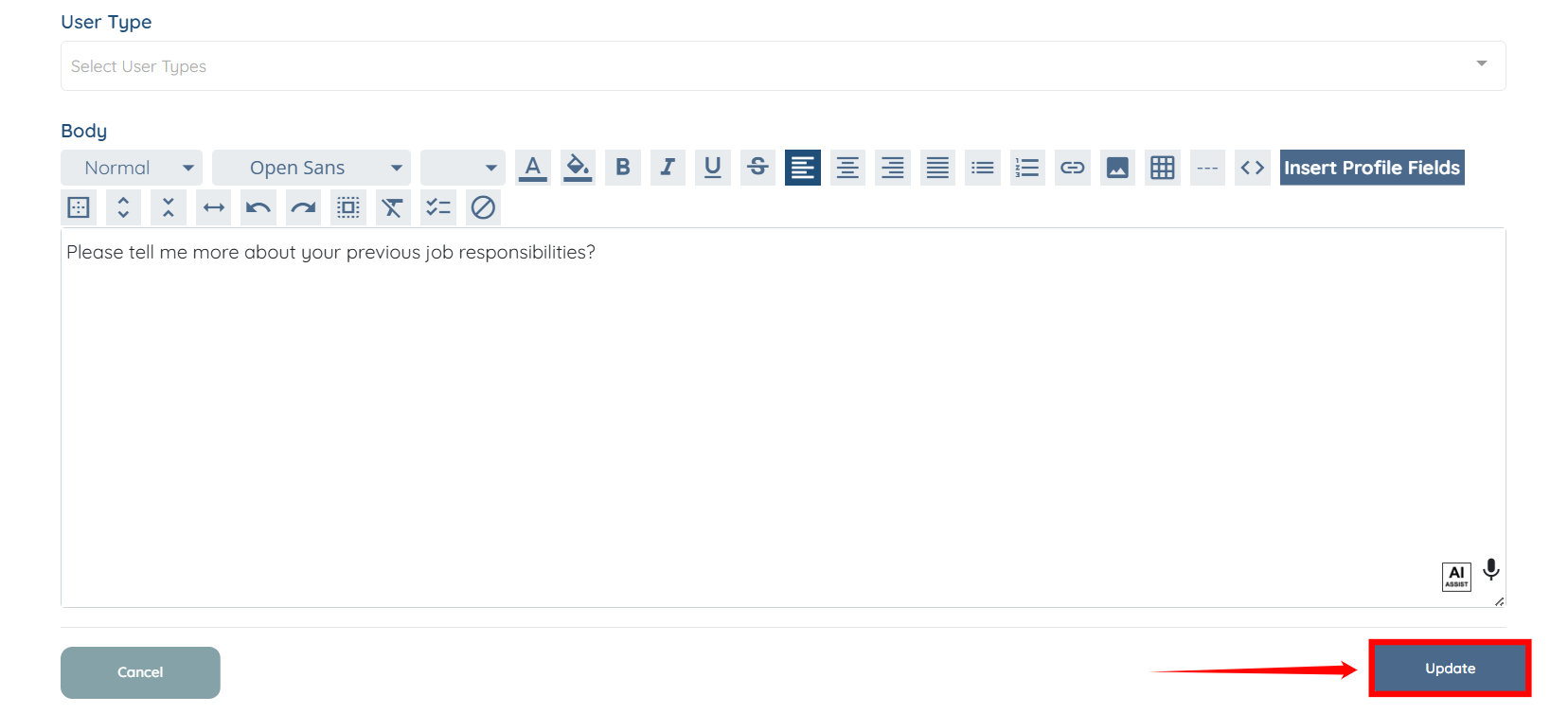
Step 3: Click the Update button to proceed. The template will be updated successfully.
Create templates from a centralized location to manage and reuse note templates for both clients and candidates.
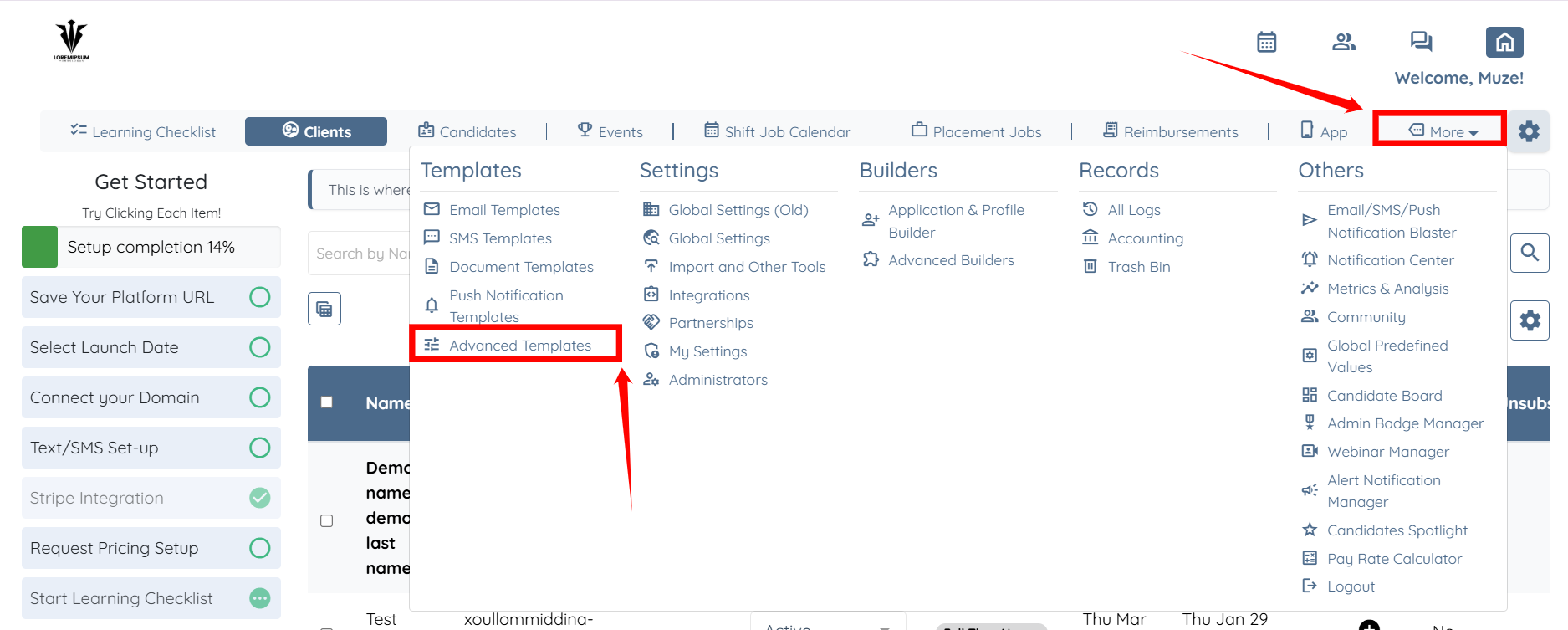
Step 1: On your agent dashboard, click More, then select Advanced Templates.
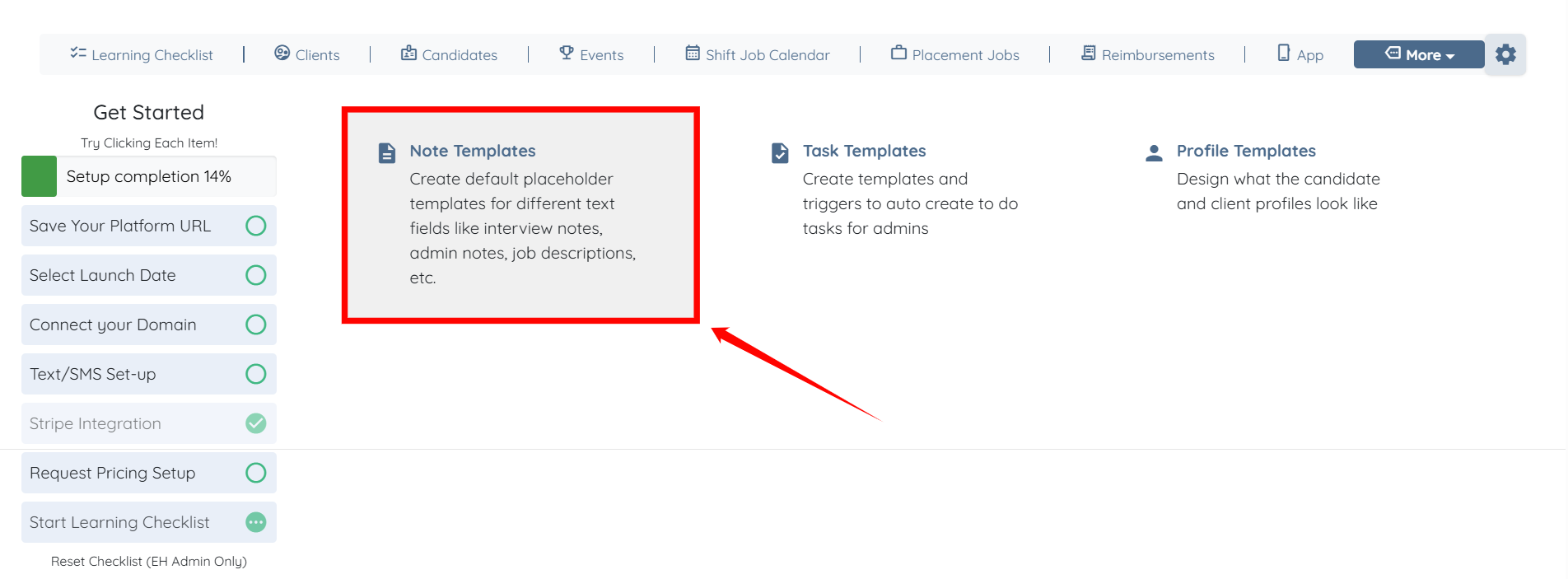
Step 2: Click the Note Templates option.
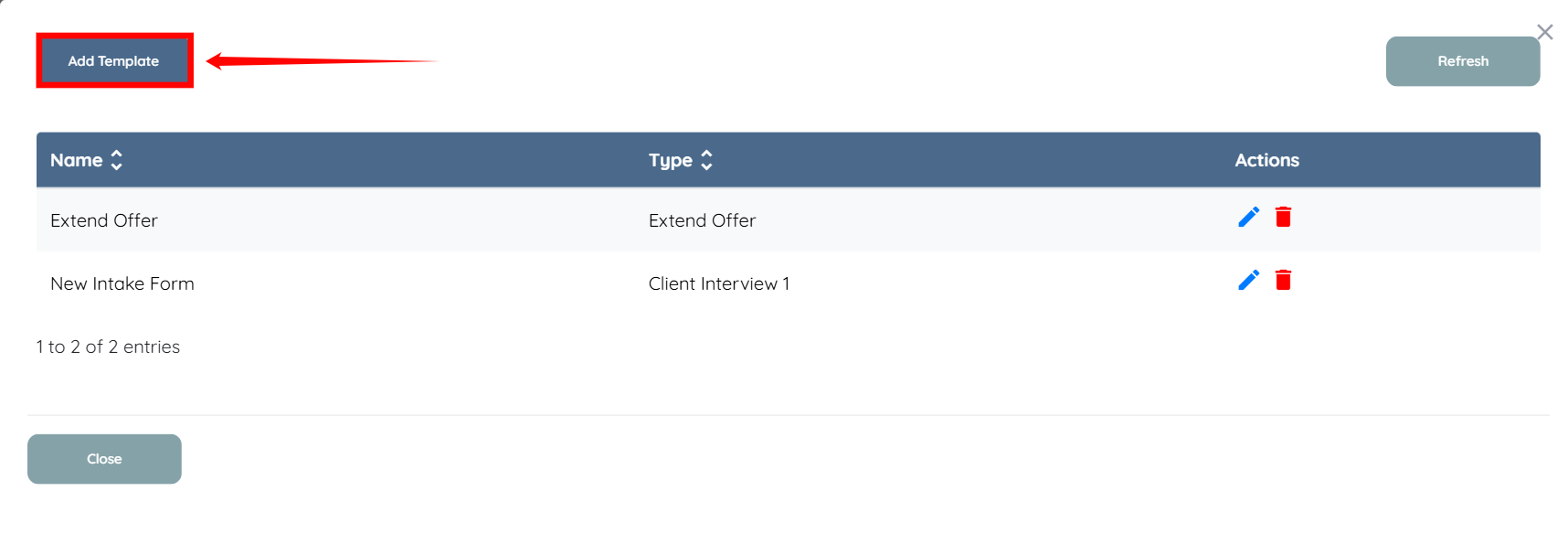
Step 3: Click the Add Template button to begin adding a new template.
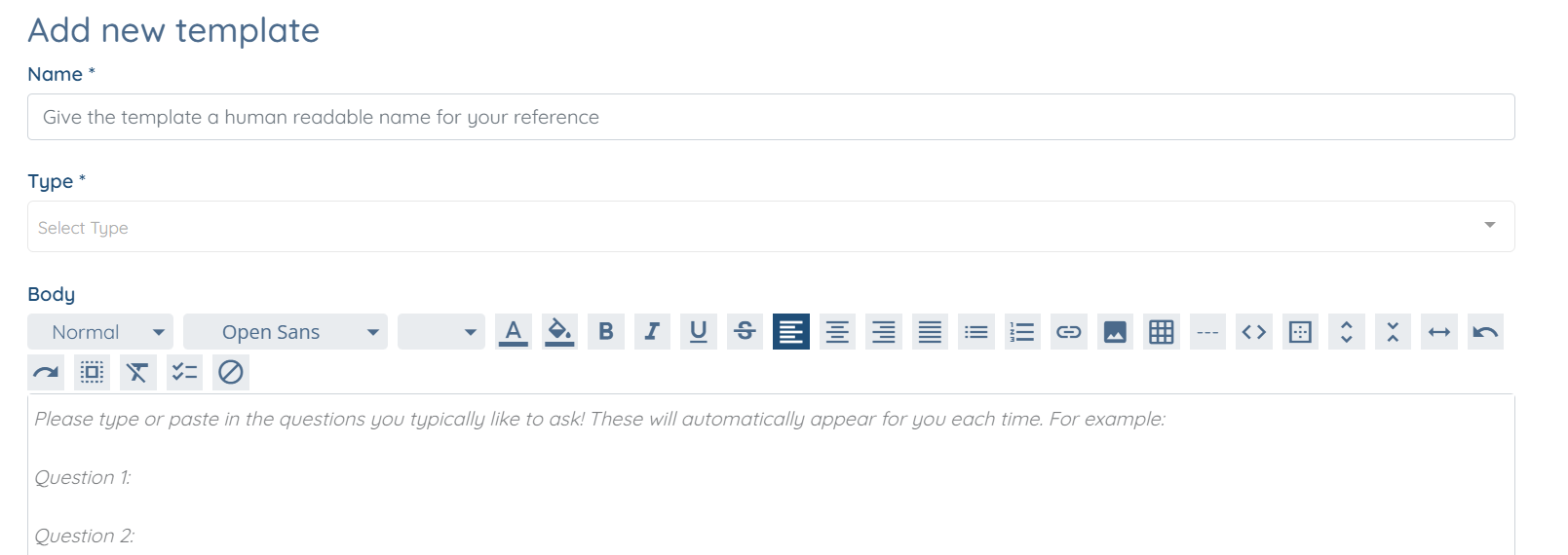
You can now add the template for the client or candidate as required.
If this video doesn't answer your questions you can always contact us by clicking here
