Let’s get started 🚀
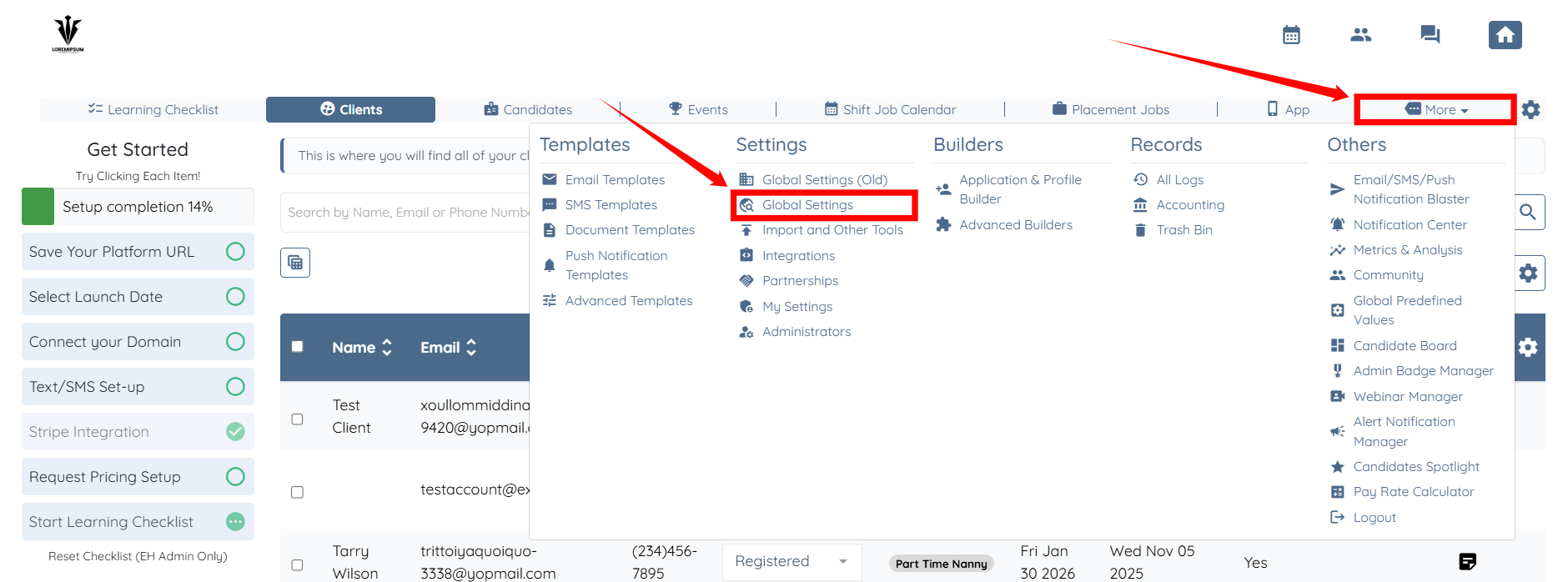
Step 1: From your agent dashboard, click More and then select Global Settings, as shown in the screenshot below.
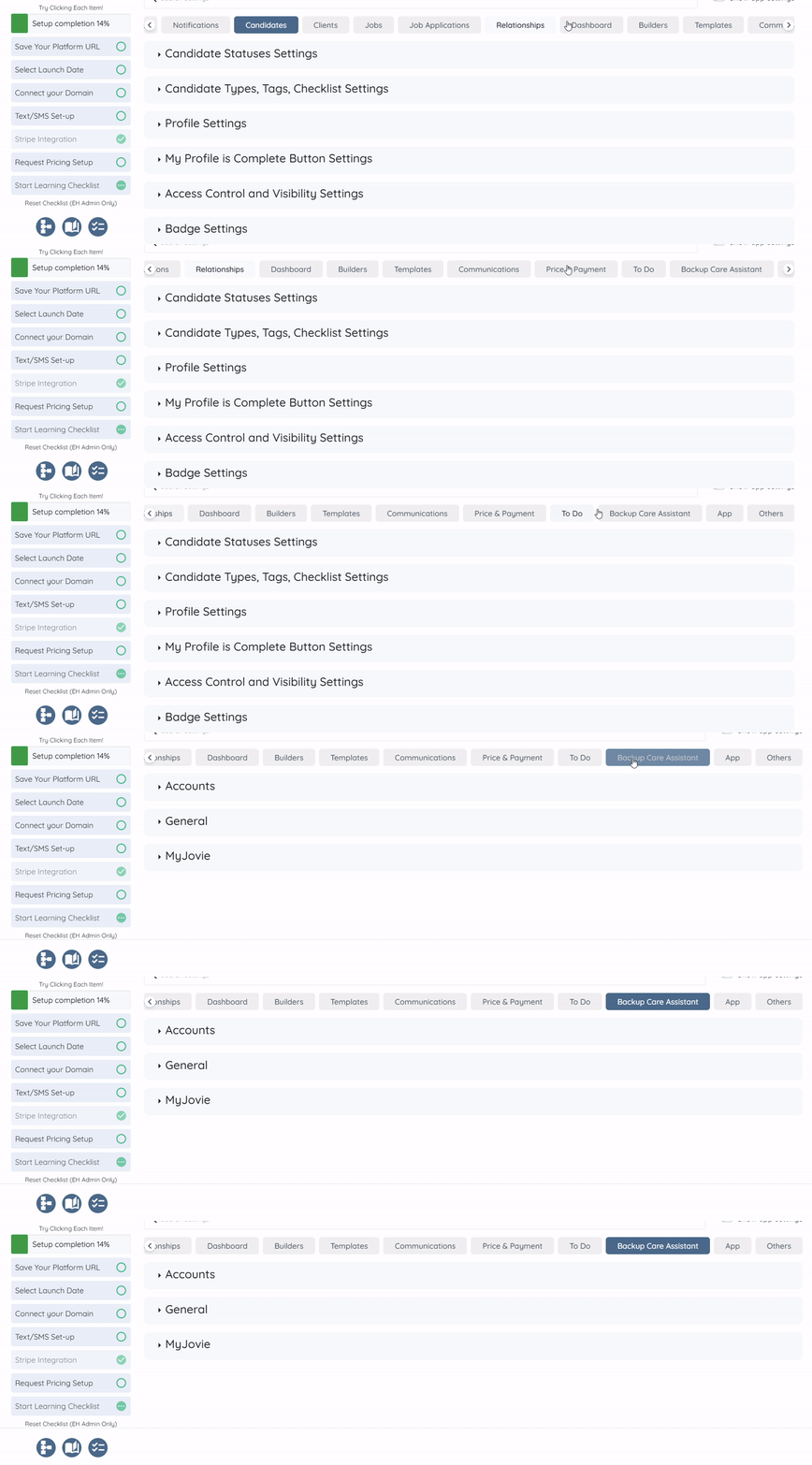
Step 2: Scroll the tabs to the left, and then click the Backup Care Assistant tab.
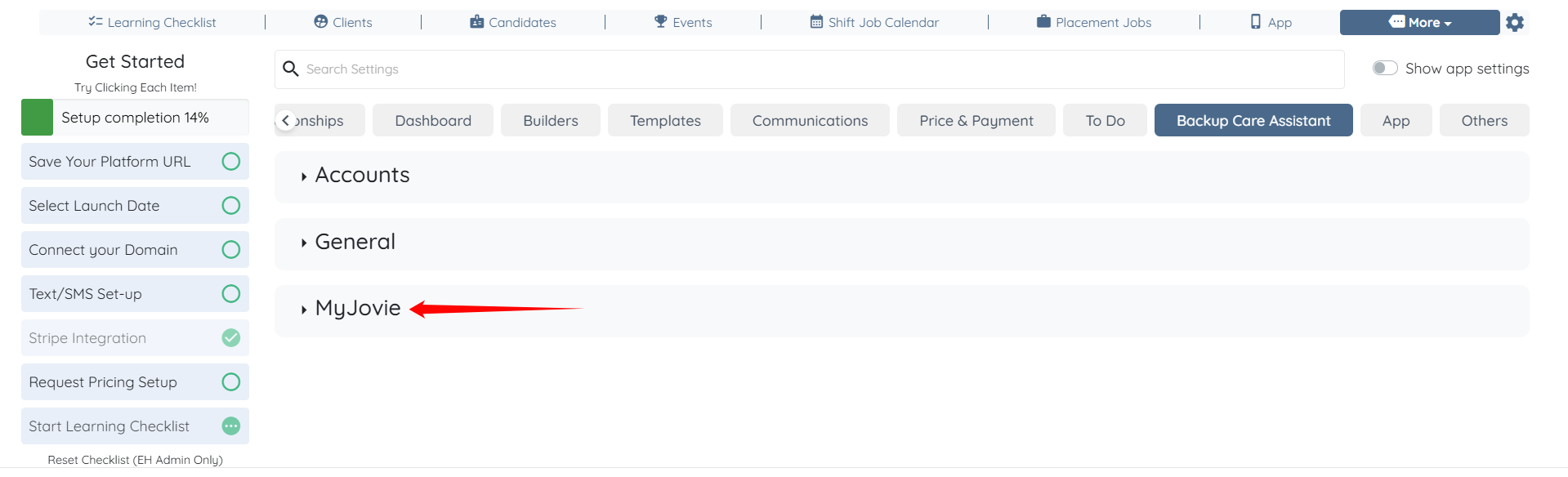
Step 3: Click the MyJovie option to expand it and view its details.
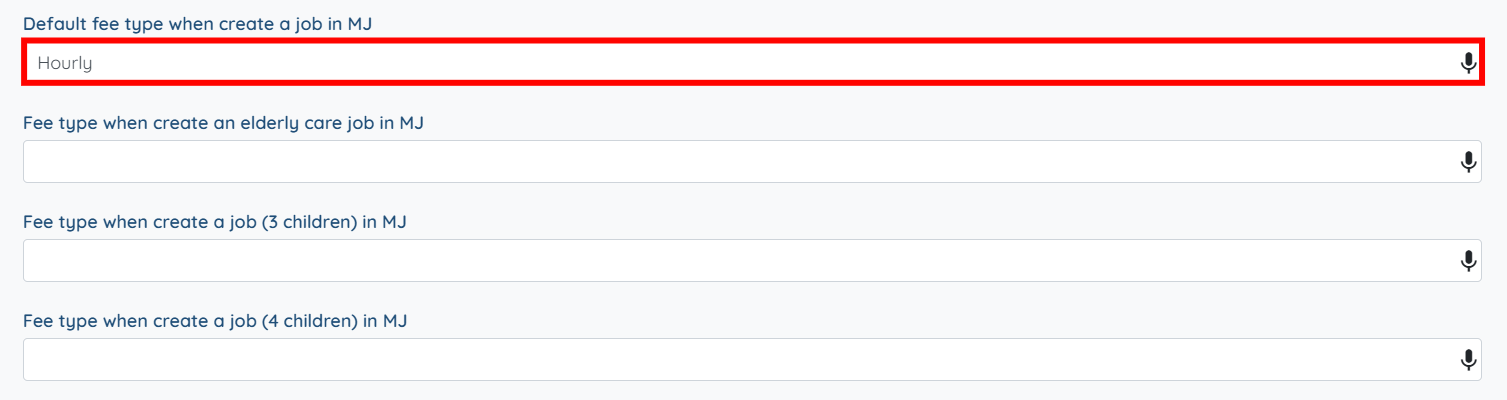
Step 4: Scroll down to the Default fee type when create a job in MJ option, and enter the fee type used in your My Jovie account (for example, Hourly). The system automatically saves these settings.
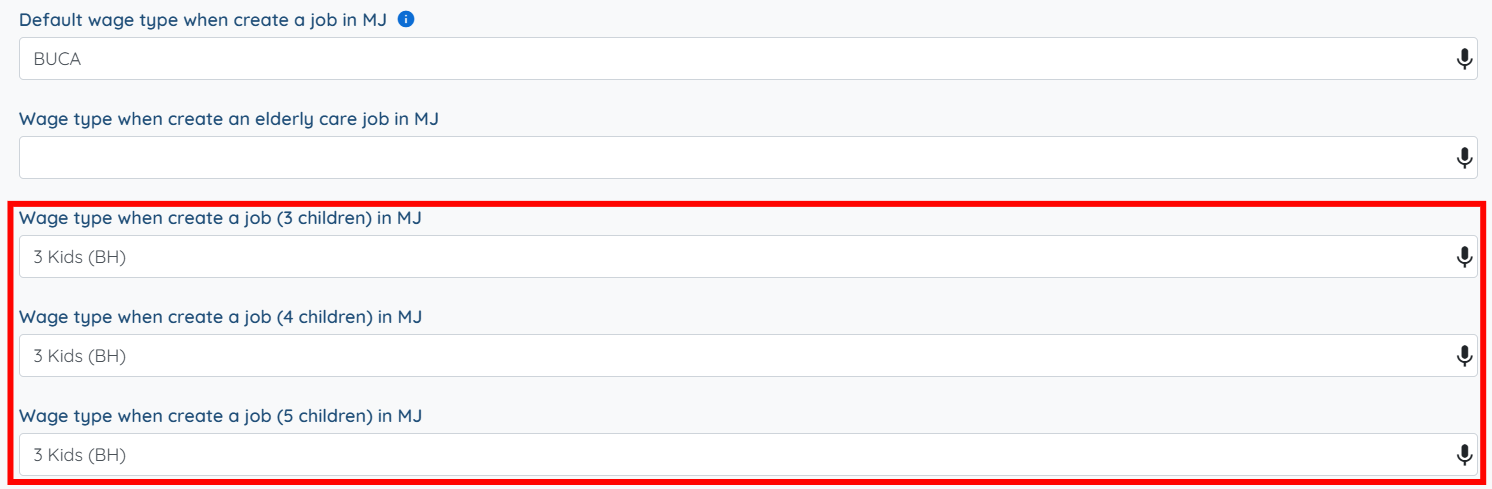
Step 5: Then, for the Default wage type when create a job in MJ option, and enter the wage type used in your My Jovie account (for example, BUCA). The system automatically saves these settings.
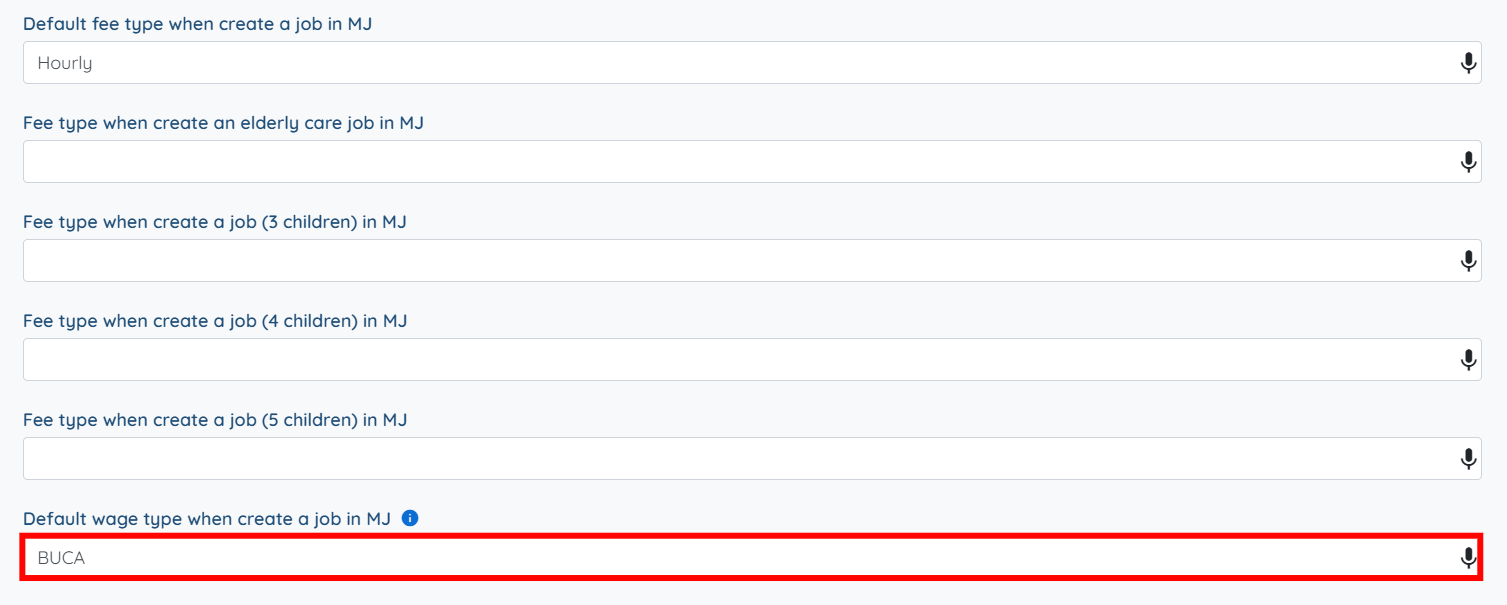
Step 6: If your My Jovie account uses different wage types based on the number of children, enter the appropriate wage names in
Wage type when create a job (3 children) in MJ
Wage type when create a job (4 children) in MJ
Wage type when create a job (5 children) in MJ
The system automatically saves these settings.