
Let’s get started 🚀
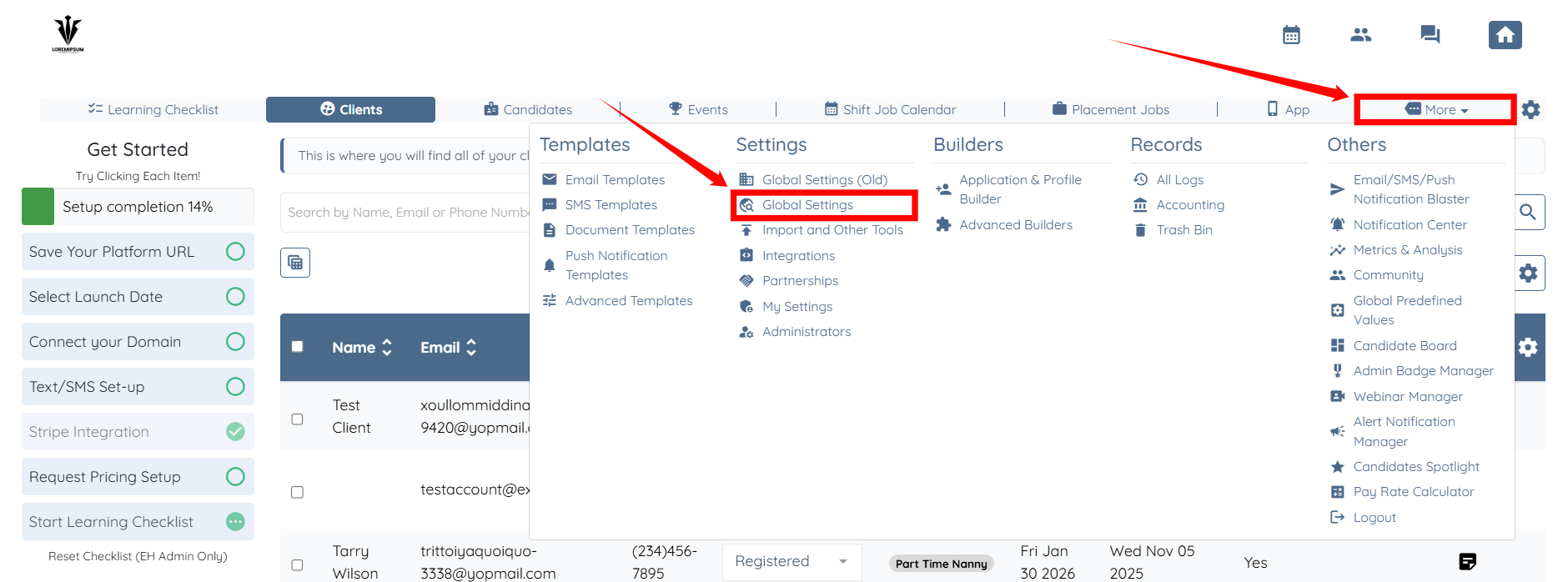
Step 1: From your agent dashboard, click More and then select Global Settings, as shown in the screenshot below.
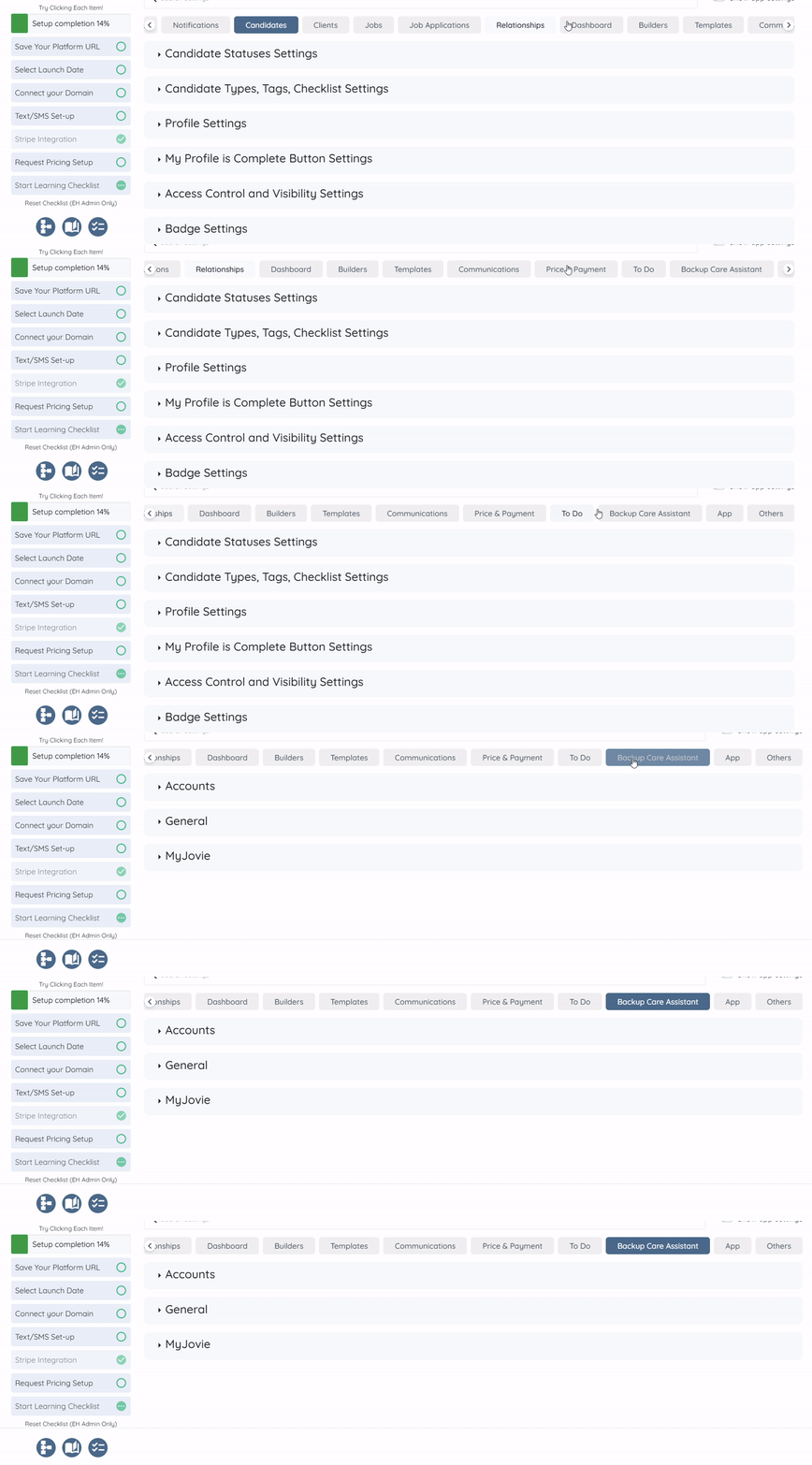
Step 2: Scroll the tabs to the left, and then click the Backup Care Assistant tab.
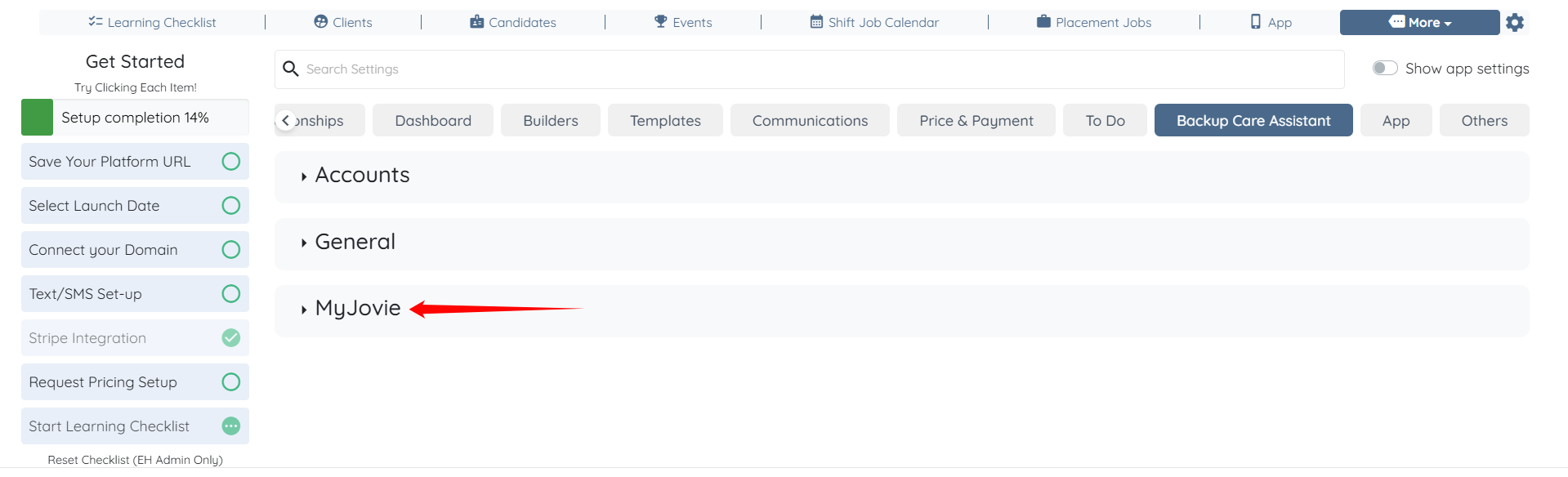
Step 3: Click the MyJovie option to expand it and view its details.
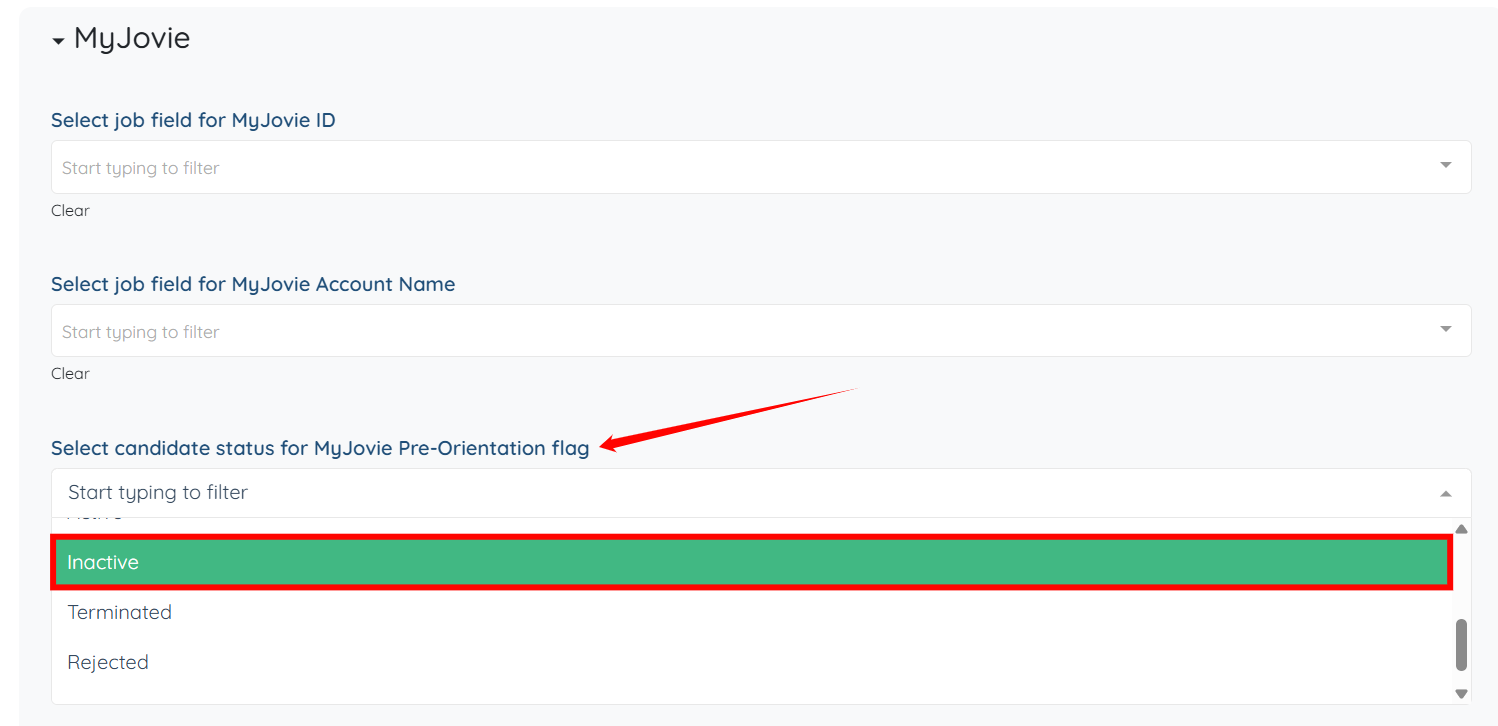
Step 4: Scroll down to the Select candidate status for MyJovie Pre-Orientation flag option, and select Inactive from the dropdown list.
The settings will be saved automatically.
Once configured, candidates with Pre-Orientation set to “Yes” in MyJovie will be automatically set to Inactive in EngineHire and will not be eligible for job assignments.