Let’s get started 🚀
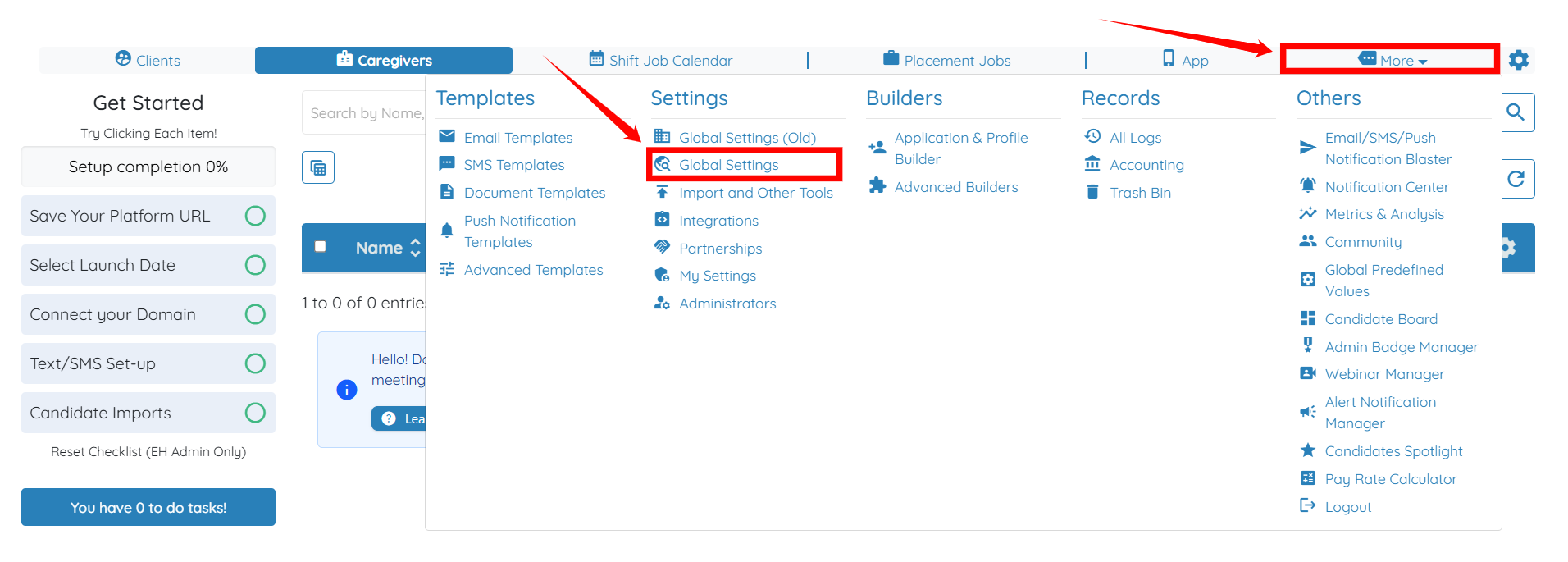
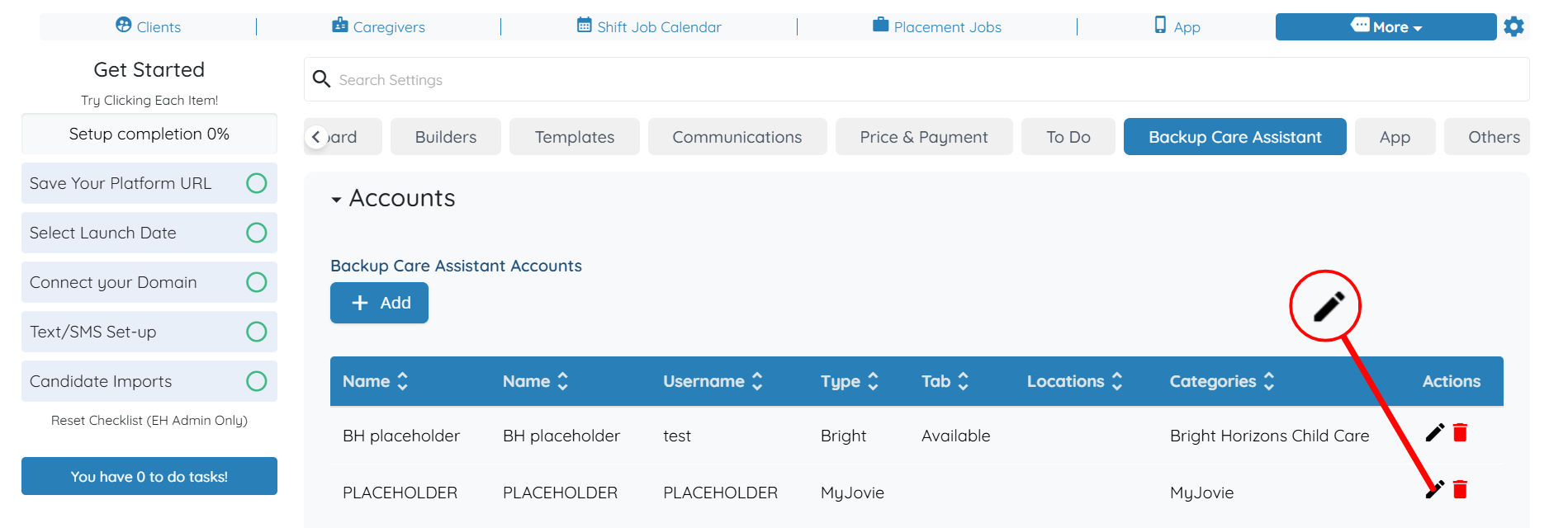
Step 1: Log in to your agent dashboard and click More > Global Settings as shown in the screenshot below.
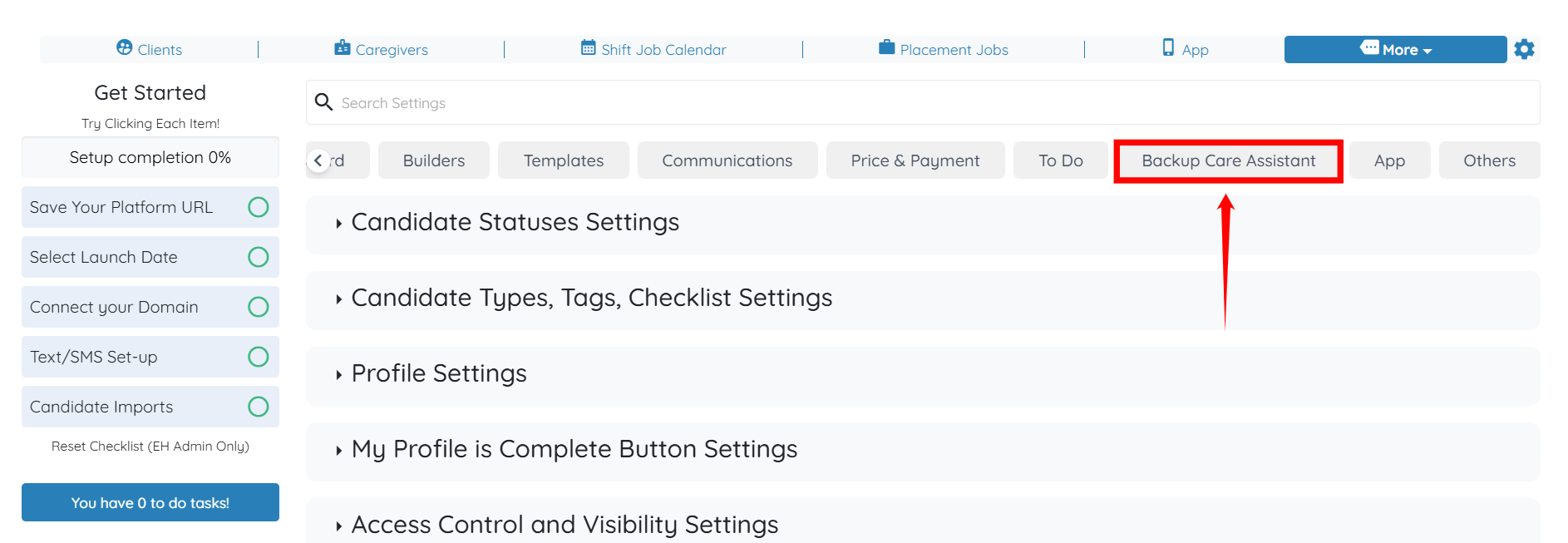
Step 2: From the available tabs, click the Backup Care Assistant tab.
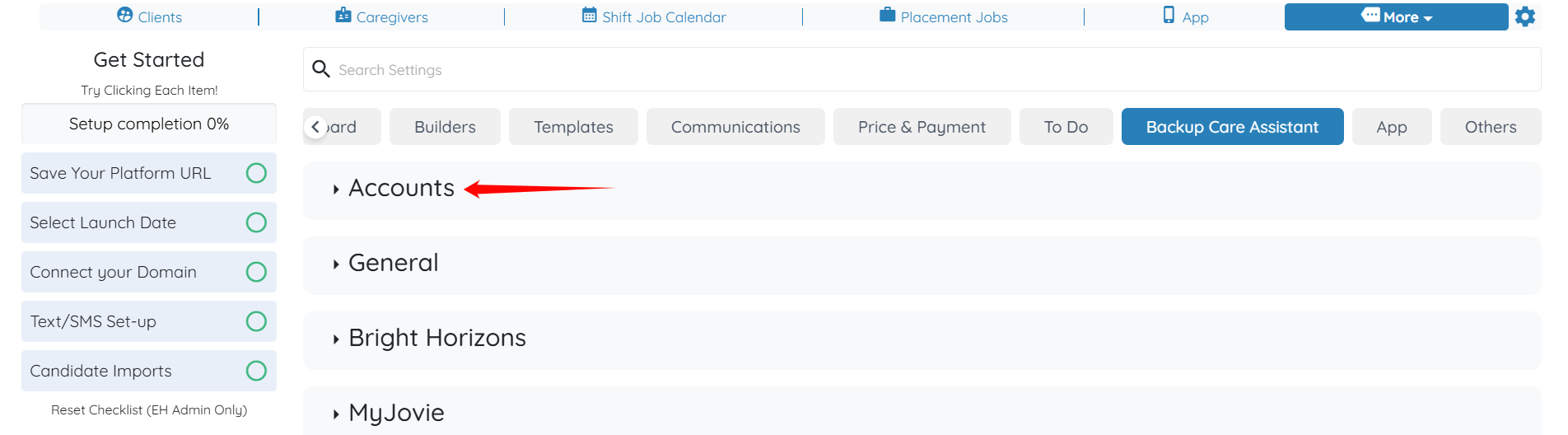
Step 3: Click the Accounts option to view and expand its details.
Step 4: Click the pencil icon of the account type MyJovie.
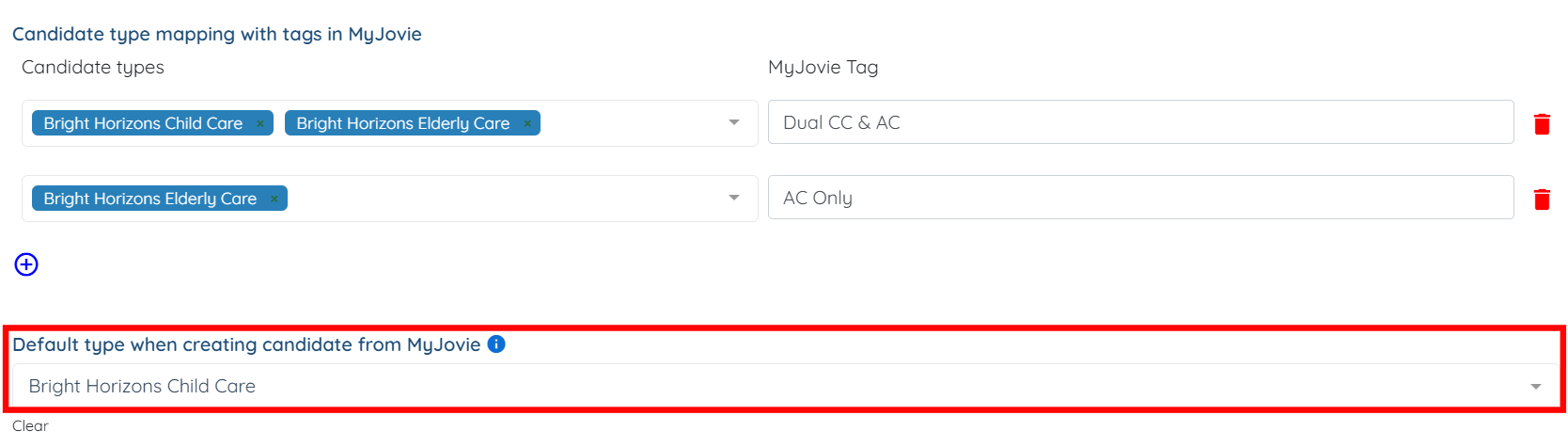
Step 5: Under Candidate type mapping with tags in MyJovie, configure the following:
Select Bright Horizons Child Care and Bright Horizons Elderly Care, then enter Dual CC & AC in the MyJovie Tag field.
Select Bright Horizons Elderly Care, then enter AC Only in the MyJovie Tag field.


Since different agencies may use different tag values, the mapping shown here is an example and should be adjusted accordingly.
Step 6: In the Default type when creating candidate from MyJovie field, select Bright Horizons Child Care.
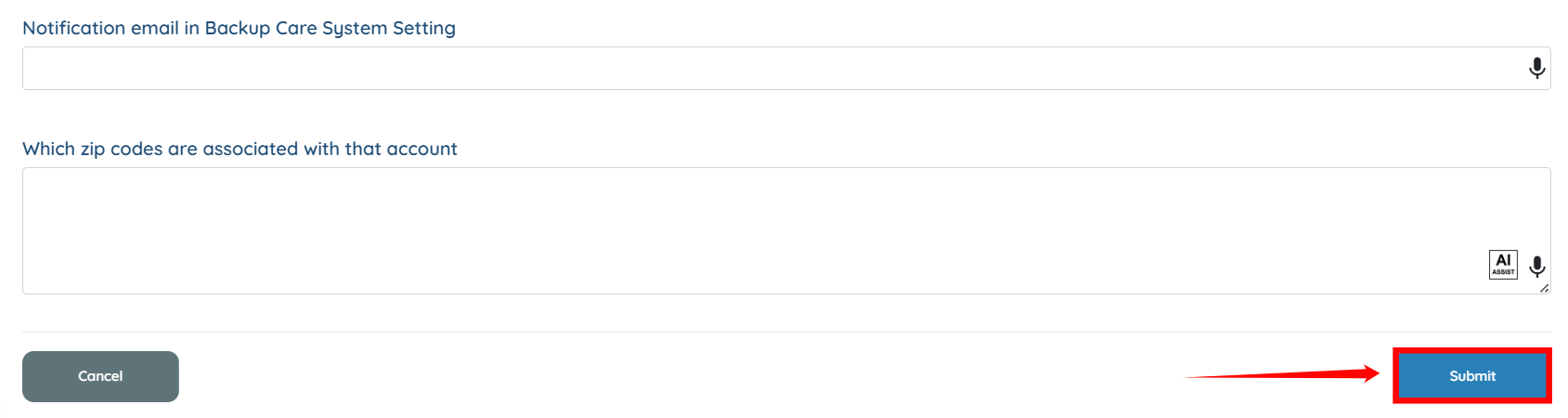
Step 7: Click the Submit button to apply the changes.