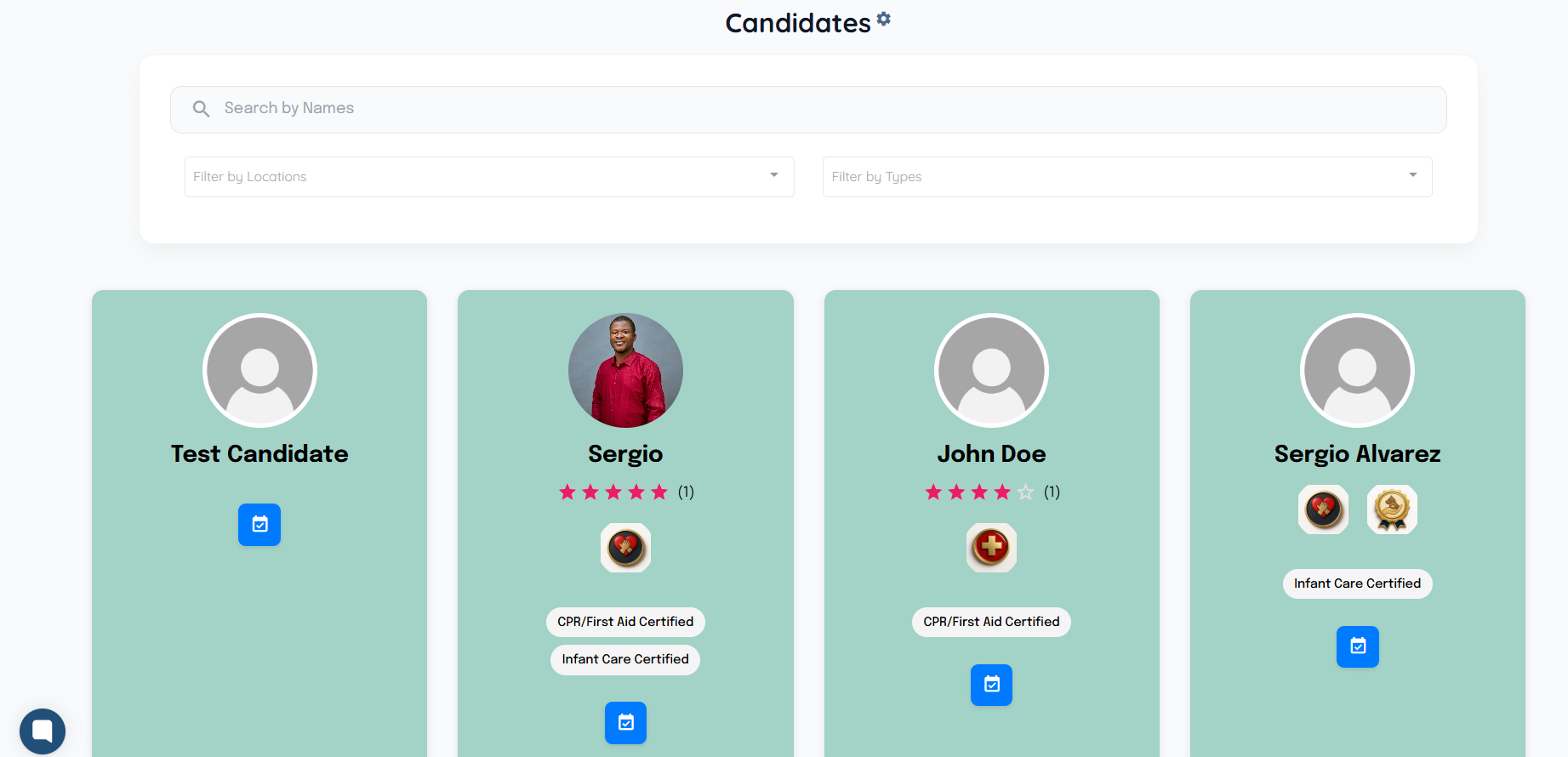
Let’s get started 🚀
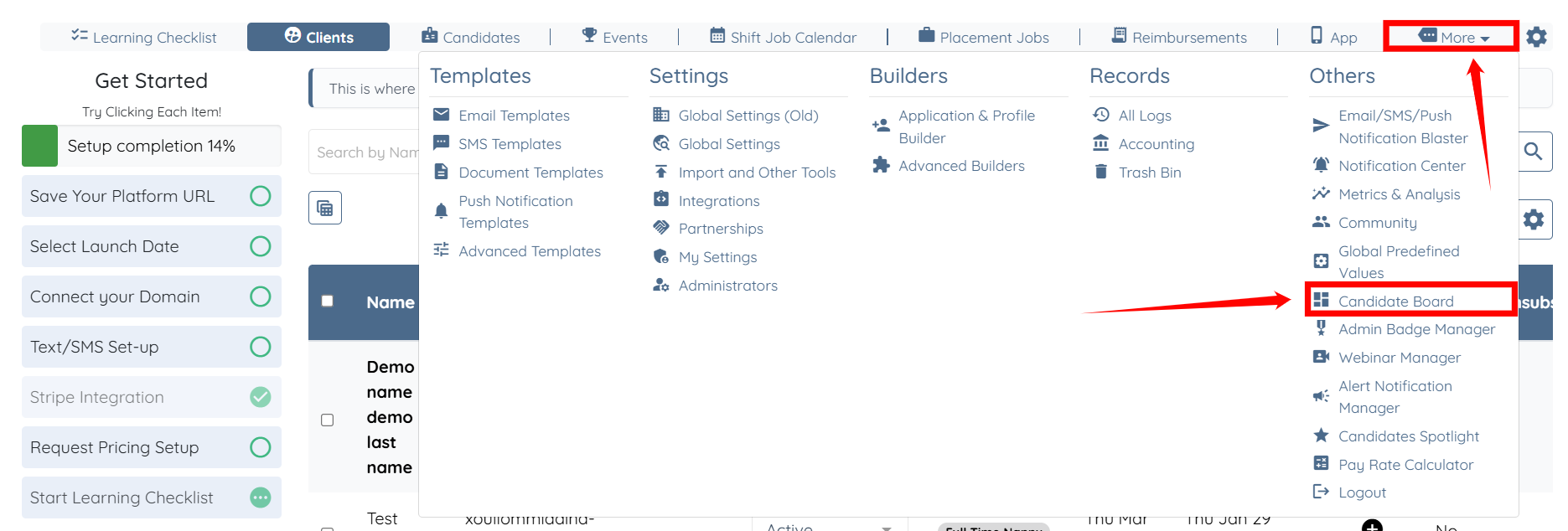
Step 1: Log in to your agent dashboard and click More > Candidate Board, as shown in the screenshot below.
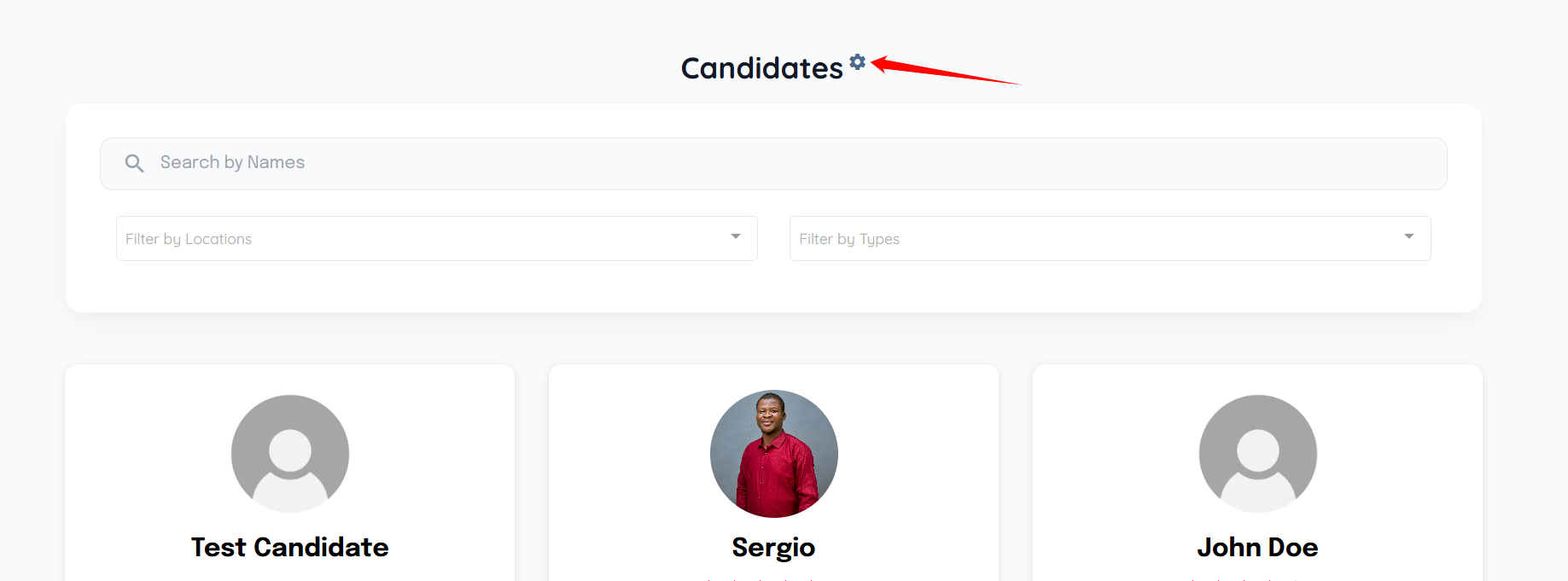
Step 2: Click the Gear icon located next to the Candidates heading.
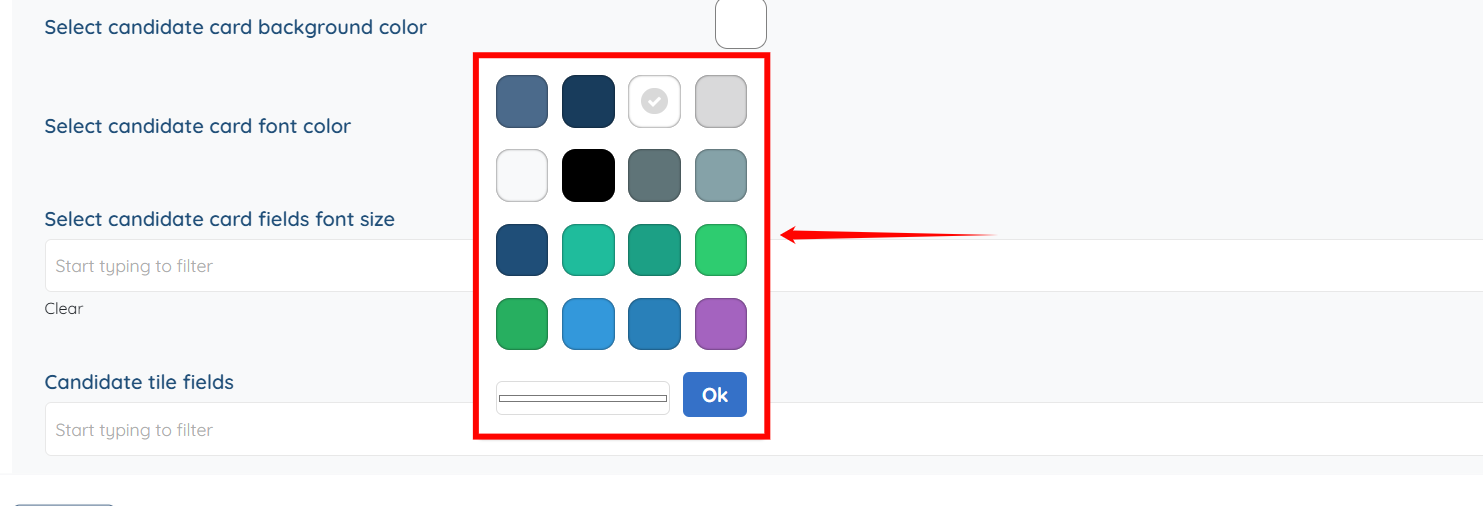
Step 3: Click the color tile next to the Select candidate card background color heading to view the available color options.
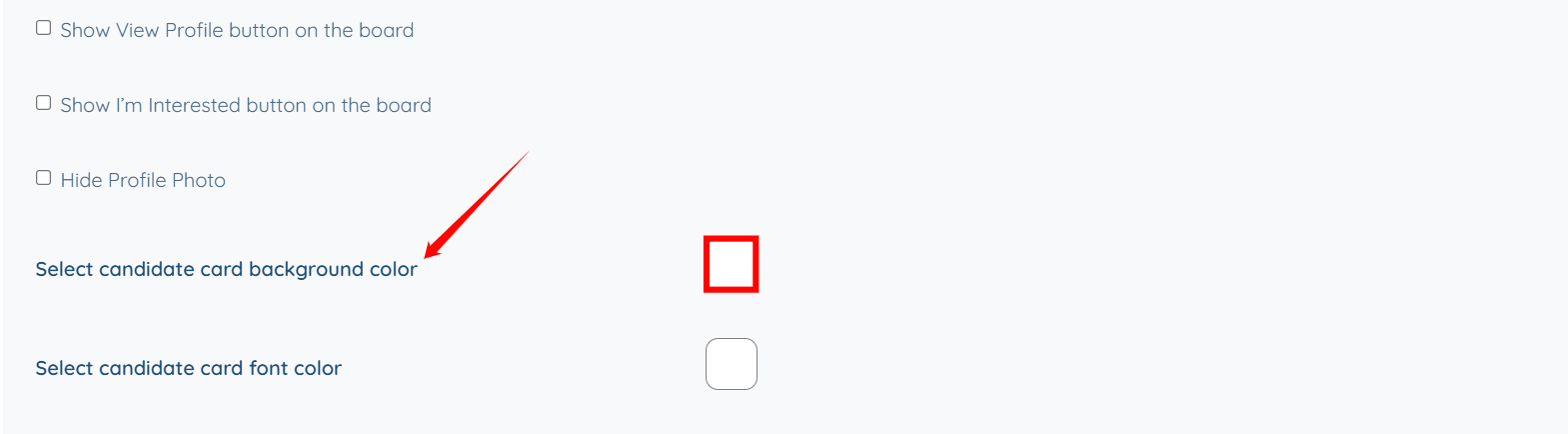
Step 4: Select the color as required. The settings will be saved automatically.
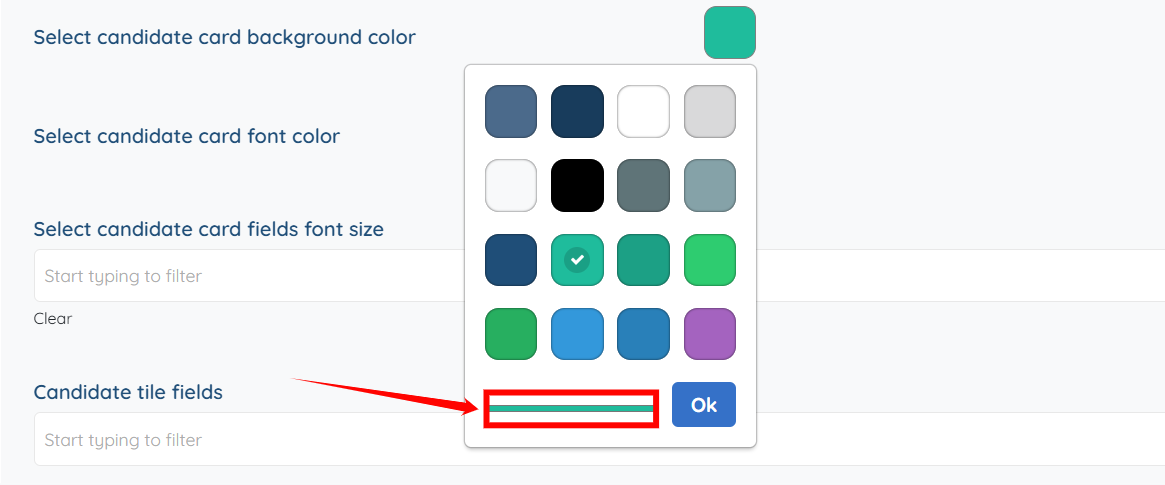
Step 5:(Optional) Click the line shown in the screenshot to customize the selected color as needed.
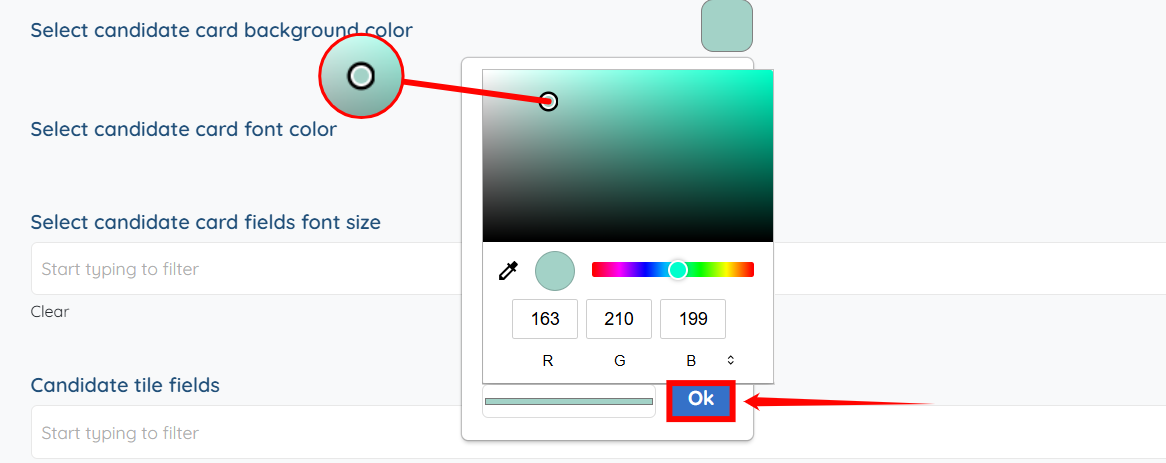
Step 6: (Optional) Drag the pointer to make custom changes as needed. Then, click the OK button to confirm the changes.
Step 7: Similarly, select the font color for the candidate card. The settings are saved automatically.

The selected colors for the candidate card and font will be applied on the candidate board.